

Run SQL
1
Open SQL Editor
Click “SQL Editor” and enter a query. To check the connection, run:Use the table directory to find your table and column names. For larger tables, add
LIMIT 100 to keep results manageable.2
Run Your Query or Script
Click “Run all” to execute the editor contents, or select complete statements and click “Run selection”.Separate statements with semicolons. If you use a transaction, include
BEGIN and its matching COMMIT or ROLLBACK in the same run; you cannot leave a transaction open between clicks.3
Check the Result
Review the result or error below the editor. Run queries separately when you need to inspect each result in a multi-statement script.After a timeout or lost response, check the affected data before retrying a write—it may already have completed.
public. It does not expose every PostgreSQL command, such as creating arbitrary database functions or administering the database server. Protected objects may have additional restrictions.
Change Permissions
1
Select an Object
Click “Permissions”, choose an “Object category”, and open the table or other object you want to manage.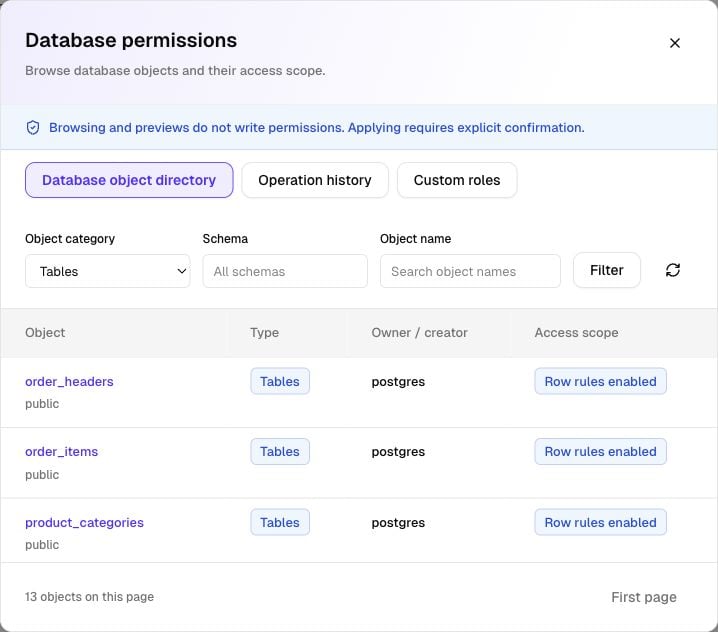
2
Choose the Role and Access
Select the recipient role and the permissions to grant or revoke. For a table, choose “Table grants” or “Column grants” under “Permission scope”.
Granting access to
authenticated does not limit users to their own records. Use row-level security for that restriction.3
Preview and Apply
Click “Preview differences” and review the object, role, “Before” / “After” values, and warnings. As the Owner, select the confirmation checkbox and click “Confirm and apply”.If permissions changed after your preview, read the latest permissions and prepare a new preview.
4
Verify Website Access
Use “Read latest permissions”, then test the affected website action as the intended signed-in or signed-out user. Database permission changes take effect without republishing the website.If the submission result is uncertain, use “Query original operation” to check it before submitting again.
A revoked direct grant may still be allowed through
PUBLIC, a broader table grant, or another permission source. Check “Effective privileges” as well as “Direct grants”. Schema access and row rules can still restrict access.What other permissions can I manage?
What other permissions can I manage?
- Sequences: control access to generated IDs; an insert may need sequence access in addition to table access.
- Functions: allow or revoke execution of an existing PostgreSQL function. Select the exact argument signature when names repeat. These are separate from Backend Functions.
- Schemas: allow object lookup; this does not grant access to the tables inside.
- New object defaults: set grants for future objects created by the selected creator. Existing objects are unchanged.
How do I create a custom database role?
How do I create a custom database role?
As the Owner, open “Permissions” → “Custom roles” → “Create role”. Enter a name starting with a letter, using up to 48 lowercase letters, numbers, or underscores. Add an optional description, select the confirmation checkbox, and submit.Then select that role in an object’s permission editor to grant access. Creating a role does not create a login or automatically assign it to website users. For normal signed-in user access, use
authenticated and row policies.To delete a custom role, first resolve the grants and dependencies shown in “Custom roles”.Limit Users to Their Own Rows
Row-level security (RLS) controls which records a website user can read or change. For user-specific rules, first set up Authentication and ensure your table stores the owner’s user ID.1
Open the Row Policy Draft
Open your table in “Permissions” and select “Row policy draft” under “Permission scope”. Choose “Create policy”, enter a name, and select the command and recipient role.For example, to let signed-in users read their own records, choose
SELECT and authenticated.2
Define the Row Rule
Choose a policy mode. Permissive policies allow access when any permissive policy matches. Restrictive policies add a condition that must also match; a permissive policy must still allow access.For the read-own-records example, choose “Current user owns the row” under “Visible rows (USING)” and select the column containing the user’s ID.For inserts or updates, also complete “Written rows (WITH CHECK)” when shown. You can use a related membership table for shared records, or combine supported rules with “All rules must match” or “Any rule may match”.
3
Apply and Test the Rule
Preview the differences, then confirm and apply as the Owner. Check that RLS is enabled on the table and that the role has the required table permissions.Test through your website with two signed-in users and a signed-out visitor. Confirm both the actions that should work and those that should be denied.
Restore a Permission Change
1
Find the Operation
Open “Permissions” → “Operation history” and click “Review restoration” on a supported operation.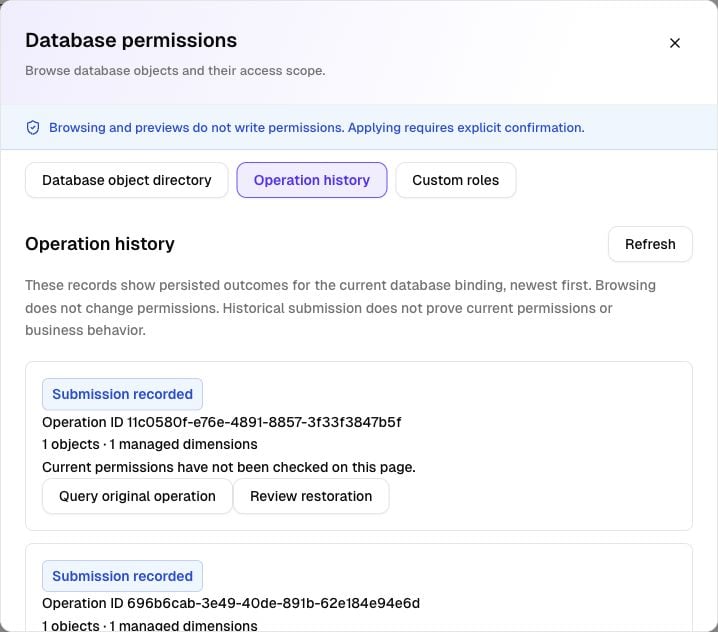
2
Review What Will Be Restored
Select the permission settings to restore, then click “Prepare restoration preview”. Review the current and proposed values.If later changes conflict with the operation, restoration is blocked. Review current permissions and prepare a new change instead.
3
Confirm the Restoration
As the Owner, select the confirmation checkbox and click “Confirm and apply”. Check the result and test website access again.
Troubleshooting
Why is Confirm and apply disabled?
Why is Confirm and apply disabled?
Only the Owner can apply changes. Check the confirmation checkbox and any displayed warnings. If the preview is outdated, read the latest permissions and prepare a new one.
Why does my website still show permission denied?
Why does my website still show permission denied?
Check the actual request role, “Effective privileges”, and the table’s row policies. For inserts, also check generated-ID sequence access and the policy’s “Written rows (WITH CHECK)” rule.
Why can't I edit an existing row policy?
Why can't I edit an existing row policy?
Complex policies or policies modified outside the supported visual builder may be read-only. The builder cannot edit every SQL policy expression.