

- Control link preview cards: Decide which image, title, and description appear when your site is shared
- Keep your brand consistent: Make shared link previews match your website and brand
- Preview the result in real time: See how your card may look on Facebook, X, and LinkedIn
- Automatically sync Twitter Card data: Readdy updates the related X / Twitter share card settings for you
OG settings are currently configured at the project level. This means one website uses one set of OG preview settings, and page-specific OG settings are not supported yet.
What Is an OG Preview?
OG (Open Graph) is a standard used to control how a webpage appears when it is shared on social platforms. When you send a link to Facebook, X, LinkedIn, WeChat, Slack, and similar platforms, the platform reads the page metadata and generates a share card with an image, a title, and a description. In this guide:- OG Preview Image is the main image shown on the card
- OG Title is the card title
- OG Description is the card description
How to Set It Up
1
Open Project Settings
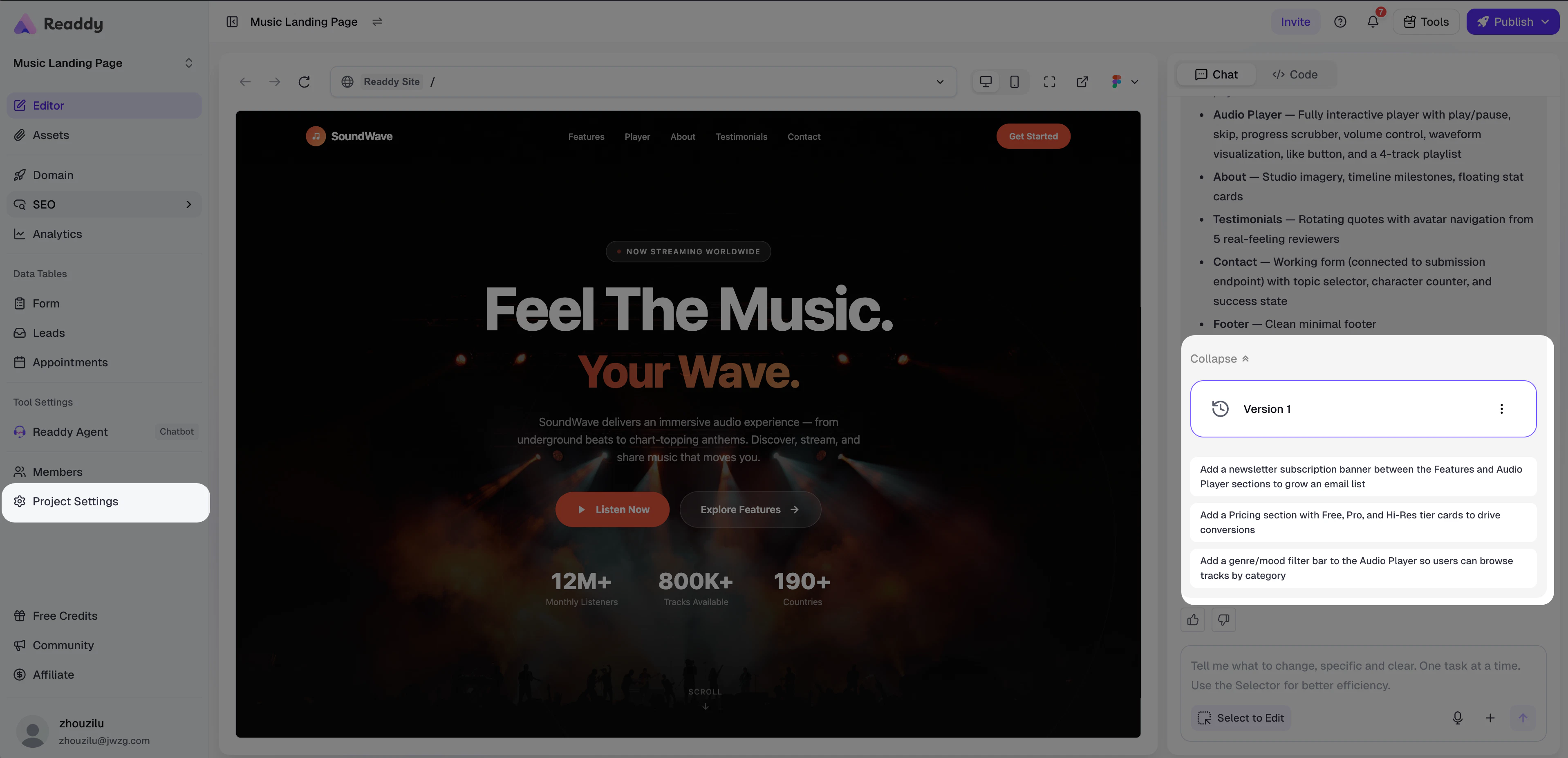
First, make sure your project has generated at least one version. Then open Project Settings and find the OG Preview section.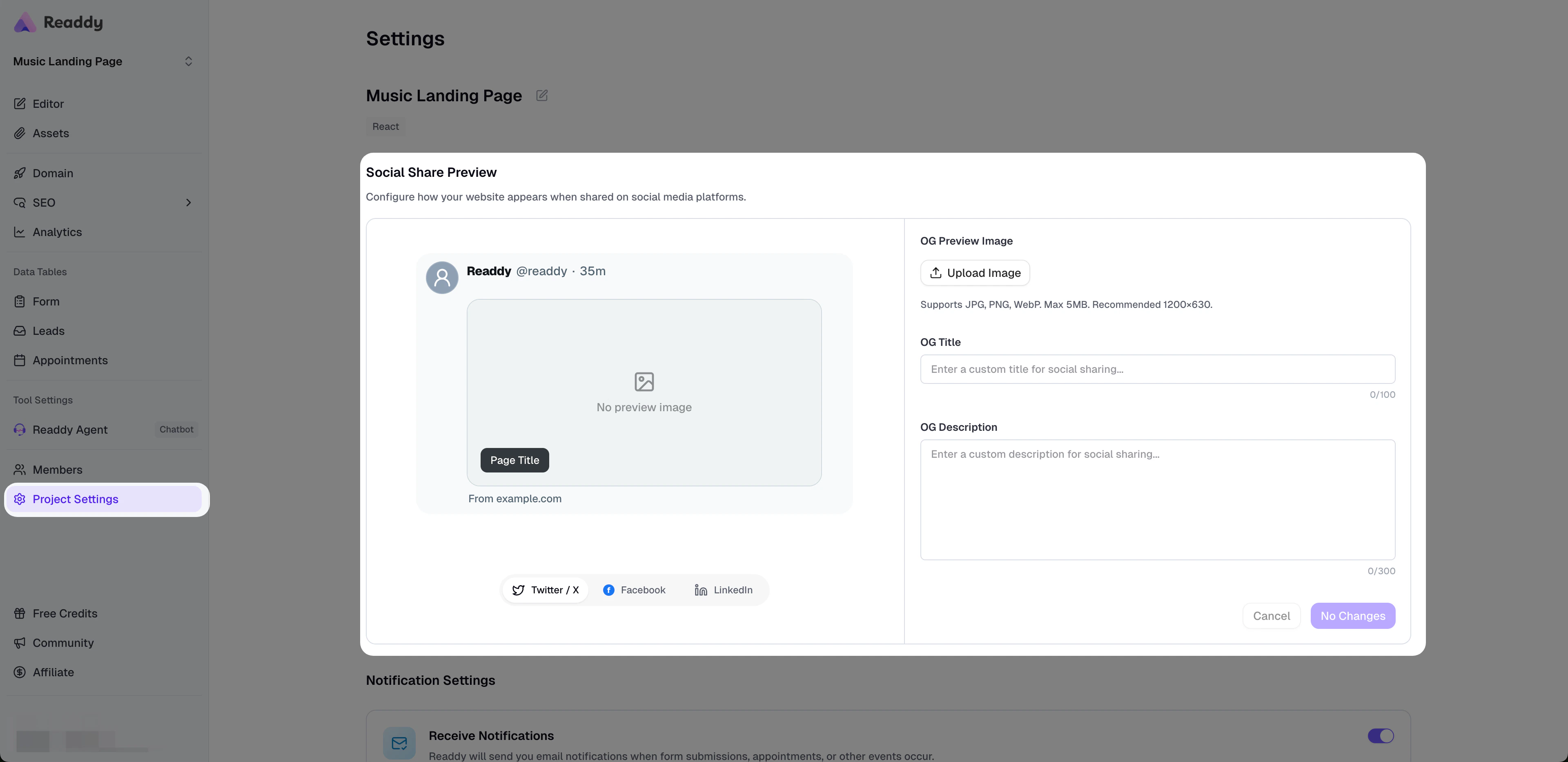
2
Upload an OG Preview Image
Click the upload area to select an image. Current requirements: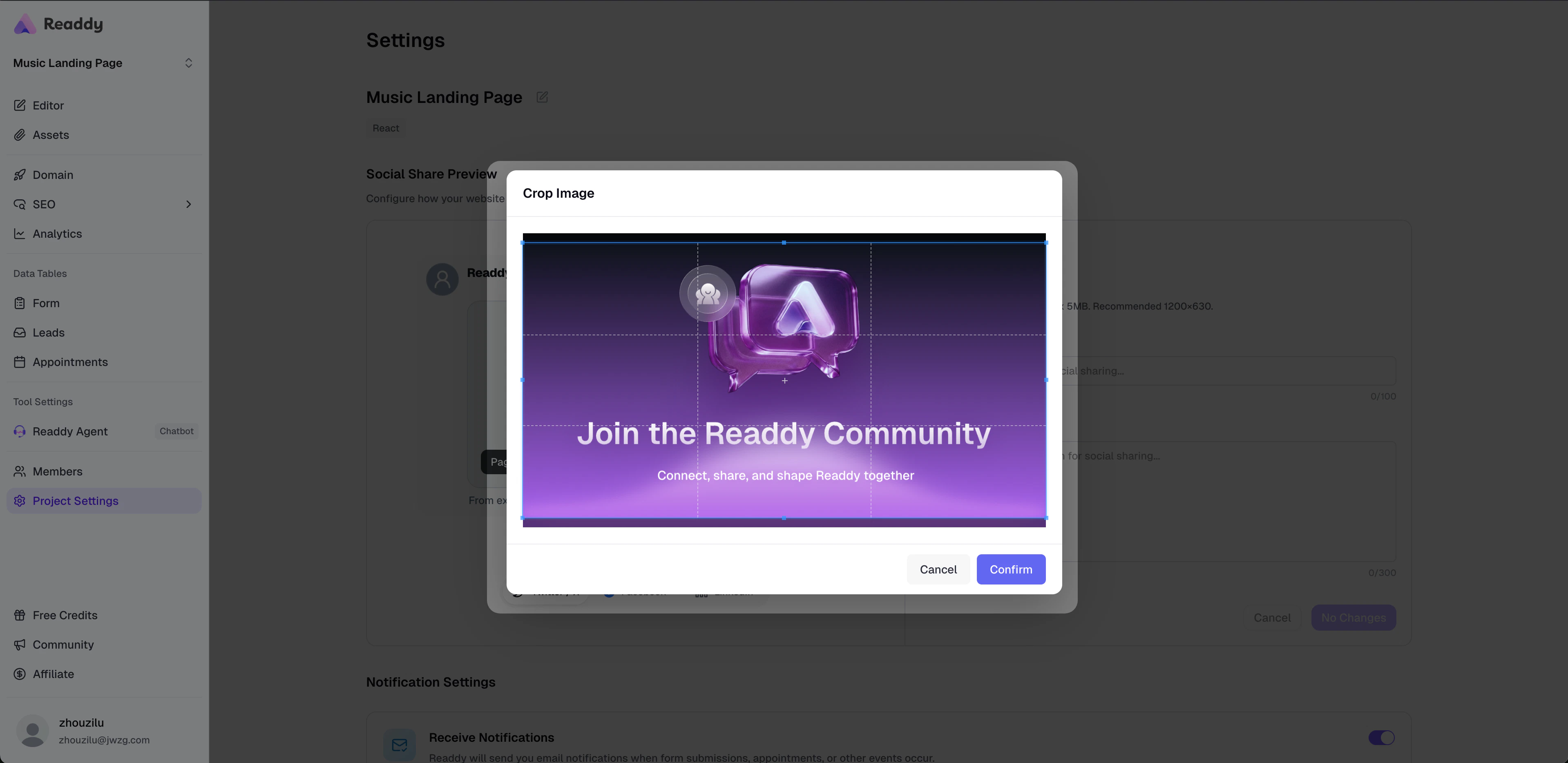
- Formats:
JPG,PNG,WebP - Max size: 5 MB
- Recommended size: 1200 × 630
3
Edit the Title and Description
Fill in OG Title and OG Description for your share card.
- OG Title: recommended within 60 characters
- OG Description: recommended within 155 characters
title and description.4
Preview the Social Card
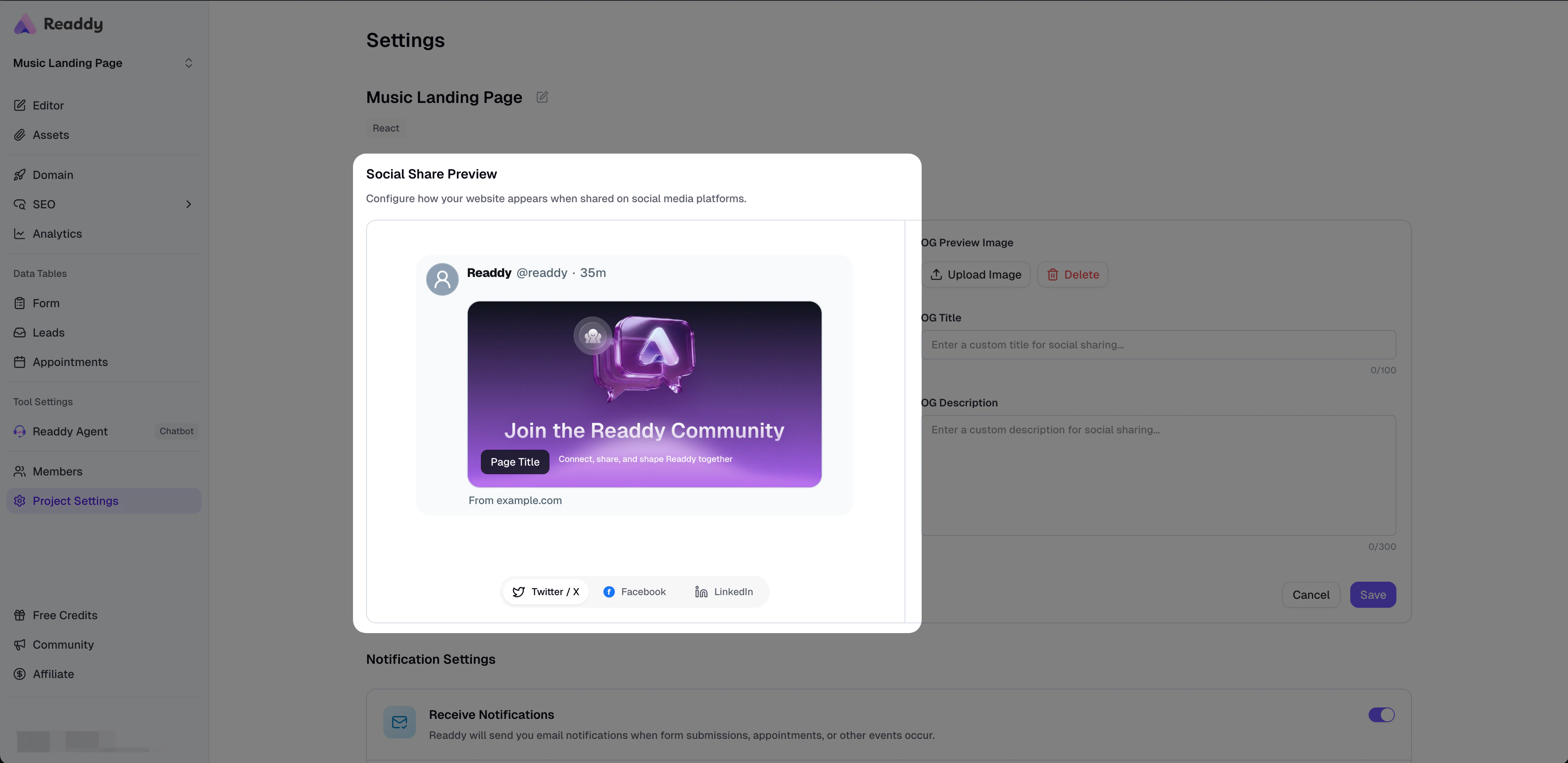
The preview area updates in real time based on your current image, title, and description. You can switch between platform tabs to view how the card may appear on:If no image has been uploaded yet, the preview shows an empty placeholder state.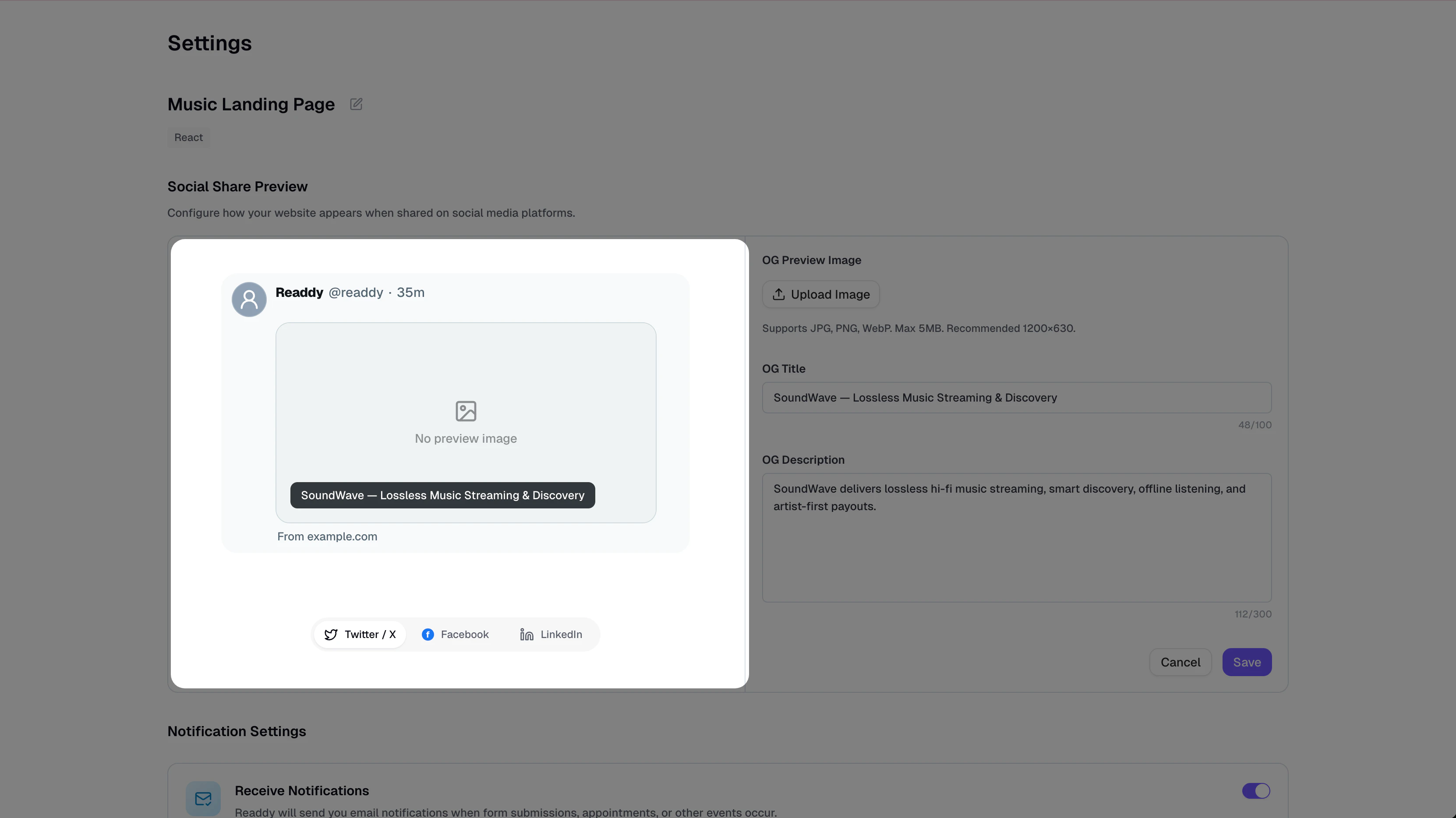
- X / Twitter
5
Save Your Changes
Click Save to store your OG settings.Important behavior: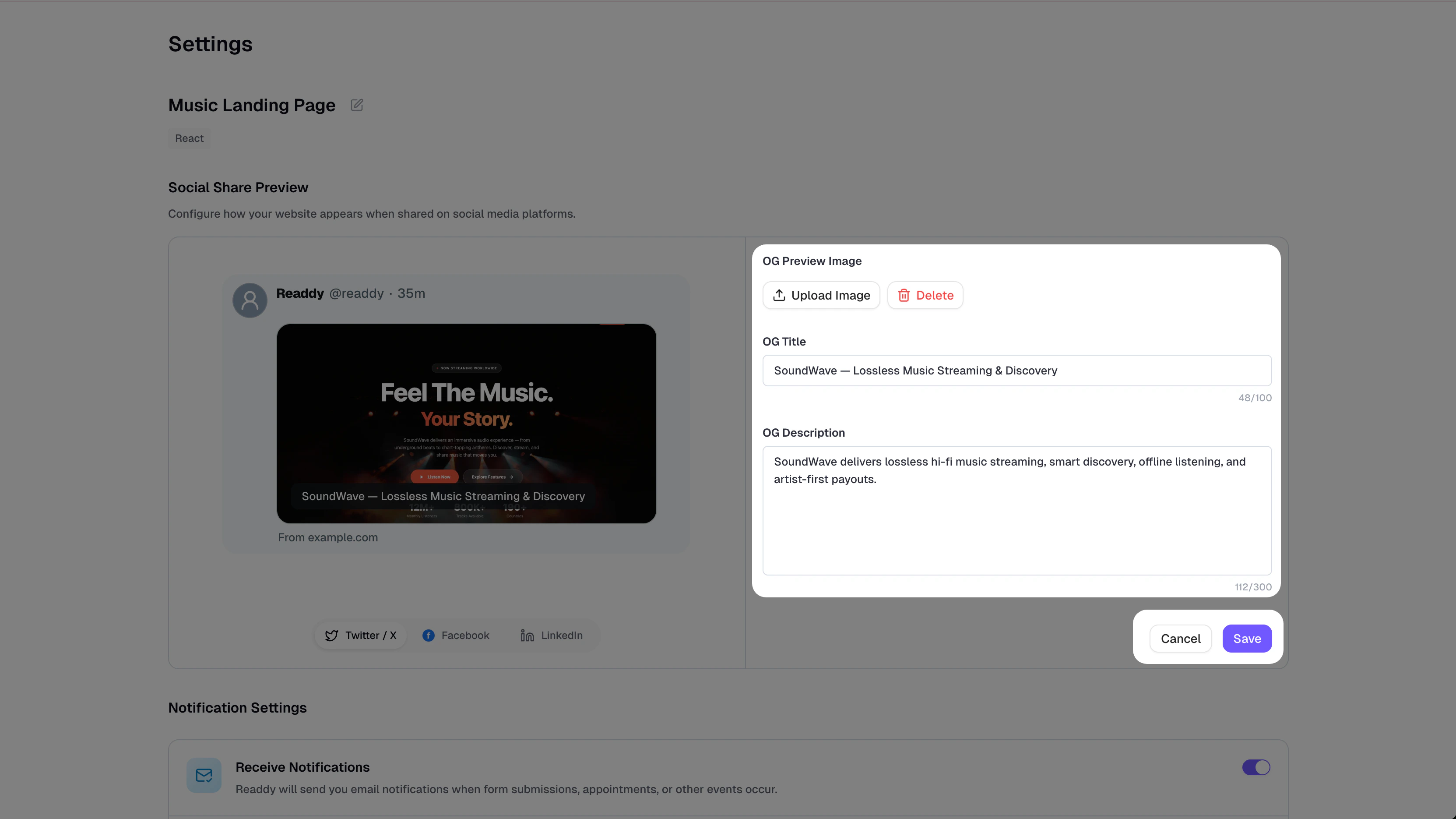
- Uploading an image or editing fields only changes the local state first
- Changes are saved only after you click Save
- If nothing has changed, the save button remains disabled
- Clicking Cancel restores the last saved state
6
Republish the Latest Version
If saving your settings writes the new OG tags into a website version, you still need to republish the latest version before the live share card updates.Even if the save succeeds, social platforms will still see the old version until you republish.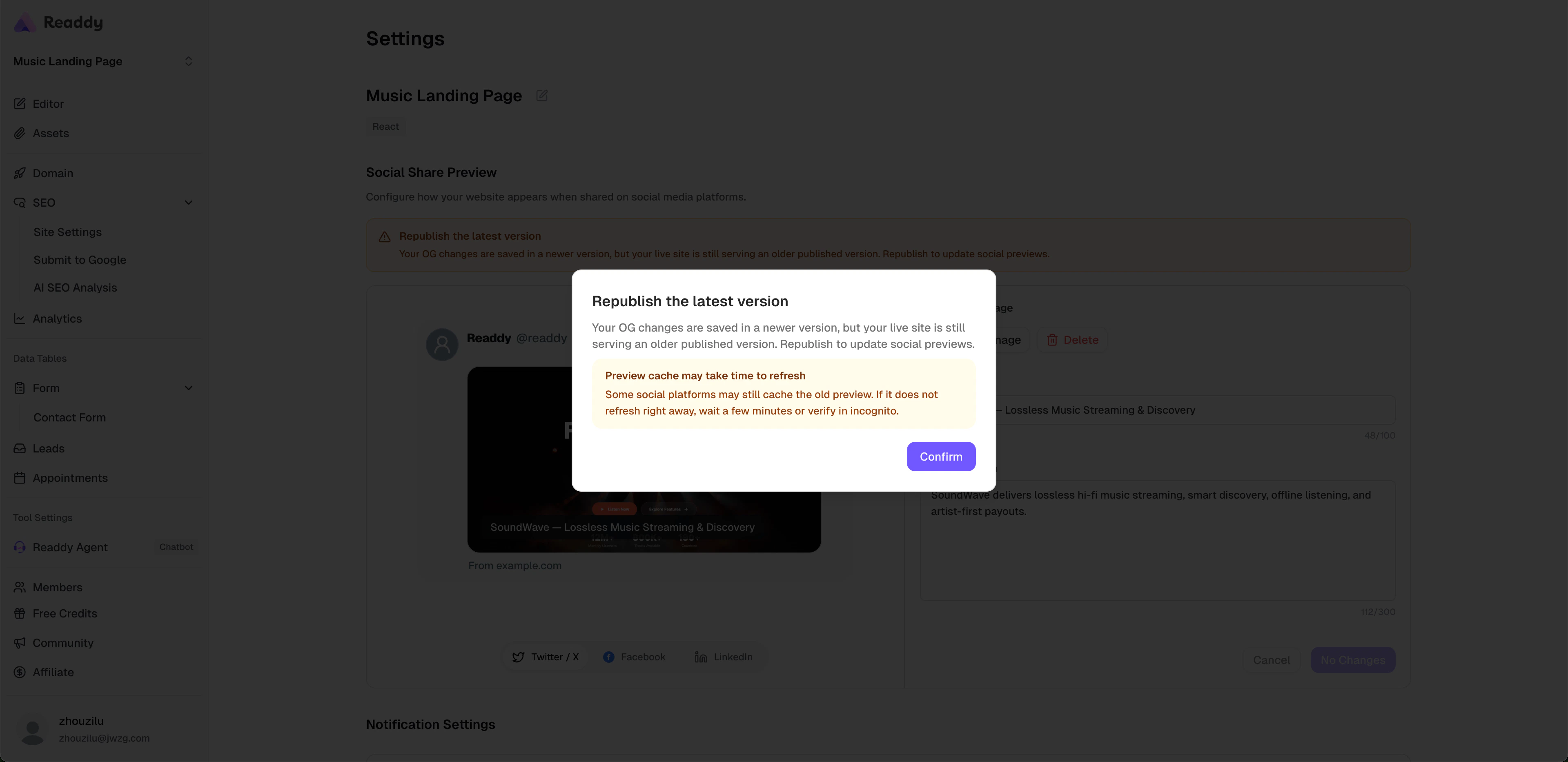
The preview area is a simulation. Final card appearance may vary slightly across platforms because of caching, cropping rules, or platform UI differences.
Field Reference
Best Practices
- Use a clear landscape image with a strong focal point
- Keep the title short so users can understand the page at a glance
- Use one concise sentence for the description instead of stuffing keywords
- After updating your settings, republish the latest version before validating the result on social platforms
FAQs
Why didn’t my new OG preview update immediately?
Why didn’t my new OG preview update immediately?
There are usually two possible reasons:
- You have not republished the latest version yet
- The social platform is still caching the previous preview
Are OG Title and OG Description required?
Are OG Title and OG Description required?
No. If you leave them empty, Readdy automatically uses the existing SEO title and description.
Can I set different OG content for each page?
Can I set different OG content for each page?
Not yet. This release supports project-level settings only, so one website uses one shared OG configuration.
Why does the preview domain look different from what I expected?
Why does the preview domain look different from what I expected?
The preview tries to display your currently available published domain. If no usable domain is available yet, Readdy uses a placeholder domain in the preview.
Need Help?
If this guide does not solve your issue:- Submit feedback: readdy.ai/feedback
- Live chat: Use the support entry in the top-right corner of Readdy