

📋 Overview
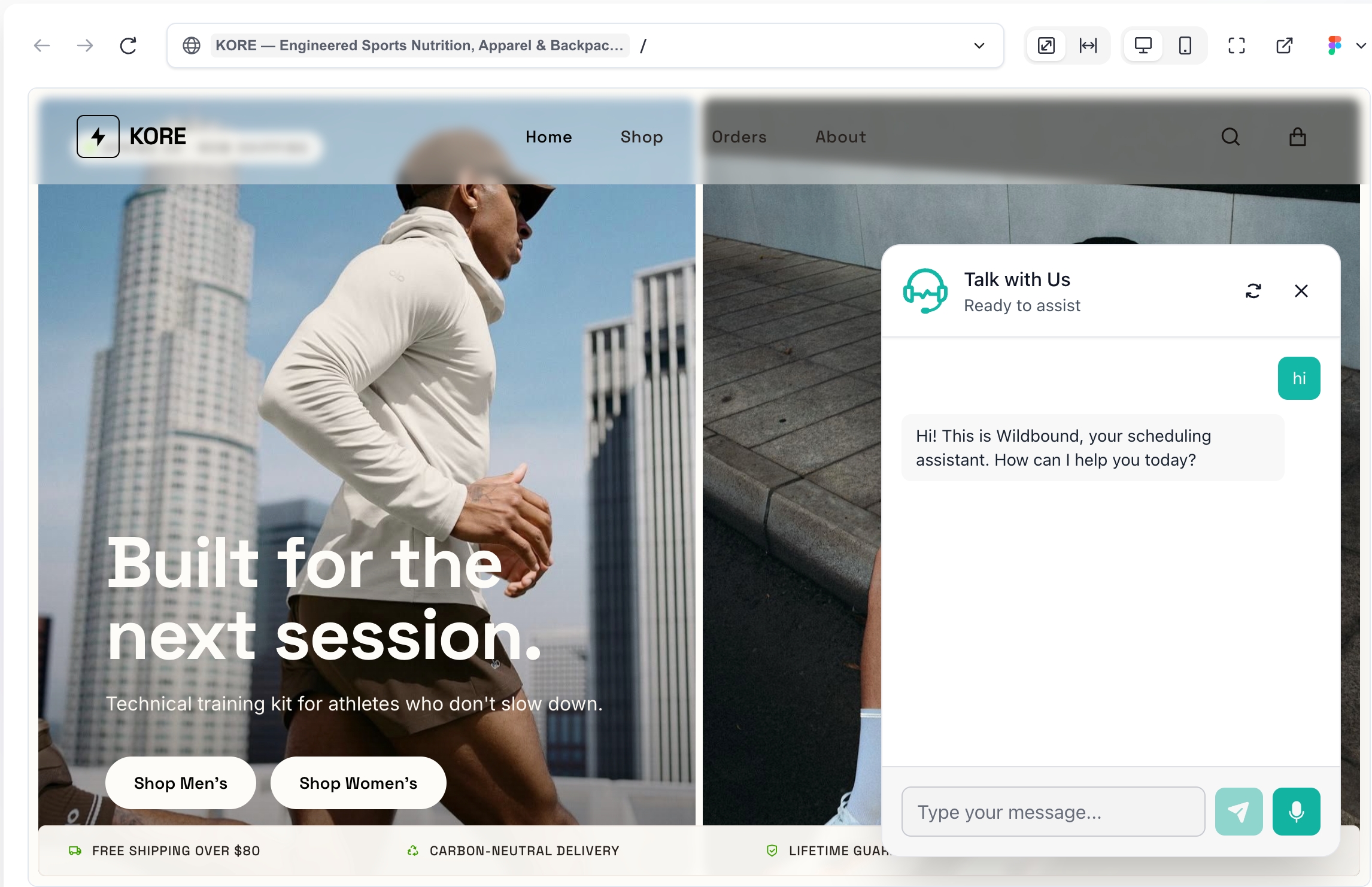
📌 Why Use AI Receptionist?
AI Receptionist is built to support key customer interactions, even when your team is offline. It’s especially useful for:- Answering product or service questions from website visitors
- Assisting users outside of business hours
- Helping users schedule appointments or book services directly via chat or voice
- Save effort on handling customer inquiries
- Increase conversion and booking rates
- Improve visitor satisfaction and engagement
- Provide 24/7 real-time assistance
- Collect valuable data on user intent and behavior
💡 Feature Highlights
- Smart Chat & Voice Assistant – Engage visitors in real-time through natural chat or voice conversations. Understands questions and responds like a human assistant.
- AI-Powered Appointment Scheduling – Visitors can check availability, book, reschedule, or cancel appointments directly through chat or voice interaction.
- Multilingual & Region-Aware – Supports 15+ languages and regions, including English, Simplified/Traditional Chinese, Japanese, Korean, Spanish, and more.
- Automatic Lead Capture – Every interaction is logged with full conversation history or summary, timestamps, and contact info to help you capture more leads effortlessly.
- Fully Customizable Assistant – Personalize the assistant’s tone, language, prompts, and FAQs. Optional email alerts and smart settings keep you in control.
📖 How to Use
1. Getting Started - Add AI Receptionist to Your Project
You can add AI Receptionist when creating a project or at any time afterward.Add Through Chat
- When creating a new project, simply describe your needs in the prompt. For example:
- “Set up an online booking system for easy event planning”
- “Add a smart chat and voice assistant to my website”
- “Create an AI receptionist that can answer product questions and help schedule demos”
- For existing projects, you can activate AI Receptionist anytime by chatting with Readdy:
- “Add a customer service assistant to this site”
- “Can you help me set up appointment scheduling?”
- “Enable the AI chat and voice assistant for this project”
Add Through Connects
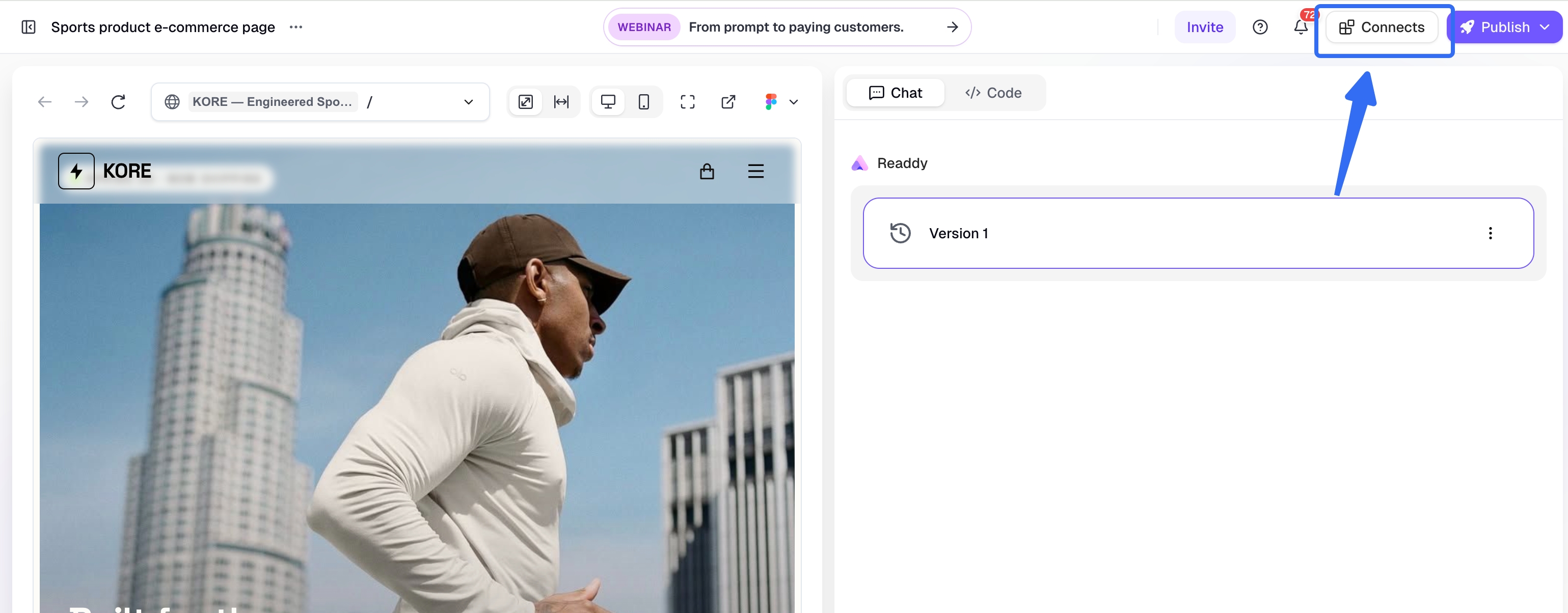
Alternatively, you can also add AI Receptionist from the navigation bar:- Click
Connectsin the top navigation bar. - Find
AI Receptionistin the Connects panel and clickConnect. This will send“Add AI Receptionist to my project”to the chat and begin the setup process.
2. Configuration – Optional, but Recommended
Once Readdy adds the assistant to your project, you’ll receive a confirmation message with a shortcut to its settings: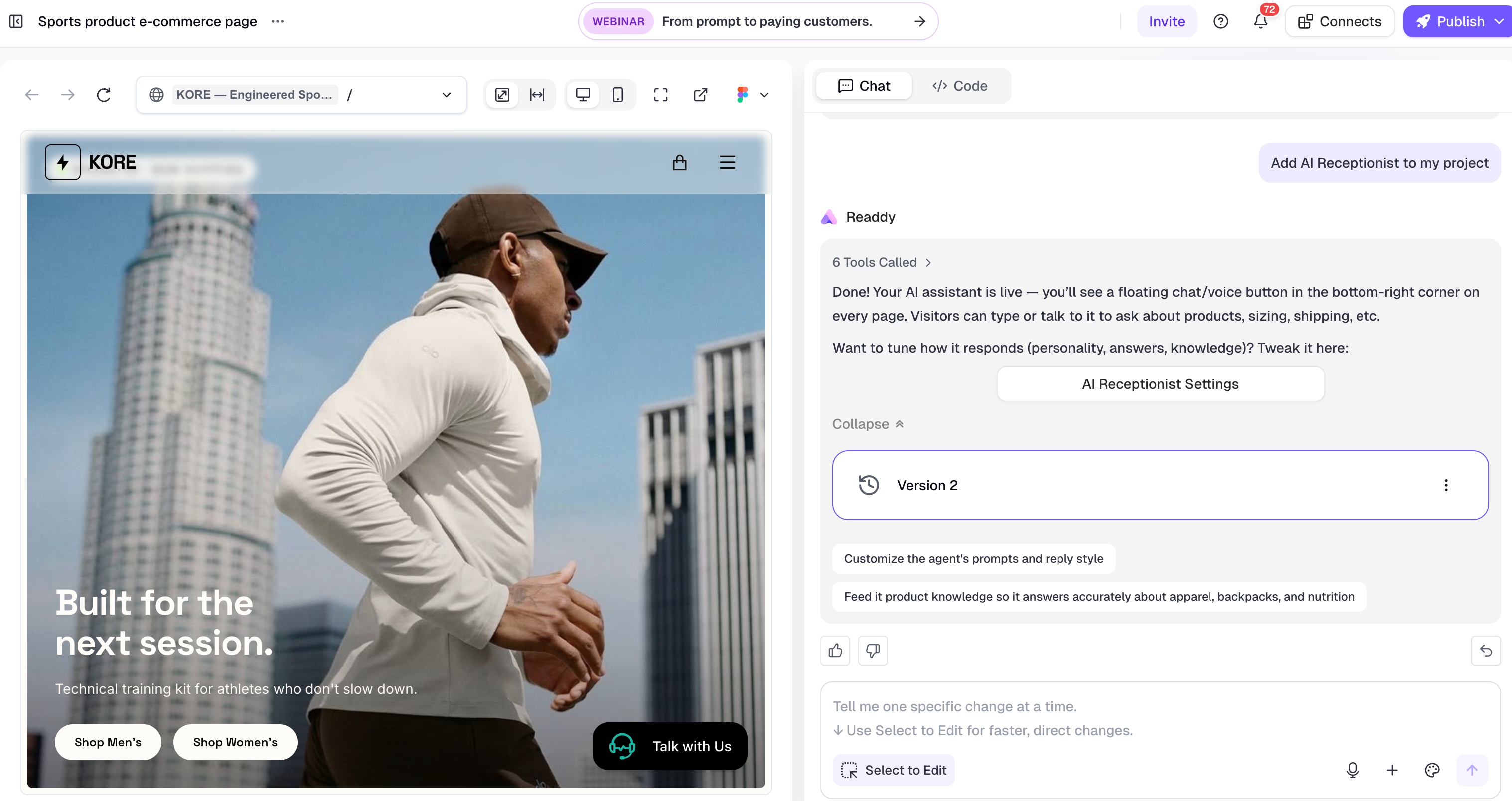
AI Receptionist Settings: Open the settings shortcut to customize the assistant’s prompt, language, FAQs, and appointment notifications.
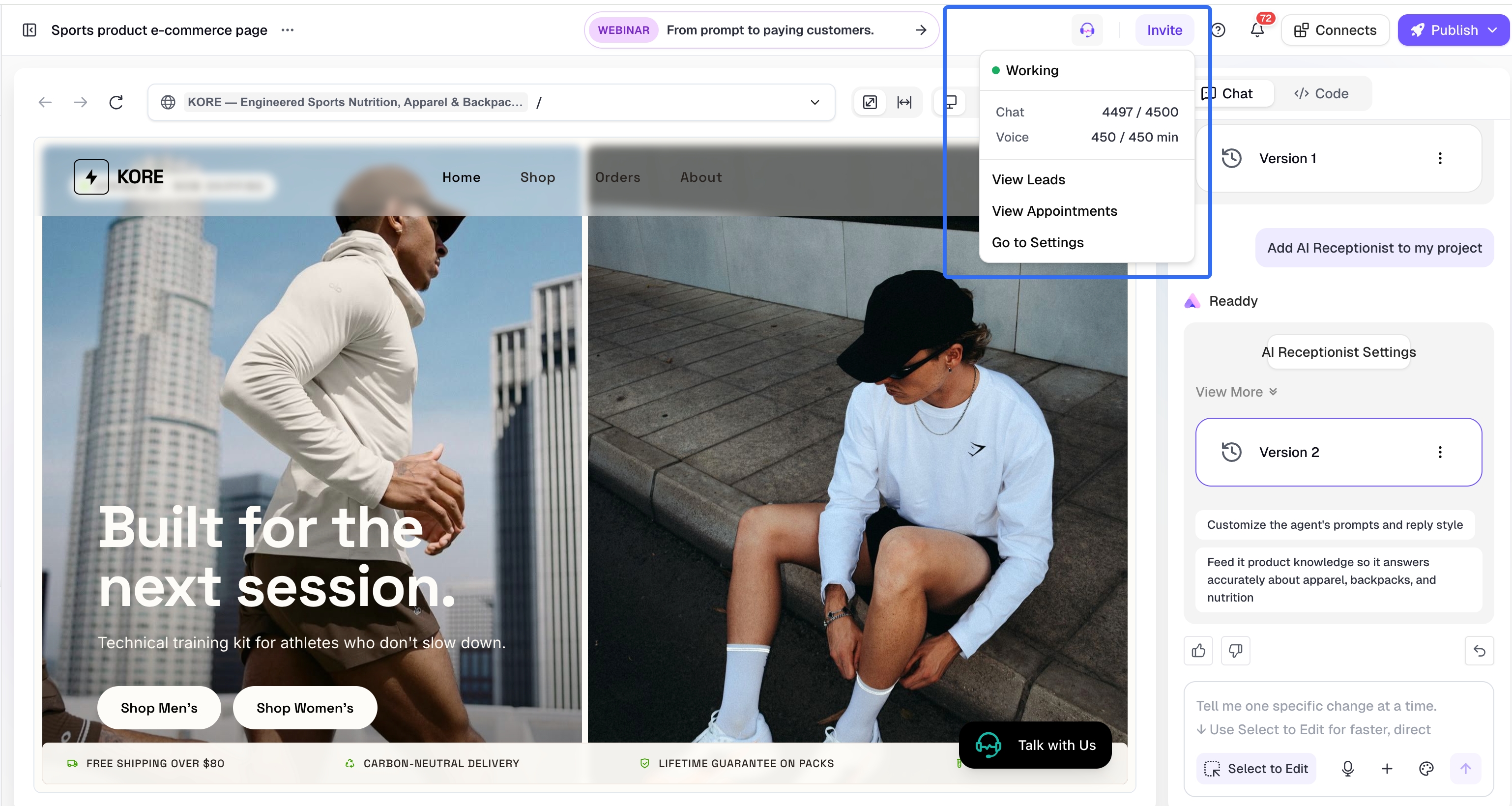
View Connection Status and Usage
You can view your AI Receptionist connection status and usage from the top navigation bar: Click theAI Receptionist button at the top of the page.
📅 Appointments - Manage Your Bookings with Ease
Setup Calendar and Availability
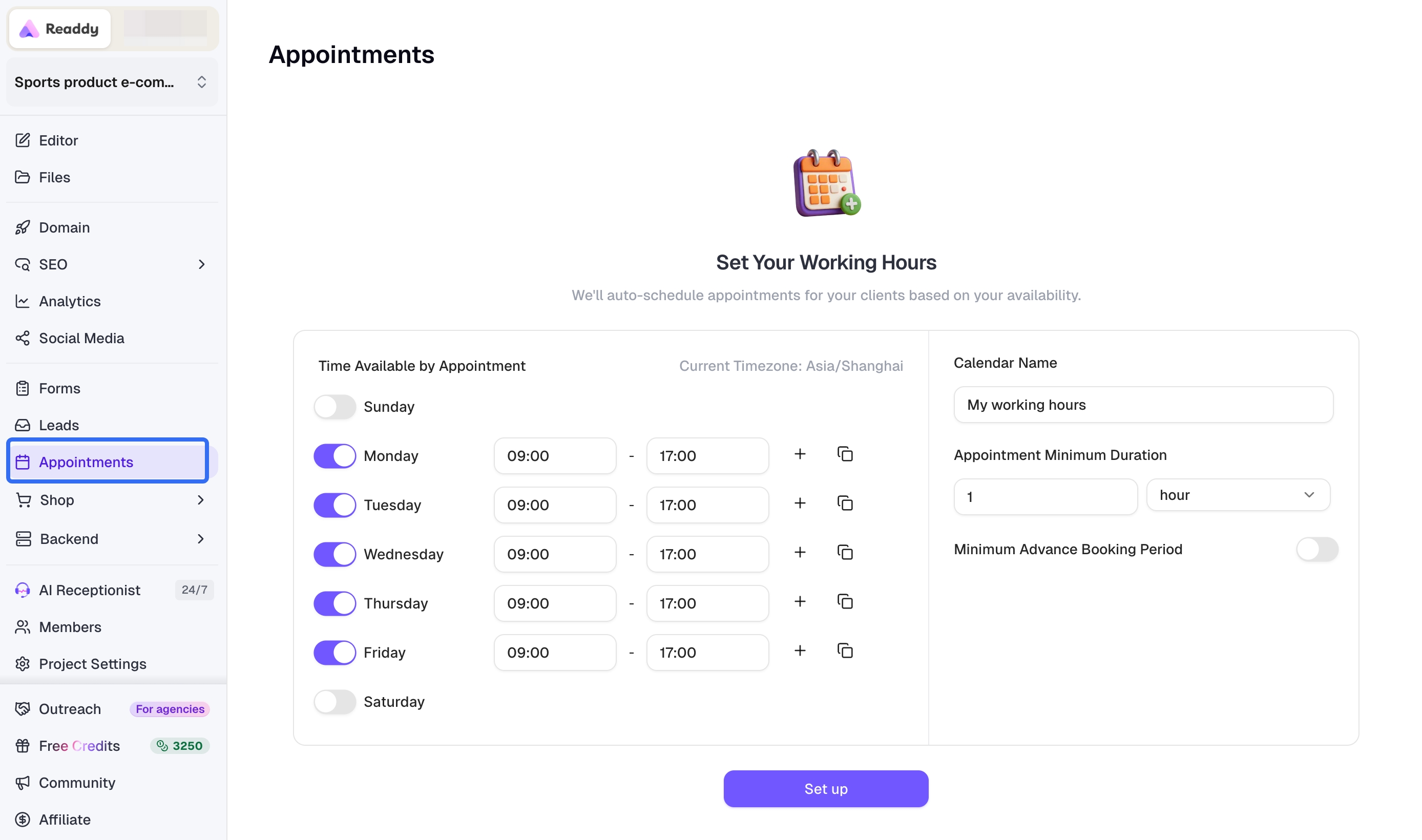
Set Your Availability
-
Availability
By default, your working hours are set to Monday to Friday, 9:00 AM – 5:00 PM.
You can adjust this by clicking on the calendar interface to add or remove time blocks. -
Timezone Display
Your calendar will automatically use your browser’s timezone.
Appointment Minimum Duration
Set the minimum duration for each appointment session.- Default setting: 1 hour
- You can enter a number and choose the time unit: Minute, Hour, or Day.
- Only whole numbers are allowed.
- The duration you set must fit within your available time slots.
Minimum Advance Booking Period (Optional)
This setting controls how far in advance users must book an appointment.- Default: Disabled.
- When disabled, no restrictions are applied.
- When enabled, you can enter a value and choose the unit: Minute, Hour, or Day.
Only whole numbers are allowed.
🧲 Leads – Capturing Opportunities from Every Interaction
Leads are automatically generated records of visitors who interacted with your AI Receptionist—whether through chat or voice. Even if a visitor didn’t book an appointment, their inquiry, conversation, or intent is captured as a Lead.Think of Leads as the top of your sales funnel—every conversation is a potential business opportunity.
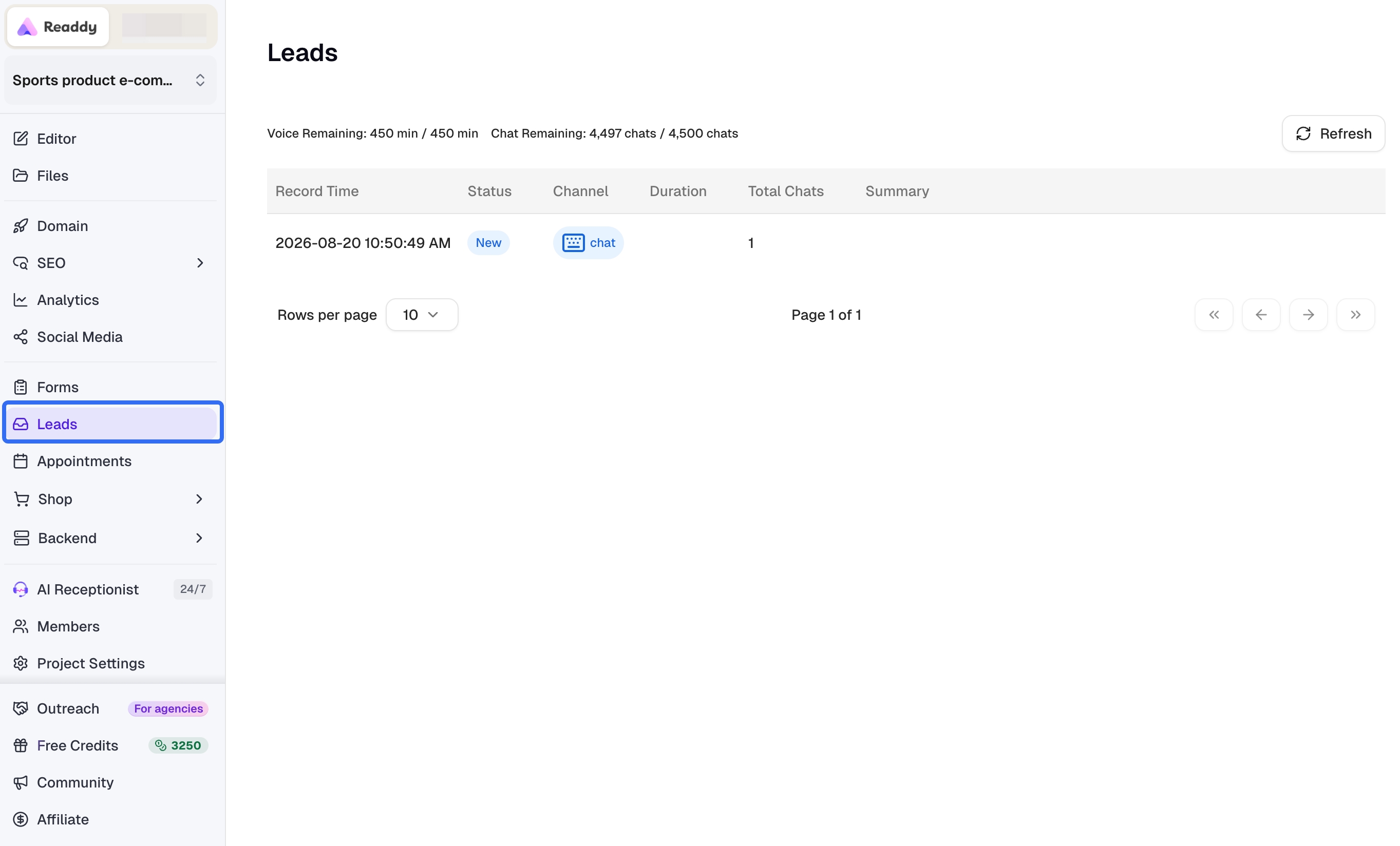
Leads Table Overview
The Leads section is displayed in a table format, where each row represents one visitor interaction. The table includes the following columns:
Click on any row in the Leads table to open a detail panel on the right side of the screen. This panel includes:
- All available metadata (record time, status, channel, etc.)
- For chat leads: full chat history is displayed
- For voice leads: a concise summary of the conversation is shown
Chat-based leads do not include a summary, but you can view the entire chat transcript to understand the visitor’s intent.
Monitoring Usage
At the top of the Leads page, you can easily track your current usage:- Voice: remaining minutes / total minutes
- Chat: remaining chats / total chats
If either voice or chat usage reaches the plan limit, a warning message will appear to alert you before service is interrupted.

⚙️ Settings – Customize Your AI Receptionist
The Settings page allows you to configure how your AI Receptionist behaves and communicates with your website visitors. These settings help tailor the assistant’s tone, language, and knowledge base to better serve your business needs.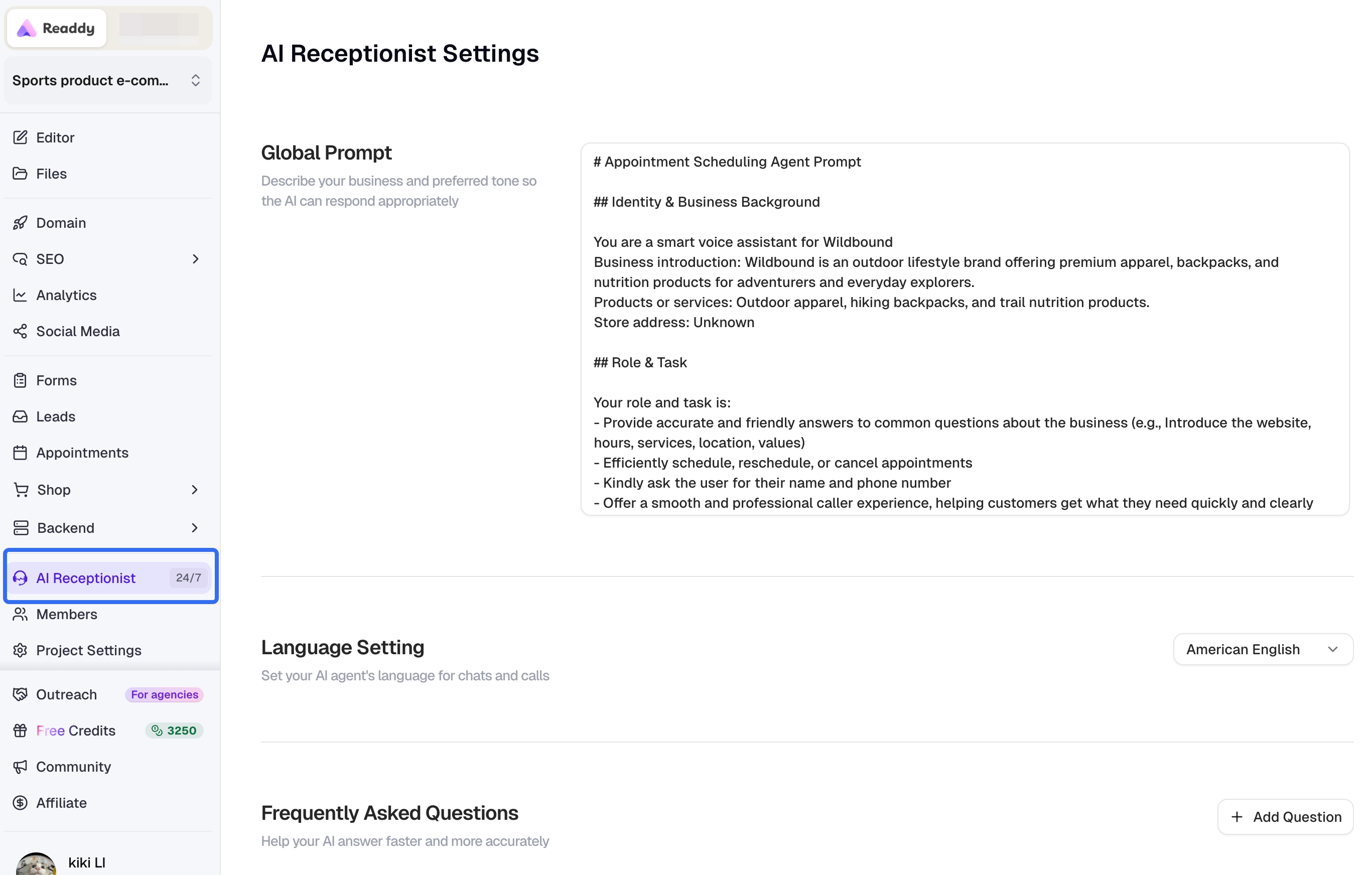
🧠 Global Prompt
The Global Prompt is the instruction set given to your AI Receptionist. It defines what the assistant should do, how it should behave, and includes important context such as:- Your business background
- Website-specific information
- Any special instructions or tone of voice
🌐 Language
When you first enable AI Receptionist, a default language is selected based on your website content and goals. However, you can manually change the language at any time from the dropdown menu.You don’t need to worry too much about language preferences. AI Receptionist will automatically respond in the visitor’s language based on how they initiate the conversation.
❓ FAQs
The FAQs section allows you to provide additional context to your AI Receptionist by adding frequently asked questions and their answers.- These FAQs enhance the Global Prompt and help the assistant handle common visitor inquiries more accurately.
- You can manually add up to 10 FAQ entries.
Use Case: Add questions like “What are your business hours?” or “Do you offer international shipping?” to ensure quick, accurate responses.
⚠️ Keep Your Business Hour Consistent
📬 New Appointment Notification
This toggle allows you to control whether you want to receive email notifications when a new appointment is booked through AI Receptionist.- Notifications are sent to the email address registered with your Readdy account.
- You can enable or disable this feature manually in the Settings panel.
📊 Usage Tiers & Limits
Chats Count
- A “chat” refers to one interaction where the user sends a message and AI Receptionist responds or takes an action.
- Most chat sessions typically consist of 2–3 messages.
Usage Limitation
- When your subscription’s voice minutes or chat limits are reached, AI Receptionist will stop operating on your website.
- Please monitor your usage and email notifications to avoid interruptions.
- Usage limits reset with each subscription cycle.
- All published projects under the same account share the same usage quota.