This guide is specifically for React projects. If your project uses a different framework (HTML, Vue, Vue-Ant Design, Vue-Element, Vue2, React-Ant Design, React-Shadcn, or UniApp), please refer to Publish.
Go to the Domain Settings Page
Click Publish button in the top-right corner of the page, and click Publish on Custom Domain to access the domain settings page.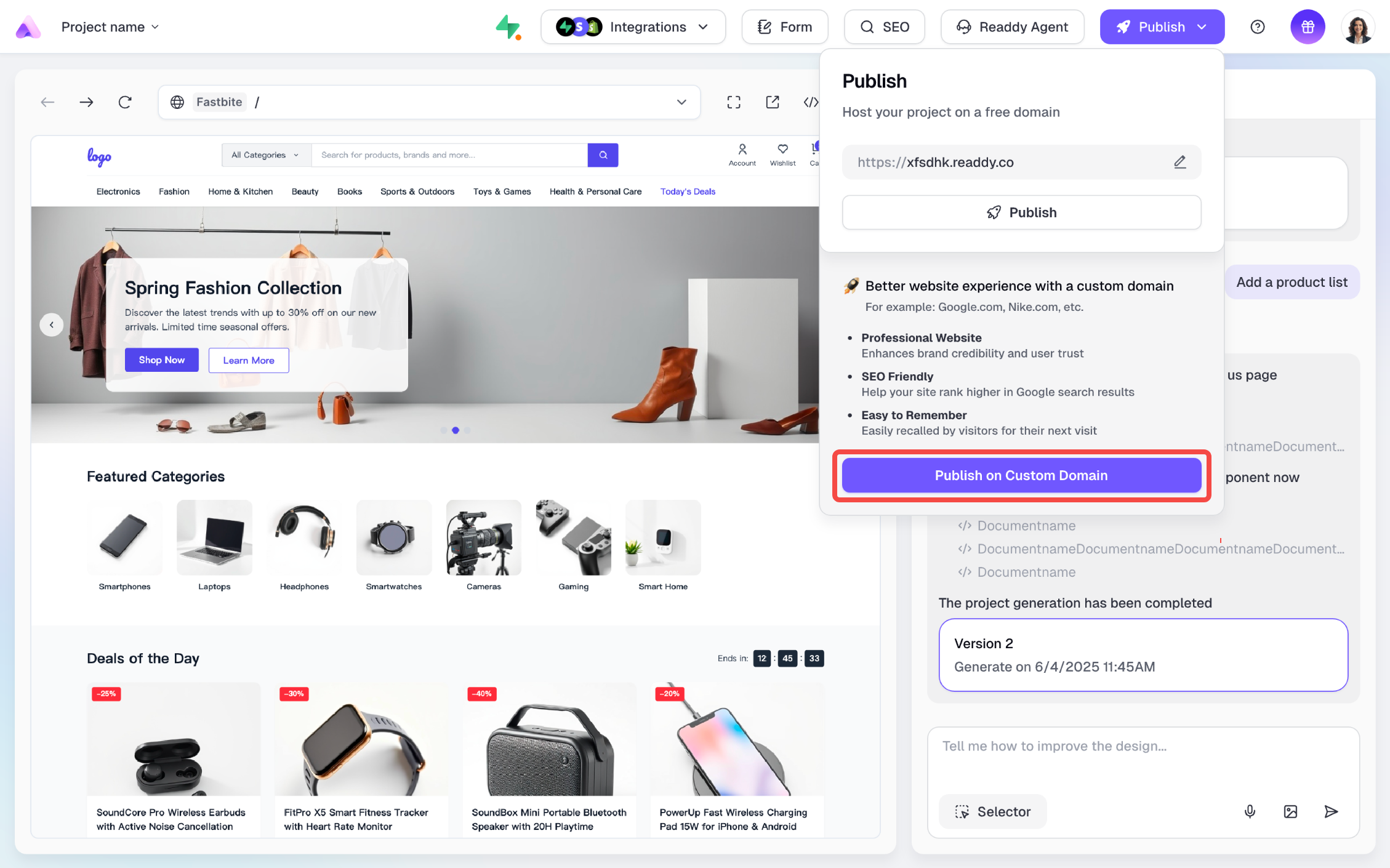
Connect an Existing Domain
If you already own a domain, Click Connect Domain.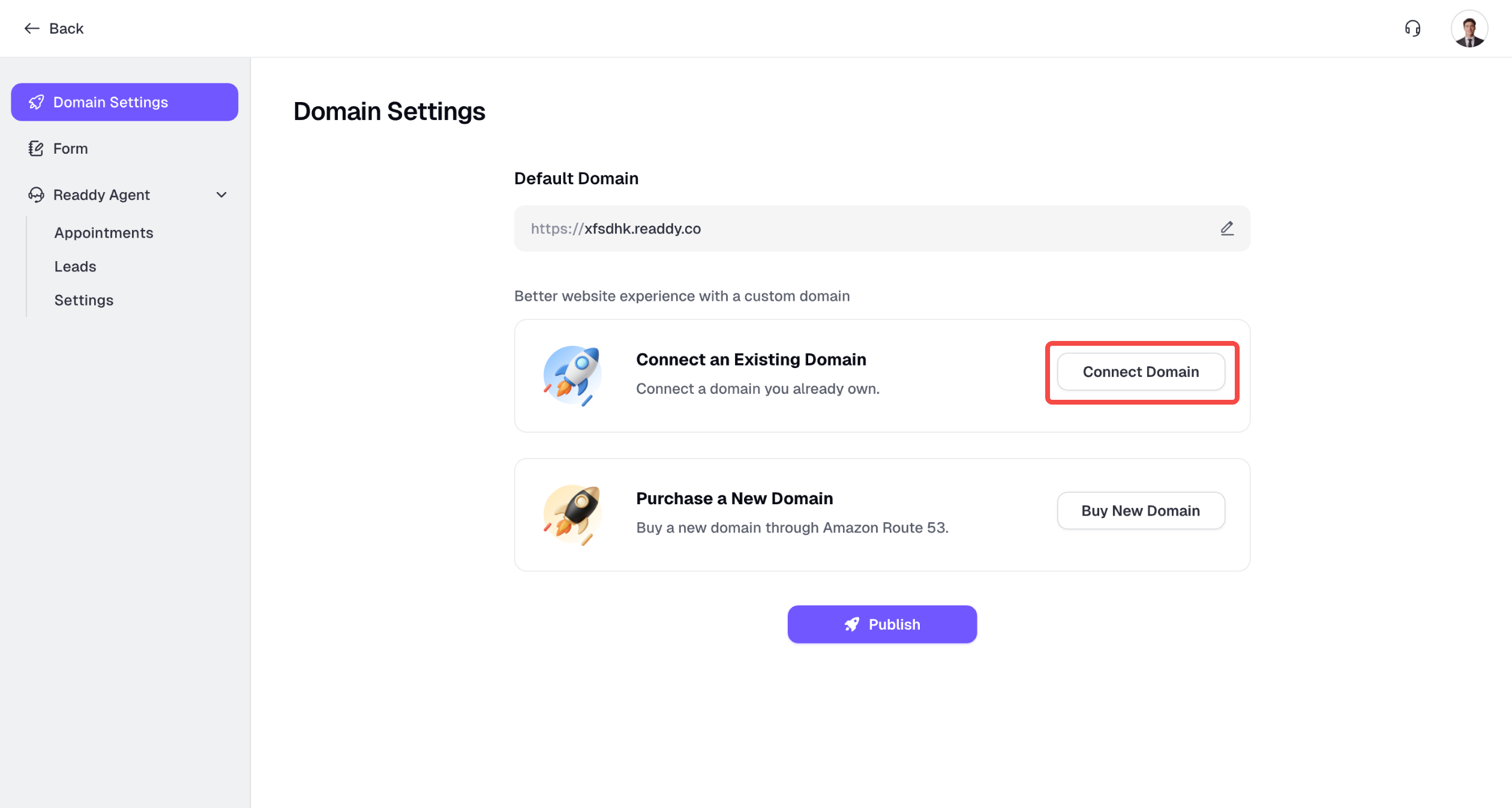
Step 1. Enter Your Own Domain
Enter the domain you want to connect and click Next.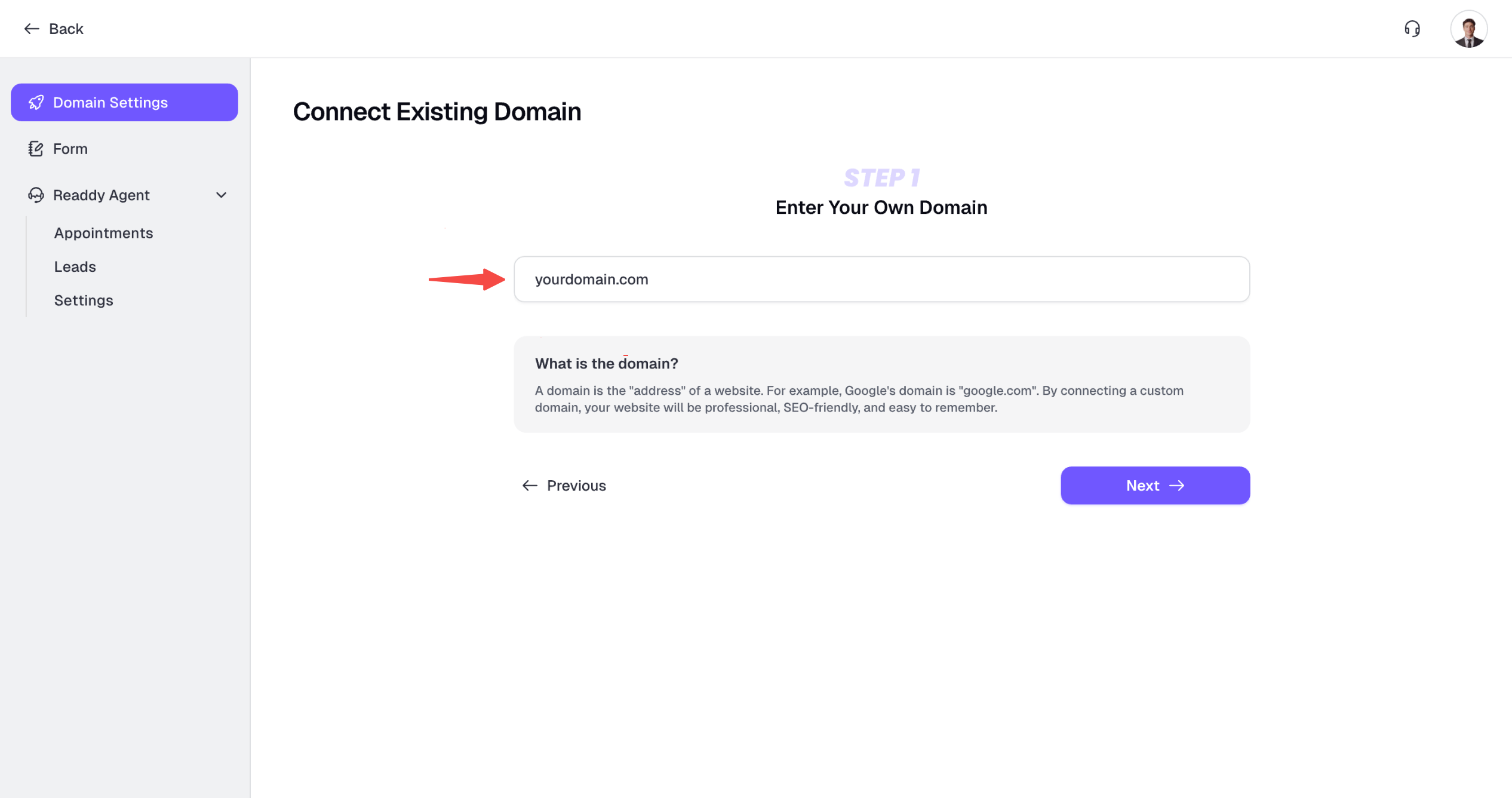
Please enter a correct domain, e.g., xxx.com
Please enter a correct domain, e.g., xxx.com
The domain format is incorrect. Ensure there’s only one ”.” and no trailing spaces.
A correct domain looks like
A correct domain looks like
google.com.This domain has not been purchased by you yet
This domain has not been purchased by you yet
First, check that your domain is entered correctly. If the domain is correct, it means you haven’t purchased this domain yet. Click Previous and choose Buy New Domain.
This domain is already connected to xxx. Please unbind it first.
This domain is already connected to xxx. Please unbind it first.
This domain is already connected to another one of your project (xxx means the project’s name). You need to remove it from that project before proceeding.
This domain is already connected to another user's project.
This domain is already connected to another user's project.
This domain is in use by another user. Please choose a different one. If you’re sure the domain belongs to you, please contact our support team to reclaim it.
Step2. Set Up DNS of Your Domain
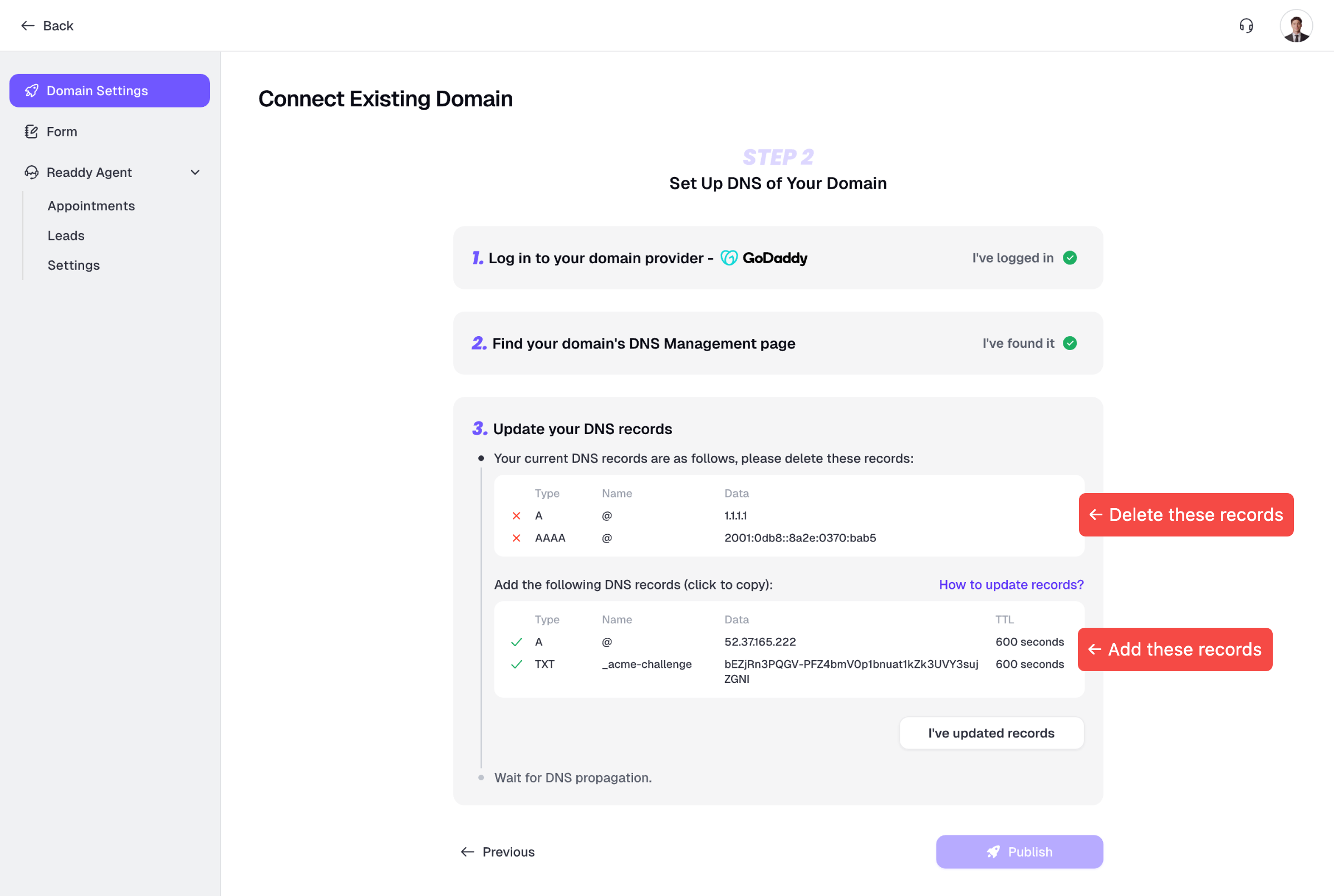
You need to set up the DNS of your domain to make it point to Readdy. Please follow the guide displayed on the interface.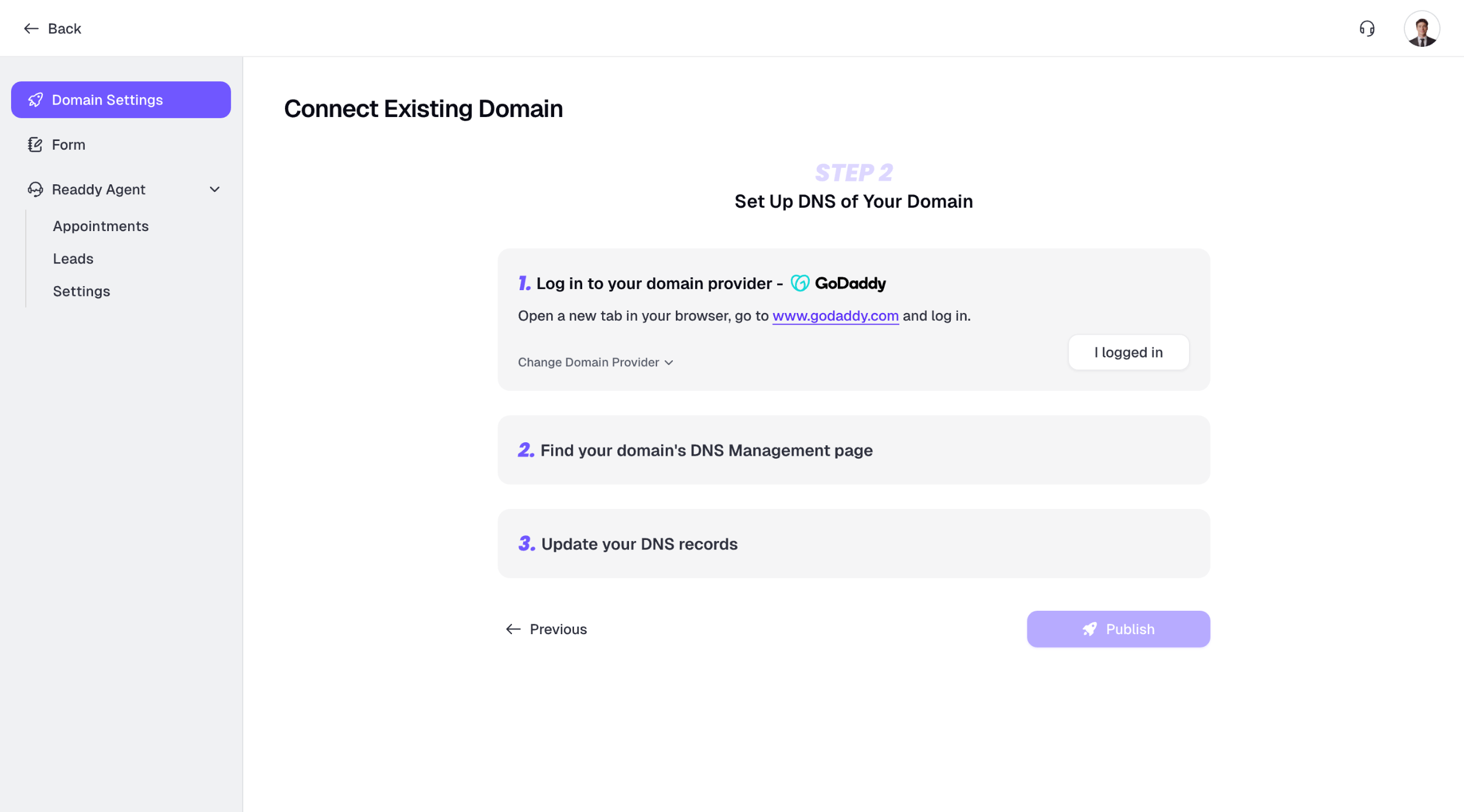
DNS Setup Guide
We provide detailed guides for four domain providers: GoDaddy, Hostinger, Cloudflare, and Namecheap. If your DNS is managed by a different provider, you can use those guides as a reference. If you need help, feel free to contact us.GoDaddy
GoDaddy
Step 1: Log in to GoDaddy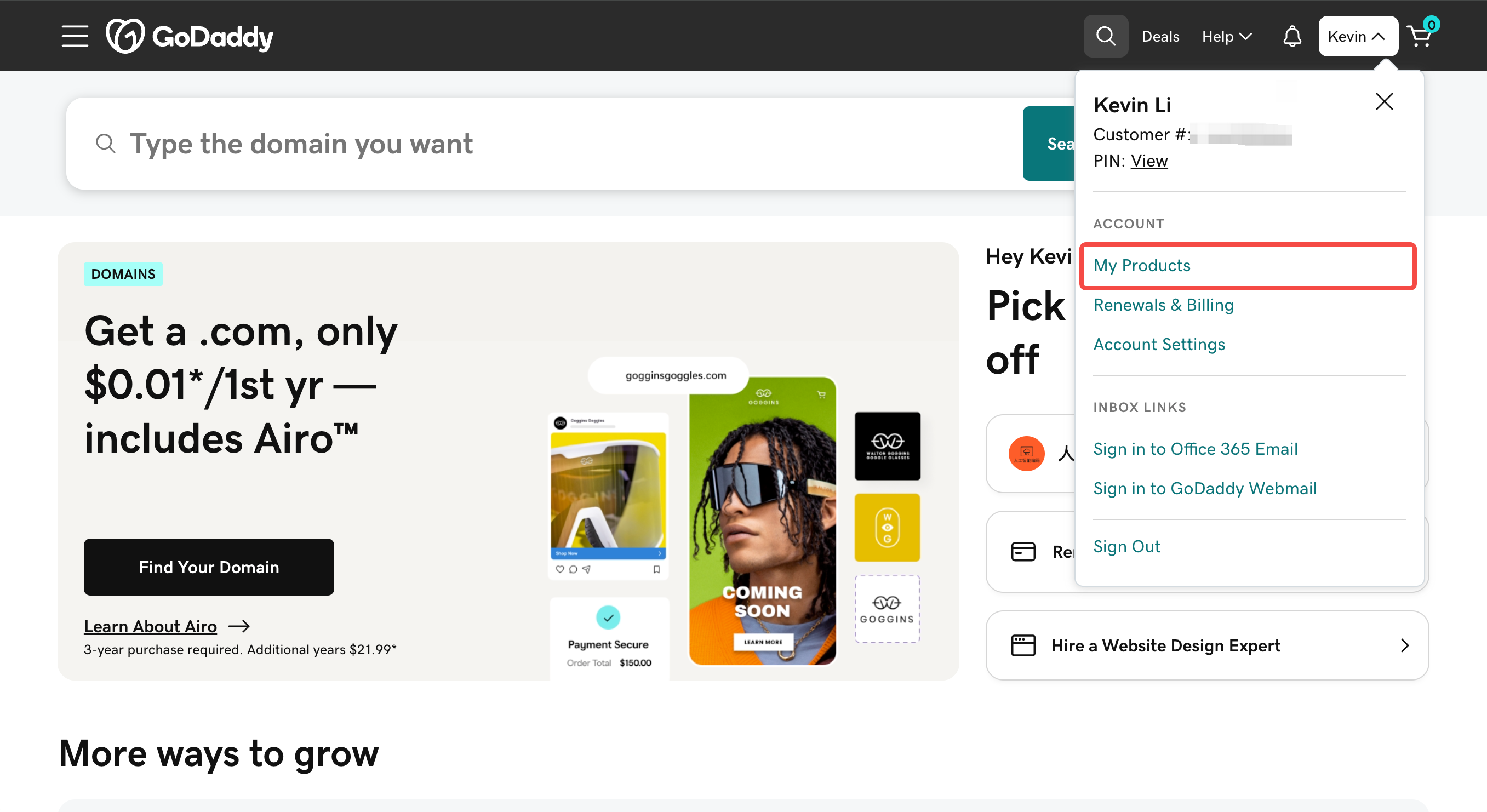
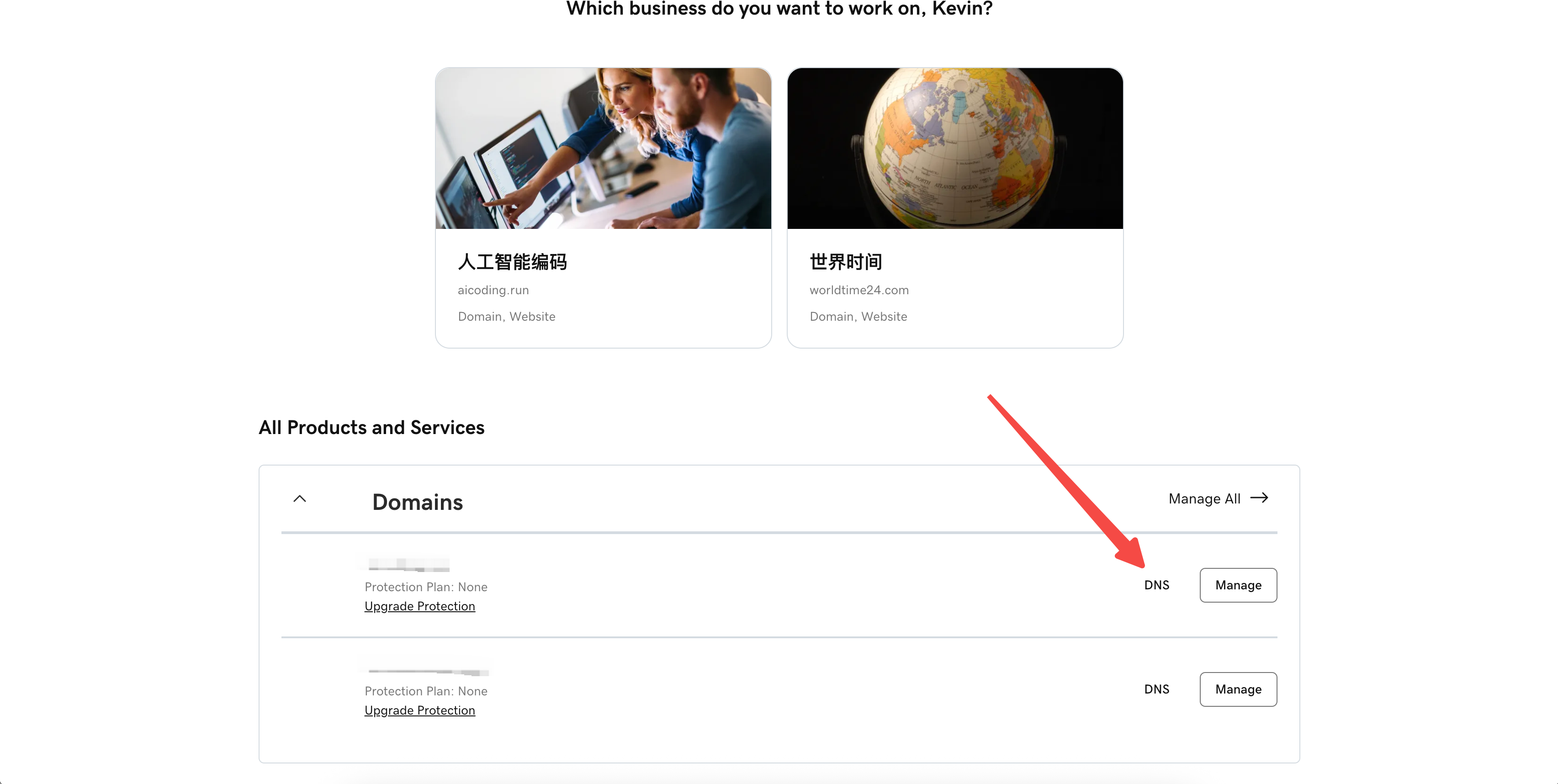
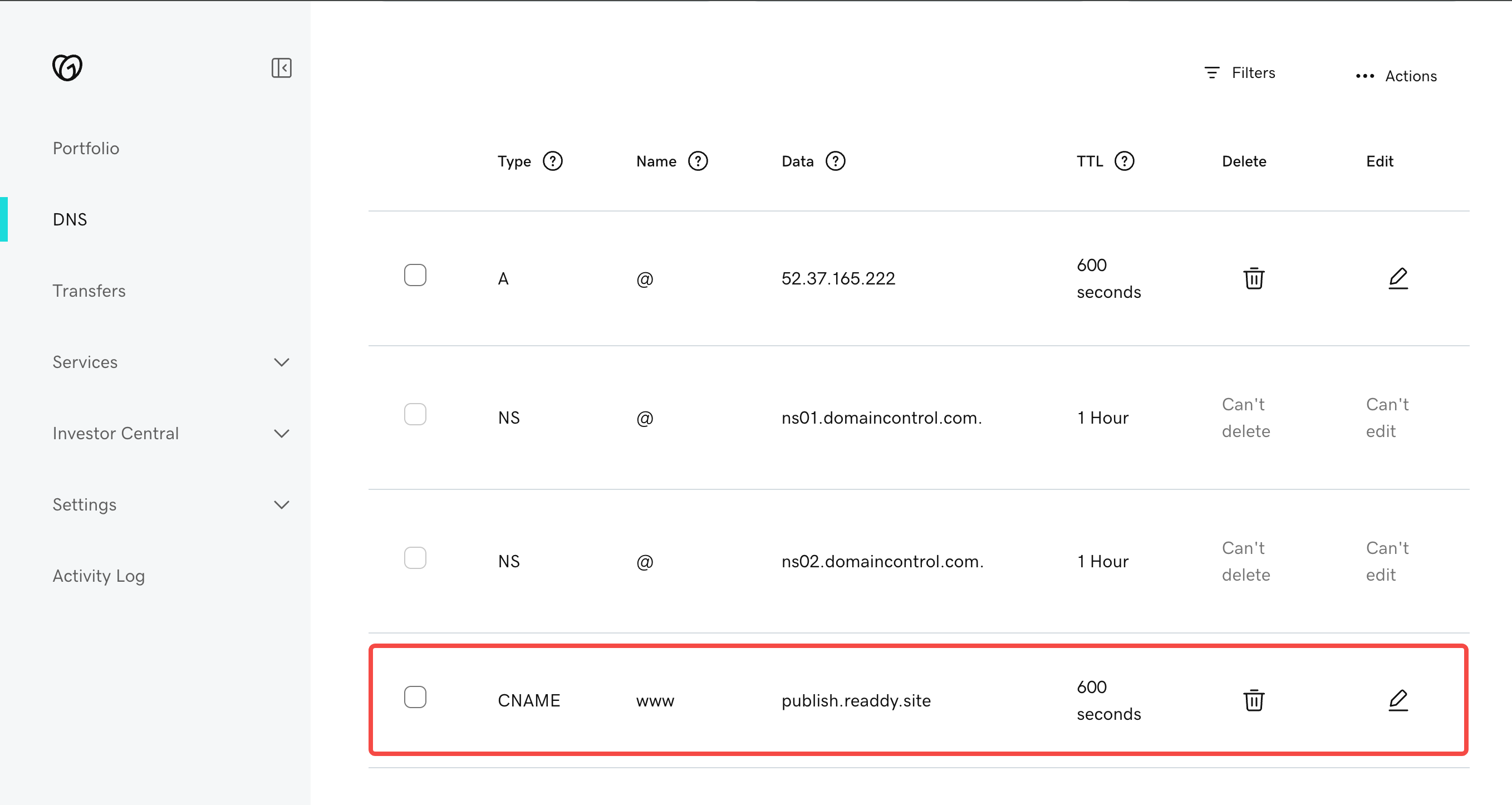
- Open a new tab in your browser, go to www.godaddy.com/ and log in. Locate ACCOUNT in the top-right corner of the page, and click My Products, you will see your domain.
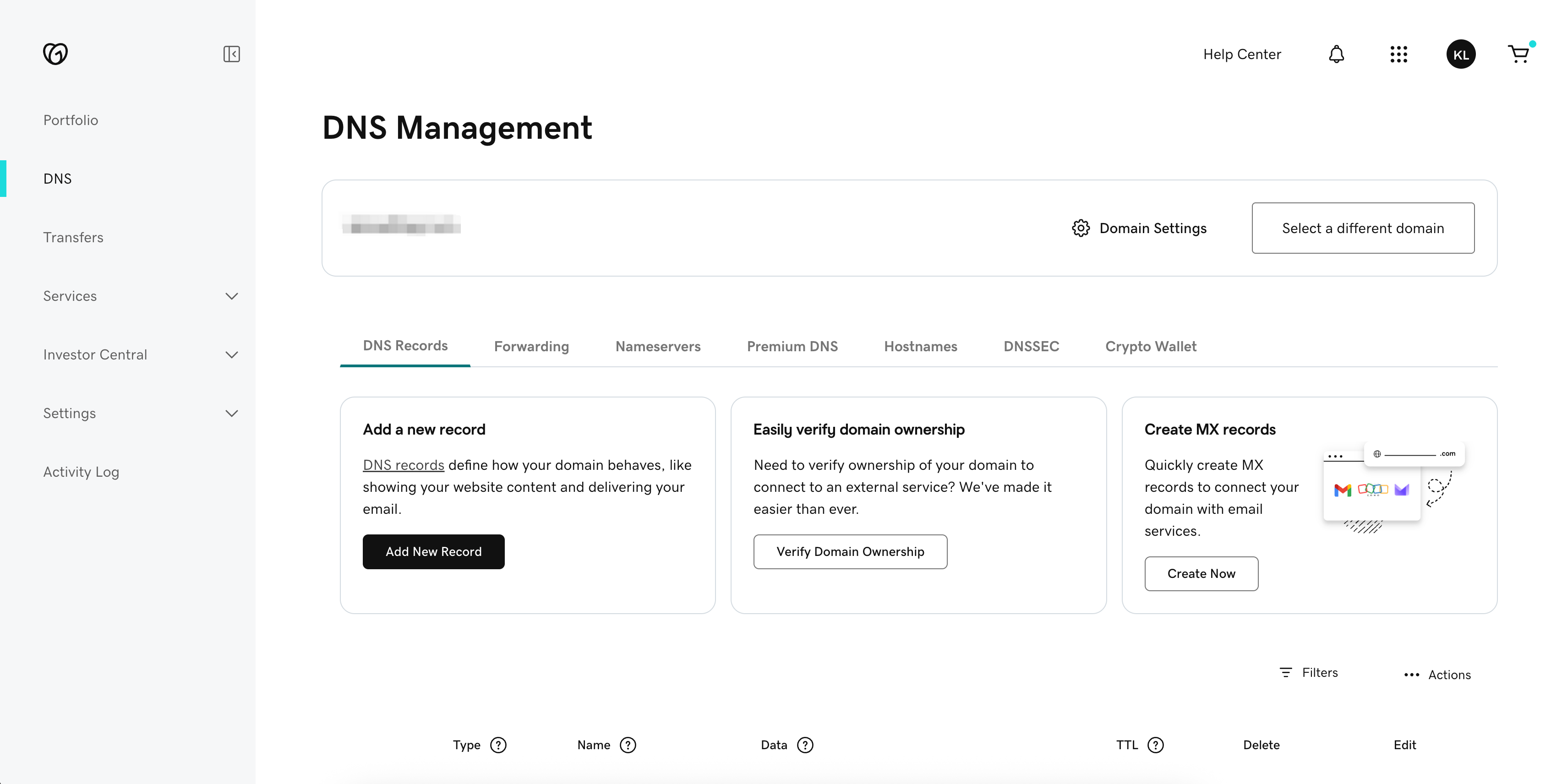
- Find the domain you want to connect and click DNS to navigate to its DNS Management page.
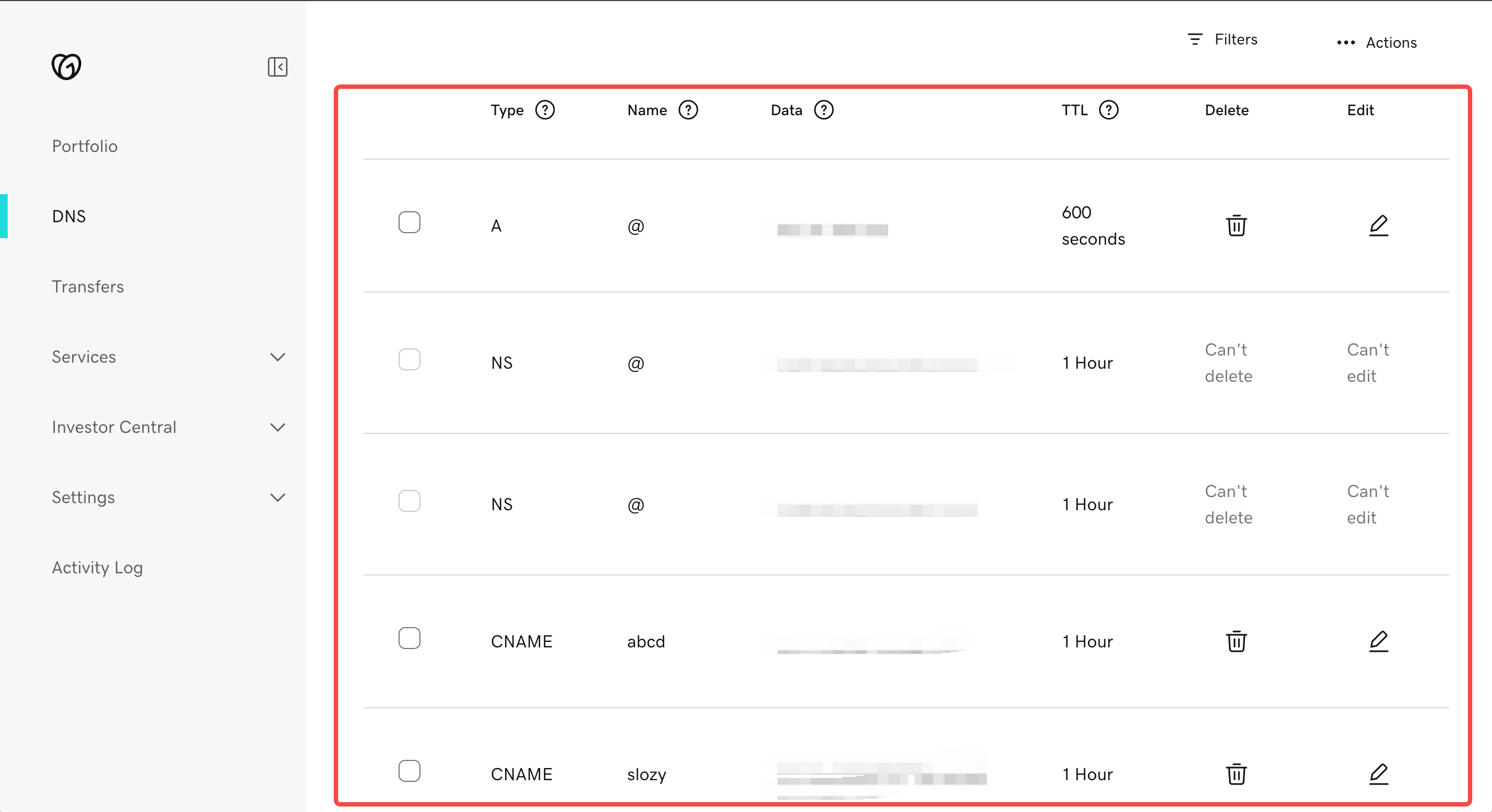
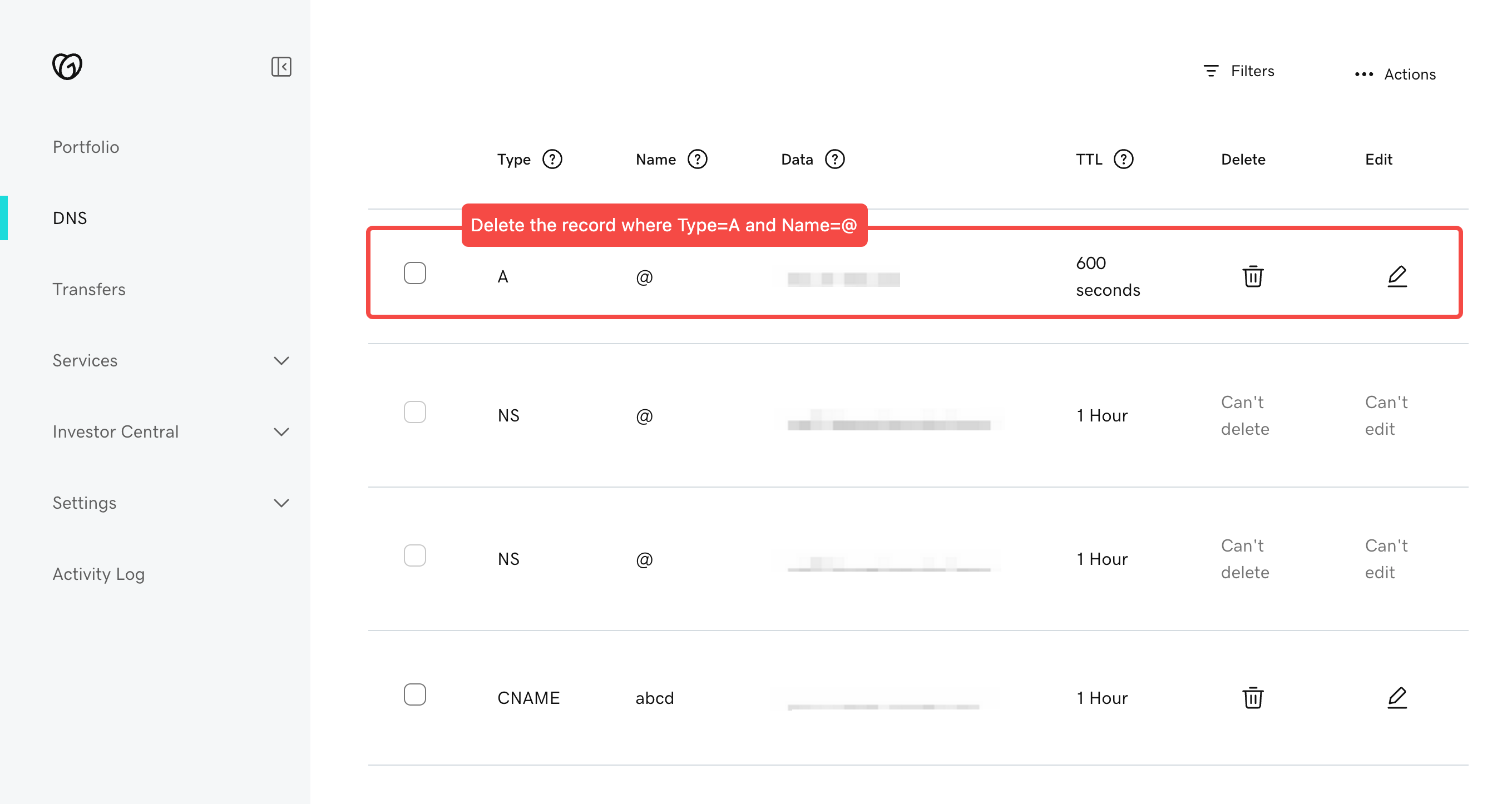
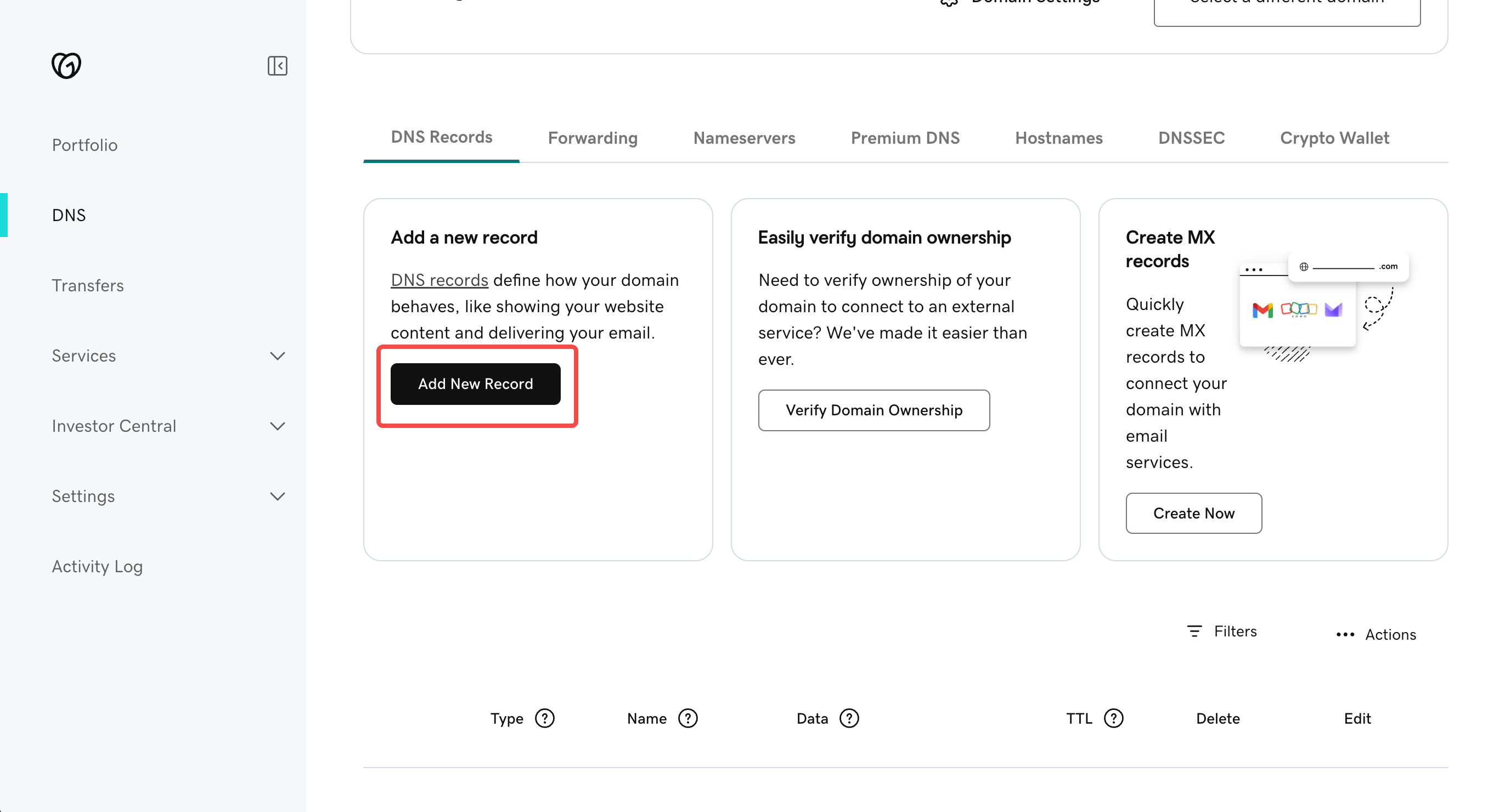
- Scroll down on the DNS Management page, and you will see all the DNS records for the current domain.
- If you connect a root domain, such as
xxxxxx.com,you need to update A + TXT - If you connect a subdomain, such as
www.xxxxxx.com,you need to update CNAME + TXT
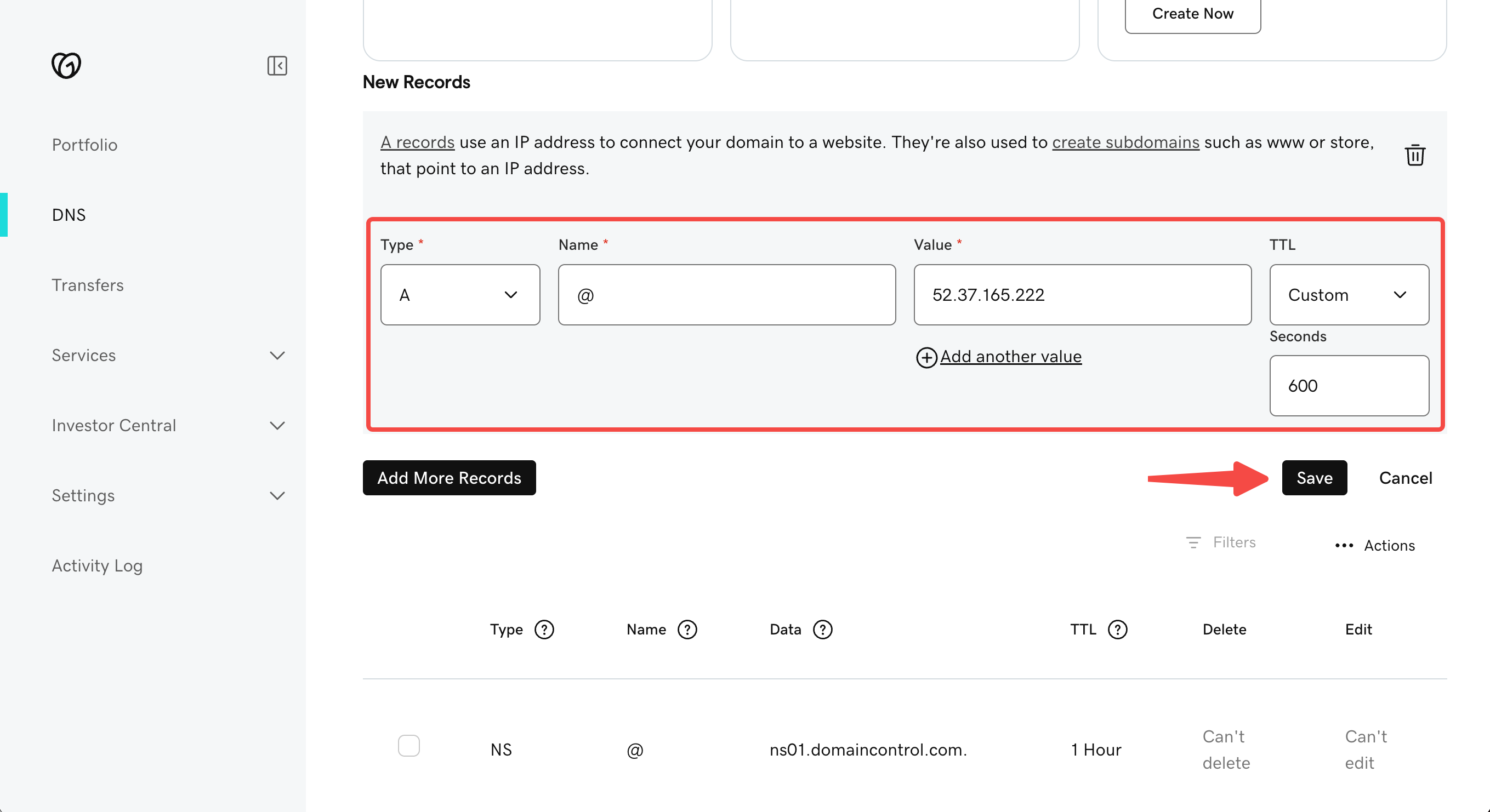
Type: A
Name: @
Value: 52.37.165.222
TTL: 600
Hostinger
Hostinger
Step 1: Log in to Hostinger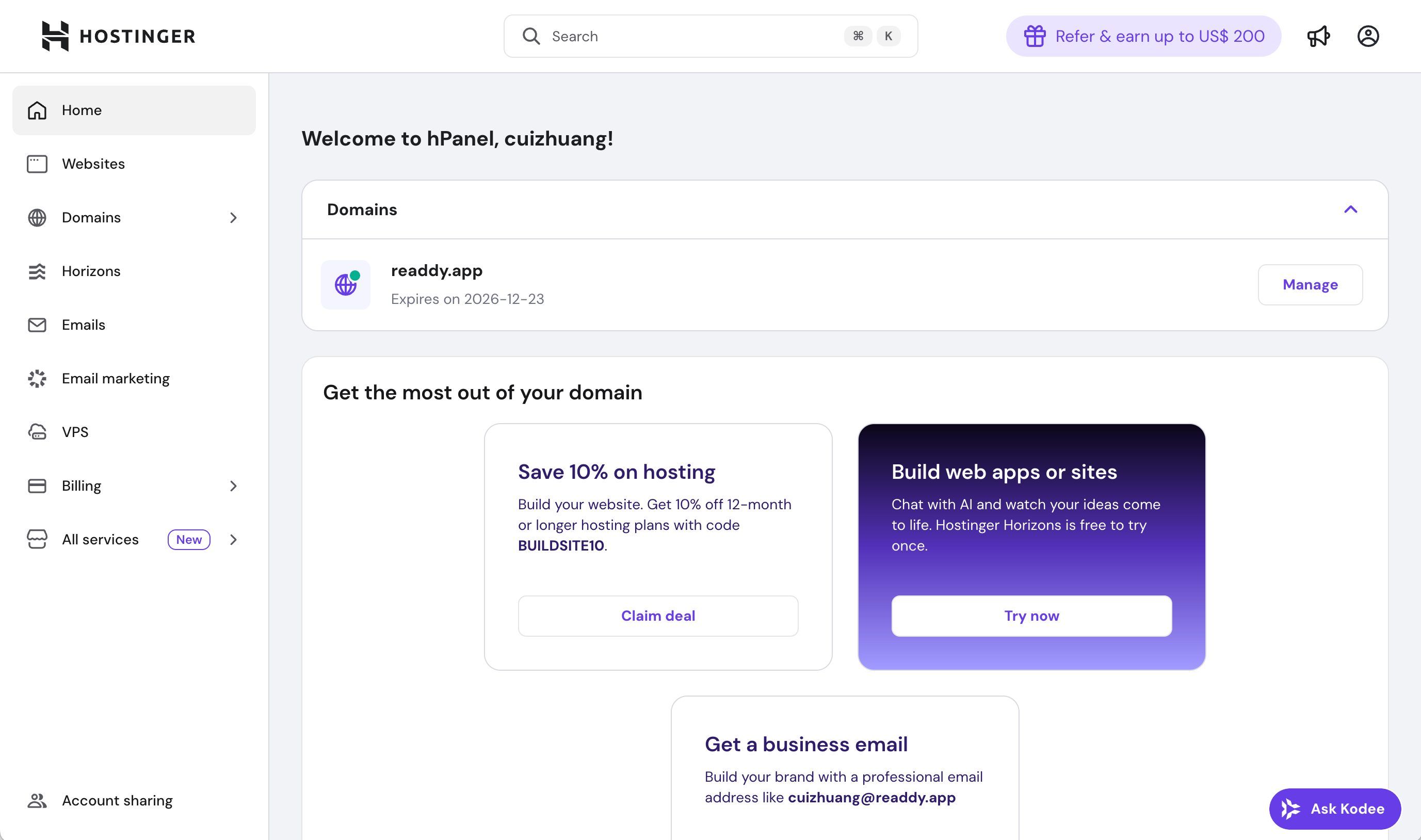
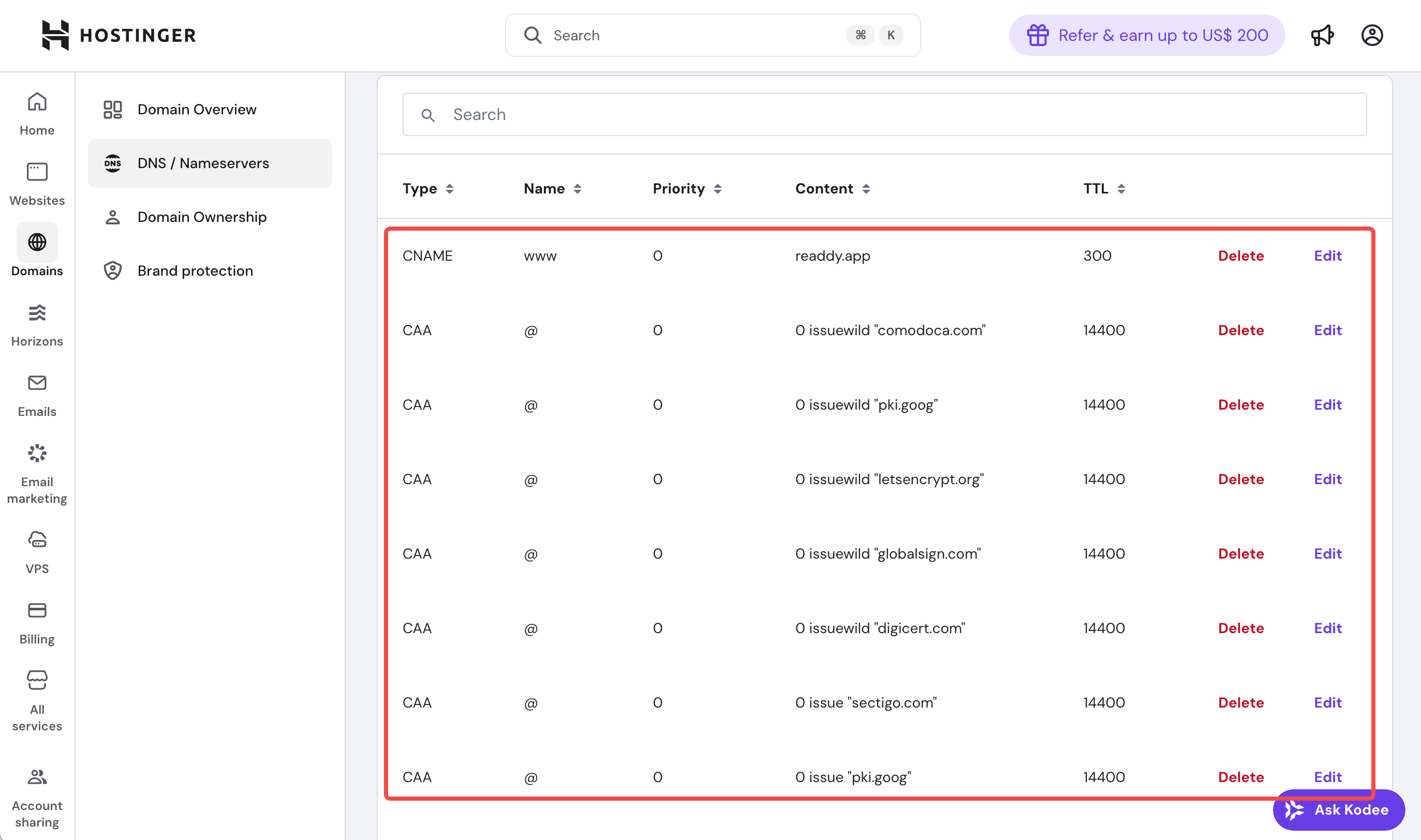
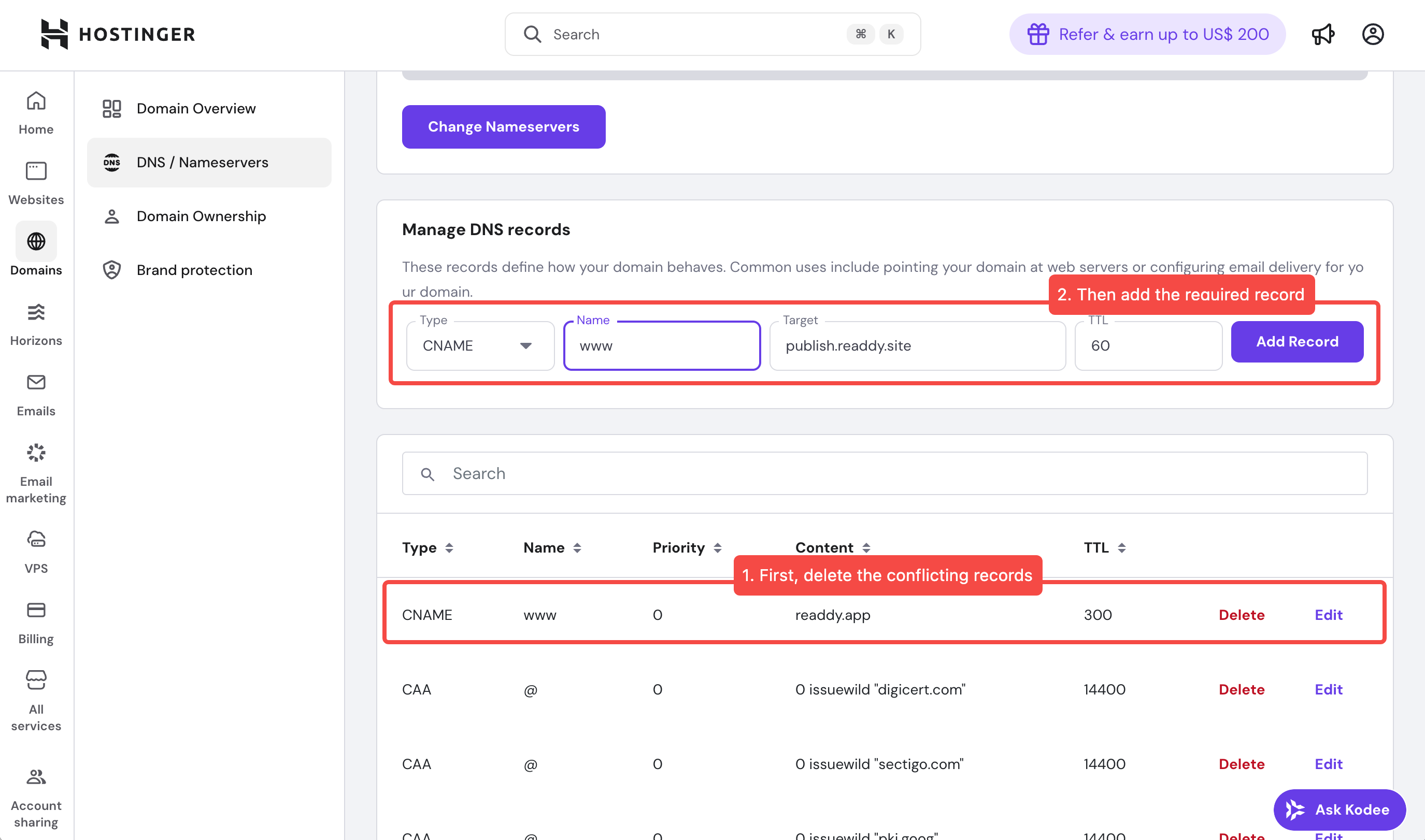
- Open a new tab in your browser, go to https://hpanel.hostinger.com/ and log in. You will see your domain on the home page.
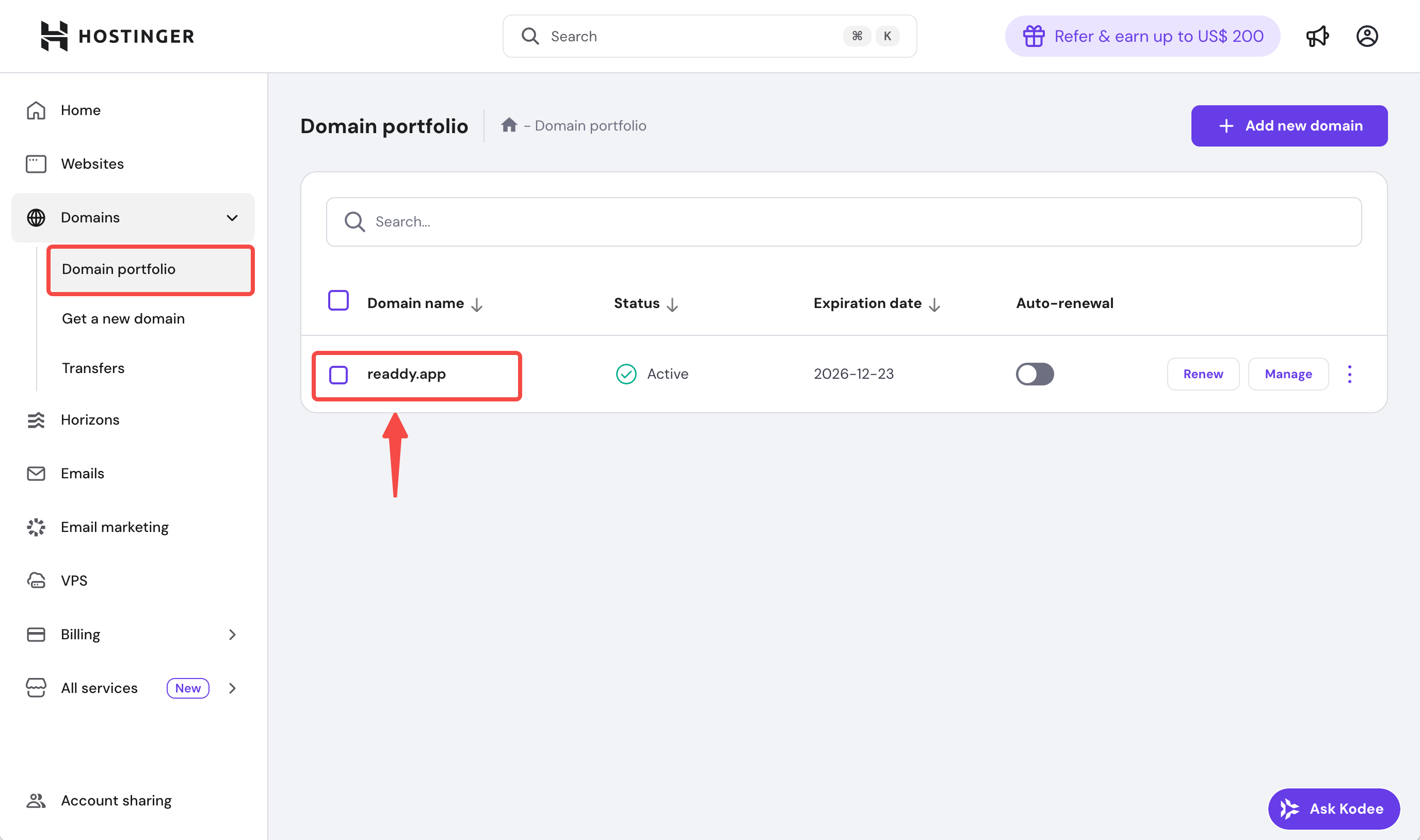
- Go to the Domain portfolio page and click the domain you want to connect.
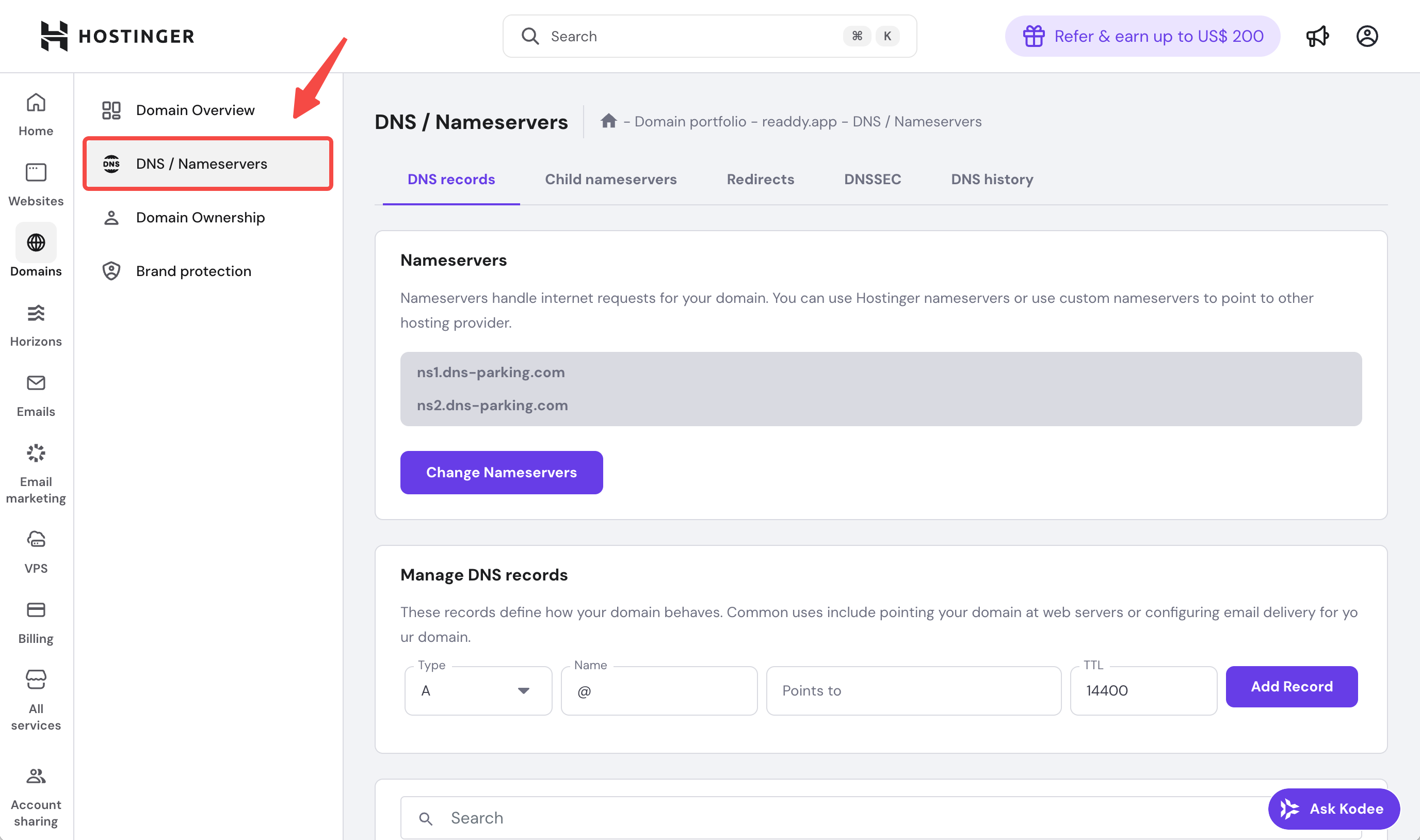
- Navigate to DNS / Nameservers page where you can manage the DNS records.
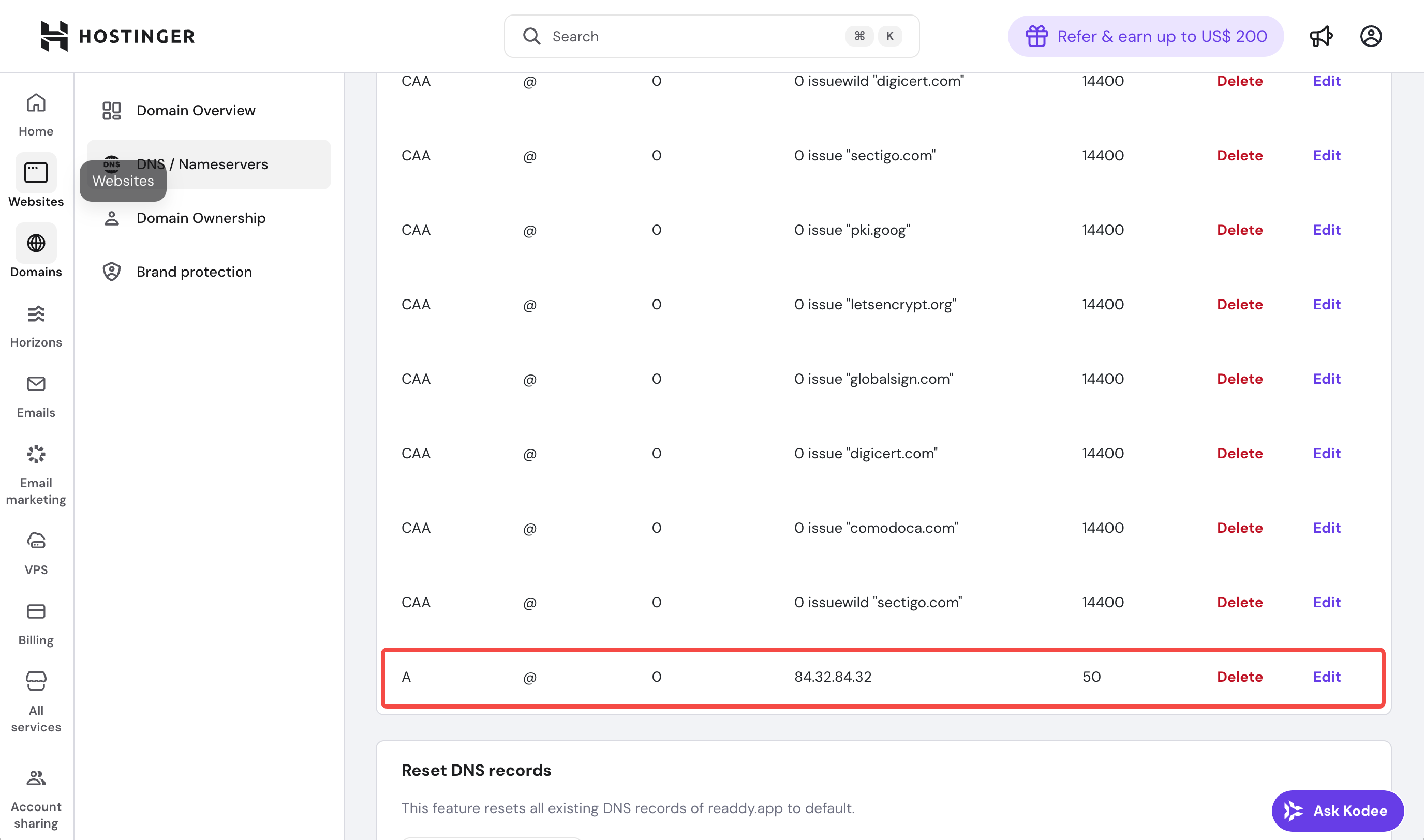
- Scroll down on the DNS / Nameservers page, and you will see all the DNS records for the current domain.
- If you connect a root domain, such as
xxxxxx.com,you need to update A + TXT - If you connect a subdomain, such as
www.xxxxxx.com,you need to update CNAME + TXT
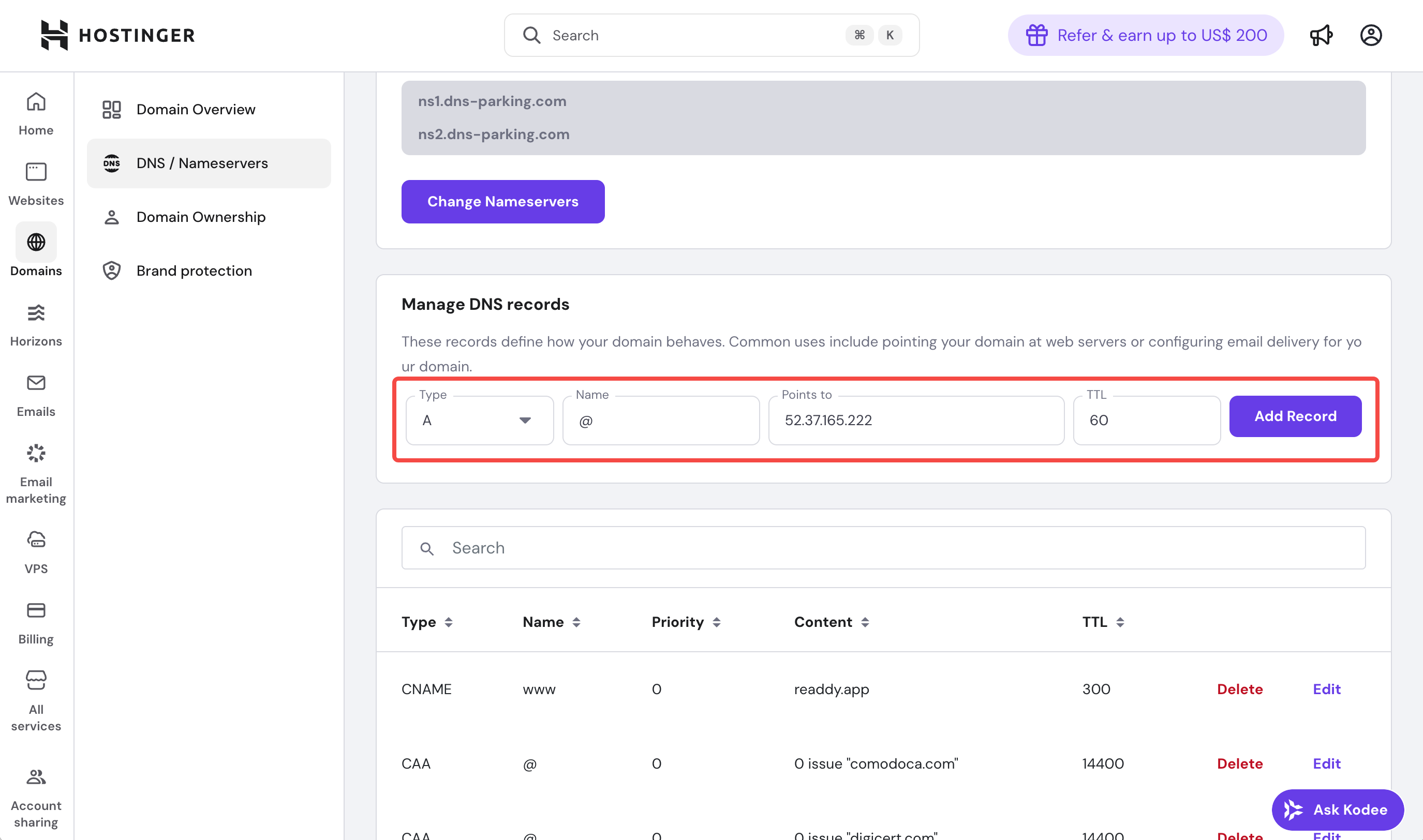
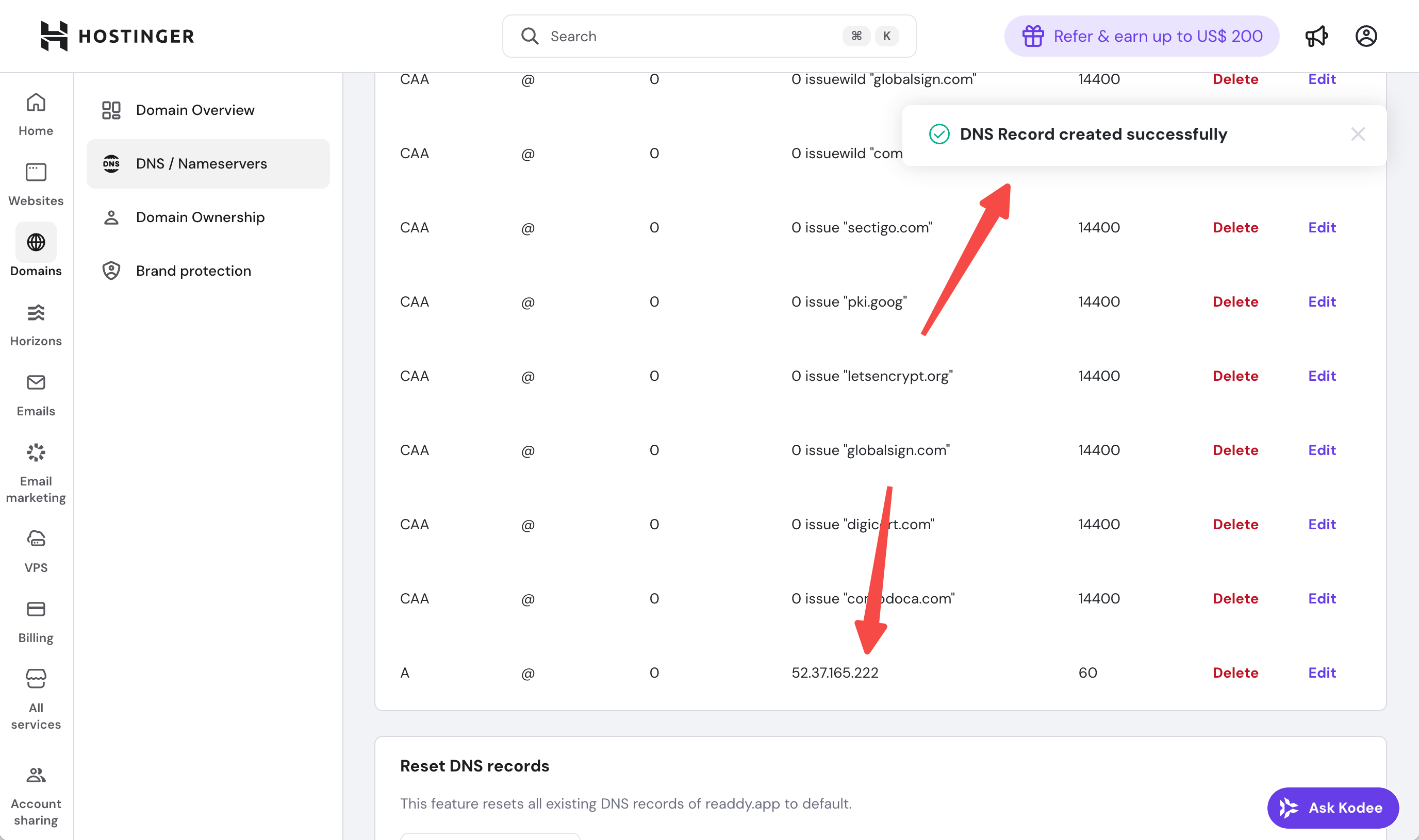
Type: A
Name: @
Value: 52.37.165.222
TTL: 60
Cloudflare
Cloudflare
Step 1: Log in to Cloudflare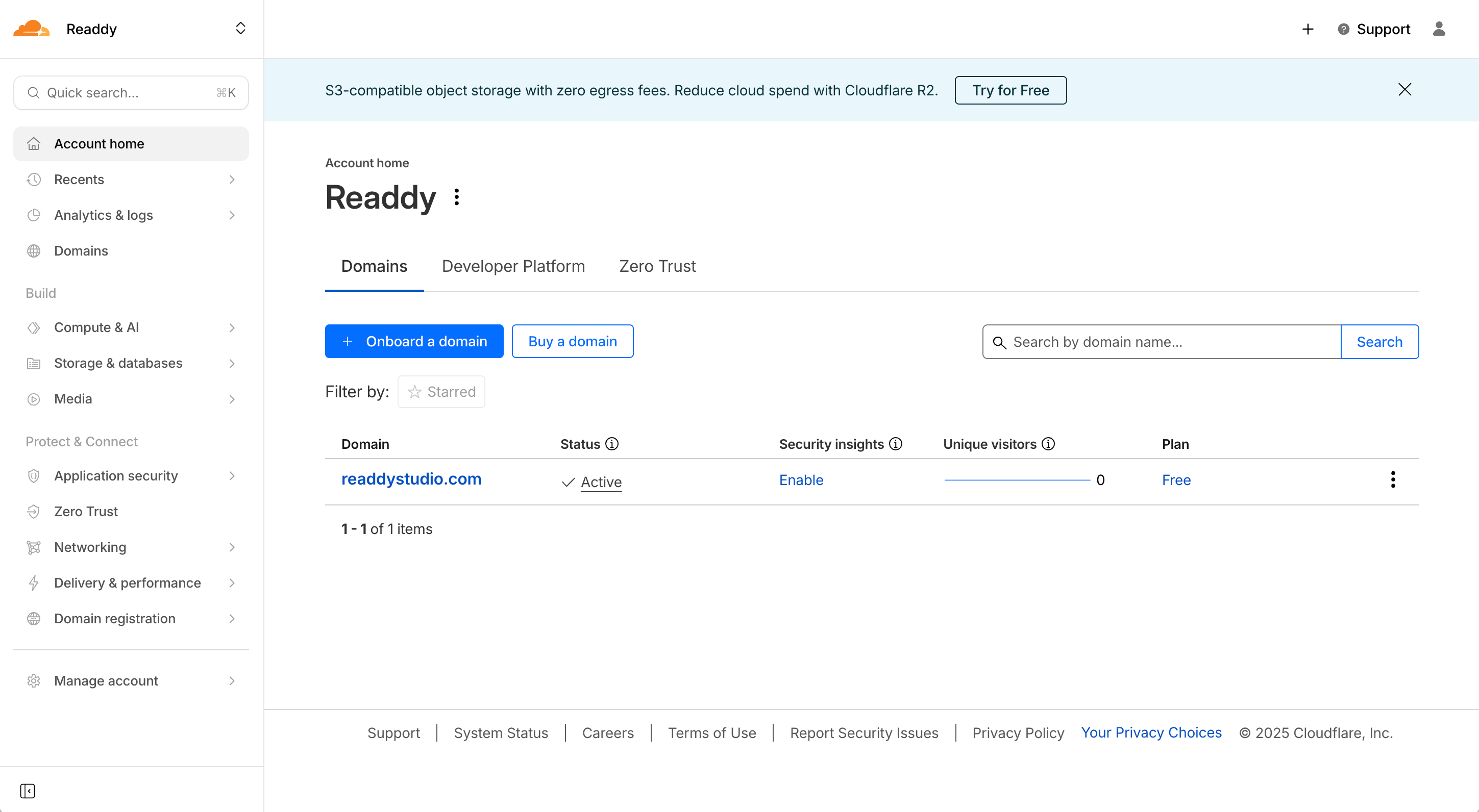
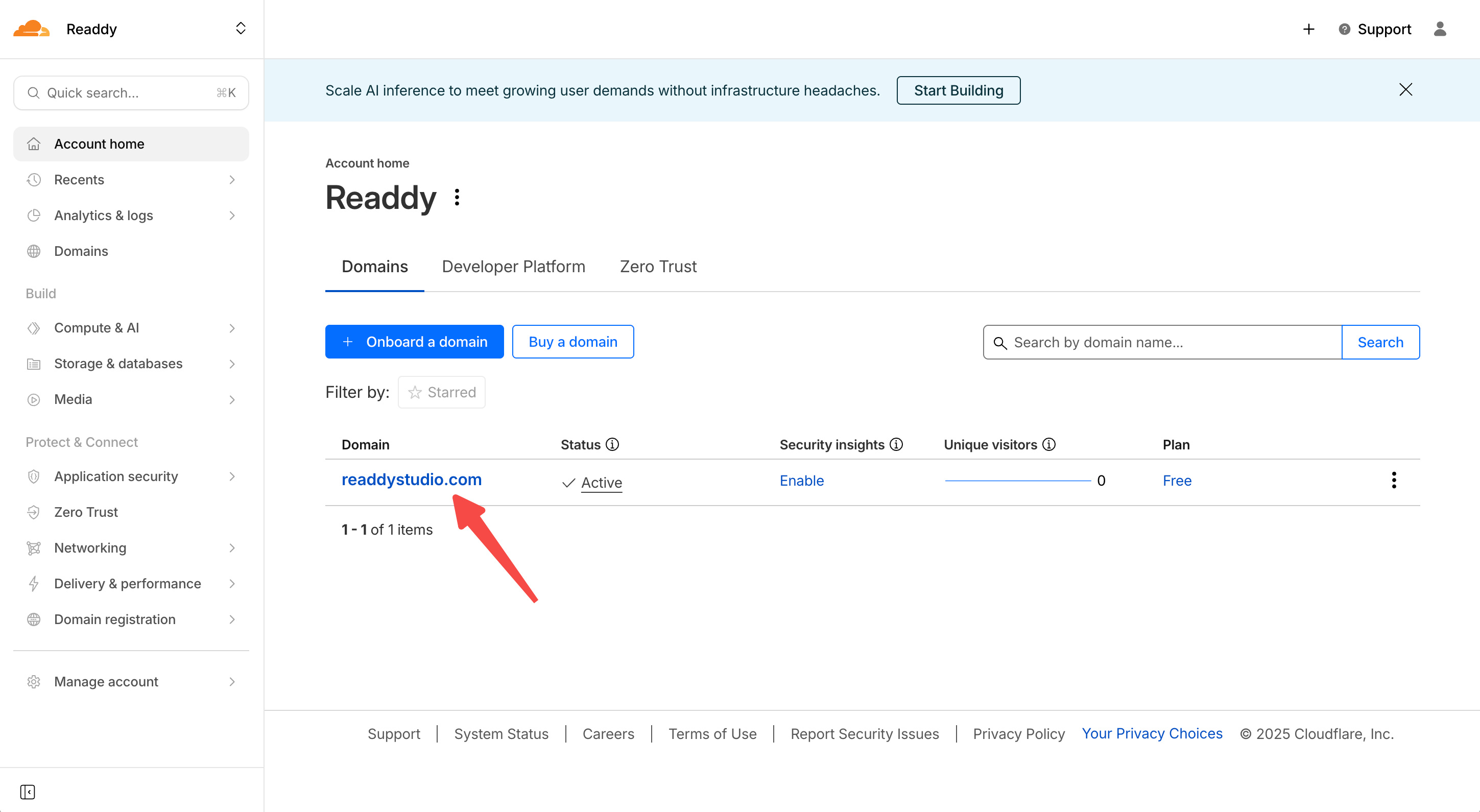
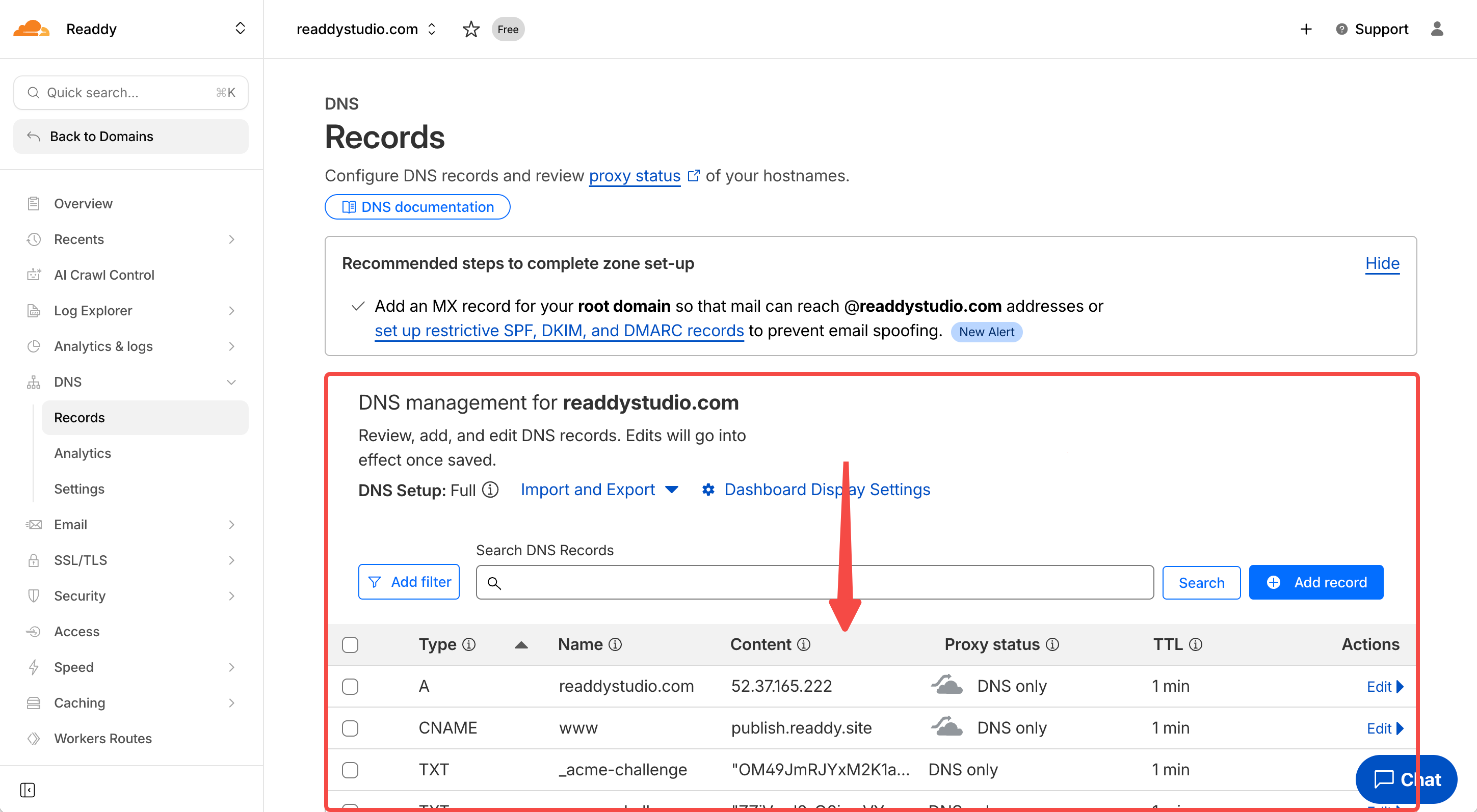
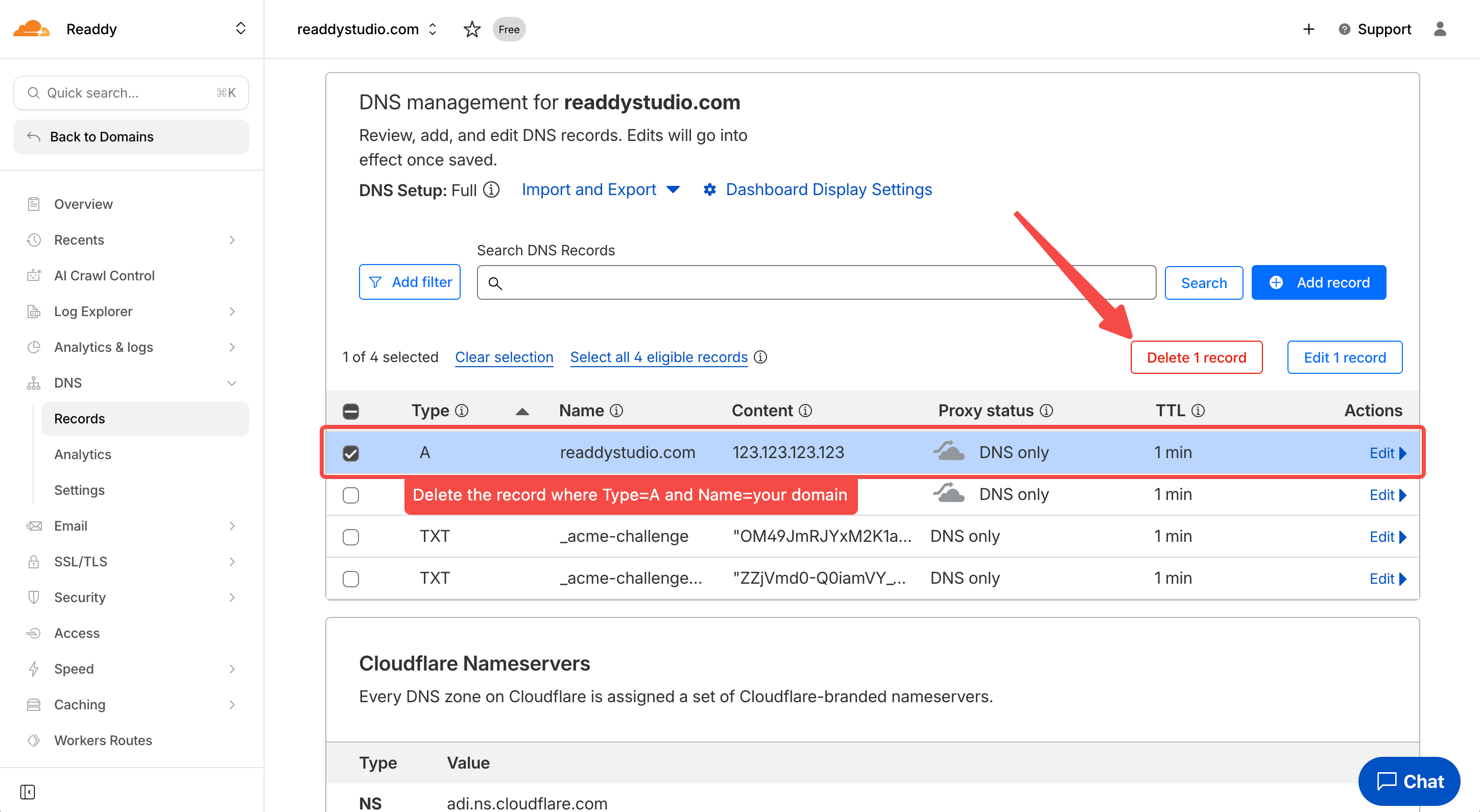
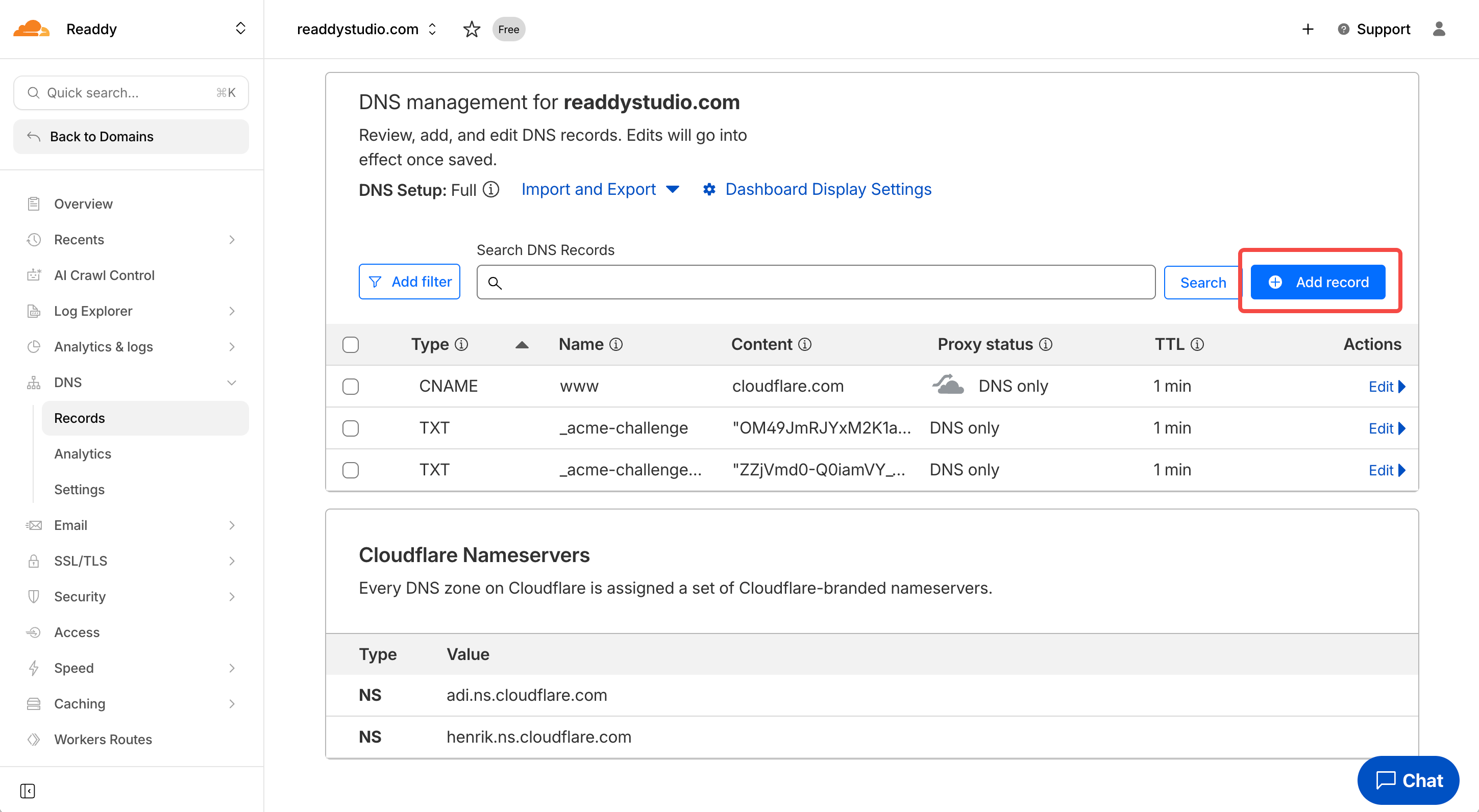
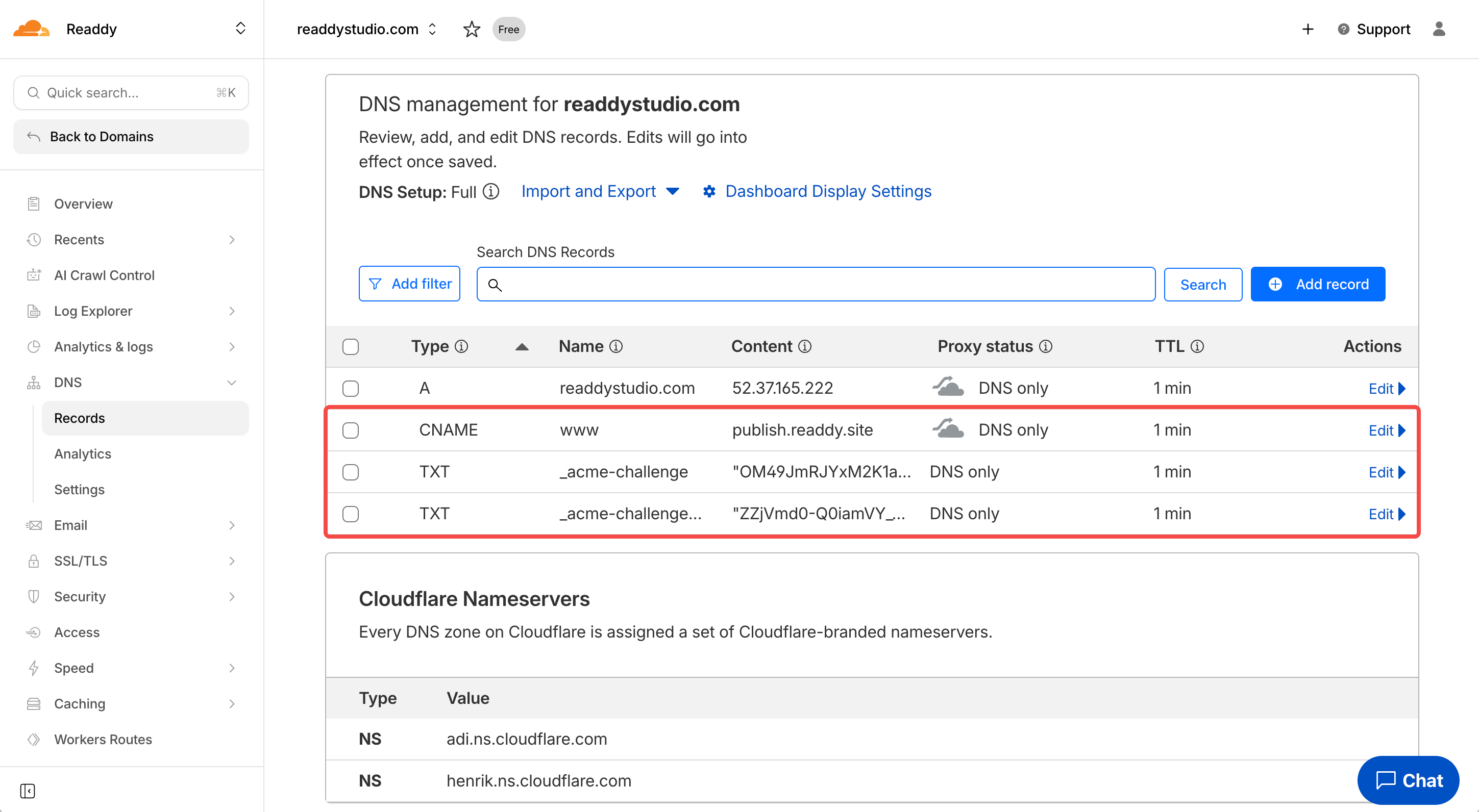
- Open a new tab in your browser, go to https://dash.cloudflare.com/ and log in. You will see your domain on the Account home page.
- Click the domain you want to connect.
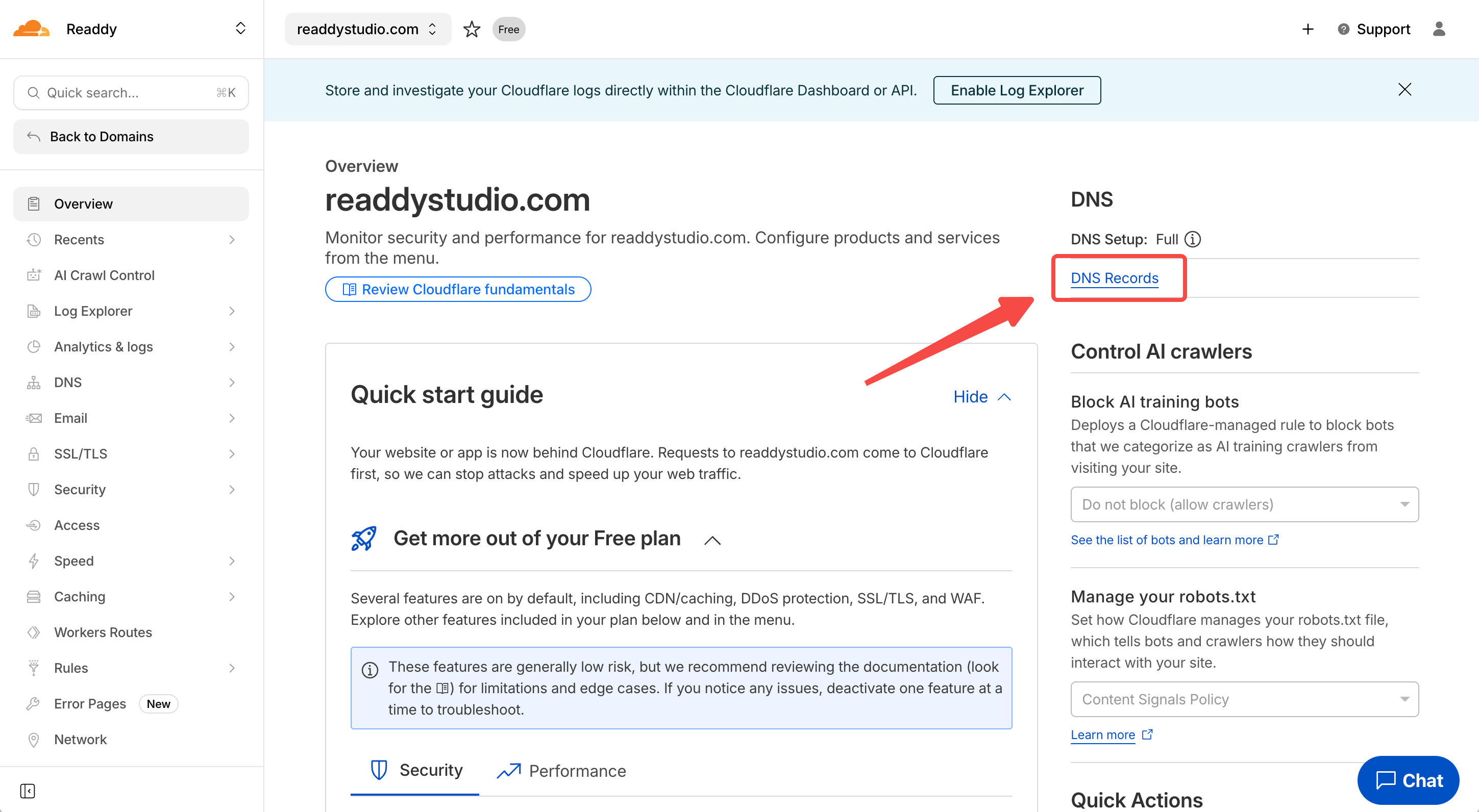
- Click DNS Records to access to the DNS management page.
- If you connect a root domain, such as
xxxxxx.com,you need to update A + TXT - If you connect a subdomain, such as
www.xxxxxx.com,you need to update CNAME + TXT
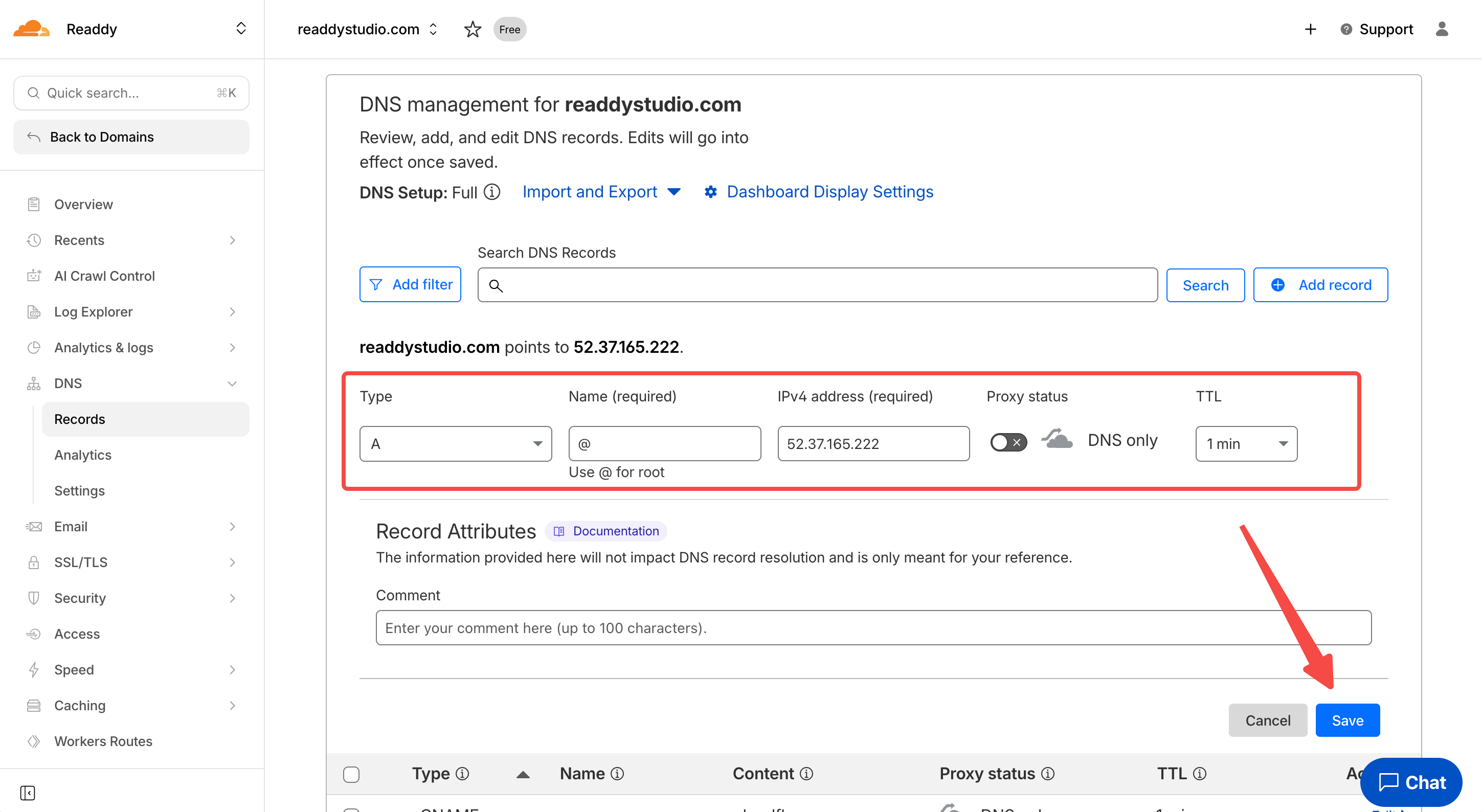
Type: A
Name: @
IPv4 address (Value): 52.37.165.222
TTL: 1 min
And very importent: switch Proxy status from Proxied to DNS only
If the Cloudflare Proxy section appears after DNS verification, follow Get a Cloudflare Origin CA Certificate to enable the proxy securely.
Namecheap
Namecheap
Step 1: Log in to Cloudflare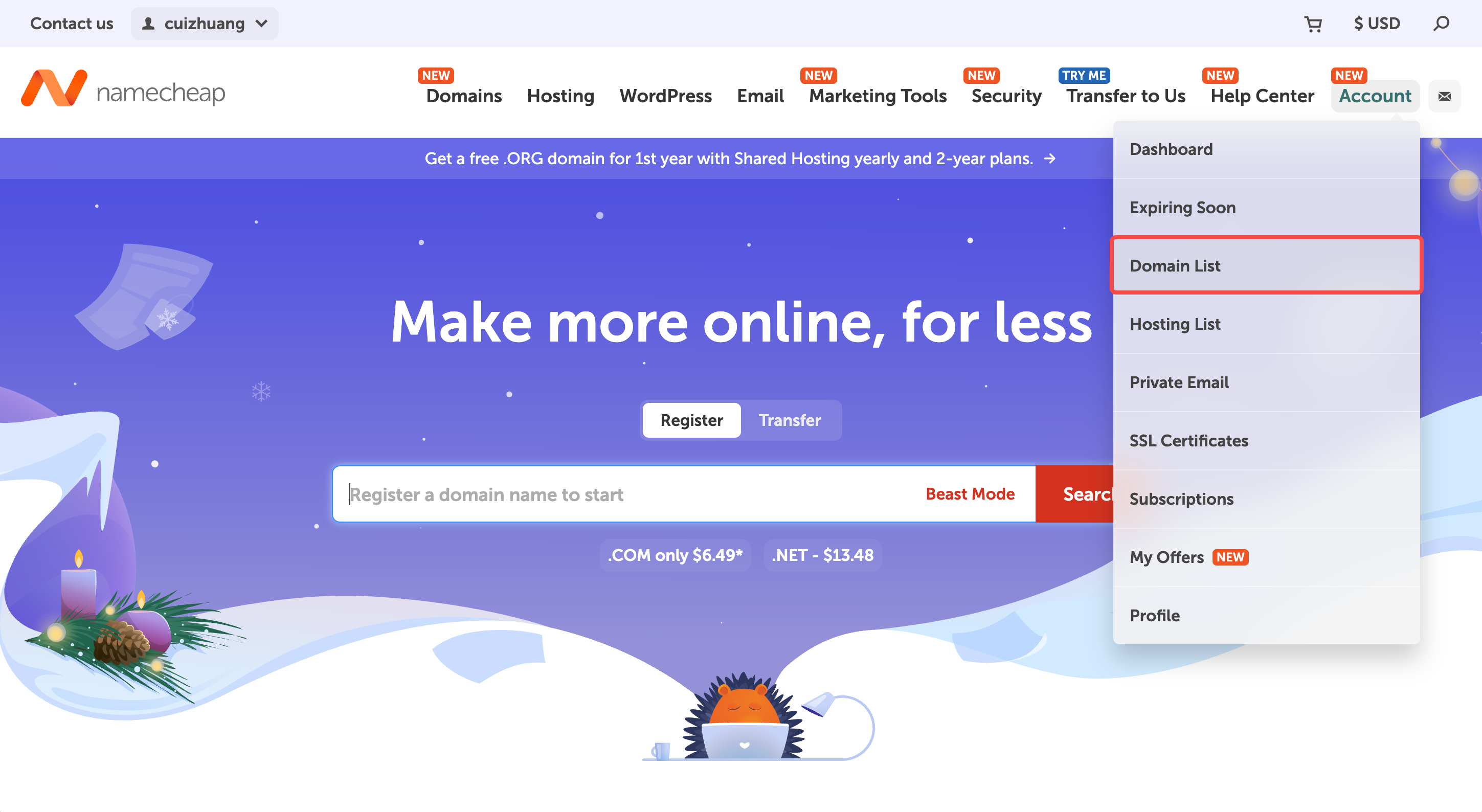
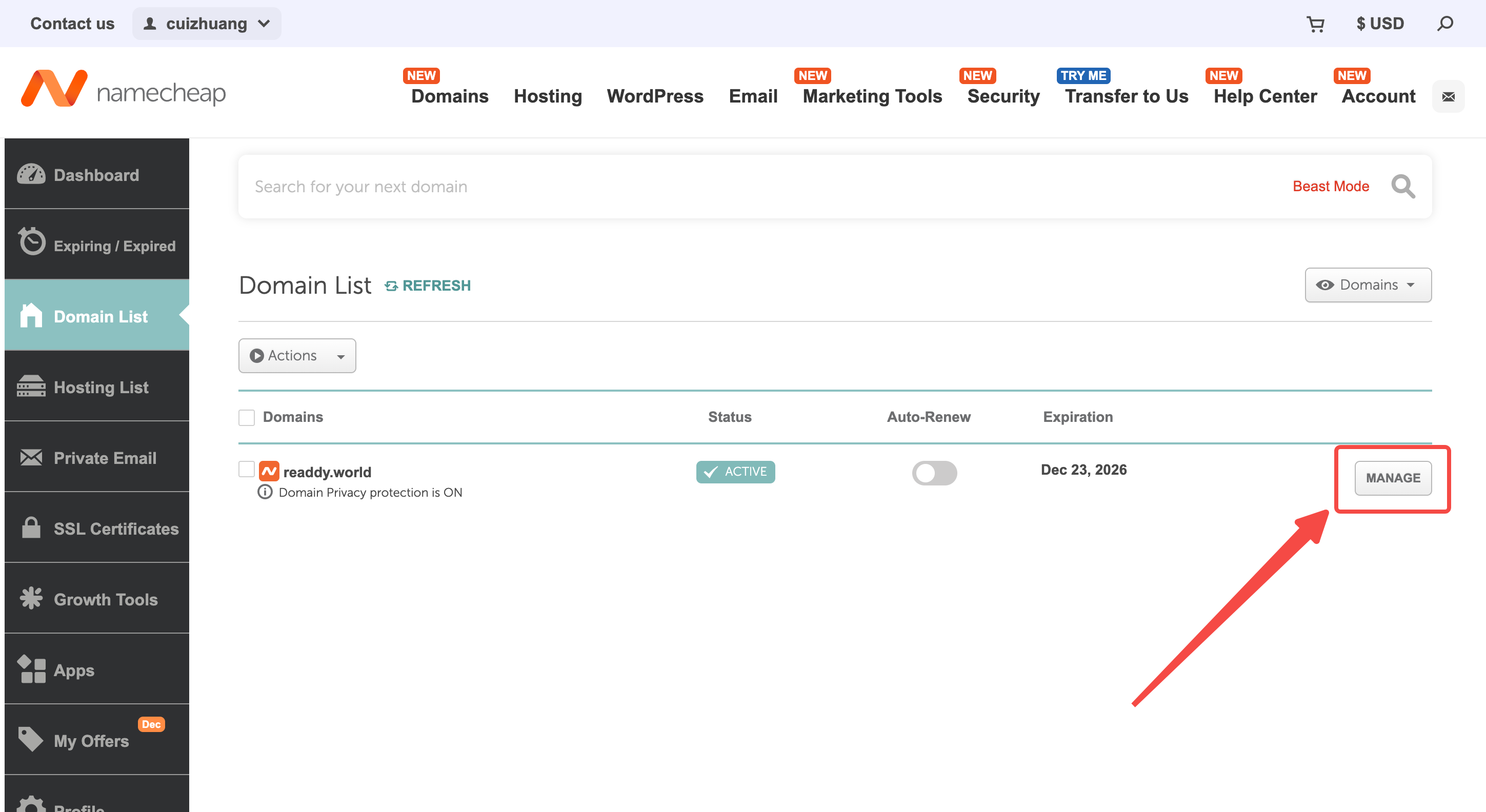
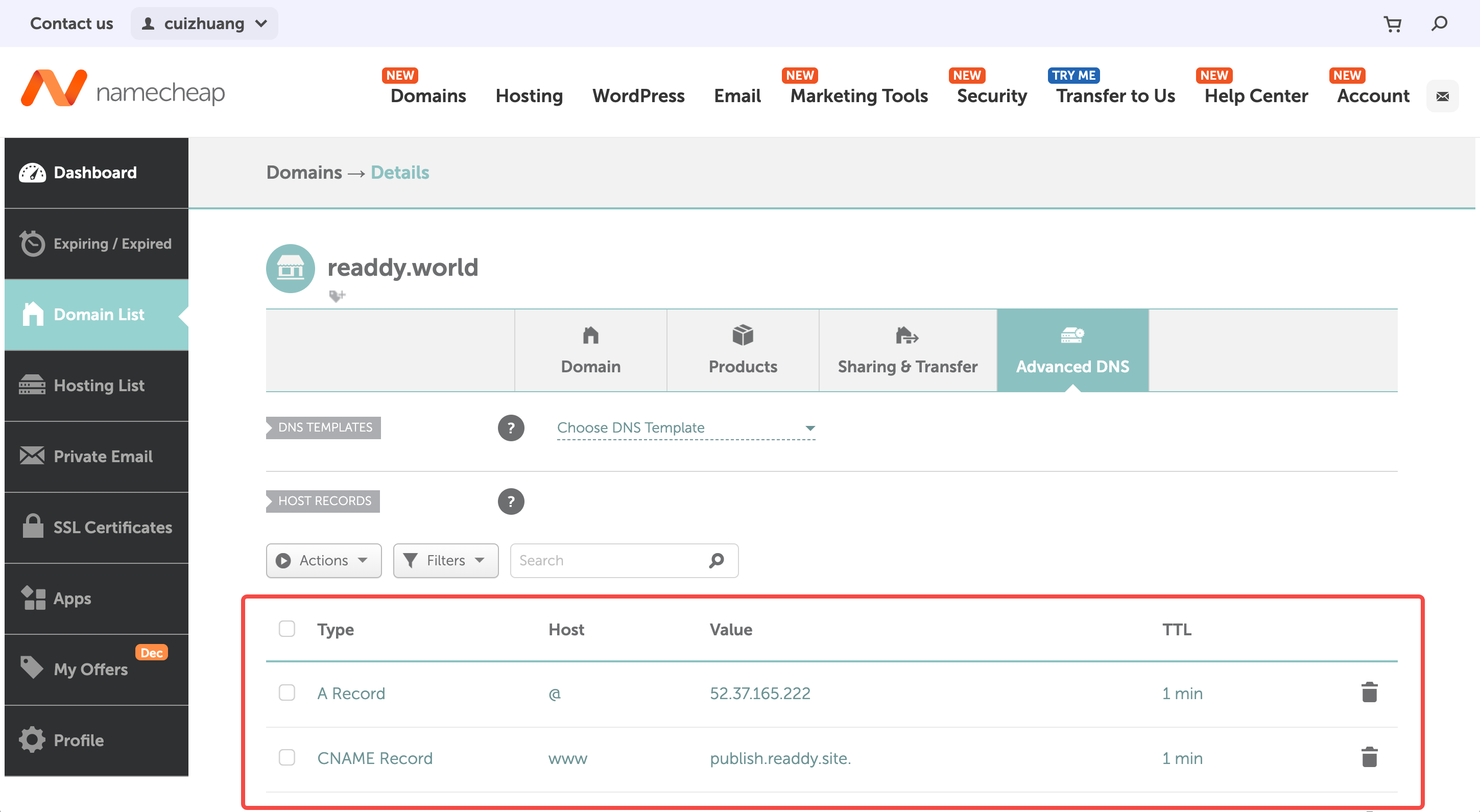
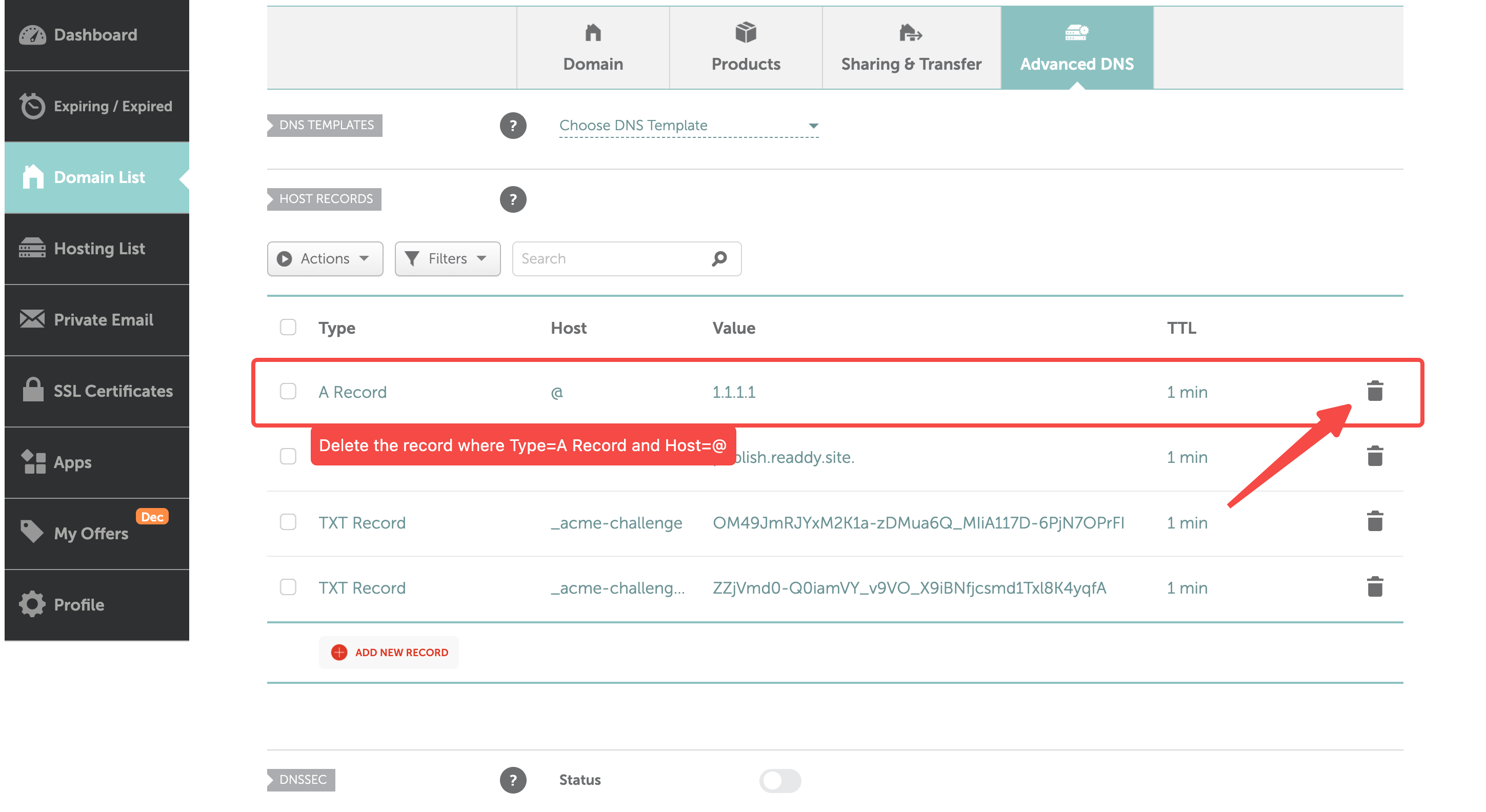
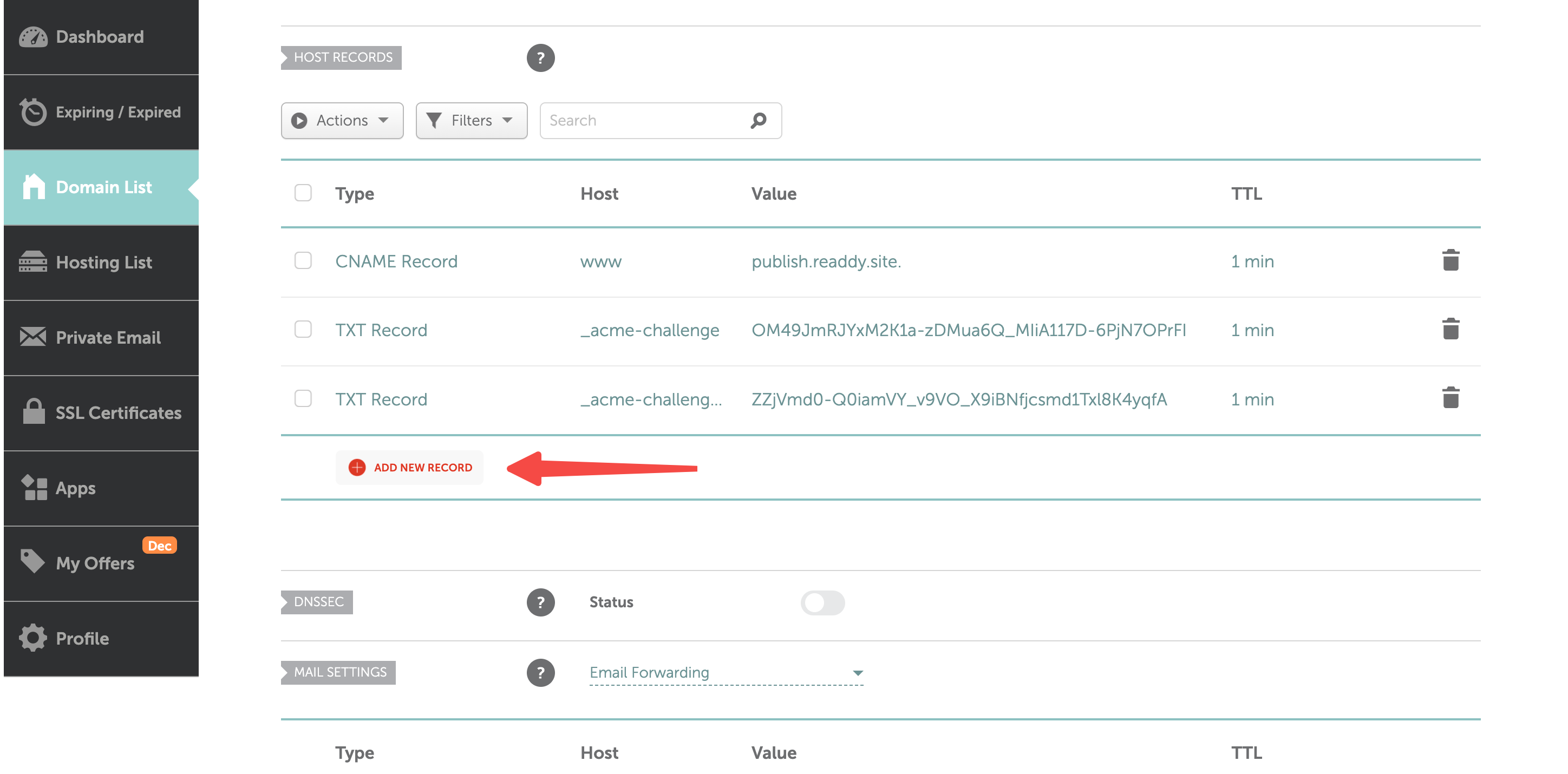
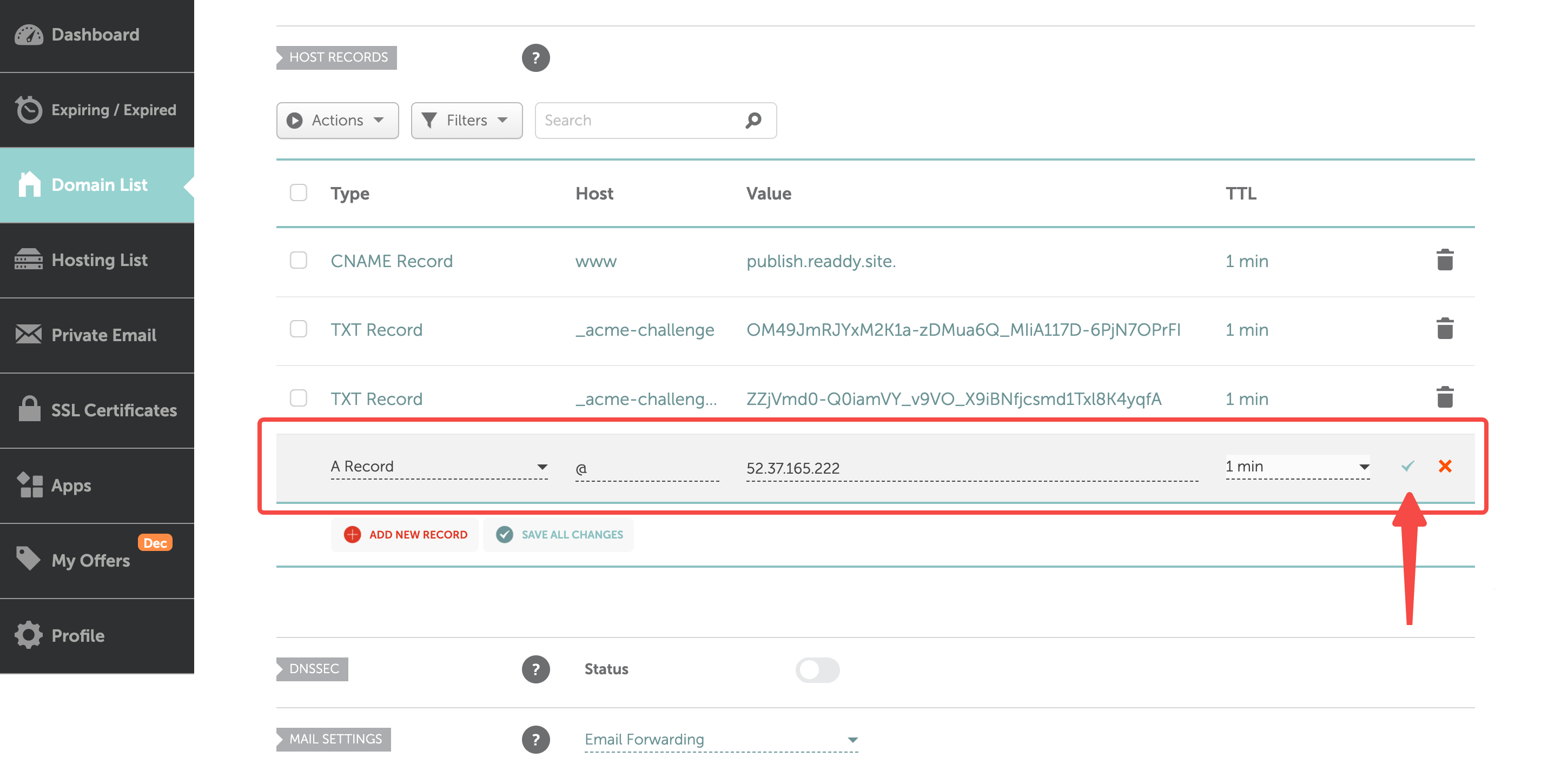
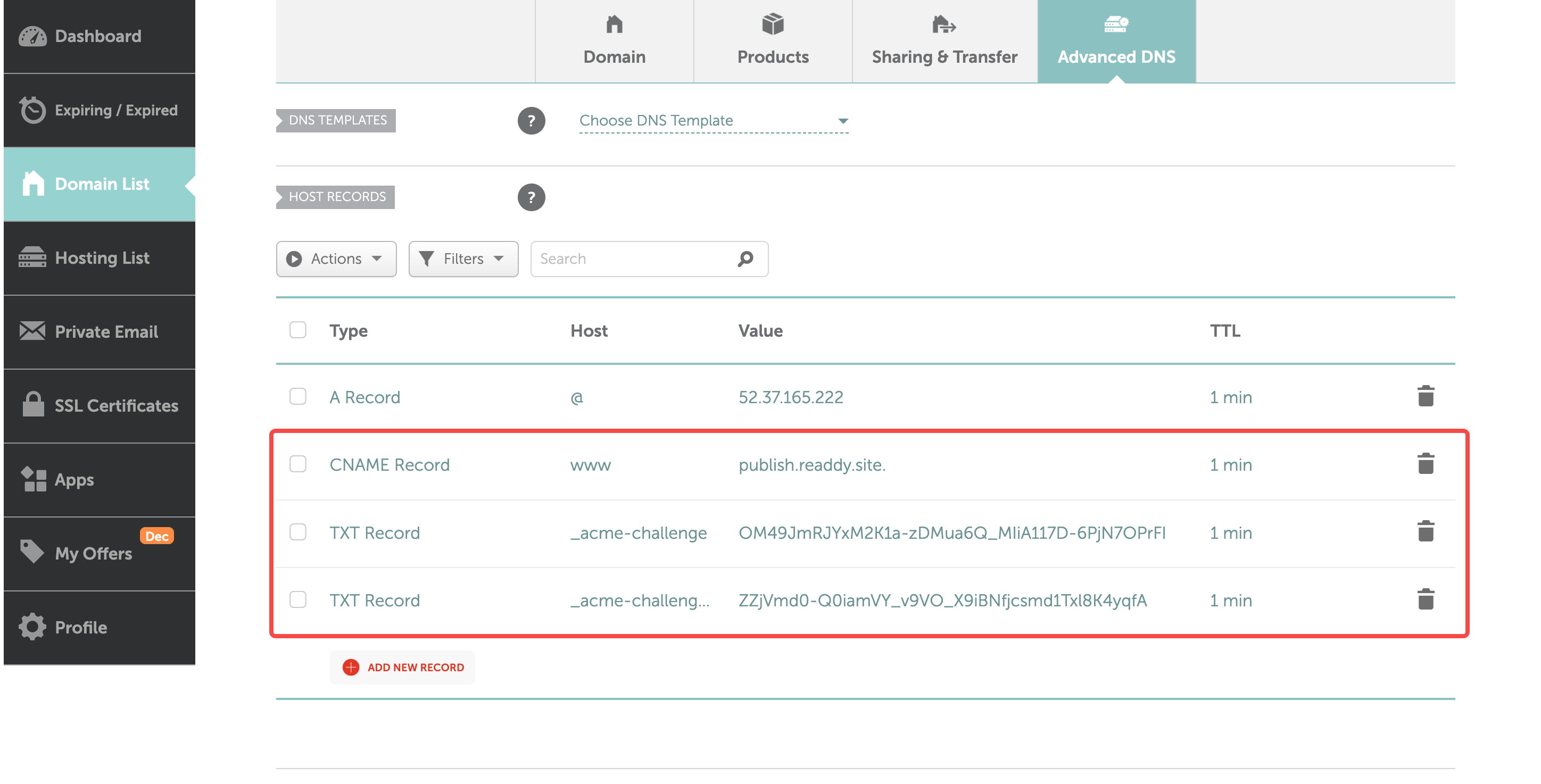
- Open a new tab in your browser, go to www.namecheap.com and log in. Locate Account in the top-right corner of the page, and click Domain list, you will see your domain.
- Find the domain you want to connect and click MANAGE.
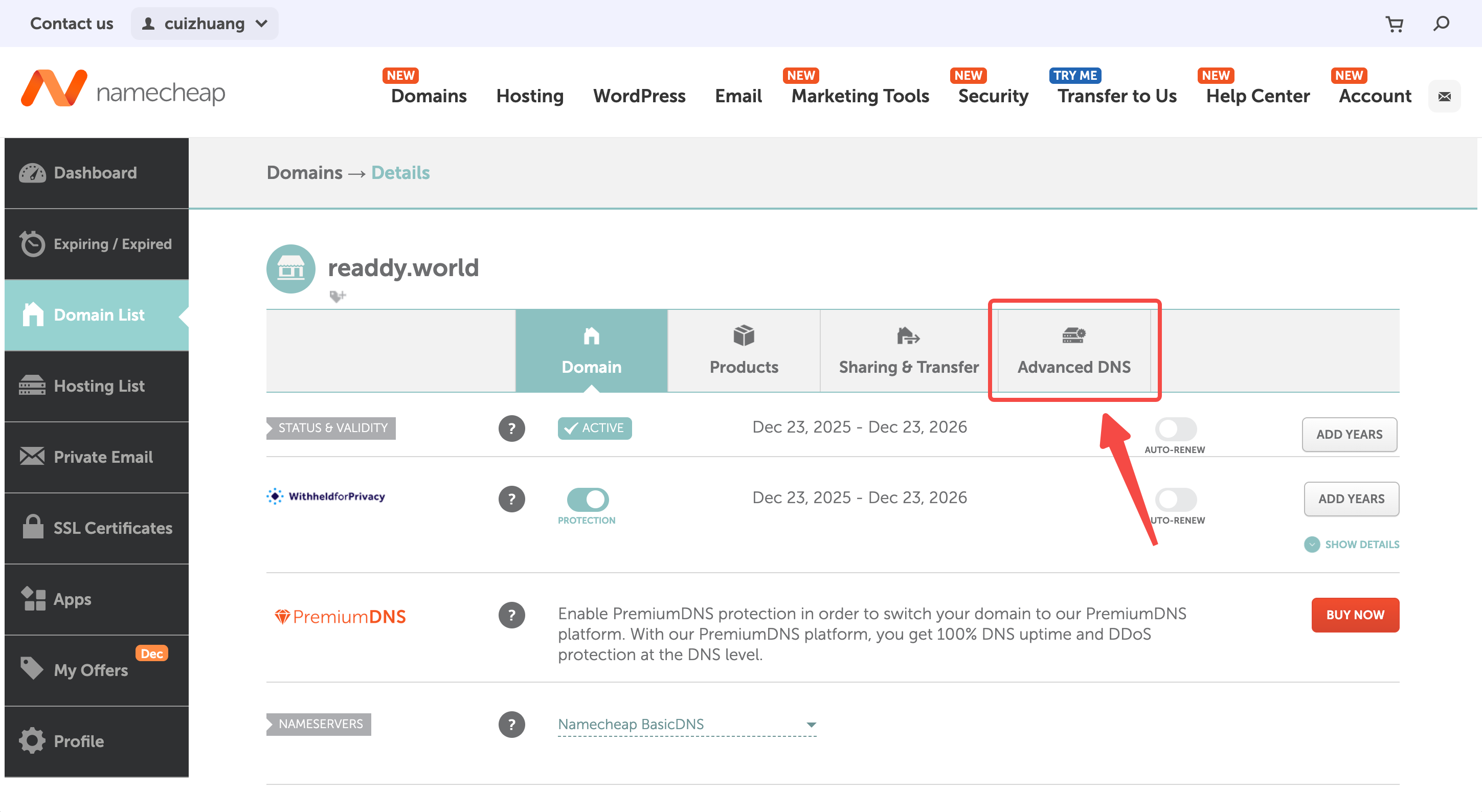
- Click Advanced DNS to access to the DNS management page.
- If you connect a root domain, such as
xxxxxx.com,you need to update A + TXT - If you connect a subdomain, such as
www.xxxxxx.com,you need to update CNAME + TXT
Type: A Record
Host: @
Value: 52.37.165.222
TTL: 1 min
Other Domain Providers
Other Domain Providers
We currently offer basic guides for the providers listed below. More comprehensive guides and additional providers are coming soon.
Squarespace Configuration
Squarespace Configuration
DNS Settings Steps: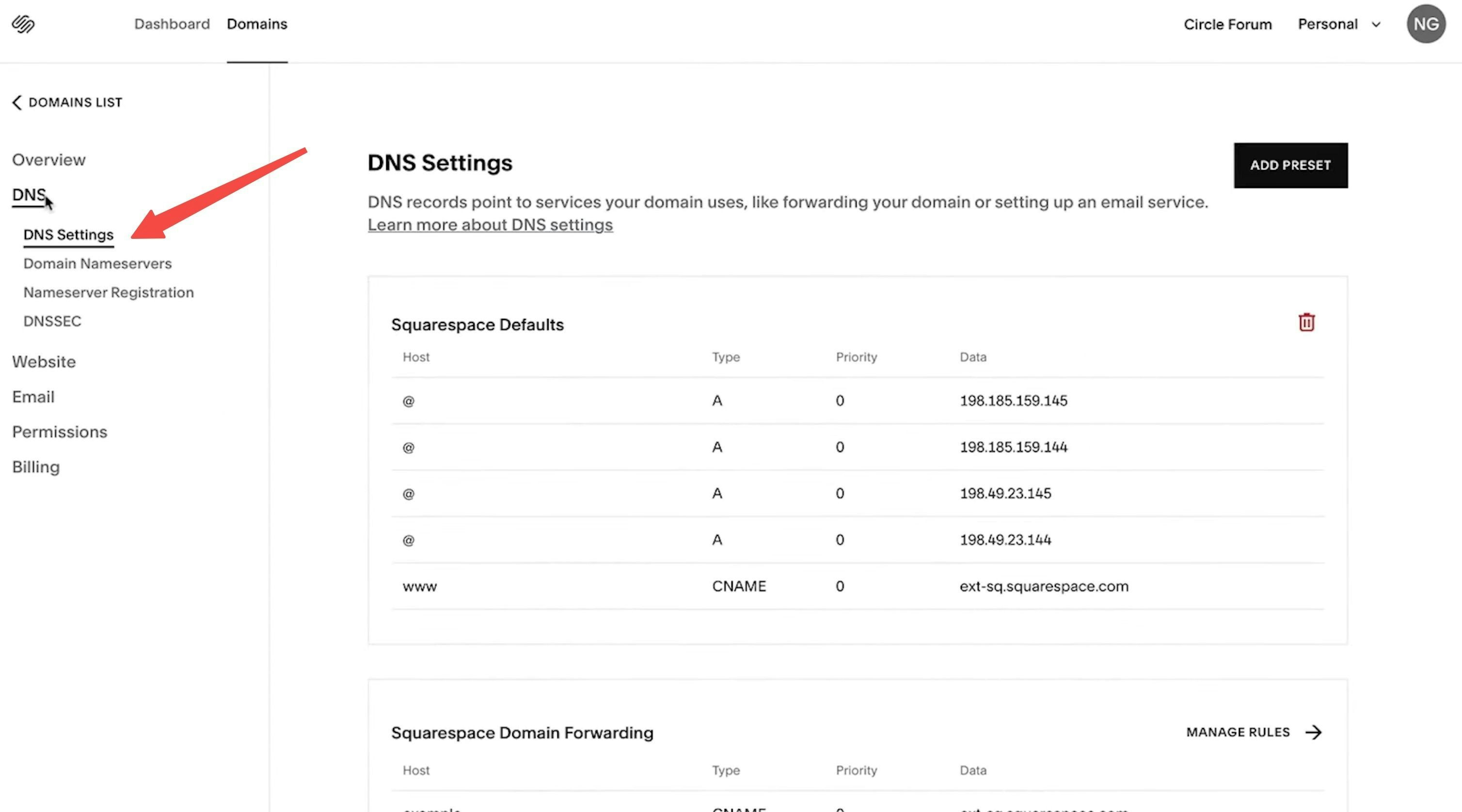
- Click on DNS, then select DNS Settings
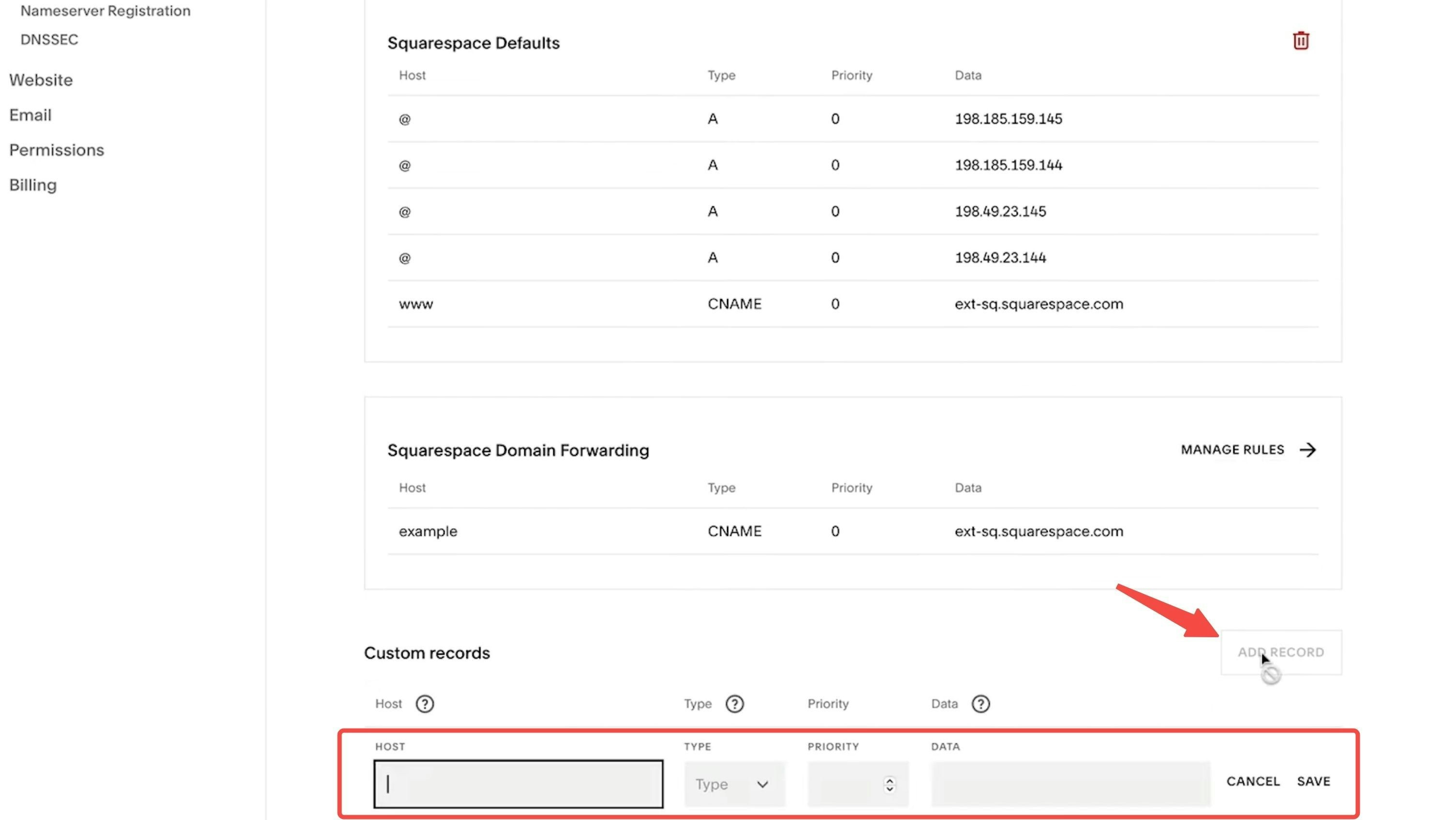
- Scroll down to the Custom Records section
- Click Add Record to input the DNS information provided by Readdy
Wix Configuration
Wix Configuration
DNS Settings Steps: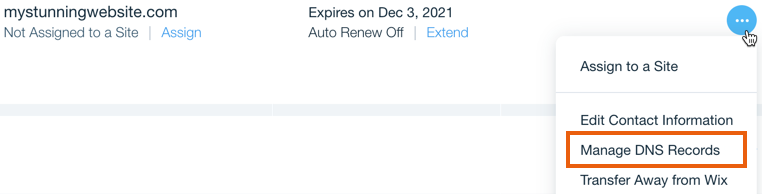

- Go to Domains in your Wix account
- Click the Domain Actions icon next to the domain you want to connect
- Select Manage DNS records
- Scroll down to the record type you need to add (e.g., A, CNAME, TXT), then click + Add Record
- Enter the DNS record values exactly as provided by Readdy
- Click Save
- In the pop-up message, click Save Changes to confirm
WordPress Configuration
WordPress Configuration
DNS Settings Steps: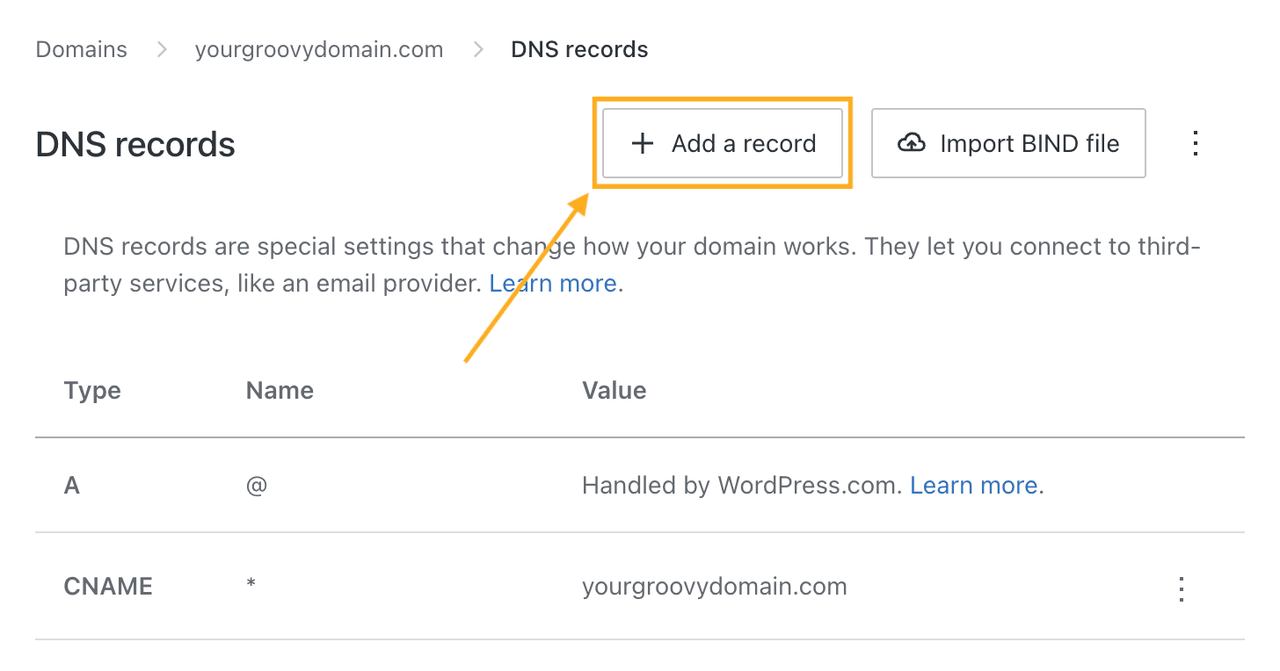
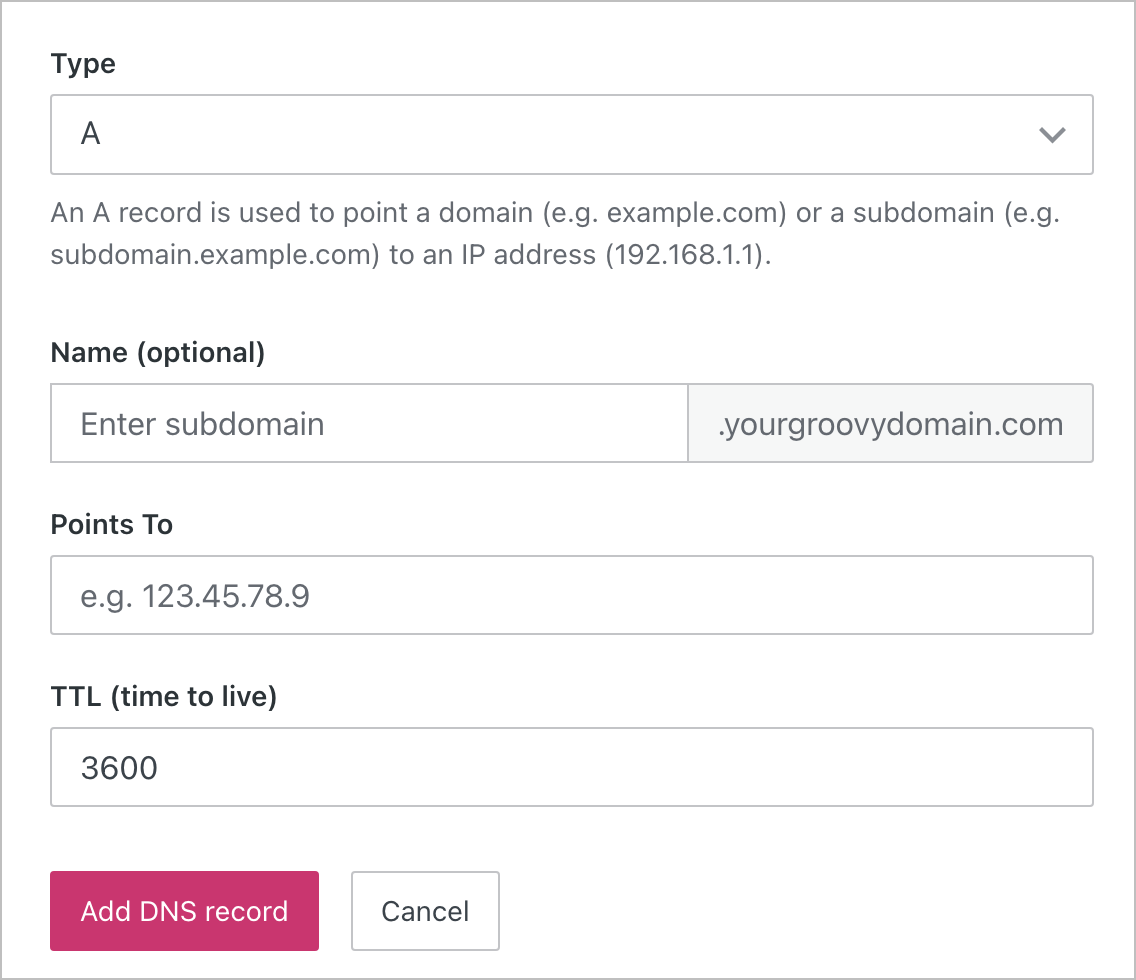
- Visit your site’s dashboard
- Navigate to Upgrades → Domains (or Hosting → Domains if you’re using WP Admin) to view all the domains associated with your site
- Click on the domain you want to configure
- Select DNS records and click the Manage button
- In the top-right corner, click Add a record
- In the Type dropdown, choose the type of DNS record you need to add (e.g., A, CNAME, TXT, etc.)
- Enter the DNS record information exactly as provided by Readdy
- Save your changes to complete the update
Bluehost Configuration
Bluehost Configuration
DNS Settings Steps: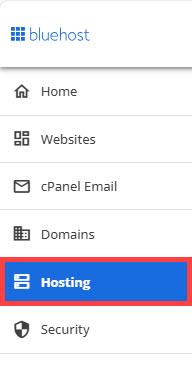
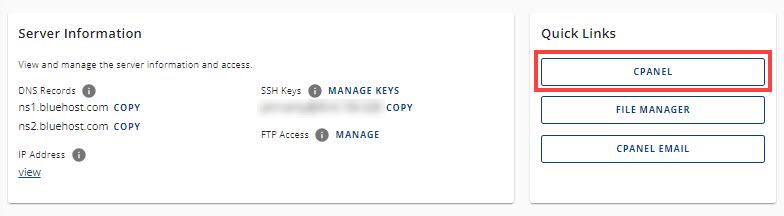

- Log in to your Bluehost Account Manager
- From the left navigation menu, click Hosting
If you have multiple hosting packages, be sure to select the correct one and tap MANAGE.
- Scroll down to Quick Links and tap CPANEL
- On the cPanel dashboard, scroll to the Domains section and click Zone Editor
- In the Zone Editor, click the + icon next to the type of DNS record you’d like to add (e.g., A, CNAME, TXT)
- Fill in the required fields using the DNS values provided by Readdy
Update your DNS records
First, follow the guide above ↑ to update the records displayed in the interface. Due to varying cache mechanisms across different domain providers, DNS updates may take anywhere from a few minutes to several hours to propagate. Please be patient during this process.We recommend waiting at least 10 minutes after updating, then click “I’ve updated records” to continue.
If the DNS records are still not detected after waiting more than 30 minutes, please carefully verify that the DNS records you added are correct. If needed, you can take a screenshot and submit it to our live chat support for assistance.
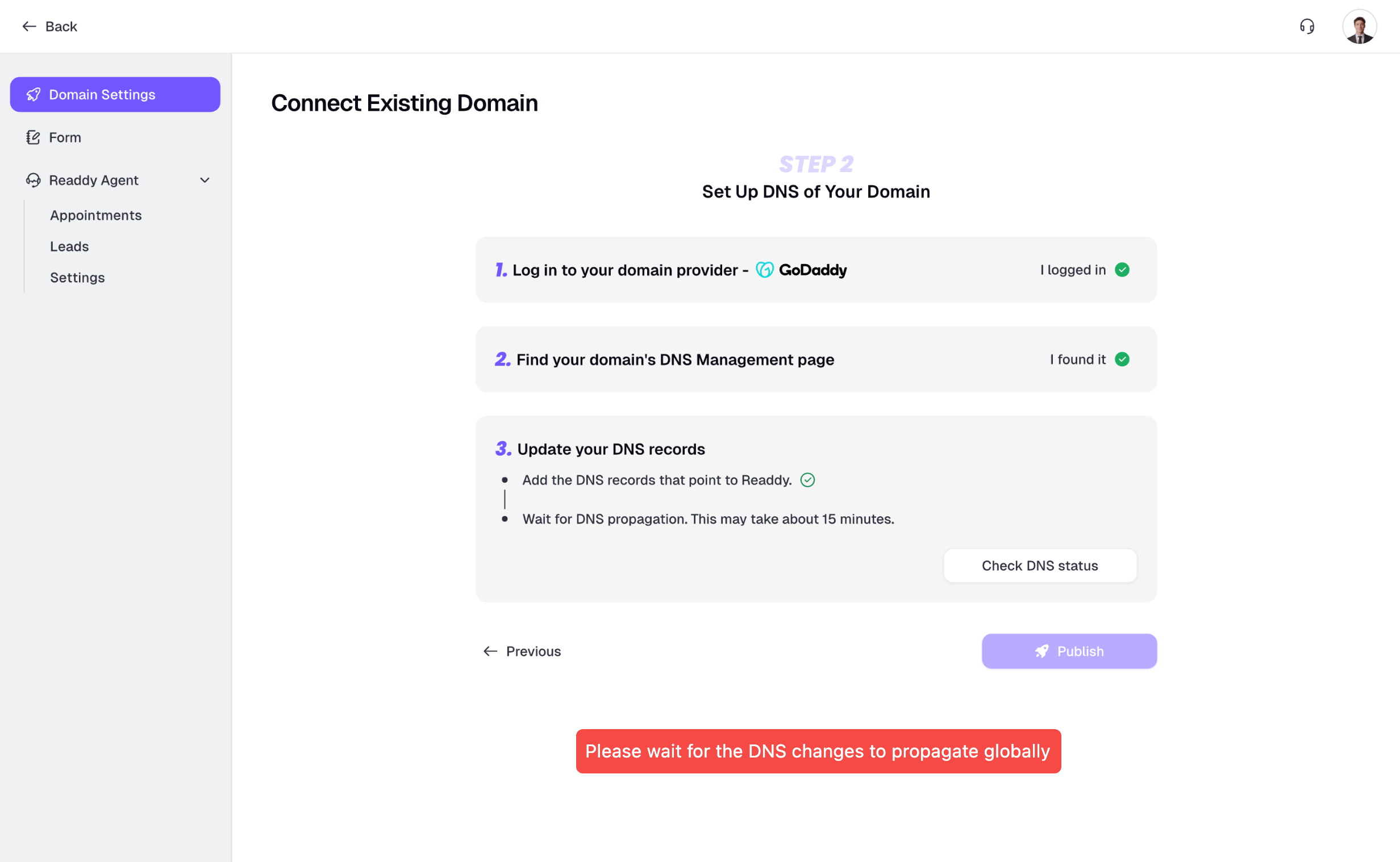
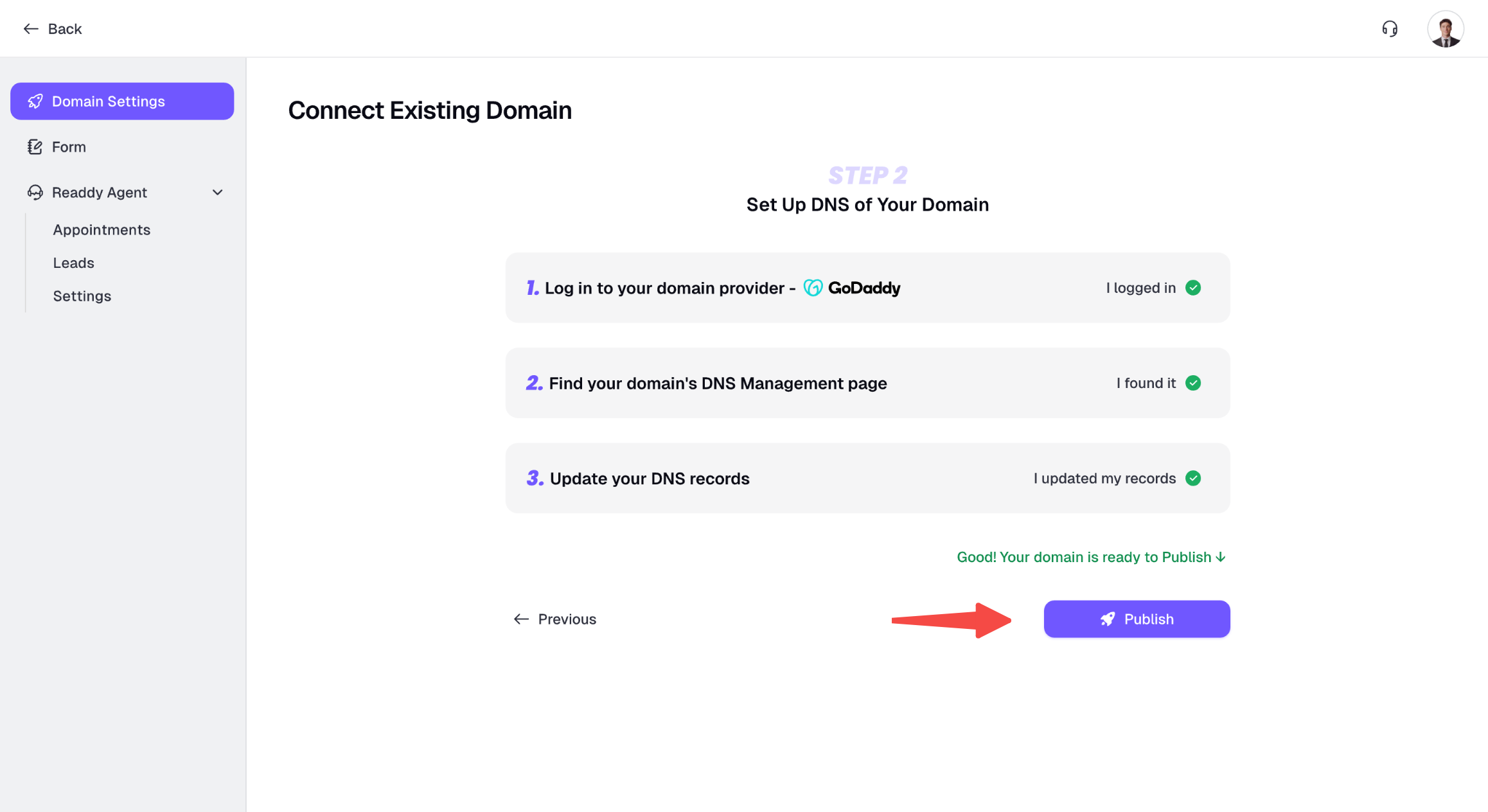
For faster propagation, set your TTL to a lower value such as 1 minute (the minimum TTL varies by DNS provider). Please wait at least 5 minutes, then click Check DNS status to check the DNS propagation status.
Update Your Website
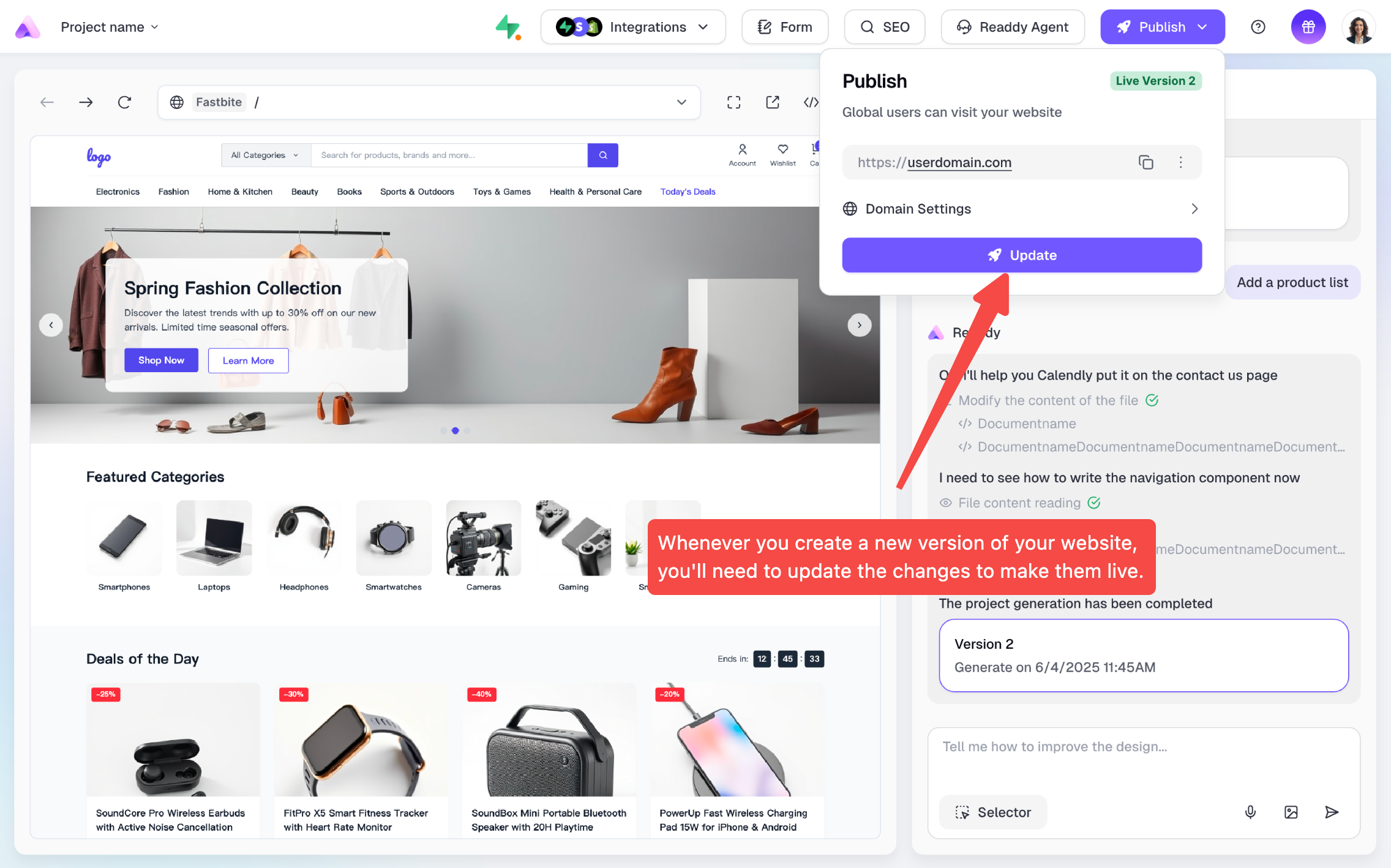
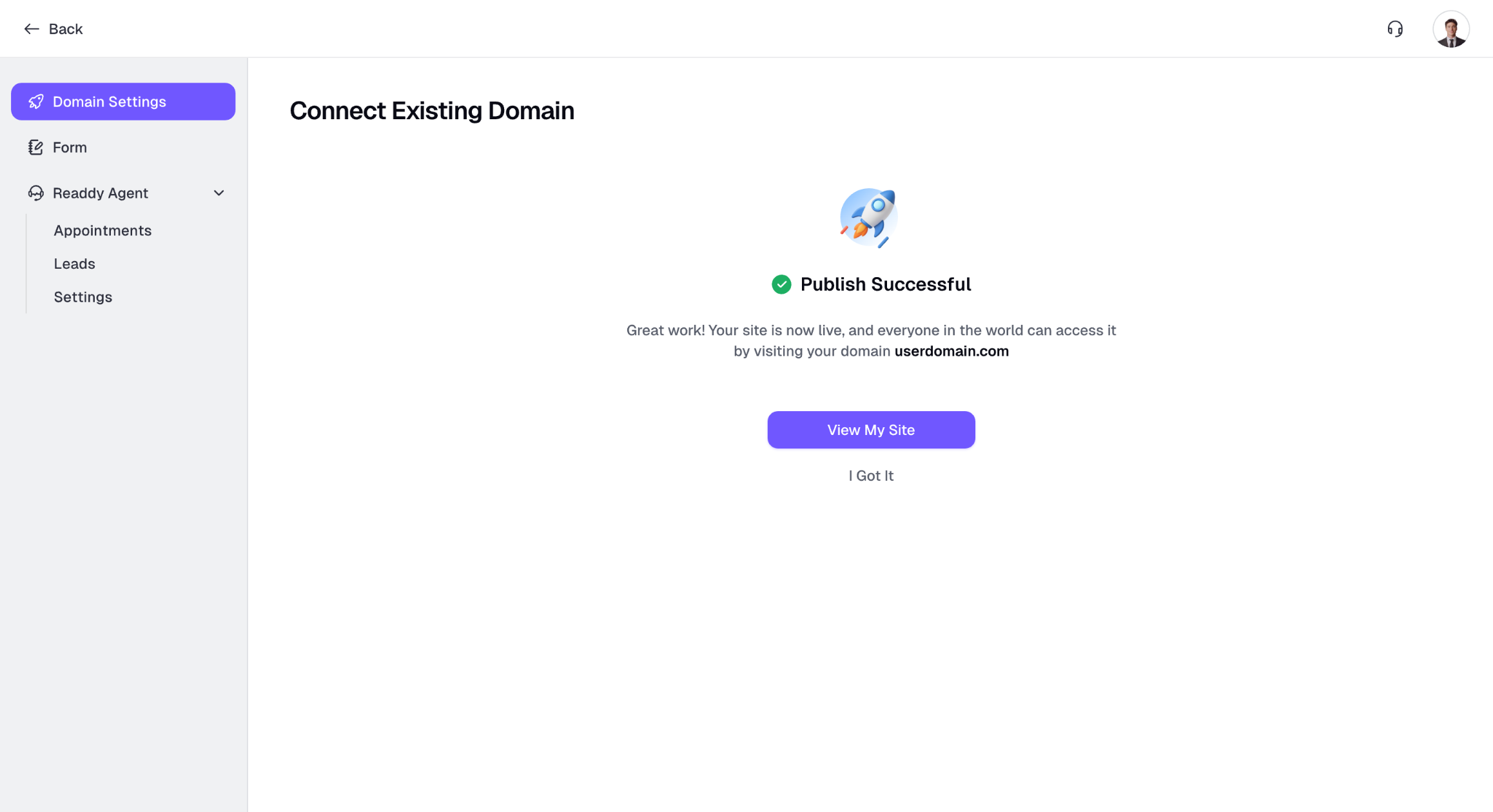
Whenever you create a new version of your website, you’ll need to update the changes to make them live.