

- See everything: View and manage all your websites (projects) in one place
- Stay organized: Group projects under clients like folders — by customer, brand, or however you work
- Find fast: Search, sort, and switch views to get back to active work in fewer clicks
All Projects
All Projects shows every project you have access to.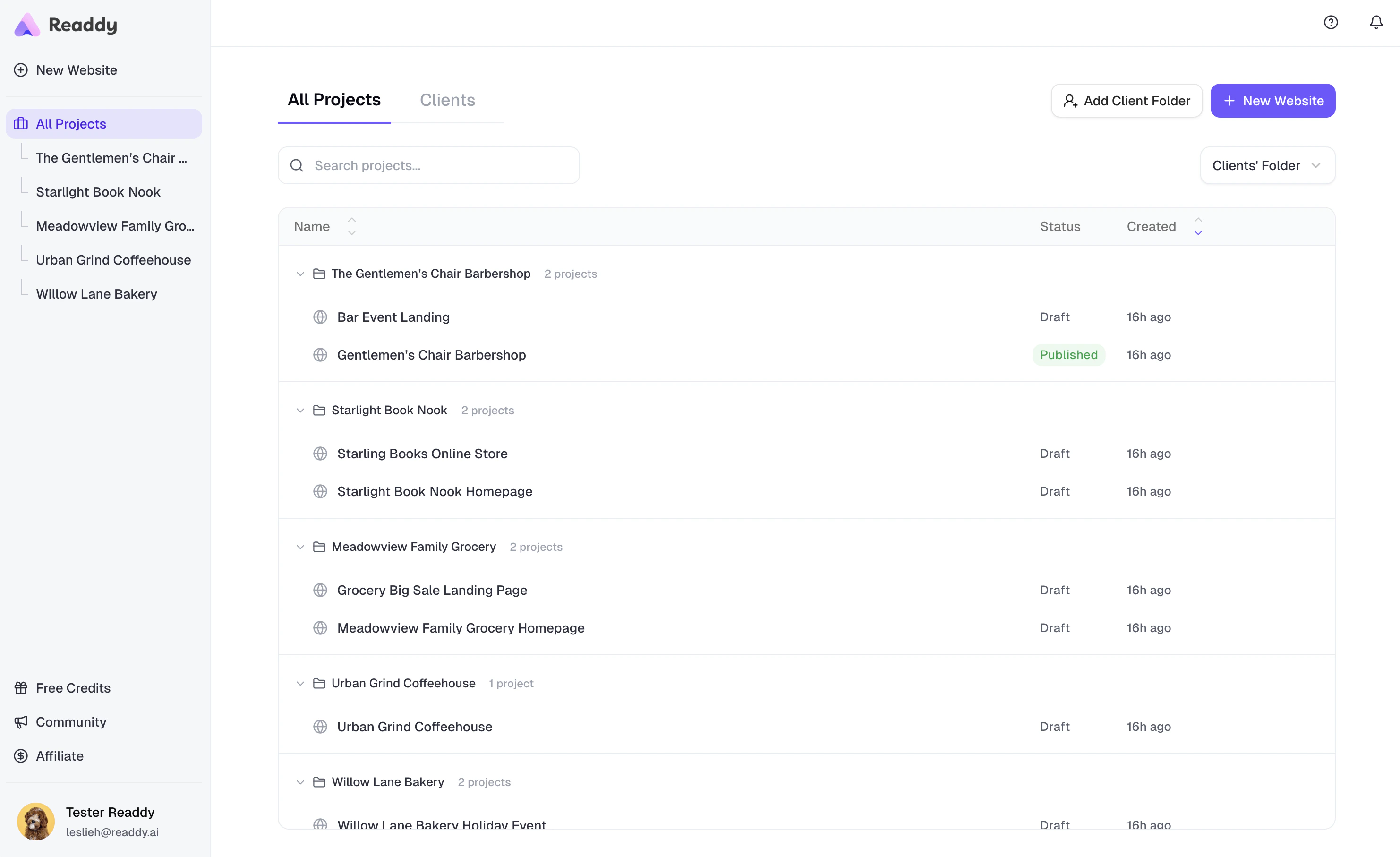
- Use search to find a project by name.
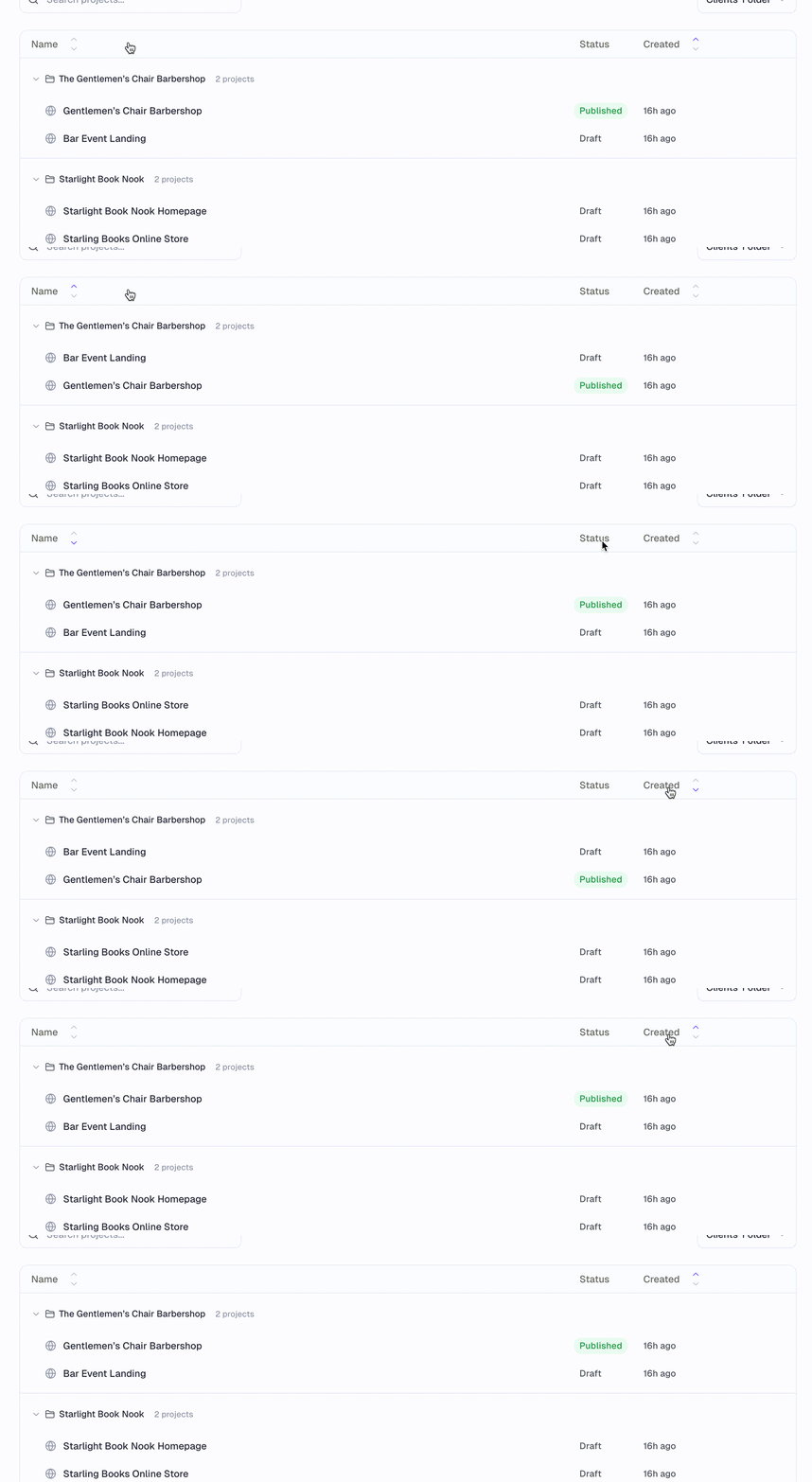
- Use sort (e.g. newest first or A–Z) to change the order.
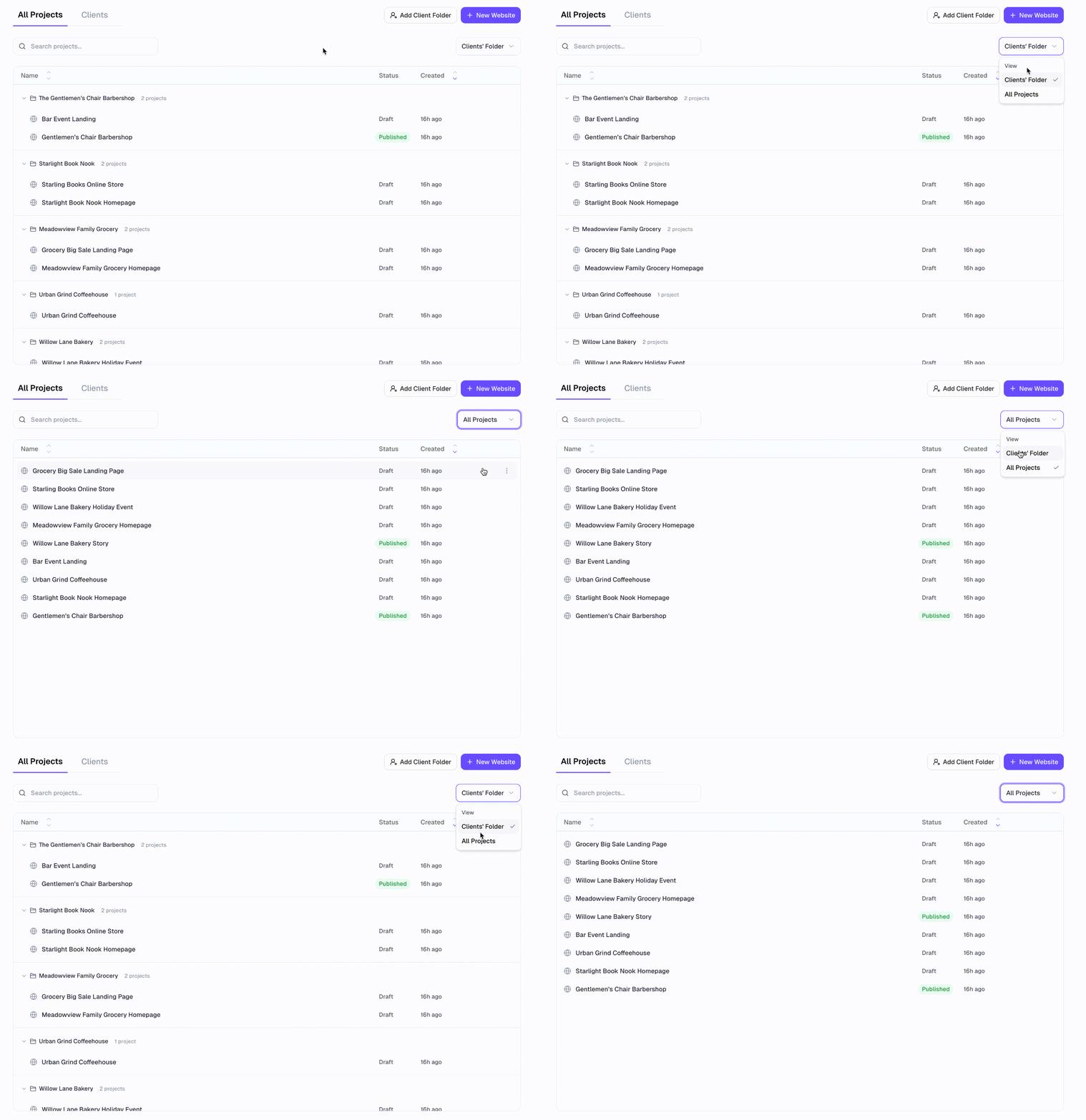
- You can switch how the list is shown — for example a folder-style view that groups projects by client, or a flat list of all projects at once.
Clients
Clients help you group projects the way you group work — by customer or brand. Think of a client as a folder: you give it a name (often a company or person), add contact details if you want, and link projects to that client. Projects can sit inside a client folder or stay uncategorized if you don’t assign them.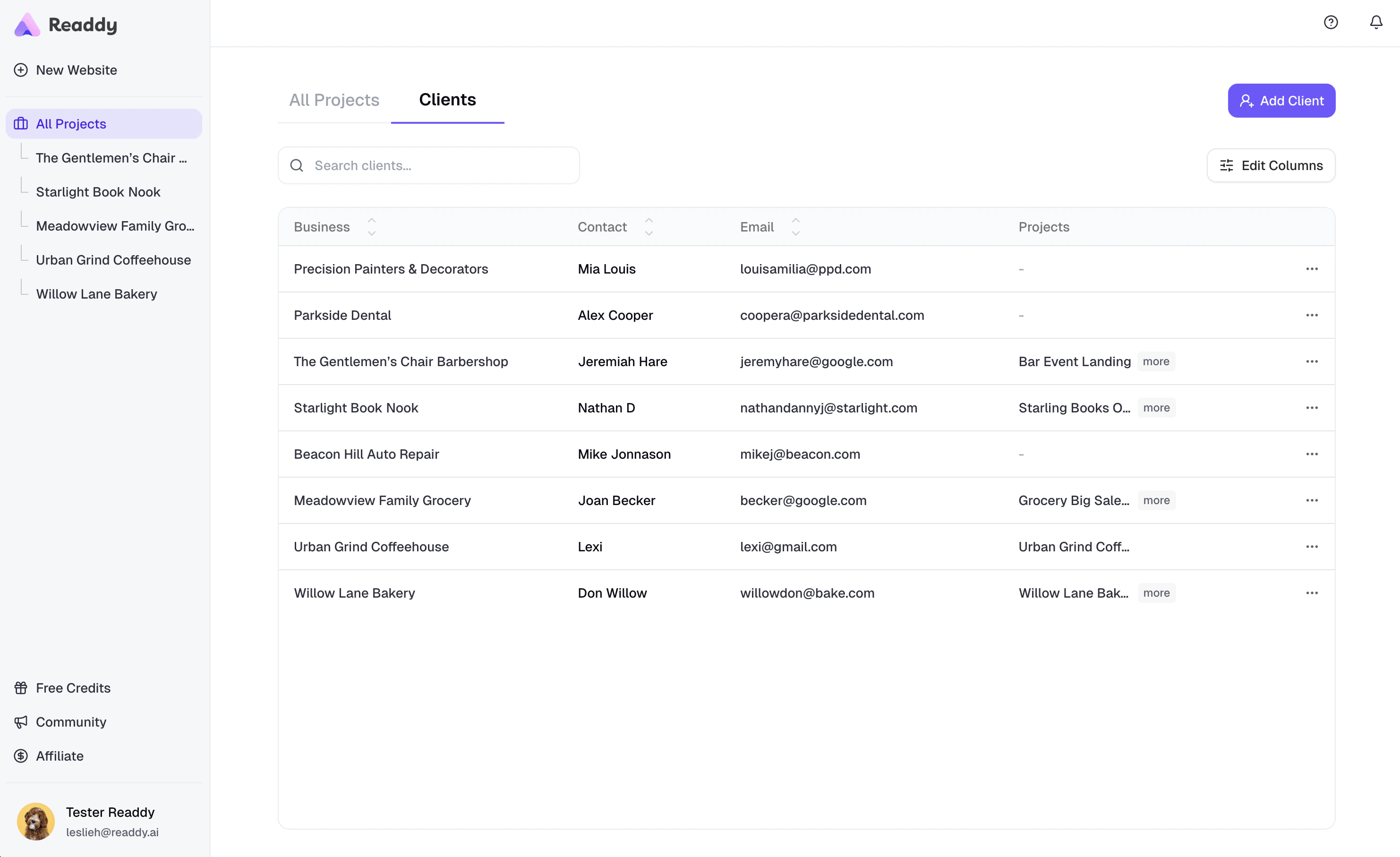
Why Use Clients?
- Many projects are easier to scan when they’re grouped by client
- Same customer, many sites stay under one place
- Quick access from the sidebar to a client’s projects, similar to opening a folder
What You Can Do with Clients
- Add and edit clients — set business name, contact info, and notes.
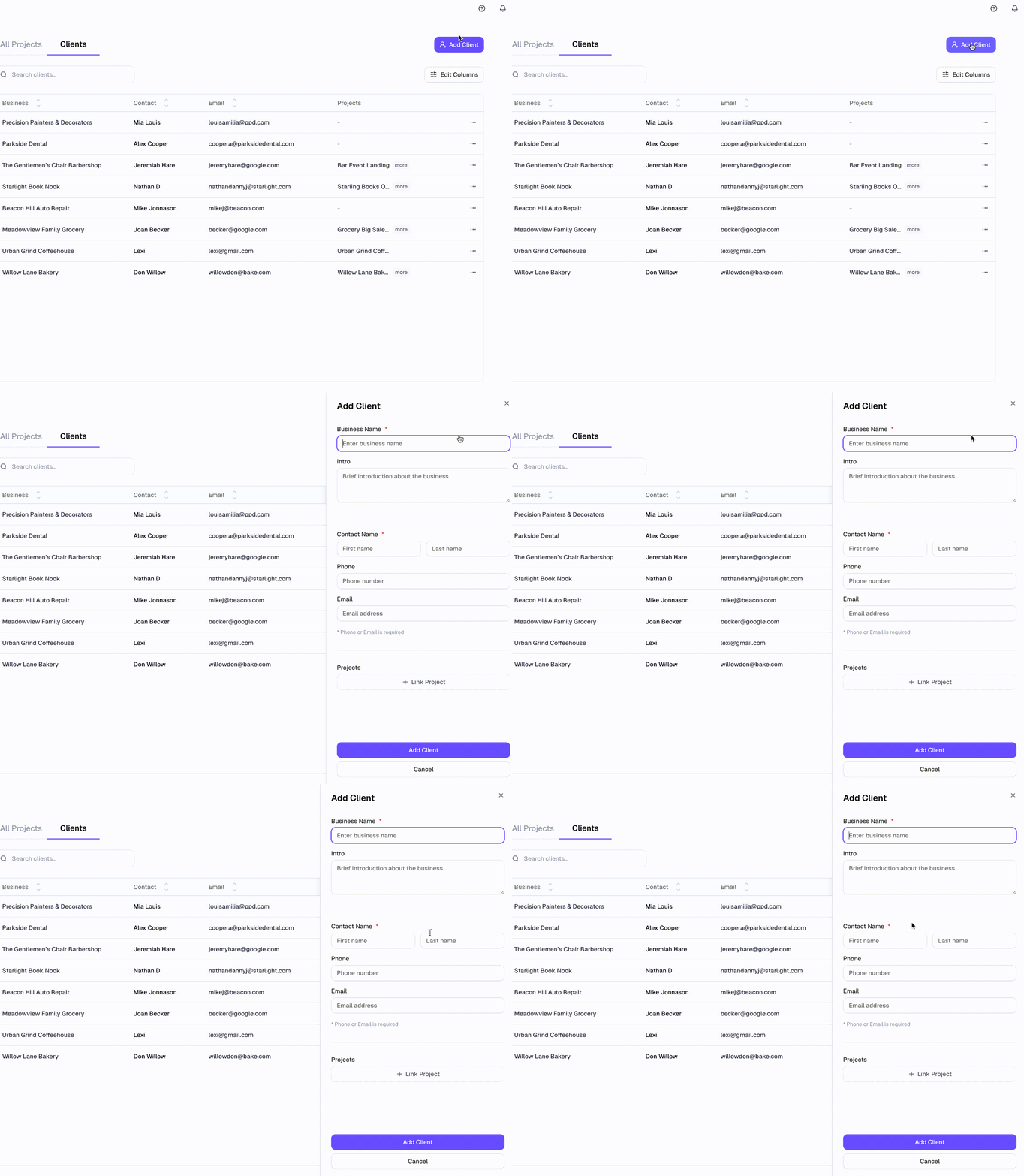
- Link projects to a client, move a project to another client, or back to uncategorized.
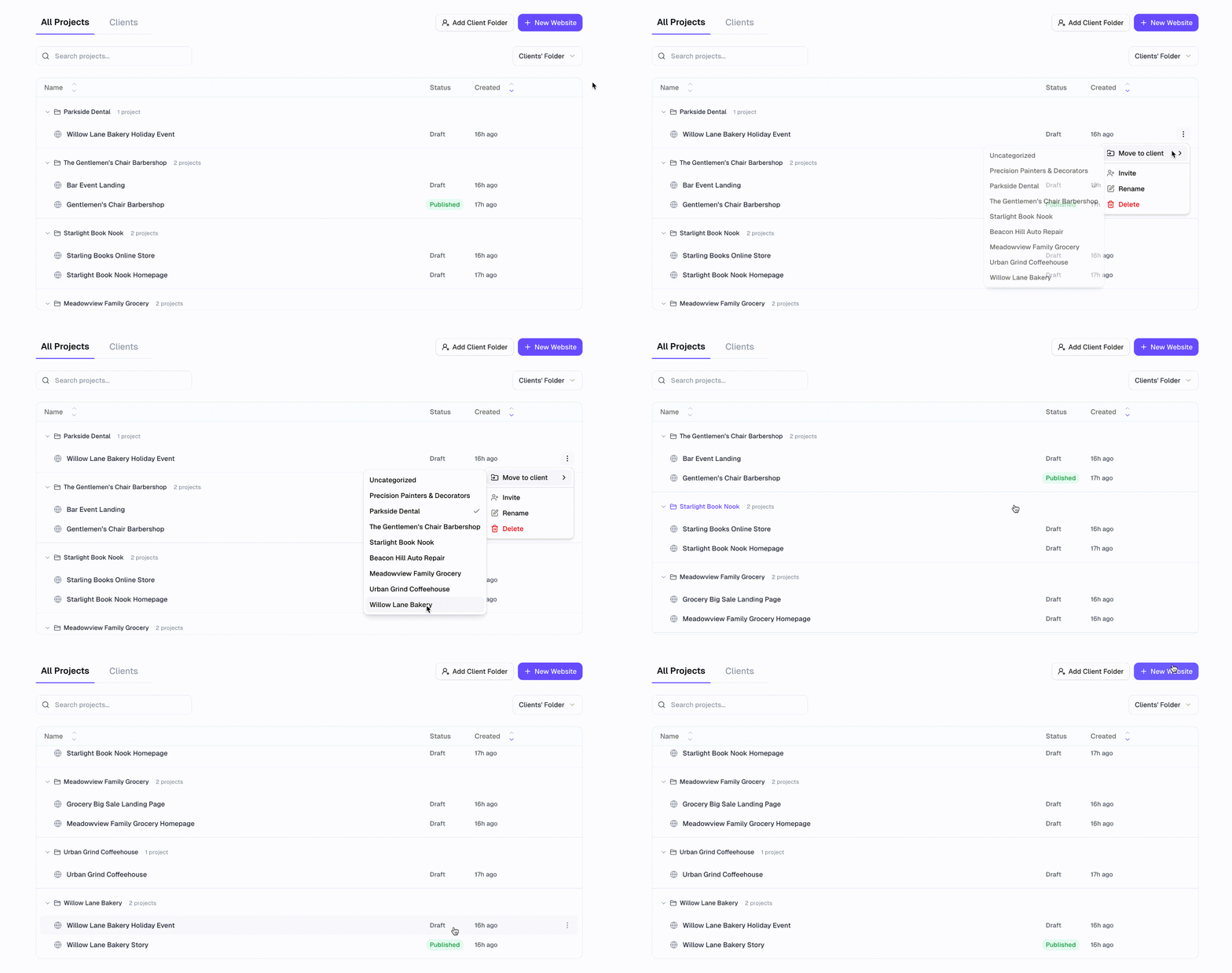
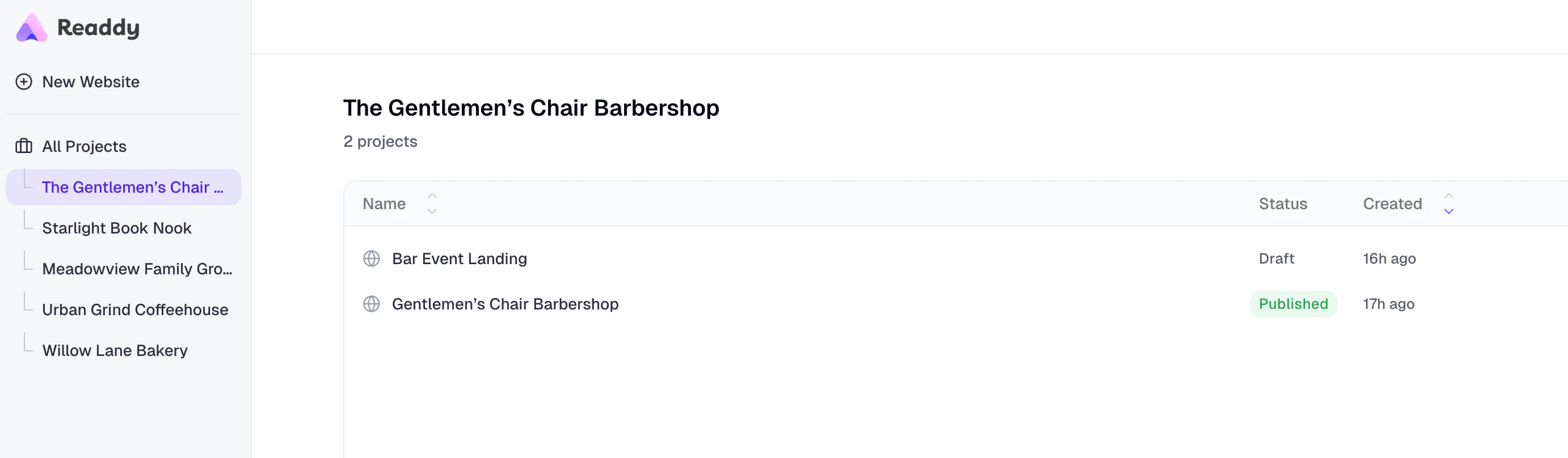
- Open a client from the list or sidebar to see only that client’s projects.
- Remove a client when you no longer need the folder — your projects are not deleted, they become uncategorized.
Sidebar Navigation
- New Website — start a new project.
- All Projects — see everything. Client names appear as shortcuts underneath (like subfolders), so you can jump straight to a client’s projects.
- Clients — open the full Clients list to manage customers and links.
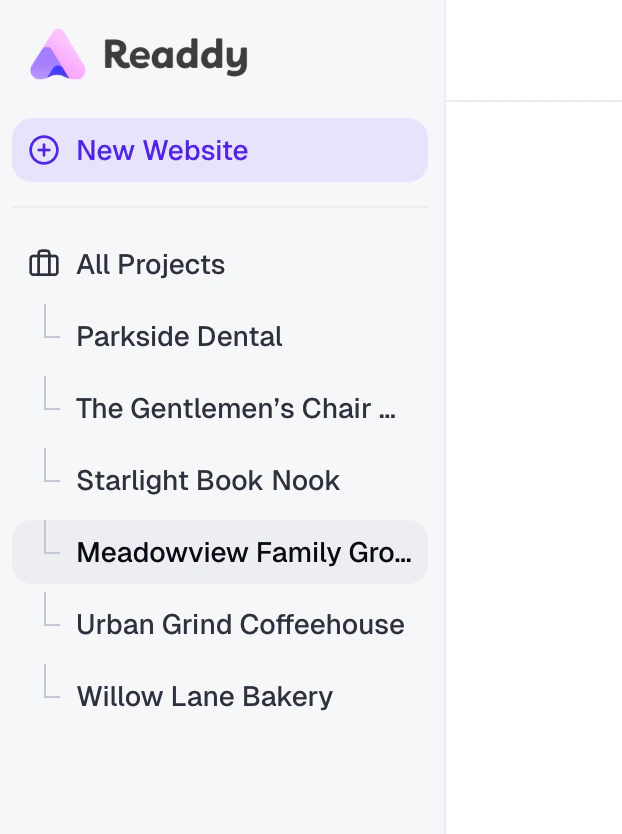
Only clients that contain projects appear in the sidebar. Empty clients are hidden there on purpose — you can still open and edit them anytime from the Clients page.
Tips
- Start simple — use Clients when you feel the flat list is getting hard to scan.
- One project, one client — link each project to the client it belongs to so filters and folders stay accurate.
- Uncategorized is fine — not every project needs to be in a client folder.