

What Does This Feature Do?
Outreach Campaign helps you turn a lead list into a full outbound workflow inside Readdy:- Add leads with AI Search, a saved Lead List, or a
.csv/.xlsxupload - Generate a personalized website for each prospect
- Write one outreach email with dynamic variables
- Send the campaign directly through Readdy
Before You Start
Step 1: Choose How to Add Leads
Before you start generation, choose where the campaign leads will come from.CSV File Requirements
If you choose Upload CSV, prepare a prospect list in.csv or .xlsx
format before you upload it.
Open Excel or Google Sheets
Fill in the header row
email column. You can add other columns as needed, for example:Example columns:business namedescriptionemailphone(optional)address(optional)
Baker Shop | Handmade baking for 10 years | zhang@example.com | 13800001111 | No.1 Happy RoadFlower Store | Fresh flower delivery | li@example.com | 13800002222 | No.2 Sunny Road
Fill in the data (starting from row 2)
Save as CSV or Excel format
.xlsx or choose CSV (Comma delimited). In
Google Sheets, download it as Microsoft Excel (.xlsx) or Comma
Separated Values (.csv).Plan and Quota Reference
Outreach Campaign currently uses two limit types:- Outreach quota: how many prospects are included in your plan’s Outreach allowance
- Single upload limit: how many prospect rows you can upload in one file
.csv or .xlsx file. Host-only does not support Outreach Campaign.
Campaign Flow
Step 2: Add Leads to the Campaign
Open Outreach Campaign
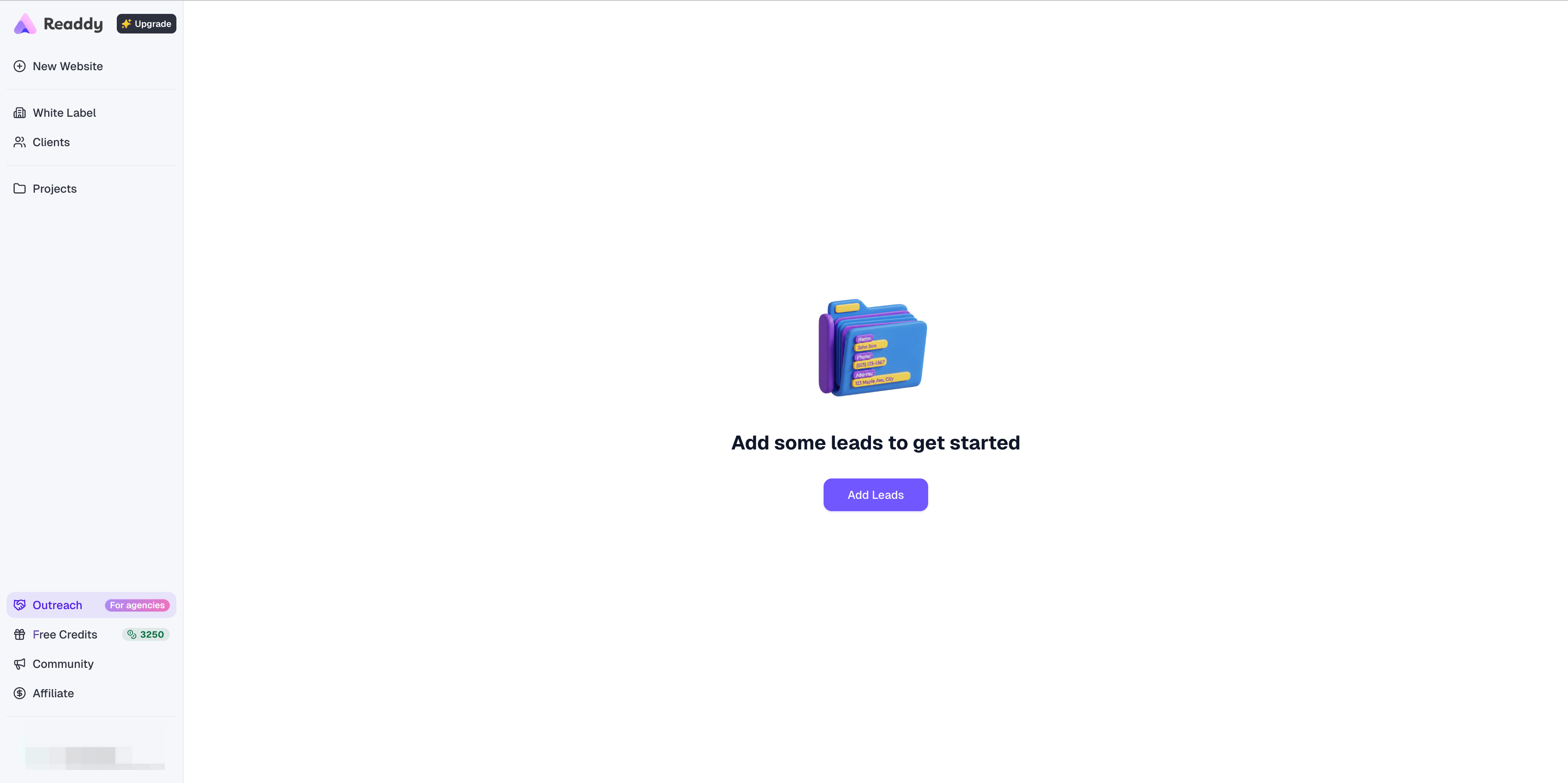
Click Add Leads
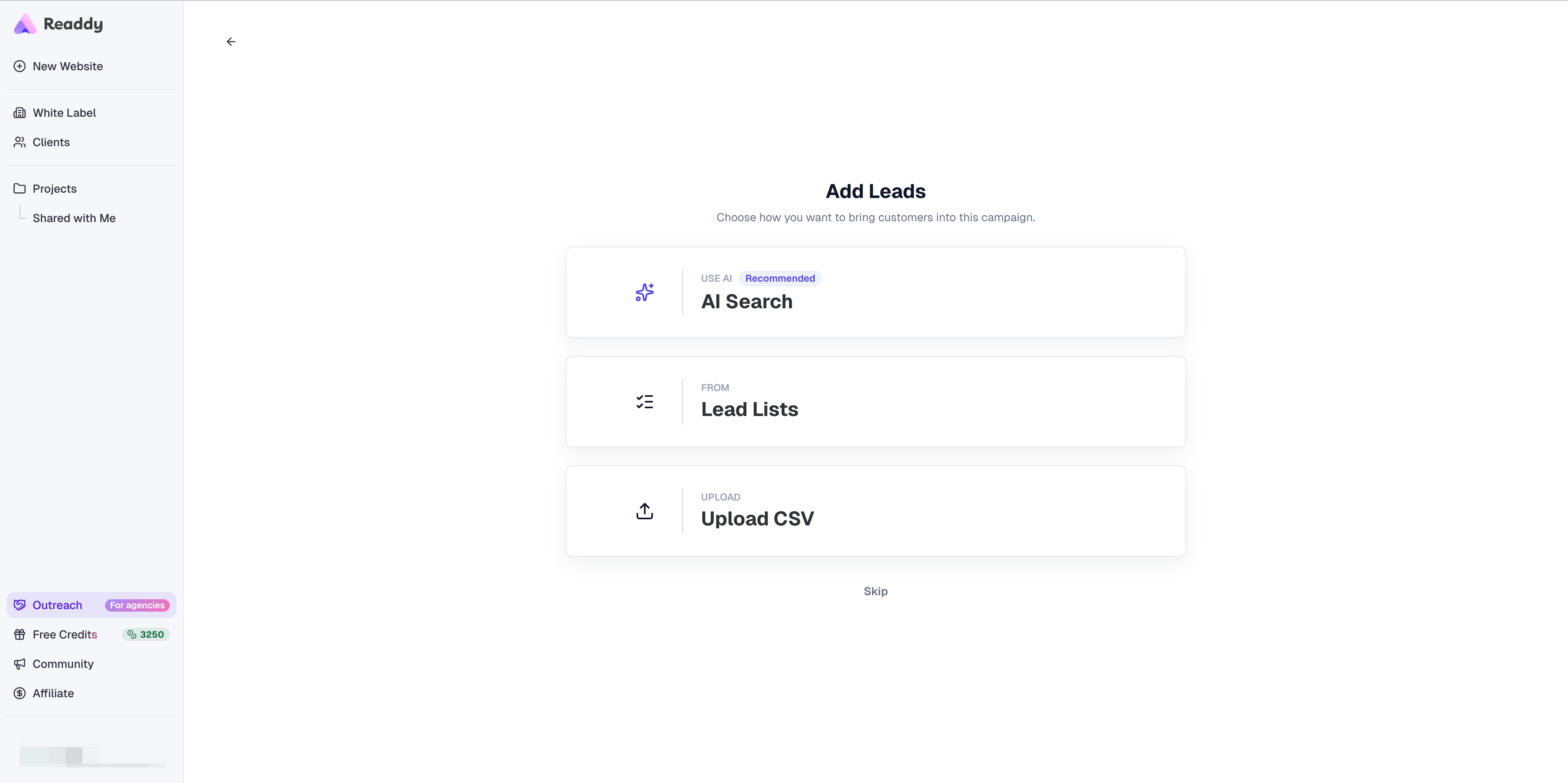
Choose AI Search
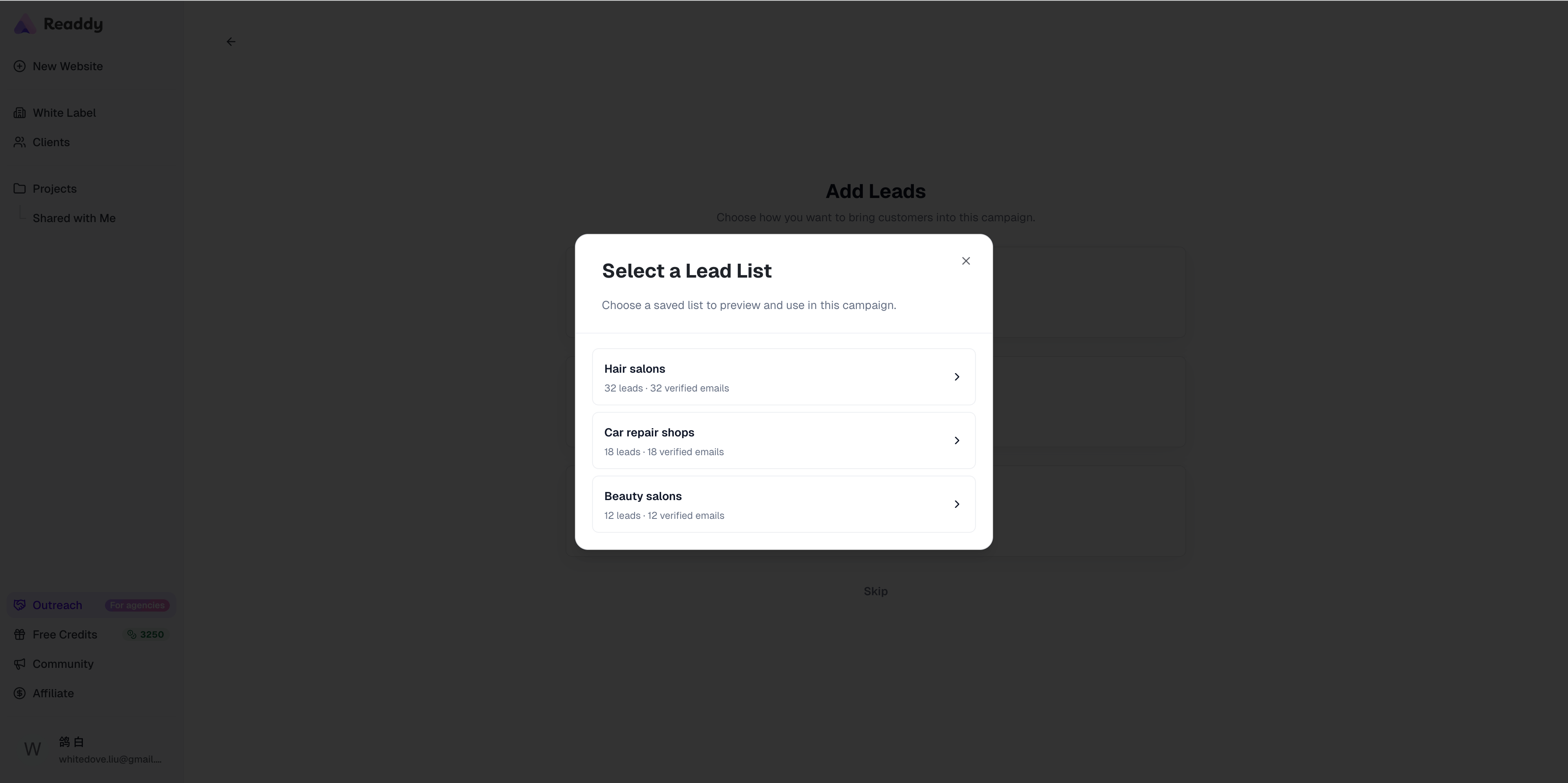
Choose Lead Lists
Choose Upload CSV
.csv or .xlsx file, then review the
imported rows in Data Preview.Step 3: Find Leads with AI Search
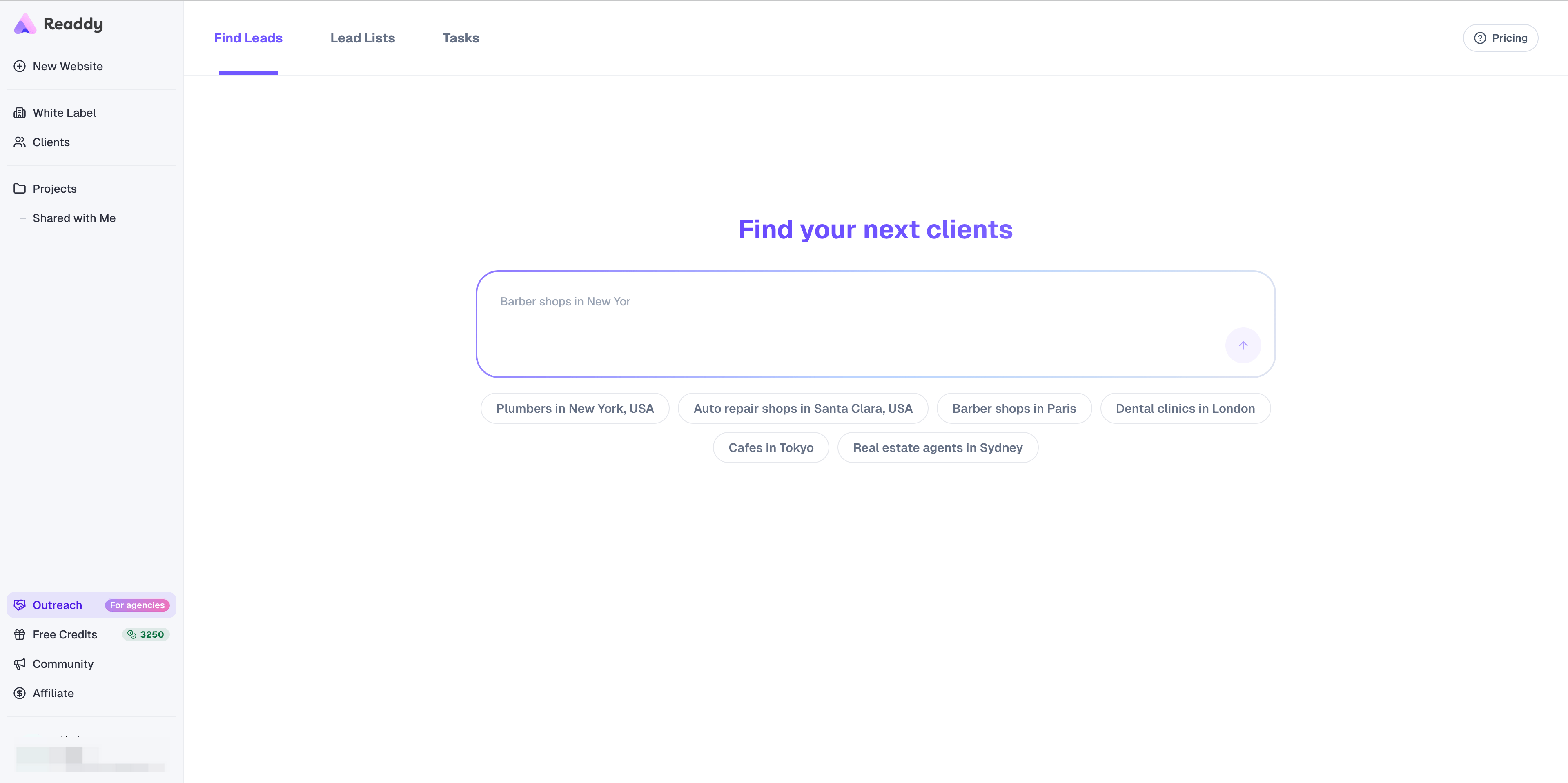
Use this flow when you choose AI Search from Add Leads, or when you open Lead Finder directly from the left sidebar.Barber shops in New York, Beauty salons in Paris, or
Auto repair shops in Santa Clara.Describe Your Ideal Leads
Review the Search Plan
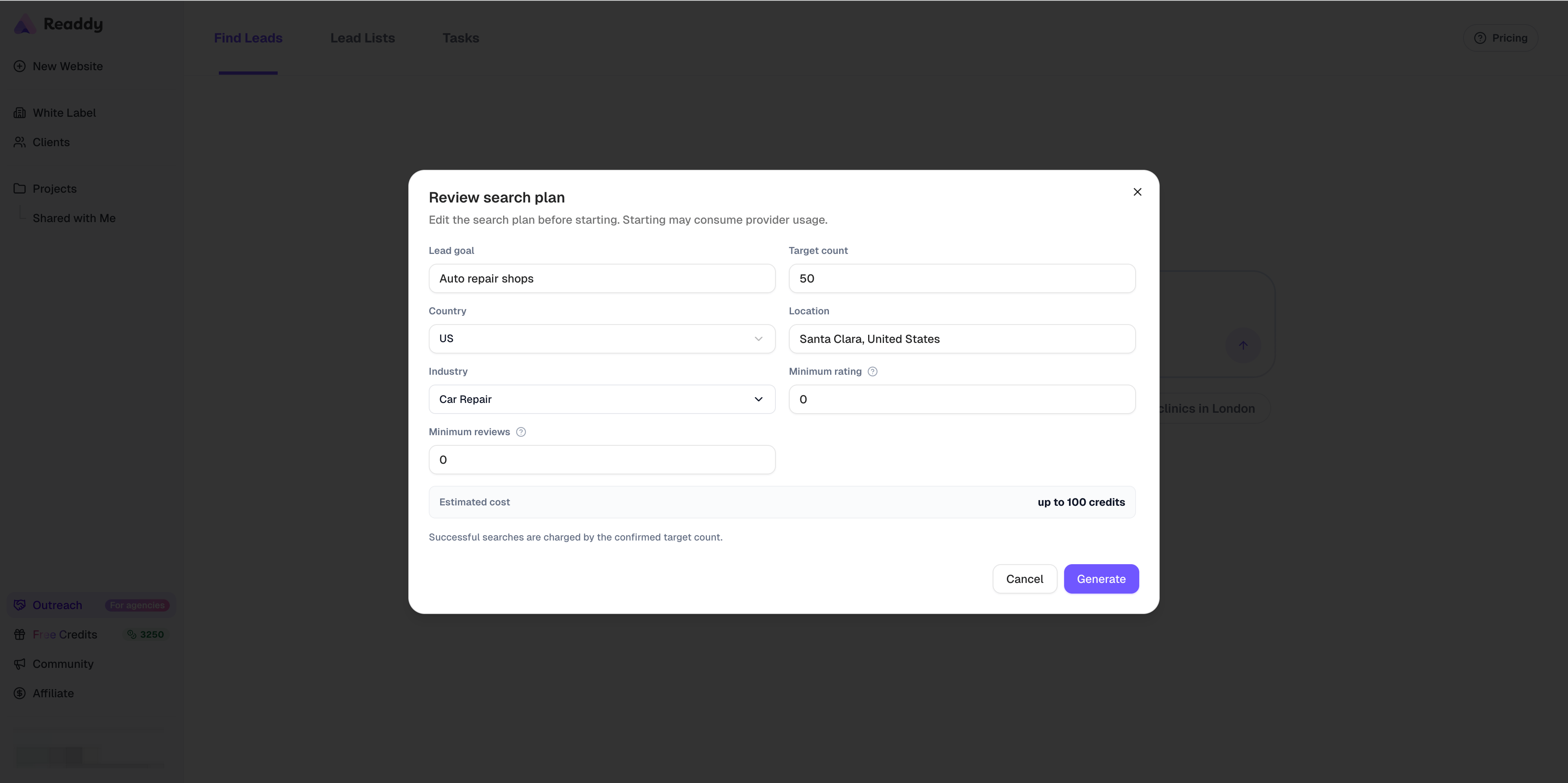
- Lead goal: The business type or audience Readdy will search for
- Target count: The number of leads you want Readdy to return
- Country: The country used to narrow the search
- Location: The city or area where Readdy should search
- Industry: The Google Maps category Readdy uses to match businesses
- Minimum rating: The lowest public rating a business can have
- Minimum reviews: The minimum number of public reviews a business must have
- Estimated cost: The maximum Credits required for the confirmed target count
Generate the Lead List
Add the List to the Campaign
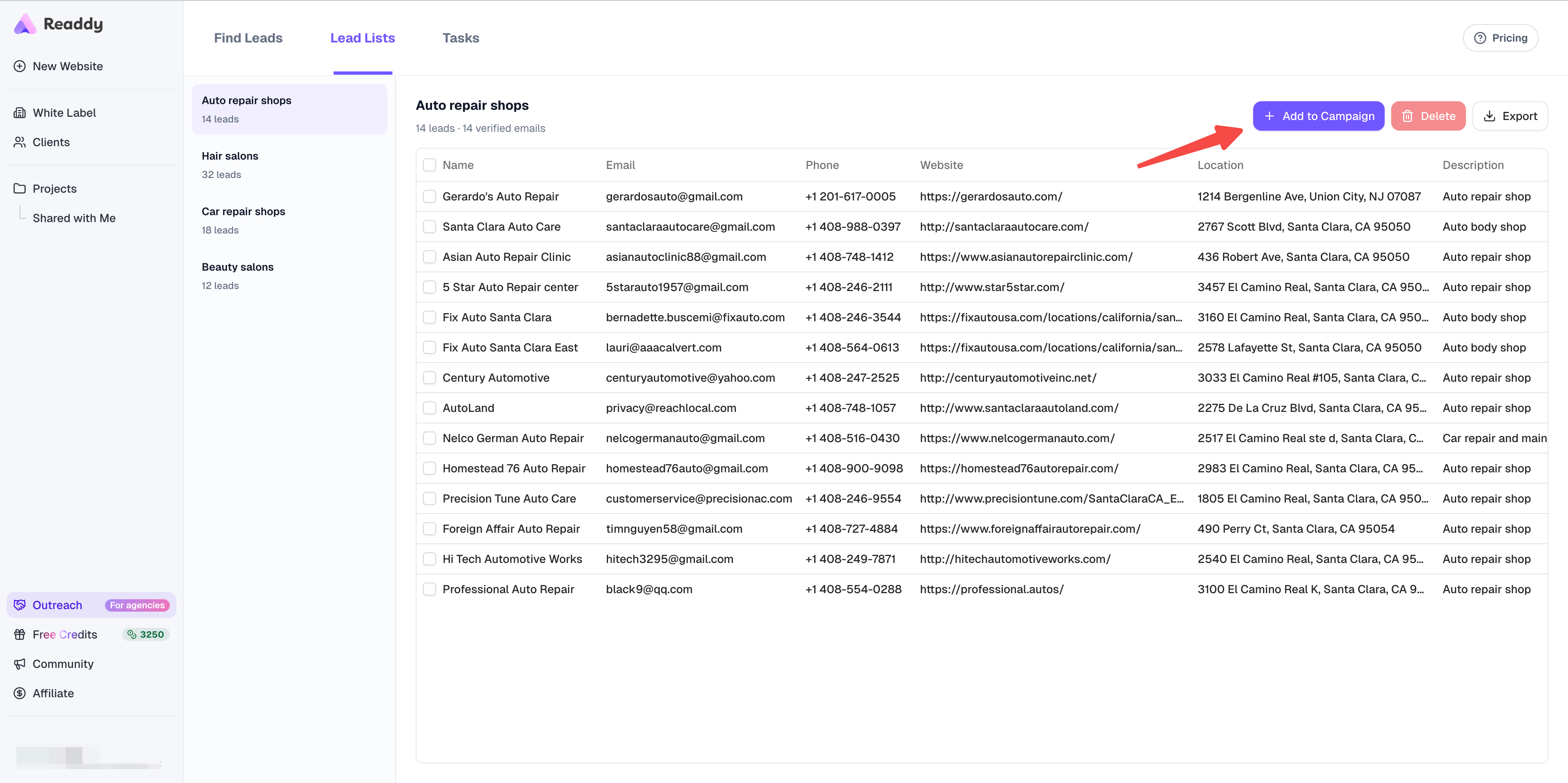
Step 4: Review the Data Table
Review and Edit the Table
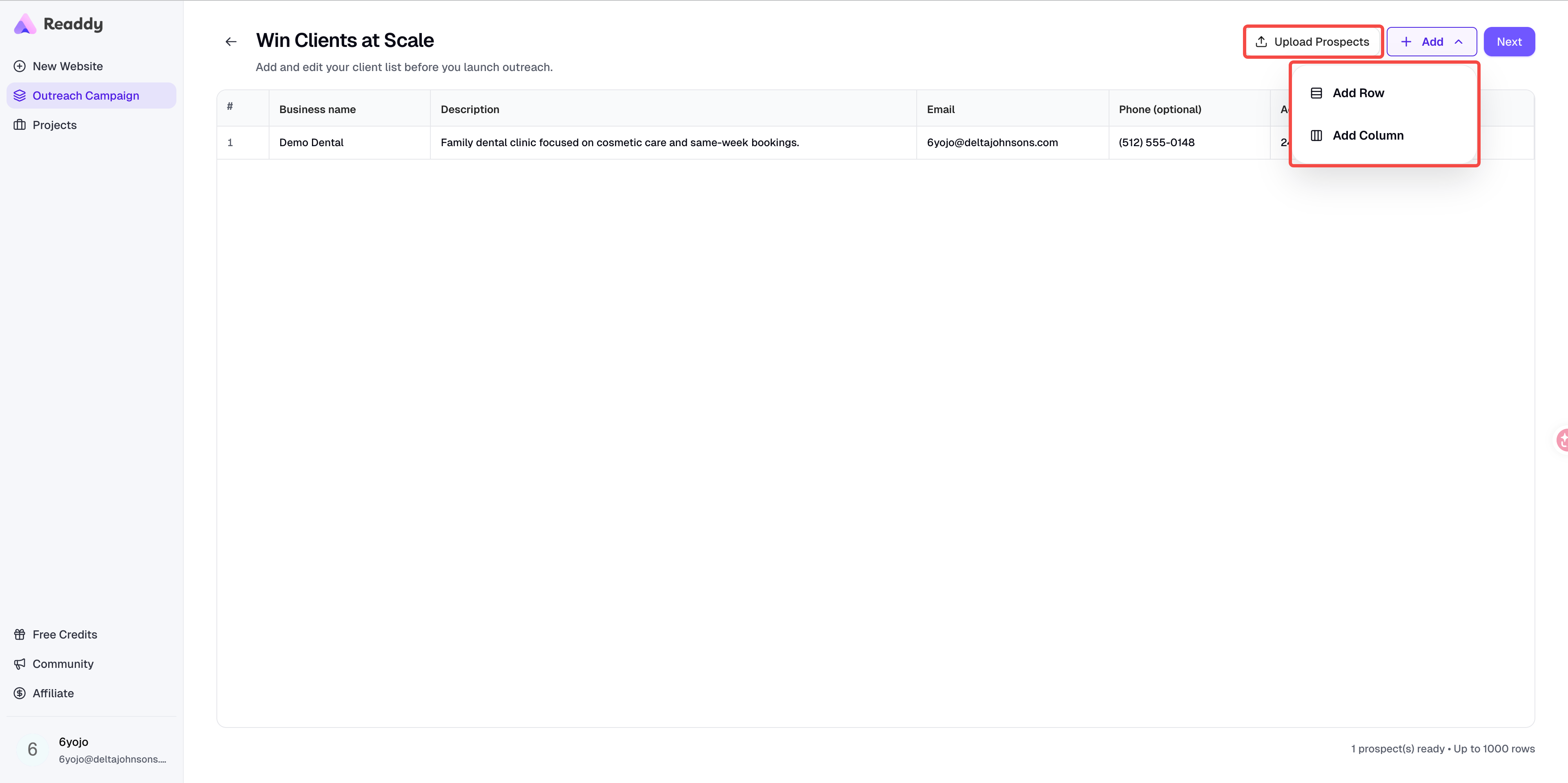
Add Rows or Columns
Click Next to Open Email Setting
number of rows x 5 CreditsExample: 20 rows = 100 CreditsOnly successfully generated rows are charged.Step 5: Write the Email Content
Fill in the subject
Write the email body
Insert variables
{{Website_URL}}, so each prospect receives the link to their own generated website.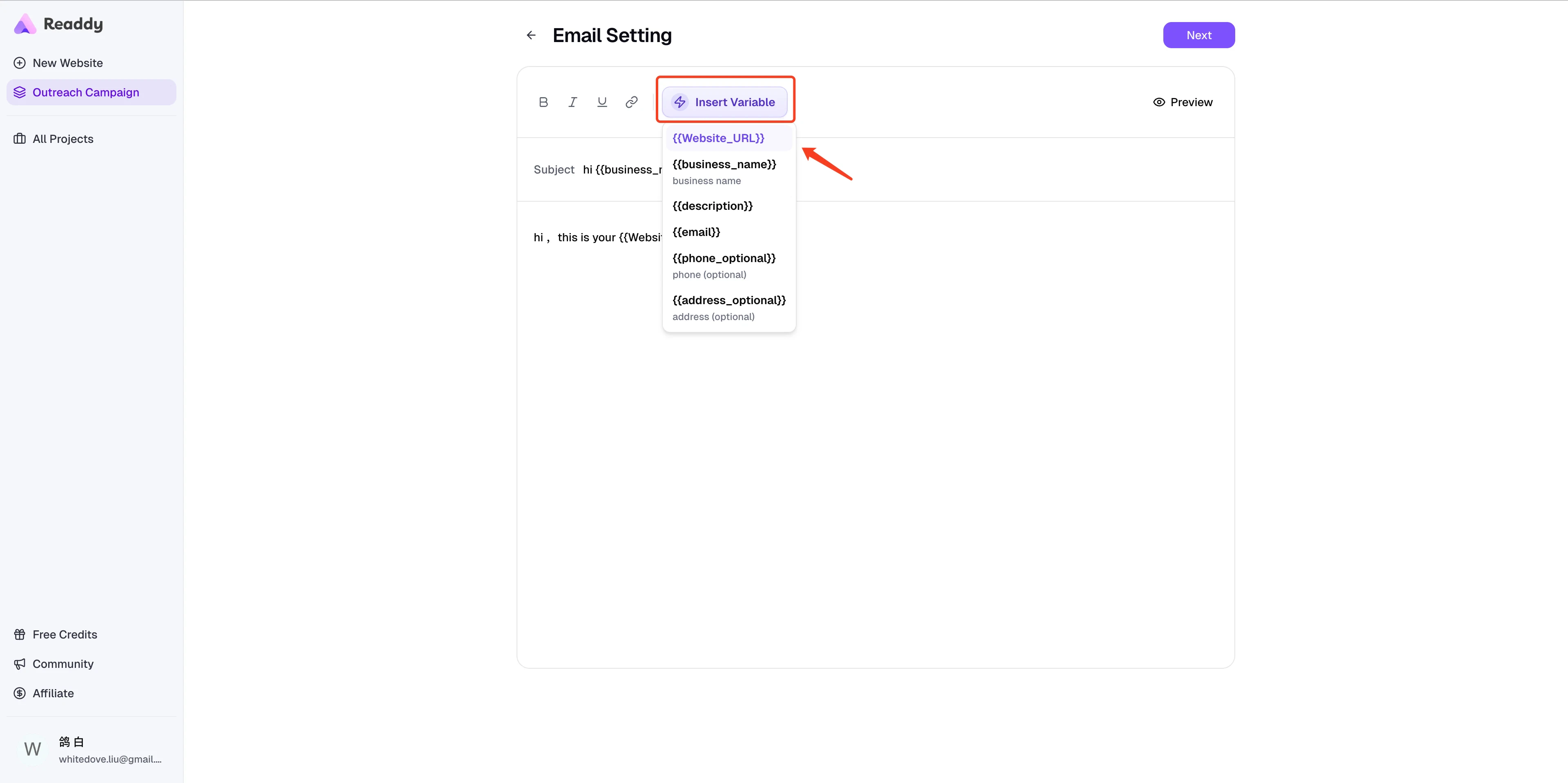
Preview the email
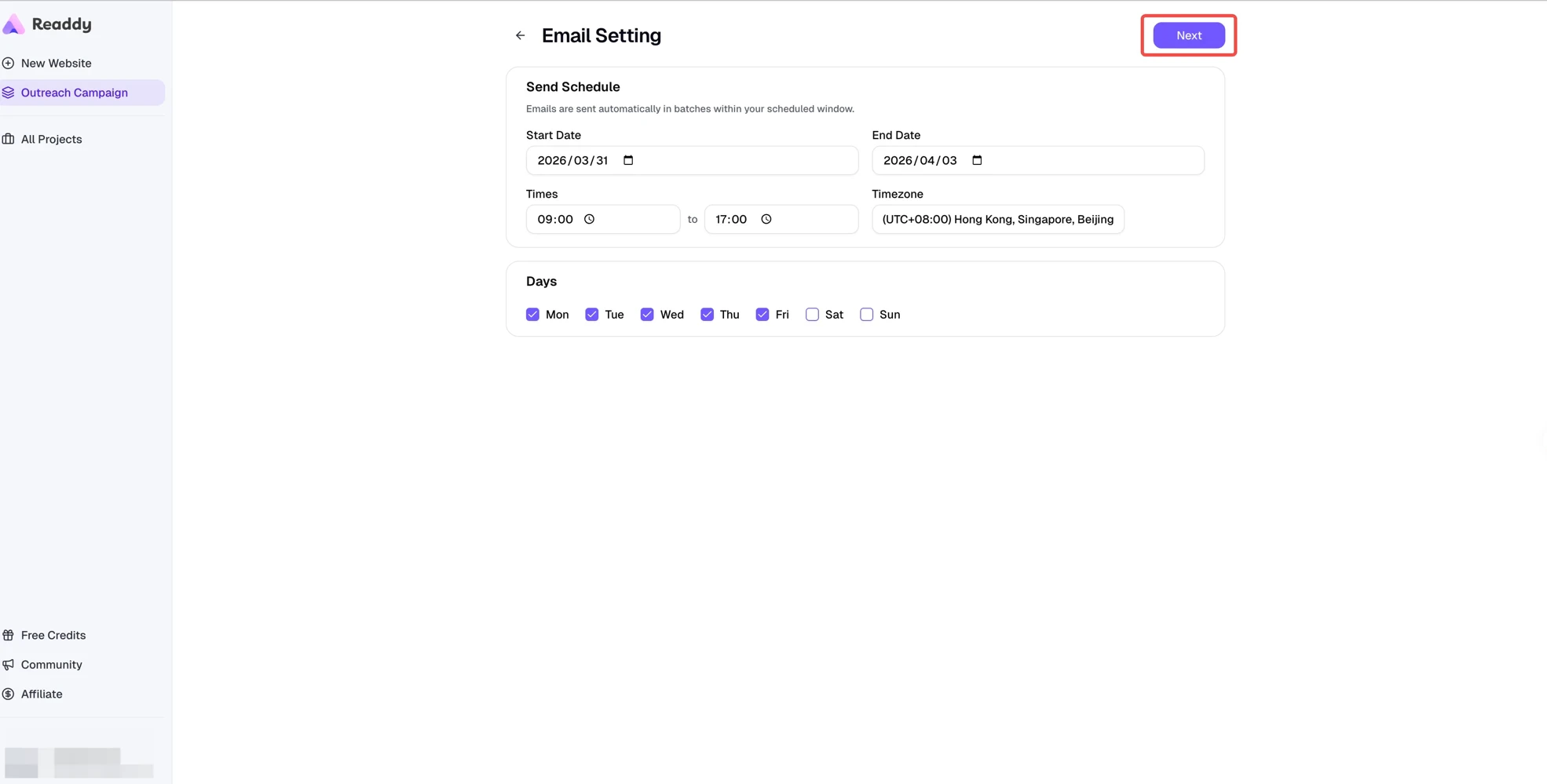
Step 6: Set the Sending Schedule
Choose a date range
Set the daily send window
Choose sending days
Select the timezone
Step 7: Bind Your Mailbox in Readdy
Readdy can send the campaign directly through your own mailbox. On the Mailbox step, click SMTP / IMAP to bind a new mailbox.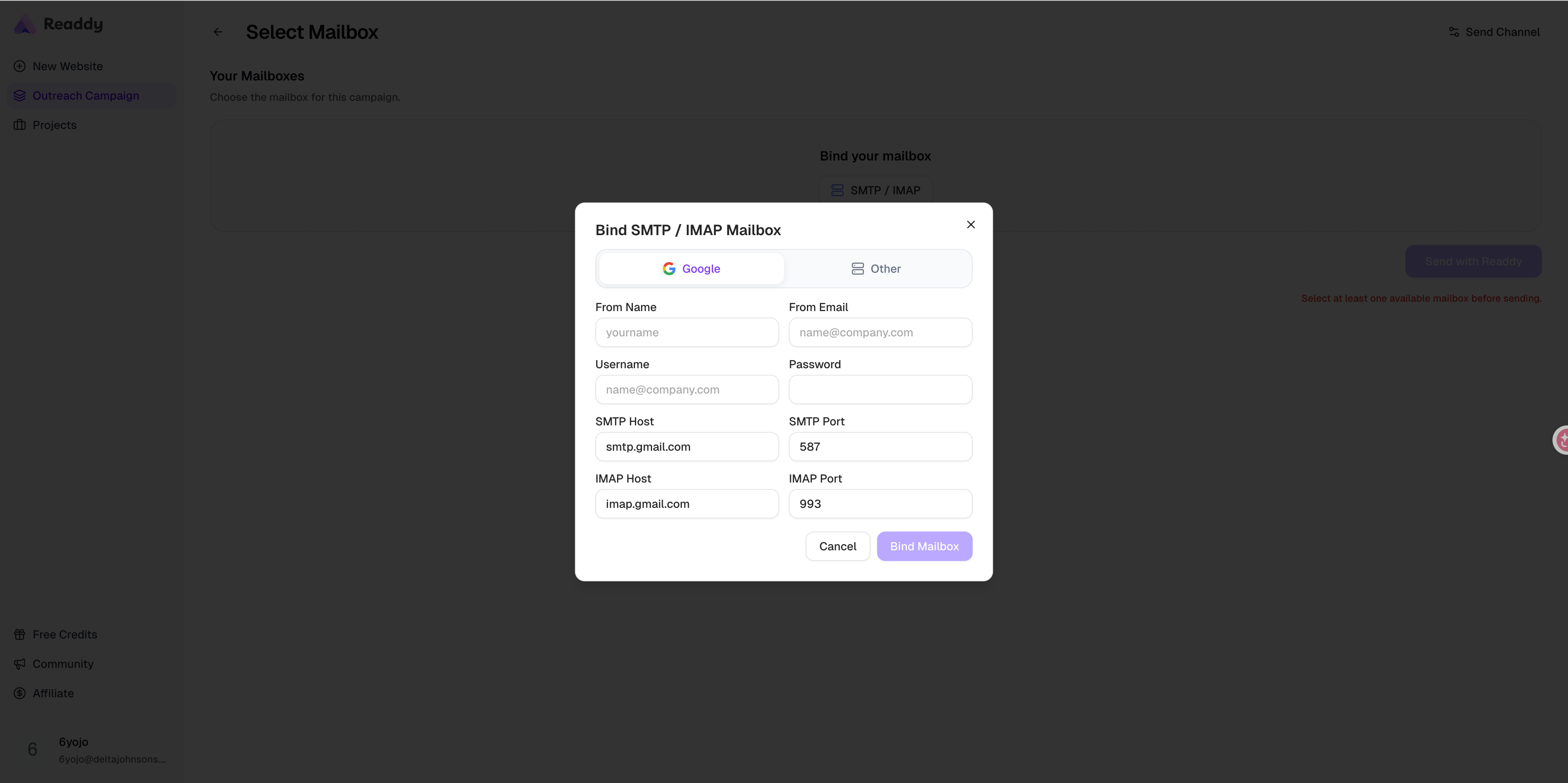
Open the Mailbox step
Click SMTP / IMAP
Choose Google or Other
Complete the mailbox form
Manage optional email warm-up
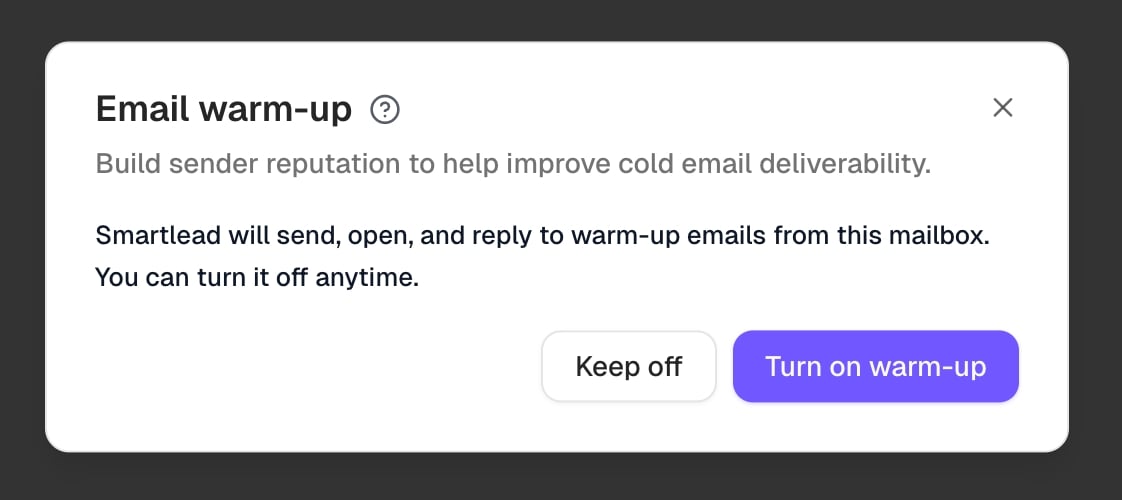
Email warm-up is designed to gradually build your mailbox’s sender reputation. According to Smartlead’s warm-up guide, it simulates more natural sending and reply activity to help improve email deliverability and reduce the chance that your cold outreach lands in spam. It does not guarantee inbox placement or campaign results. Warm-up is off by default. Binding or selecting a mailbox does not enable it. To turn it on, click Warm-up off beside a connected mailbox, review how Smartlead will use it, and click Agree & enable. You can turn it off anytime without disconnecting the mailbox or stopping your campaign.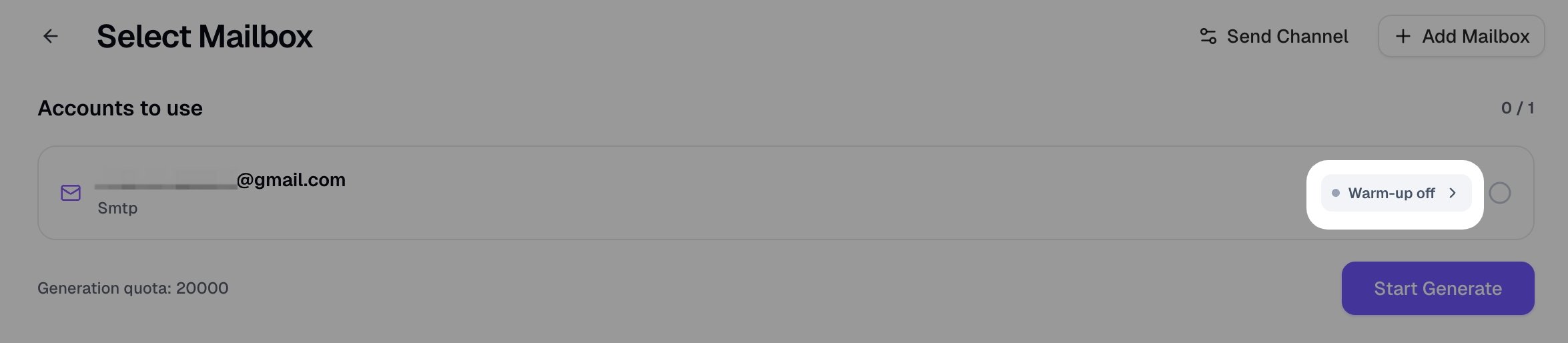
Bind a Google SMTP mailbox
If you choose Google, Readdy automatically fills these Gmail server values for you:- SMTP Host:
smtp.gmail.com - SMTP Port:
587 - IMAP Host:
imap.gmail.com - IMAP Port:
993
Open Google Account Settings
Open Security
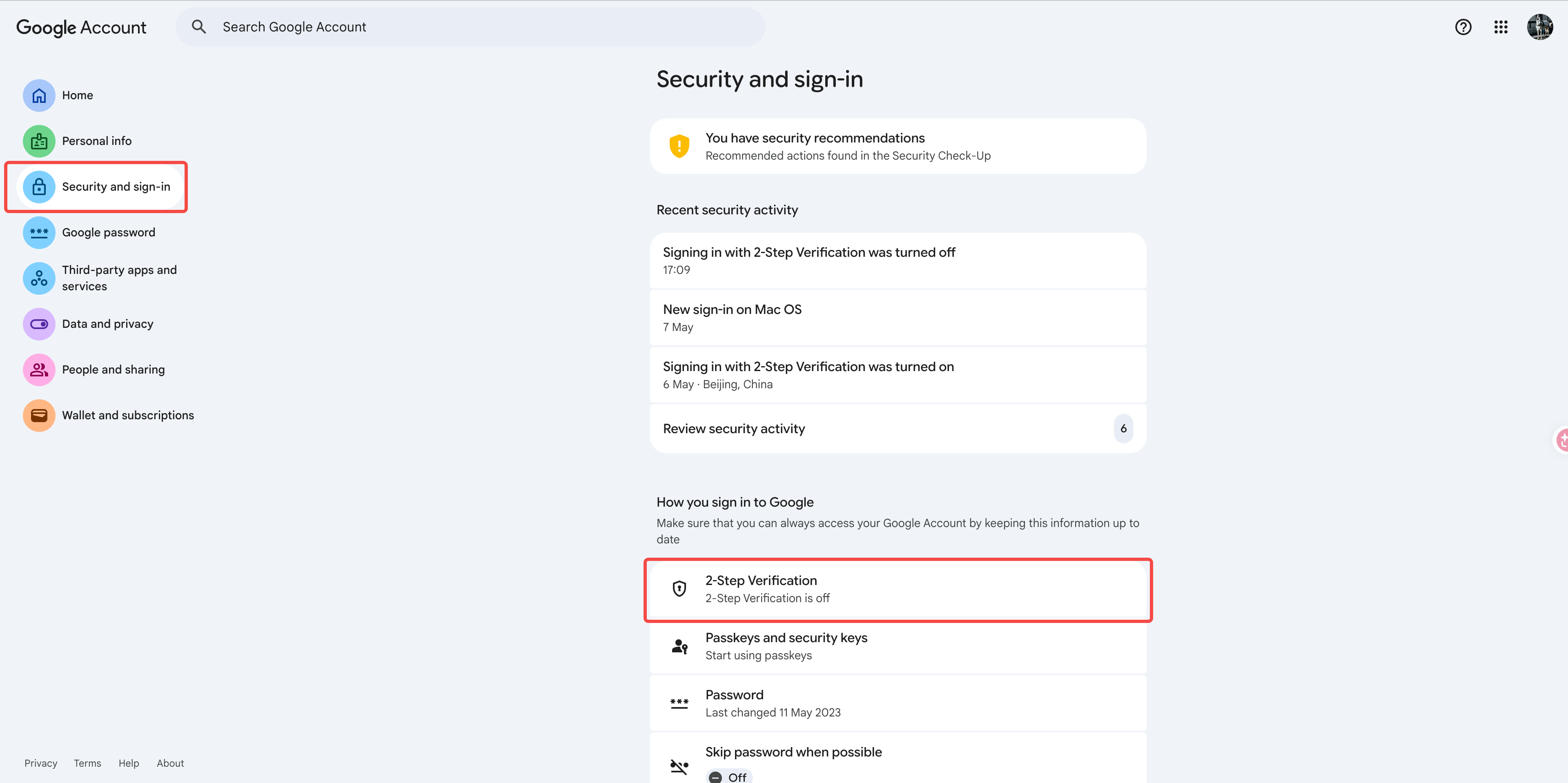
Turn On 2-Step Verification
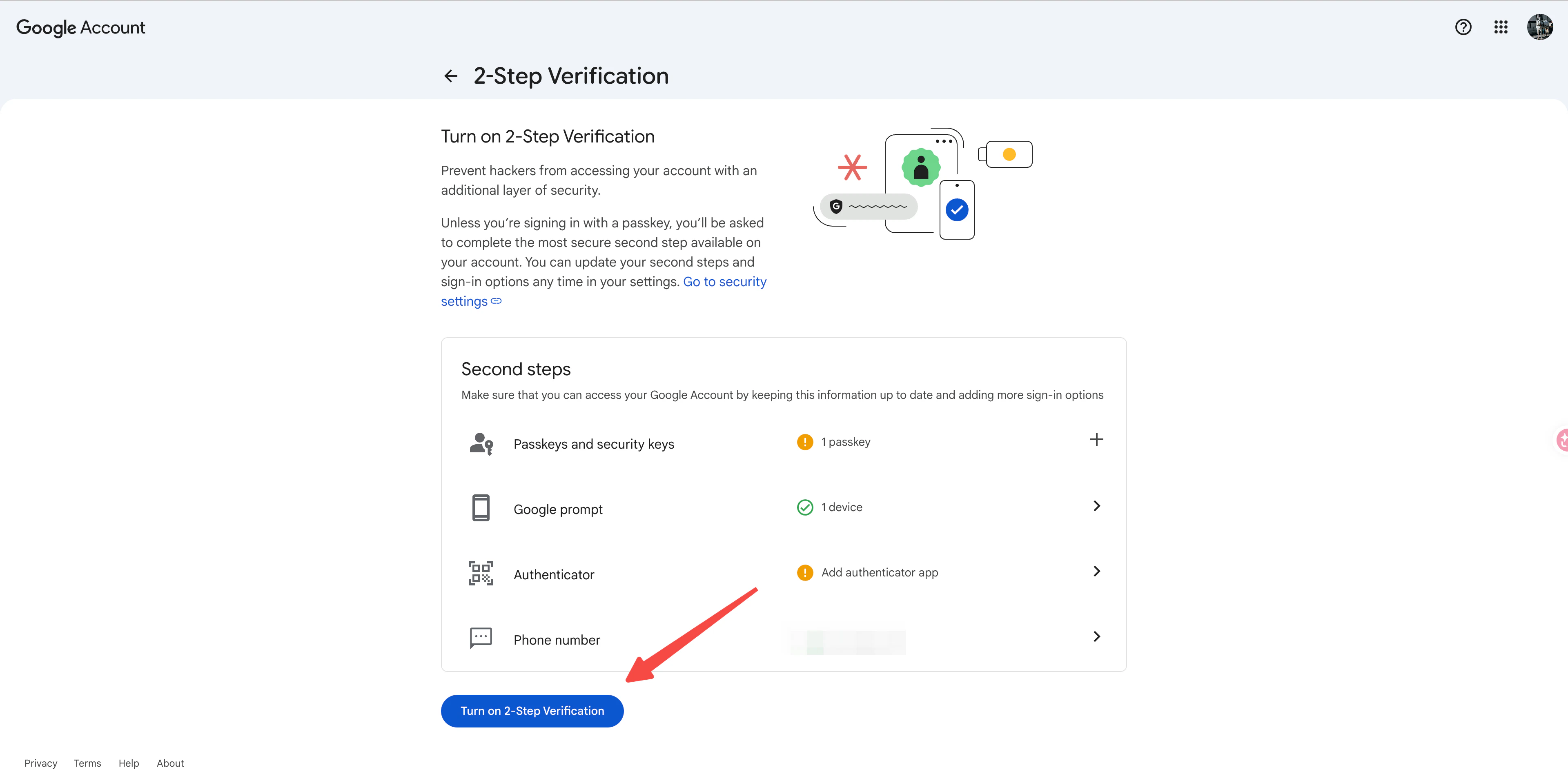
Create an App Password
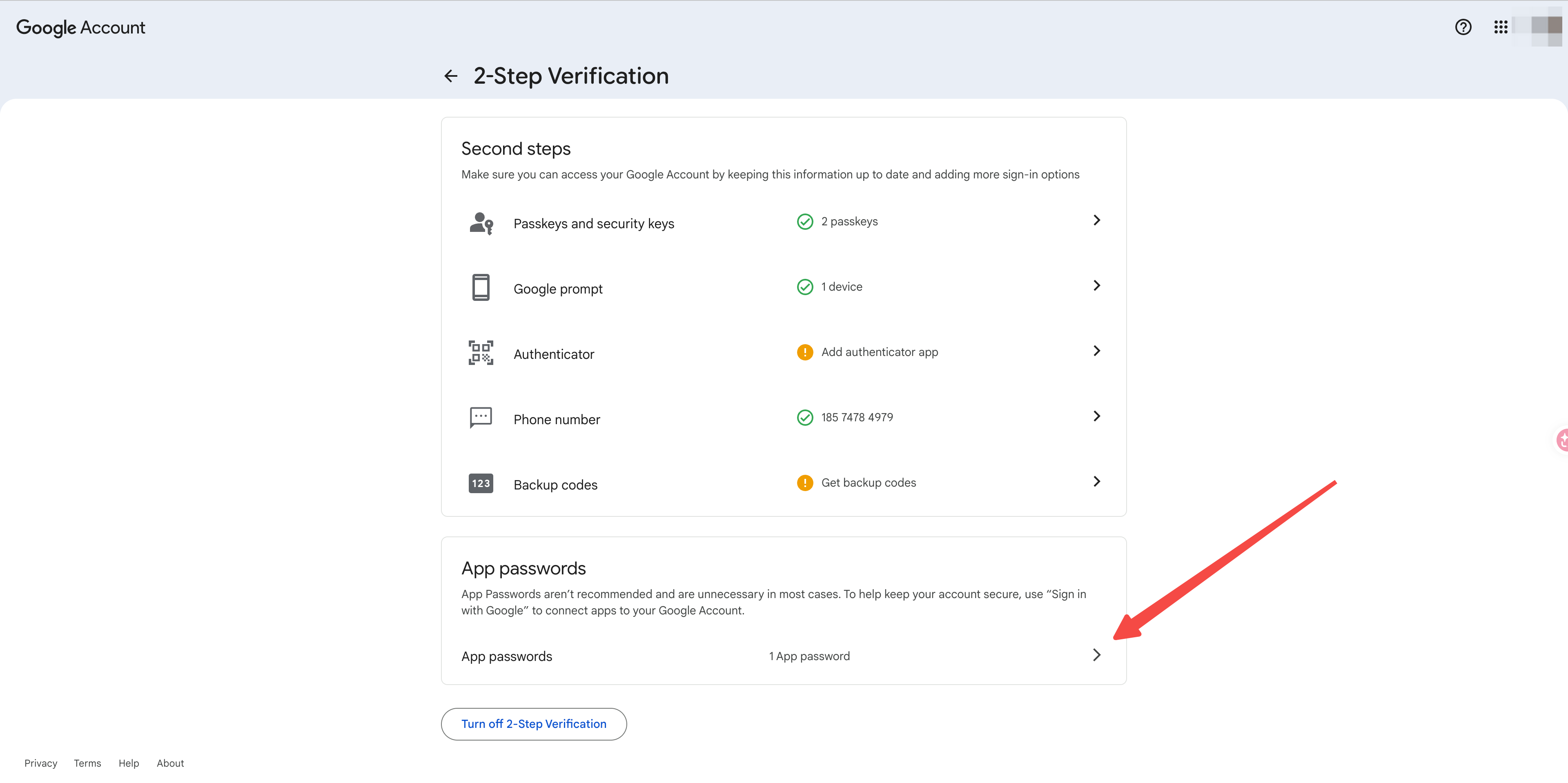
Paste the Password into Readdy
Bind another SMTP / IMAP mailbox
If you choose Other, get the following information from your email provider and paste it into Readdy:- From Name: the sender name recipients should see
- From Email: the mailbox address you want to send from
- Username: usually the same as your email address
- Password: your SMTP password or app password
- SMTP Host / Port: outgoing mail server details from your provider
- IMAP Host / Port: incoming mail server details from your provider
Step 8: Start Website Generation
After your content and schedule are ready, click Start Generate.Click Start Generate
Confirm the generation
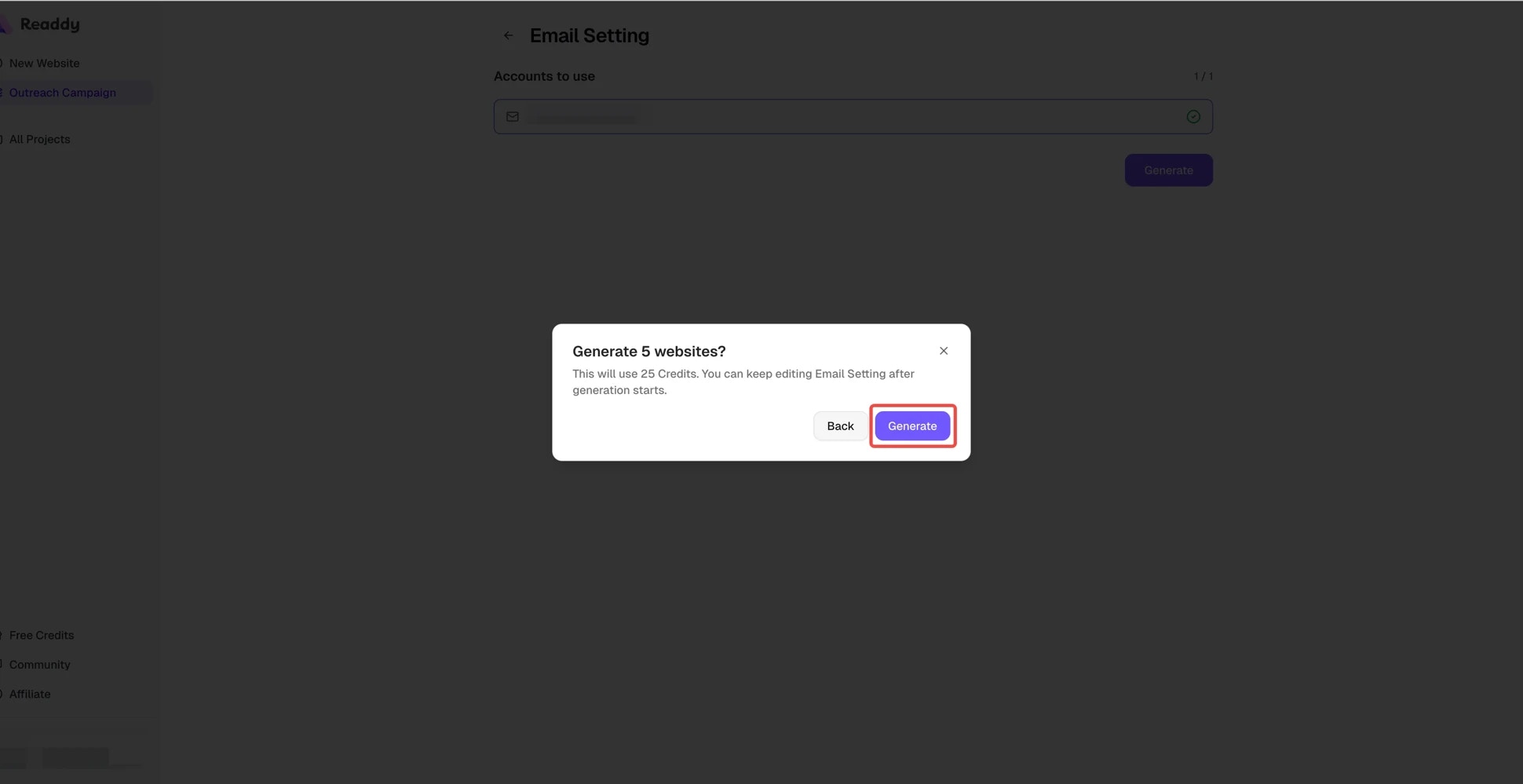
Step 9: Start Sending with Readdy
When you are ready to launch the email campaign, use the email action on the Progress or Results page and open Start Send.Open Start Send
Select at least one available mailbox
Click Send with Readdy
Step 10: Track Website Generation, Review Results, and Refresh Website URLs
After generation starts, Readdy processes each row one by one.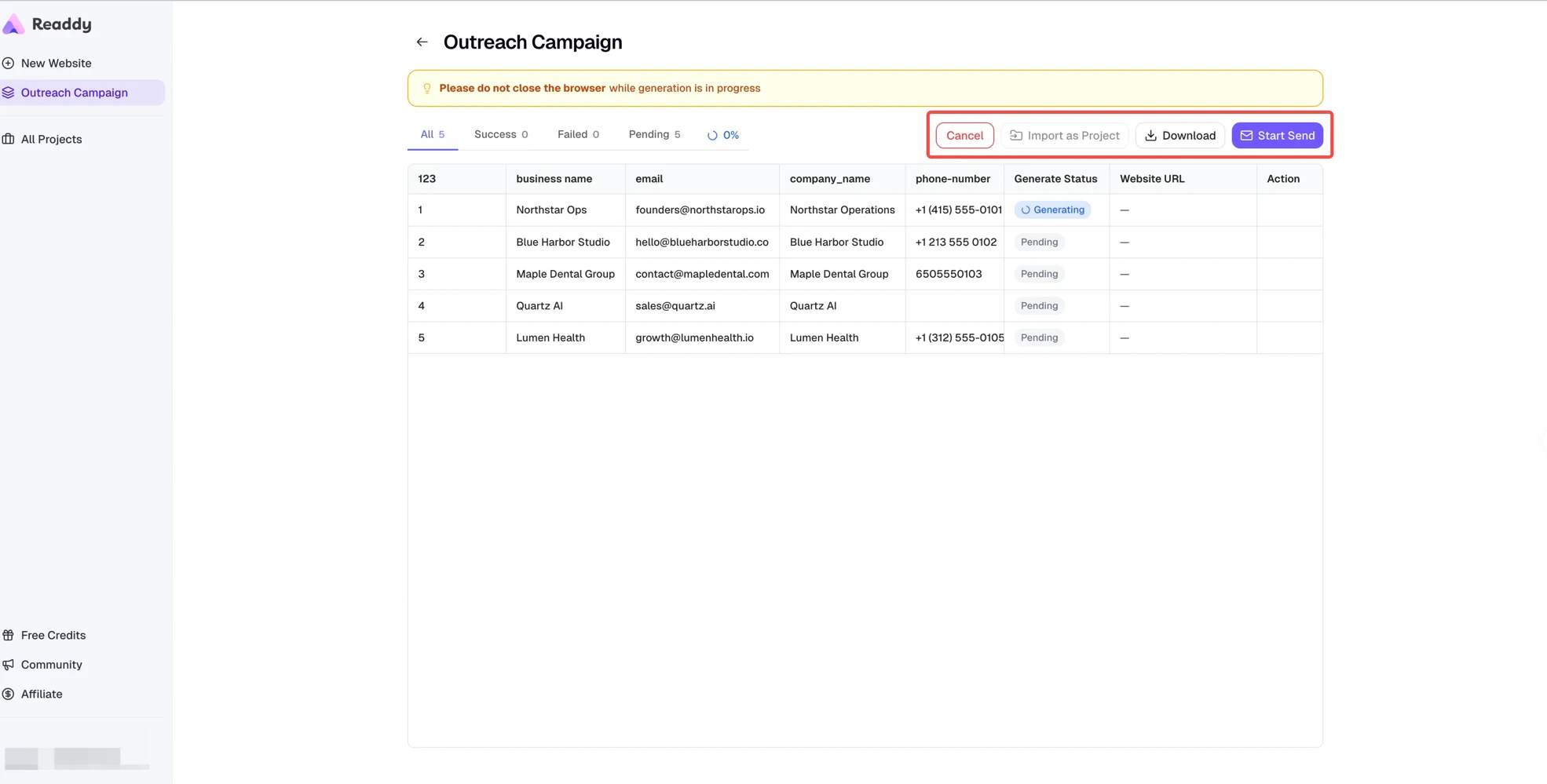
- Copy website links
- Import successful rows as projects
- Retry failed rows
- Download the results
- Open Start Send or Email Analysis
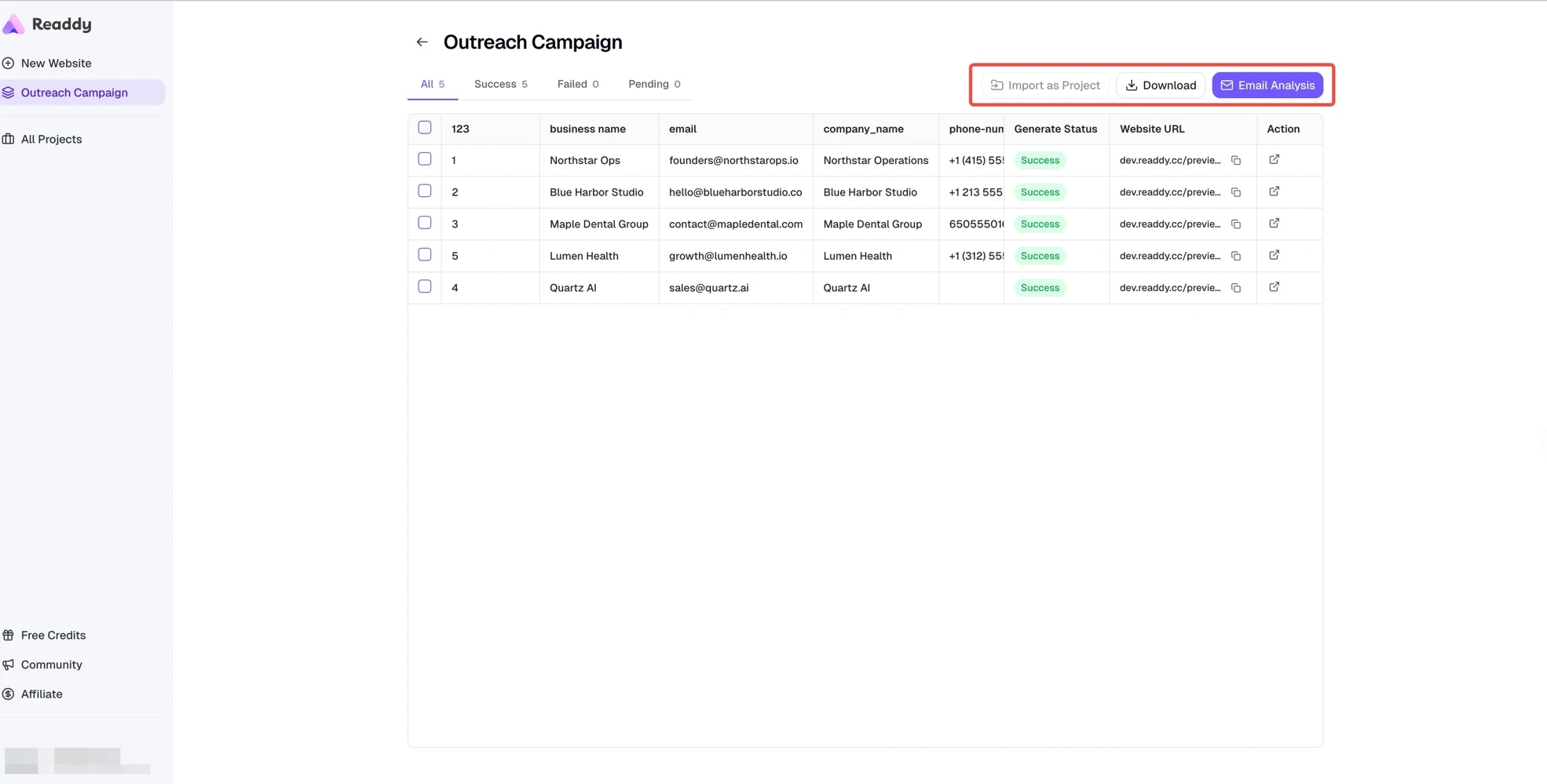
Not happy with a generated website?
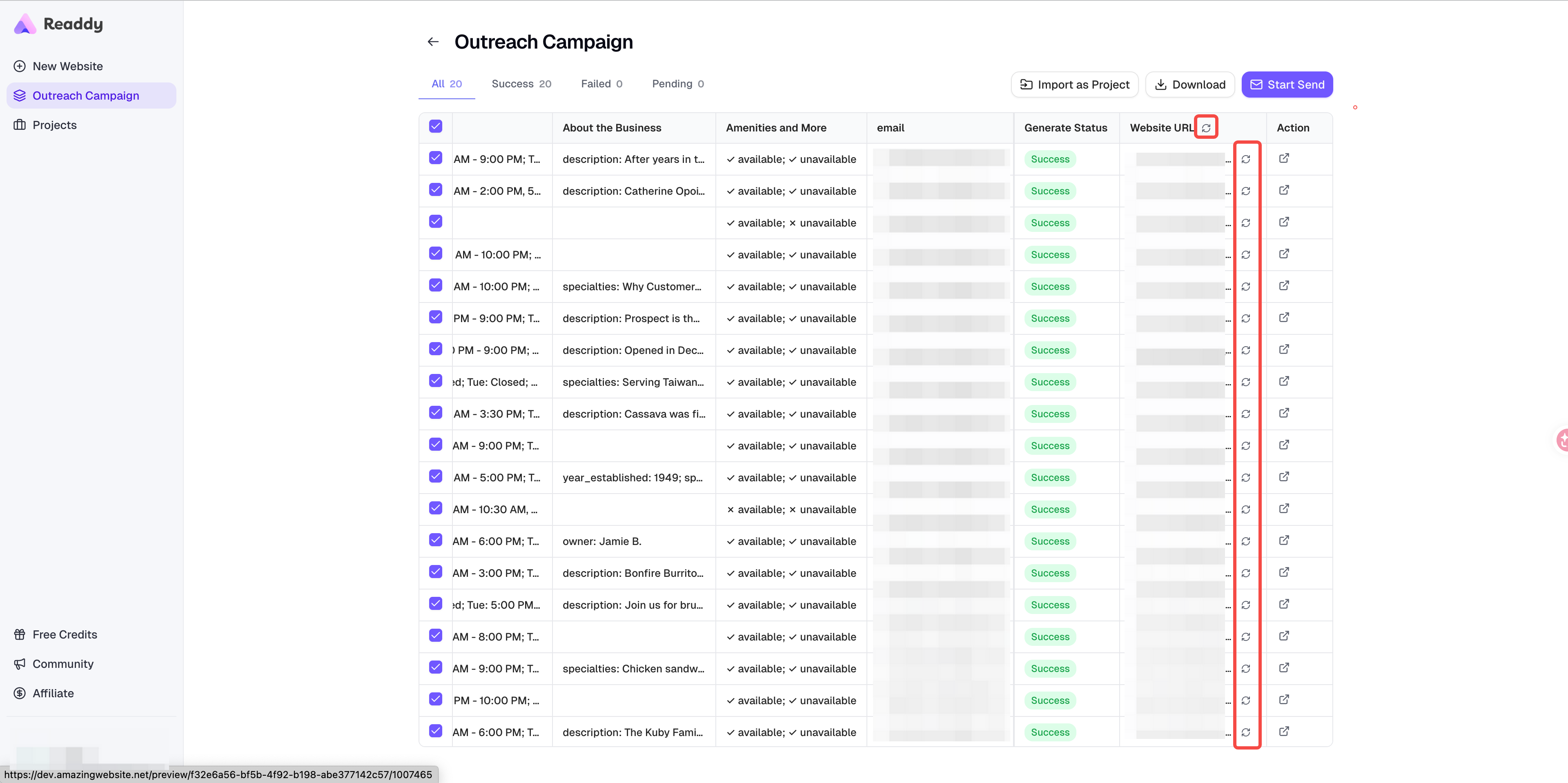
If a generated website needs more work, select the successful row and click Import as Project. Readdy will convert it into a regular project so you can continue editing it in the normal project workspace. After you finish editing that imported project, return to Outreach Campaign and refresh the website link in the Website URL column to pull the newest version.- Use the refresh icon in the Website URL column header to refresh links in bulk
- Use the refresh icon in a specific row to refresh only that row’s latest URL
Step 11: View Email Analytics
After sending starts, the email button changes to Email Analysis. There you can check campaign performance: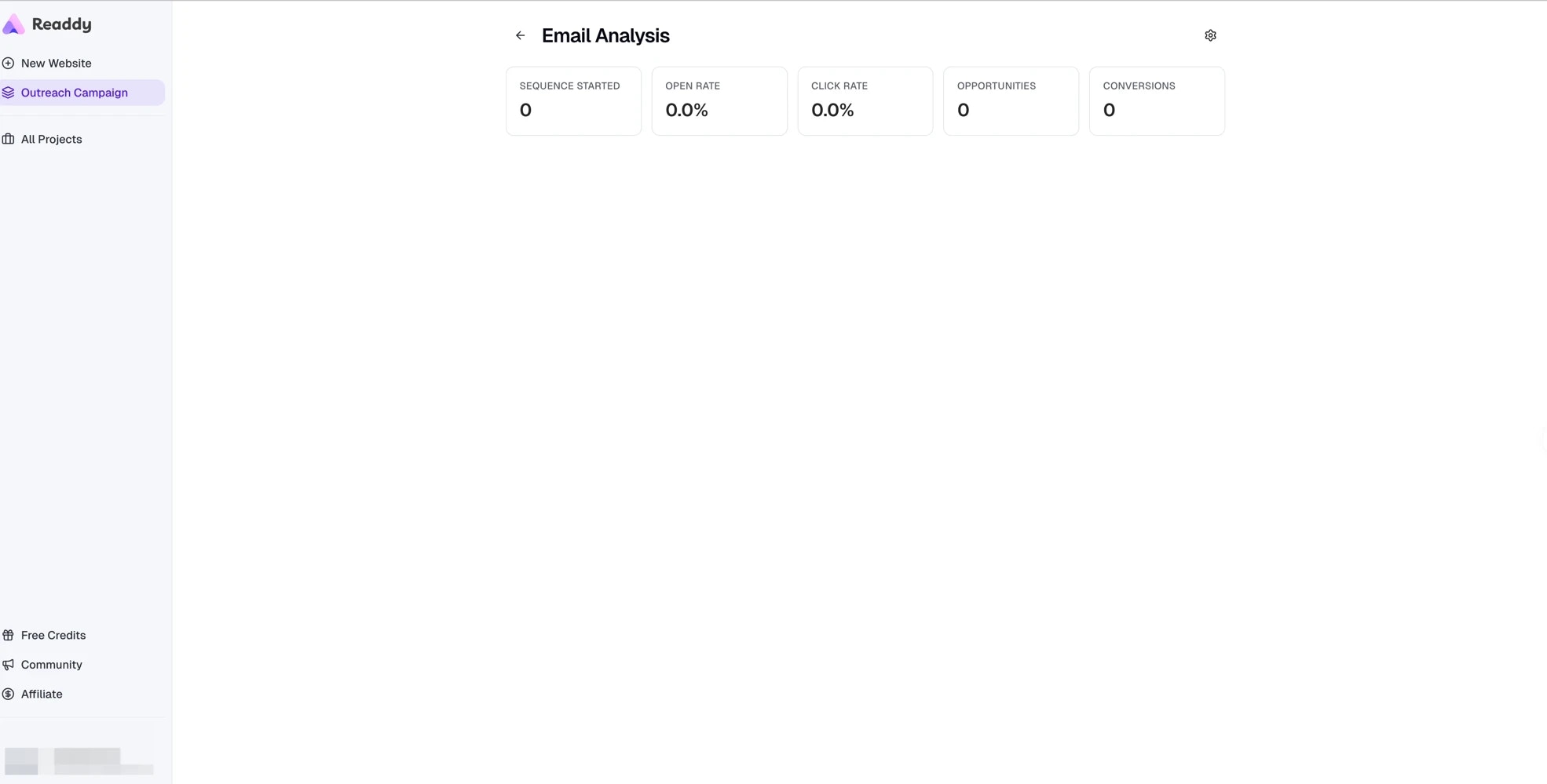
Optional: Use Instantly Instead of Readdy
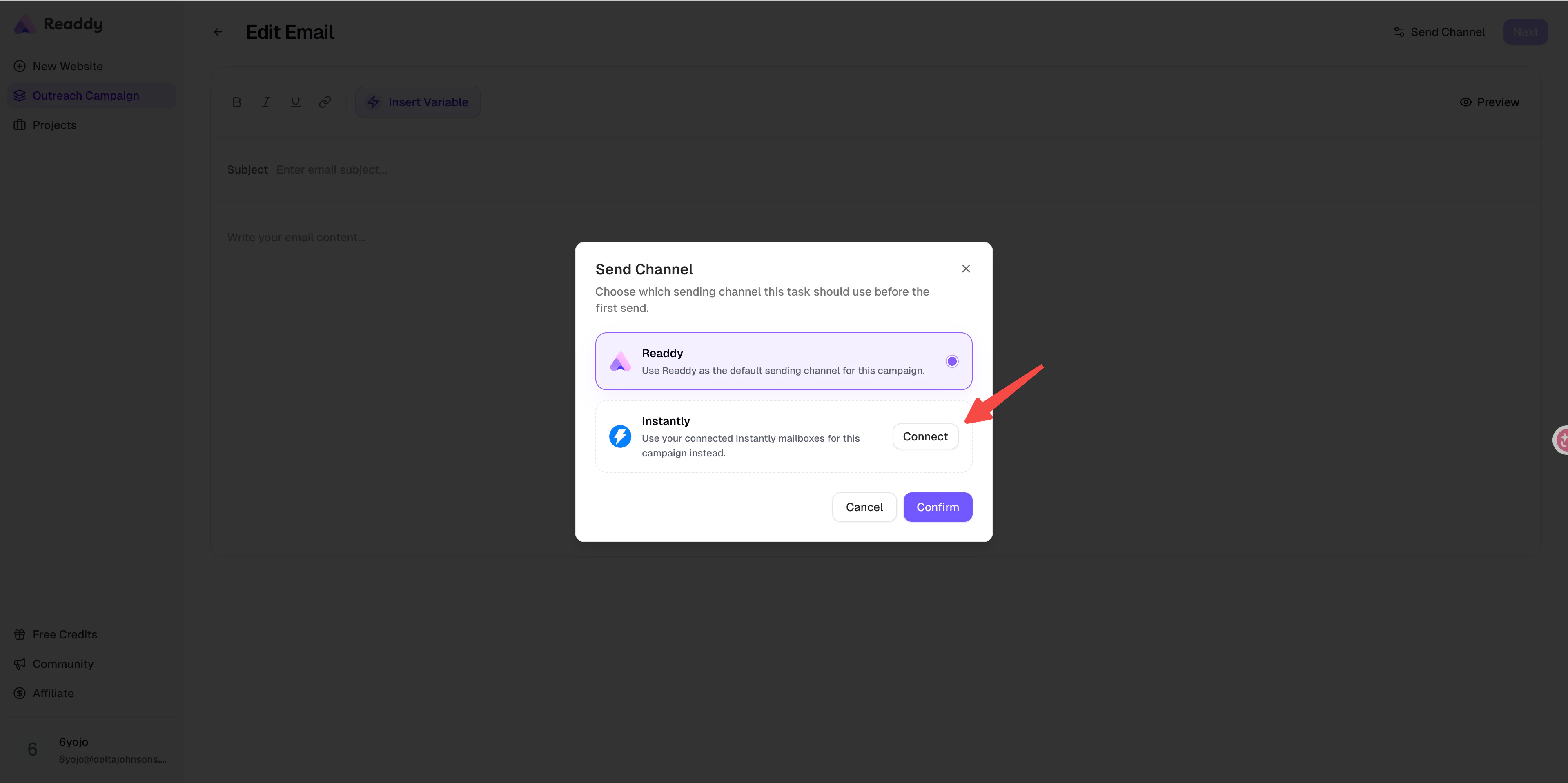
If you prefer to send through Instantly, you can still do that. Readdy keeps Readdy as the default send channel, but you can switch to Instantly before the first send.Open Send Channel
Choose Instantly and Click Connect
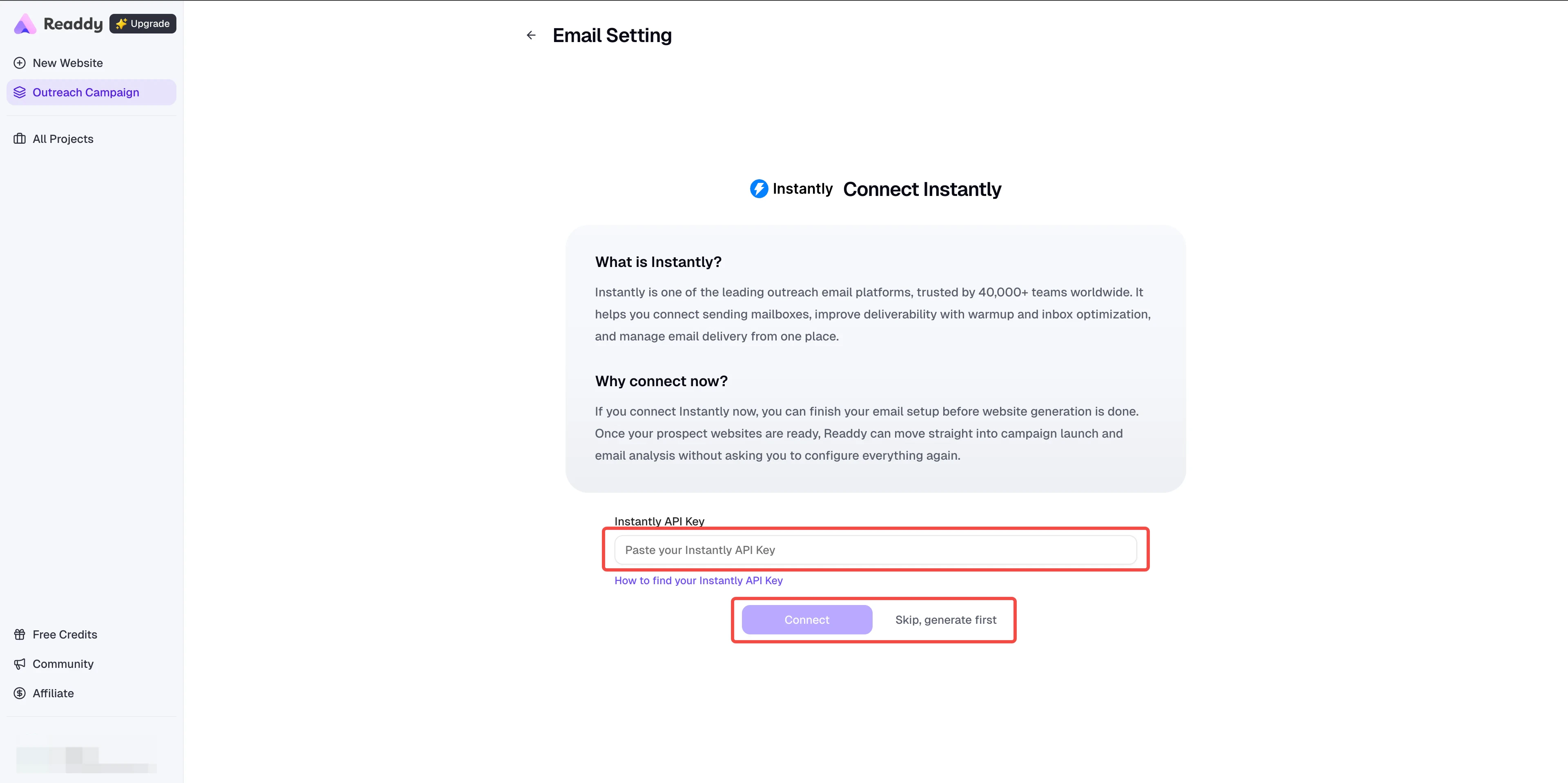
Connect Your Instantly Workspace
Select the Instantly Mailboxes
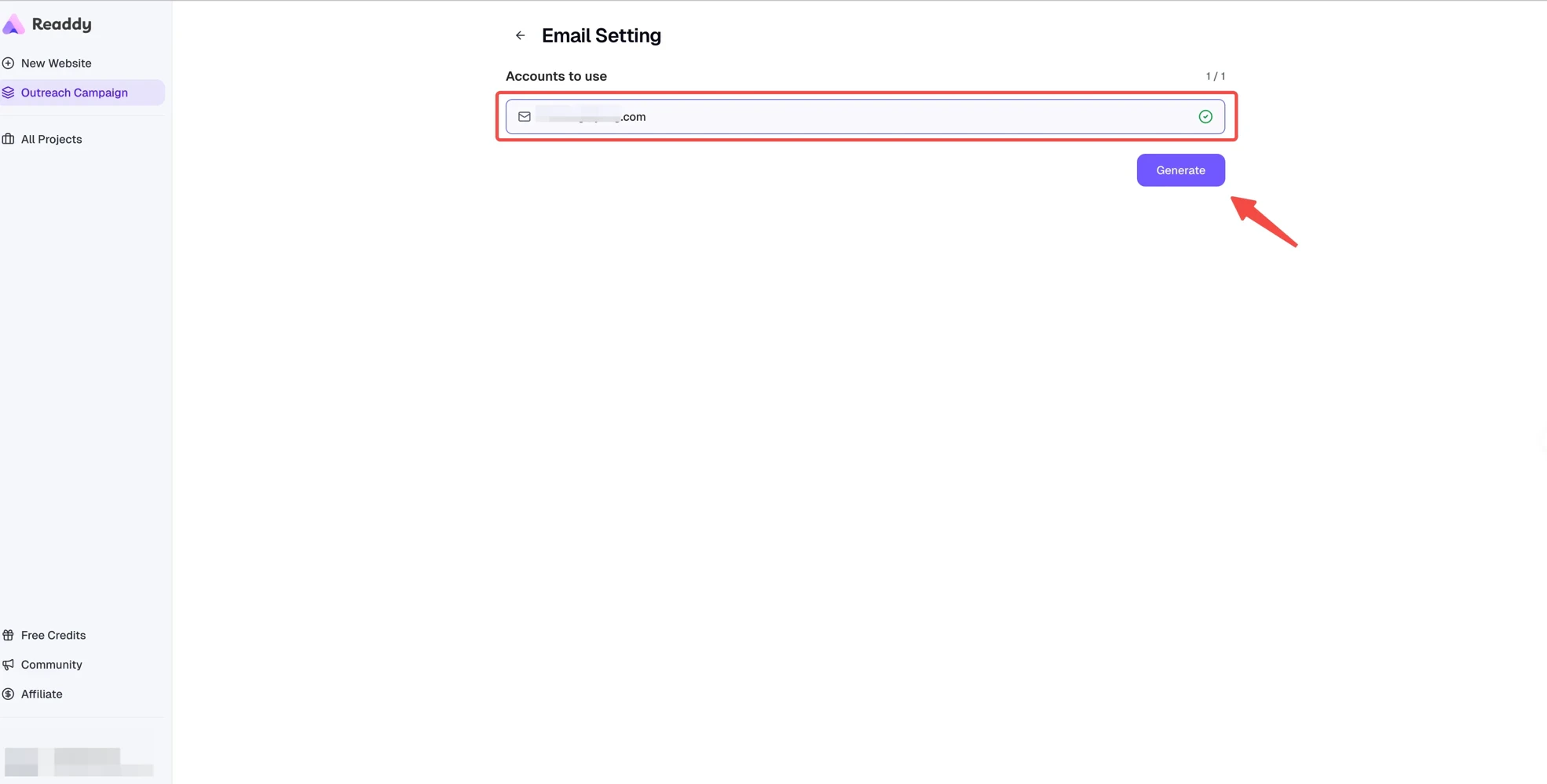
Confirm the Channel and Send with Instantly
Limits Summary
Outreach Campaign Limits
Sending Limits
FAQ
File upload says 'File must contain an email column'?
File upload says 'File must contain an email column'?
.csv or .xlsx file includes an email column.Extra spaces in the column name can cause validation issues. Letter case does
not matter, so Email, EMAIL, and email all work. Using Readdy’s template
is the safest option.File upload says 'Invalid email format'?
File upload says 'Invalid email format'?
@, include extra spaces, or use incomplete domains.What if I do not have a client list yet?
What if I do not have a client list yet?
.csv file, and bring that file back into
Outreach Campaign.Can I start generation before binding a mailbox?
Can I start generation before binding a mailbox?
Can I connect Gmail with SMTP?
Can I connect Gmail with SMTP?
Can I connect other mailboxes besides Gmail?
Can I connect other mailboxes besides Gmail?
Does binding or selecting a mailbox enable email warm-up?
Does binding or selecting a mailbox enable email warm-up?
What happens if I click Send while websites are still generating?
What happens if I click Send while websites are still generating?
Accidentally closed the browser during generation?
Accidentally closed the browser during generation?
Shows 'Batch generation is running in another tab'?
Shows 'Batch generation is running in another tab'?
How many emails per mailbox per day is recommended?
How many emails per mailbox per day is recommended?
How do I view campaign performance?
How do I view campaign performance?