AI-Readable Sites helps you add an AI-readable layer to a public website hosted outside Readdy. Readdy analyzes your existing content, prepares supporting assets, and guides you through connecting your domain without migrating or rewriting your original website. With AI-Readable Sites, you can:
  • Create an AI site guide: Give AI assistants a structured llms.txt entry point with your key pages and trusted facts
  • Add structured data: Label important business, service, FAQ, breadcrumb, and product information on key pages
  • Publish answer-ready content: Create focused pages based on questions customers are likely to ask
  • Support search discovery: Add a sitemap and update robots.txt so search engines can discover the published answer pages

Before You Start

AI-Readable Sites is for public websites hosted outside Readdy. If your website is built and hosted on Readdy, use AEO/GEO Optimization instead.
Before you begin, make sure:
  • Your website is publicly accessible
  • You use a custom domain whose DNS records you can edit, such as blog.yoursite.com
  • You can sign in to the provider that manages the domain’s DNS
  • Your Readdy plan has an available AI Readable site allowance
The current self-service flow does not support:
  • Root domains such as yoursite.com; use a subdomain such as ai.yoursite.com
  • Platform-provided addresses such as yoursite.wordpress.com or project.vercel.app
  • Domains connected to WordPress.com through its nameserver option; reconnect the domain using WordPress’s DNS-records option first
The Free plan includes one AI Readable site. AI-Readable Sites uses a separate site allowance and does not consume Credits. A site counts toward the allowance while it is activating or live.

How It Works

1

Open AI-Readable Sites

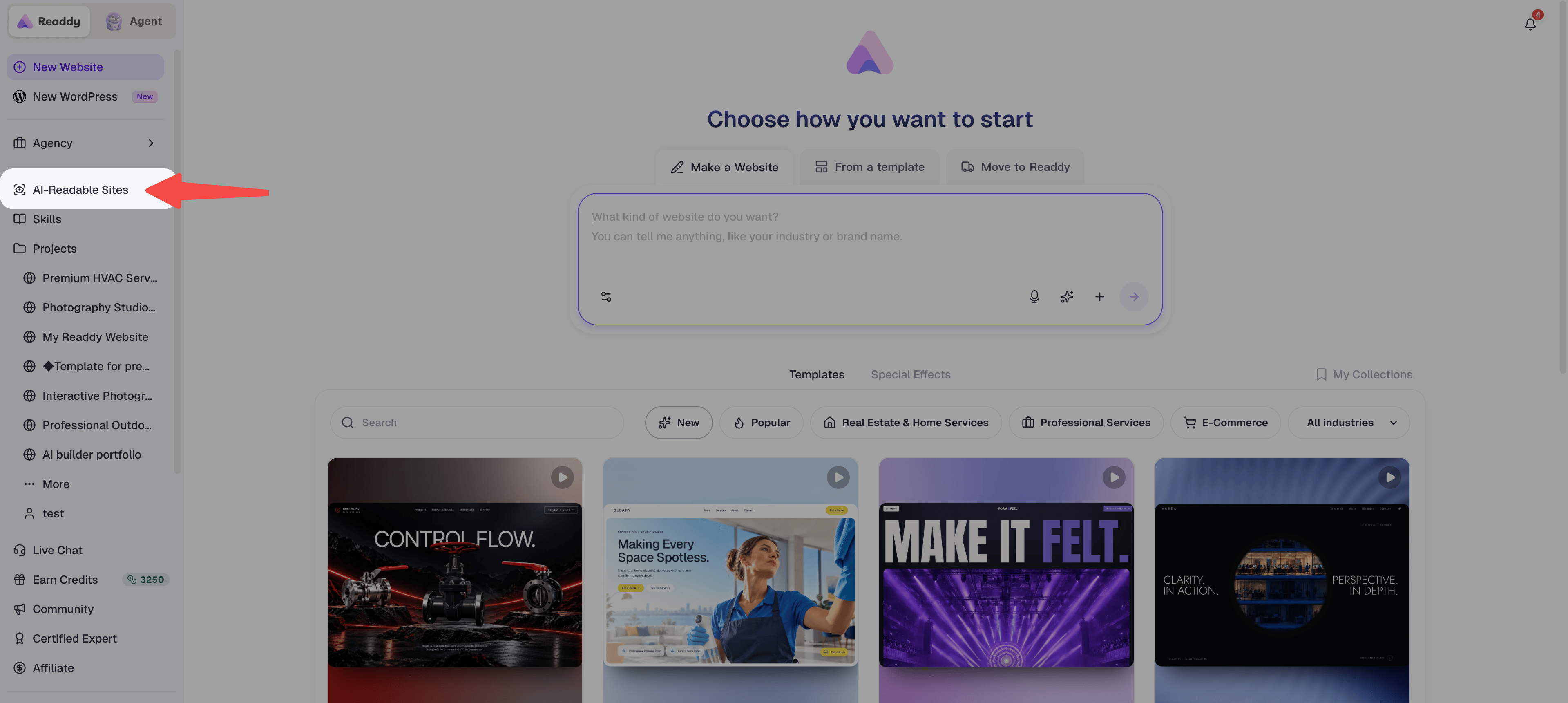
Open your Readdy workspace and select “AI-Readable Sites” in the sidebar.You can also open “New Website”, choose “Make My Site AI-Readable”, and enter your domain there.
AI-Readable Sites sidebar entry and Make My Site AI-Readable option
2

Enter Your Website Domain

Enter the main custom domain for your external website, such as blog.yoursite.com.Readdy checks that the domain is reachable, supported, and not already hosted on Readdy before starting the setup.
3

Let Readdy Analyze Your Website

Readdy scans your public pages, extracts business details, detects FAQs and trust signals, and maps the content needed for your AI-readable assets.If the website cannot be reached, check the domain and confirm that the site is publicly accessible before retrying.
Website analysis progress showing crawl, parse, read, and map stages
4

Review the Generated Assets

Wait while Readdy prepares your AI site guide, structured data, and answer-ready pages.Generation usually takes a few minutes. You can leave the page and return later because your progress is saved. When the assets are ready, click “Continue to DNS activation”.
AI-readable assets being generated in the background
Generating your AI-readable assets
Generated AI-readable assets ready for DNS activation
Assets ready to preview
5

Open Your DNS Provider

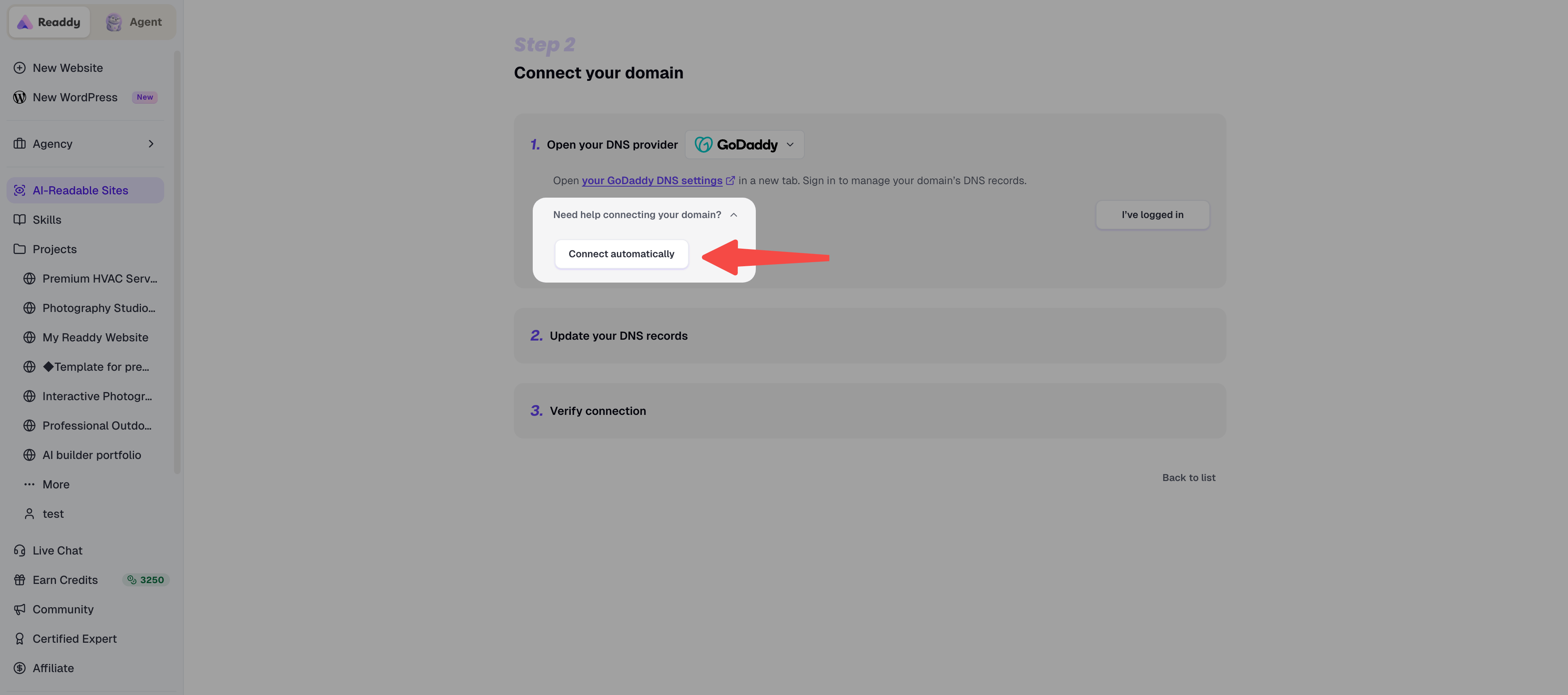
Follow the on-screen link to sign in to the provider that manages your domain’s DNS.If Readdy cannot identify your provider, choose “Choose Domain Provider” and select it manually.If your domain registrar or DNS provider does not appear in the list, sign in to that provider directly and open the DNS settings for your domain. Use that DNS page to complete the next step.
Hostinger DNS provider link in the domain connection flow
6

Update Your DNS Records

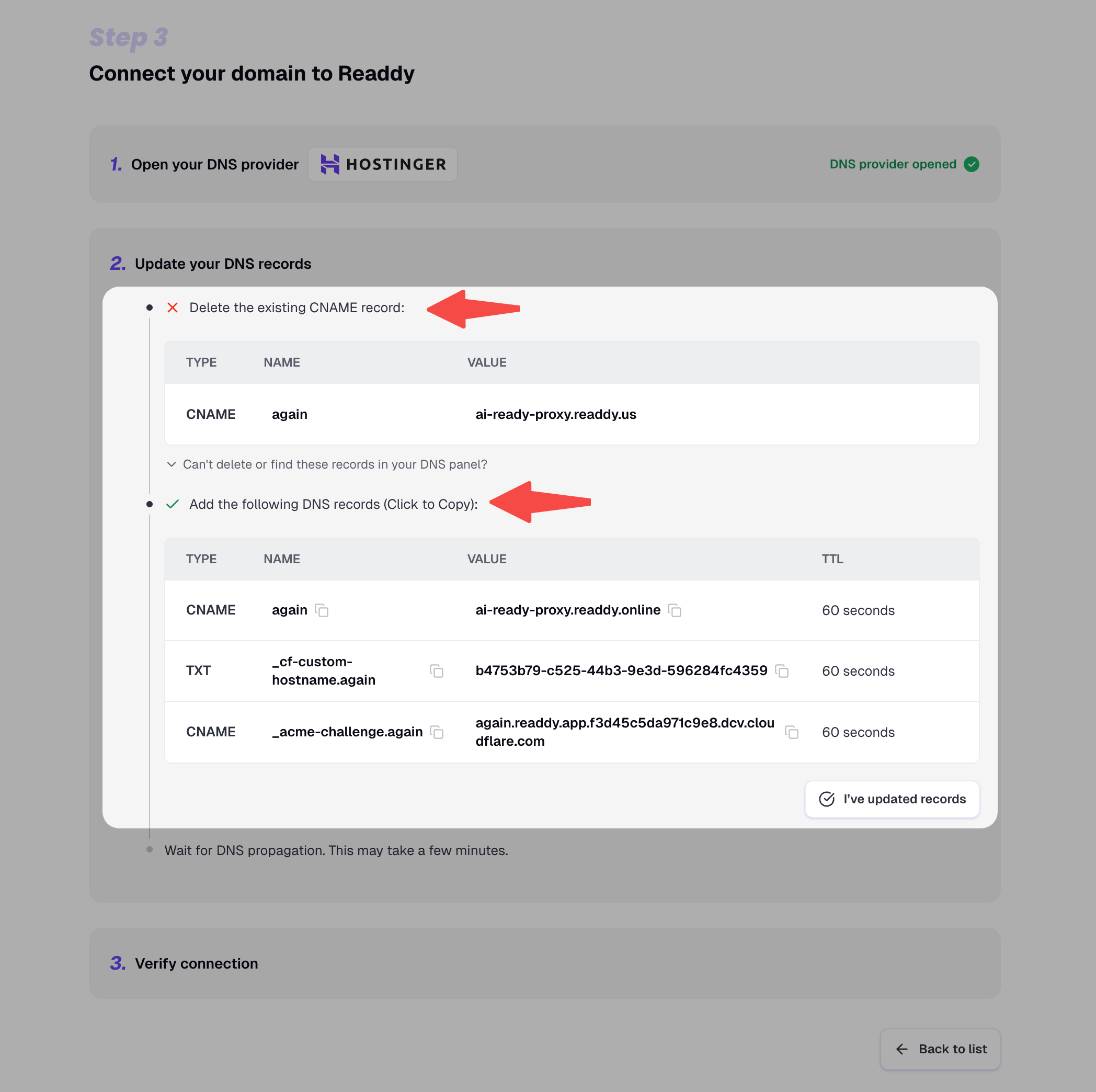
Copy the DNS record name and value shown by Readdy, then add them at your DNS provider.
  1. Remove any conflicting records listed by Readdy.
  2. Add the new record using the exact type, name, and value shown.
  3. If you use Cloudflare, set the proxy status to DNS only (grey cloud).
  4. Use the displayed TTL, or the lowest value your provider allows.
  5. Return to Readdy and click “I’ve updated records”.
Only delete records that Readdy identifies as conflicts for the domain you are connecting. Changing unrelated DNS records can affect your website or email.
DNS records to remove and add during domain connection
7

Verify the Connection

Click “Verify connection”. Readdy checks the DNS record, SSL certificate, original website, and AI-readable outputs in order.DNS propagation and SSL issuance can take a few minutes. You can leave the page while verification continues and check the latest status from the AI-Readable Sites list.
8

Review the Live Result

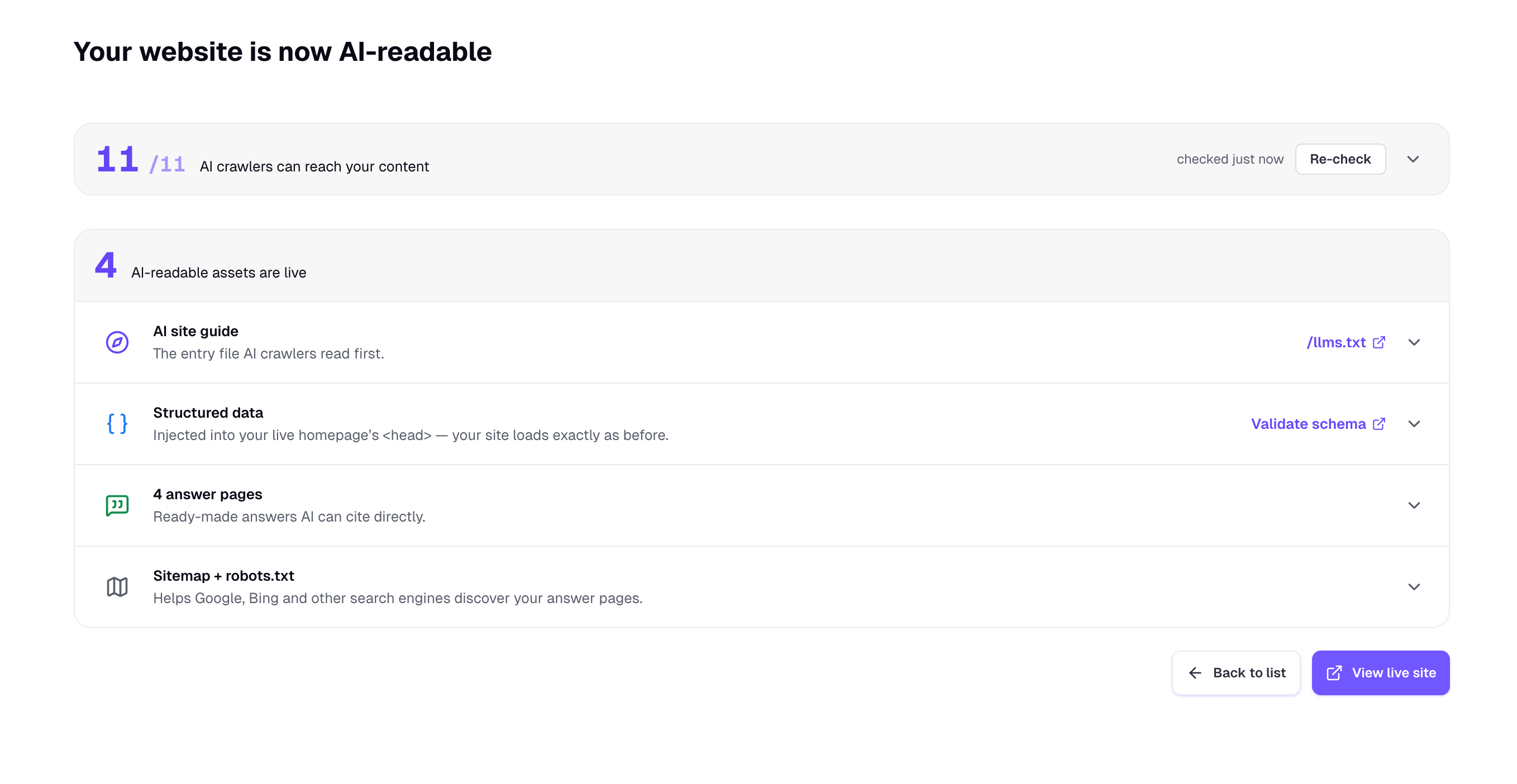
When setup is complete, review the crawler access check and each published asset.You can inspect the AI site guide, structured data, answer pages, sitemap, and robots.txt, or click “View live site”. Use “Re-check” to run the crawler access check again.
Live AI-readable result with crawler access and published assets

What Readdy Publishes

Understand Site Statuses

What the Result Means

An “AI Readable” result confirms that Readdy can serve the generated assets and that the tested crawlers can access or are allowed to access them. It does not guarantee:
  • Indexing or ranking in Google, Bing, or another search engine
  • Visibility for a specific customer search
  • Selection, recommendation, or citation in an AI-generated answer
These outcomes depend on each search engine or AI service, your website’s authority and content quality, the user’s query, and future recrawling.

Troubleshooting

Symptom: Readdy asks you to try another domain or use a subdomain.Cause: You entered a root domain, a platform-provided address, a Readdy-hosted domain, or a domain whose DNS records are managed and locked by your website hosting platform.How to fix:
  1. Use a custom subdomain whose DNS you can edit, such as ai.yoursite.com.
  2. If the site is hosted on Readdy, use AEO/GEO Optimization.
  3. If your website hosting platform manages the nameservers or locks the DNS records, reconnect the domain using its DNS-records option instead, if available. For example, in WordPress.com, choose the DNS-records connection method rather than the nameserver method. Then try again.
Symptom: You see a message that no DNS records were found.Cause: The domain may be misspelled, inactive, or not connected to the external website yet.How to fix: Confirm the spelling, open the domain in a browser, and check that it has active DNS records before retrying.
Symptom: Readdy continues to show “DNS record not found yet” after you update the record.Cause: The record may still be propagating, may use the wrong name or value, or may be proxied by Cloudflare.How to fix:
  1. Compare the record with the exact values shown in Readdy.
  2. Set Cloudflare records to DNS only.
  3. Wait a few minutes, then click “I’ve updated records” again.
Symptom: DNS and SSL pass, but Readdy cannot connect to the original website.Cause: Some hosting platforms place custom domains behind a shared CDN, so Readdy cannot automatically identify the platform’s original address.How to fix: Enter the platform-provided project address shown in your hosting dashboard, then click “Save & re-verify”.
Symptom: The domain is reachable, but one or more AI-readable outputs are not verified.Cause: DNS or edge changes may still be propagating, or an output may not yet be available on the live domain.How to fix: Wait a few minutes and run “Verify connection” or “Re-check” again. If the issue continues, submit a support ticket with the affected domain.

FAQ

No. Readdy analyzes your public website and adds an AI-readable delivery layer. It does not migrate or rewrite your original website content.
No. Use AEO/GEO Optimization for websites built and hosted on Readdy.
No. The status confirms technical availability and verified outputs. Search engines and AI services independently decide whether to index, rank, retrieve, or cite the content.
No. Generation and verification continue in the background, and your progress is saved. Return to “AI-Readable Sites” to view the latest status.
After activation, your domain starts routing through Readdy. Some browsers and networks may continue using cached DNS information for a short time, so the website may briefly fail to load. It usually becomes available again as the DNS cache refreshes, which can take up to about an hour.

Need Help?

If this guide doesn’t resolve your issue, submit a support ticket. We’re here to help!