

Overview
Readdy’s Team Collaboration feature allows you to invite team members to work together on the same project. Whether you’re working with designers, developers, or clients, you can collaborate seamlessly with role-based permissions and shared resources.Use Cases
Collaboration is perfect for:- Cross-functional teams: Designers, developers, and product managers working together
- Agency-client projects: Share projects with clients for review and feedback
- Team development: Multiple team members contributing to the same website
Inviting Members
Invite multiple team members simultaneously to collaborate on your project through email or shareable links.Invite by Email
Invite by Email
Invite multiple team members simultaneously via email.How to invite (either method works):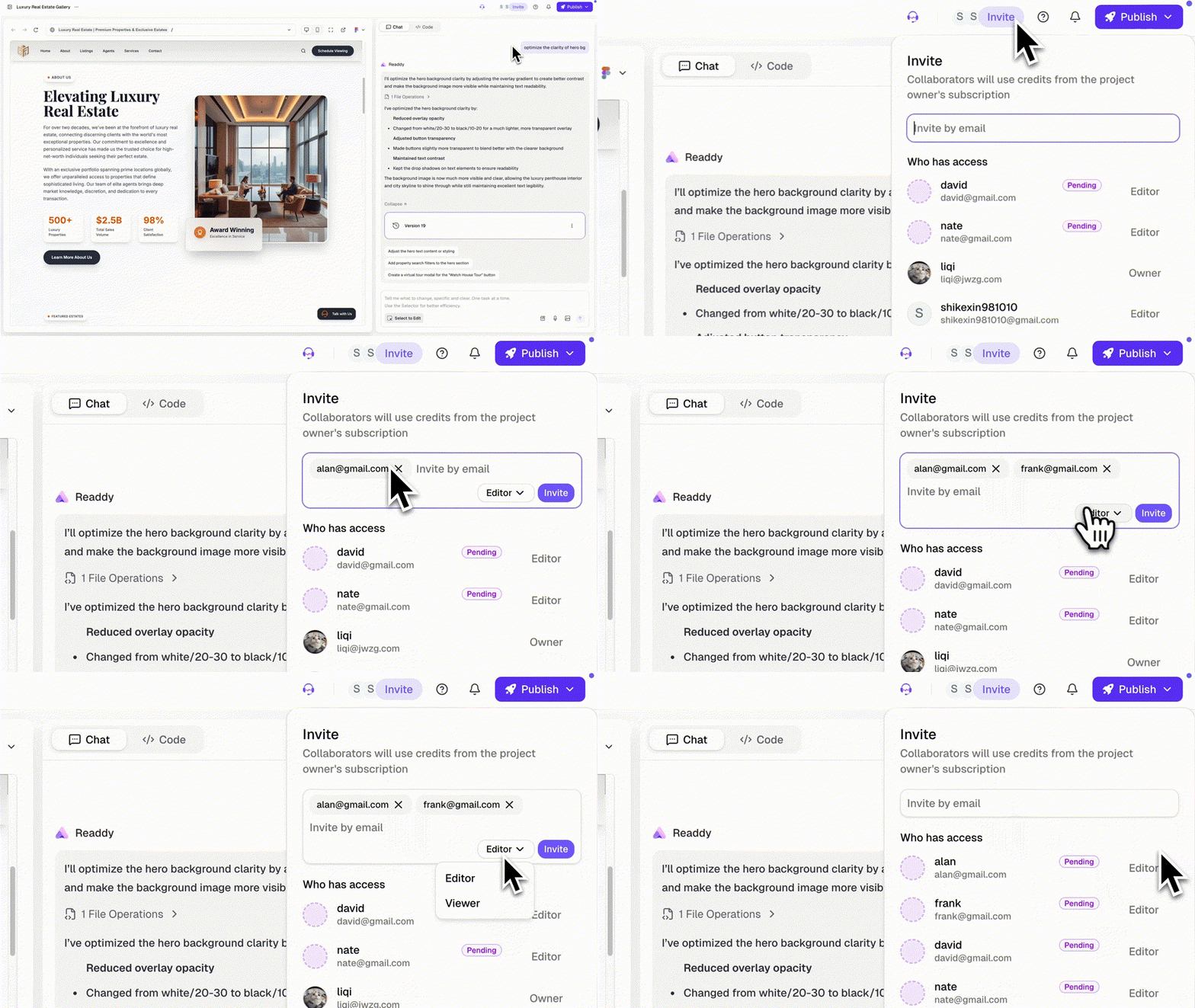
- Click the “Invite” button in the Editor
- Or go to Members tab in the main page navigation
- Click the “Invite” button
- Enter email addresses in the input field (press Enter after each)
- Select the role for each invited member (Editor or Viewer)
- Click “Invite” to send invitations
- Maximum 5 email addresses per batch invitation (invalid addresses highlighted in red)
- Total team size limits vary by plan: Free (1/5), Starter (2/10), Pro-40+ (5/20) for Editors/Viewers
- Invitations sent via email and in-app notifications (for registered users)
Generate a link that team members can use to join your project.Link Types: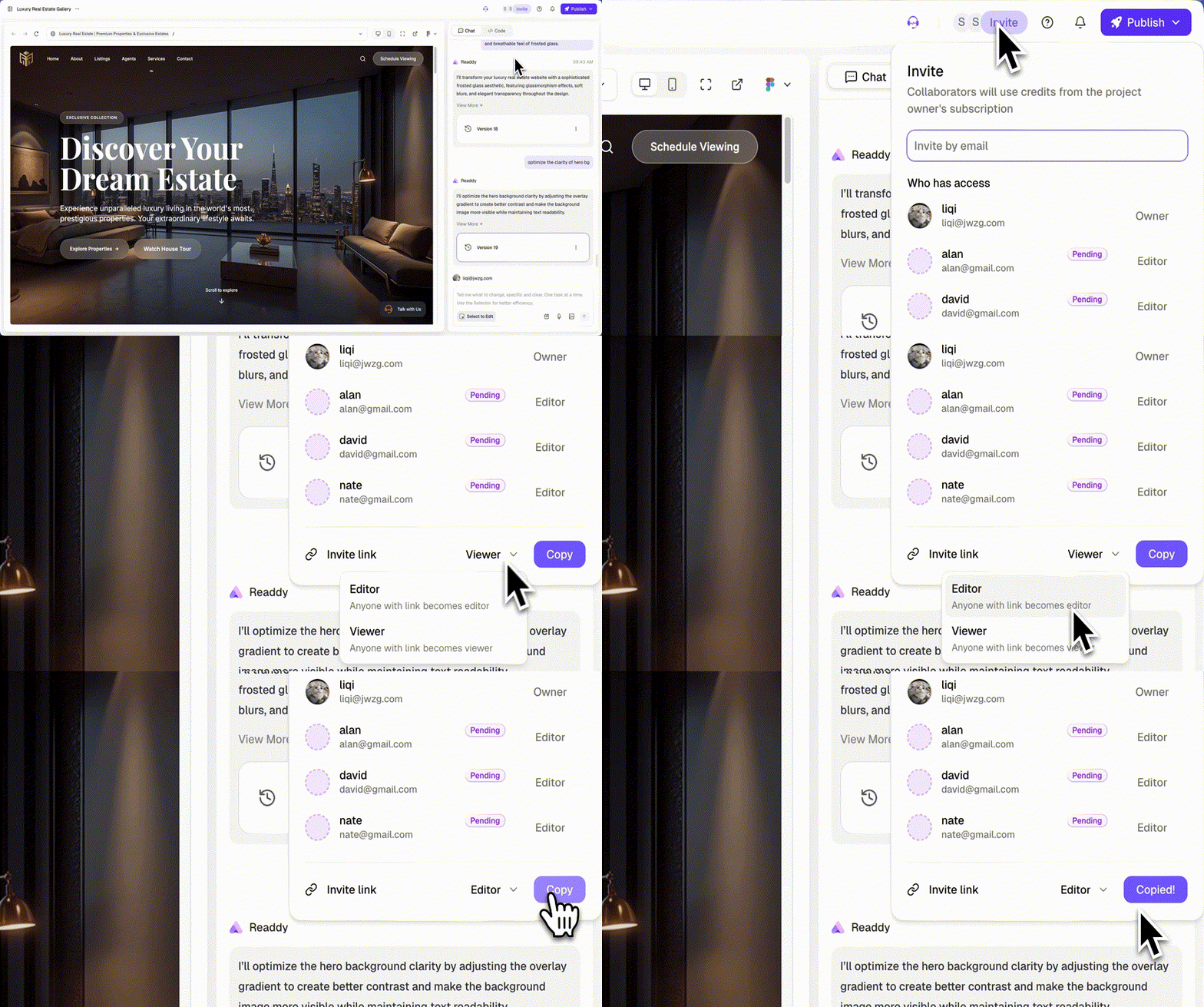
- Editor Link: Invitees can edit the project
- Viewer Link: Invitees can view only
- Disabled: Turn off link sharing
- Editor and Viewer links are valid for 1 hour
- Clicking “Copy” generates a new link
- Disabled links have no expiration (effectively turns off sharing)
Invitation Status
Invitation Status
Track your team invitation status through the members panel:
- Pending Members: Have received invitations but haven’t joined yet (shown with light purple dashed border); you can resend invitations from the members panel
- Active Members: Have successfully joined and have full access based on their assigned role
Collaboration Limits by Plan
Collaboration Limits by Plan
Different plans support different numbers of collaborators. Both active and pending members count toward your plan’s limits.
Collaboration & Permissions
Understanding how team members can work together on projects.View Member Status
View Member Status
You can view member online status in the Invite button in the top right corner. Online members’ avatars will be displayed there.
Editing Order
Editing Order
Only one member can generate content at a time.How it works: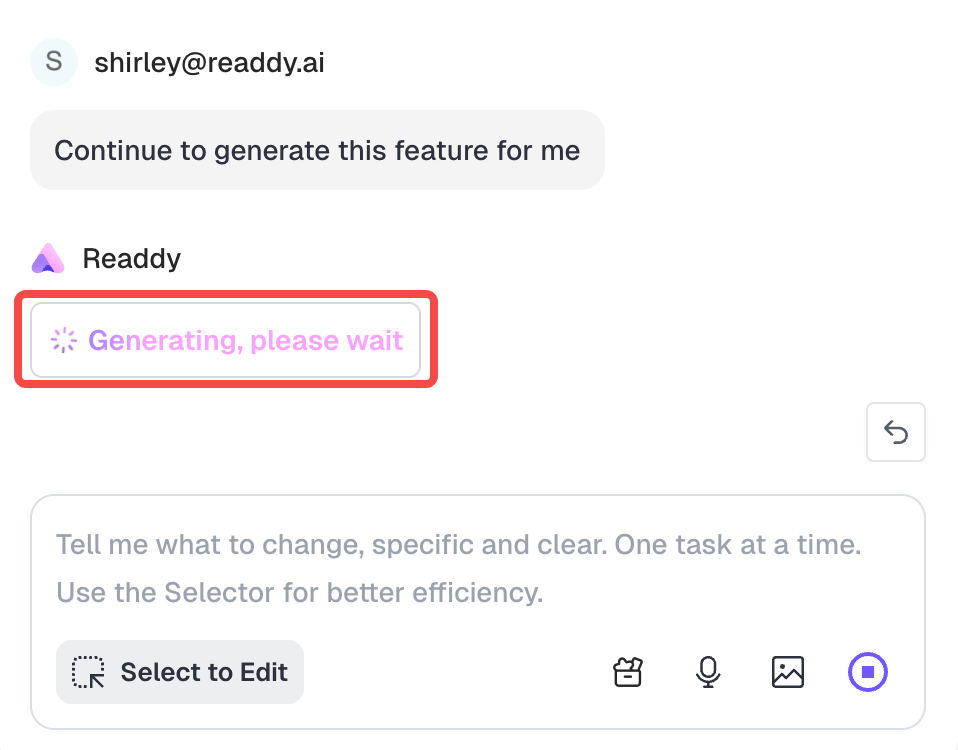
- When a team member is generating content, a “XXX is generating” message appears
- Once this indicator disappears, the generated content will appear in the dialogue
- If you don’t see the changes made by another member, you can manually refresh the page
- When other members are generating, if necessary, you can click the stop generation button in the bottom right corner of the input box to interrupt their generation
Role Permissions
Role Permissions
Understanding what each role can do in your project.
Editing Boundaries & Credits
Understanding how credits work in collaborative projects.Credit Deduction Rules
Credit Deduction Rules
All members use the project Owner’s credits.Credit Pool: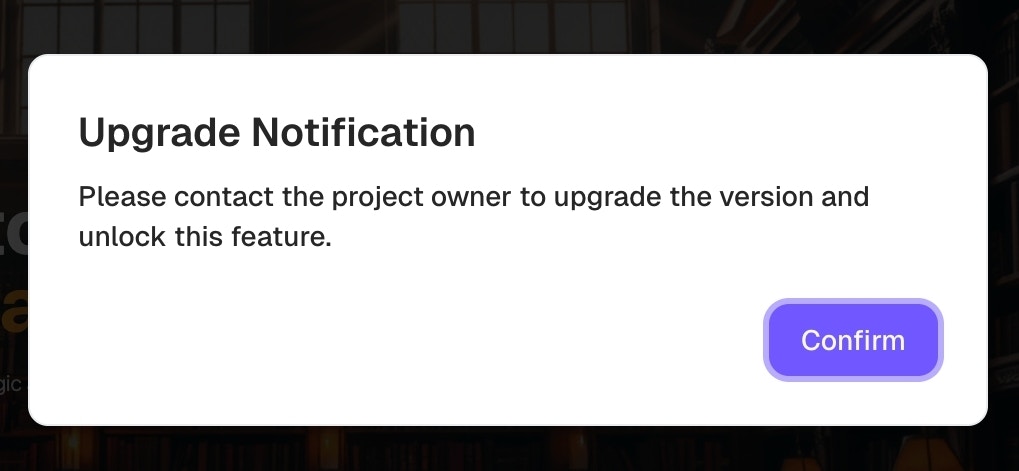
- Collaborators consume credits from the Owner’s credit pool (linked to Owner’s subscription plan)
- All members can view each member’s Monthly and Total usage statistics in the Members section
- Owner can view credit consumption for each project in Usage
- When encountering restricted features or insufficient credits, this prompt will appear and collaborators need to contact the Owner to upgrade their plan
Managing Members
Access and manage your project team.Members Panel
Members Panel
View and manage all project collaborators.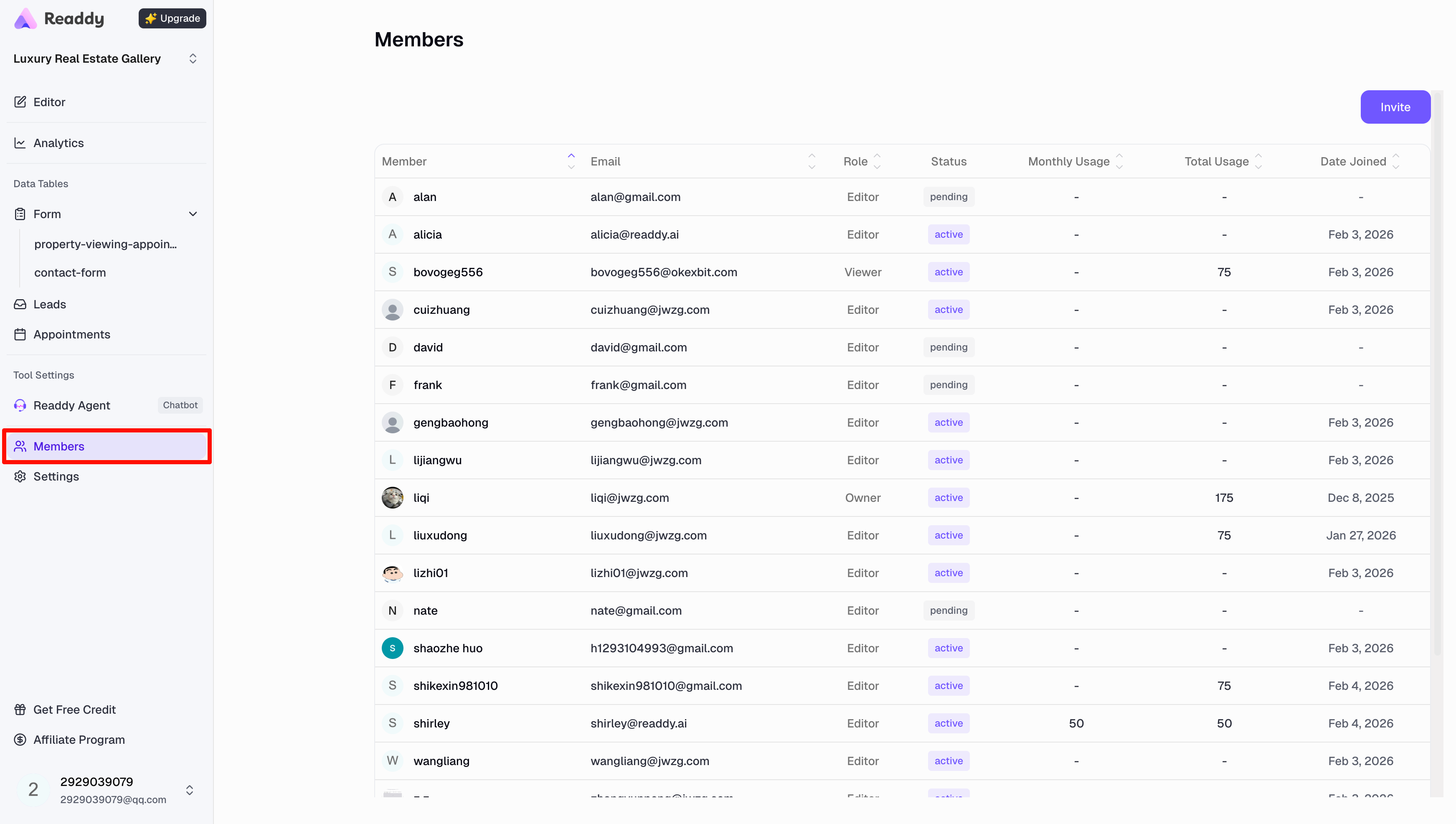
- Access: Go to the Members tab in the left navigation bar on the main page
- View options: Sort by member, email, role, status, usage, or date joined
Changing & Removing Members
Changing & Removing Members
Change member roles or remove members from your project.Who can make changes:
- Only the Owner can modify member roles or remove members
- Go to the Members tab in the left navigation bar, find the member, and click their role dropdown
- Or click the Invite button in the website project, then modify the specific member’s role
- Change role: Editor, Viewer
- Remove member
Best Practices & Tips
Troubleshooting
Invitation Not Received
Invitation Not Received
Possible causes:
- Email in spam folder
- Link expired (after 1 hour)
- Check spam/junk folder
- Resend invitation from Members panel
- Verify correct email address
- Ask recipient to check their Readdy notifications
Can Multiple People Edit Simultaneously?
Can Multiple People Edit Simultaneously?
Answer: No, only one person can generate content at a time.How it works:
- After member A sends a message, member B must wait for A’s generation to complete before sending
Where Do Credits Return When Credit Protection is Triggered?
Where Do Credits Return When Credit Protection is Triggered?
Answer: Credits return to the project Owner.Credit System:
- All collaboration uses the project Owner’s credit pool
- When credit protection is triggered, credits are refunded to the Owner’s account
- Collaborators do not have separate credit pools for collaborative projects
Not Receiving Messages from Collaborators
Not Receiving Messages from Collaborators
Cause: Page not refreshed to show latest updates.Solution:
- Refresh the page to update collaborator information
- Changes will appear after manual refresh
Link Invitation Join Failed
Link Invitation Join Failed
Cause: Project has reached the member limit for your plan.Solution:
- Check your current member count in the Members panel
- Upgrade your plan to increase collaboration limits
- Remove inactive members to free up slots
- Refer to Collaboration Limits by Plan for more details
Credits Blocked for Collaborators
Credits Blocked for Collaborators
Cause: Project Owner’s credit pool is exhausted.Solution:
- Collaborators must contact the Owner to upgrade plan or purchase credits
Need More Help?
If you’ve checked the troubleshooting section above and still need assistance, our support team is here to help:- Email: hi@readdy.ai
- Feedback: https://readdy.ai/feedback