

How to Use
1
Enter Your Project
Open the project where you want to add booking functionality.
2
Open Connects
Click the Connects button in your project.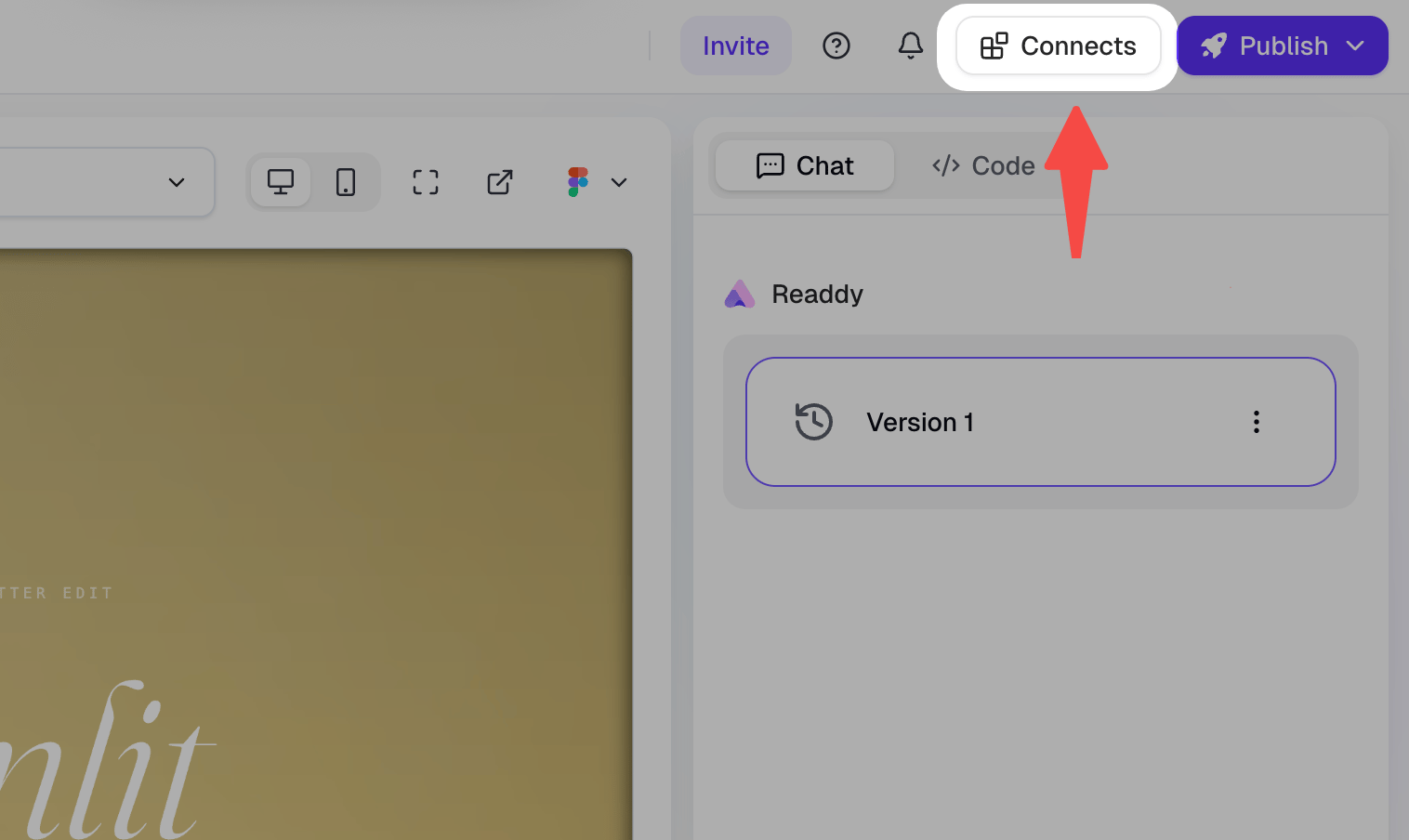
3
Add Readdy Booking
Find Readdy Booking in the Connects panel and click Connect.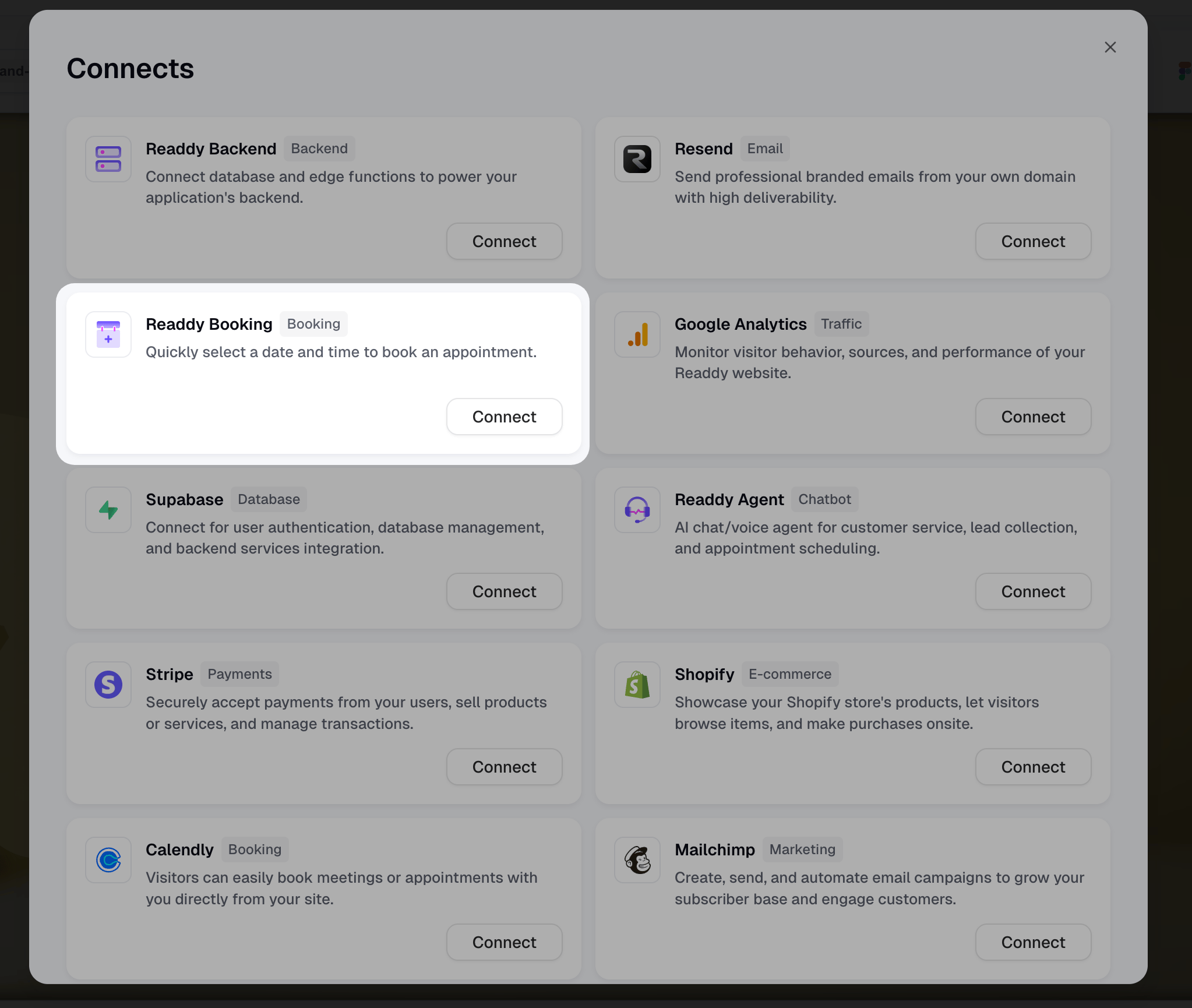
4
View Feature Panel
After opening the panel, you’ll see two core features: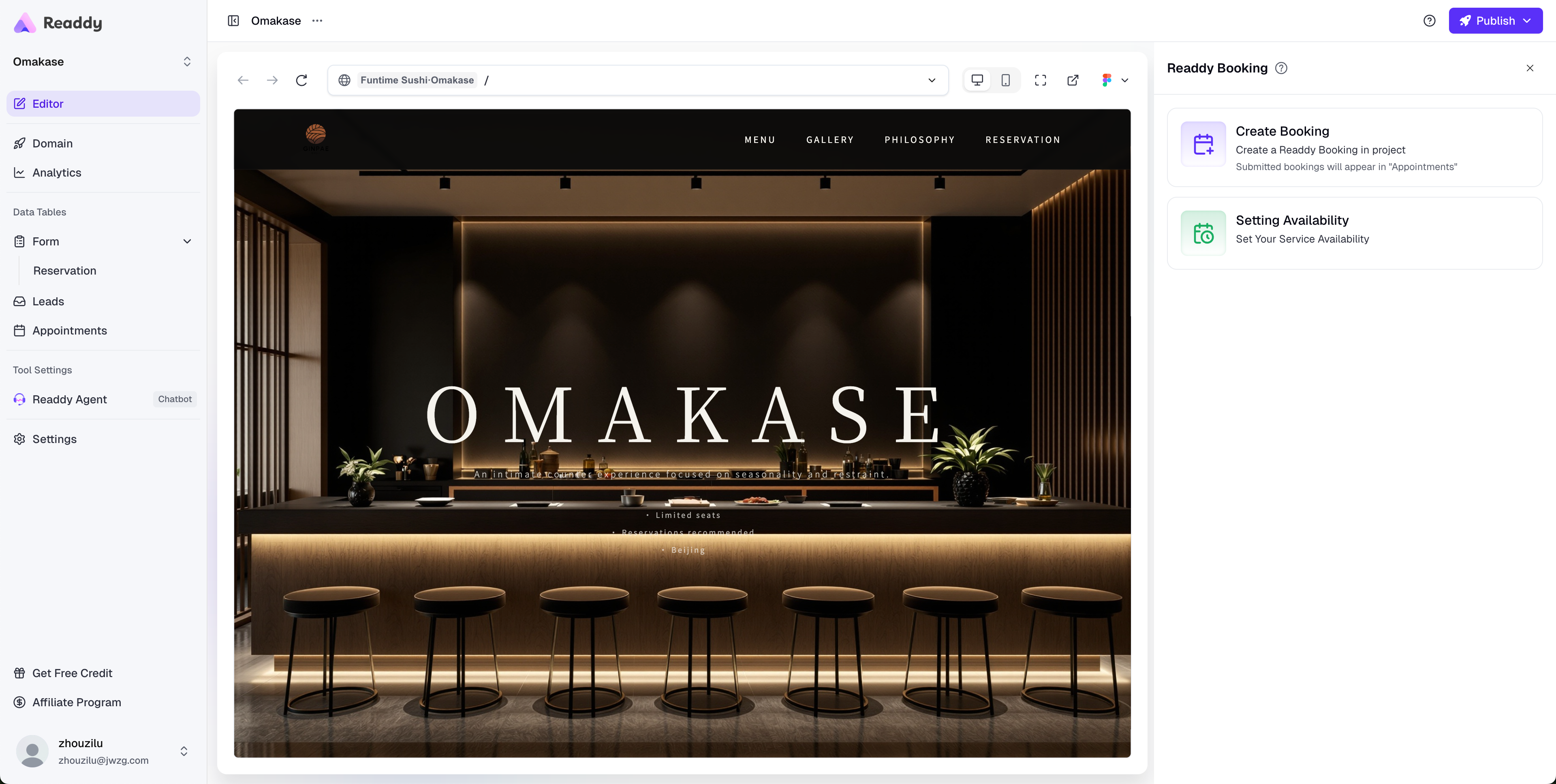
- Create Booking: AI automatically generates a booking component in your project
- Setting Availability: Configure your available booking times
Create Booking Component
Click Create Booking, and AI will automatically generate a booking calendar component based on your current page content.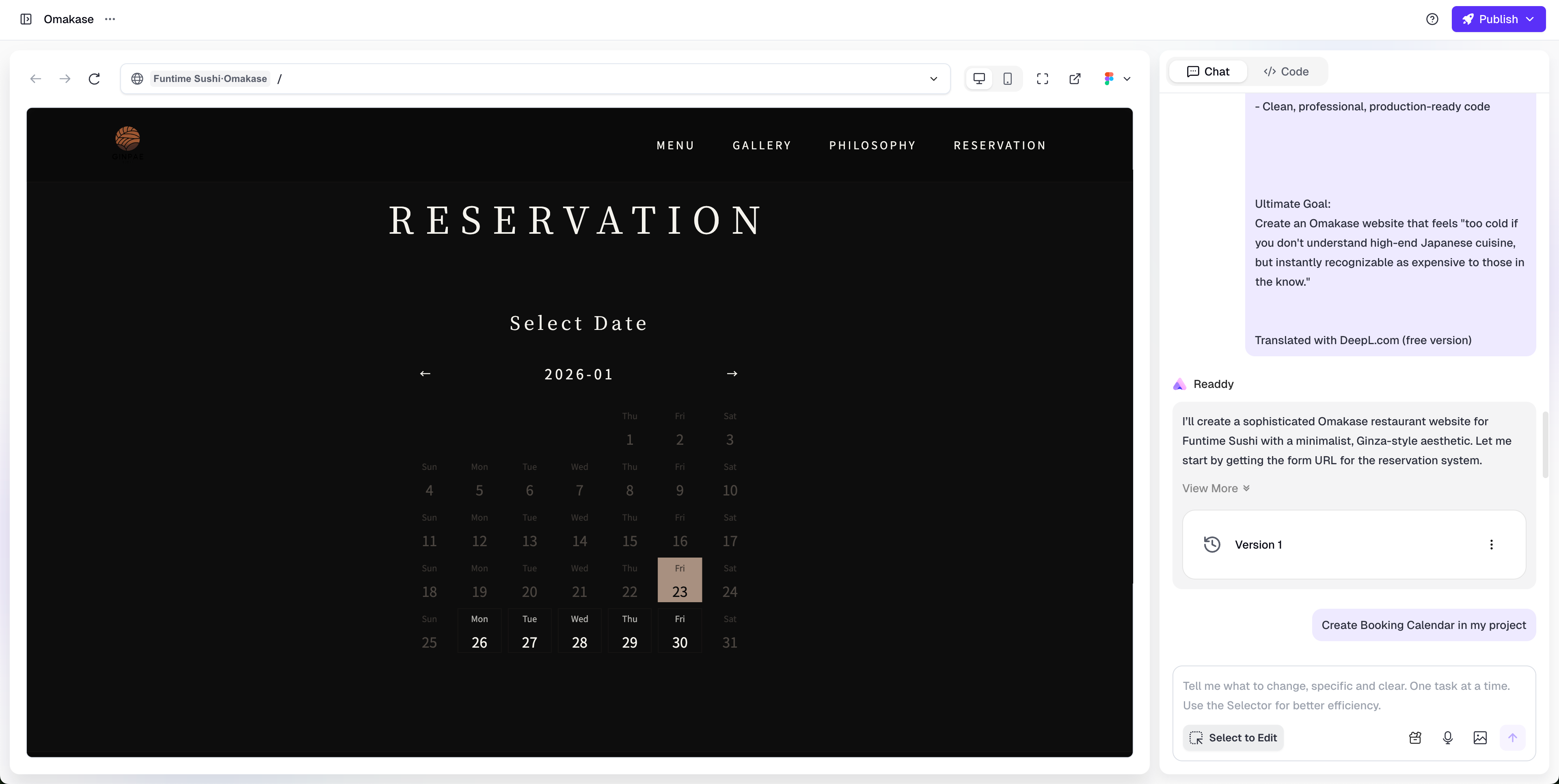
- Users can book appointments on your website
- Booking data will automatically appear on the Appointments page
- You can customize the component’s style, fields, and interactions in the editor
Configure Availability
Click Setting Availability to set your available dates and time slots.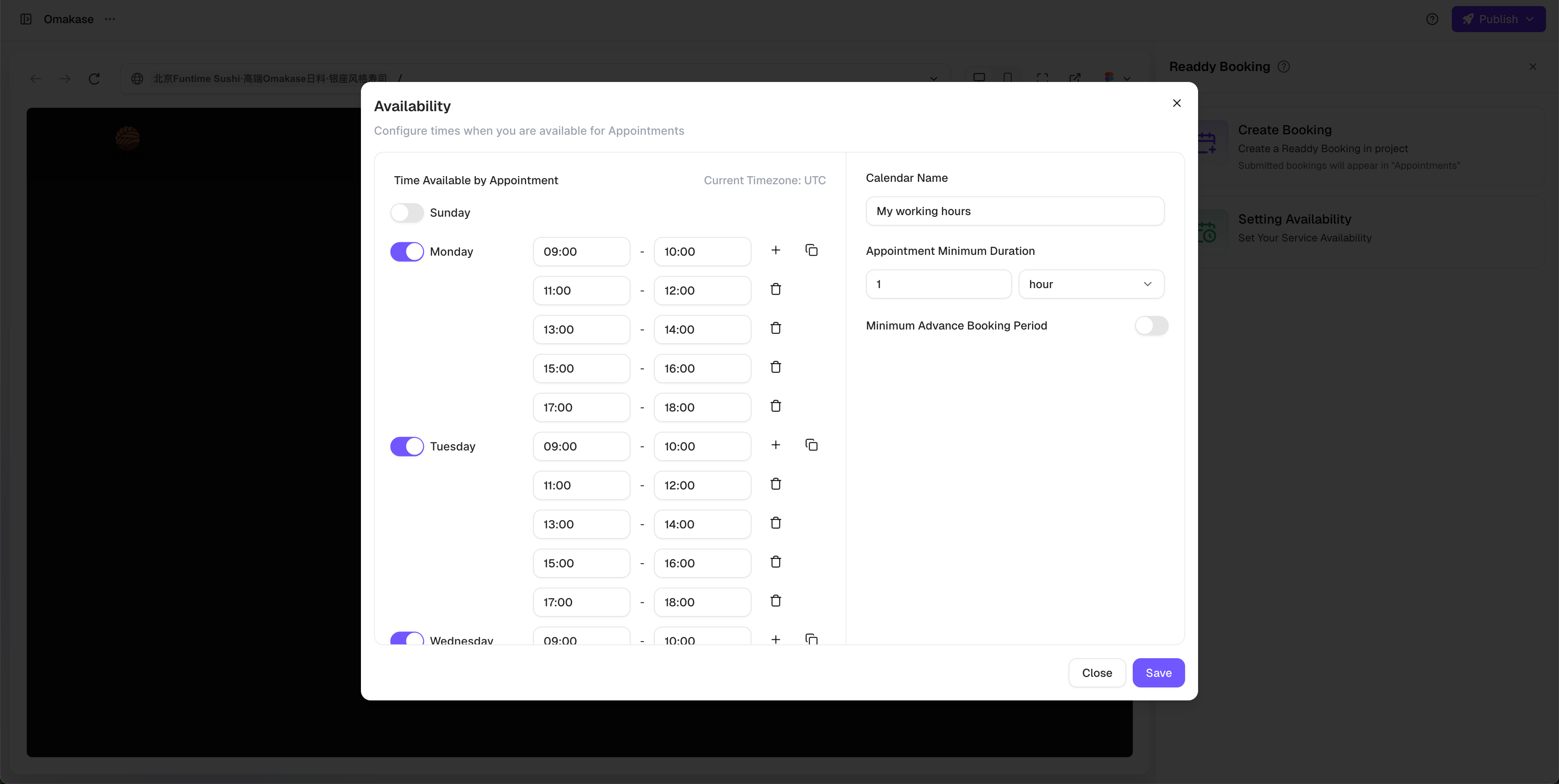
This setting is shared with Readdy Agent. Modifications in either location will sync in real-time without requiring duplicate configuration.
View Appointment Information
Appointments submitted by users will automatically appear on the Appointments page, where you can view:- Appointment time
- Information filled in by users
- Related notes and comments
FAQ
Do I need to republish after modifying availability?
Do I need to republish after modifying availability?
No. After modifying Availability, it will automatically sync without requiring component recreation or publishing a new version.
Will Availability settings affect Readdy Agent?
Will Availability settings affect Readdy Agent?
Yes. Readdy Booking and Readdy Agent use the same Availability configuration, and modifications will sync in real-time.
Can I customize the booking form fields?
Can I customize the booking form fields?
Yes. After creating the component, you can add more information collection fields in the editor, such as notes, special requirements, etc.
How can users cancel or reschedule an appointment?
How can users cancel or reschedule an appointment?
Users can cancel or reschedule appointments by chatting with Readdy Agent. Make sure you have the Agent feature enabled on your website so users can interact with it to manage their bookings.