

Use a Community Template
1
Browse Templates in Readdy
On your workspace home page, scroll below the prompt box and select “Community Templates”. Search for a template or filter by industry.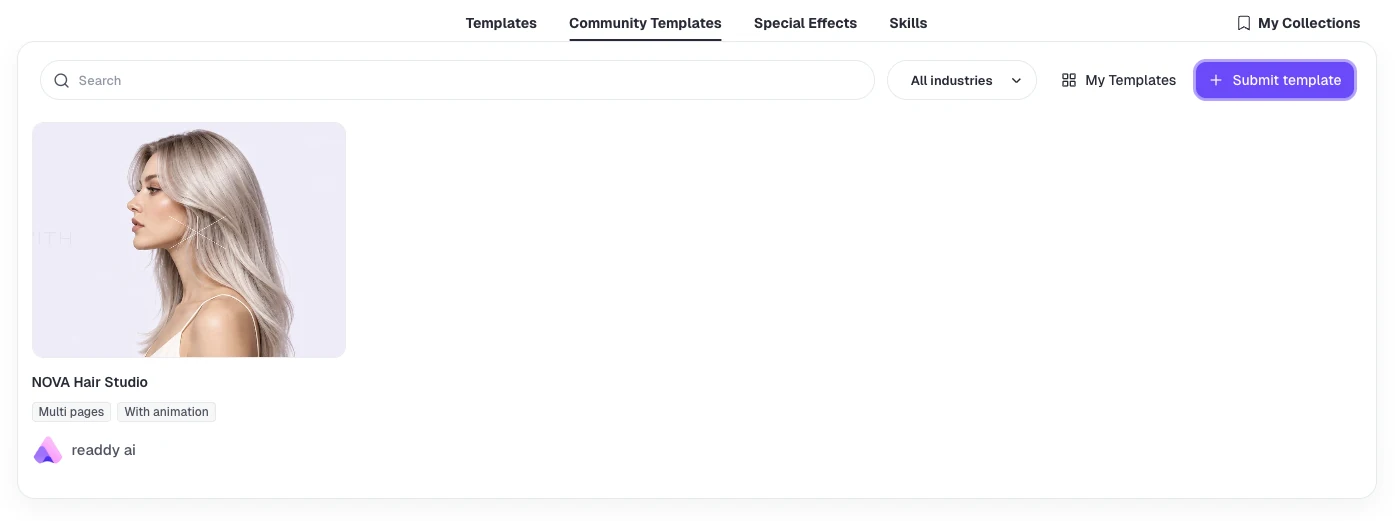
2
Preview and Use a Template
Open a template to preview the website, then click “Use” to create your project. Your account needs room for a new project.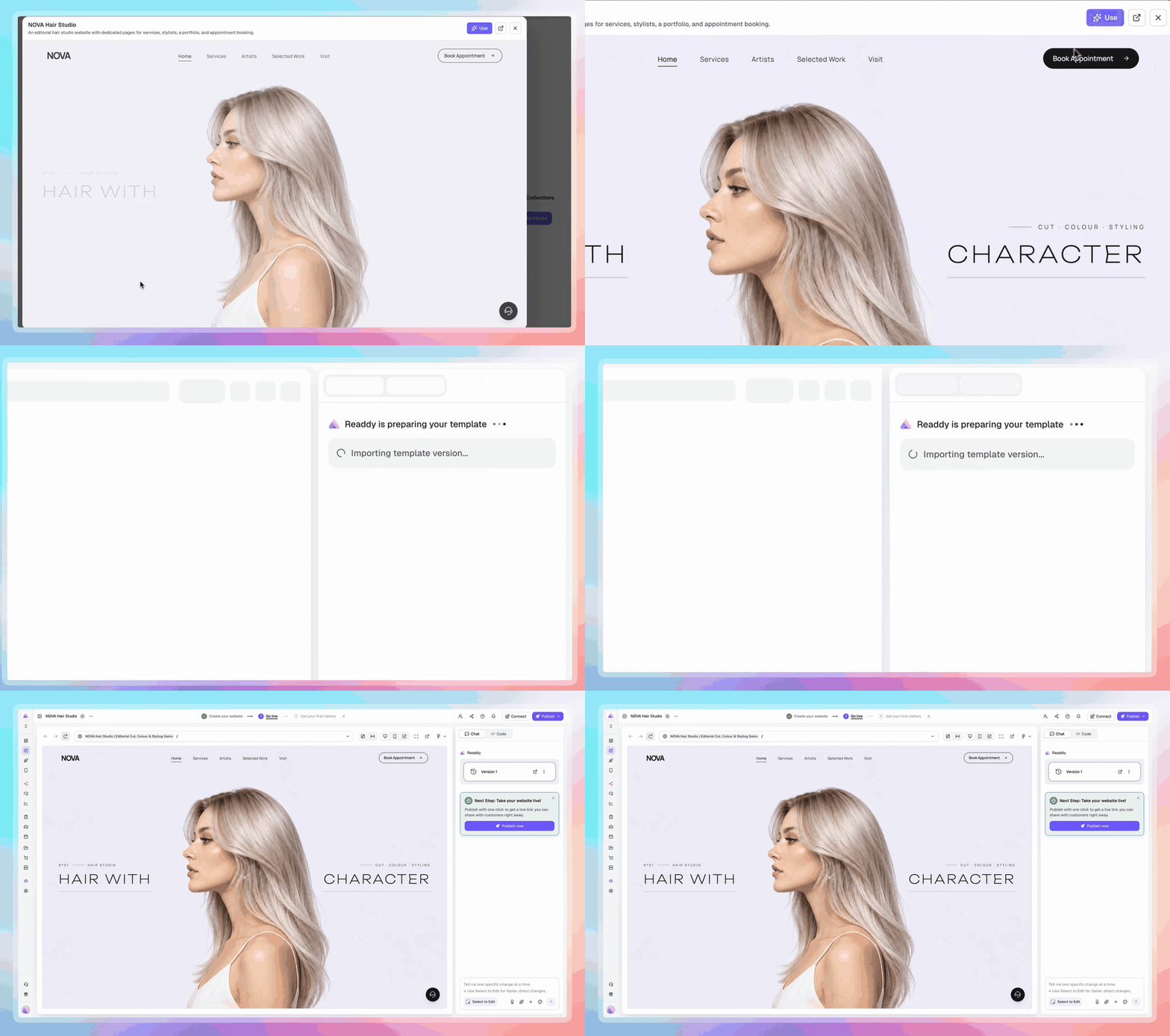
Submit Your Website as a Template
You can submit a React V2 website you own once it has at least one completed version.1
Choose a Website
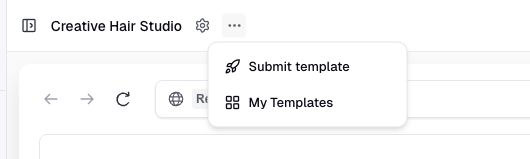
In “Community Templates”, click “Submit template”, select your website, and click “Continue”. This uses the latest completed version.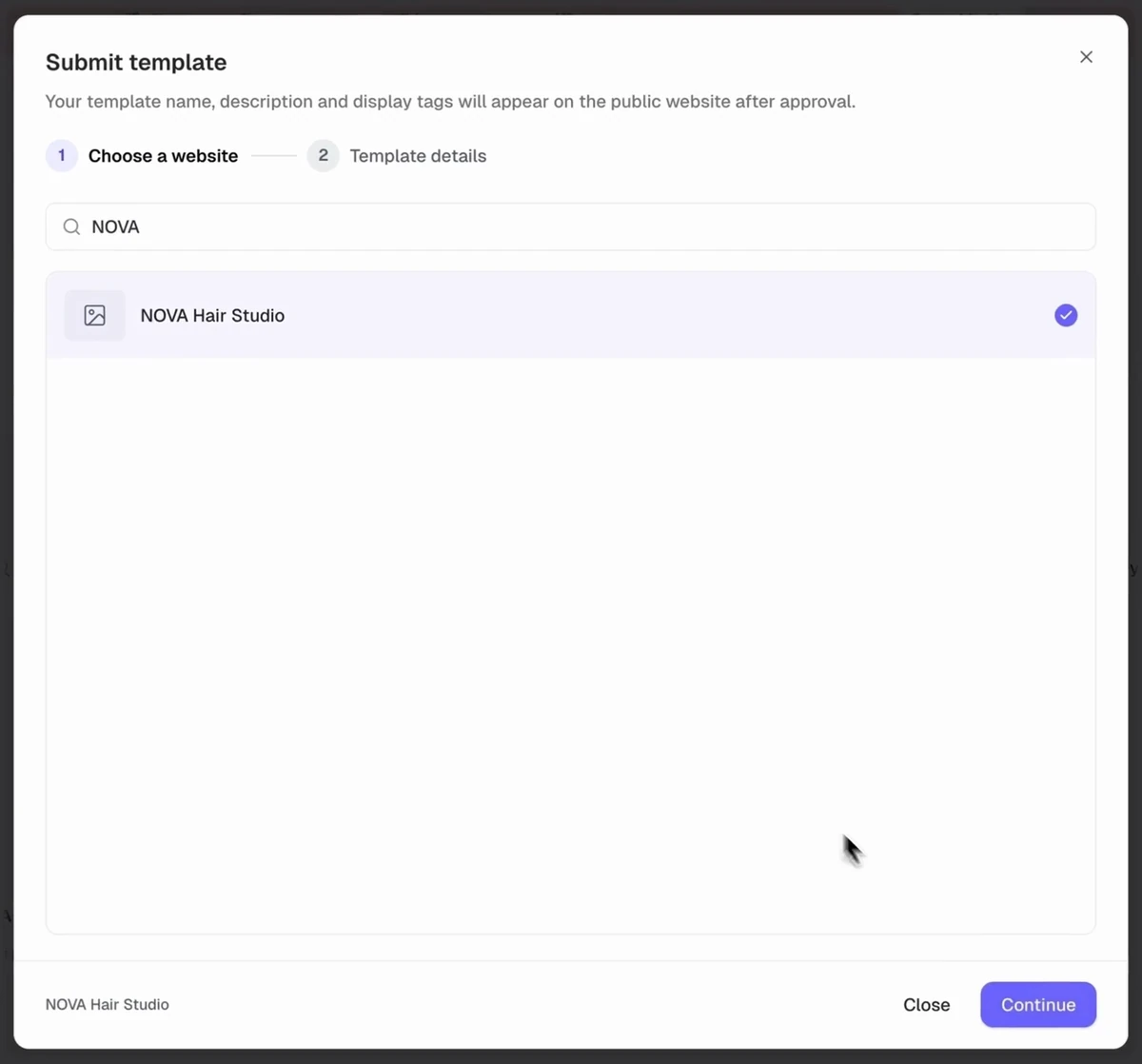 You can also open the three-dot menu next to your website name in the editor and click “Submit template”. For a new submission from the editor, Readdy uses the version you have selected.
2
Add the Template Details
Enter a name and a description of at least 20 characters, select one to four industry categories, and upload a cover image. Cover images can be PNG, JPG, or WebP up to 5 MB. A 4:3 image works best.You can add highlights, up to five display tags, and a cover video. The video can be MP4 or WebM up to 3.5 MB and plays muted when someone hovers over the template card in Readdy.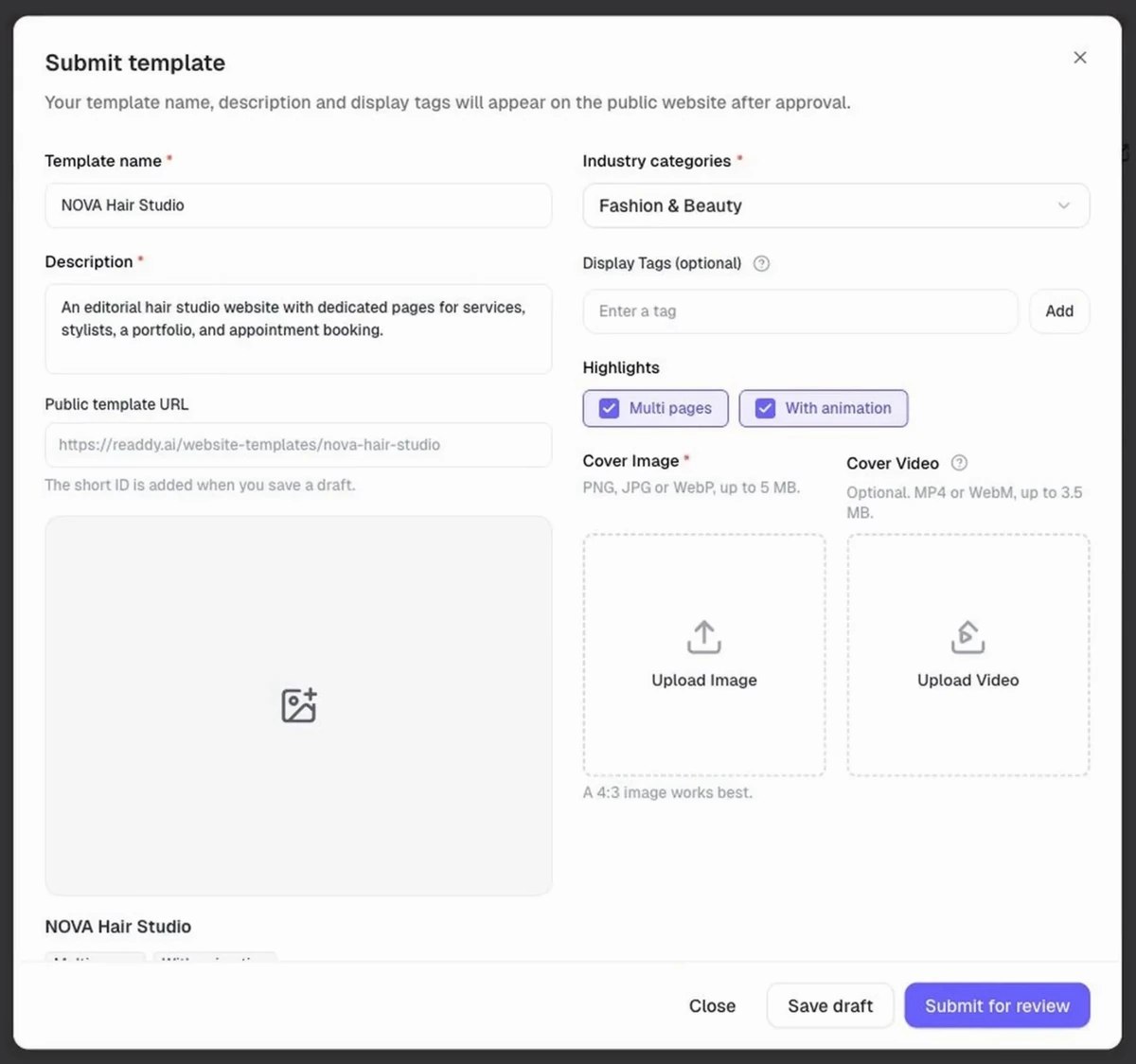
3
Send the Template for Review
Check your site, chats, files, and connected services for private information. Confirm that you have permission to share the site and its content, then click “Submit for review”. Click “Save draft” if you want to finish later.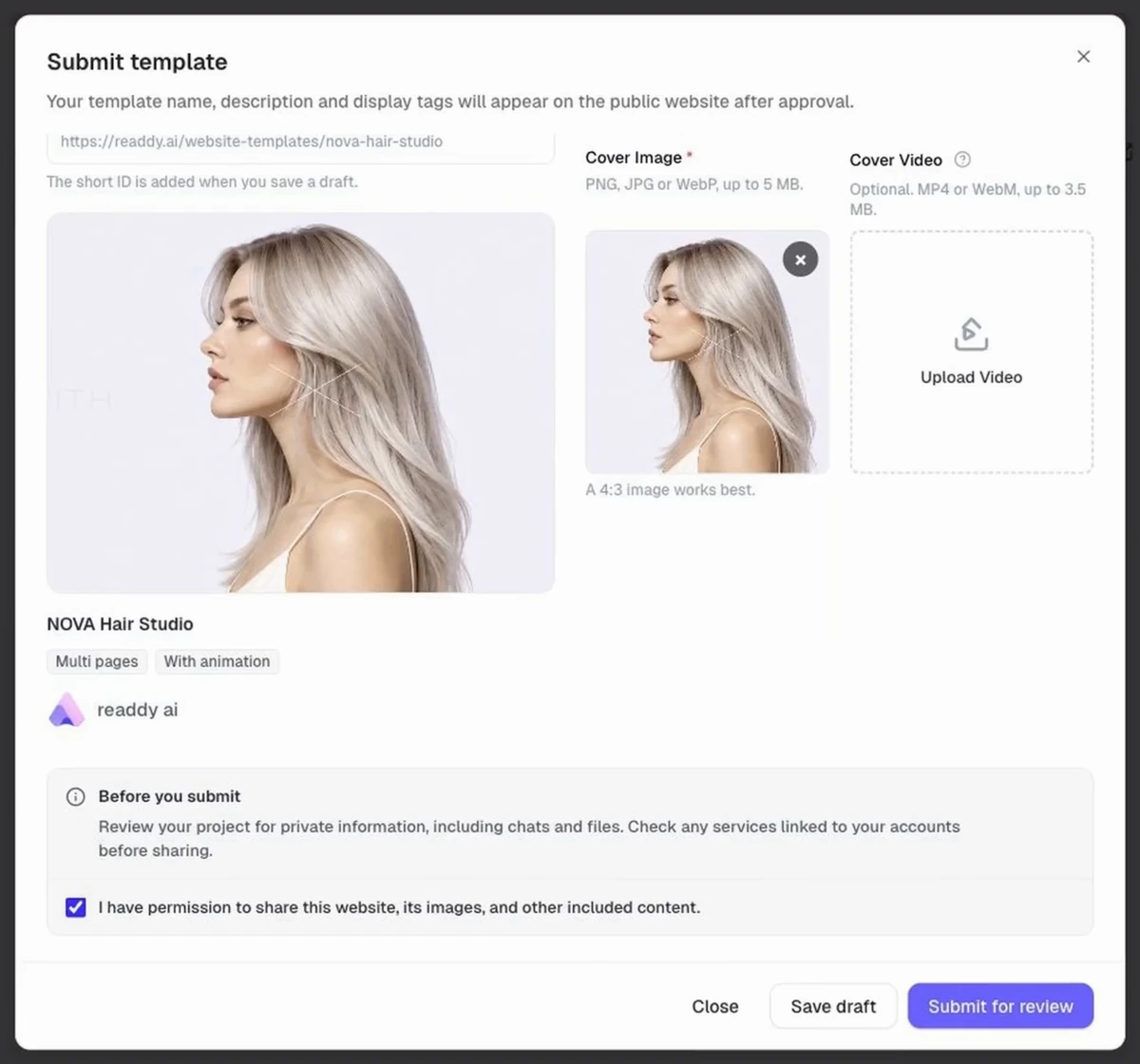 Once approved, your template appears in Community Templates and its public link goes live.
Manage Your Submissions
Open “My Templates” from the Community Templates tab or from the three-dot menu next to your website name in the editor. Filter by status or search for a template, then open a submission to see its review feedback and public template URL when available.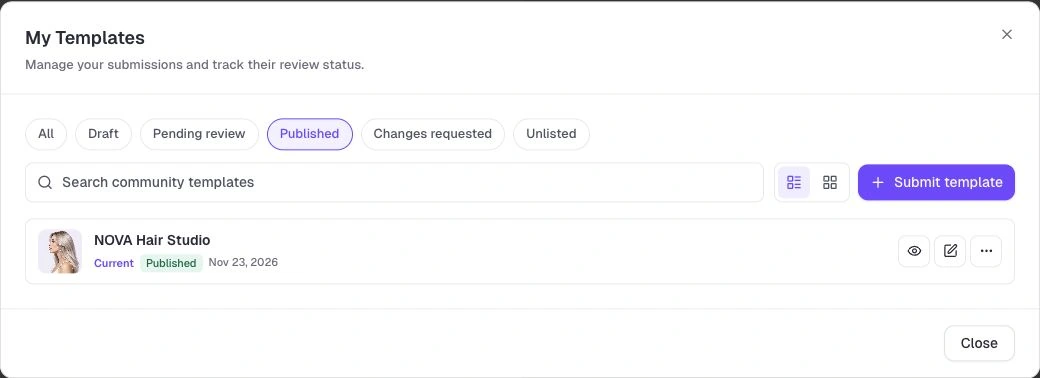
- If you see “Changes requested”, read the feedback, edit the template, and submit it again.
- To take a submission out of review, select “Withdraw” from its ellipsis menu. The submission returns to a draft that you can edit and resubmit.
- To update a published template, edit it and click “Submit for review”. The current template stays public while the update is reviewed.
- To take a published template offline, open its ellipsis menu and select “Remove from Community”. You can resubmit it for review from “My Templates”.