

Page Settings is available for React projects. Publish your website to a custom domain first, and use an Owner or Editor account to make changes.
How It Works
1
Open Page Settings
Open your project dashboard, expand “SEO & GEO” in the sidebar, and select “Page Settings”.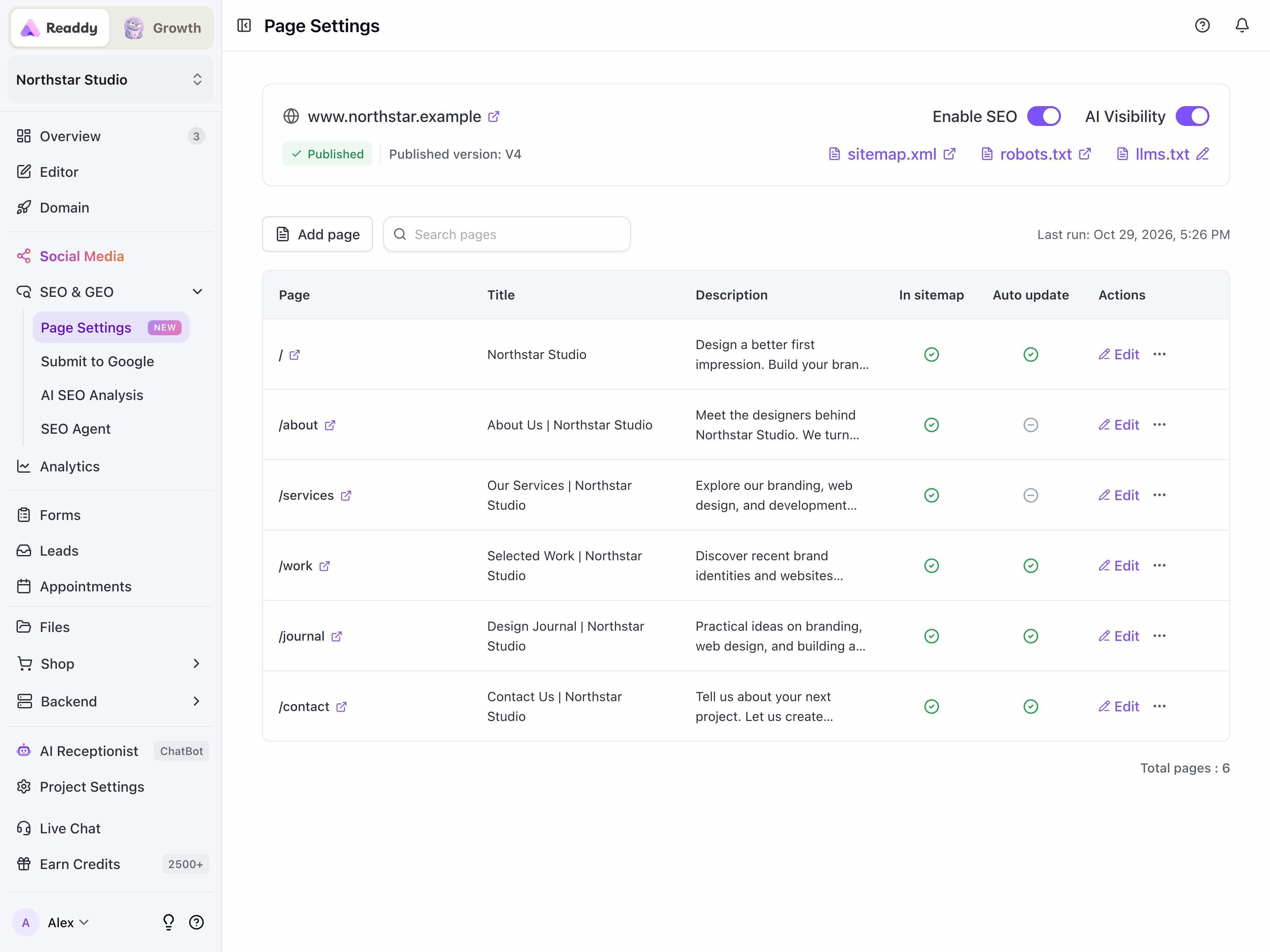
2
Enable SEO
Turn on “Enable SEO” at the top of the page. Readdy discovers your published pages and generates their SEO information.While “Updating SEO…” appears, previous-version results may be shown as read-only. Wait for the current version’s pages to be ready.
3
Edit a Page's Search Settings
Find a page in the table, using “Search pages” if needed, and click “Edit”. Open “Search settings” to change the page’s search information.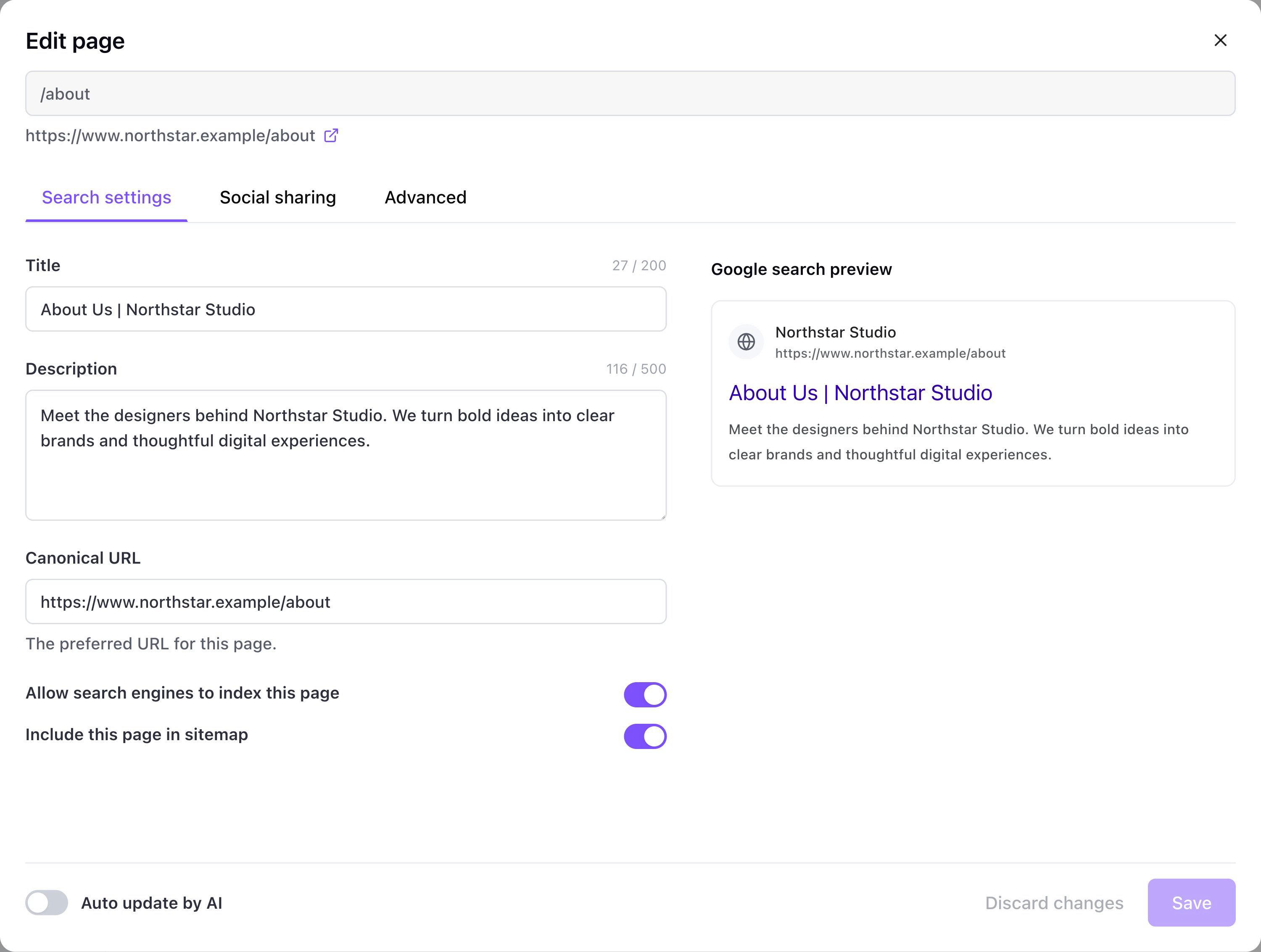
Use the “Google search preview” to check your wording. Search engines may display different text.
4
Save Your Changes
Editing a title or description turns off “Auto update by AI” for that page, preserving your saved search and social sharing titles and descriptions across future published versions. Turn it back on to let AI update them again.Click “Save”. Readdy applies this page’s changes to your live website in the background; wait for processing to finish before checking the result.
A page with indexing disabled is excluded from the sitemap, even if “Include this page in sitemap” is on. Removing a page from the sitemap alone does not prevent indexing.
Add or Remove Pages
- Add an existing page: Click “Add page”, enter its published path, title, and description, then click “Add page” to save. Use a path such as
/blog/new-article, without query parameters, fragments, or placeholders such as/blog/:slug. Create and publish the page in the editor first. - Remove a page from SEO management: Open its ”…” menu, select “Remove”, then confirm with “Remove page”. The page leaves the SEO list and sitemap but remains available on your website.
Set Up AI Visibility and Social Sharing
Turn on “AI Visibility” to generatellms.txt and page-level structured data, and enable page-specific social sharing settings. Upgrade if prompted.
1
Customize a Page's Social Preview
Click “Edit” beside a page and open “Social sharing”. Set its “OG title”, “OG description”, and “OG image”, or restore defaults using the buttons beside each field. Review the preview and click “Save”.Manual changes also turn off “Auto update by AI” for the page. View its generated, read-only “Structured data (JSON-LD)” under “Advanced”.
2
Review or Edit llms.txt
Click “llms.txt” to open its “Preview”. Select “Edit” to turn off “Auto update by AI”, write your own content, and click “Save”.To restore generated content, turn “Auto update by AI” back on and save. This clears your custom content. The switch controls
llms.txt separately from each page’s automatic updates.Check Your Website Files
Use the links at the top of Page Settings to review your published files:FAQ
Why can't I edit a page?
Why can't I edit a page?
Check that your website is published to a custom domain, “Enable SEO” is on, and you are an Owner or Editor. If the list shows a previous version, wait for the current version’s SEO processing to finish.
Why doesn't Google show my saved title or description yet?
Why doesn't Google show my saved title or description yet?
Allow Readdy’s update to finish, then give search engines time to crawl the page again. Allowing indexing or including a page in the sitemap does not guarantee indexing, and search engines may choose their own title or snippet.
What if my llms.txt changes are saved but aren't live?
What if my llms.txt changes are saved but aren't live?
Wait for the website update to finish and check the published file using the link in the dialog. If the update fails, click “Retry website update”.