> ## Documentation Index
> Fetch the complete documentation index at: https://docs.readdy.ai/llms.txt
> Use this file to discover all available pages before exploring further.
# Improve Website Performance
> Use PageSpeed Insights reports to help Readdy optimize your website for desktop and mobile visitors
If your website loads slowly, you can use Google PageSpeed Insights to identify performance issues and ask Readdy AI to optimize your project based on its diagnostic reports.
PageSpeed Insights is an external Google tool. Performance scores can vary between tests because of network conditions, device simulation, and changes to your website.
## How to Improve Your Website Performance
Choose the option that matches your website's current status:
* **Unpublished website:** In your Readdy project, open the preview page in a new browser tab, then copy the preview URL from the address bar.
* **Published website:** Copy your website's published domain.
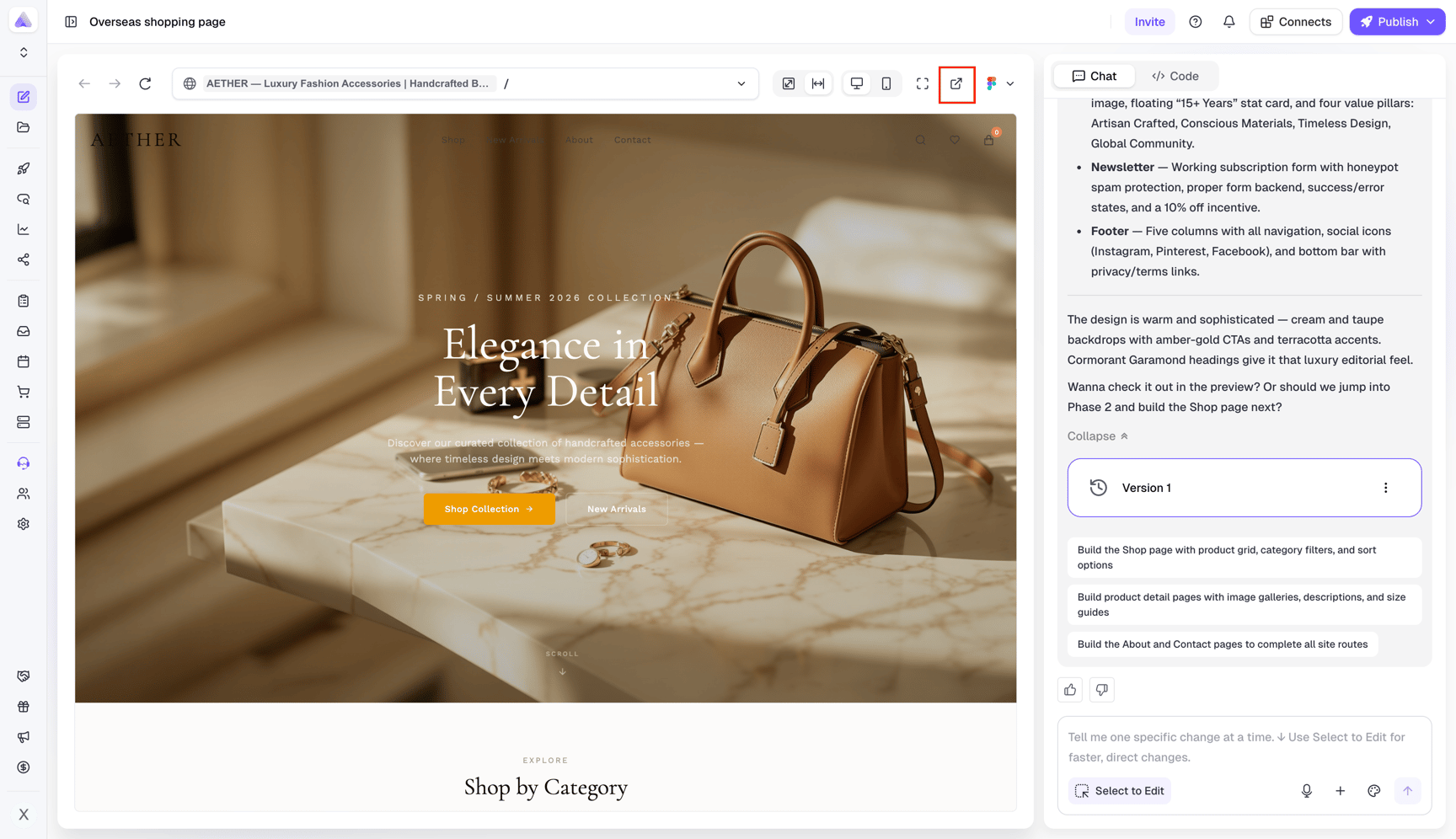
 Open [PageSpeed Insights](https://pagespeed.web.dev/), paste your preview URL or published domain into the input field, then click **"Analyze"**.
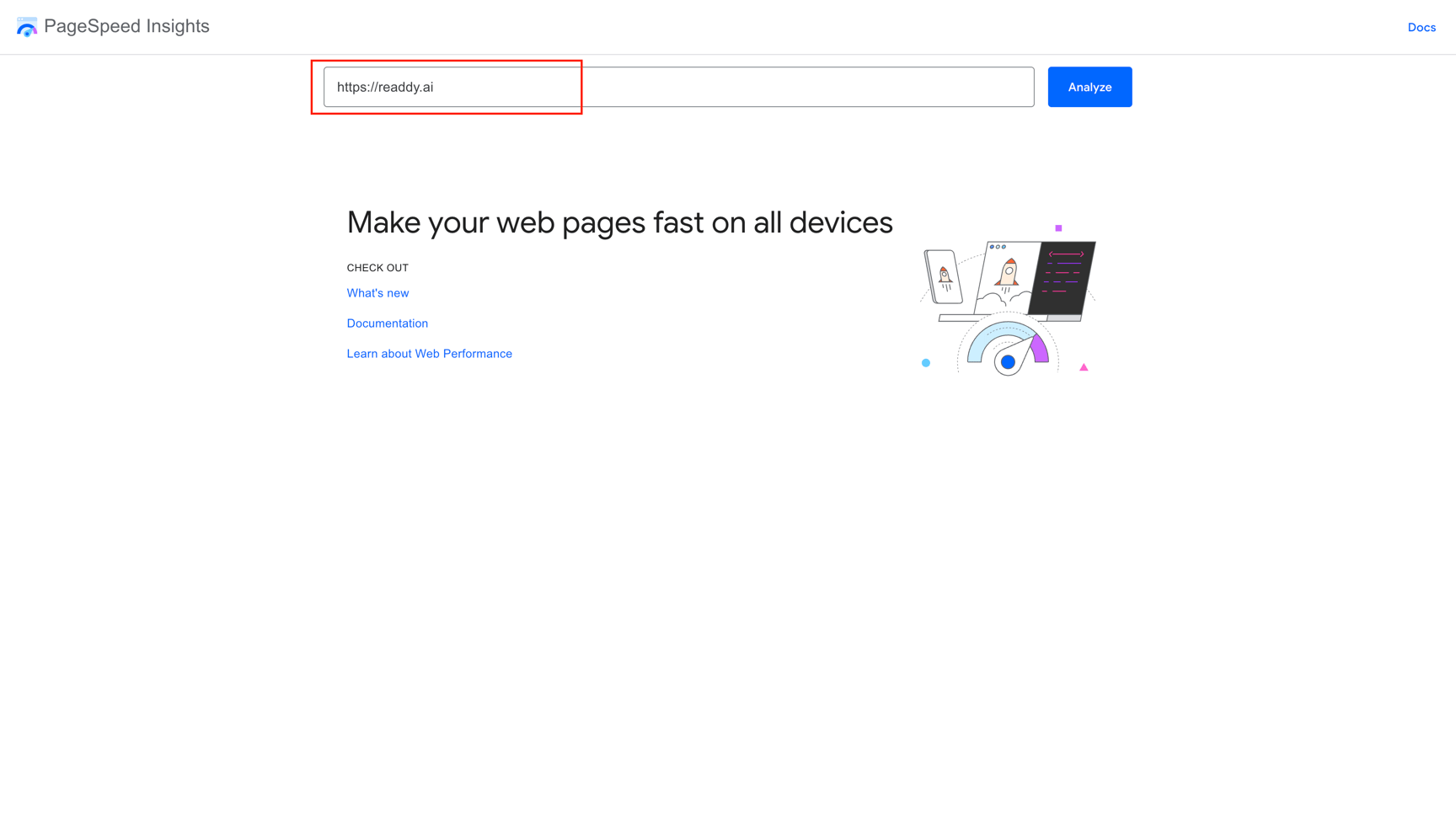 When the test is complete, select **"Mobile"**, click **"Copy Link"**, and save the report link. Then select **"Desktop"** and copy that report link too.
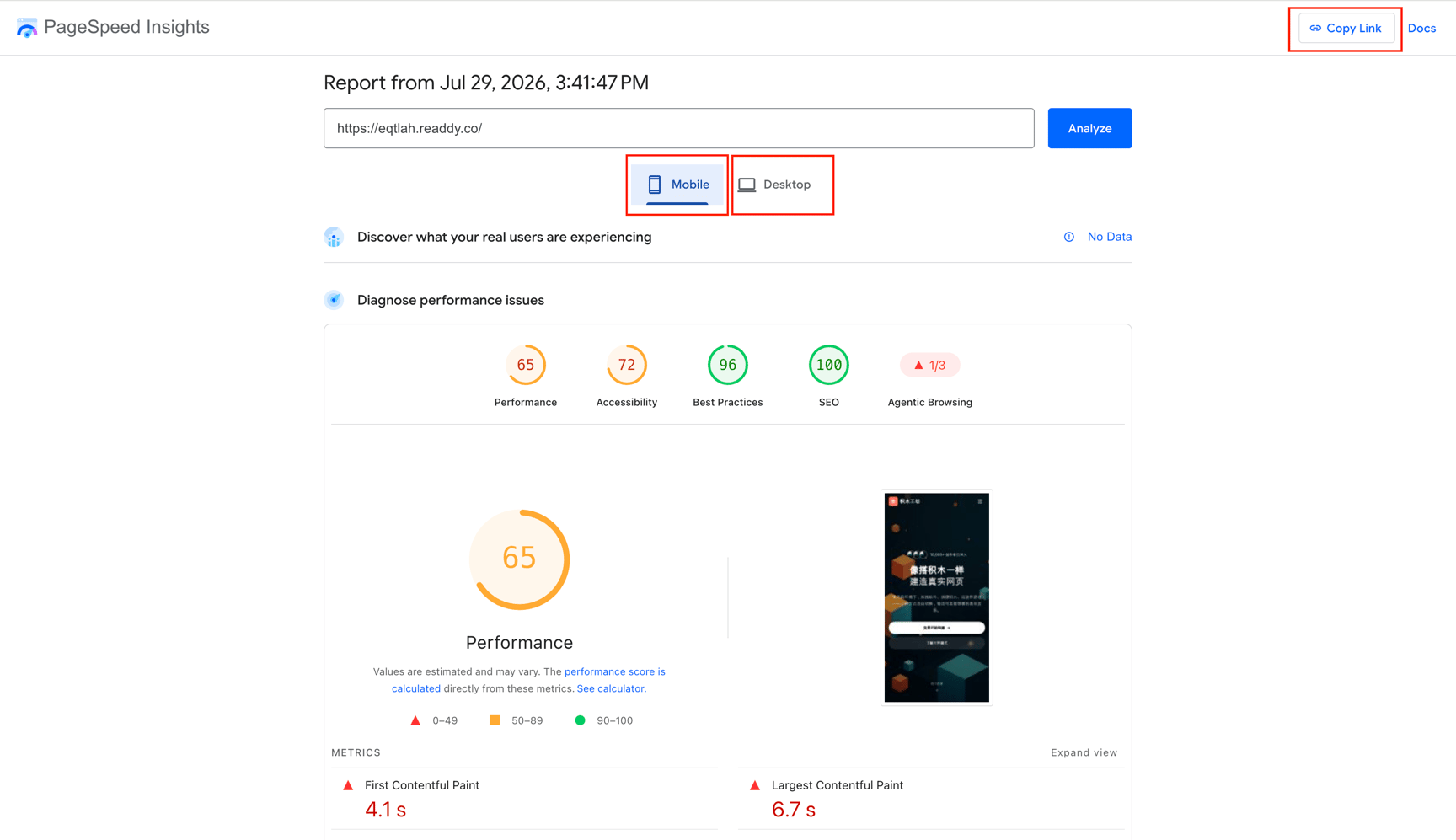 Return to your Readdy project and paste both report links into the chat. Ask Readdy AI to use the diagnostic results to improve your website's performance.
For example:
```text theme={null}
These are the PageSpeed Insights report links for the mobile and desktop versions of my website:
[Mobile report link]
[Desktop report link]
Please use the diagnostic results in both reports to optimize my website's performance.
```
If your website is already published, publish the optimized version and wait 3–5 minutes before running another test. If it is unpublished, open the latest preview in a new tab and test its new preview URL.
Website performance usually improves through several rounds of testing and optimization. Repeat the process and focus on the highest-impact recommendations instead of expecting a perfect score after one update.
## FAQ
PageSpeed Insights uses simulated devices and network conditions, so results can vary between tests. Compare several tests and look for recurring recommendations instead of relying on a single score.
Mobile and desktop tests use different device and network conditions. Sharing both reports helps Readdy AI identify issues that may affect only one experience.
No. Readdy AI can improve issues identified in the reports, but the final score also depends on your content, third-party services, network conditions, and PageSpeed Insights testing conditions.
## Need Help?
If this guide doesn't resolve your issue, [submit a support ticket](https://readdy.ai/feedback). We're here to help!
Return to your Readdy project and paste both report links into the chat. Ask Readdy AI to use the diagnostic results to improve your website's performance.
For example:
```text theme={null}
These are the PageSpeed Insights report links for the mobile and desktop versions of my website:
[Mobile report link]
[Desktop report link]
Please use the diagnostic results in both reports to optimize my website's performance.
```
If your website is already published, publish the optimized version and wait 3–5 minutes before running another test. If it is unpublished, open the latest preview in a new tab and test its new preview URL.
Website performance usually improves through several rounds of testing and optimization. Repeat the process and focus on the highest-impact recommendations instead of expecting a perfect score after one update.
## FAQ
PageSpeed Insights uses simulated devices and network conditions, so results can vary between tests. Compare several tests and look for recurring recommendations instead of relying on a single score.
Mobile and desktop tests use different device and network conditions. Sharing both reports helps Readdy AI identify issues that may affect only one experience.
No. Readdy AI can improve issues identified in the reports, but the final score also depends on your content, third-party services, network conditions, and PageSpeed Insights testing conditions.
## Need Help?
If this guide doesn't resolve your issue, [submit a support ticket](https://readdy.ai/feedback). We're here to help!