> ## Documentation Index
> Fetch the complete documentation index at: https://docs.readdy.ai/llms.txt
> Use this file to discover all available pages before exploring further.

# Export a HAR File

> Record and export a HAR file from Chrome DevTools so the Readdy support team can investigate website issues

If you see an issue on your published site, a HAR file helps the Readdy support team understand the browser activity that led to it. Follow these steps in Chrome while you reproduce the issue.

<Info>
  A HAR file records the network requests your browser makes while the issue occurs. Keep Chrome DevTools open until you export the file.
</Info>

## How to Export a HAR File

<Steps>
  <Step title="Open the Published Page">
    In the editor, click **"Share"** in the upper-right corner to open your published page in a browser tab.

    <Frame>
      <img src="https://mintcdn.com/readdy/MfhcsTnfPjLYDJOW/images/troubleshooting/export-har-file/open-shared-page.png?fit=max&auto=format&n=MfhcsTnfPjLYDJOW&q=85&s=c0386ef2e4a5014ea6cb76c0158ad5fb" alt="Share button in the Readdy editor" width="1936" height="270" data-path="images/troubleshooting/export-har-file/open-shared-page.png" />
    </Frame>
  </Step>

  <Step title="Open Chrome DevTools">
    Right-click anywhere on the published page, then select **"Inspect"** to open Chrome DevTools.

    <Frame>
      <img src="https://mintcdn.com/readdy/MfhcsTnfPjLYDJOW/images/troubleshooting/export-har-file/open-devtools.png?fit=max&auto=format&n=MfhcsTnfPjLYDJOW&q=85&s=8b137f3be1af1be5265b97a2c13b9b32" alt="Inspect option in the browser context menu" width="2632" height="1638" data-path="images/troubleshooting/export-har-file/open-devtools.png" />
    </Frame>
  </Step>

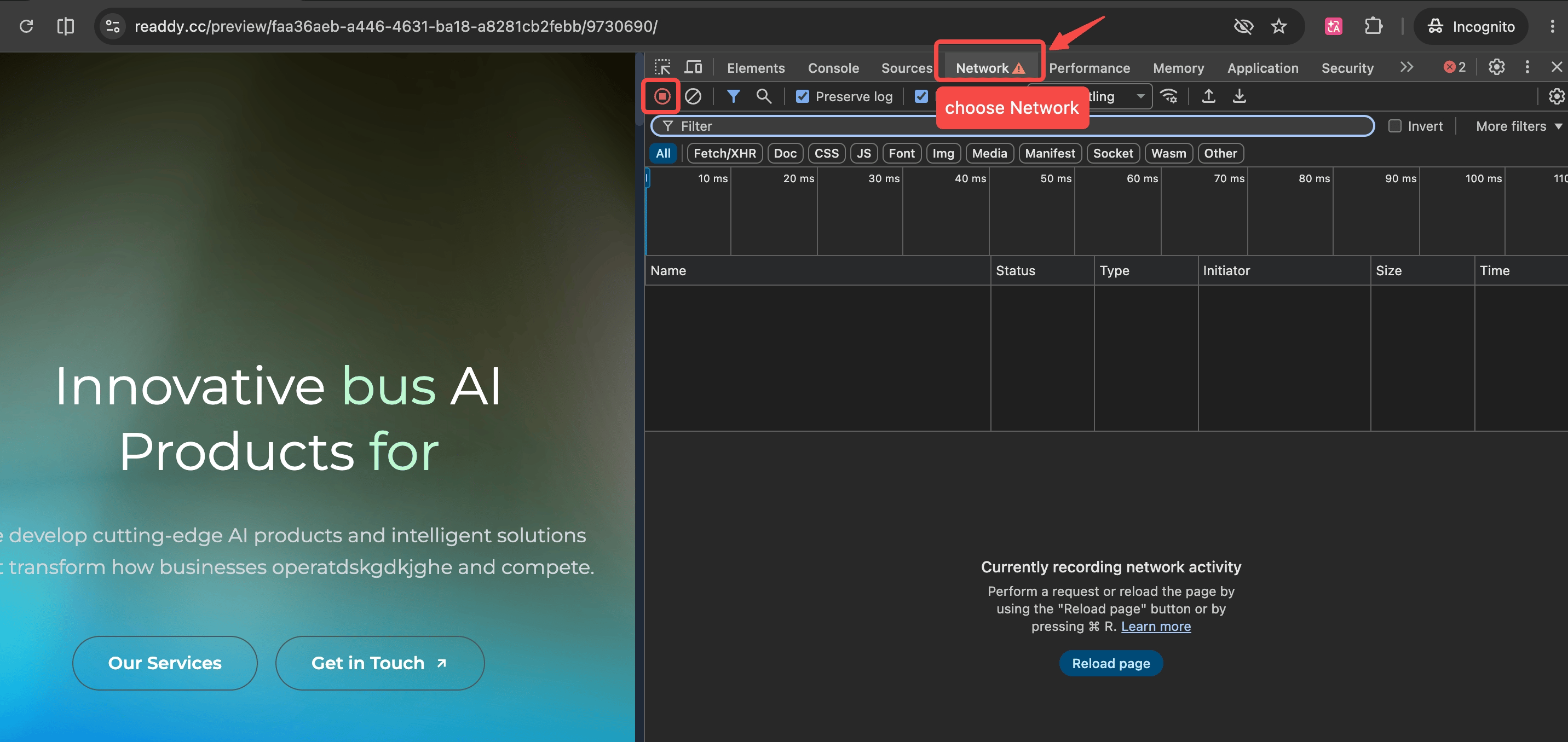
  <Step title="Select the Network Tab">
    Click **"Network"** in Chrome DevTools.
    <Frame>
      <img src="https://mintcdn.com/readdy/MfhcsTnfPjLYDJOW/images/troubleshooting/export-har-file/select-network-tab.png?fit=max&auto=format&n=MfhcsTnfPjLYDJOW&q=85&s=e5df966734d76a7c1541b0a6da081e72" alt="Network tab in Chrome DevTools" width="2864" height="1356" data-path="images/troubleshooting/export-har-file/select-network-tab.png" />
    </Frame>
  </Step>

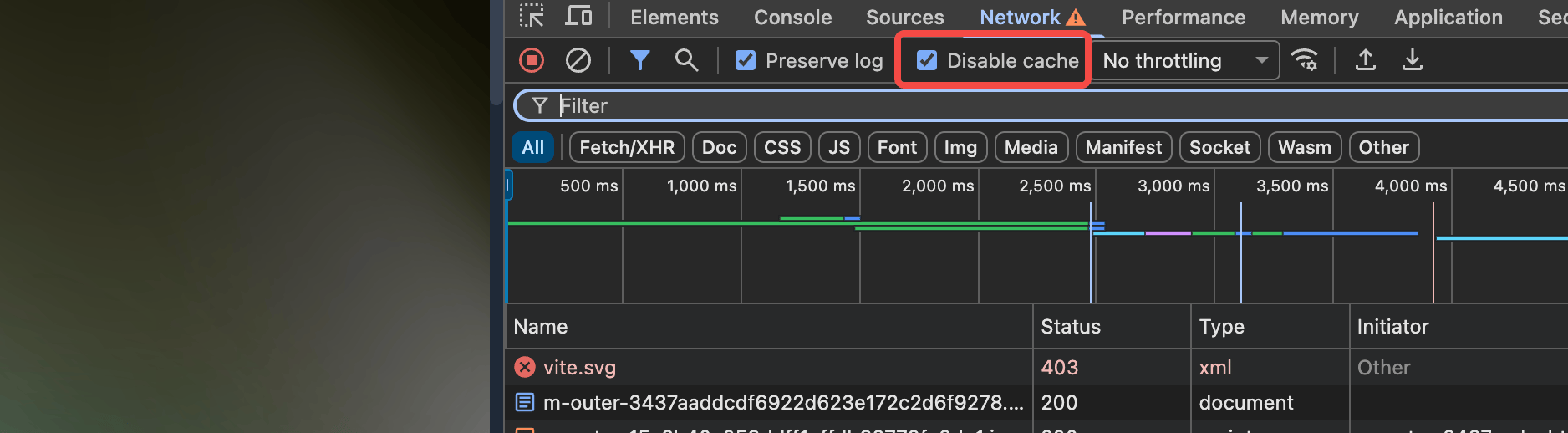
  <Step title="Enable Disable Cache">
    Select **"Disable cache"** in the Network panel.
    <Frame>
      <img src="https://mintcdn.com/readdy/MfhcsTnfPjLYDJOW/images/troubleshooting/export-har-file/disable-cache.png?fit=max&auto=format&n=MfhcsTnfPjLYDJOW&q=85&s=e3bf34c49ac3fe0b5e801b4aee5832be" alt="Disable cache option in the Network panel" width="1876" height="518" data-path="images/troubleshooting/export-har-file/disable-cache.png" />
    </Frame>
  </Step>

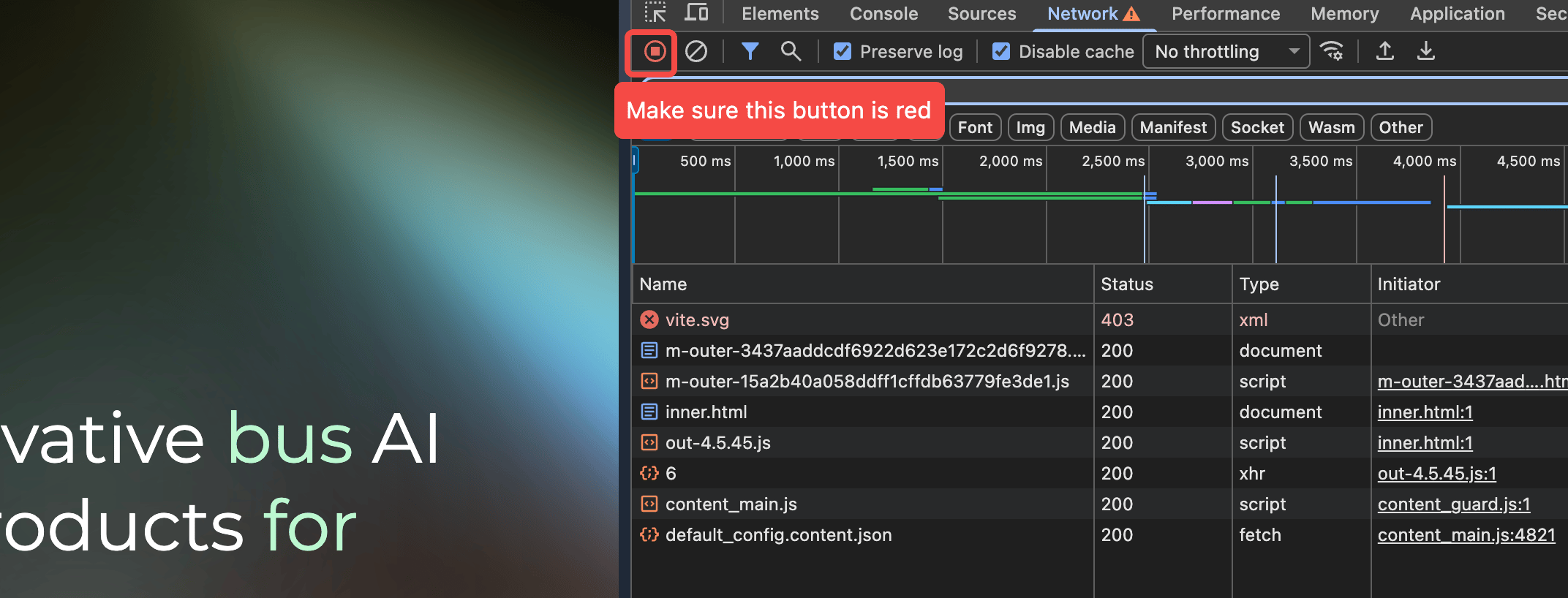
  <Step title="Confirm Network Recording Is Active">
    Make sure the Record button is red. If it is gray, click it to start recording network activity.
    <Frame>
      <img src="https://mintcdn.com/readdy/MfhcsTnfPjLYDJOW/images/troubleshooting/export-har-file/start-network-recording.png?fit=max&auto=format&n=MfhcsTnfPjLYDJOW&q=85&s=fc5fbc62459746fe69d4a3f5e291f651" alt="Active network recording control in Chrome DevTools" width="2144" height="818" data-path="images/troubleshooting/export-har-file/start-network-recording.png" />
    </Frame>
  </Step>

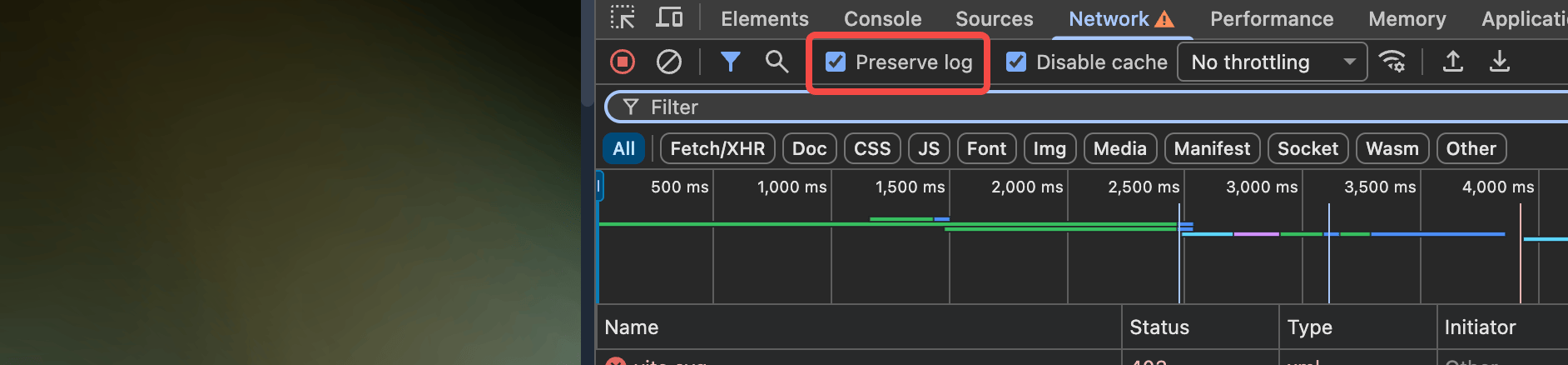
  <Step title="Enable Preserve Log">
    Select **"Preserve log"** so requests remain available while you reproduce the issue.
    <Frame>
      <img src="https://mintcdn.com/readdy/MfhcsTnfPjLYDJOW/images/troubleshooting/export-har-file/preserve-network-log.png?fit=max&auto=format&n=MfhcsTnfPjLYDJOW&q=85&s=c6510362d5fd7b5c6fa29ad10207928c" alt="Preserve log option in the Network panel" width="1884" height="438" data-path="images/troubleshooting/export-har-file/preserve-network-log.png" />
    </Frame>
  </Step>

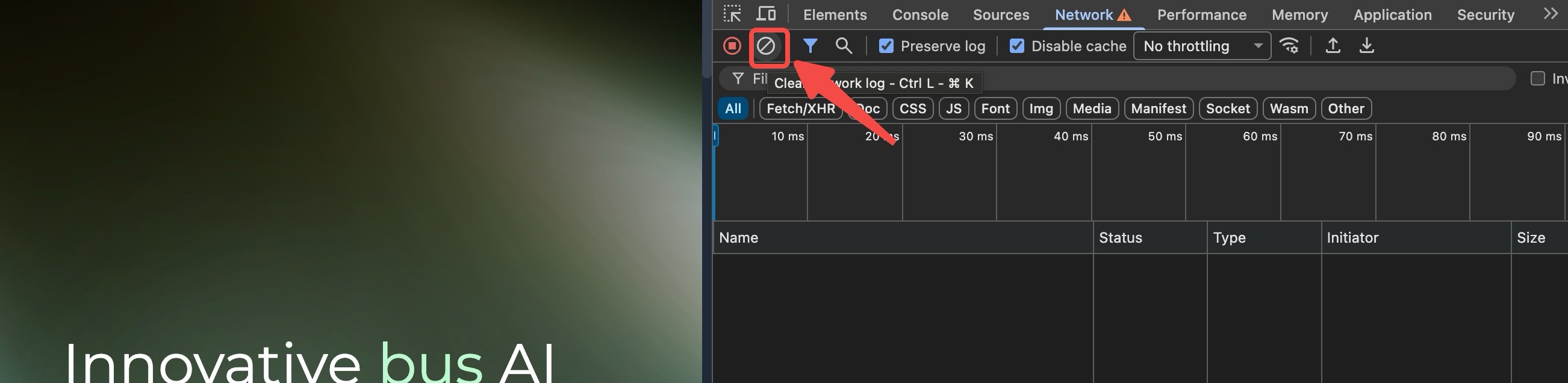
  <Step title="Clear Previous Requests">
    Click **"Clear"** to remove any requests that were recorded before you started.
    <Frame>
      <img src="https://mintcdn.com/readdy/MfhcsTnfPjLYDJOW/images/troubleshooting/export-har-file/clear-network-requests.png?fit=max&auto=format&n=MfhcsTnfPjLYDJOW&q=85&s=476ecb0f2a1c654e05e437967cf3932f" alt="Clear button in the Network panel" width="2604" height="636" data-path="images/troubleshooting/export-har-file/clear-network-requests.png" />
    </Frame>
  </Step>

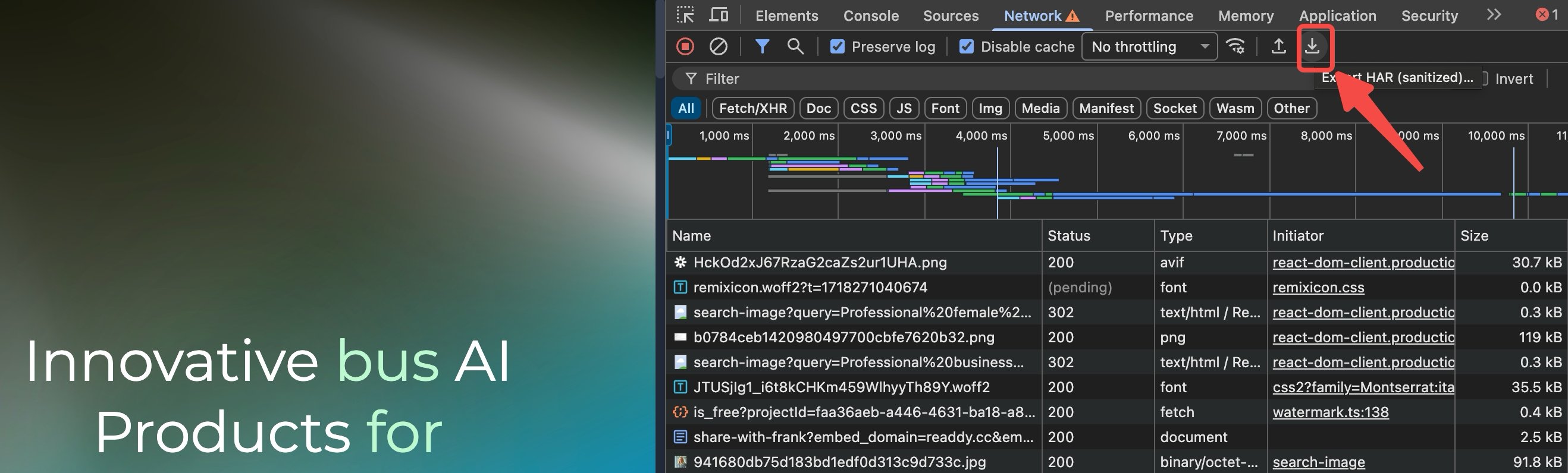
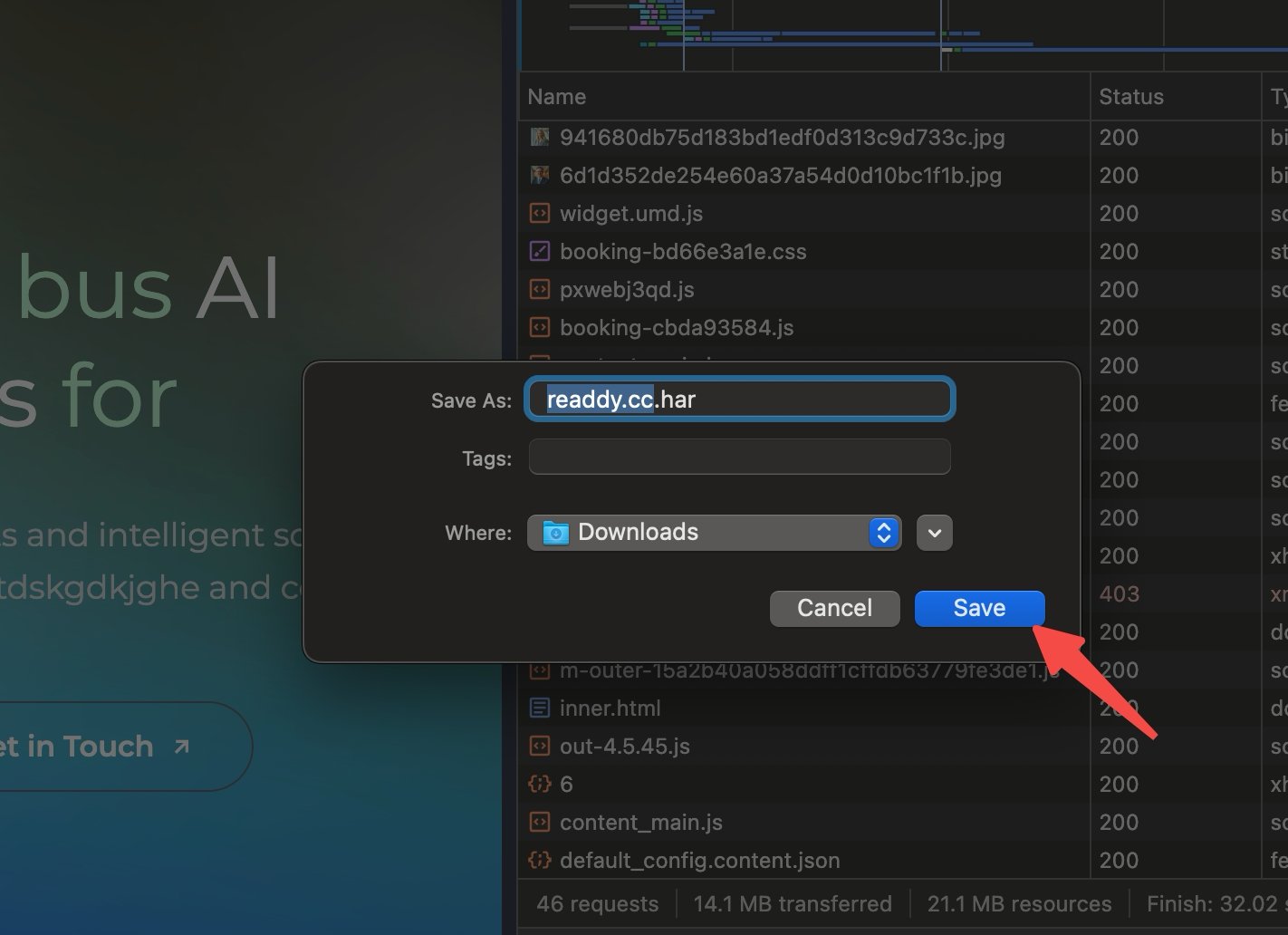
  <Step title="Reproduce the Issue and Export the HAR File">
    Refresh the page and reproduce the issue. Then click **"Export HAR"** to download the file and save it to your computer.
    <Frame>
      <img src="https://mintcdn.com/readdy/MfhcsTnfPjLYDJOW/images/troubleshooting/export-har-file/export-har-file.png?fit=max&auto=format&n=MfhcsTnfPjLYDJOW&q=85&s=a6715b4cfd154788fc4b72ff7dab1782" alt="Export HAR control in Chrome DevTools" width="2636" height="796" data-path="images/troubleshooting/export-har-file/export-har-file.png" />
    </Frame>

    <Frame>
      <img src="https://mintcdn.com/readdy/MfhcsTnfPjLYDJOW/images/troubleshooting/export-har-file/save-har-file.png?fit=max&auto=format&n=MfhcsTnfPjLYDJOW&q=85&s=d9d1a44d4e115dfac242e3ffeb383e59" alt="Save dialog for the exported HAR file" width="1422" height="1032" data-path="images/troubleshooting/export-har-file/save-har-file.png" />
    </Frame>
  </Step>
</Steps>

## FAQ

<AccordionGroup>
  <Accordion title="Do I need to use Chrome?">
    This guide uses Chrome DevTools. Use Chrome to make sure the labels and controls match the steps shown here.
  </Accordion>

  <Accordion title="What should I do after I save the HAR file?">
    Attach the file to your support ticket and include a short description of the issue and the steps you took before it occurred.
  </Accordion>
</AccordionGroup>

## Need Help?

If this guide doesn't resolve your issue, [submit a support ticket](https://readdy.ai/feedback). We're here to help!
