> ## Documentation Index
> Fetch the complete documentation index at: https://docs.readdy.ai/llms.txt
> Use this file to discover all available pages before exploring further.
# Generate Animations with Readdy Effects
> Browse curated animation prompts on Readdy Effects and use them in Readdy to add motion to text, images, and interactions
Readdy Effects is a prompt library for website motion. You can browse examples, copy a prompt, and adapt it in Readdy.
With Readdy Effects, you can:
* **Explore text effects**: Add motion to headlines, labels, and short UI copy
* **Animate images**: Make hero visuals, banners, and media sections feel more dynamic
* **Improve interactions**: Add hover states, button feedback, and lightweight micro-interactions
## Before You Start
This works best after your layout is in place. To animate a specific element, use **Selector** first.
Before you begin, make sure:
* You know which section or element should animate
* You know whether you need a text, image, or interaction effect
* You start with one effect at a time
## How It Works
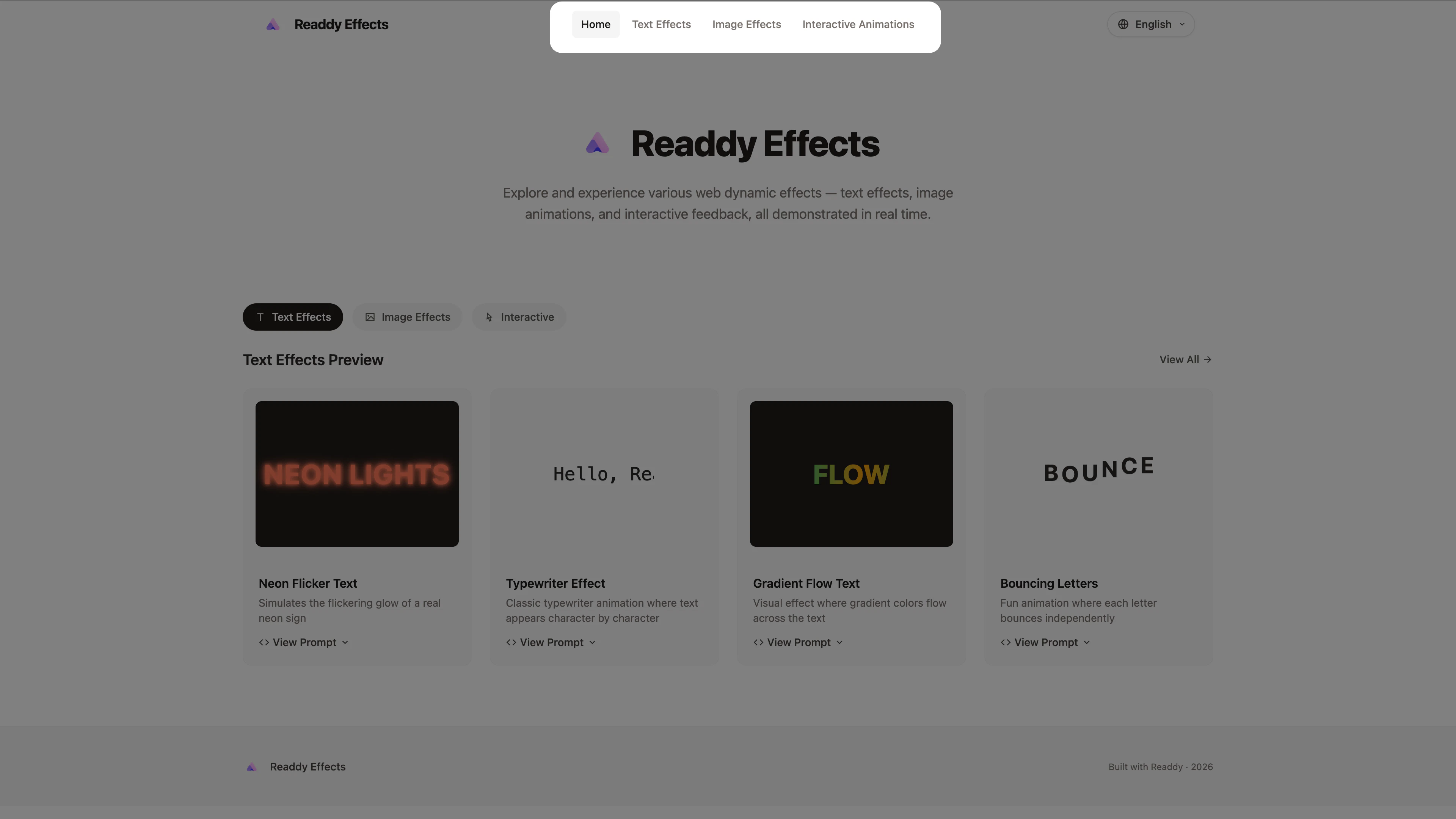
Open [Readdy Effects](https://effects-cn.readdy.co) and browse the examples.
 Choose the category that fits your goal:
* **Text Effects** for headlines, labels, and short copy
* **Image Effects** for hero visuals, banners, and media blocks
* **Interactive Animations** for buttons, cards, hover states, and feedback
Choose the category that fits your goal:
* **Text Effects** for headlines, labels, and short copy
* **Image Effects** for hero visuals, banners, and media blocks
* **Interactive Animations** for buttons, cards, hover states, and feedback
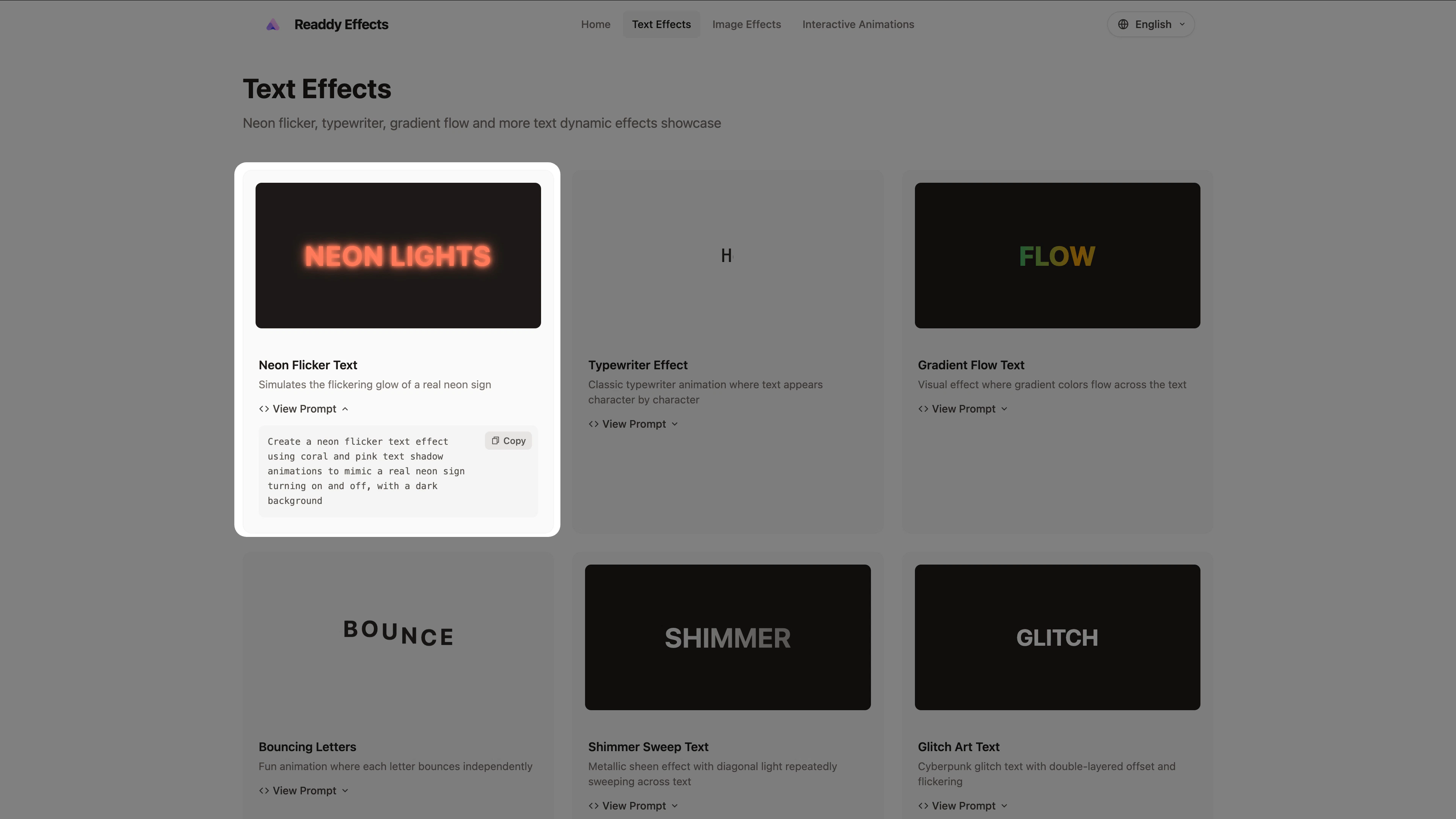
 Open an effect, click **View Prompt**, and copy the prompt. Then adjust it to fit your content, tone, and target element.
 In Readdy, decide how narrow the change should be.
1. For a specific element, turn on **Selector** and select it first.
2. For a section-level effect, name the section clearly.
3. For page-wide motion, say exactly where it should and should not appear.
In Readdy, decide how narrow the change should be.
1. For a specific element, turn on **Selector** and select it first.
2. For a section-level effect, name the section clearly.
3. For page-wide motion, say exactly where it should and should not appear.
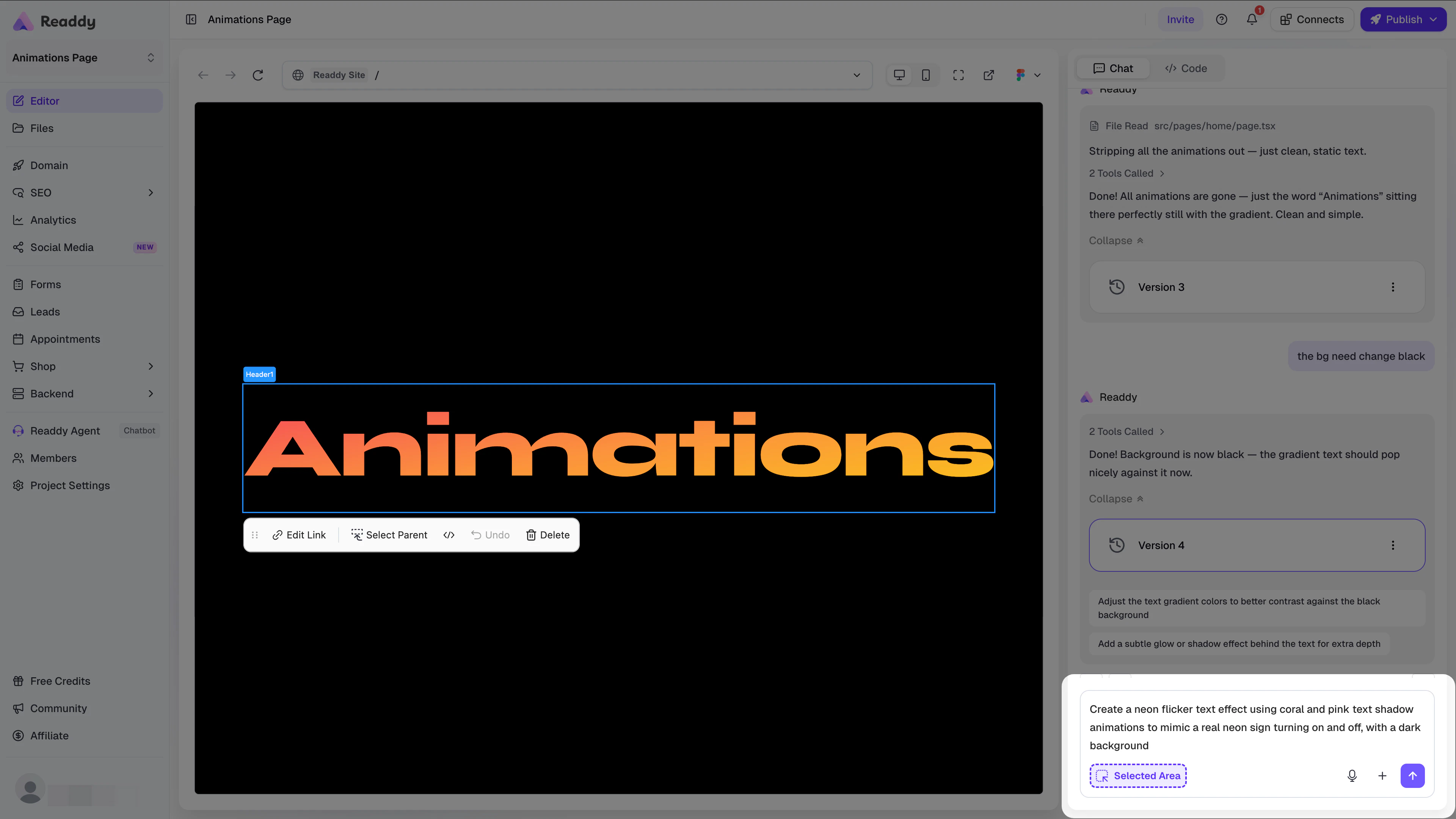 Paste the prompt into Readdy and refine the result. If the motion is too strong, ask for a subtler, slower, or hover-only version.
## Prompt Tips
Start with the Readdy Effects prompt, then add:
* **Target**: Which element should animate
* **Trigger**: When it should happen
* **Style**: Subtle, playful, smooth, energetic, premium, and so on
* **Limit**: Loop, once, or hover only
Example refinements:
```text theme={null}
Apply this effect only to the hero headline. Keep it subtle and premium, and do not animate the rest of the section.
```
```text theme={null}
Use this hover effect for the pricing cards, but reduce the movement distance and keep the transition smooth.
```
```text theme={null}
Add this animation to the CTA button only when users hover over it. Do not add auto-looping motion.
```
## Best Practices
* Start with one focal animation, such as a headline, hero image, or CTA button
* Match the effect to the content type instead of reusing the same motion everywhere
* Keep marketing pages subtle so motion supports the message
* If the first result is close, refine the same prompt instead of rewriting it
## FAQ
Yes. This is often the easiest way to add motion without changing the layout.
Narrow the scope. Tell Readdy exactly what should animate and what should stay static.
Ask Readdy to reduce the intensity, shorten the duration, remove looping, or trigger it only on hover or in view.
Start with one effect at a time. Once it looks right, add the next one.
## Need Help?
If this guide doesn't resolve your issue, [submit a support ticket](https://readdy.ai/feedback). We're here to help!
Paste the prompt into Readdy and refine the result. If the motion is too strong, ask for a subtler, slower, or hover-only version.
## Prompt Tips
Start with the Readdy Effects prompt, then add:
* **Target**: Which element should animate
* **Trigger**: When it should happen
* **Style**: Subtle, playful, smooth, energetic, premium, and so on
* **Limit**: Loop, once, or hover only
Example refinements:
```text theme={null}
Apply this effect only to the hero headline. Keep it subtle and premium, and do not animate the rest of the section.
```
```text theme={null}
Use this hover effect for the pricing cards, but reduce the movement distance and keep the transition smooth.
```
```text theme={null}
Add this animation to the CTA button only when users hover over it. Do not add auto-looping motion.
```
## Best Practices
* Start with one focal animation, such as a headline, hero image, or CTA button
* Match the effect to the content type instead of reusing the same motion everywhere
* Keep marketing pages subtle so motion supports the message
* If the first result is close, refine the same prompt instead of rewriting it
## FAQ
Yes. This is often the easiest way to add motion without changing the layout.
Narrow the scope. Tell Readdy exactly what should animate and what should stay static.
Ask Readdy to reduce the intensity, shorten the duration, remove looping, or trigger it only on hover or in view.
Start with one effect at a time. Once it looks right, add the next one.
## Need Help?
If this guide doesn't resolve your issue, [submit a support ticket](https://readdy.ai/feedback). We're here to help!