> ## Documentation Index
> Fetch the complete documentation index at: https://docs.readdy.ai/llms.txt
> Use this file to discover all available pages before exploring further.
# Find Clients for the Agency
> Use Outscraper to collect a prospect list you can upload into Readdy Outreach Campaign.
This guide shows one practical workflow for agencies that want to use [Outreach Campaign](/features/outreach-campaign) but do not already have a client list. It walks through using [Outscraper](https://outscraper.com/) to collect prospect data, clean the file, and upload it into Readdy.
This workflow uses [Outscraper](https://outscraper.com/), a third-party
service. Readdy does not manage Outscraper pricing, billing, permissions, or
data coverage.
## What You Will Get
After following this guide, you should have:
* A CSV file with business prospects
* An `email` column that can be uploaded into Readdy
* Extra columns such as `description`, `address`, `industry`, `phone`, or `website` that you can later use as variables in your outreach email
## Step-by-Step
Go to [Outscraper](https://outscraper.com/) and sign in to your account.
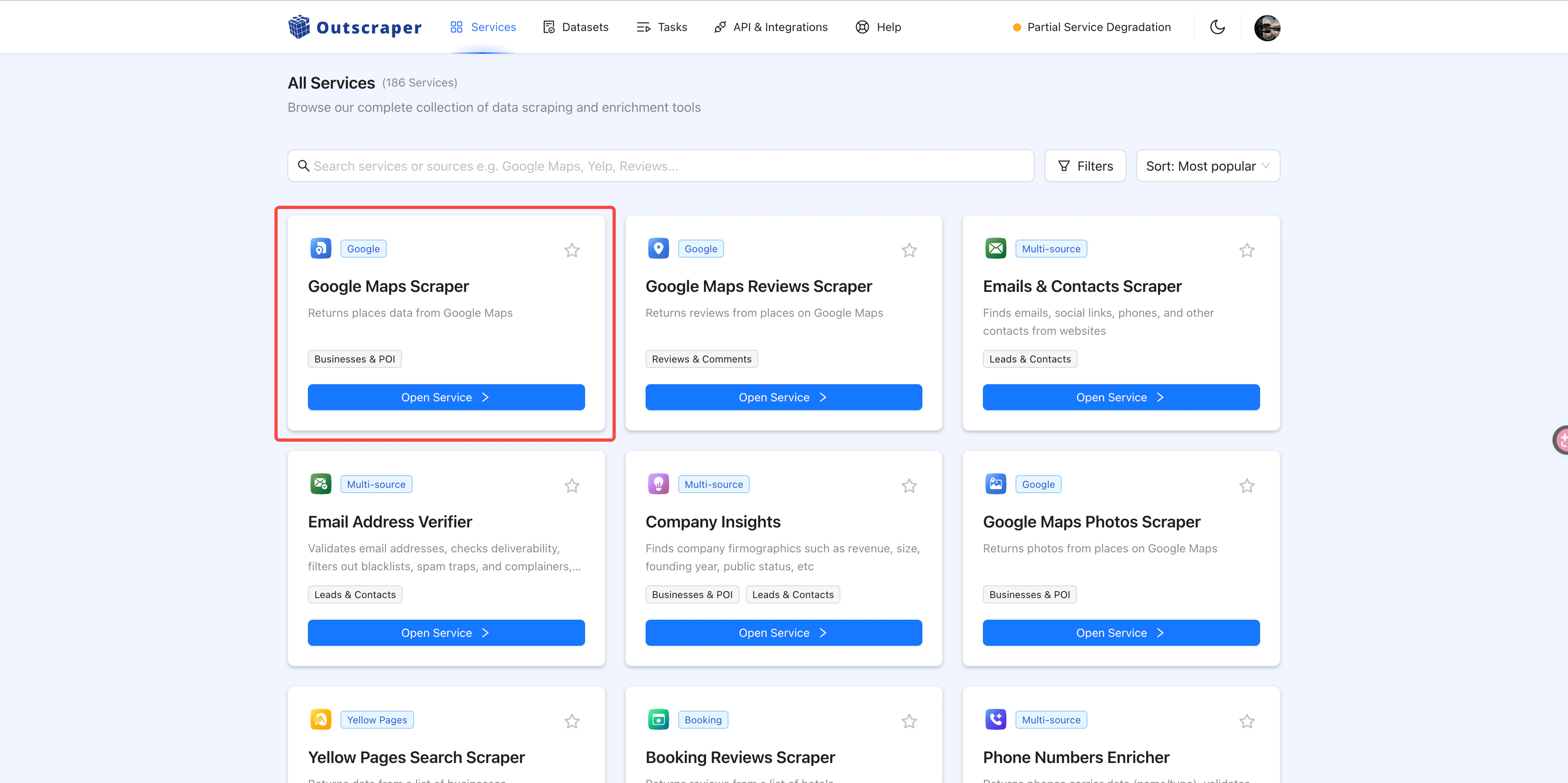
In **All Services**, find **Google Maps Scraper** and click **Open Service**.
This is just one example workflow. If you prefer a different source, you can
choose other services in Outscraper instead, such as **Yelp**, **LinkedIn**,
**Yellow Pages**, and other similar directories or lead sources.
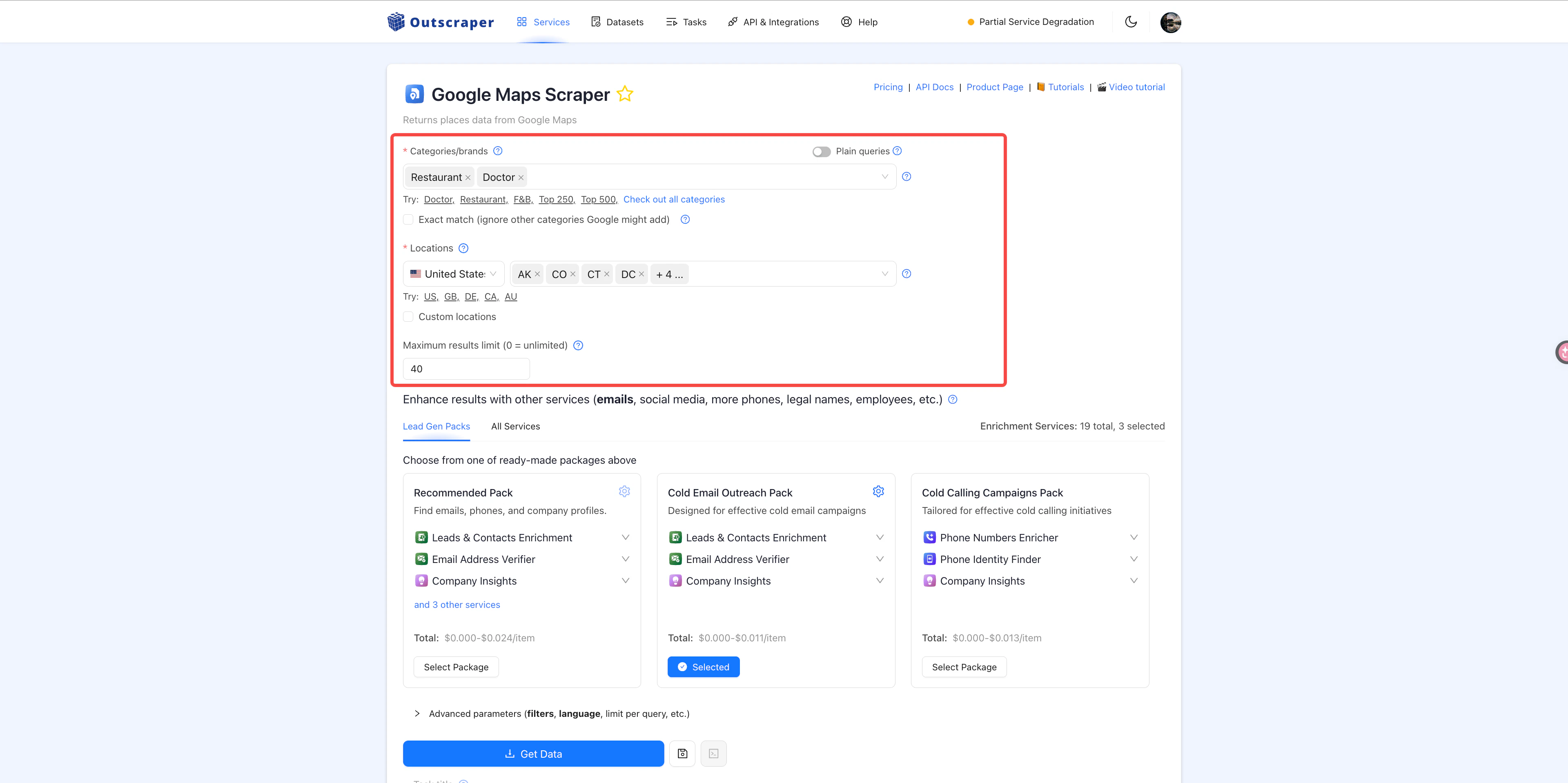
 Select the type of businesses you want to target, the areas you want to
search, and the maximum number of results you want to collect.
Select the type of businesses you want to target, the areas you want to
search, and the maximum number of results you want to collect.
 We recommend **Cold Email Outreach Pack** because it can help you find email
addresses and validate whether those emails are usable for outreach.
We recommend **Cold Email Outreach Pack** because it can help you find email
addresses and validate whether those emails are usable for outreach.
 Open **Other parameters (result format, task tags)** and set the export for
your Readdy workflow.
* Set **Result extension** to `CSV`
* Add `email` as a field, because it is required by Readdy Outreach Campaign
* Add extra fields such as `description`, `address`, `industry`, `phone`, or
`website` depending on which variables you want to use later in your email
After that, click **Get Data**.
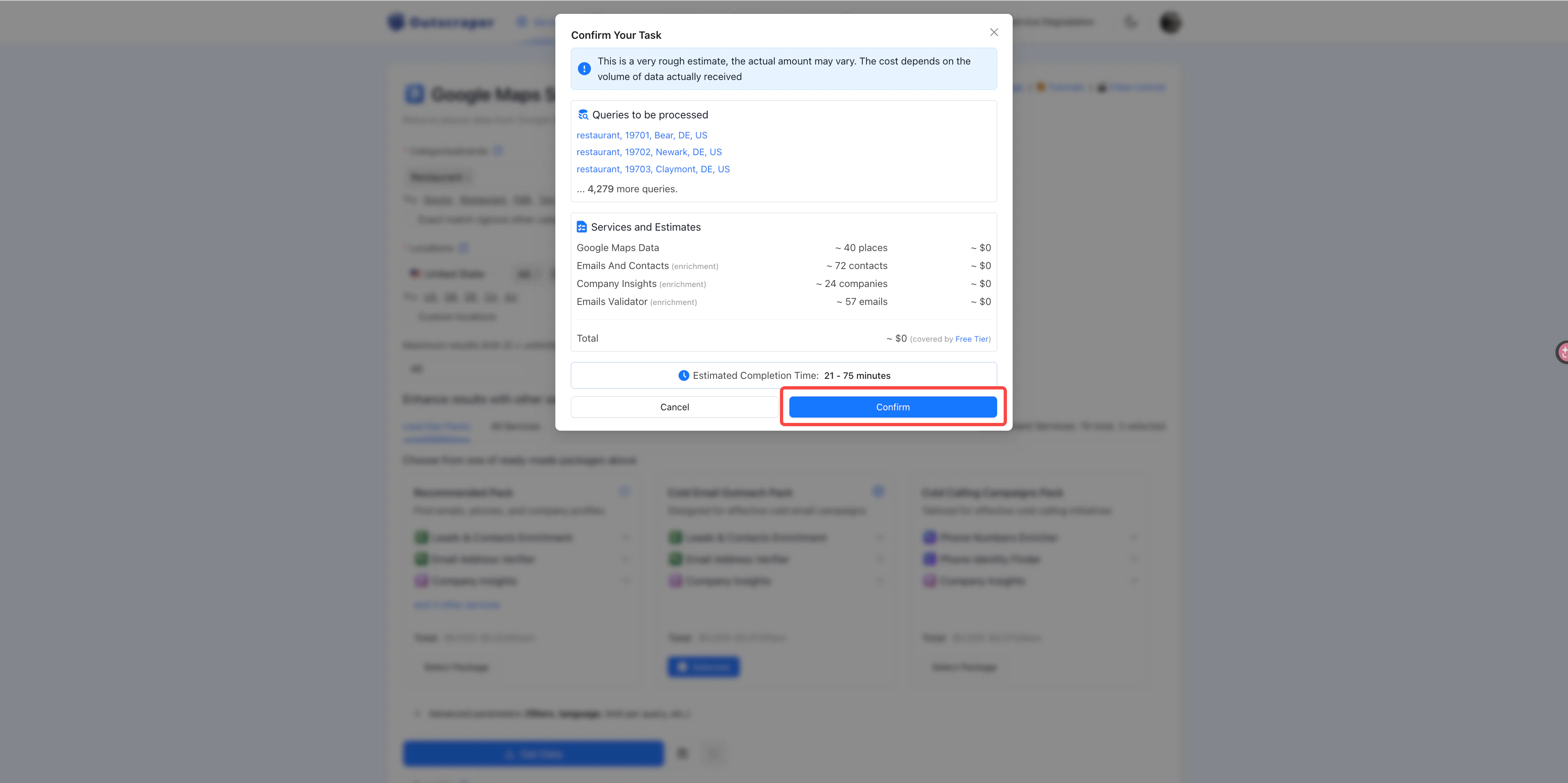
Review the task summary, then click **Confirm**.
Open **Other parameters (result format, task tags)** and set the export for
your Readdy workflow.
* Set **Result extension** to `CSV`
* Add `email` as a field, because it is required by Readdy Outreach Campaign
* Add extra fields such as `description`, `address`, `industry`, `phone`, or
`website` depending on which variables you want to use later in your email
After that, click **Get Data**.
Review the task summary, then click **Confirm**.
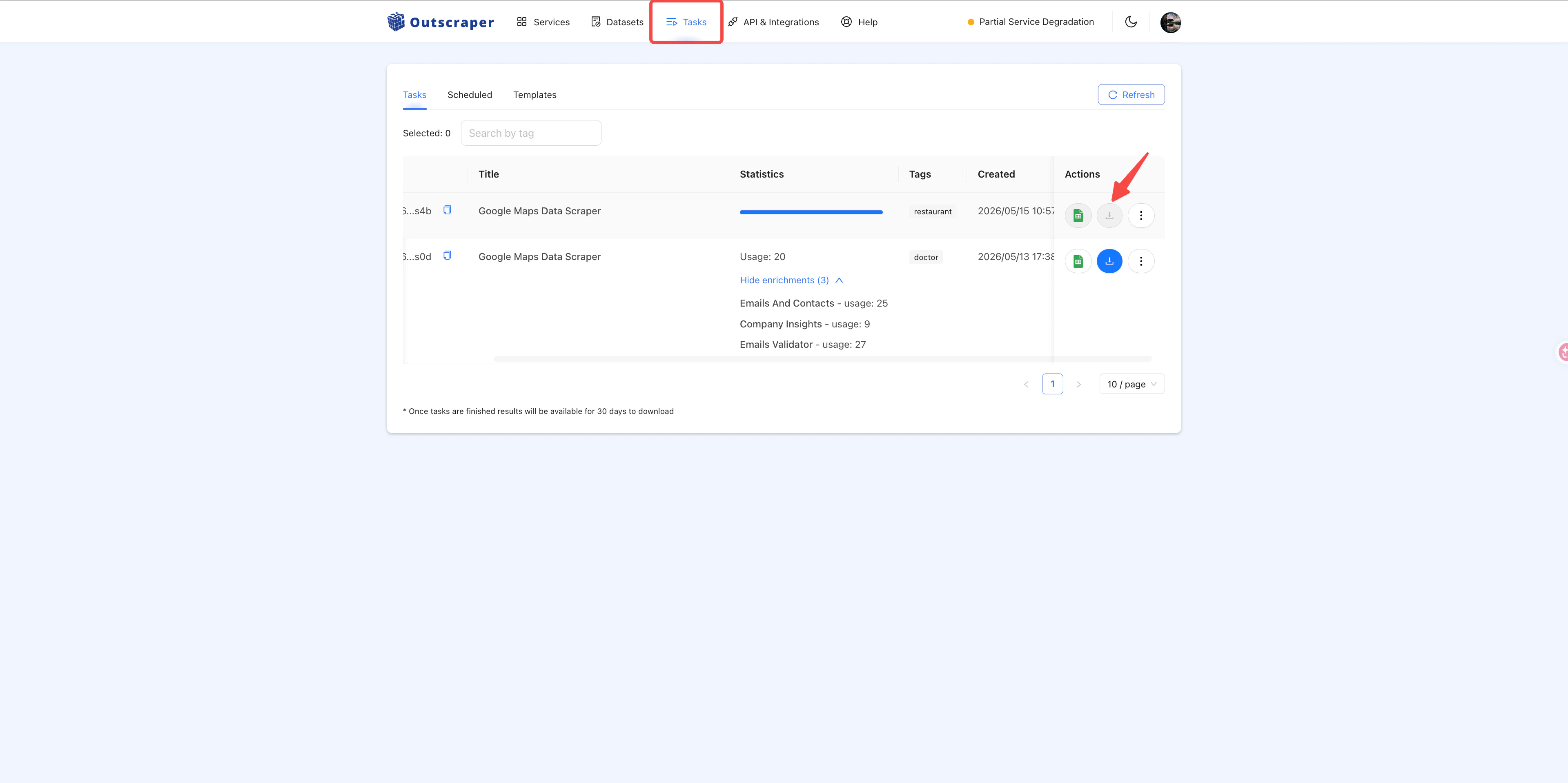
 Click **Tasks** in the top navigation bar. If the task is still running, wait
until it finishes. Once it is complete, click the **download** button.
Click **Tasks** in the top navigation bar. If the task is still running, wait
until it finishes. Once it is complete, click the **download** button.
 Open the downloaded file in Excel or Google Sheets and review the rows before
using them for outreach.
Remove or filter out rows without an email, government or public-sector
websites, businesses whose websites are already very complete, and any
businesses that are clearly not a fit for your agency.
Open the downloaded file in Excel or Google Sheets and review the rows before
using them for outreach.
Remove or filter out rows without an email, government or public-sector
websites, businesses whose websites are already very complete, and any
businesses that are clearly not a fit for your agency.
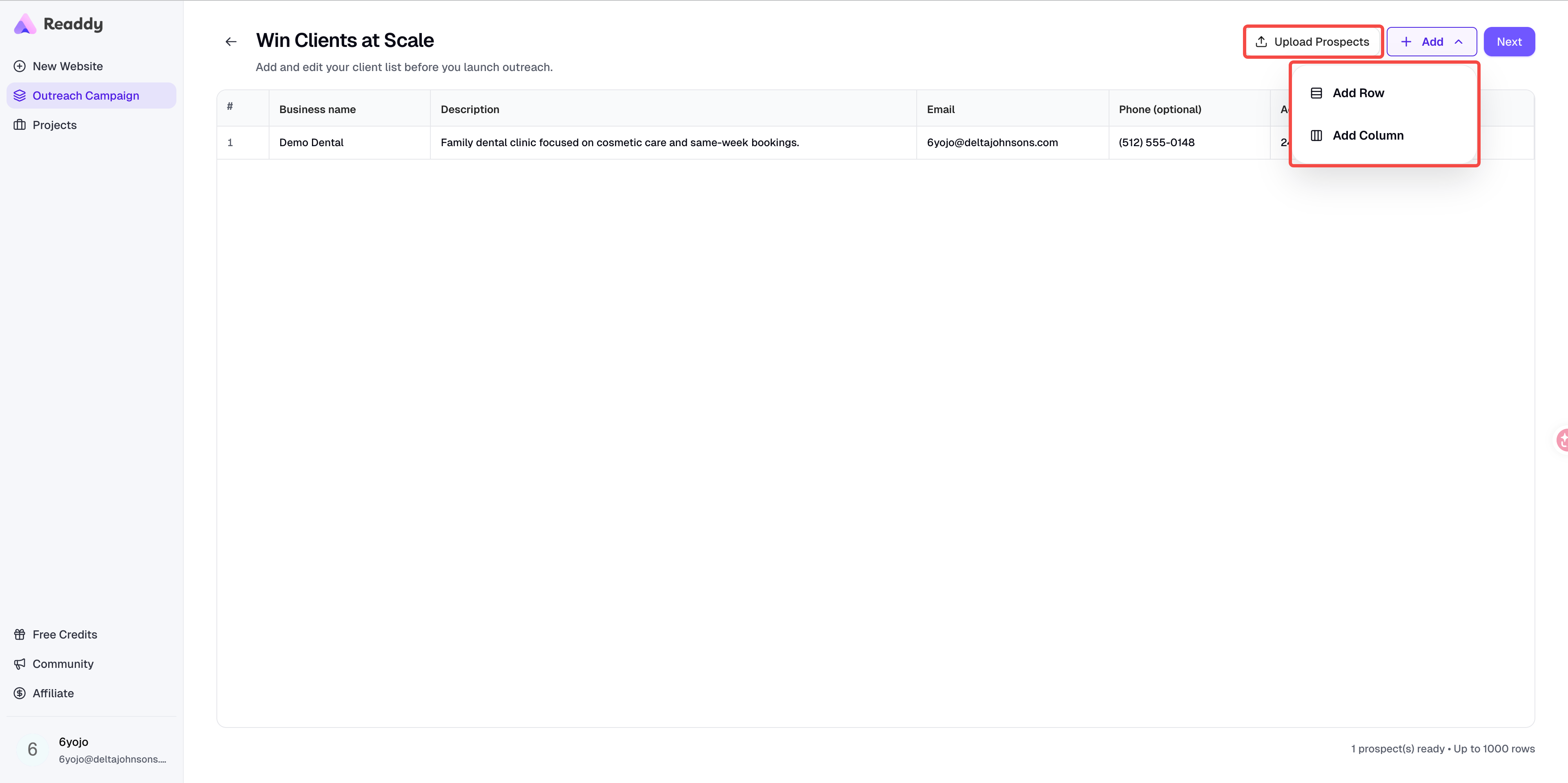
 Go to [Outreach Campaign](/features/outreach-campaign), upload your cleaned
CSV file, review the table, and continue with the email setup flow.
The columns you keep in the CSV can become variables in your outreach email.
For example, if you keep `description`, `address`, or `industry`, you can use
them later to personalize your content.
Go to [Outreach Campaign](/features/outreach-campaign), upload your cleaned
CSV file, review the table, and continue with the email setup flow.
The columns you keep in the CSV can become variables in your outreach email.
For example, if you keep `description`, `address`, or `industry`, you can use
them later to personalize your content.
 Keep `email` in your file. It is required for Readdy Outreach Campaign. Add
extra columns only if you plan to use them as variables in your subject line
or email body.
Outscraper results still need human review. Even with email enrichment and
validation, some rows may be missing data, irrelevant, or poor-fit prospects.
## FAQ
No. Google Maps Scraper is just the example used in this guide. You can also
use other Outscraper services, such as Yelp, LinkedIn, Yellow Pages, or other
lead sources, as long as the final file contains the fields you need for
Readdy.
The `email` field is required. Without an `email` column, you will not be able
to use the file directly in Readdy Outreach Campaign.
Yes. You can keep columns such as `description`, `address`, `industry`,
`phone`, or `website` if you want to use them later as variables in your
outreach email.
Raw exports often include rows without email addresses, poor-fit businesses,
government websites, or companies whose websites are already strong enough
that they are unlikely to be good outreach targets. Cleaning the file helps
improve campaign quality.
Wait until the task finishes, then download the CSV from the **Tasks** page.
If needed, refresh the Tasks page and check again later.
## Need Help?
If this guide doesn't resolve your issue:
* Submit a support ticket: [readdy.ai/feedback](https://readdy.ai/feedback)
* Use the live chat in the top-right corner of Readdy
Keep `email` in your file. It is required for Readdy Outreach Campaign. Add
extra columns only if you plan to use them as variables in your subject line
or email body.
Outscraper results still need human review. Even with email enrichment and
validation, some rows may be missing data, irrelevant, or poor-fit prospects.
## FAQ
No. Google Maps Scraper is just the example used in this guide. You can also
use other Outscraper services, such as Yelp, LinkedIn, Yellow Pages, or other
lead sources, as long as the final file contains the fields you need for
Readdy.
The `email` field is required. Without an `email` column, you will not be able
to use the file directly in Readdy Outreach Campaign.
Yes. You can keep columns such as `description`, `address`, `industry`,
`phone`, or `website` if you want to use them later as variables in your
outreach email.
Raw exports often include rows without email addresses, poor-fit businesses,
government websites, or companies whose websites are already strong enough
that they are unlikely to be good outreach targets. Cleaning the file helps
improve campaign quality.
Wait until the task finishes, then download the CSV from the **Tasks** page.
If needed, refresh the Tasks page and check again later.
## Need Help?
If this guide doesn't resolve your issue:
* Submit a support ticket: [readdy.ai/feedback](https://readdy.ai/feedback)
* Use the live chat in the top-right corner of Readdy