> ## Documentation Index
> Fetch the complete documentation index at: https://docs.readdy.ai/llms.txt
> Use this file to discover all available pages before exploring further.
# Integrate with Toss Payments
> Accept one-time KRW payments with Korean local payment methods on your Readdy website
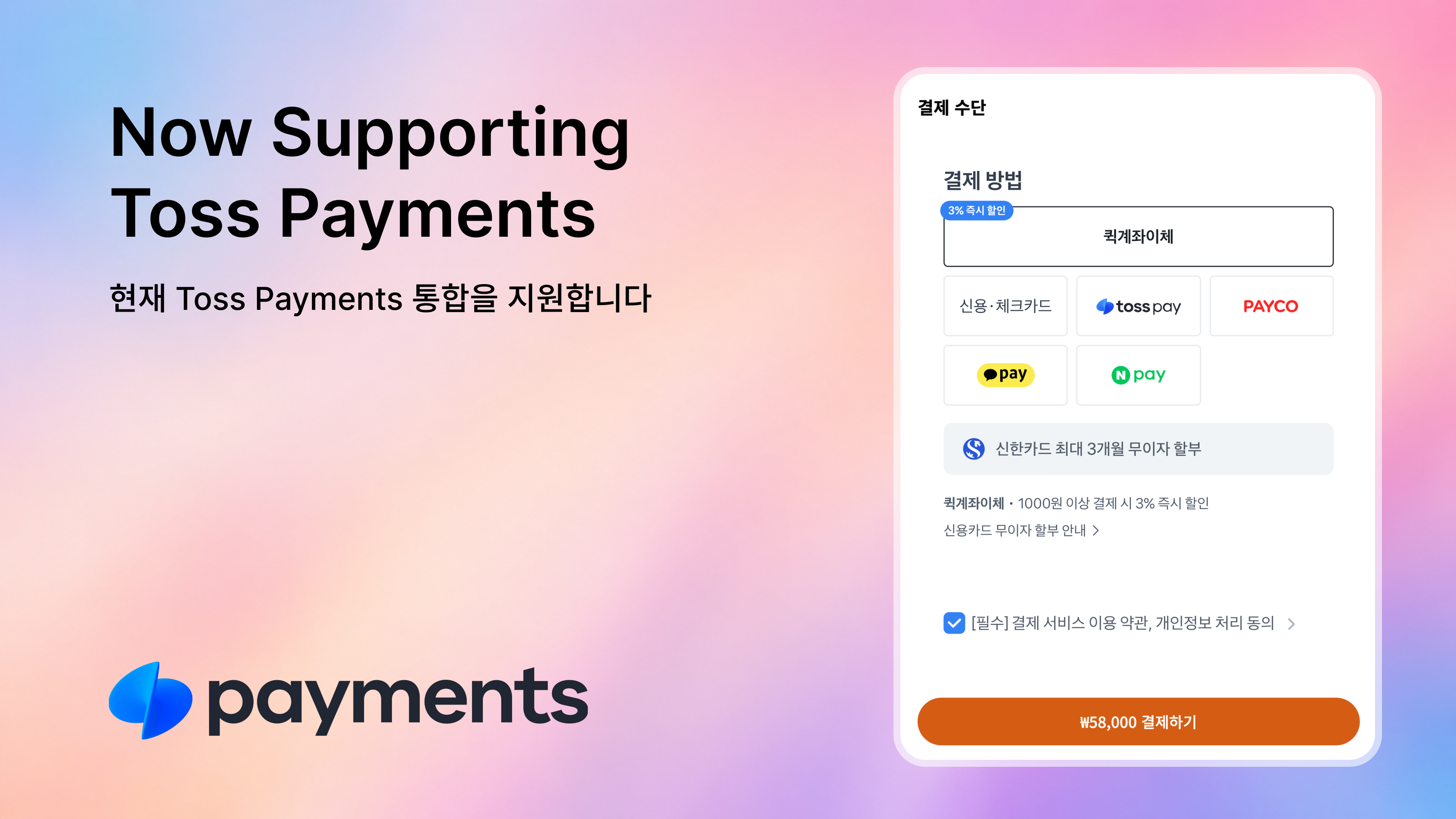
Toss Payments is a Korean payment service provider that helps businesses accept credit cards, bank transfers, virtual accounts, and local digital wallets. You can connect your Toss Payments merchant account to a Readdy project and ask AI to add a secure payment flow to your website.
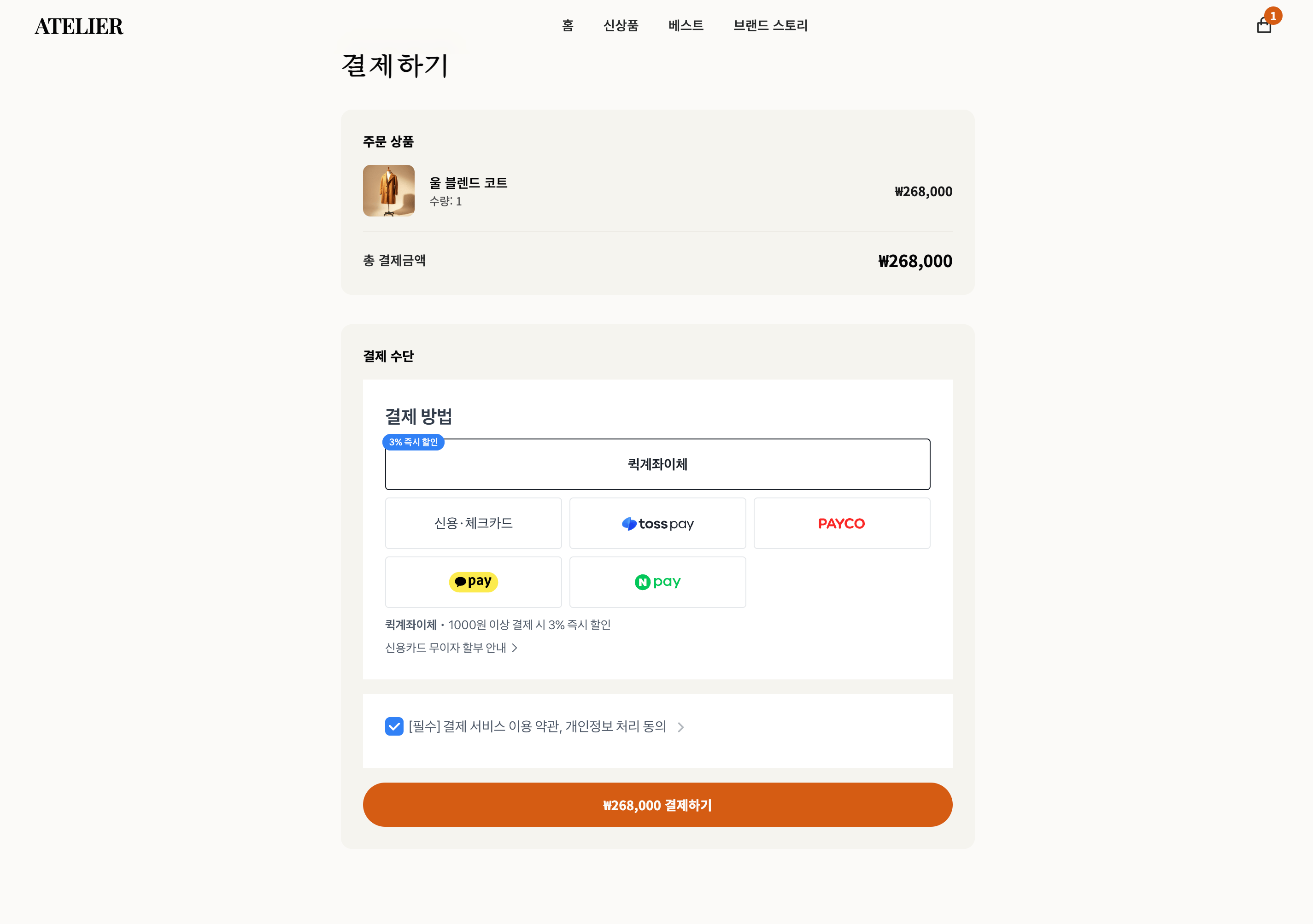
Once connected, Readdy can generate a Toss Payments Payment Widget for one-time payments in Korean won (KRW), confirm completed payments securely, and update the corresponding order in your connected database.
 ## Before You Start
This guide will walk you through connecting Toss Payments to your Readdy project. Before you begin, make sure you have the following ready:
* An active Toss Payments merchant account.
* An approved electronic payment services application. You can apply through [**Apply for Electronic Payments**](https://onboarding.tosspayments.com/registration/business-registration-number) in Toss Payments. Your application must be approved before you can accept live payments.
* A Readdy project connected to [Readdy Backend](/features/backend) or [Supabase](/integrations/supabase).
Once these are ready, let's connect Toss Payments.
## Get Your Toss Payments Keys
Go to the [Toss Payments Developer Center](https://developers.tosspayments.com/), log in to your merchant account, and open **"API Keys"**.
## Before You Start
This guide will walk you through connecting Toss Payments to your Readdy project. Before you begin, make sure you have the following ready:
* An active Toss Payments merchant account.
* An approved electronic payment services application. You can apply through [**Apply for Electronic Payments**](https://onboarding.tosspayments.com/registration/business-registration-number) in Toss Payments. Your application must be approved before you can accept live payments.
* A Readdy project connected to [Readdy Backend](/features/backend) or [Supabase](/integrations/supabase).
Once these are ready, let's connect Toss Payments.
## Get Your Toss Payments Keys
Go to the [Toss Payments Developer Center](https://developers.tosspayments.com/), log in to your merchant account, and open **"API Keys"**.
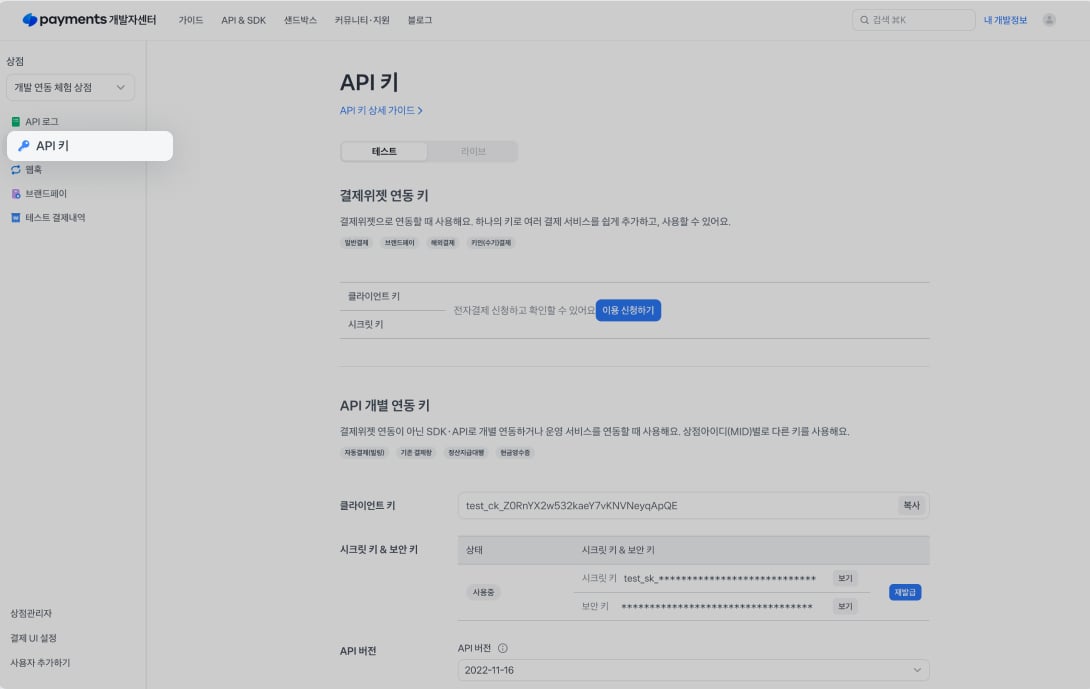 Select the **"Test"** or **"Live"** environment at the top of the page.
Test payments simulate authorization and do not charge the payment method, even when you enter real payment information.
Select the **"Test"** or **"Live"** environment at the top of the page.
Test payments simulate authorization and do not charge the payment method, even when you enter real payment information.
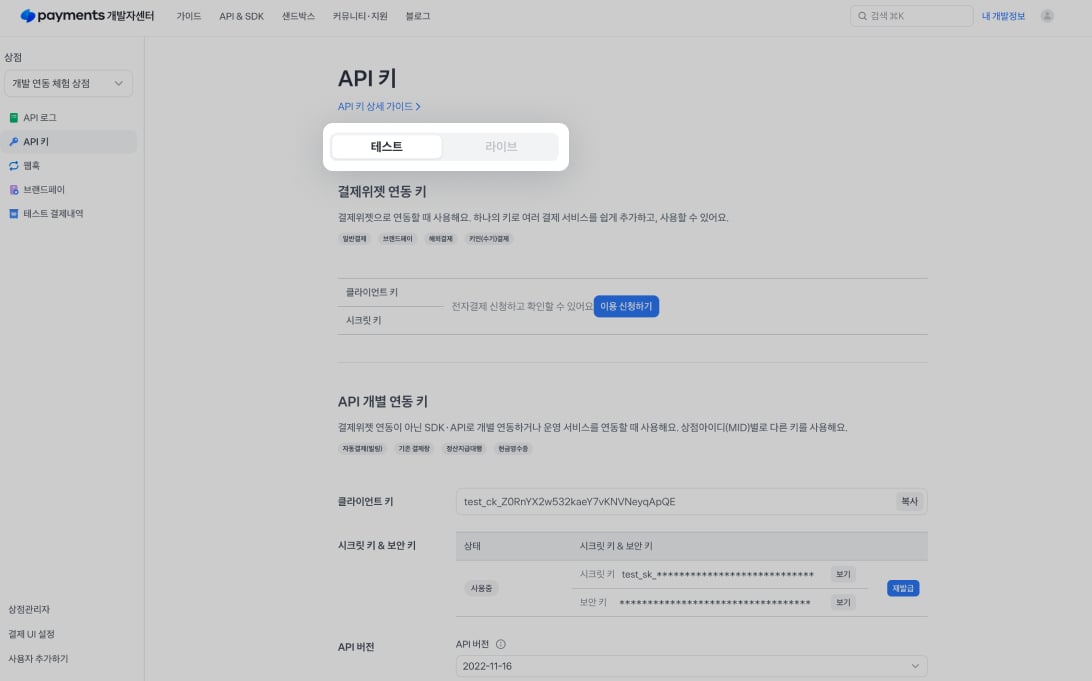 Find **Payment Widget integration keys** (`결제위젯 연동 키`), then copy the Client Key and Secret Key from the same key pair.
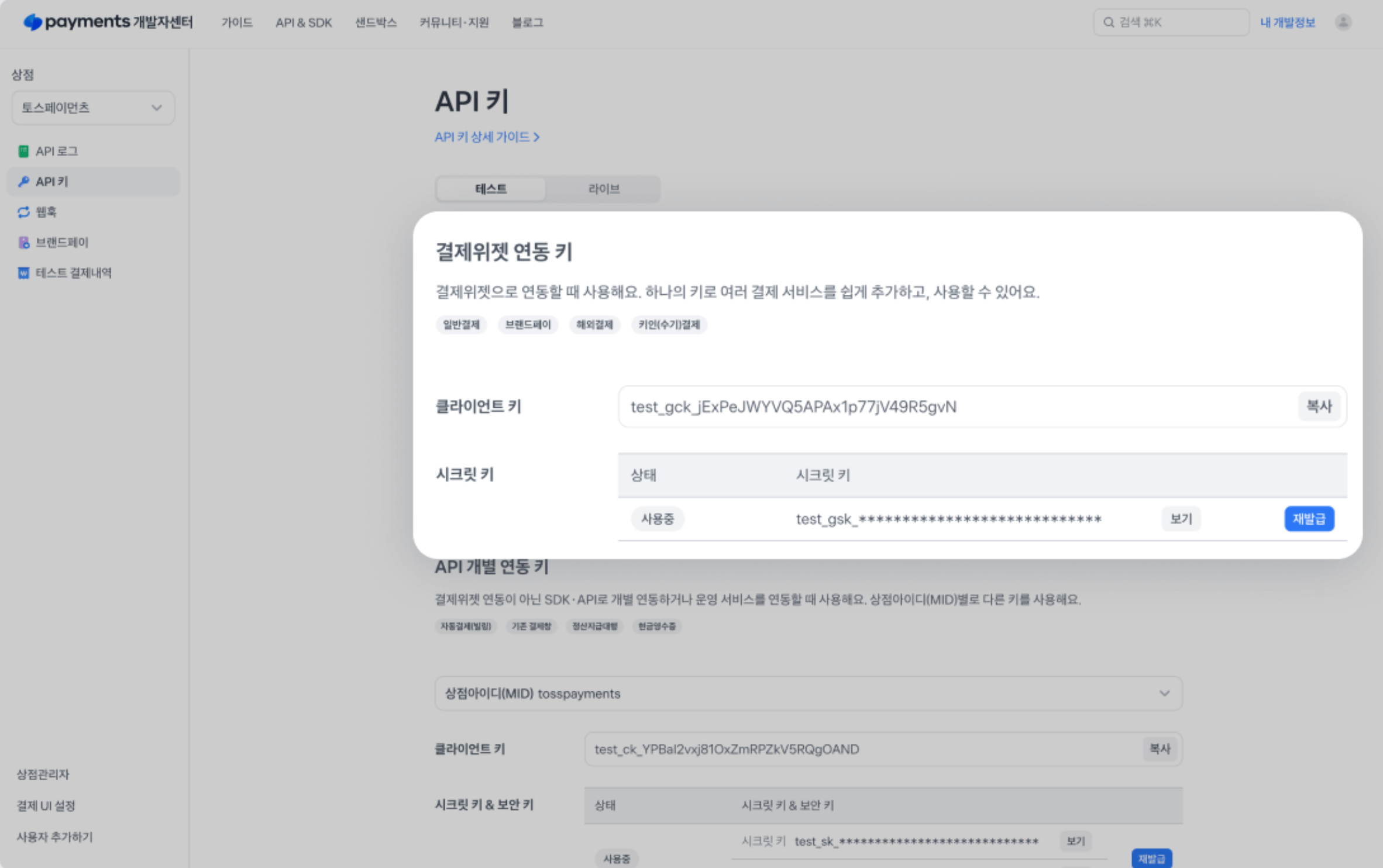 You can view your Payment Widget integration keys only after applying for Toss Payments electronic payment services. Even test keys require an application. Before applying, you can use the following public test pair:
`clientKey = 'test_gck_docs_Ovk5rk1EwkEbP0W43n07xlzm'`
`secretKey = 'test_gsk_docs_OaPz8L5KdmQXkzRz3y47BMw6'`
Do not use **individual API integration keys** (`API 개별 연동 키`). Keys beginning with `test_ck_`, `test_sk_`, `live_ck_`, or `live_sk_` are not supported by Readdy's current Payment Widget integration.
Keys in different environments have different prefixes
| | Test key prefix | Live key prefix |
| ----------------- | --------------- | --------------- |
| Widget Client Key | `test_gck_` | `live_gck_` |
| Widget Secret Key | `test_gsk_` | `live_gsk_` |
The Client Key and Secret Key must:
* Come from the same merchant ID.
* Belong to the same Payment Widget key pair.
* Both be test keys or both be live keys.
You can use a matching test pair while building and testing your website. Test payments do not create a real charge. Use a matching live pair when your Toss Payments contract and website are ready to accept real payments.
For more information about the keys and Payment Widget, see the [official Toss Payments Payment Widget guide](https://docs.tosspayments.com/guides/v2/payment-widget/integration).
## Connect Toss Payments in Readdy
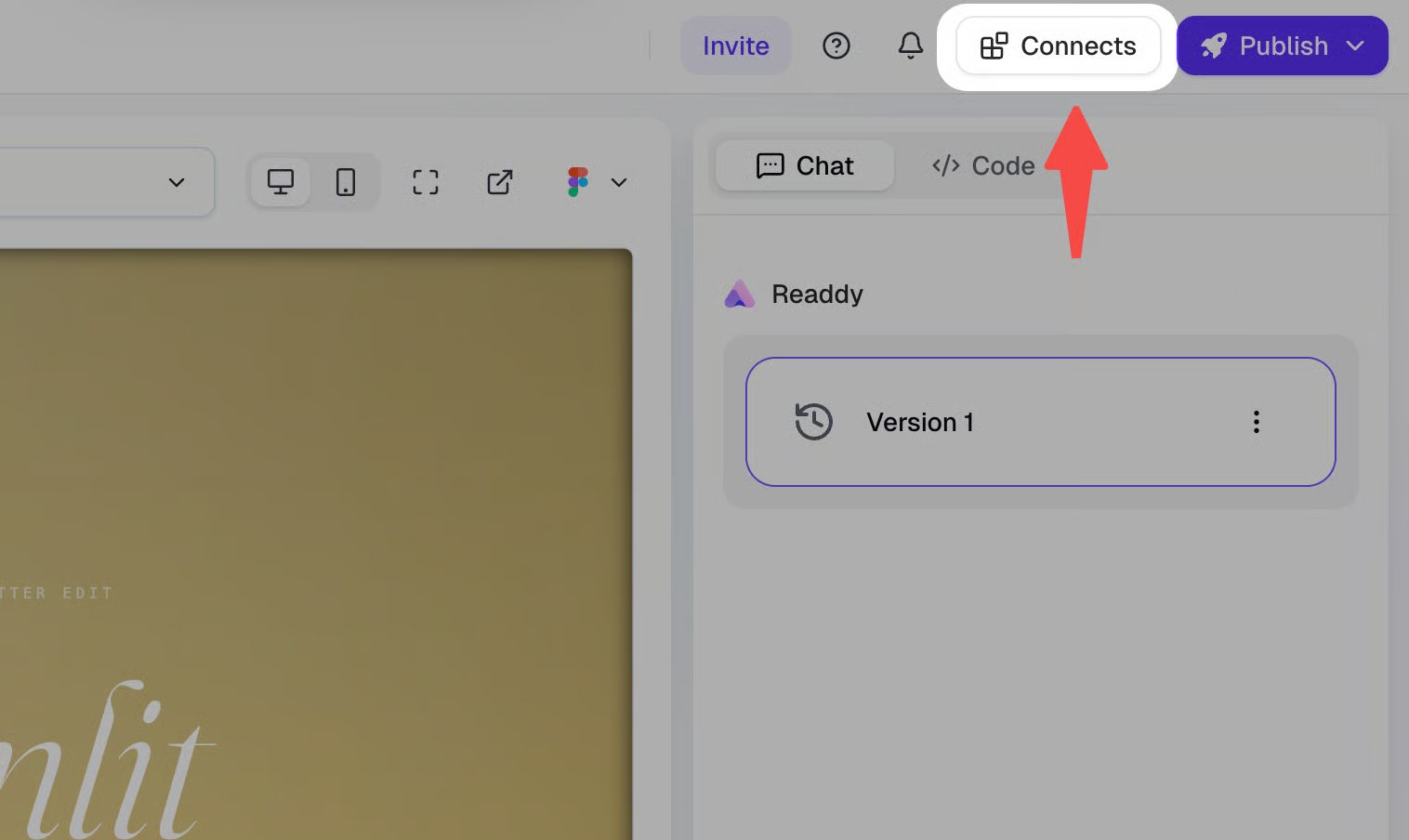
In the Readdy editor, click **"Connects"** at the top of the screen.
You can view your Payment Widget integration keys only after applying for Toss Payments electronic payment services. Even test keys require an application. Before applying, you can use the following public test pair:
`clientKey = 'test_gck_docs_Ovk5rk1EwkEbP0W43n07xlzm'`
`secretKey = 'test_gsk_docs_OaPz8L5KdmQXkzRz3y47BMw6'`
Do not use **individual API integration keys** (`API 개별 연동 키`). Keys beginning with `test_ck_`, `test_sk_`, `live_ck_`, or `live_sk_` are not supported by Readdy's current Payment Widget integration.
Keys in different environments have different prefixes
| | Test key prefix | Live key prefix |
| ----------------- | --------------- | --------------- |
| Widget Client Key | `test_gck_` | `live_gck_` |
| Widget Secret Key | `test_gsk_` | `live_gsk_` |
The Client Key and Secret Key must:
* Come from the same merchant ID.
* Belong to the same Payment Widget key pair.
* Both be test keys or both be live keys.
You can use a matching test pair while building and testing your website. Test payments do not create a real charge. Use a matching live pair when your Toss Payments contract and website are ready to accept real payments.
For more information about the keys and Payment Widget, see the [official Toss Payments Payment Widget guide](https://docs.tosspayments.com/guides/v2/payment-widget/integration).
## Connect Toss Payments in Readdy
In the Readdy editor, click **"Connects"** at the top of the screen.
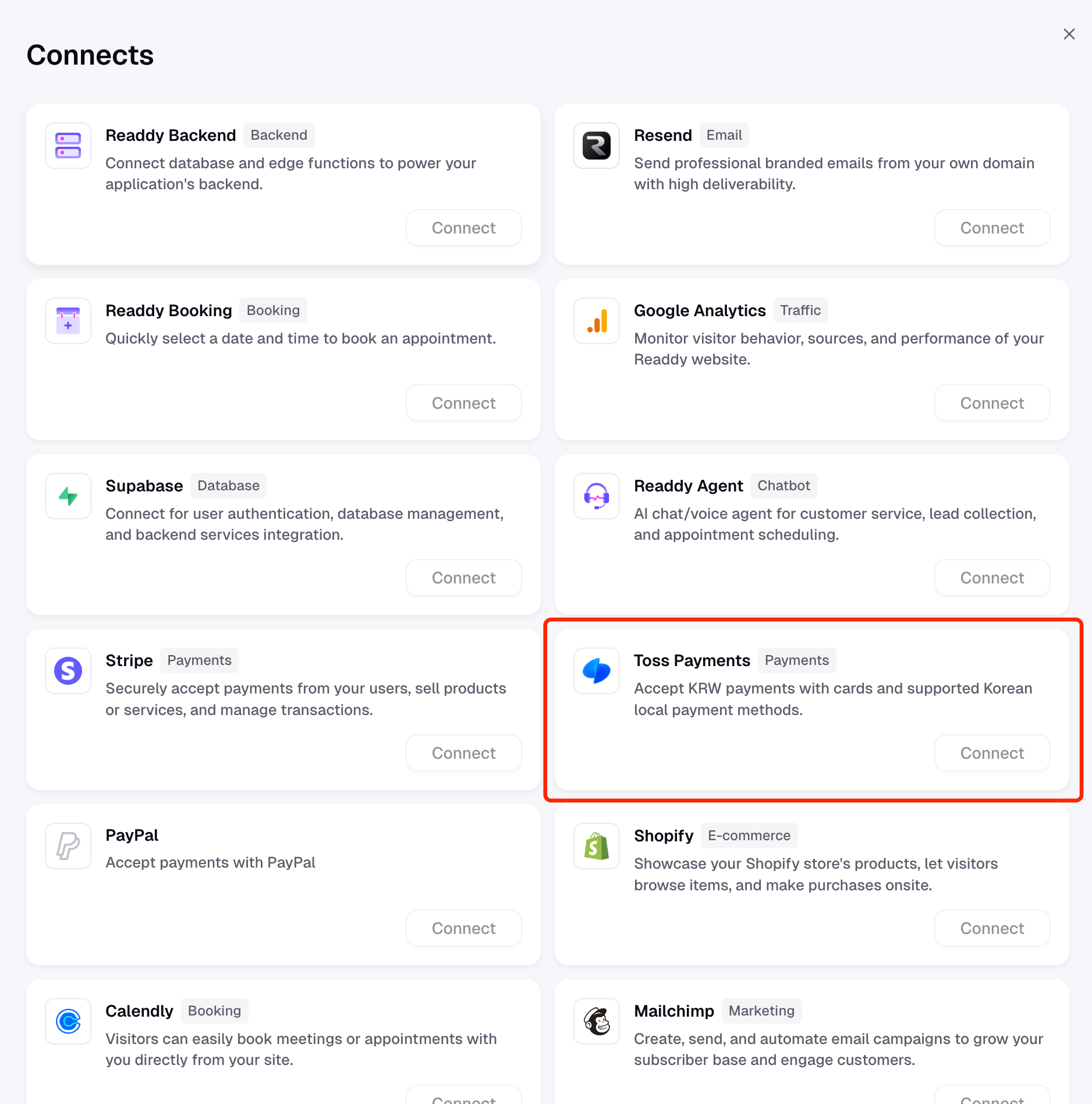
 Find **Toss Payments** in the Connects panel, then click **"Connect"**.
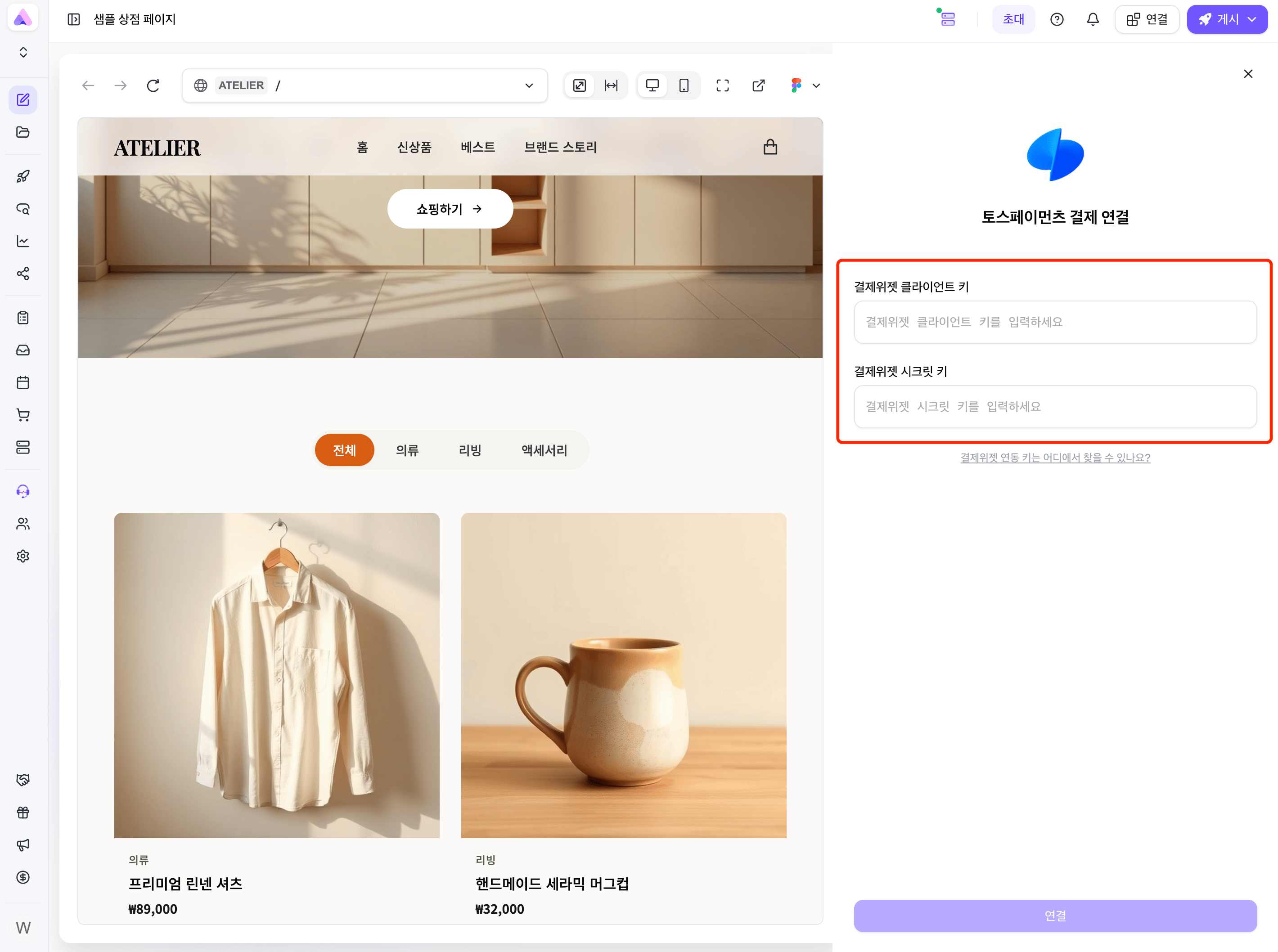
 If your project does not have a connected database, Readdy asks you to connect **Readdy Backend** or **Supabase** first. Toss Payments uses the connected backend to create orders, keep the Secret Key secure, and confirm payments.
Paste the matching **Widget Client Key** and **Widget Secret Key**, then click **"Connect"**.
If your project does not have a connected database, Readdy asks you to connect **Readdy Backend** or **Supabase** first. Toss Payments uses the connected backend to create orders, keep the Secret Key secure, and confirm payments.
Paste the matching **Widget Client Key** and **Widget Secret Key**, then click **"Connect"**.
 Check that the panel displays **"Connected"** and masks both keys.
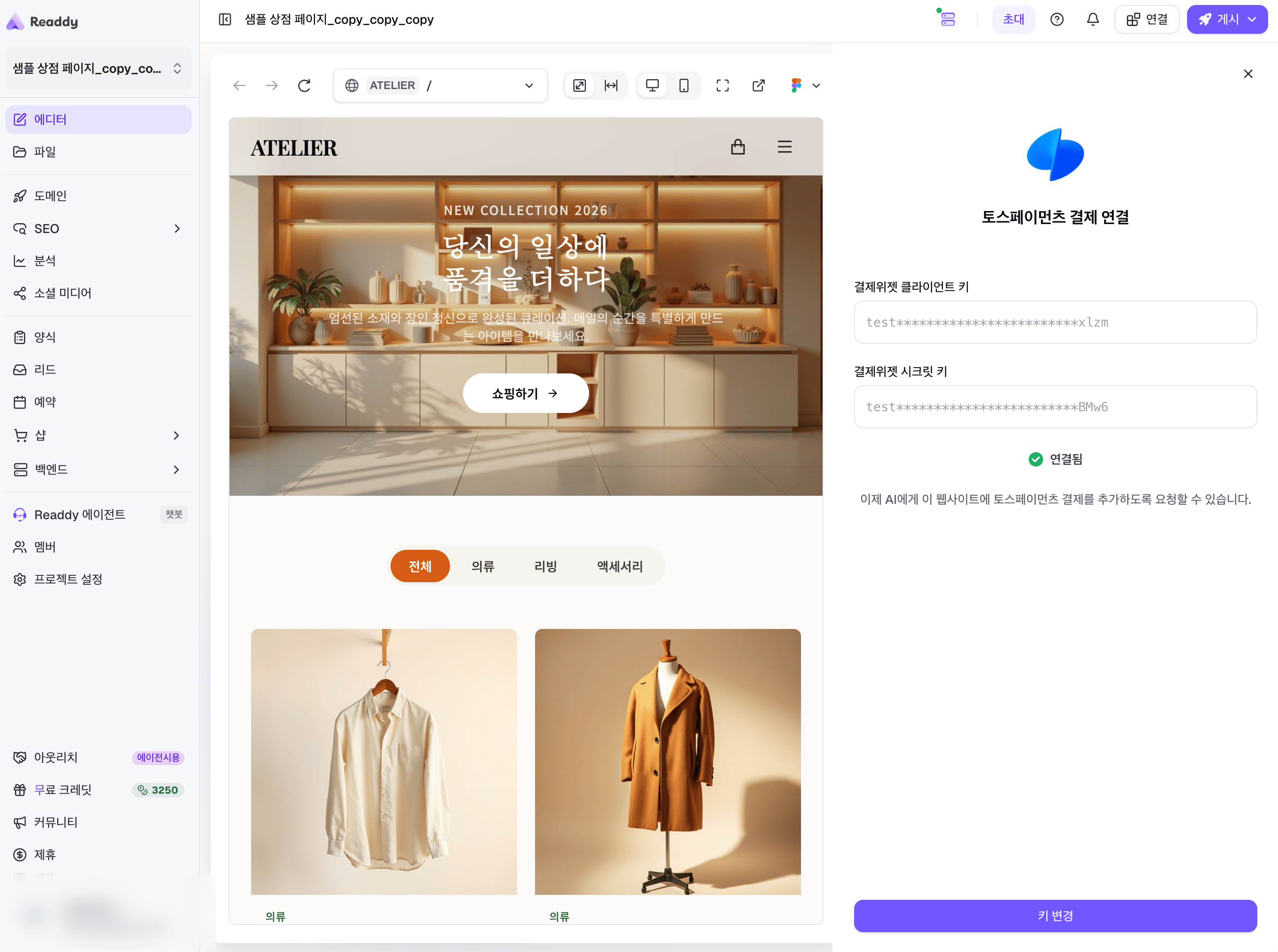 Ask Readdy AI to add a Toss Payments checkout flow to the products, cart, or checkout button on your website.
 ## Best Practices
* Tell Readdy AI which products, cart, or checkout button should use Toss Payments.
* Use positive whole-won prices. Toss Payments currently supports one-time KRW payments in Readdy.
* Review your Toss Payments contract and Payment Widget settings to confirm which payment methods customers can use.
* Test the complete flow through your website's share link or published URL before accepting live payments.
Readdy acts only as a platform that provides the Toss Payments integration and does not participate in payment processing. You receive funds directly through your Toss Payments account; Readdy does not hold these funds. Before going live, complete an end-to-end test and verify payment amounts and order statuses. If the records differ, check Toss Payments before fulfilling or refunding the order.
## FAQ
Toss Payments is currently available to eligible accounts. Make sure you are signed in to the correct Readdy account. If the integration is still missing, [submit a support ticket](https://readdy.ai/feedback) to request access.
Make sure you copied **Payment Widget integration keys** (`결제위젯 연동 키`), not individual API integration keys. The Client Key must use a `test_gck_` or `live_gck_` prefix, the Secret Key must use the matching `test_gsk_` or `live_gsk_` prefix, and both keys must come from the same merchant ID.
Readdy uses the connected backend to validate order amounts, create orders, protect your Secret Key, confirm payments with Toss Payments, and update the order only after payment succeeds.
Customers see the methods enabled in your Toss Payments contract and Payment Widget settings. If a payment method is missing, review your contract and [Widget configuration in Toss Payments](https://docs.tosspayments.com/guides/v2/payment-widget/admin).
## Need Help?
If this guide doesn't resolve your issue, [submit a support ticket](https://readdy.ai/feedback). We're here to help!
## Best Practices
* Tell Readdy AI which products, cart, or checkout button should use Toss Payments.
* Use positive whole-won prices. Toss Payments currently supports one-time KRW payments in Readdy.
* Review your Toss Payments contract and Payment Widget settings to confirm which payment methods customers can use.
* Test the complete flow through your website's share link or published URL before accepting live payments.
Readdy acts only as a platform that provides the Toss Payments integration and does not participate in payment processing. You receive funds directly through your Toss Payments account; Readdy does not hold these funds. Before going live, complete an end-to-end test and verify payment amounts and order statuses. If the records differ, check Toss Payments before fulfilling or refunding the order.
## FAQ
Toss Payments is currently available to eligible accounts. Make sure you are signed in to the correct Readdy account. If the integration is still missing, [submit a support ticket](https://readdy.ai/feedback) to request access.
Make sure you copied **Payment Widget integration keys** (`결제위젯 연동 키`), not individual API integration keys. The Client Key must use a `test_gck_` or `live_gck_` prefix, the Secret Key must use the matching `test_gsk_` or `live_gsk_` prefix, and both keys must come from the same merchant ID.
Readdy uses the connected backend to validate order amounts, create orders, protect your Secret Key, confirm payments with Toss Payments, and update the order only after payment succeeds.
Customers see the methods enabled in your Toss Payments contract and Payment Widget settings. If a payment method is missing, review your contract and [Widget configuration in Toss Payments](https://docs.tosspayments.com/guides/v2/payment-widget/admin).
## Need Help?
If this guide doesn't resolve your issue, [submit a support ticket](https://readdy.ai/feedback). We're here to help!