> ## Documentation Index
> Fetch the complete documentation index at: https://docs.readdy.ai/llms.txt
> Use this file to discover all available pages before exploring further.
# Integrate with Square
> Accept secure card payments on your Readdy website with your own Square merchant account
Square is a global payment platform that lets businesses accept card payments online and in person. You can authorize your Square merchant account from a Readdy project and ask AI to add a secure checkout to your website — no API keys required.
Once connected, Readdy can generate a checkout using Square's Web Payments SDK for one-time card payments, and update the corresponding order in your connected database.
## Before You Start
This guide will walk you through connecting Square to your Readdy project. Before you begin, make sure you have the following ready:
* An active Square seller account. If you don't have one, sign up at [squareup.com](https://squareup.com/signup).
* At least one Square location with card payments enabled — this is the location that will receive payments, and it determines the payment currency.
* A Readdy project connected to [Readdy Backend](/features/backend) or [Supabase](/integrations/supabase).
Readdy currently supports one-time Square payments. Subscriptions, recurring billing, refunds, and in-person (Square Terminal / POS) payments are not included in this integration.
Once these are ready, let's connect Square.
## Connect Square in Readdy
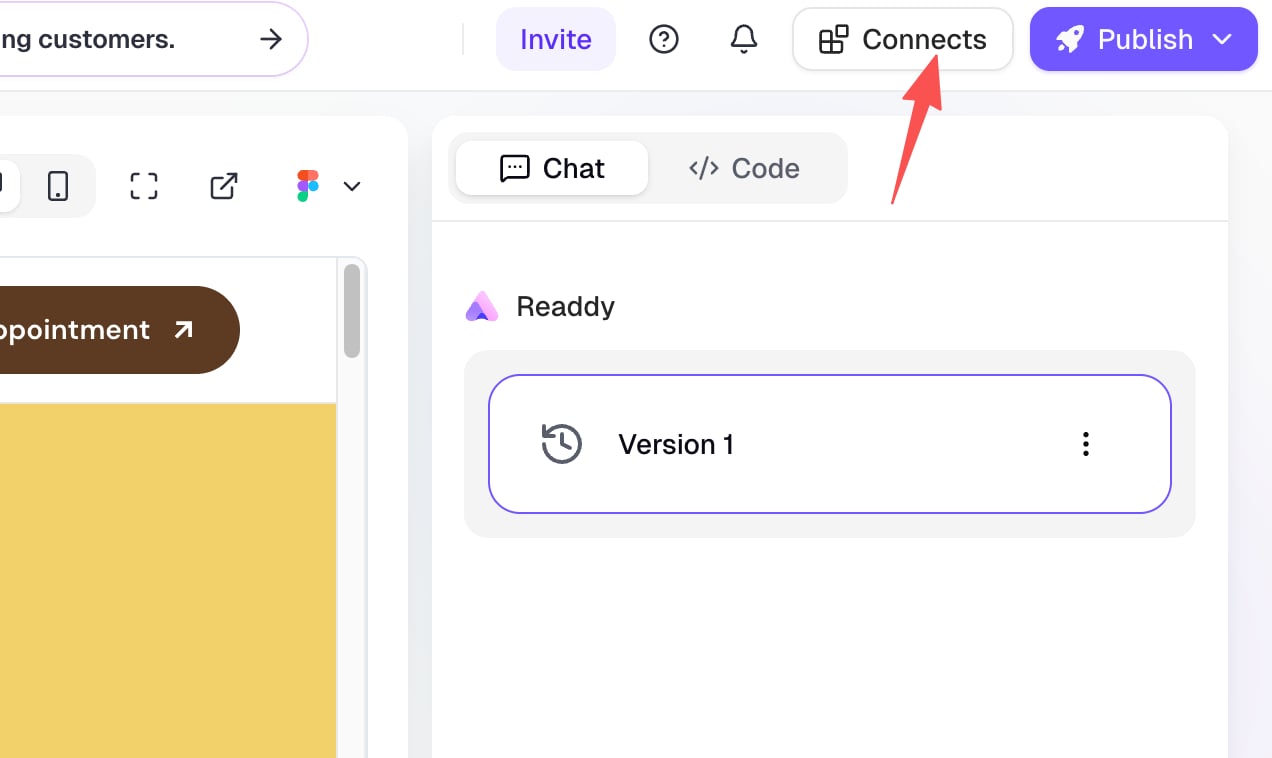
In the Readdy editor, click **"Connects"** at the top of the screen.
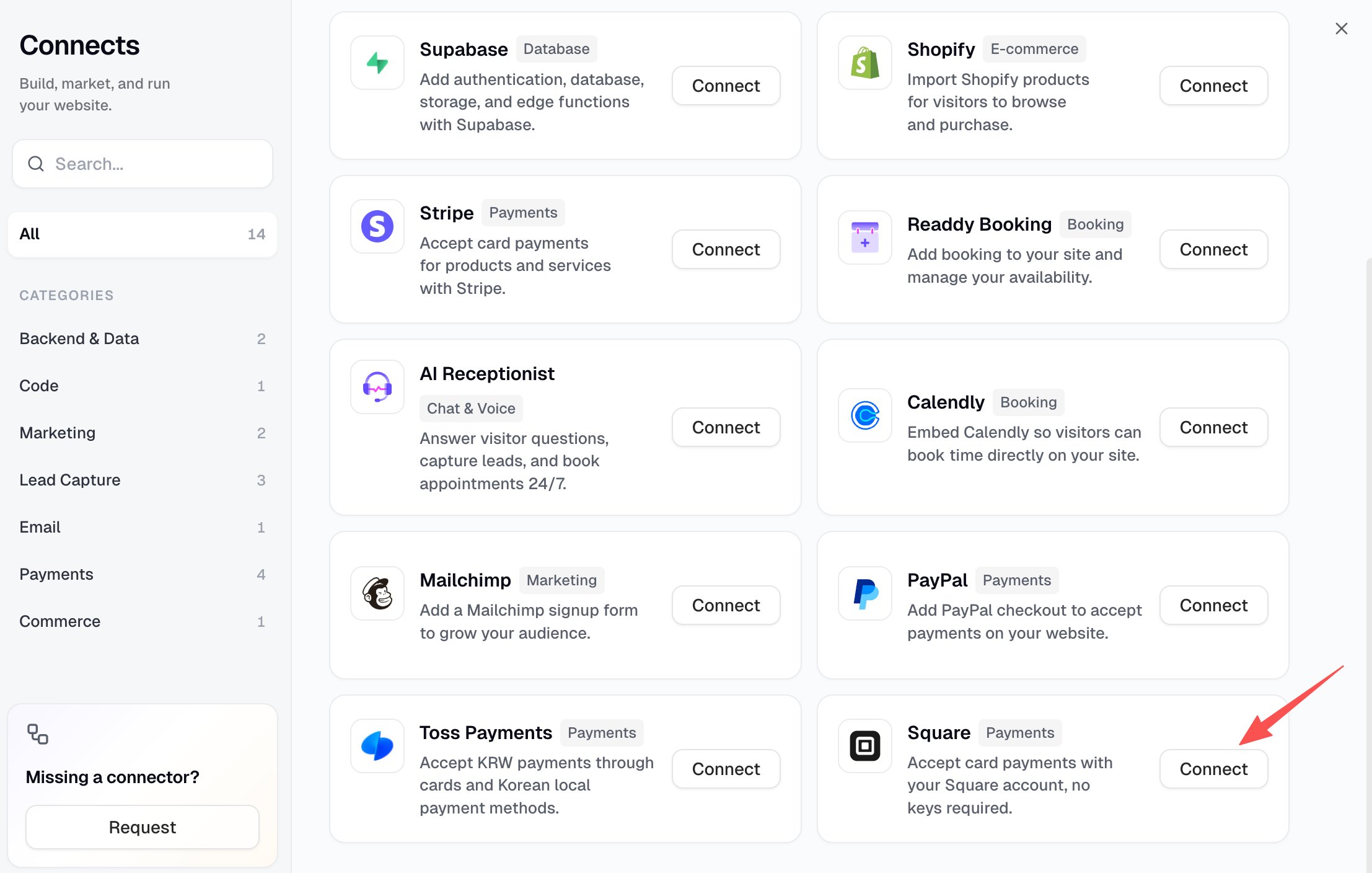
 Find **"Square"** in the Connects panel, then click **"Connect with Square"**.
 If your project does not have a connected database, Readdy asks you to connect **Readdy Backend** or **Supabase** first. Square uses the connected backend to keep your merchant tokens secure and record orders.
A new window opens to Square's login page. Log in to your Square account and approve the permissions Readdy requests to view your business profile and process payments.
If your project does not have a connected database, Readdy asks you to connect **Readdy Backend** or **Supabase** first. Square uses the connected backend to keep your merchant tokens secure and record orders.
A new window opens to Square's login page. Log in to your Square account and approve the permissions Readdy requests to view your business profile and process payments.
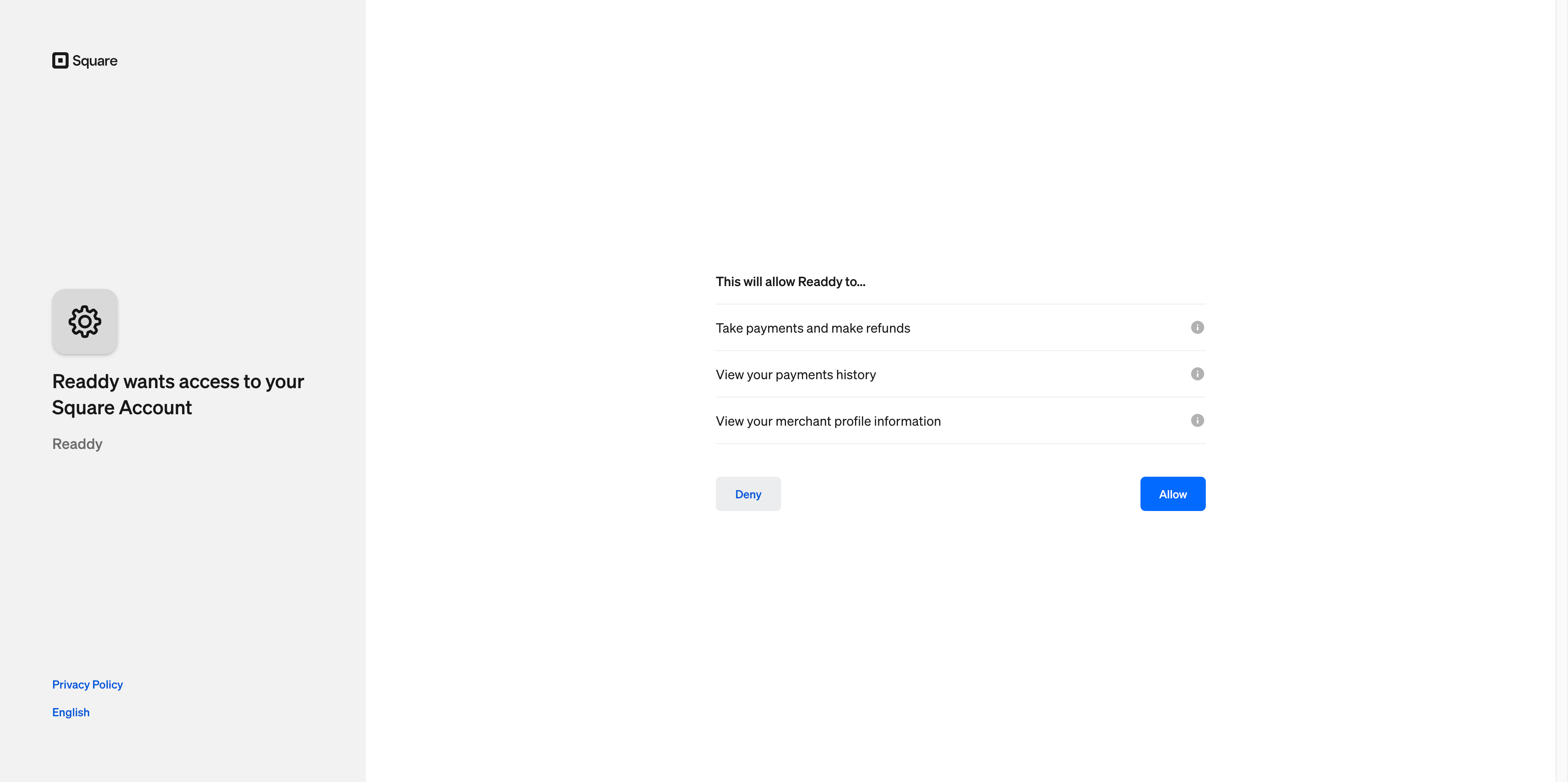 You never need to paste any API keys — authentication happens directly through Square's own login page, and the window closes automatically once you finish authorizing.
Back in Readdy, select the Square **Location** that should receive payments, then click **"Save location"**.
You never need to paste any API keys — authentication happens directly through Square's own login page, and the window closes automatically once you finish authorizing.
Back in Readdy, select the Square **Location** that should receive payments, then click **"Save location"**.
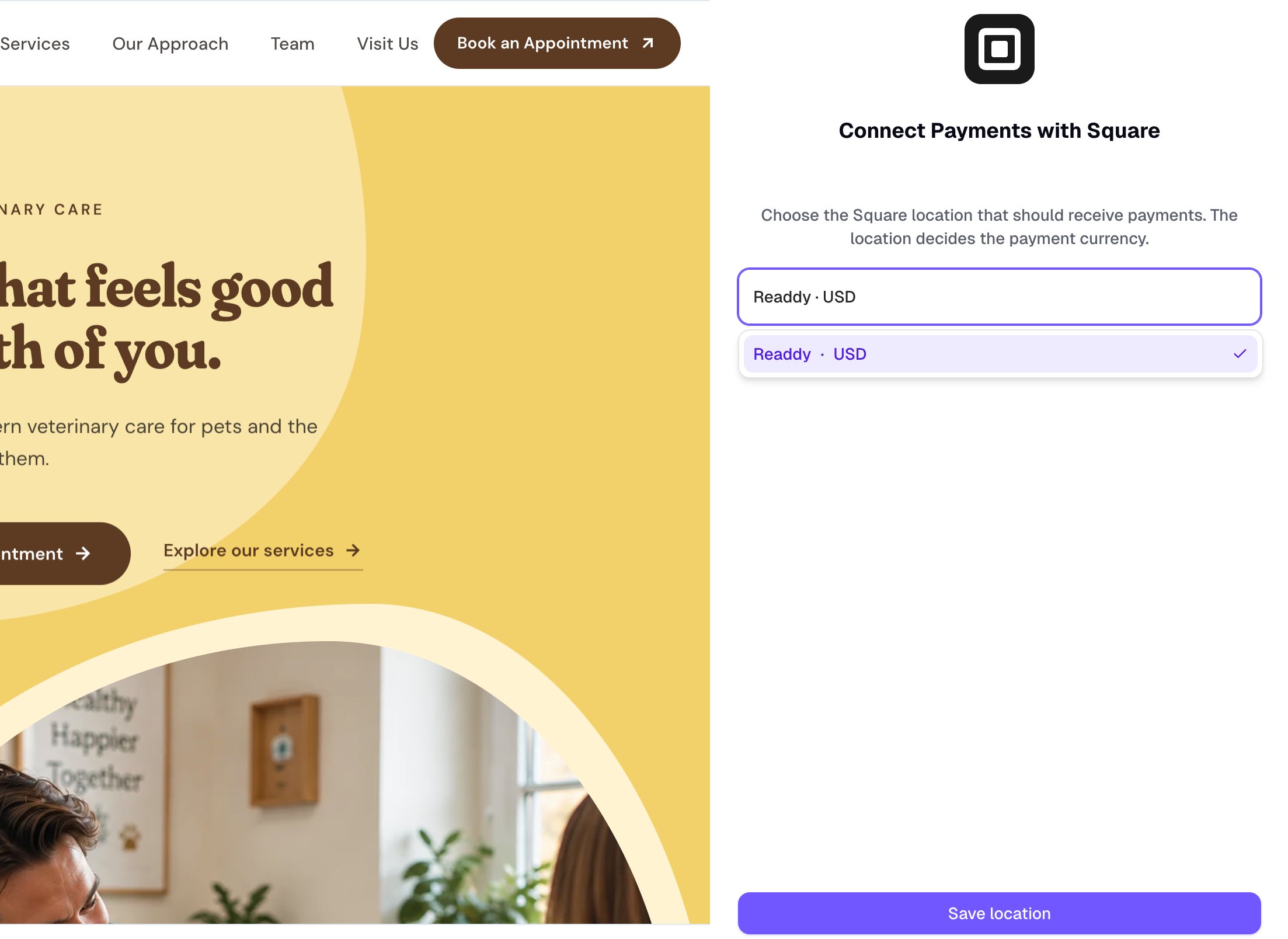 Locations that can't accept card payments don't appear in this list. If you only have one eligible location, Readdy selects it automatically.
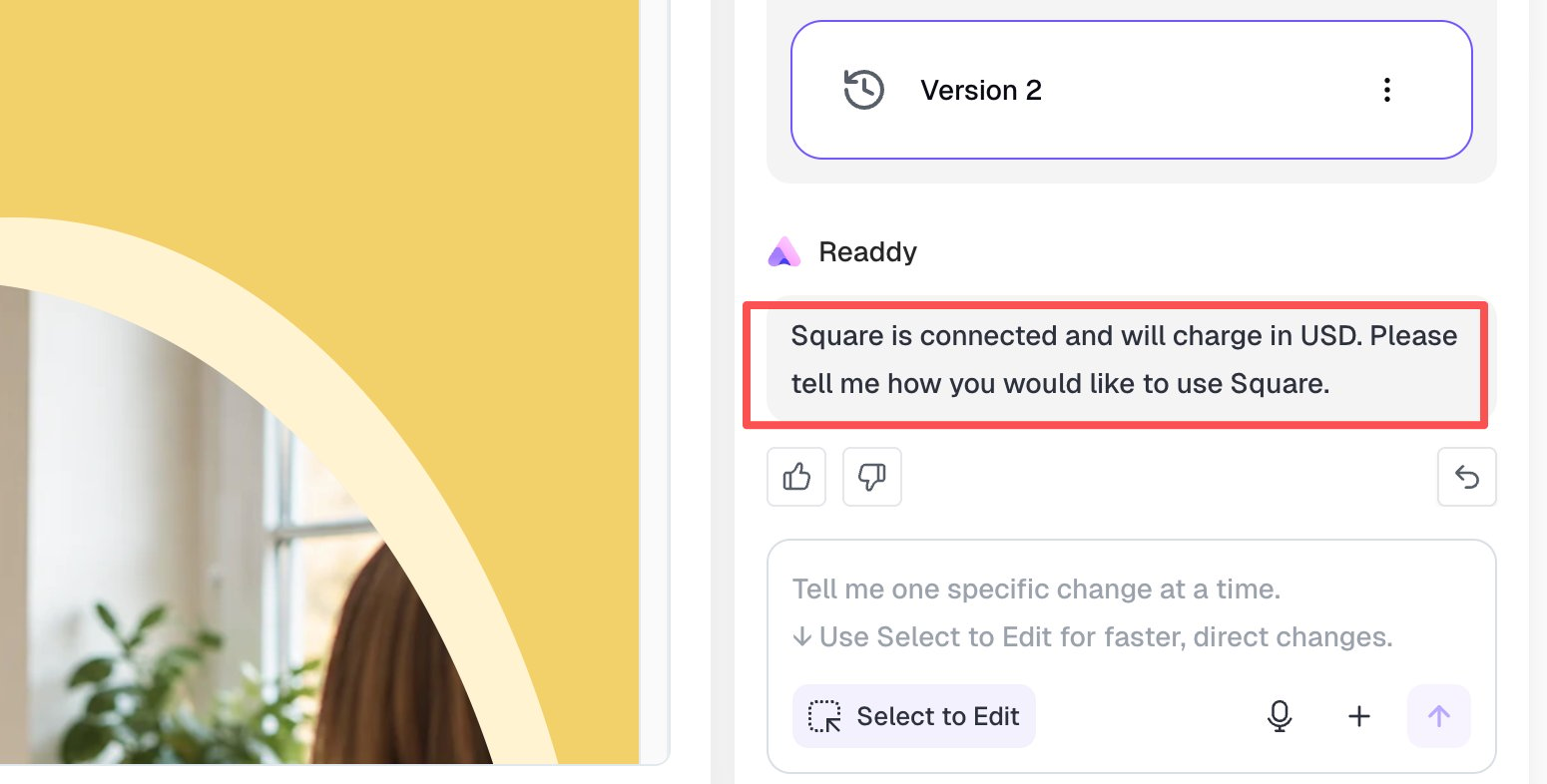
Ask Readdy AI to add a Square checkout to the products, cart, or checkout button on your website.
Locations that can't accept card payments don't appear in this list. If you only have one eligible location, Readdy selects it automatically.
Ask Readdy AI to add a Square checkout to the products, cart, or checkout button on your website.
 ## Managing Your Connection
Once connected, the panel shows a **"Connected"** label along with the linked **Location**, **Currency**, and **Environment**.
## Managing Your Connection
Once connected, the panel shows a **"Connected"** label along with the linked **Location**, **Currency**, and **Environment**.
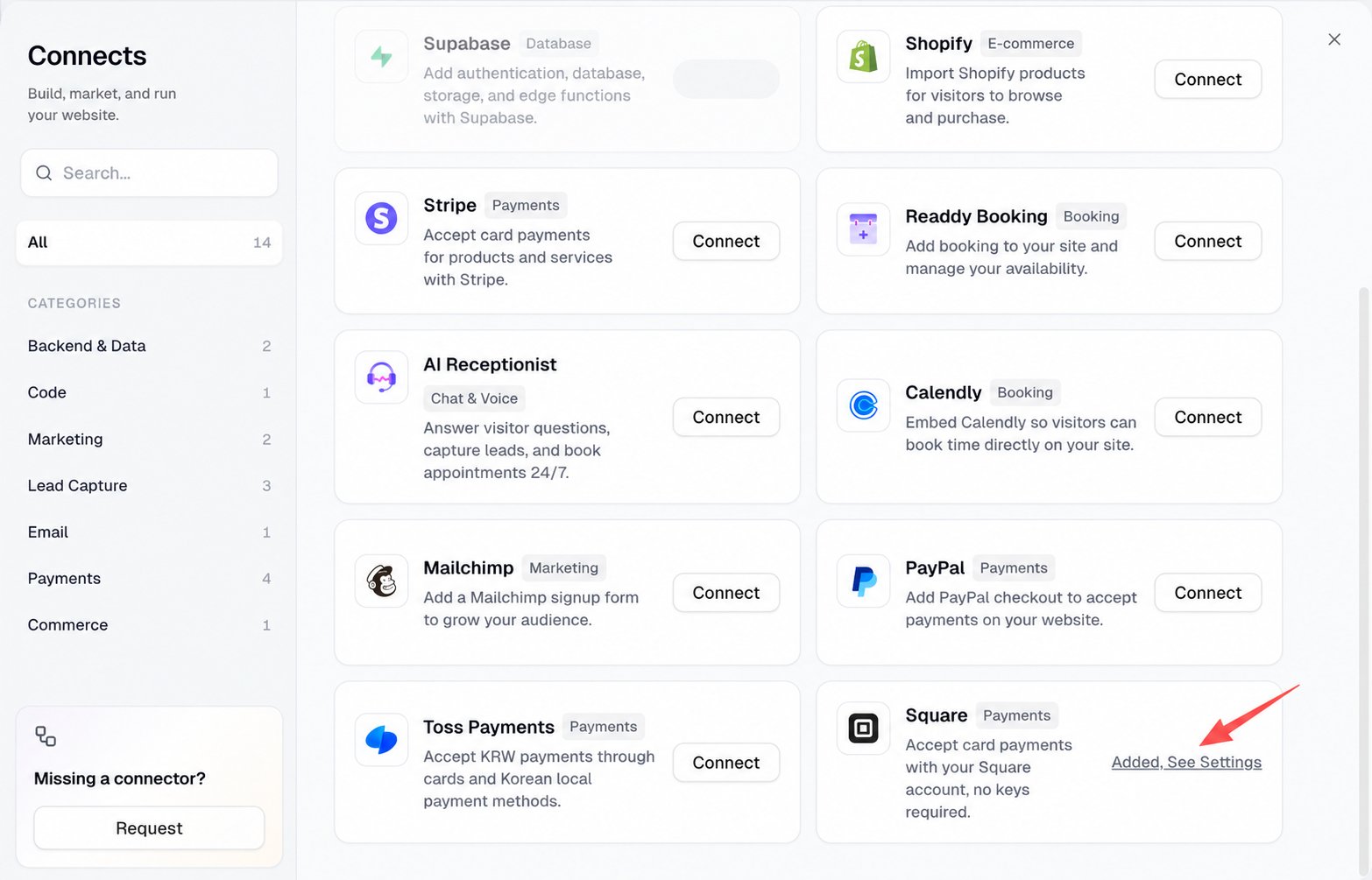 To receive payments through a different location or a different Square account, click **"Change location"**. This starts the authorization flow again — you'll log in to Square and choose a location just like the first time.
## Best Practices
* Tell Readdy AI which products, cart, or checkout button should use Square.
* Confirm the connected location has card payments enabled before you publish.
* Test the complete purchase flow through your website's share link or published URL before accepting live payments.
* If you change locations or accounts, regenerate and republish your website so it matches the newly connected location and currency.
Readdy provides the Square integration but does not participate in payment processing or hold your funds. You receive funds directly through your Square account. If Readdy and Square show different payment records, verify the payment in Square before fulfilling or refunding the order.
## Troubleshooting
**Symptom:** Clicking **"Connect with Square"** shows a "Connecting…" state, but no popup appears.
**Cause:** Your browser blocked the authorization popup.
**How to fix:**
1. Allow popups for readdy.ai in your browser settings.
2. Click **"Connect with Square"** again.
3. If a new tab opens instead of a popup, complete the authorization there — Readdy still detects the result once you return.
**Symptom:** After authorizing, you choose a Location and click **"Save location"**, but Readdy shows that the authorization has expired.
**Cause:** A pending Square authorization stays valid in Readdy for only 15 minutes. If you wait too long before selecting a location, it expires.
**How to fix:** Click **"Connect with Square"** to restart authorization, then choose a location right away.
**Symptom:** After authorizing, Readdy shows this message instead of a location list.
**Cause:** Card payments are disabled for every location on your Square account.
**How to fix:** Enable card payments for at least one location in your Square Dashboard, then click **"Connect with Square"** again.
**Symptom:** The panel shows "Your Square authorization has expired or was revoked."
**Cause:** Access was removed on the Square side — for example, you or a teammate removed Readdy from **Square Dashboard → Apps**, or the token was revoked for security reasons.
**How to fix:** Click **"Reconnect with Square"** in the panel and complete authorization again. Your previous location selection is kept if it's still valid.
## FAQ
No. Square uses OAuth authorization — you log in to Square directly and grant access. Readdy never asks you to copy or paste API keys or tokens.
Readdy only lists locations that can accept card payments. If a location is missing, enable card payments for it in your Square Dashboard, then reconnect.
The currency is determined by the Square location you connect. If you need a different currency, click **"Change location"** and choose a location that uses that currency.
Readdy uses the connected backend to keep your Square merchant tokens secure, create orders, and record payment results after checkout.
Yes. Open the Square panel and click **"Change location"**. This restarts the authorization flow, so you can log in to a different Square account and choose a new location.
## Need Help?
If this guide doesn't resolve your issue, [submit a support ticket](https://readdy.ai/feedback). We're here to help!
To receive payments through a different location or a different Square account, click **"Change location"**. This starts the authorization flow again — you'll log in to Square and choose a location just like the first time.
## Best Practices
* Tell Readdy AI which products, cart, or checkout button should use Square.
* Confirm the connected location has card payments enabled before you publish.
* Test the complete purchase flow through your website's share link or published URL before accepting live payments.
* If you change locations or accounts, regenerate and republish your website so it matches the newly connected location and currency.
Readdy provides the Square integration but does not participate in payment processing or hold your funds. You receive funds directly through your Square account. If Readdy and Square show different payment records, verify the payment in Square before fulfilling or refunding the order.
## Troubleshooting
**Symptom:** Clicking **"Connect with Square"** shows a "Connecting…" state, but no popup appears.
**Cause:** Your browser blocked the authorization popup.
**How to fix:**
1. Allow popups for readdy.ai in your browser settings.
2. Click **"Connect with Square"** again.
3. If a new tab opens instead of a popup, complete the authorization there — Readdy still detects the result once you return.
**Symptom:** After authorizing, you choose a Location and click **"Save location"**, but Readdy shows that the authorization has expired.
**Cause:** A pending Square authorization stays valid in Readdy for only 15 minutes. If you wait too long before selecting a location, it expires.
**How to fix:** Click **"Connect with Square"** to restart authorization, then choose a location right away.
**Symptom:** After authorizing, Readdy shows this message instead of a location list.
**Cause:** Card payments are disabled for every location on your Square account.
**How to fix:** Enable card payments for at least one location in your Square Dashboard, then click **"Connect with Square"** again.
**Symptom:** The panel shows "Your Square authorization has expired or was revoked."
**Cause:** Access was removed on the Square side — for example, you or a teammate removed Readdy from **Square Dashboard → Apps**, or the token was revoked for security reasons.
**How to fix:** Click **"Reconnect with Square"** in the panel and complete authorization again. Your previous location selection is kept if it's still valid.
## FAQ
No. Square uses OAuth authorization — you log in to Square directly and grant access. Readdy never asks you to copy or paste API keys or tokens.
Readdy only lists locations that can accept card payments. If a location is missing, enable card payments for it in your Square Dashboard, then reconnect.
The currency is determined by the Square location you connect. If you need a different currency, click **"Change location"** and choose a location that uses that currency.
Readdy uses the connected backend to keep your Square merchant tokens secure, create orders, and record payment results after checkout.
Yes. Open the Square panel and click **"Change location"**. This restarts the authorization flow, so you can log in to a different Square account and choose a new location.
## Need Help?
If this guide doesn't resolve your issue, [submit a support ticket](https://readdy.ai/feedback). We're here to help!