> ## Documentation Index
> Fetch the complete documentation index at: https://docs.readdy.ai/llms.txt
> Use this file to discover all available pages before exploring further.
# Integrate with Google Analytics
> Set up Google Analytics tracking on your Readdy website to monitor visitor behavior, traffic sources, and performance metrics
## If you're new to Google Analytics (GA)
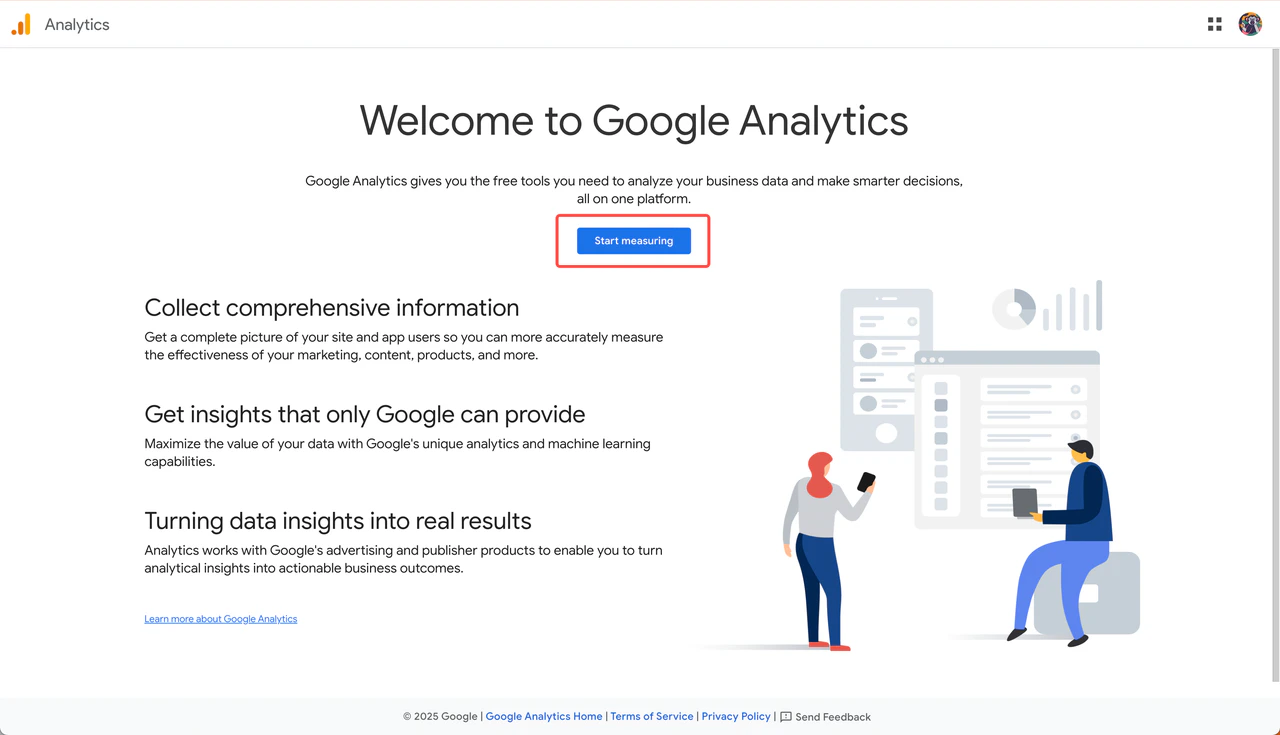
Go to the [Google Analytics platform](https://analytics.google.com) and click **"Start measuring"** to begin setup.
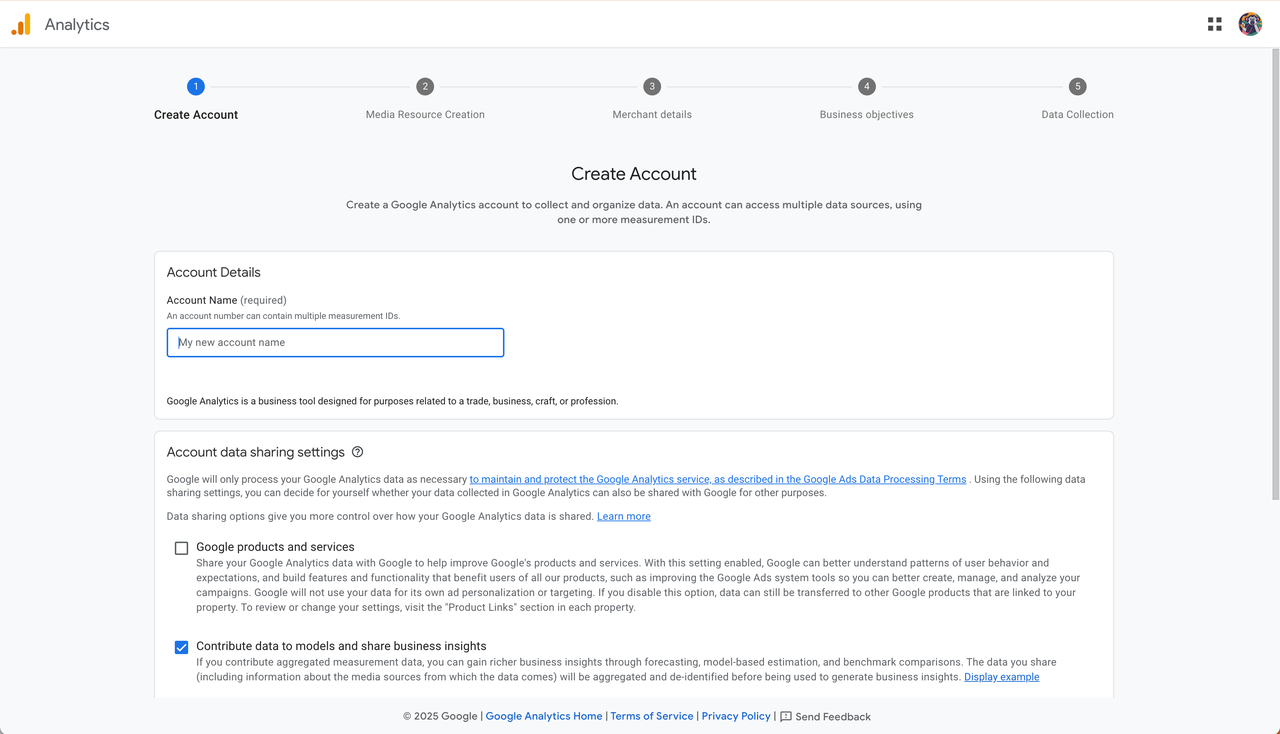
 Follow the setup steps to configure your GA account.
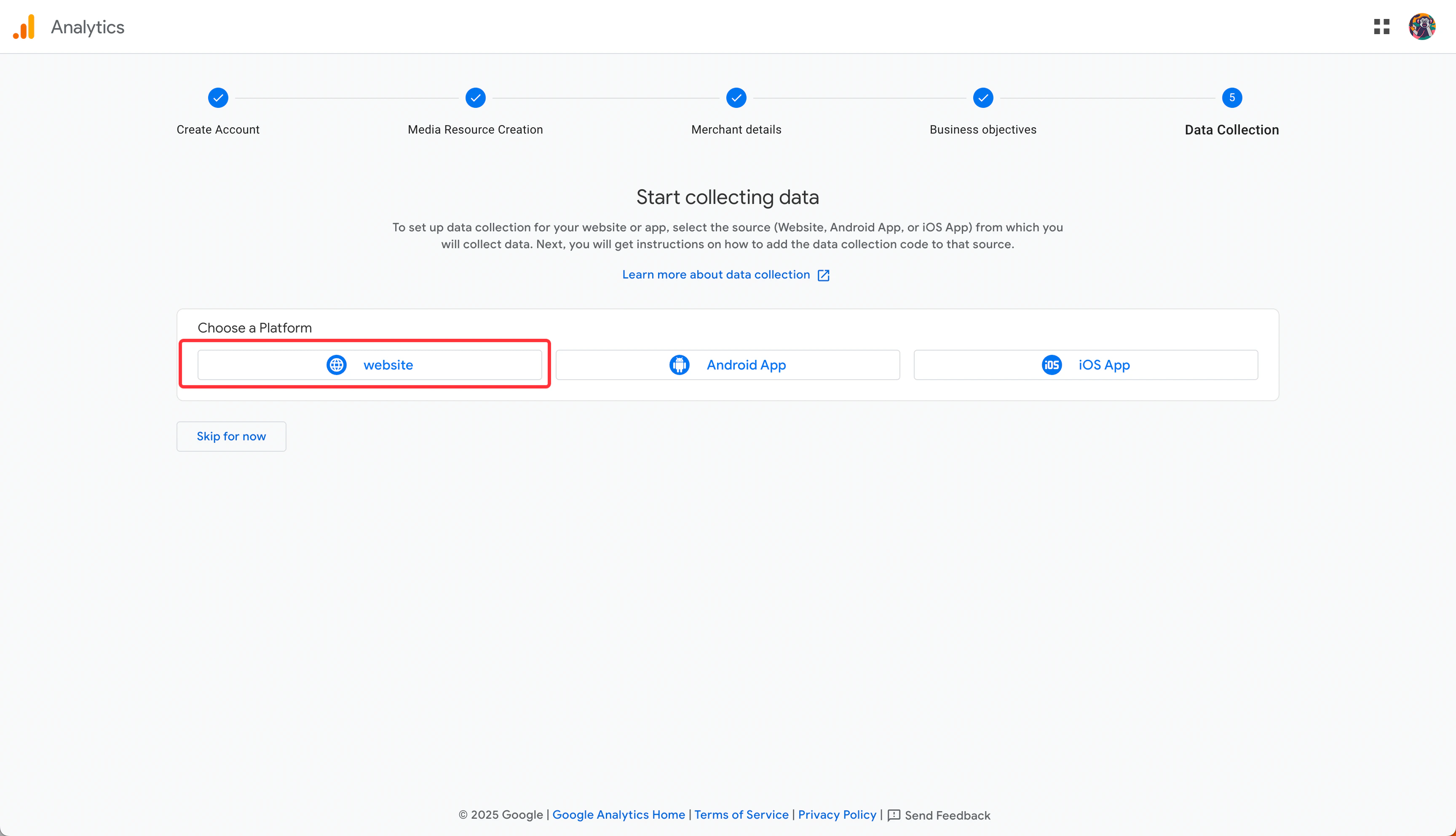
 When you reach "Data Collection", select **"Web"** as your platform type.
Note: Readdy currently only supports website projects.
When you reach "Data Collection", select **"Web"** as your platform type.
Note: Readdy currently only supports website projects.
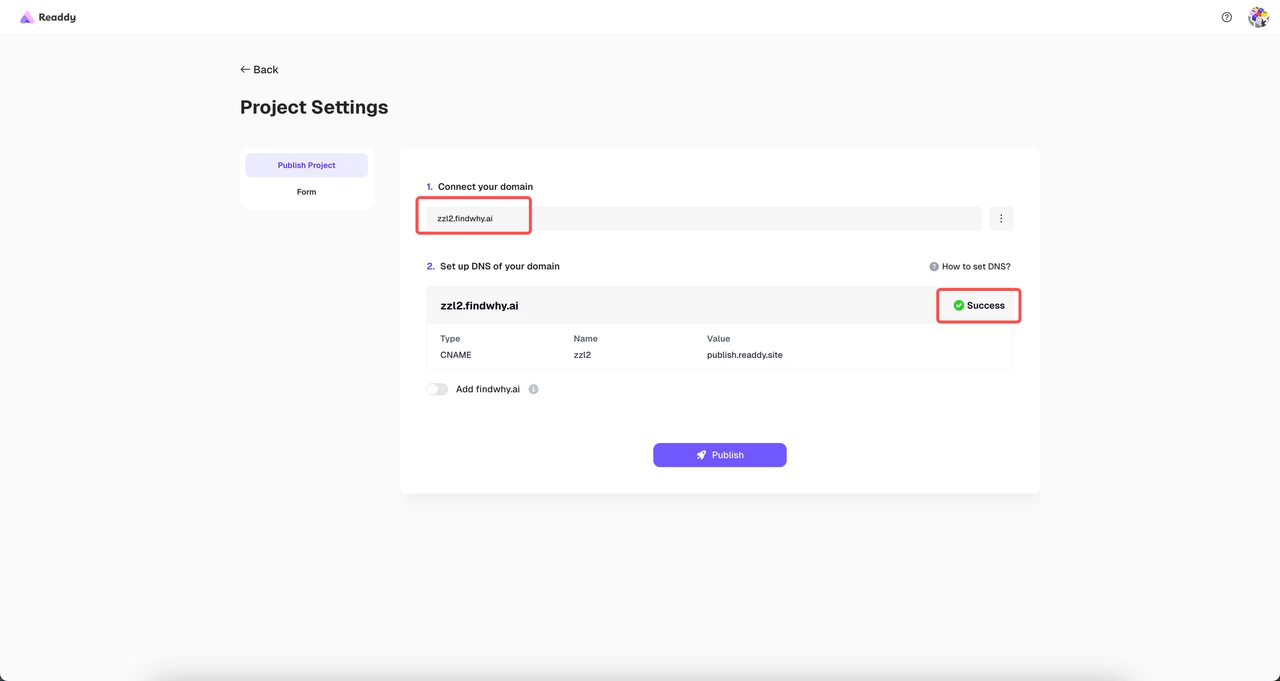
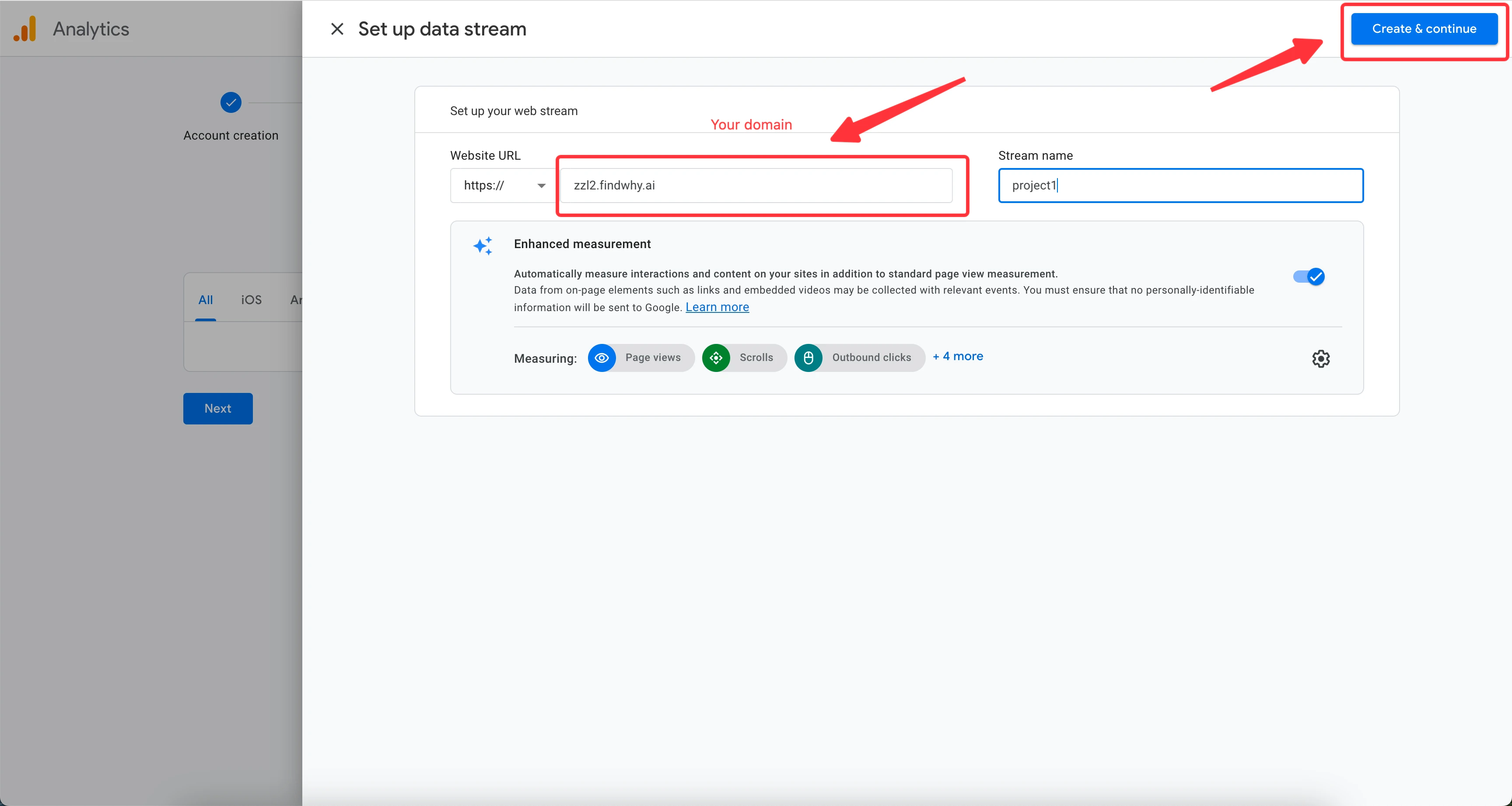
 Enter your **published domain** and give your Data Stream a name. Then click **"Create and Continue"**.
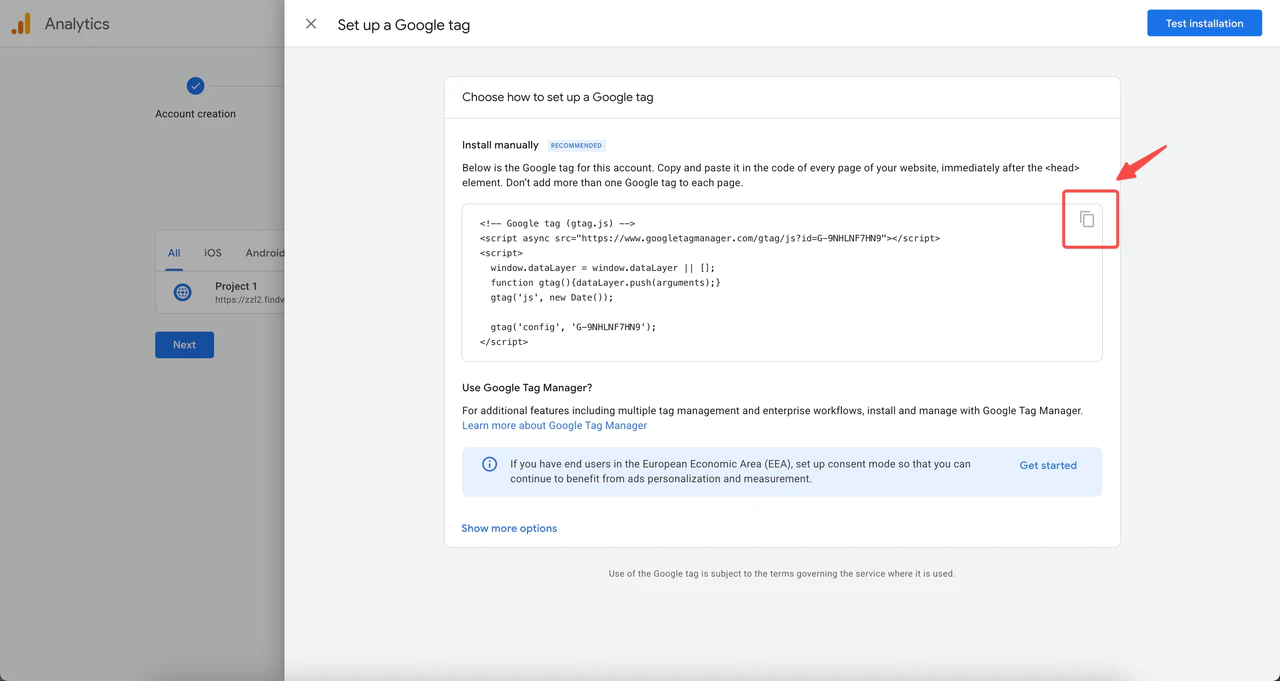
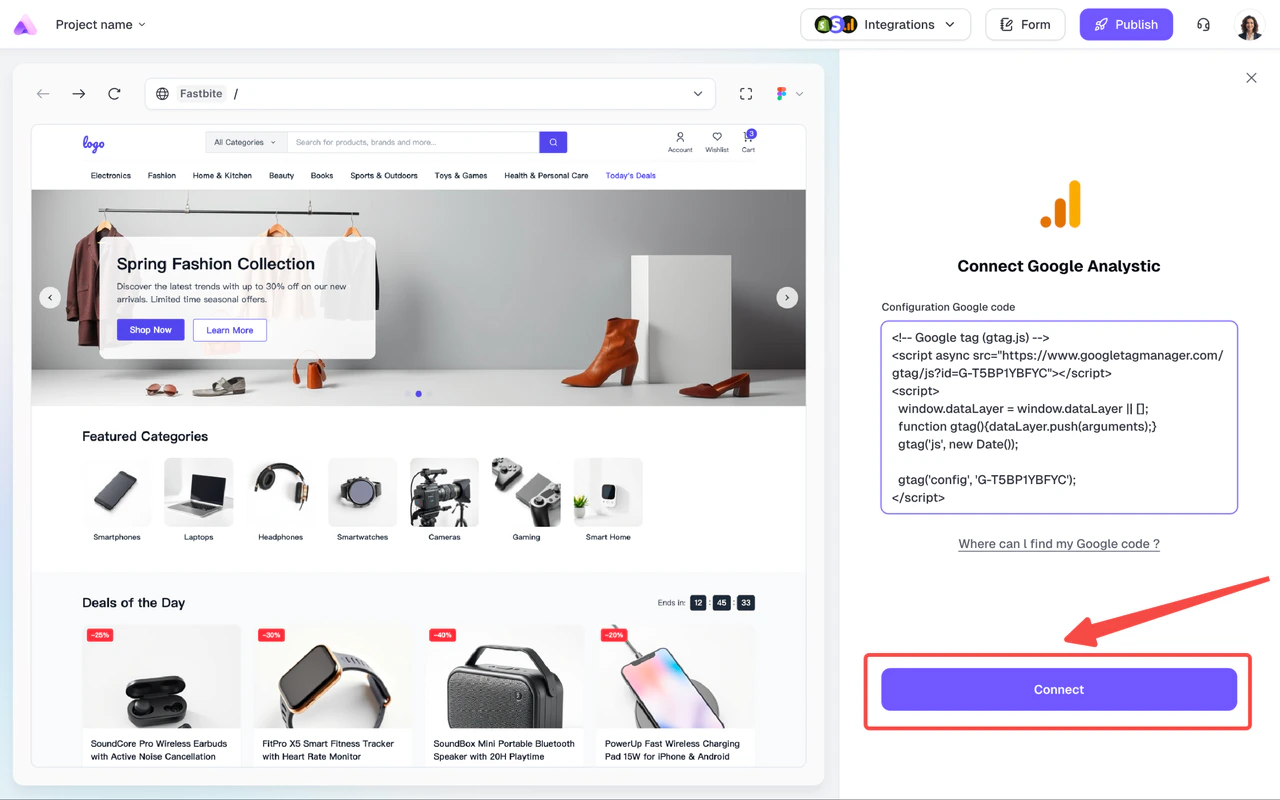
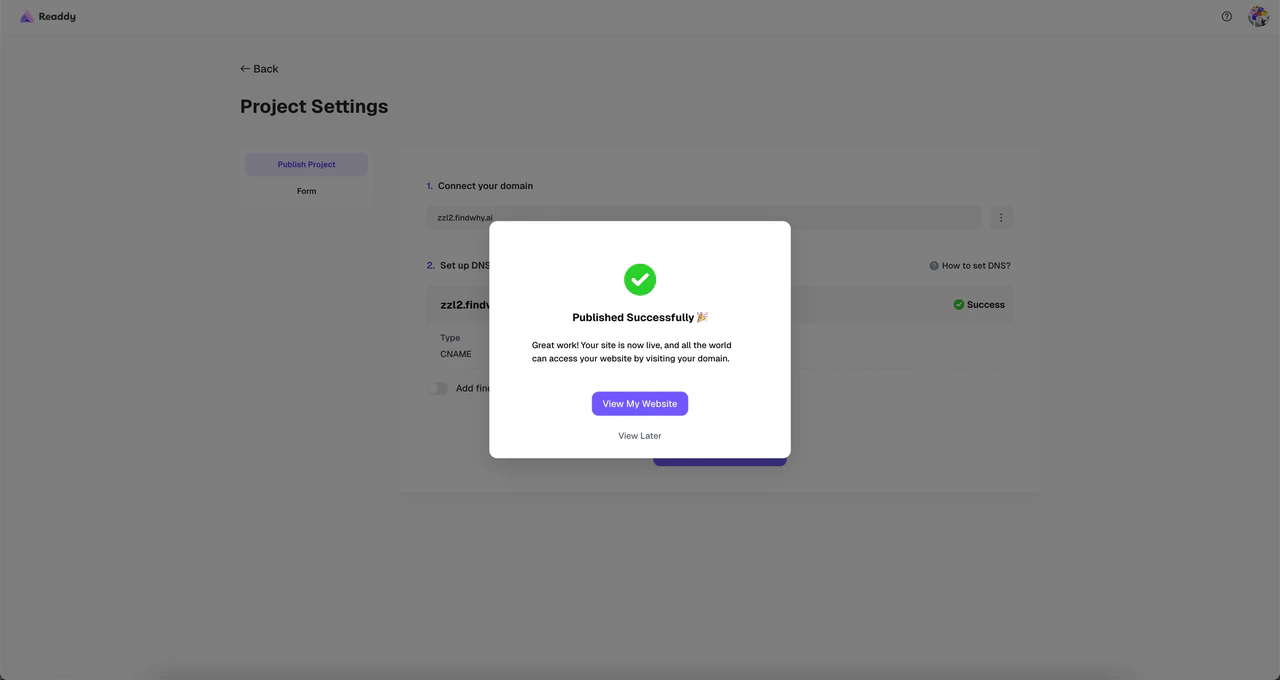
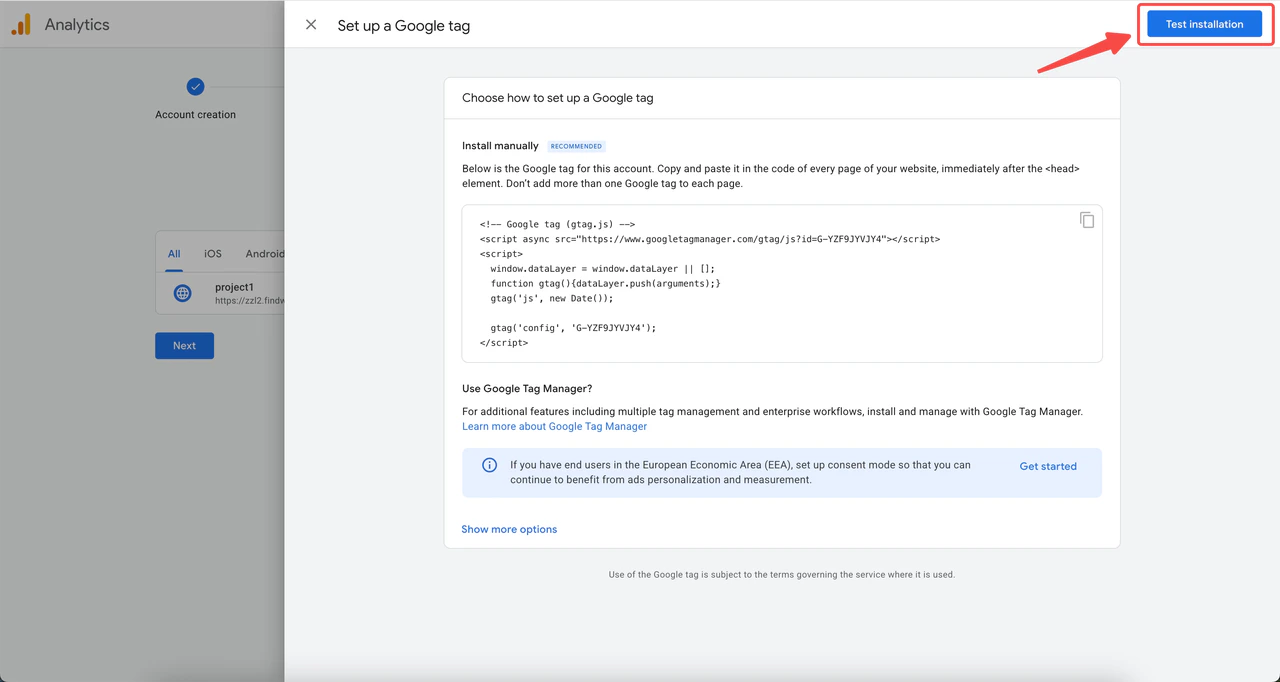
 A popup will appear with your Google tag. Copy the code and paste it into the input field in Readdy. Click **"Connect"** to generate a new version. Don't forget to re-publish your domain afterwards.
 Back in GA, click **"Test installation"** to check if the connection is working.
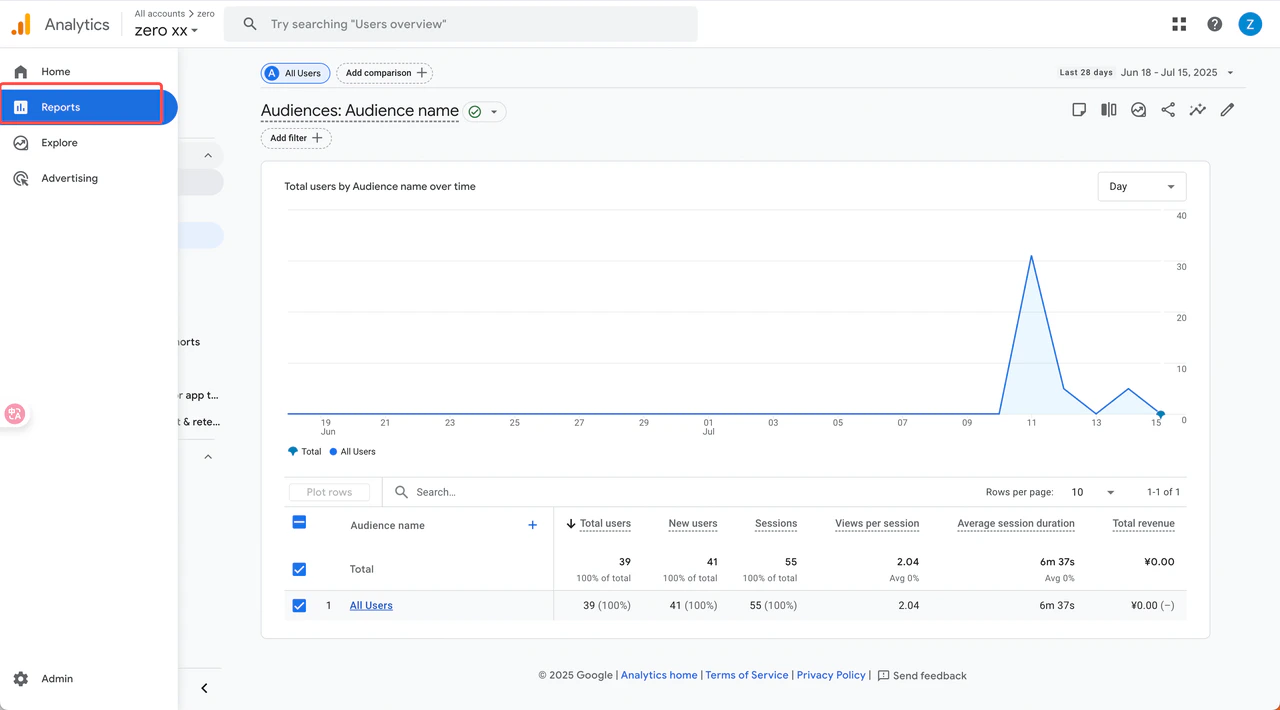
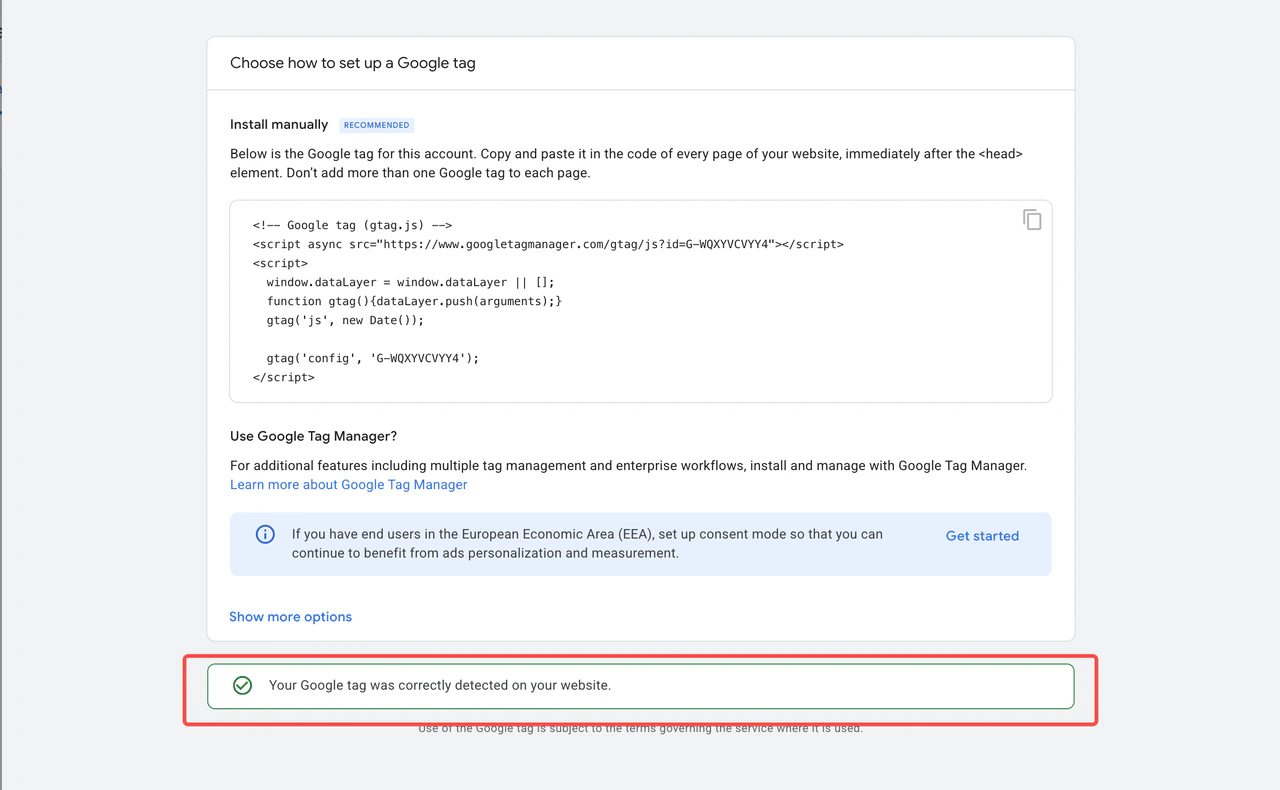 Once connected, GA will start collecting user data from your site. You can view reports under the **"Reports"** tab later.
 ## If you already have a Data Stream in GA
Log into GA, go to your property's **Admin panel**.
## If you already have a Data Stream in GA
Log into GA, go to your property's **Admin panel**.
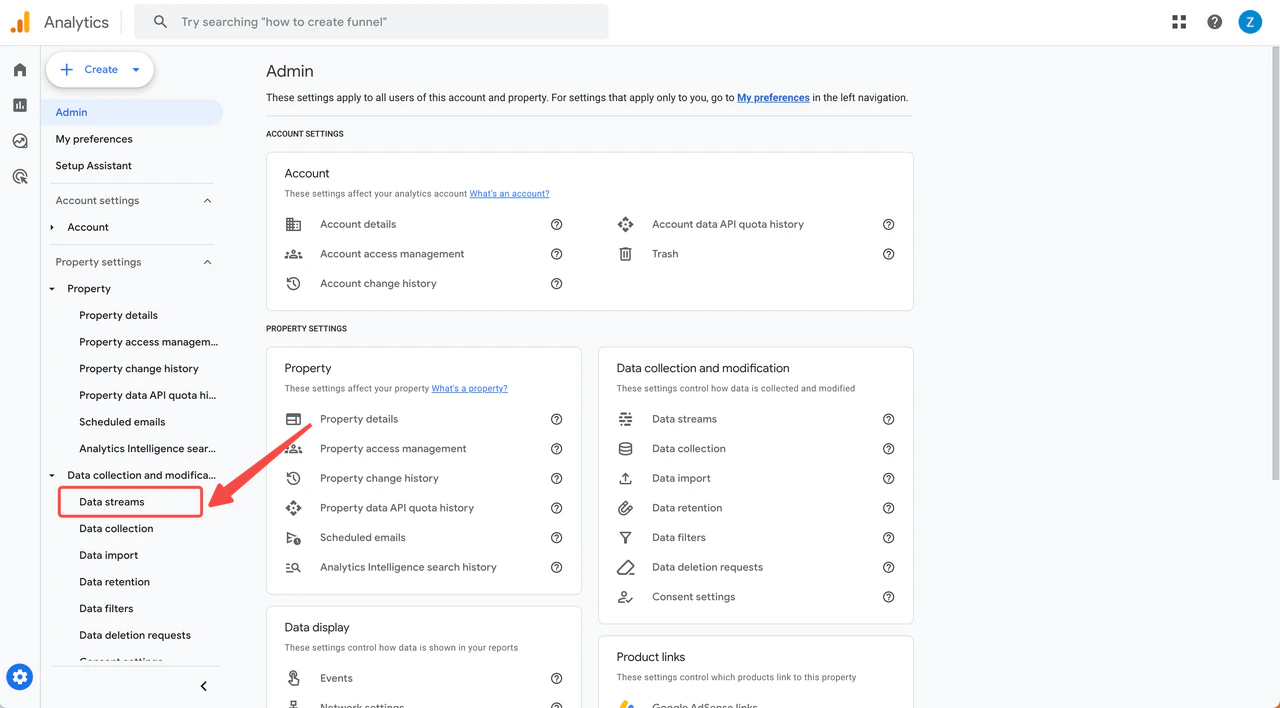
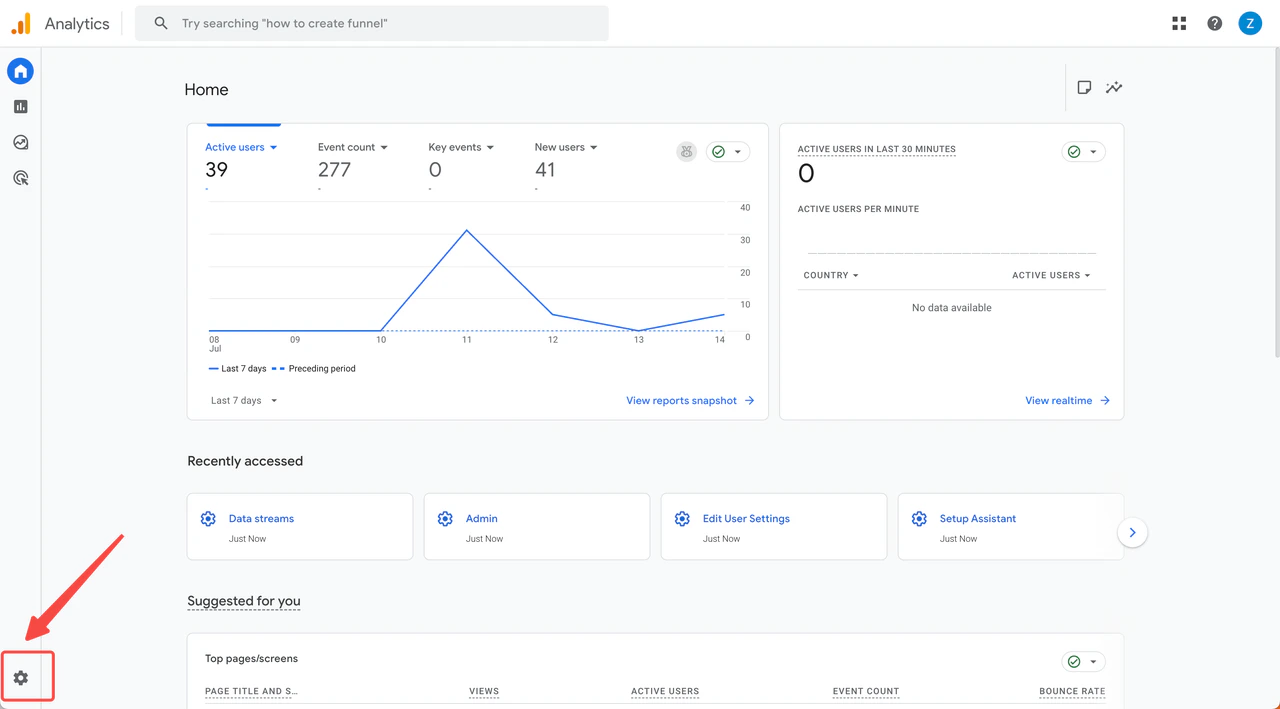 Under **Property Settings** > **Data collection and modification**, select **"Data Streams"**.
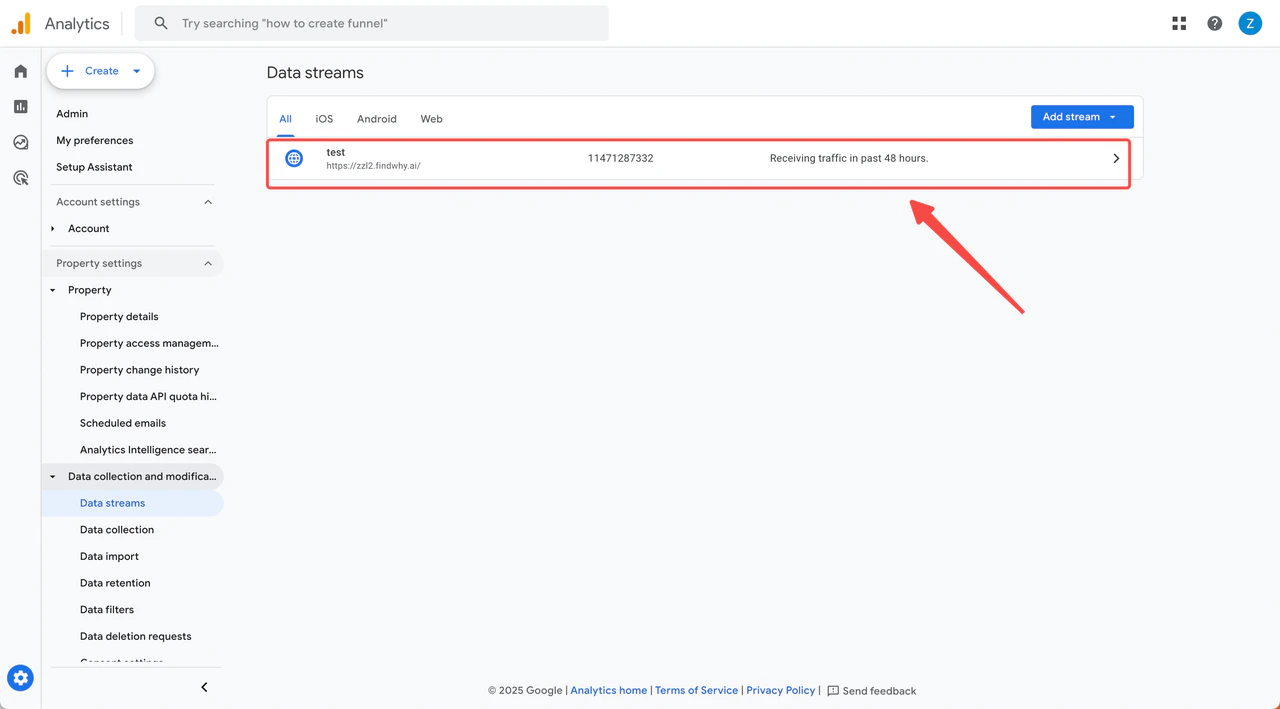
 **If you already have a Web Data Stream**, select it.
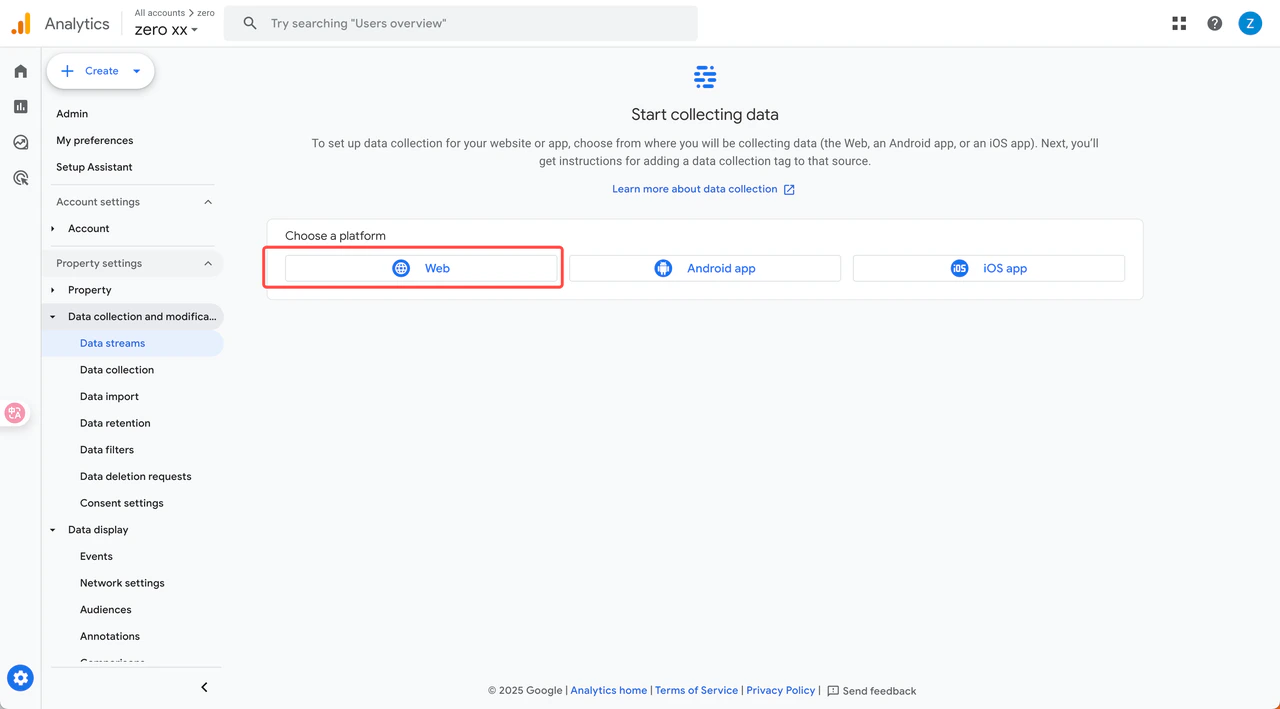
 **If no existing Data Stream is available**, click **"Web"** to create one. Follow the steps from Step 4 to Step 6 in the "New to GA" section.
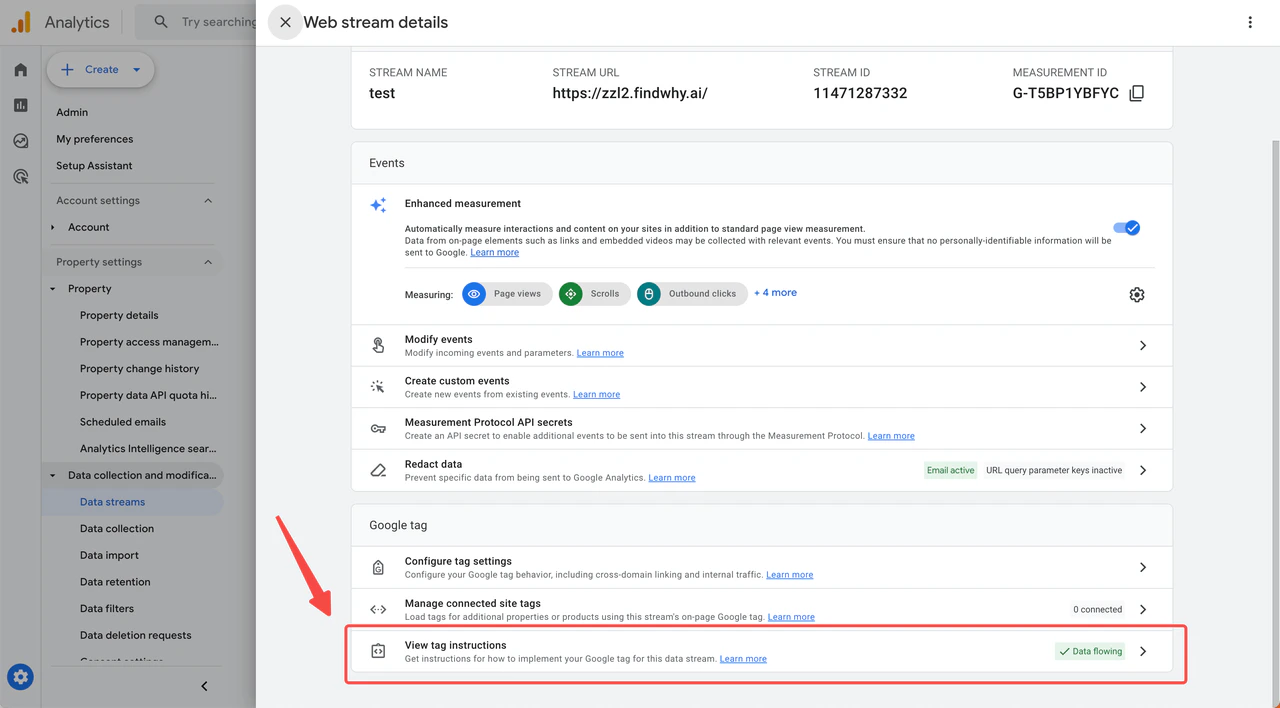
 In the Google tag section, click **"View tag instructions"**.
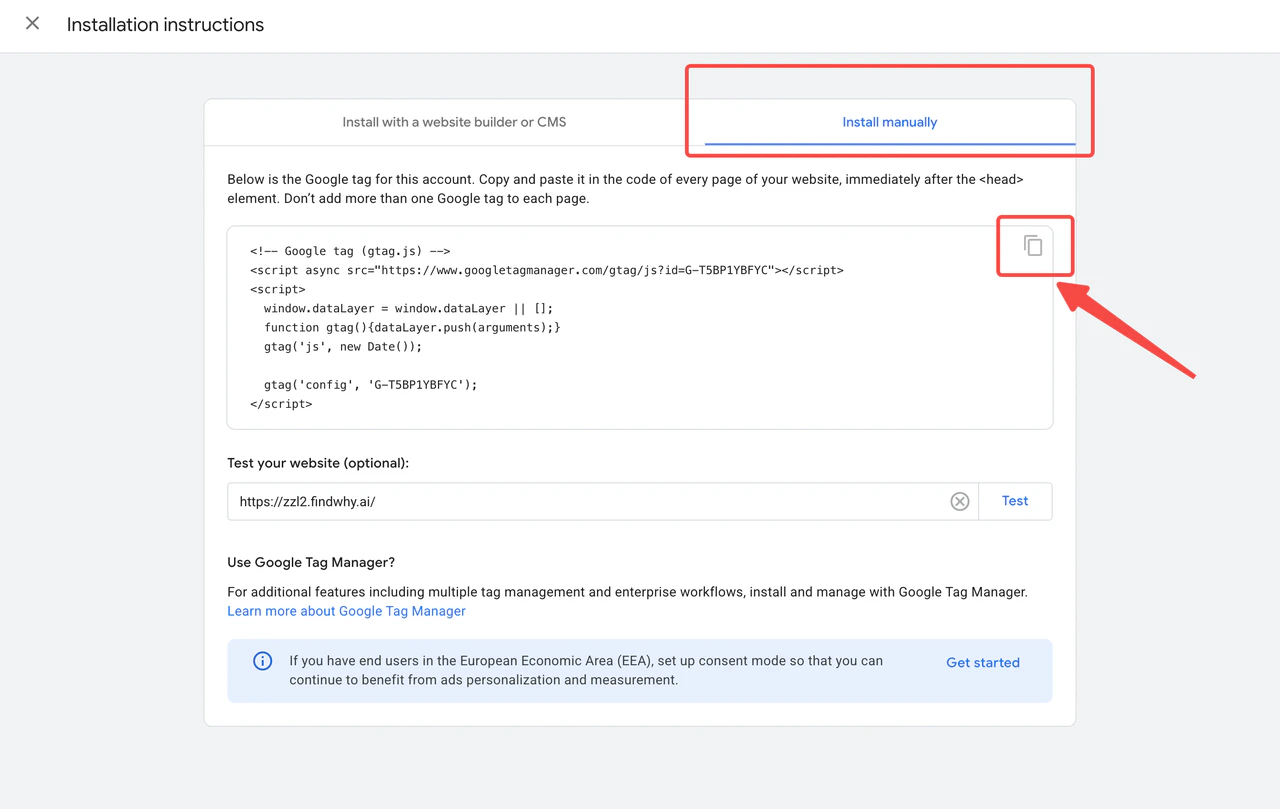
 Switch to the **"Install manually"** tab and copy the Google code.
 Go back to Readdy, paste the code into the input field, and click **"Connect"**. A new version connected to GA will be created.
Remember to re-publish your site so GA can start tracking your user data.
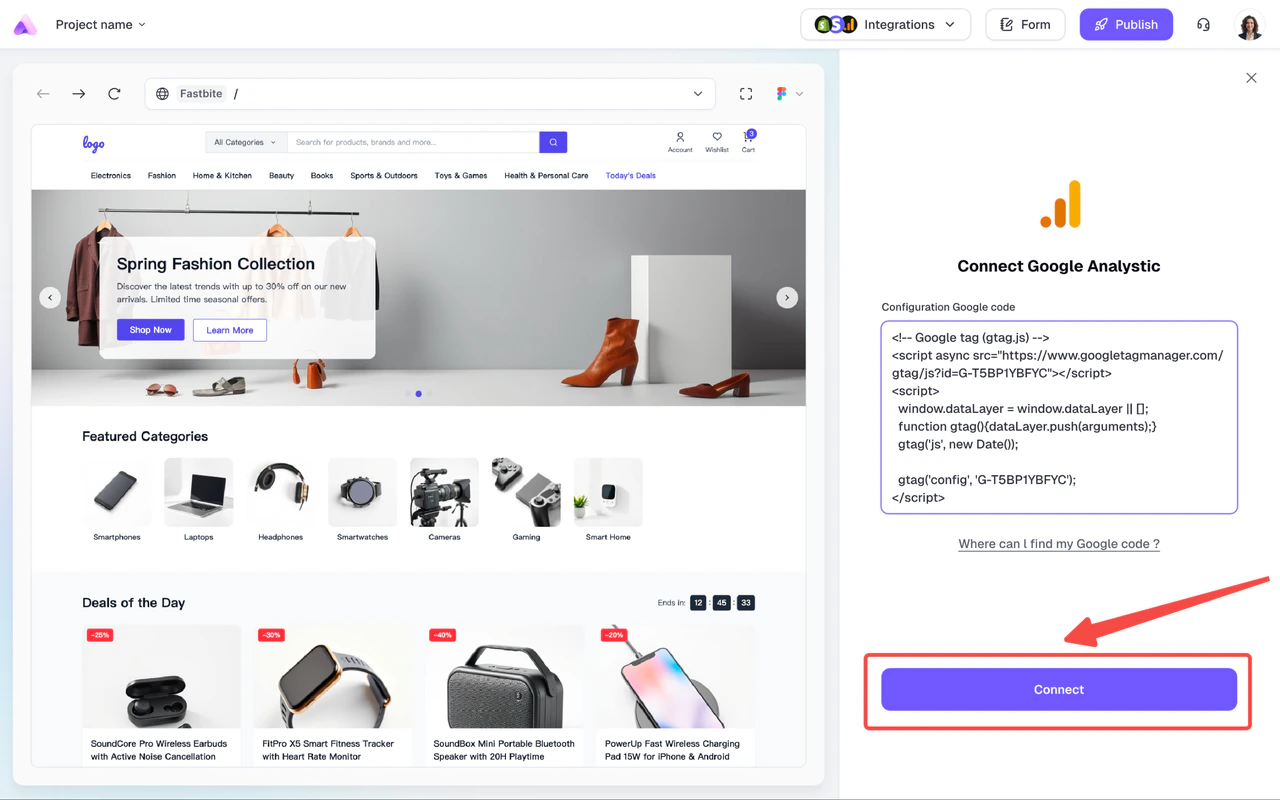
Go back to Readdy, paste the code into the input field, and click **"Connect"**. A new version connected to GA will be created.
Remember to re-publish your site so GA can start tracking your user data.
 ## After Integration
### Viewing Your Analytics Data
Once connected, Google Analytics will start collecting user data from your site. You can view comprehensive reports under the **"Reports"** tab in your GA dashboard.
### What You Can Track
* **Real-time visitors**: See who's on your site right now
* **Page views**: Most and least popular pages
* **User demographics**: Age, location, and interests
* **Traffic sources**: Search engines, social media, direct visits
* **User behavior**: How visitors navigate through your site
## Troubleshooting
**Common solutions:**
1. **Check if you republished**: Analytics won't work until you republish your site after connecting
2. **Verify the code**: Make sure you copied the complete Google tag code
3. **Wait for data**: It can take 24-48 hours for data to appear in GA
4. **Test installation**: Use the "Test installation" feature in Google Analytics
5. **Check domain**: Ensure your domain is correctly published and accessible
If issues persist, contact our support team for assistance.
If you have multiple websites, you can:
1. **Create separate data streams** for each domain in the same GA property
2. **Use different GA properties** for completely separate tracking
3. **Set up cross-domain tracking** if the sites are related
Choose the approach that best fits your analytics needs.
## After Integration
### Viewing Your Analytics Data
Once connected, Google Analytics will start collecting user data from your site. You can view comprehensive reports under the **"Reports"** tab in your GA dashboard.
### What You Can Track
* **Real-time visitors**: See who's on your site right now
* **Page views**: Most and least popular pages
* **User demographics**: Age, location, and interests
* **Traffic sources**: Search engines, social media, direct visits
* **User behavior**: How visitors navigate through your site
## Troubleshooting
**Common solutions:**
1. **Check if you republished**: Analytics won't work until you republish your site after connecting
2. **Verify the code**: Make sure you copied the complete Google tag code
3. **Wait for data**: It can take 24-48 hours for data to appear in GA
4. **Test installation**: Use the "Test installation" feature in Google Analytics
5. **Check domain**: Ensure your domain is correctly published and accessible
If issues persist, contact our support team for assistance.
If you have multiple websites, you can:
1. **Create separate data streams** for each domain in the same GA property
2. **Use different GA properties** for completely separate tracking
3. **Set up cross-domain tracking** if the sites are related
Choose the approach that best fits your analytics needs.