> ## Documentation Index
> Fetch the complete documentation index at: https://docs.readdy.ai/llms.txt
> Use this file to discover all available pages before exploring further.
# Shop
> Build your e-commerce business from scratch with Shop
## What is "Shop"?
Shop is a newly launched e-commerce solution by Readdy that allows you to quickly build a fully functional online store without any technical expertise. From product management to payment processing, from order tracking to inventory management, Shop provides all the tools you need to build your e-commerce business.
**With Shop, you can:**
* Add and upload product information directly in the admin panel—no longer need to rely on AI-driven frontend updates, safer and more efficient
* Batch import product data via Shopify CSV files for easy bulk operations
* Easily manage product status and inventory with one-click publish/unpublish
* Add custom product attributes with high flexibility
* View real-time order data with centralized management, no need to switch between platforms
Let's complete your first e-commerce website setup through four simple steps.
***
## Step 1: Create Your Shop Webpages
Based on your business needs, use Readdy AI in the Editor page to build the basic website pages. A complete e-commerce website typically includes:
* **Homepage** - Showcase your brand, featured products, marketing campaigns, etc.
* **Product List Page** - Display a complete list of all available products
* **Product Detail Page** - Display detailed information for individual products
* **Shopping Cart Page** - Users add and manage items to purchase
* **Checkout Page** - Enter customer information, shipping address, etc. before placing order
* **Payment Success Page** - Callback page after successful order placement
* **Login/Register Page** - Unless your site supports guest checkout, you'll need an account login feature
* **Orders Page** - Display all order records for logged-in users
**Tips for Generating Pages**
* Use **concise and clear** language to describe the page layout and features you want to AI, for example: "Create a product list page that displays all products with features including: search, pagination, sort by price, and add to cart button for each product"
* Describe only **one** page requirement at a time, don't ask AI to generate multiple pages at once—staying focused is the foundation of successful task completion
***
## Step 2: Upload and Manage Your Products
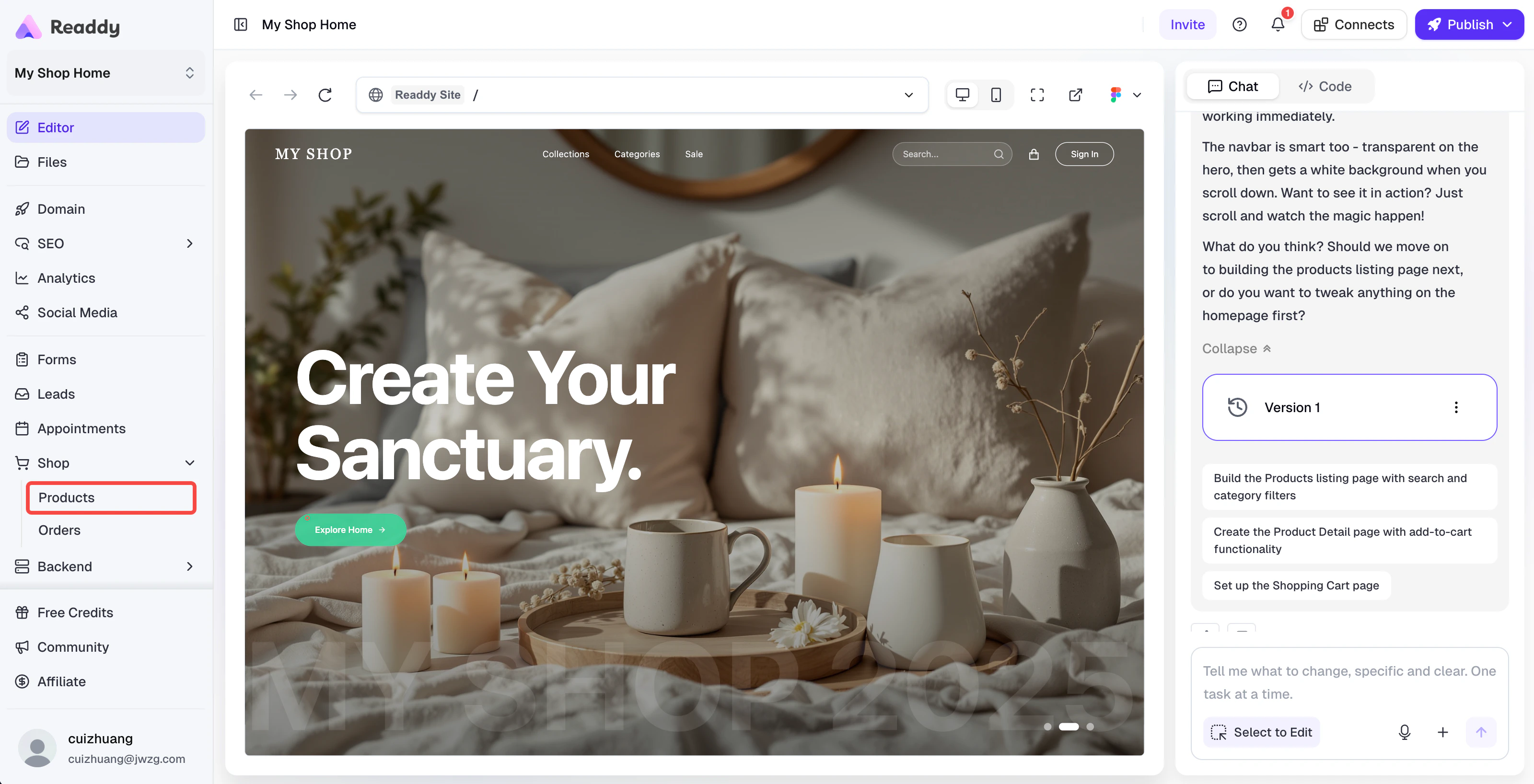
After completing the main website pages, go to **Shop → Products** page where you can add and manage products to sell on your website.
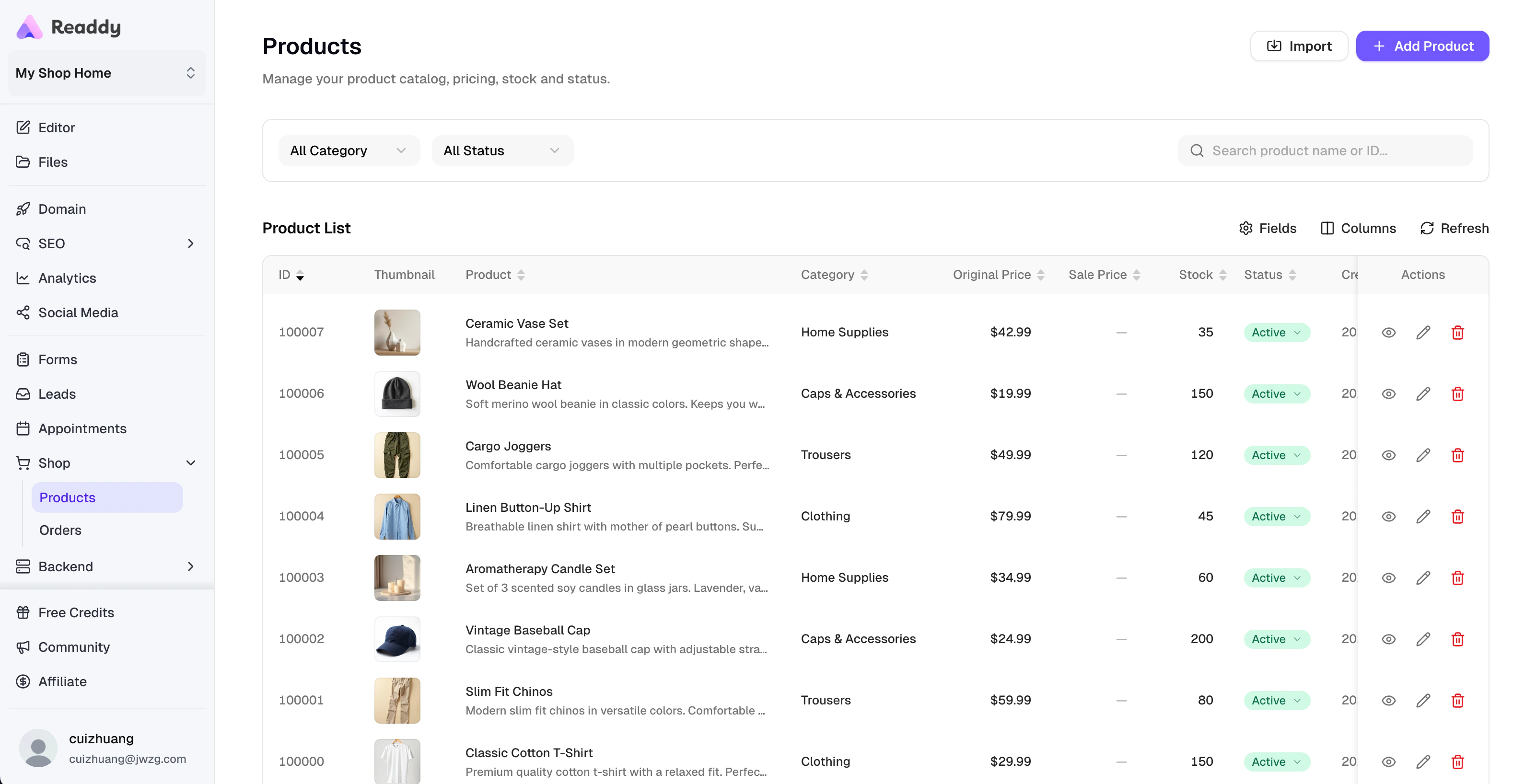 ### Adding Products
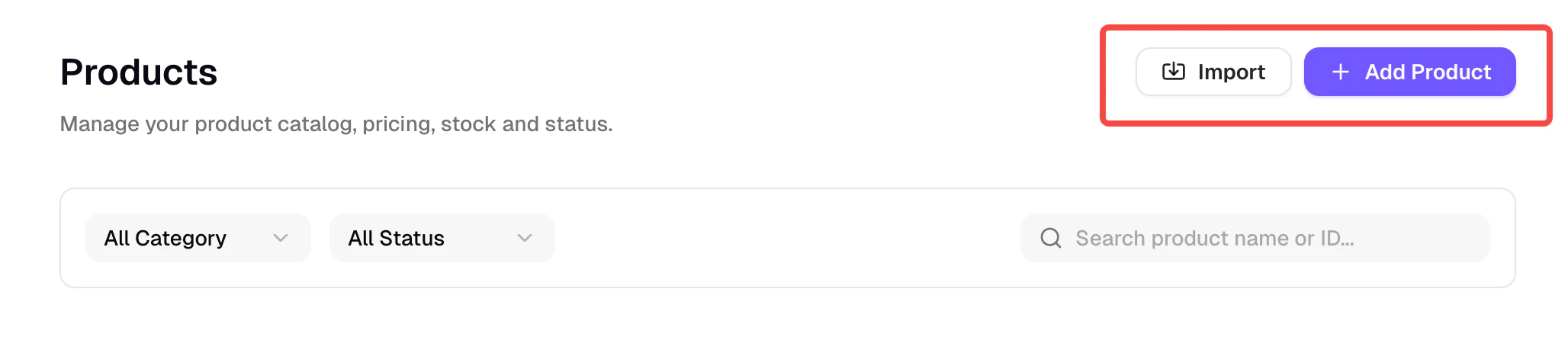
You can add products in the following ways:
* **Add Product** - Manually fill in product information one by one
* **Import** - Batch import product data, supports Shopify CSV files
### Adding Products
You can add products in the following ways:
* **Add Product** - Manually fill in product information one by one
* **Import** - Batch import product data, supports Shopify CSV files
 After adding products, go to the Editor page and tell AI you've added new products so AI can dynamically display all products from the database on the website. Theoretically, this operation only needs to be done once, and subsequent product updates will be read dynamically.
### 💡 Product Management Tips
These tips can help you better manage your products:
If your product has multiple specifications (such as size, color, material, etc.), you can use the **product variants** feature.
After adding products, go to the Editor page and tell AI you've added new products so AI can dynamically display all products from the database on the website. Theoretically, this operation only needs to be done once, and subsequent product updates will be read dynamically.
### 💡 Product Management Tips
These tips can help you better manage your products:
If your product has multiple specifications (such as size, color, material, etc.), you can use the **product variants** feature.
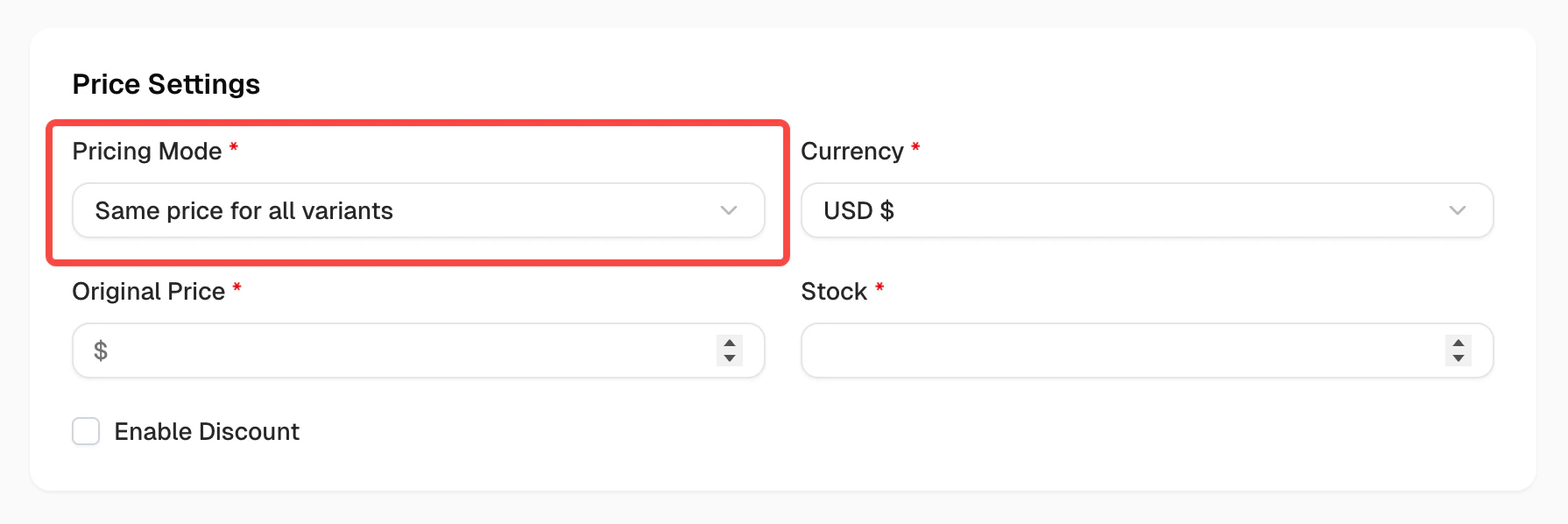
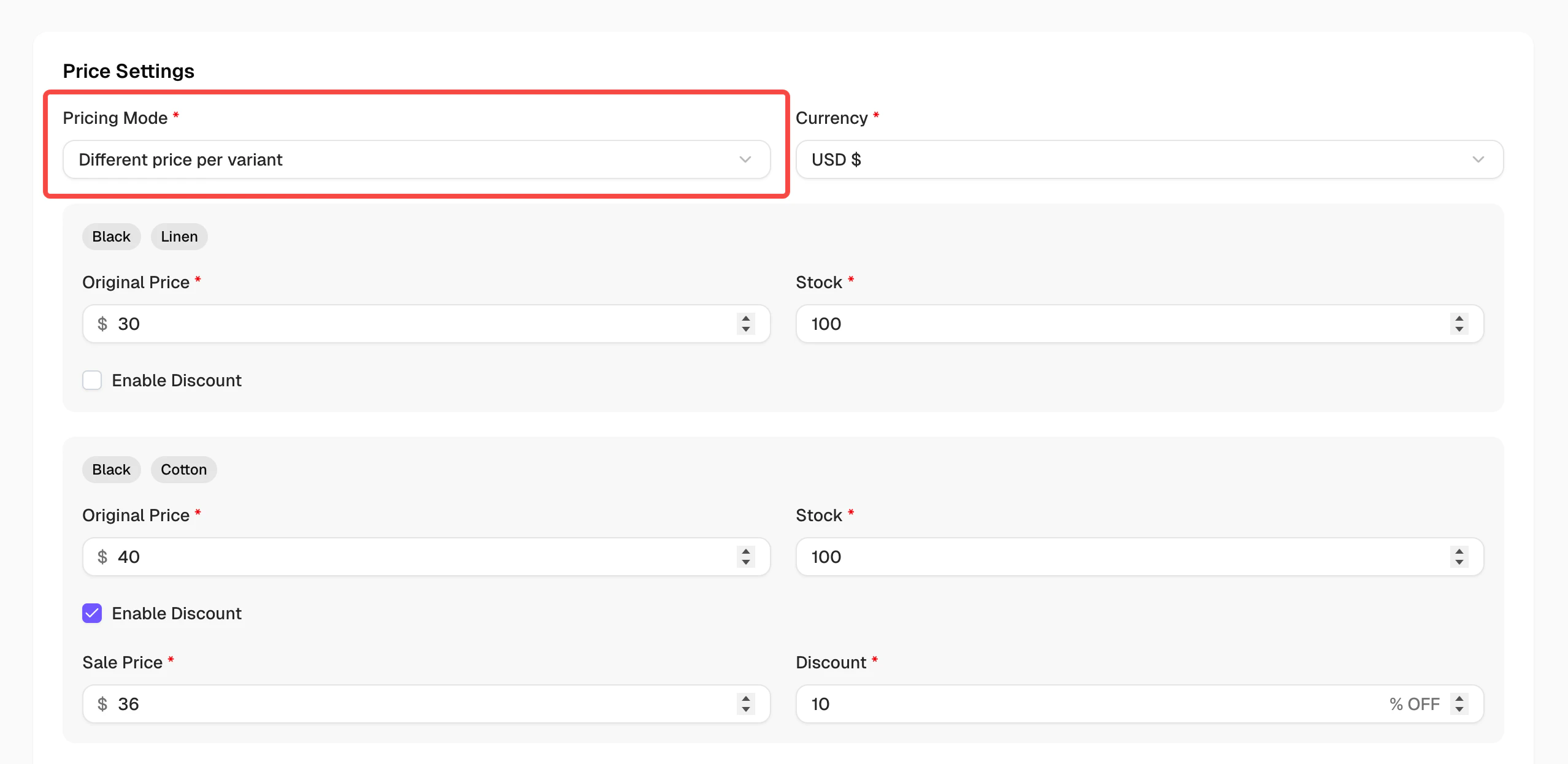
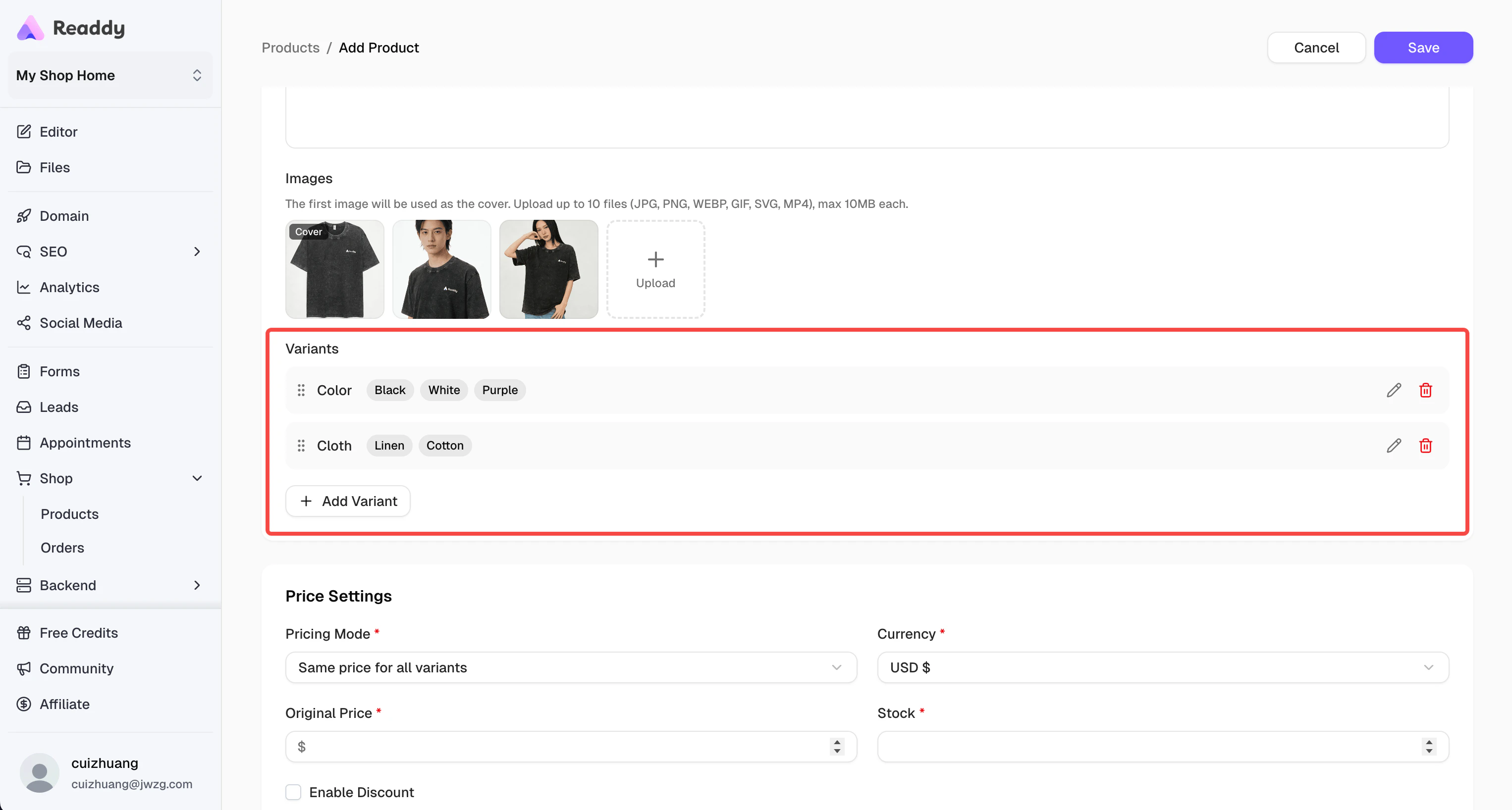 After creating multiple product variants, you can set the **Pricing Mode** to decide whether all variants share the same price and inventory configuration, or set independent prices and inventory for each variant.
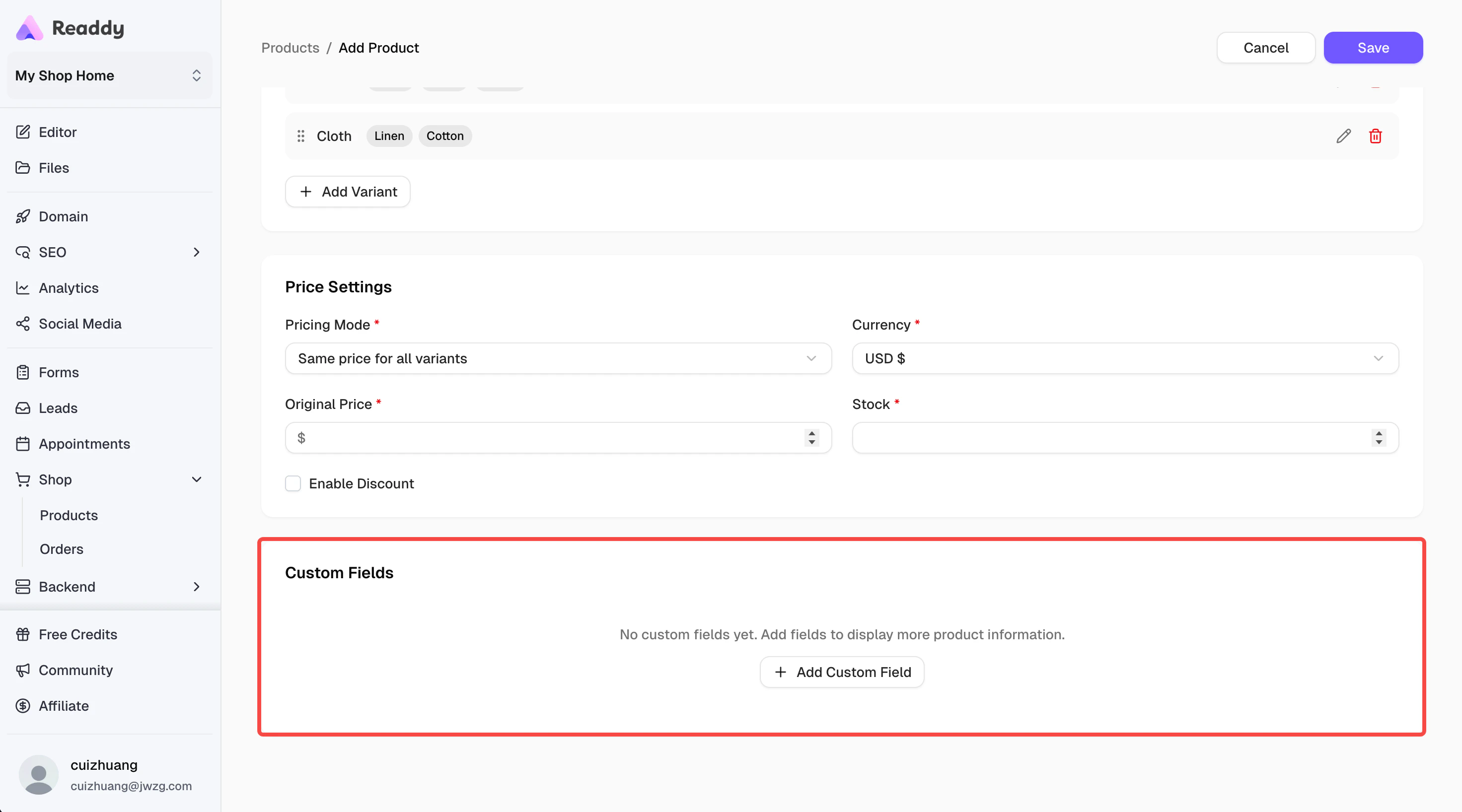
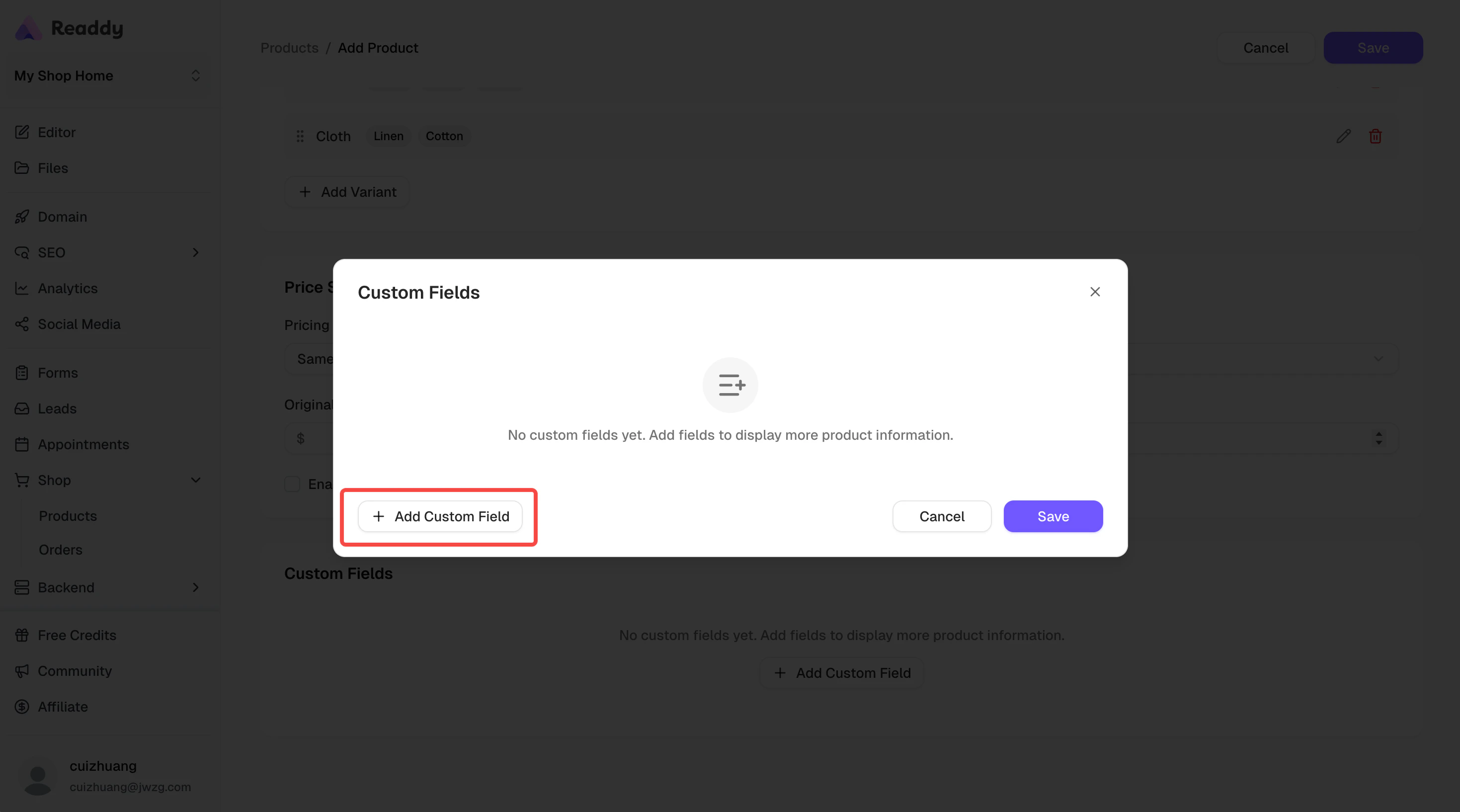
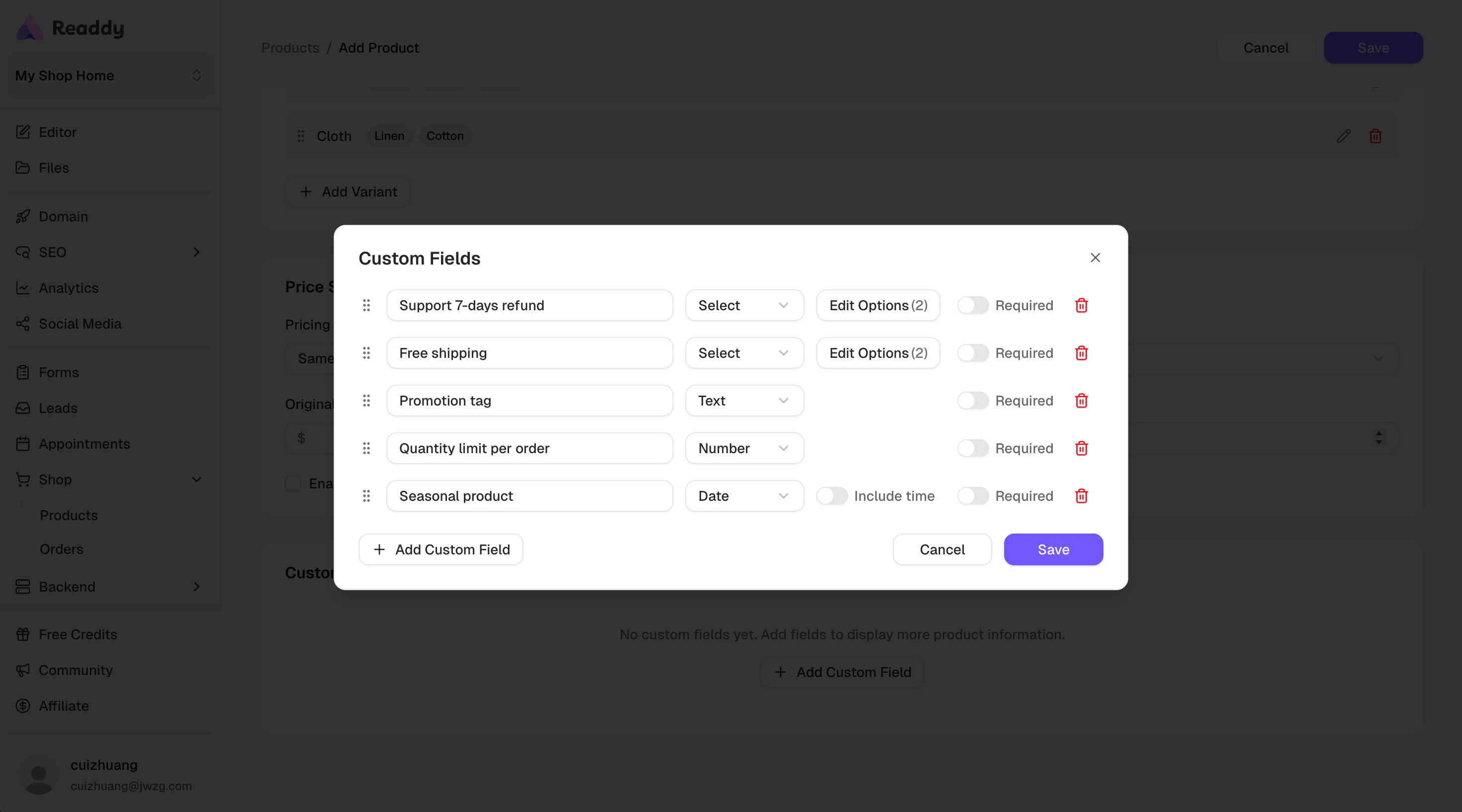
 In addition to basic product information, you can use **Custom Fields** to add custom fields to your products.
 Based on your actual business situation, set various special business attributes for your products, such as:
* Whether a 7-day refund is supported
* Whether free shipping is available
* Custom promotional activity tags for products
* Set purchase quantity limit per order
* Mark products as seasonal or limited edition
* ...
Based on your actual business situation, set various special business attributes for your products, such as:
* Whether a 7-day refund is supported
* Whether free shipping is available
* Custom promotional activity tags for products
* Set purchase quantity limit per order
* Mark products as seasonal or limited edition
* ...
 **Important**
Note that after creating Custom Fields, you need to tell AI about the custom fields you created and clearly describe how you want to use these fields.
**A very useful magic spell:**
**Important**
Note that after creating Custom Fields, you need to tell AI about the custom fields you created and clearly describe how you want to use these fields.
**A very useful magic spell:**
I have added the custom fields **xxx** to the product table in the database. Please display **xxx** information in **xxx** page based on these fields.
**For example:**
I have added the custom fields "support 7-day refund" and "free shipping" to the product table in the database. Please display the corresponding service information for each product in the details page based on these fields.
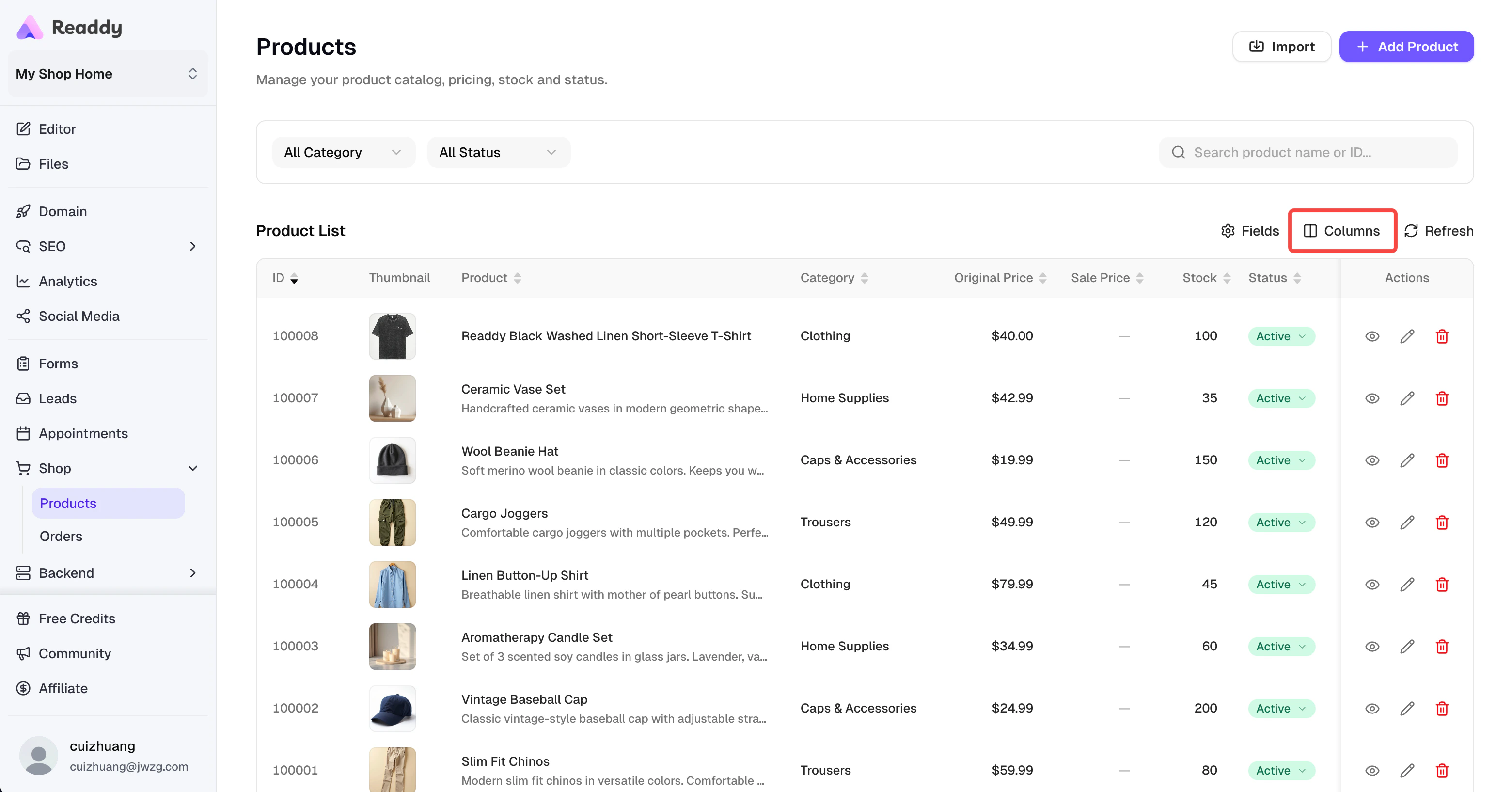
On the Products list page, you can customize the columns displayed in the table and hide unimportant information to make the product list clearer and easier to read.
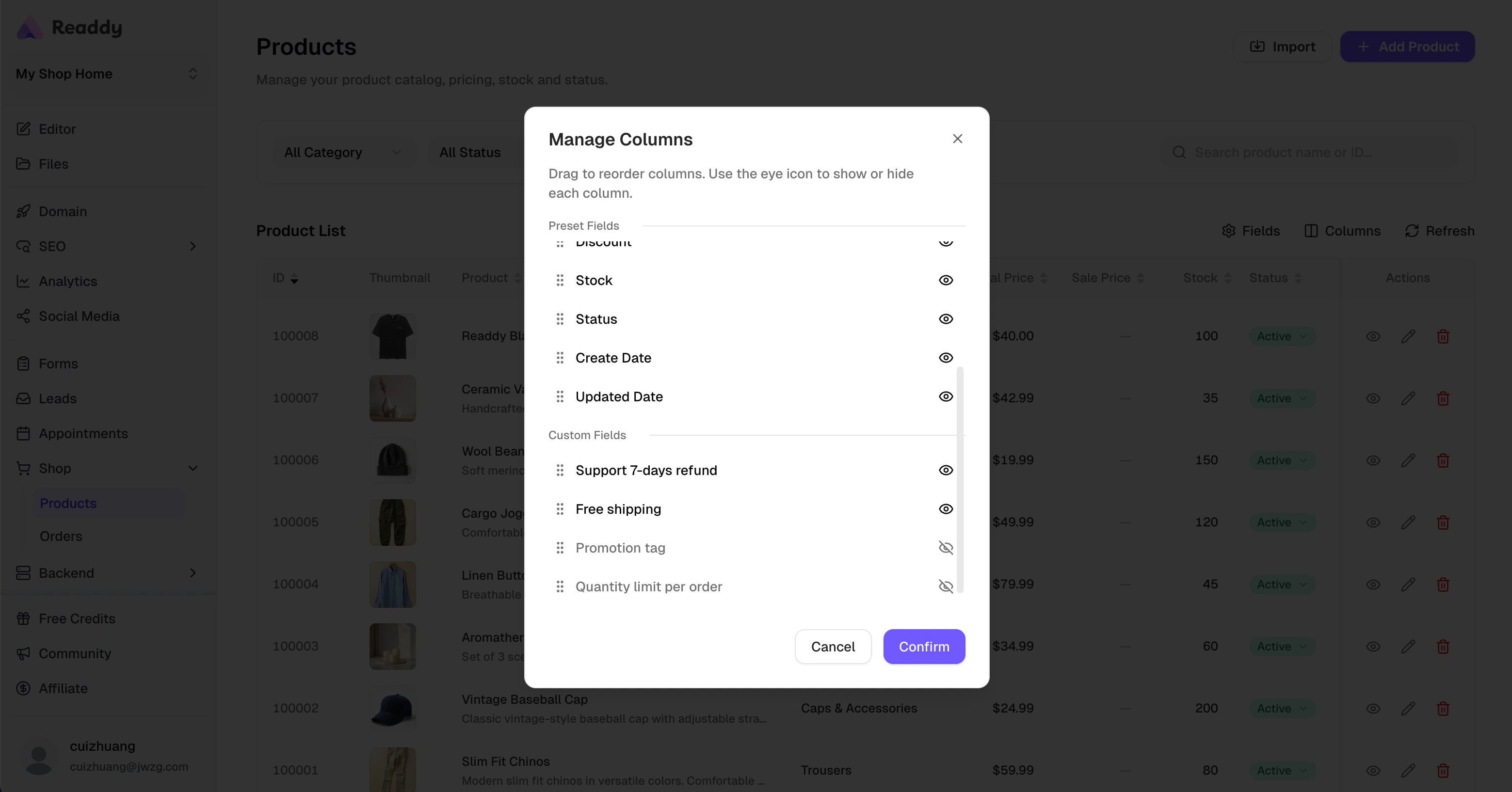
 Of course, not only preset product attributes, but custom fields can also be shown or hidden.
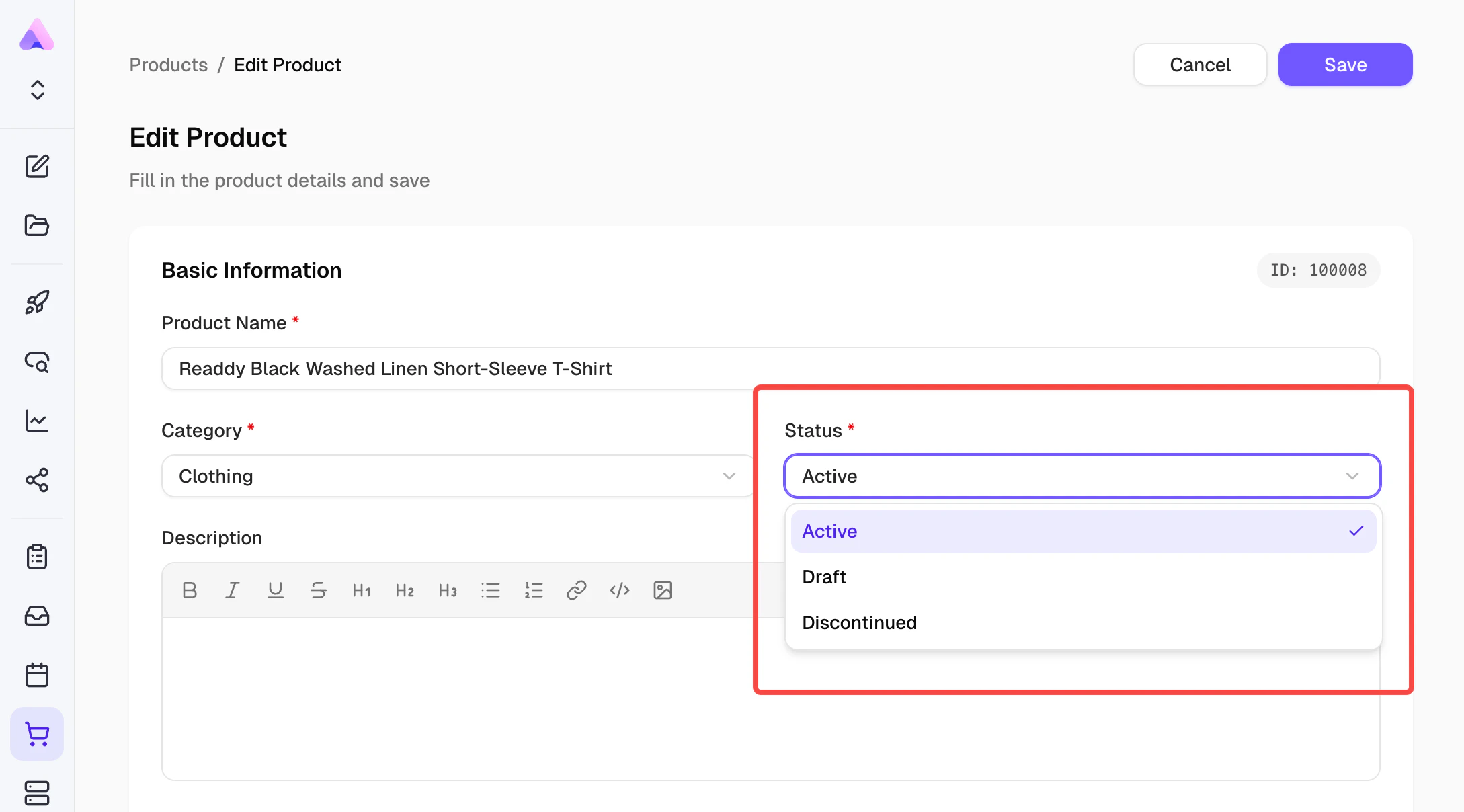
 You can control product display status through the product's **Status** field:
* **Active** - Products that are currently available for sale
* **Draft** - Draft status, not displayed publicly
* **Discontinued** - Discontinued (whether to continue displaying depends on your business model)
If you want to display only Active products on your website, you can tell AI in the Editor page: "Only display products with Status as Active, do not display products with Status as Draft and Discontinued."
You can control product display status through the product's **Status** field:
* **Active** - Products that are currently available for sale
* **Draft** - Draft status, not displayed publicly
* **Discontinued** - Discontinued (whether to continue displaying depends on your business model)
If you want to display only Active products on your website, you can tell AI in the Editor page: "Only display products with Status as Active, do not display products with Status as Draft and Discontinued."
 ***
## Step 3: Set Up Online Payment
We recommend using Stripe to complete payment integration.
### Connect Stripe
1. In the Editor page, click the **Connects** button at the top
2. Find **Stripe** in the Connects panel and click **Connect**
3. Follow the prompts to enter your Stripe API Key ([How to get Stripe API Key?](/integrations/stripe))
### Configure Payment Flow
After connecting your Stripe API Key, describe your payment requirements to AI, for example:
> "Use Stripe payment when checking out, and redirect to payment success page after payment is completed"
### Test Payment Function
**Important Note:** Stripe does not allow direct redirection to Stripe payment links from within an iframe preview window.
Please use the **share link** to open your Readdy website (or use your domain after publishing), then try purchasing a product to test whether you can successfully complete payment through Stripe.
***
## Step 4: View and Manage Orders
After completing the previous step, you can view all order data on the **Shop → Orders** page.
### Order Management
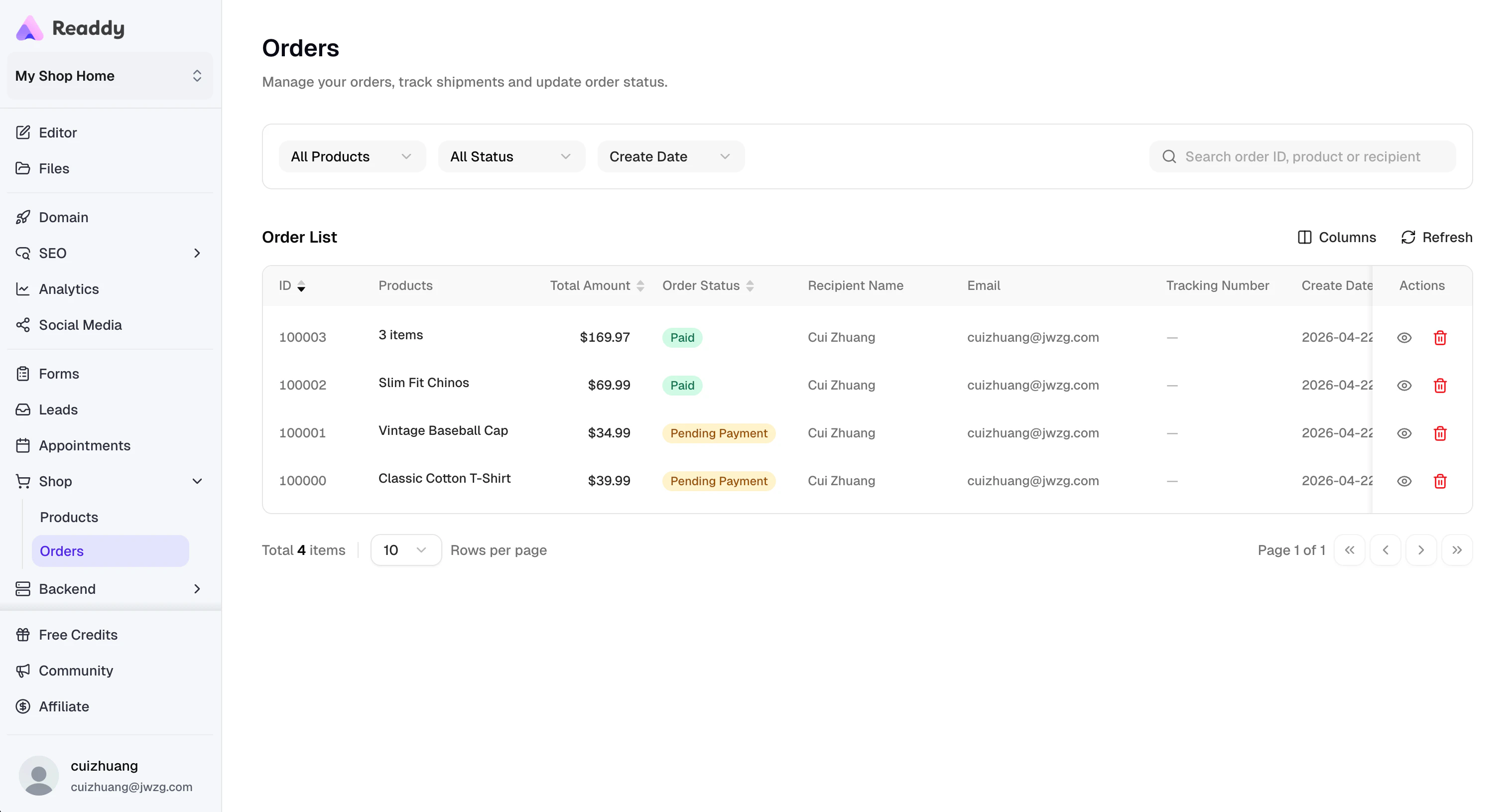
You can see all order records on the Orders list page (including real payment orders and test data).
* **Real Payment Orders**: Real orders created after connecting Stripe, payment status can be dynamically retrieved from Stripe (such as Paid, Canceled, Refunded, etc.).
* **Test Orders**: Orders created before connecting Stripe are virtual orders, mainly used for testing. Their order details do not include Stripe's Payment ID, and Status will remain at Pending Payment. You can delete these test order data as needed to keep the order list clean.
***
## Step 3: Set Up Online Payment
We recommend using Stripe to complete payment integration.
### Connect Stripe
1. In the Editor page, click the **Connects** button at the top
2. Find **Stripe** in the Connects panel and click **Connect**
3. Follow the prompts to enter your Stripe API Key ([How to get Stripe API Key?](/integrations/stripe))
### Configure Payment Flow
After connecting your Stripe API Key, describe your payment requirements to AI, for example:
> "Use Stripe payment when checking out, and redirect to payment success page after payment is completed"
### Test Payment Function
**Important Note:** Stripe does not allow direct redirection to Stripe payment links from within an iframe preview window.
Please use the **share link** to open your Readdy website (or use your domain after publishing), then try purchasing a product to test whether you can successfully complete payment through Stripe.
***
## Step 4: View and Manage Orders
After completing the previous step, you can view all order data on the **Shop → Orders** page.
### Order Management
You can see all order records on the Orders list page (including real payment orders and test data).
* **Real Payment Orders**: Real orders created after connecting Stripe, payment status can be dynamically retrieved from Stripe (such as Paid, Canceled, Refunded, etc.).
* **Test Orders**: Orders created before connecting Stripe are virtual orders, mainly used for testing. Their order details do not include Stripe's Payment ID, and Status will remain at Pending Payment. You can delete these test order data as needed to keep the order list clean.
 ### Refunds or Other Order Operations
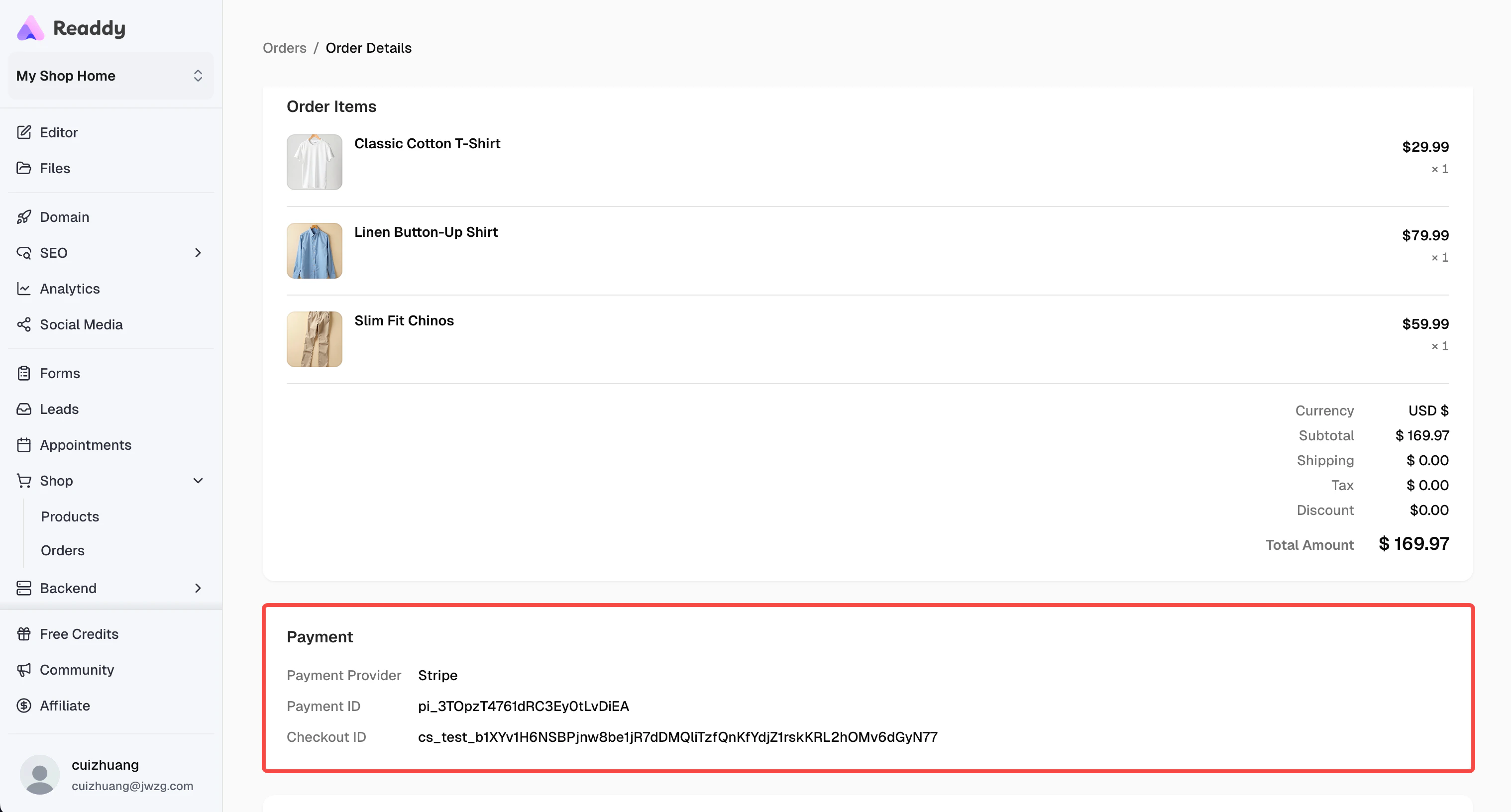
If you need to process order refunds or other order-related operations, you can use the **Payment ID** and **Checkout Session ID** in the order details to find the corresponding order on Stripe and process refunds directly on the Stripe platform.
### Refunds or Other Order Operations
If you need to process order refunds or other order-related operations, you can use the **Payment ID** and **Checkout Session ID** in the order details to find the corresponding order on Stripe and process refunds directly on the Stripe platform.
 ### Logistics Management
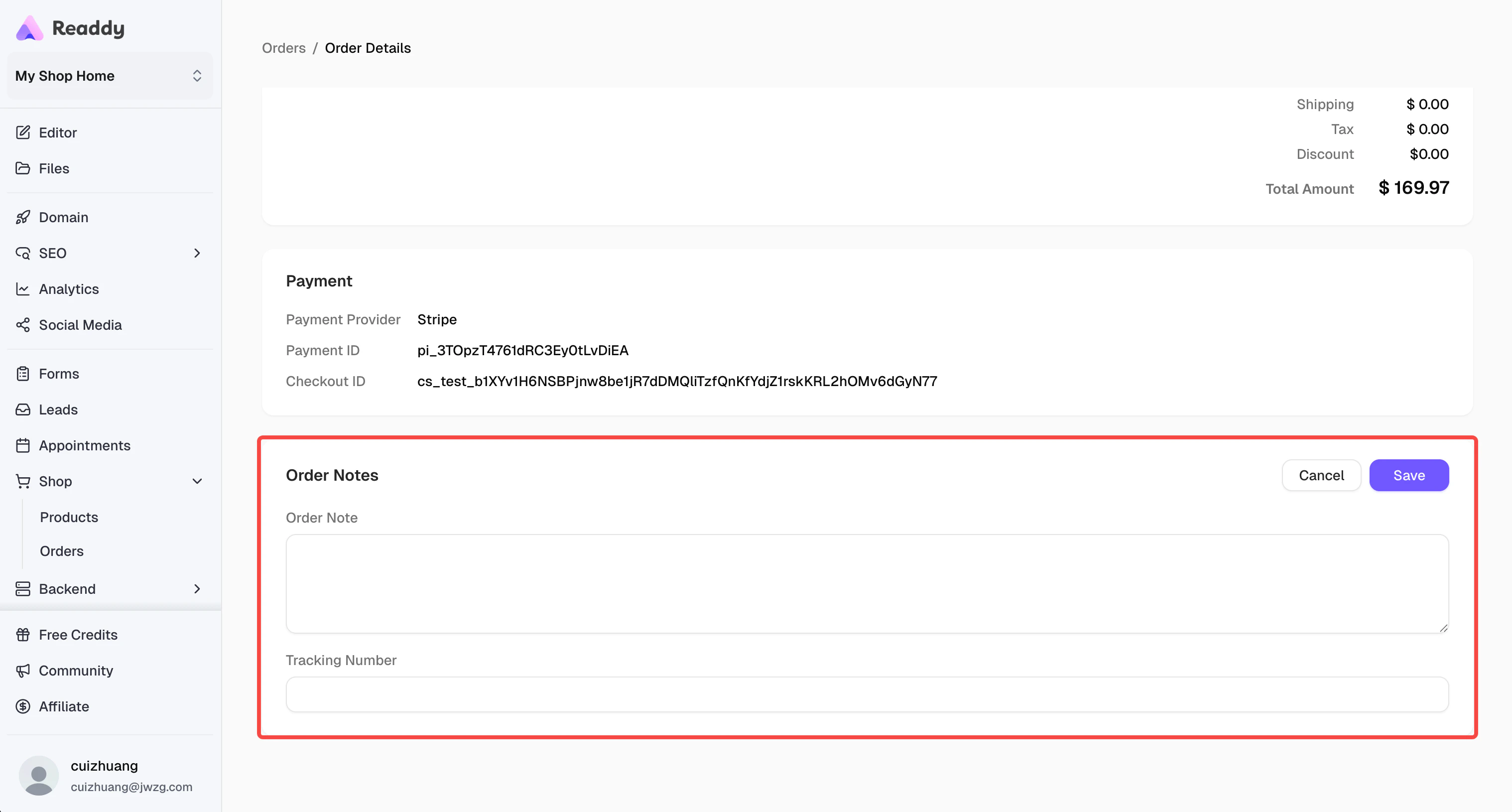
Currently, Readdy has not yet integrated third-party logistics services. If you need to manage order logistics status (such as shipping, delivery, etc.), you can manually add tracking numbers and shipping details at the bottom of the order details page.
> Logistics management is in our future plans. In the near future, we will support dynamically displaying order logistics status directly on Readdy. Stay tuned!
### Logistics Management
Currently, Readdy has not yet integrated third-party logistics services. If you need to manage order logistics status (such as shipping, delivery, etc.), you can manually add tracking numbers and shipping details at the bottom of the order details page.
> Logistics management is in our future plans. In the near future, we will support dynamically displaying order logistics status directly on Readdy. Stay tuned!
 ***
## Congratulations!
Through these four simple steps, you have built a complete online e-commerce website from scratch.
Once your website is live, users can browse products and make purchases through your website, and you can view order data in real-time and manage product inventory in the Readdy backend.
Finally, publish your website and start your e-commerce business! [How to publish your website?](/features/publish-react-v2)
***
## Need Help?
If this guide doesn't resolve your issue, [submit a support ticket](https://readdy.ai/feedback). We're here to help!
***
## Congratulations!
Through these four simple steps, you have built a complete online e-commerce website from scratch.
Once your website is live, users can browse products and make purchases through your website, and you can view order data in real-time and manage product inventory in the Readdy backend.
Finally, publish your website and start your e-commerce business! [How to publish your website?](/features/publish-react-v2)
***
## Need Help?
If this guide doesn't resolve your issue, [submit a support ticket](https://readdy.ai/feedback). We're here to help!