> ## Documentation Index
> Fetch the complete documentation index at: https://docs.readdy.ai/llms.txt
> Use this file to discover all available pages before exploring further.
# Purchase a New Domain
> Purchase and set up a custom domain for your Readdy website to establish professional online presence
Once you've created a project, you can publish it to the internet for others to access. To do this, you need to purchase a domain and publish your website to it. This guide will walk you through the domain purchase process.
## 1. Go to the Project Publish Page
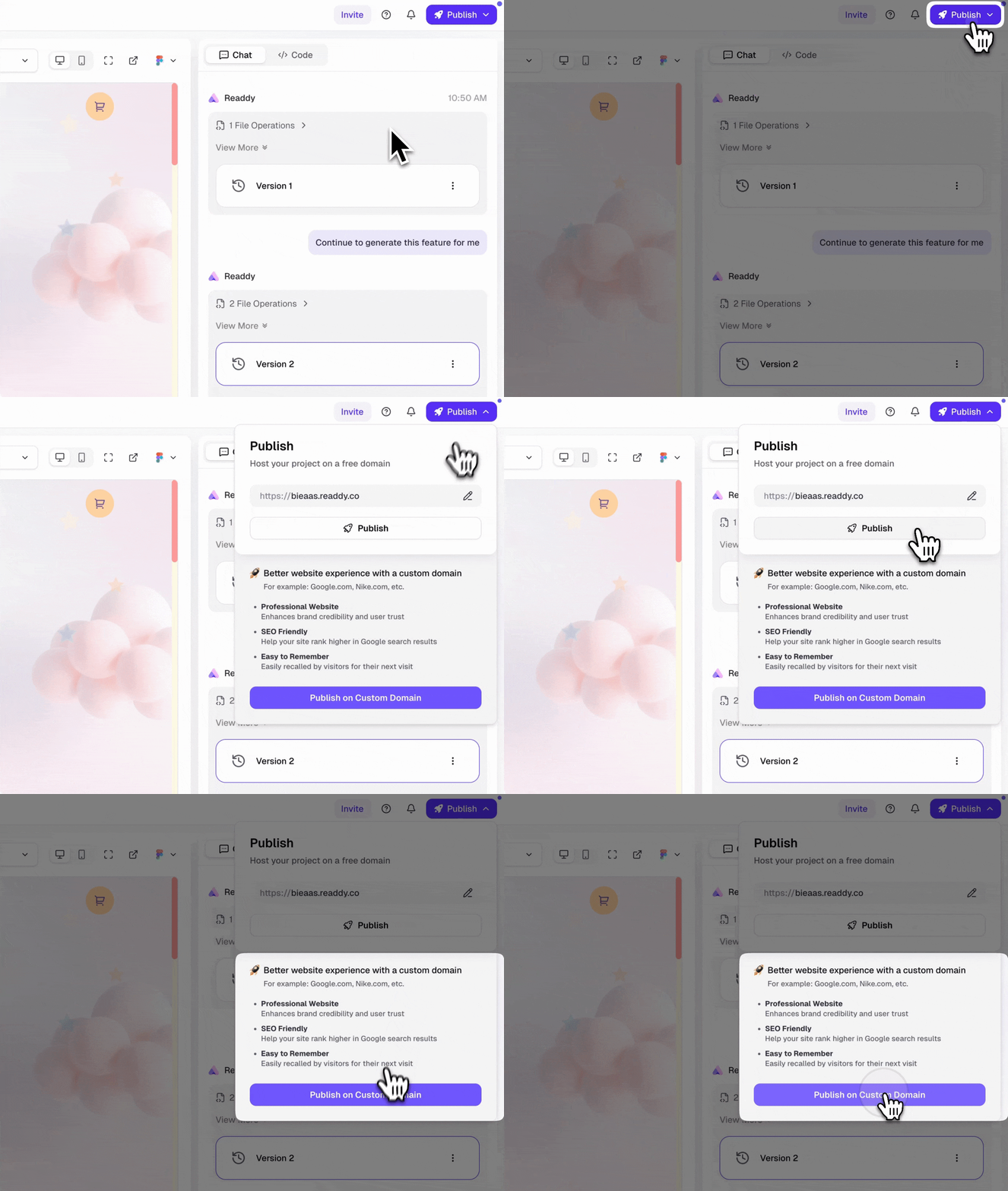
Navigate to your project generate page and click the **Publish** button in the top right corner. Then click **Publish on Custom Domain**.
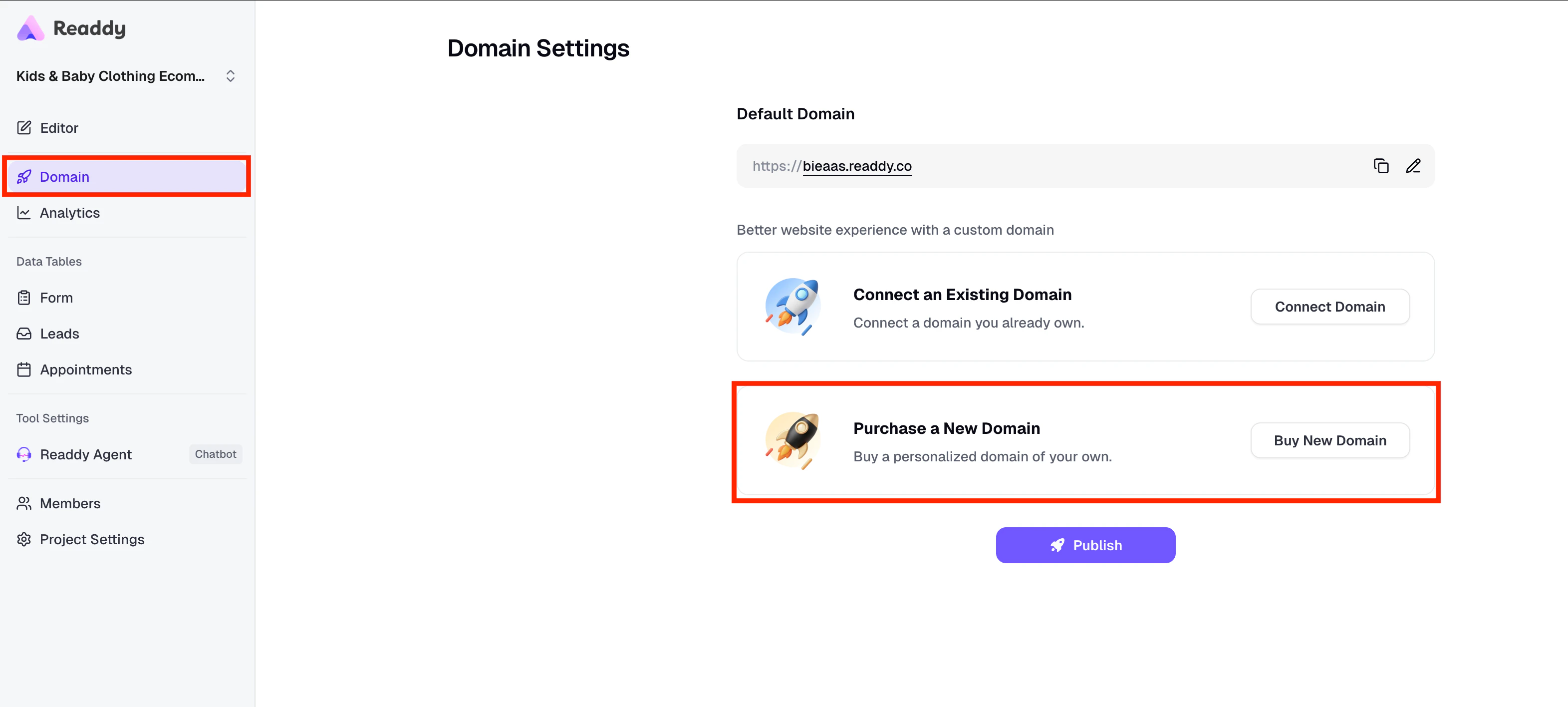
 After clicking **Publish on Custom Domain**, you'll see the Domain Settings page. Here you have two options:
* **Connect an Existing Domain**: If you already own a domain, click **Connect Domain** to link it. See [How to Connect a Domain and Publish a Project >](/features/publish-react-v2).
* **Purchase a New Domain**: If you need a new domain, click **Purchase a New Domain**. This guide will walk you through the purchase process.
After clicking **Publish on Custom Domain**, you'll see the Domain Settings page. Here you have two options:
* **Connect an Existing Domain**: If you already own a domain, click **Connect Domain** to link it. See [How to Connect a Domain and Publish a Project >](/features/publish-react-v2).
* **Purchase a New Domain**: If you need a new domain, click **Purchase a New Domain**. This guide will walk you through the purchase process.
 ## 2. Purchase a New Domain
> **What is a domain?**
> A domain is the address of a website. For example, Google's domain is `google.com`. With a custom domain, your website address could be something like `yourbrand.com`.
Enter the domain you want to purchase and click **Check** to see if it's available for registration.
## 2. Purchase a New Domain
> **What is a domain?**
> A domain is the address of a website. For example, Google's domain is `google.com`. With a custom domain, your website address could be something like `yourbrand.com`.
Enter the domain you want to purchase and click **Check** to see if it's available for registration.
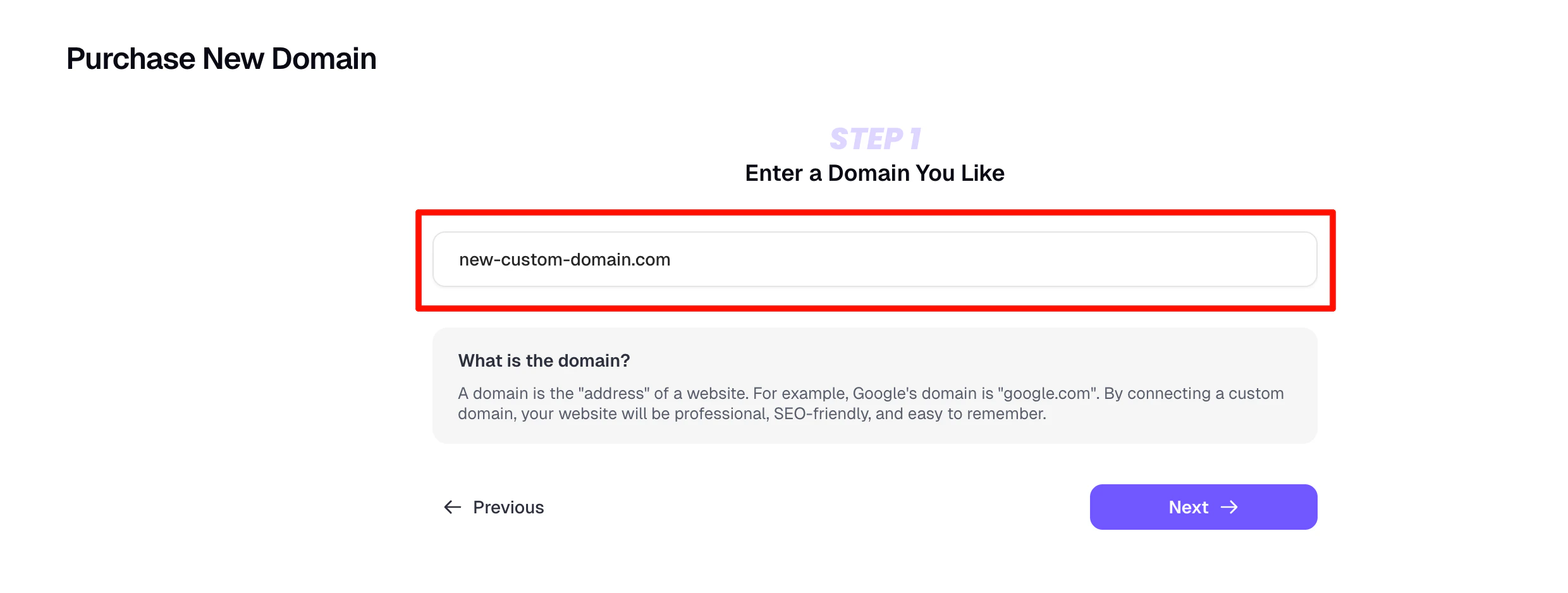 * Domains usually consist of letters/numbers and TLD, e.g., `google.com` (TLD is the last part of a domain, like `com` in `google.com`)
* No need to add www in front of the domain, e.g.,
* Domains usually consist of letters/numbers and TLD, e.g., `google.com` (TLD is the last part of a domain, like `com` in `google.com`)
* No need to add www in front of the domain, e.g., www.google.com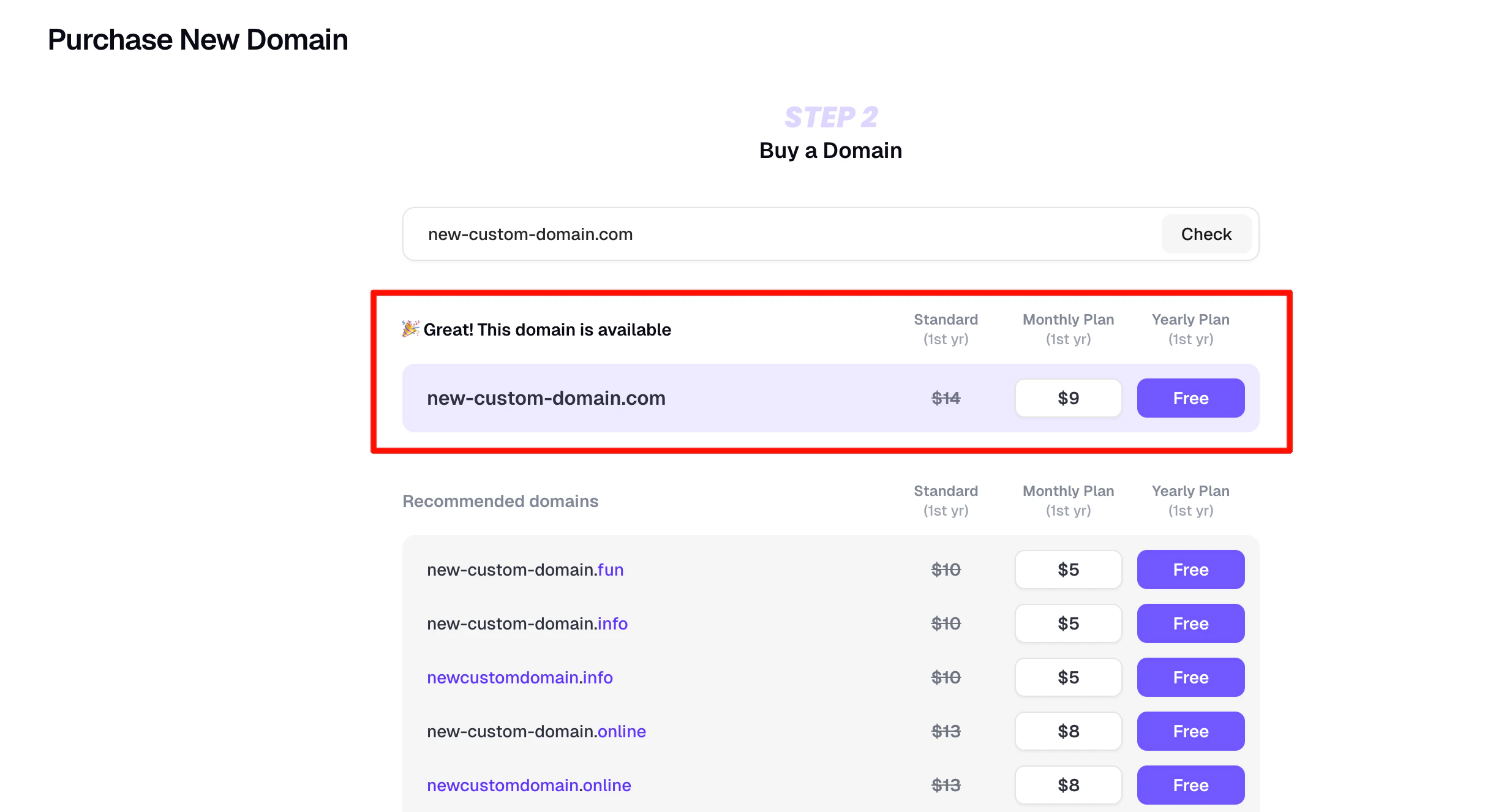 * If the domain you entered is already taken, you can choose another domain from **Other recommended domains** or enter a new domain and click **Check**.
* If the domain TLD is not supported, you need to change to a supported TLD.
TLD is the last part of a domain, like `com` in `google.com`.
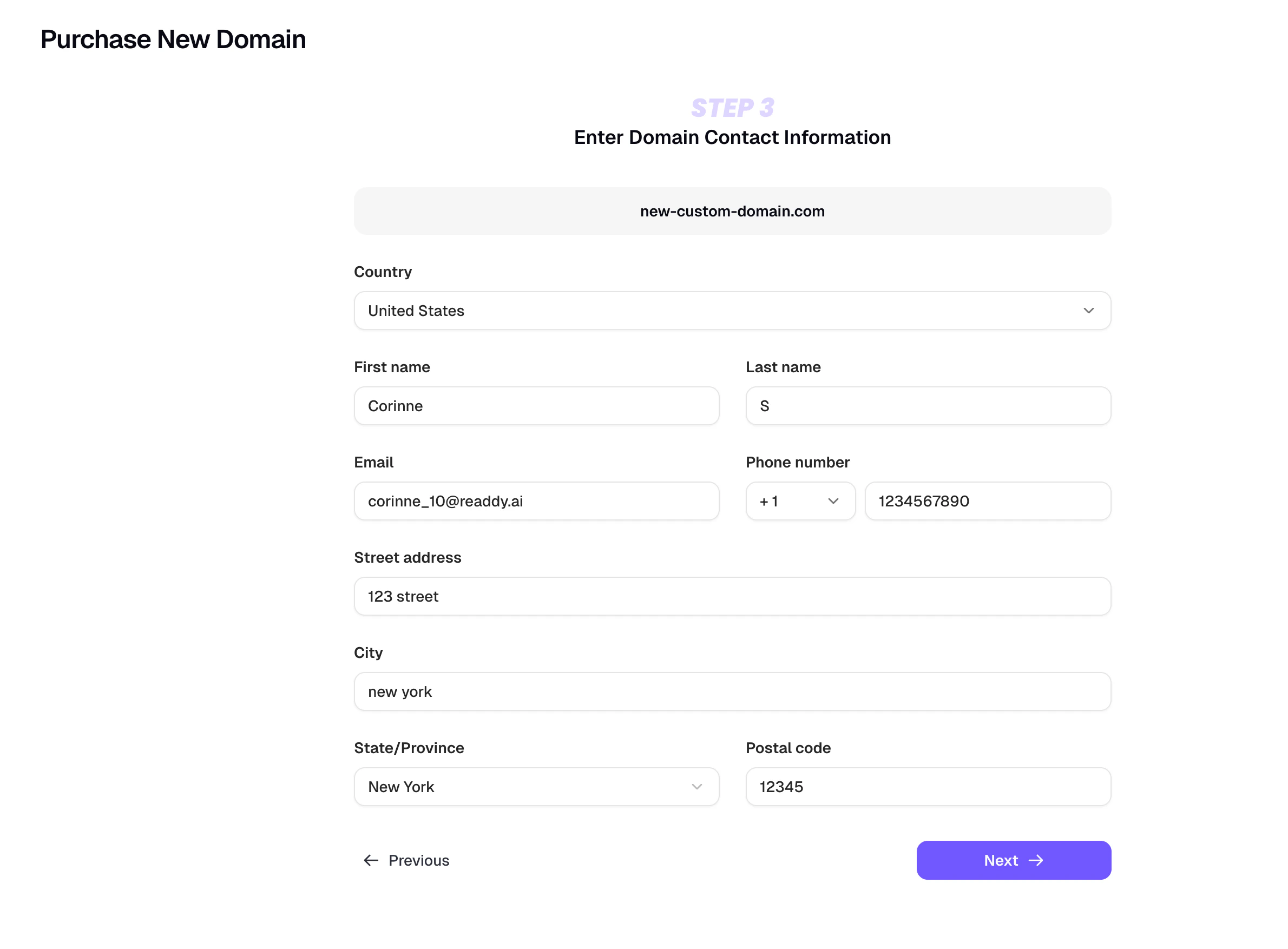
Fill in your contact information accurately, as it will be used to register your domain.
> Please ensure all information is correct and valid.
* If the domain you entered is already taken, you can choose another domain from **Other recommended domains** or enter a new domain and click **Check**.
* If the domain TLD is not supported, you need to change to a supported TLD.
TLD is the last part of a domain, like `com` in `google.com`.
Fill in your contact information accurately, as it will be used to register your domain.
> Please ensure all information is correct and valid.
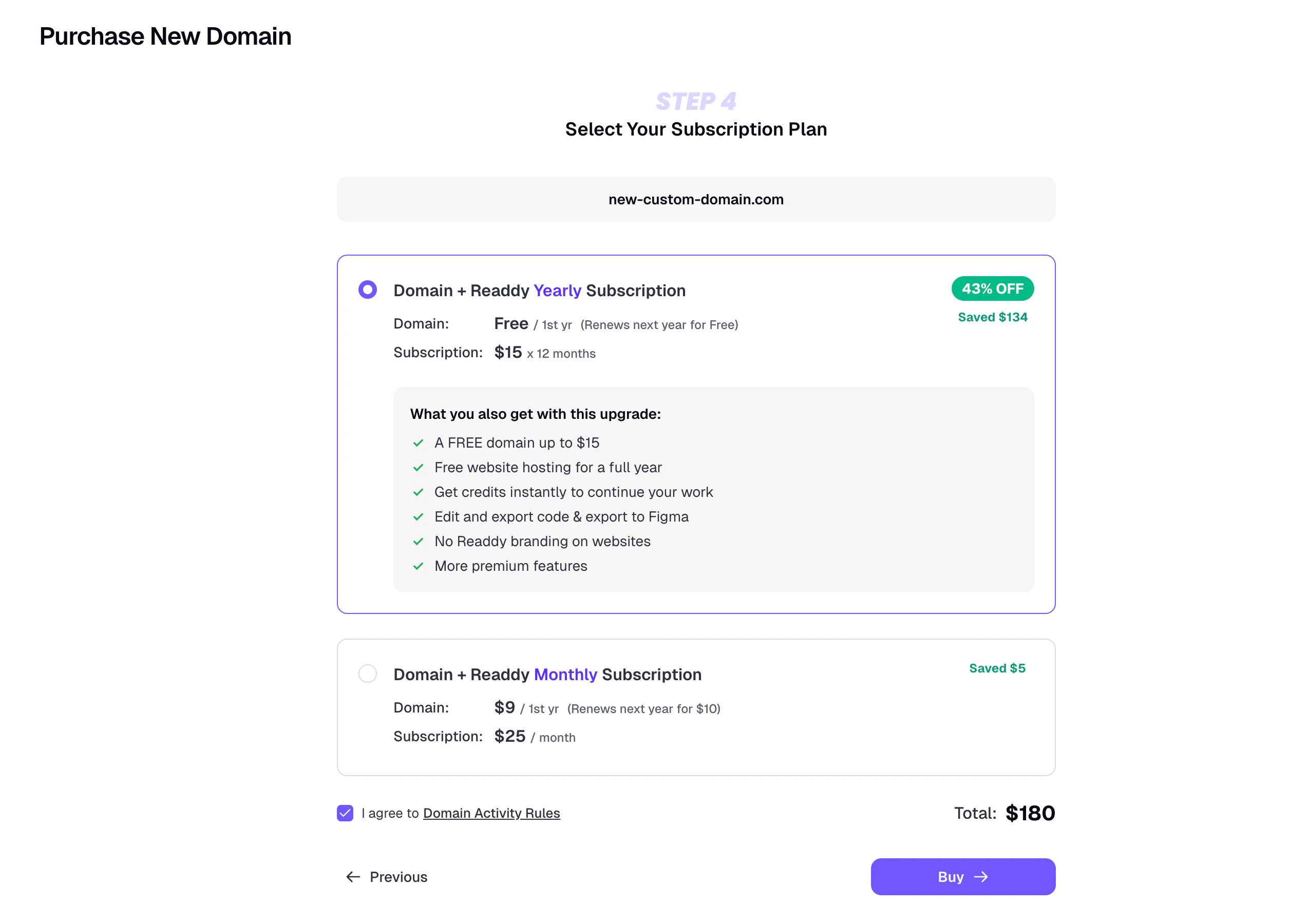
 **Yearly plan users can skip this step.**
Select your subscription plan, then click **Buy** to complete the payment.
We recommend upgrading to an yearly plan — besides discounted Credits, you'll also get one free domain (up to \$15 value).
**Yearly plan users can skip this step.**
Select your subscription plan, then click **Buy** to complete the payment.
We recommend upgrading to an yearly plan — besides discounted Credits, you'll also get one free domain (up to \$15 value).
 ## 3. Wait for Domain Purchase and Publish
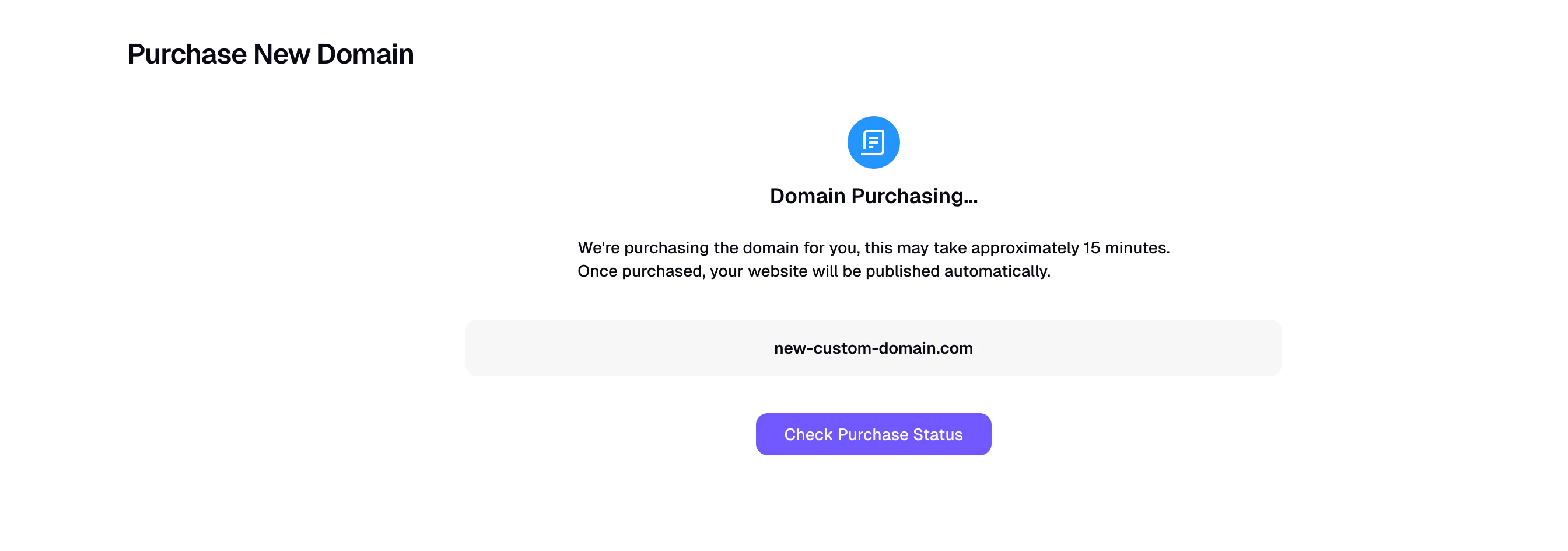
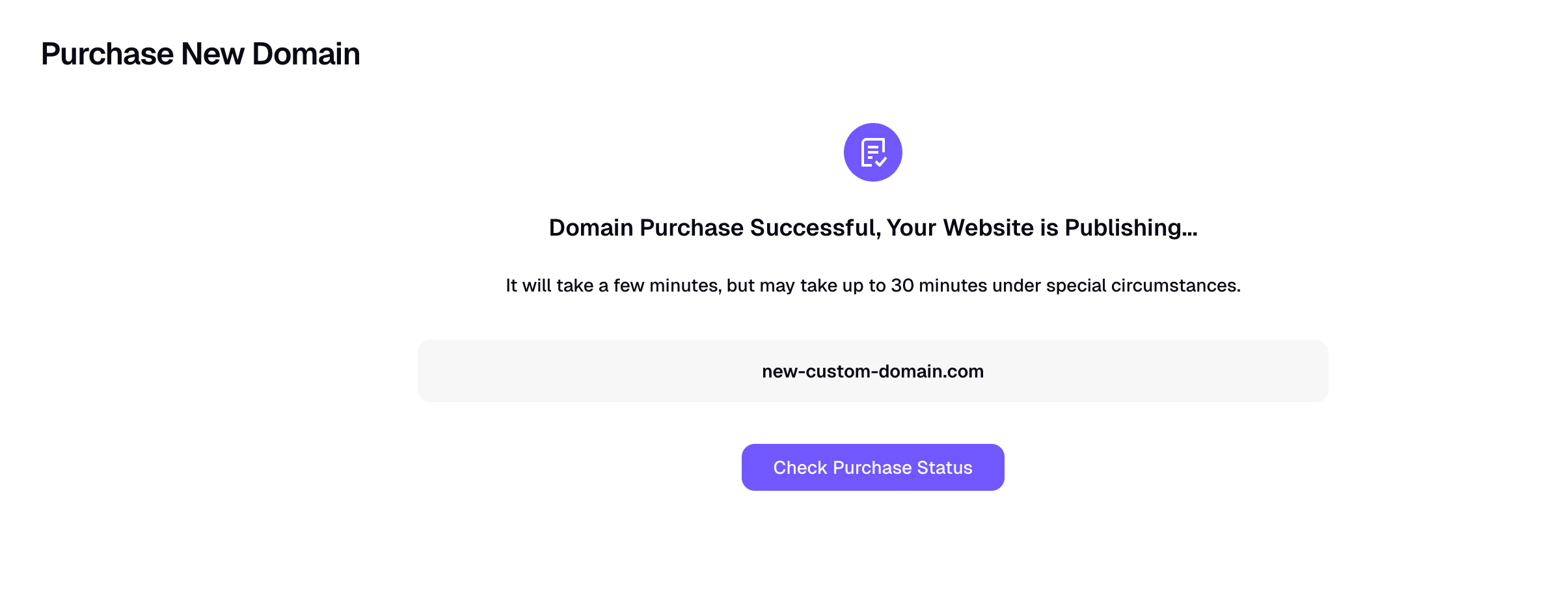
Once the payment is submitted, return to the Readdy. You will see **Domain Purchasing…** and the purchase process may take approximately **15 minutes** to complete.
> You can continue editing your project in the meantime and return later to check the status.
## 3. Wait for Domain Purchase and Publish
Once the payment is submitted, return to the Readdy. You will see **Domain Purchasing…** and the purchase process may take approximately **15 minutes** to complete.
> You can continue editing your project in the meantime and return later to check the status.
 Next, you need to verify your email address. If verification is not successful within 14 days, your purchased domain will be inaccessible.
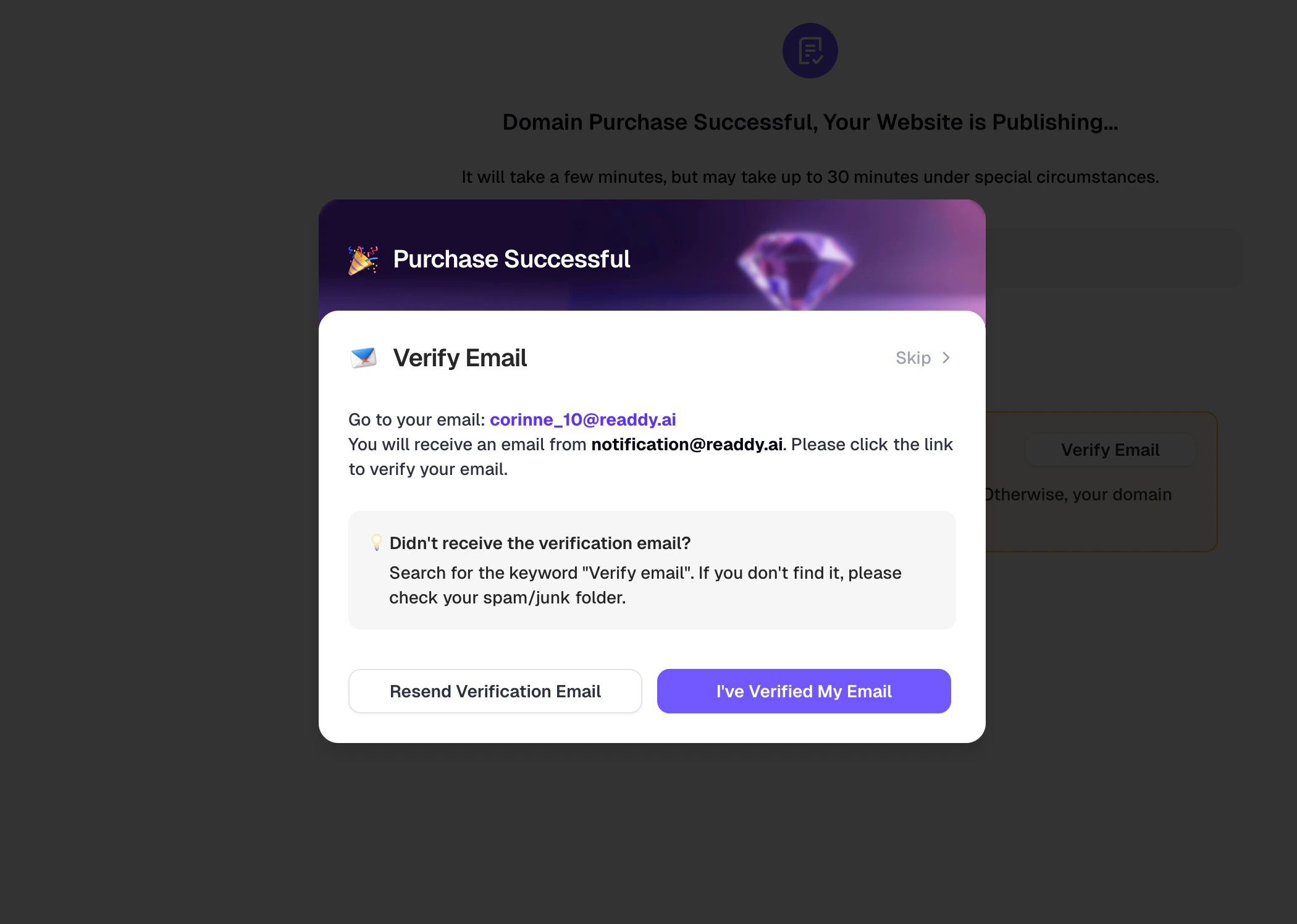 Readdy will automatically publish your website. Publishing may take a few additional minutes.
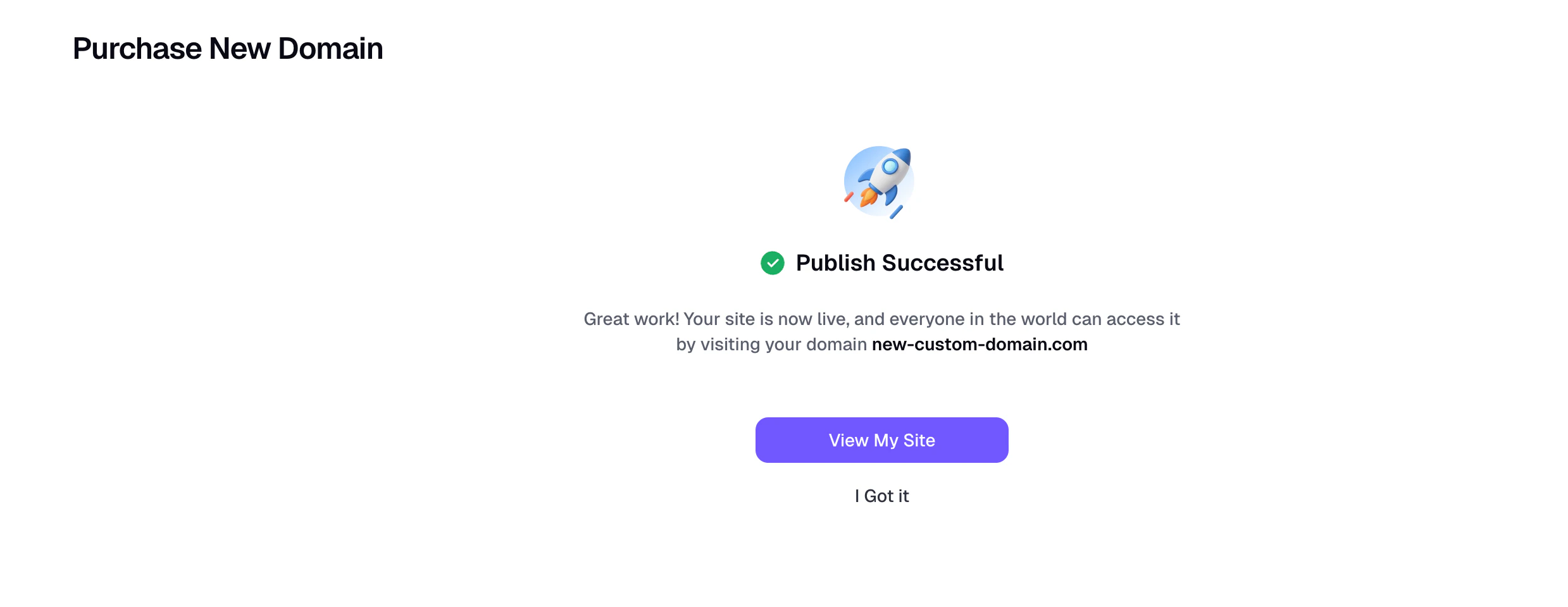
 Congratulations! You have now successfully purchased a domain and published your project. Click View My Website to see your live site.
 ## 4. Publish Changes to Your Website
**If you make changes to your project later, you need to republish your website to apply the updates.**
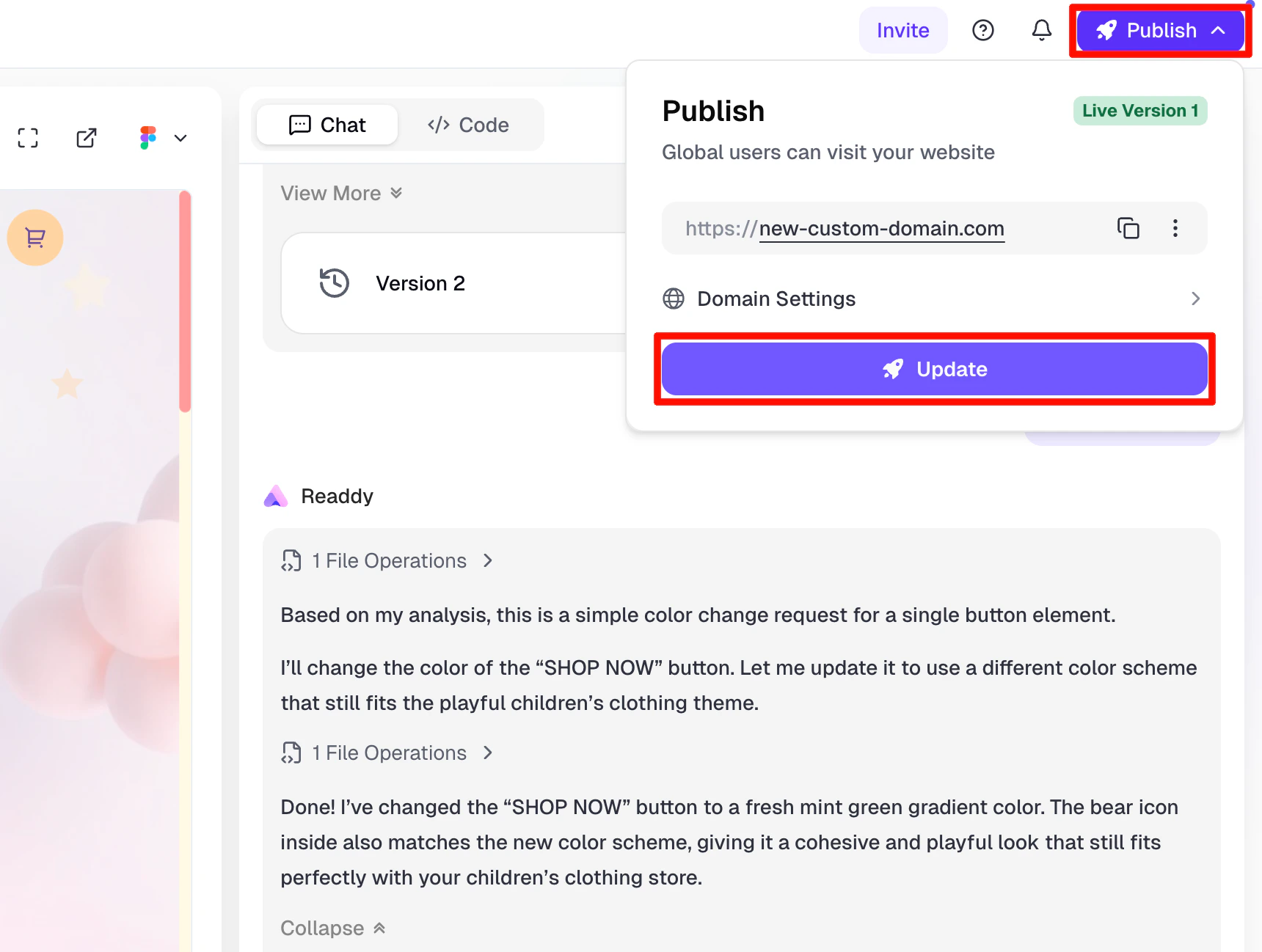
Click the "Publish" button in the top right corner, then click "Update" to apply your changes to your published website.
## 4. Publish Changes to Your Website
**If you make changes to your project later, you need to republish your website to apply the updates.**
Click the "Publish" button in the top right corner, then click "Update" to apply your changes to your published website.
 If you want to switch to a different domain, you will need to add the DNS records of your new domain. For detailed instructions, see [Publish Your Website >](/features/publish)
***
## Troubleshooting
**Purchase Fails**
If the domain was registered by someone else during payment, you can try purchasing a different domain. If issues persist, contact our support team.
**Publishing Fails**
If publishing fails, you can retry the process. If problems continue, reach out to our online support for assistance.
***
## Need Help?
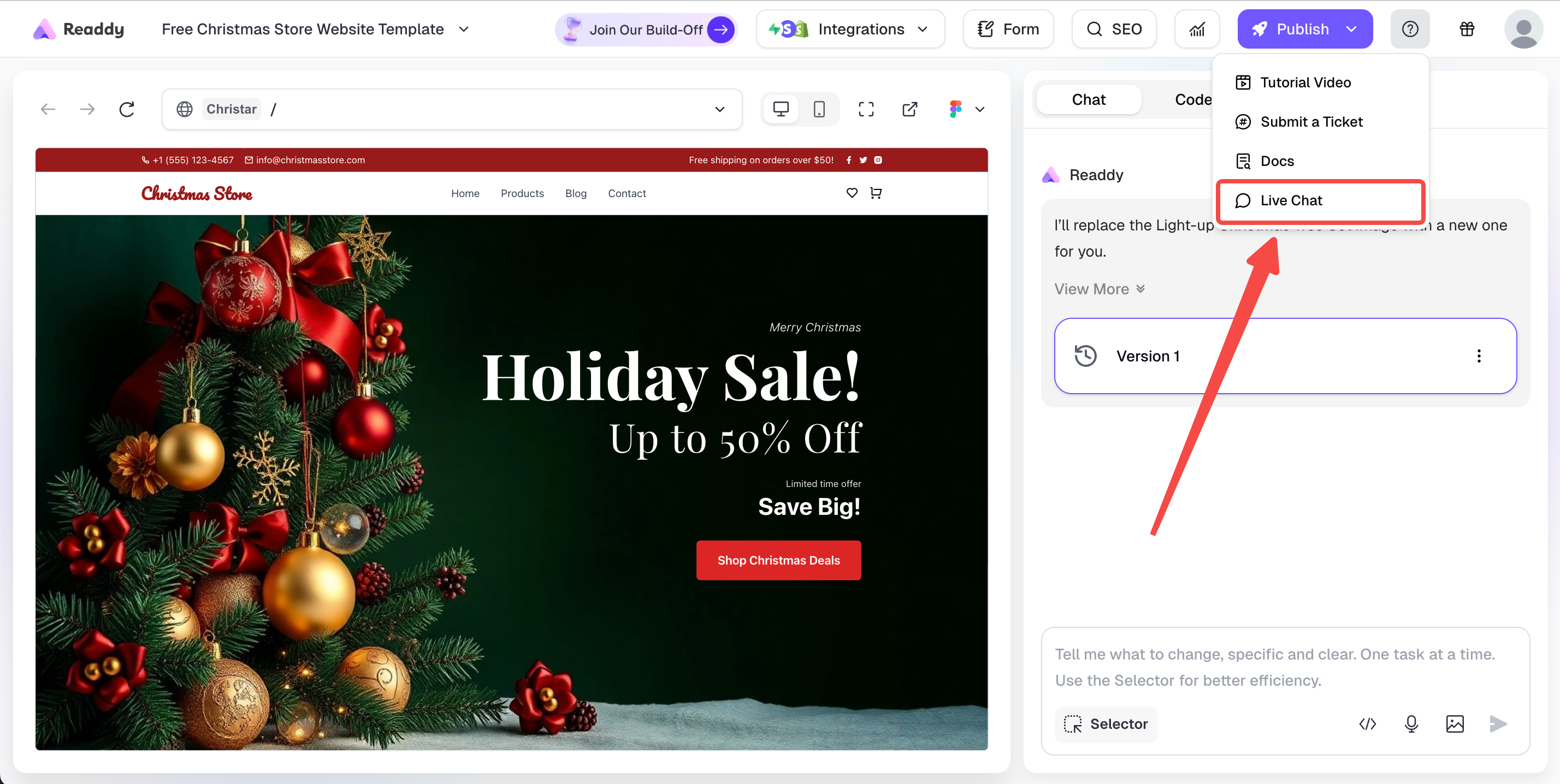
If this guide doesn't resolve your issue, contact us at [hi@readdy.ai](mailto:hi@readdy.ai) or use our **live chat** in right top corner of Readdy. We're here to help!
If you want to switch to a different domain, you will need to add the DNS records of your new domain. For detailed instructions, see [Publish Your Website >](/features/publish)
***
## Troubleshooting
**Purchase Fails**
If the domain was registered by someone else during payment, you can try purchasing a different domain. If issues persist, contact our support team.
**Publishing Fails**
If publishing fails, you can retry the process. If problems continue, reach out to our online support for assistance.
***
## Need Help?
If this guide doesn't resolve your issue, contact us at [hi@readdy.ai](mailto:hi@readdy.ai) or use our **live chat** in right top corner of Readdy. We're here to help!
 Thank you for using Readdy — and best of luck with your website launch! ❤️