> ## Documentation Index
> Fetch the complete documentation index at: https://docs.readdy.ai/llms.txt
> Use this file to discover all available pages before exploring further.
# Outreach Campaign
> Find prospects, review lead data, and launch personalized websites and outreach emails in one campaign
**Prerequisites:** Outreach Campaign is available on **Starter or above**, or
**Agency Basic and above**. Website generation costs **5 Credits per row**,
and only successfully generated rows are charged.
## What Does This Feature Do?
**Outreach Campaign** helps you turn a lead list into a full outbound workflow inside Readdy:
1. Add leads with **AI Search**, a saved **Lead List**, or a `.csv` / `.xlsx` upload
2. Generate a personalized website for each prospect
3. Write one outreach email with dynamic variables
4. Send the campaign directly through **Readdy**
You can now send emails without connecting Instantly first. Readdy supports binding your own mailbox through **Google SMTP** or **other SMTP / IMAP providers**, so you can complete the full setup in one place.
## Before You Start
### Step 1: Choose How to Add Leads
Before you start generation, choose where the campaign leads will come from.
| Option | Use it when |
| -------------- | -------------------------------------------------------------------------------------------- |
| **AI Search** | You want Readdy to find leads from a prompt, such as `Auto repair shops in Santa Clara, USA` |
| **Lead Lists** | You already created a saved list in **Lead Finder** and want to reuse it |
| **Upload CSV** | You already have a prospect file in `.csv` or `.xlsx` format |
**Lead Finder pricing:** AI Search costs **2 Credits per target lead**. Readdy
shows the estimated cost before you generate the list. Failed, canceled, and
no-result searches are not charged.
### CSV File Requirements
If you choose **Upload CSV**, prepare a prospect list in `.csv` or `.xlsx`
format before you upload it.
Create a new blank spreadsheet, or open the exported file you want to clean
up.
The first row contains column names. **You must include an `email` column.** You can add other columns as needed, for example:
Example columns:
* `business name`
* `description`
* `email`
* `phone` (optional)
* `address` (optional)
Example rows:
* `Baker Shop | Handmade baking for 10 years | zhang@example.com | 13800001111 | No.1 Happy Road`
* `Flower Store | Fresh flower delivery | li@example.com | 13800002222 | No.2 Sunny Road`
From the second row onward, each row represents one prospect. Each row will
generate one personalized website.
In **Excel**, save the file as `.xlsx` or choose **CSV (Comma delimited)**. In
**Google Sheets**, download it as **Microsoft Excel (.xlsx)** or **Comma
Separated Values (.csv)**.
Need a sample? On the Outreach Campaign page, click **Download Template** and
fill in your own leads based on that format.
**File Requirements**
* Supported formats: `.csv` and `.xlsx`
* Maximum file size: **5MB**
* Single-upload row limit depends on your plan
* Required field: an `email` column
* Email format: each email must be valid and contain `@`
### Plan and Quota Reference
Outreach Campaign currently uses two limit types:
* **Generation quota**: how many prospects you can generate in one Outreach cycle
* **Single upload limit**: how many prospect rows you can upload in one file
For paid plans, the current limits are:
| Plan | Generation quota | Single upload limit |
| -------------------------- | ---------------- | ------------------- |
| Starter / Starter2 | 500 | 100 |
| Pro family / Customization | 3000 | 300 |
| Agency Basic | 5000 | 1000 |
| Agency Scale | 20000 | 3000 |
| Agency Max | 50000 | 5000 |
The **Pro family** includes: `Pro`, `Pro80`, `Pro120`, `Pro160`, `Pro200`, `Pro240`, `Pro280`, `Pro320`, `Pro360`, and `Pro400`.
## Campaign Flow
### Step 2: Add Leads to the Campaign
Find **Outreach** in the left sidebar and open **Outreach Campaign**. If this
is your first campaign, Readdy shows an empty state with **Add Leads**.
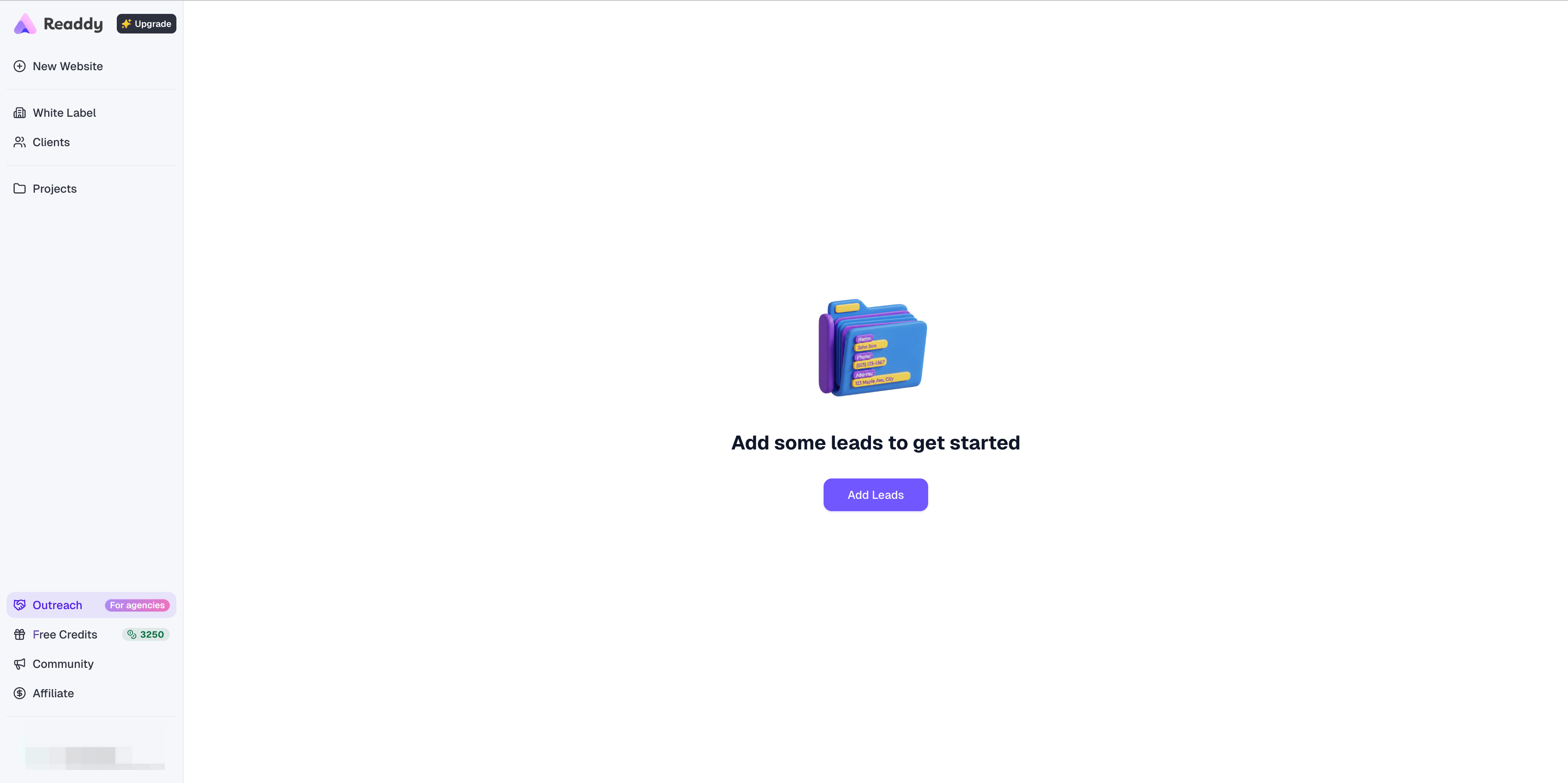 Click **Add Leads** and choose one of the three lead source options.
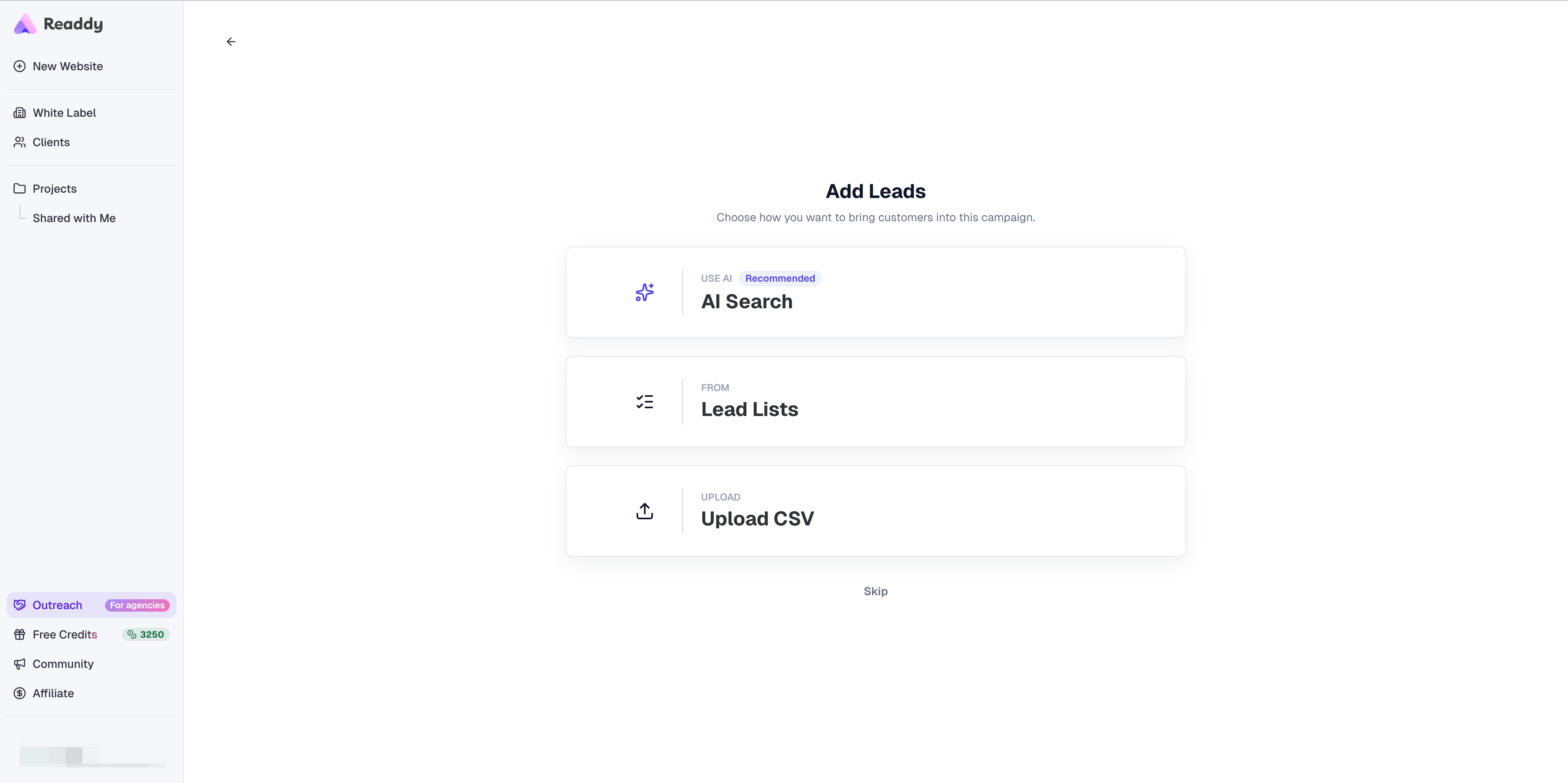 Select **AI Search** to open **Lead Finder**. Use this path when you want
Readdy to discover new leads from a plain-language prompt.
Select **AI Search** to open **Lead Finder**. Use this path when you want
Readdy to discover new leads from a plain-language prompt.
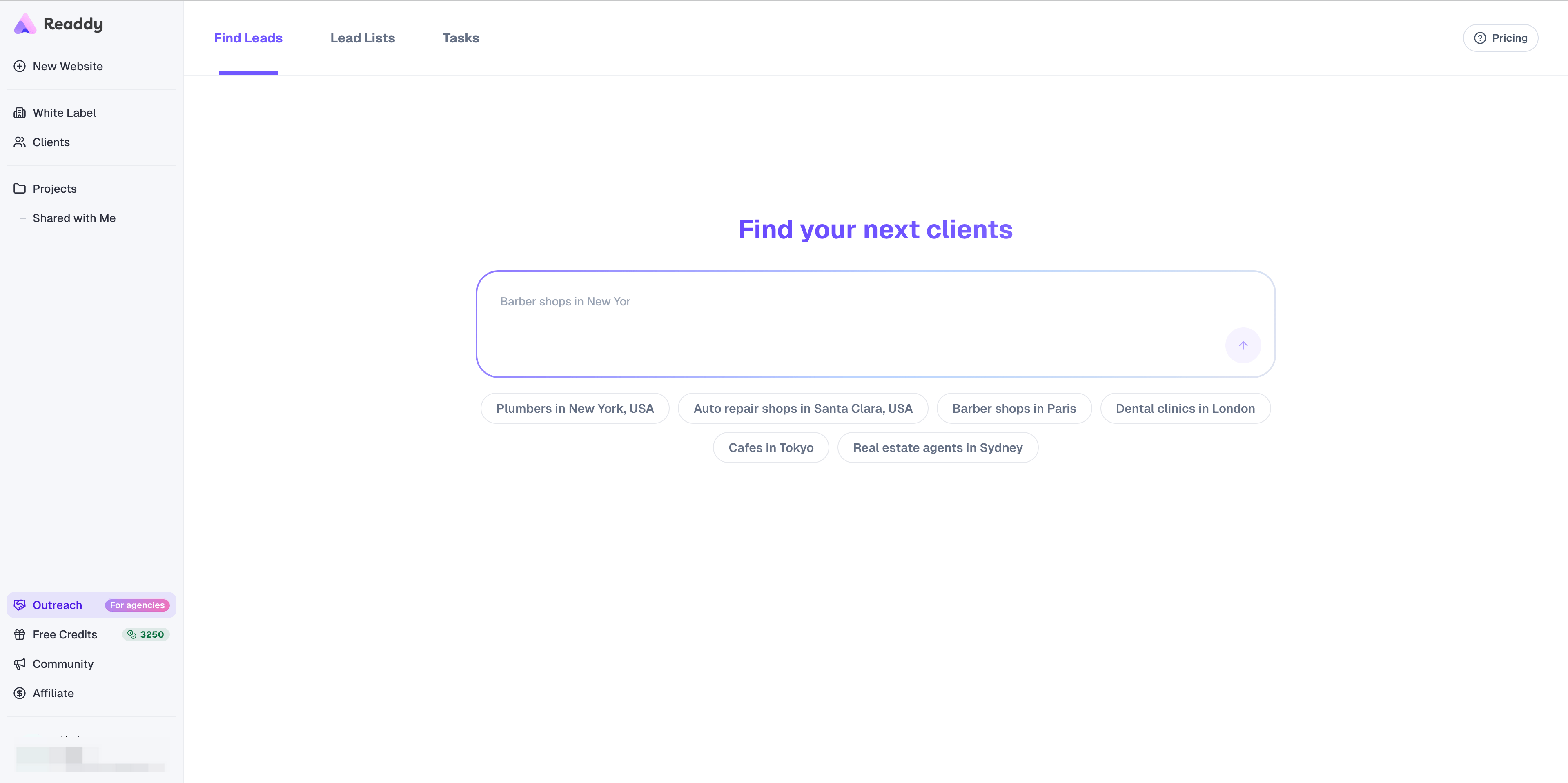 Select **Lead Lists** to open the saved list picker. Click a list to load its
leads into the campaign **Data Preview** page.
Select **Lead Lists** to open the saved list picker. Click a list to load its
leads into the campaign **Data Preview** page.
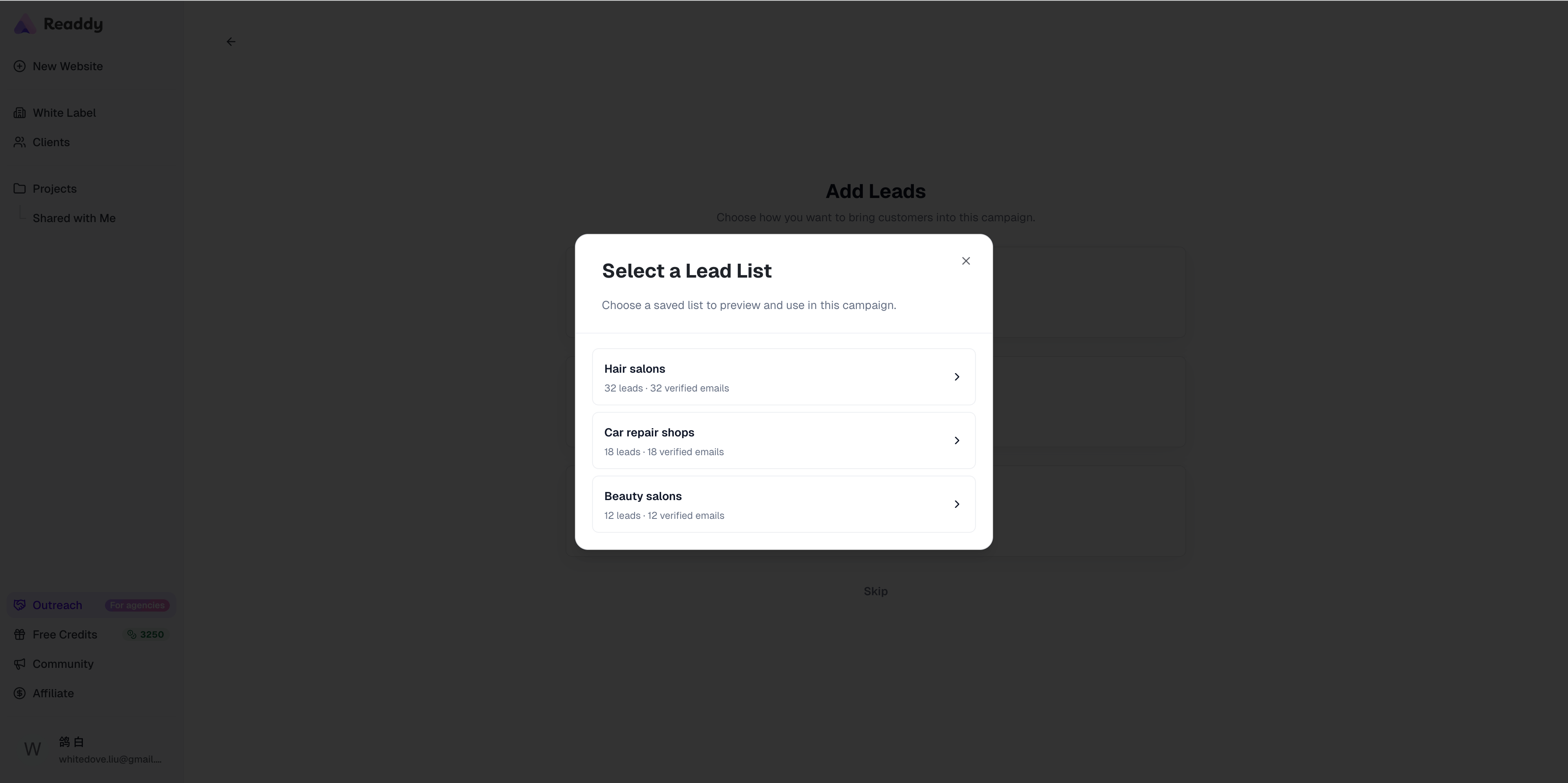 Select **Upload CSV** to upload a `.csv` or `.xlsx` file, then review the
imported rows in **Data Preview**.
### Step 3: Find Leads with AI Search
Use this flow when you choose **AI Search** from **Add Leads**, or when you open
**Lead Finder** directly from the left sidebar.
**Data source:** AI Lead Finder searches business data from **Google Maps**.
For better results, use a common local business category with a clear
location, such as `Barber shops in New York`, `Beauty salons in Paris`, or
`Auto repair shops in Santa Clara`.
In **Find Leads**, describe the businesses you want to reach, then click
**AI Search**. Include both a business type and location for better results.
Readdy turns your prompt into a search plan. Review and adjust the fields
before you click **Generate**.
Select **Upload CSV** to upload a `.csv` or `.xlsx` file, then review the
imported rows in **Data Preview**.
### Step 3: Find Leads with AI Search
Use this flow when you choose **AI Search** from **Add Leads**, or when you open
**Lead Finder** directly from the left sidebar.
**Data source:** AI Lead Finder searches business data from **Google Maps**.
For better results, use a common local business category with a clear
location, such as `Barber shops in New York`, `Beauty salons in Paris`, or
`Auto repair shops in Santa Clara`.
In **Find Leads**, describe the businesses you want to reach, then click
**AI Search**. Include both a business type and location for better results.
Readdy turns your prompt into a search plan. Review and adjust the fields
before you click **Generate**.
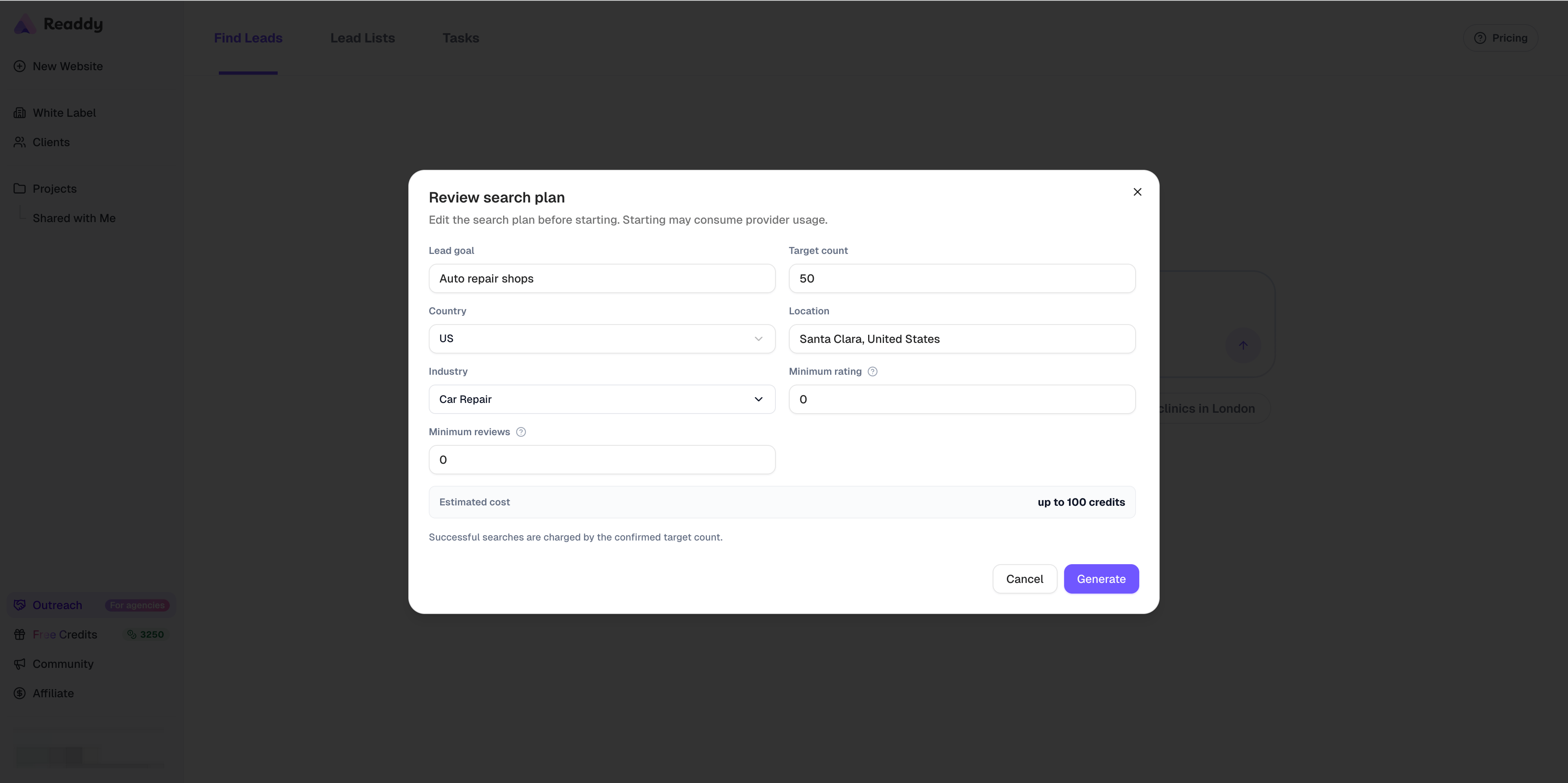 The search plan includes:
* **Lead goal**: The business type or audience Readdy will search for
* **Target count**: The number of leads you want Readdy to return
* **Country**: The country used to narrow the search
* **Location**: The city or area where Readdy should search
* **Industry**: The Google Maps category Readdy uses to match businesses
* **Minimum rating**: The lowest public rating a business can have
* **Minimum reviews**: The minimum number of public reviews a business must have
* **Estimated cost**: The maximum Credits required for the confirmed target count
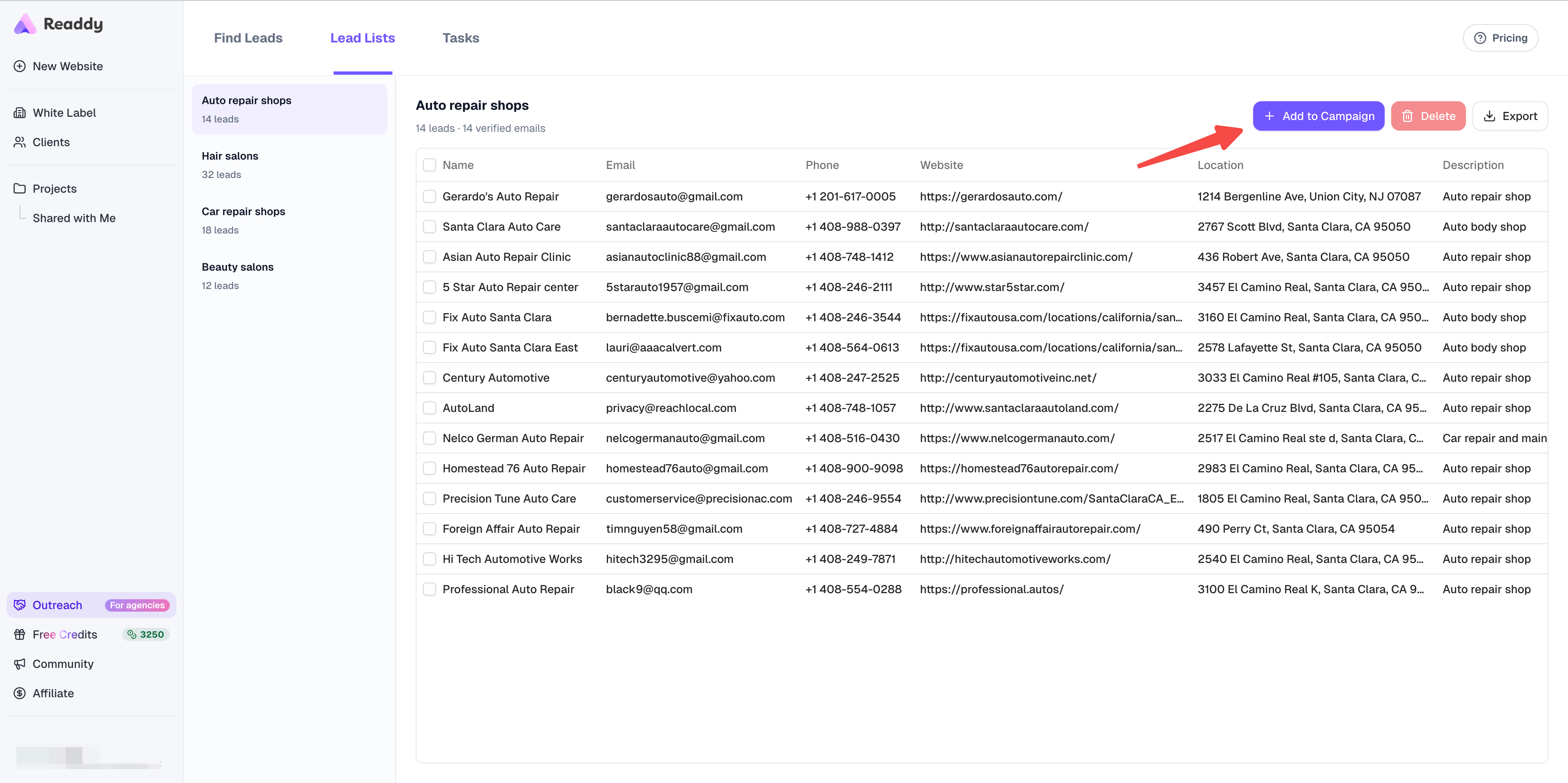
Click **Generate** to start the search. When the search finishes, open the
**Lead Lists** tab to review the saved list.
In **Lead Lists**, select the list you want to use, then click **Add to
Campaign**. Readdy loads the lead list into the campaign **Data Preview** page.
The search plan includes:
* **Lead goal**: The business type or audience Readdy will search for
* **Target count**: The number of leads you want Readdy to return
* **Country**: The country used to narrow the search
* **Location**: The city or area where Readdy should search
* **Industry**: The Google Maps category Readdy uses to match businesses
* **Minimum rating**: The lowest public rating a business can have
* **Minimum reviews**: The minimum number of public reviews a business must have
* **Estimated cost**: The maximum Credits required for the confirmed target count
Click **Generate** to start the search. When the search finishes, open the
**Lead Lists** tab to review the saved list.
In **Lead Lists**, select the list you want to use, then click **Add to
Campaign**. Readdy loads the lead list into the campaign **Data Preview** page.
 ### Step 4: Review the Data Table
In **Data Preview**, check the leads before generation. Every cell in the
preview table can be edited directly, so you can fix names, descriptions,
emails, phone numbers, and addresses before continuing.
### Step 4: Review the Data Table
In **Data Preview**, check the leads before generation. Every cell in the
preview table can be edited directly, so you can fix names, descriptions,
emails, phone numbers, and addresses before continuing.
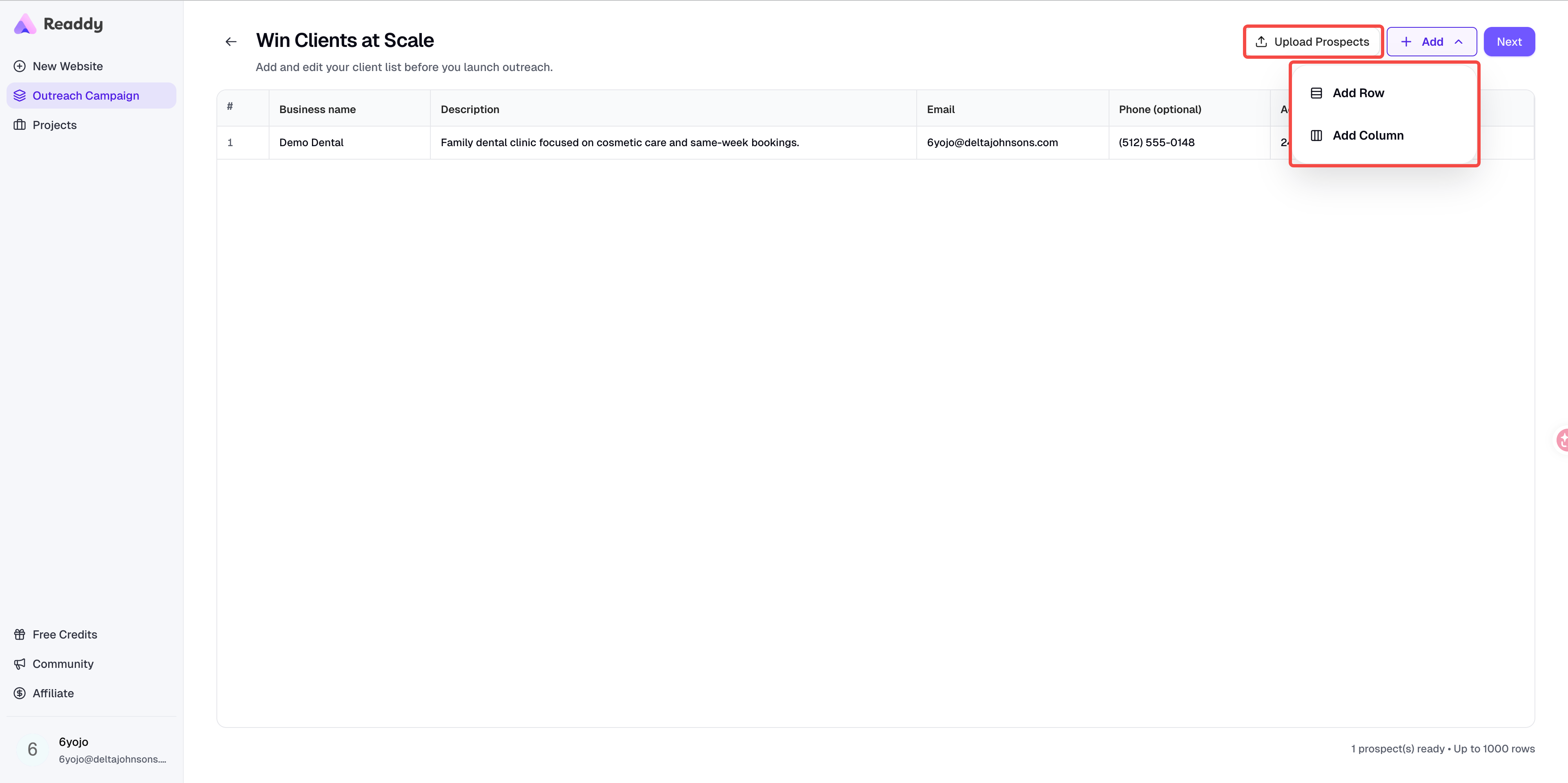 Click **Add** to insert more rows or custom columns if you want to enrich the
lead data manually.
When the data looks correct, click **Next** to start configuring the outreach
email.
**Credits Calculation:** `number of rows x 5 Credits`
Example: 20 rows = **100 Credits**
Only **successfully** generated rows are charged.
### Step 5: Write the Email Content
Enter your email subject in the **Subject** field.
Write your outreach message in the editor. You can use rich text formatting.
Click **Insert Variable** to add values from your uploaded columns. Readdy also prepares `{{Website_URL}}`, so each prospect receives the link to their own generated website.
Click **Add** to insert more rows or custom columns if you want to enrich the
lead data manually.
When the data looks correct, click **Next** to start configuring the outreach
email.
**Credits Calculation:** `number of rows x 5 Credits`
Example: 20 rows = **100 Credits**
Only **successfully** generated rows are charged.
### Step 5: Write the Email Content
Enter your email subject in the **Subject** field.
Write your outreach message in the editor. You can use rich text formatting.
Click **Insert Variable** to add values from your uploaded columns. Readdy also prepares `{{Website_URL}}`, so each prospect receives the link to their own generated website.
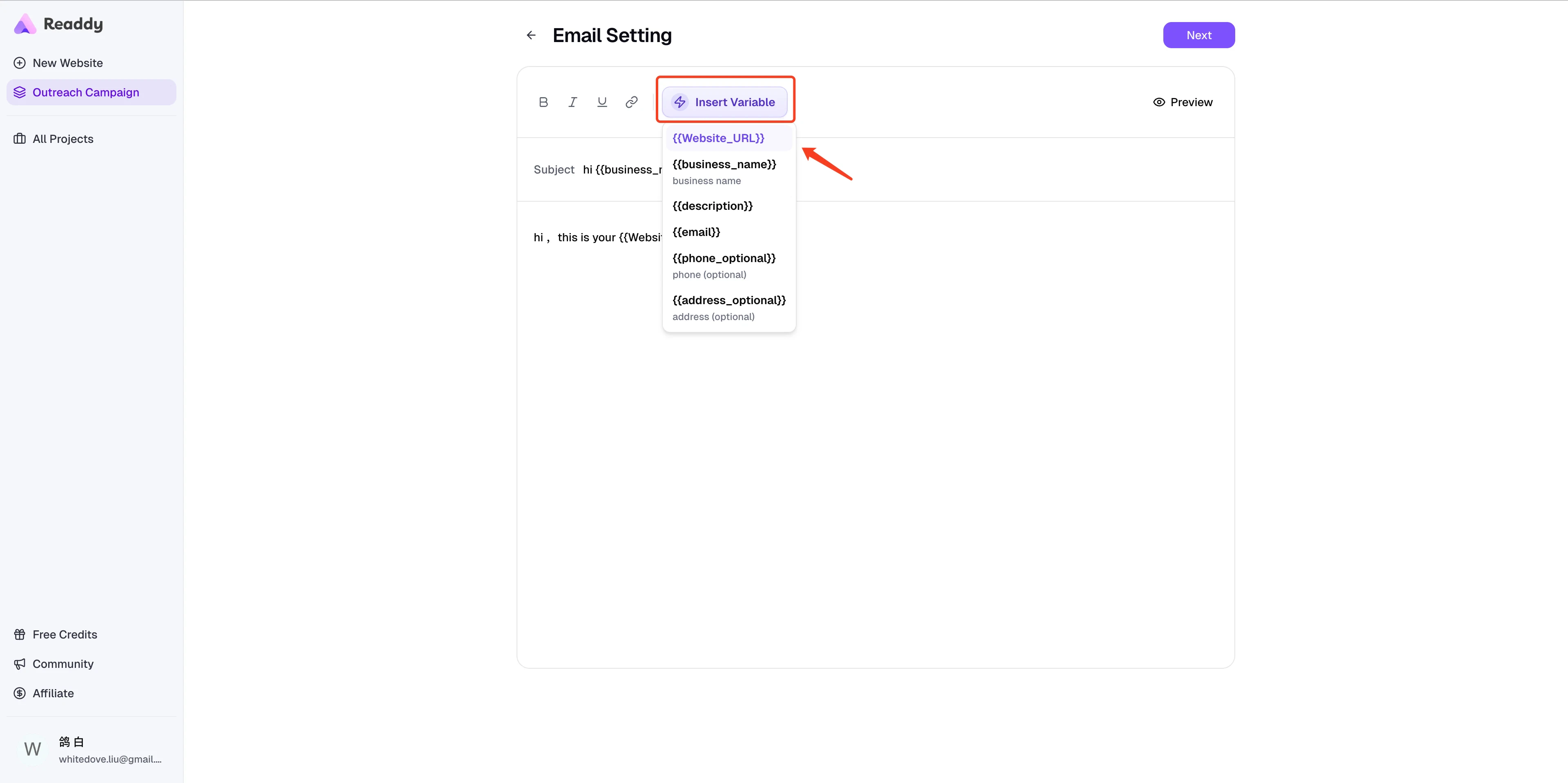 Click **Preview** to check how the first row will look after variables are
replaced.
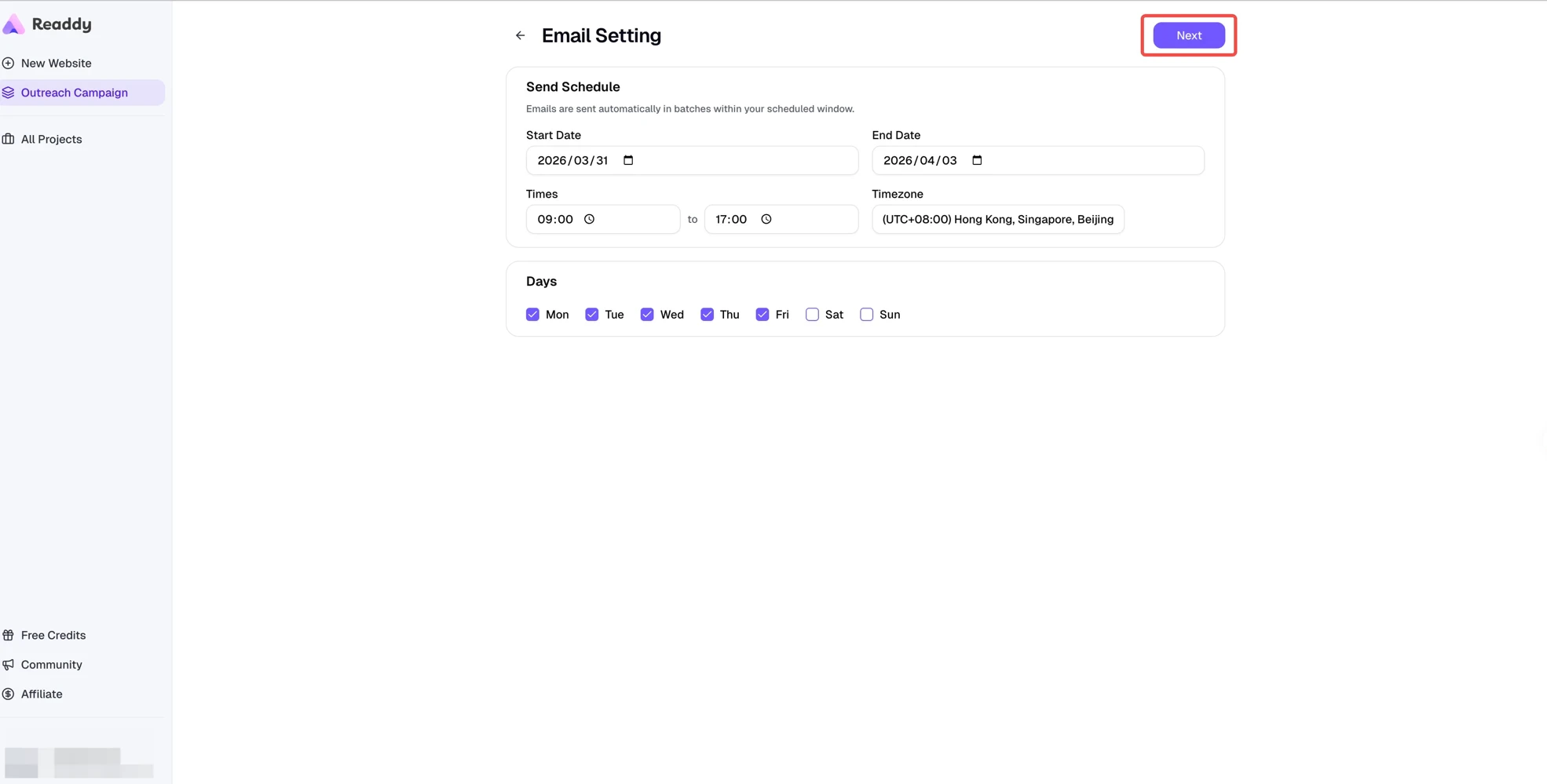
### Step 6: Set the Sending Schedule
Set the **Start date** and **End date** for the campaign.
Choose the hours during which emails can be sent each day.
Select the days of the week for sending. Weekdays are the typical default.
Choose the timezone that matches your campaign plan.
Click **Preview** to check how the first row will look after variables are
replaced.
### Step 6: Set the Sending Schedule
Set the **Start date** and **End date** for the campaign.
Choose the hours during which emails can be sent each day.
Select the days of the week for sending. Weekdays are the typical default.
Choose the timezone that matches your campaign plan.
 ### Step 7: Bind Your Mailbox in Readdy
Readdy can send the campaign directly through your own mailbox. On the **Mailbox** step, click **SMTP / IMAP** to bind a new mailbox.
### Step 7: Bind Your Mailbox in Readdy
Readdy can send the campaign directly through your own mailbox. On the **Mailbox** step, click **SMTP / IMAP** to bind a new mailbox.
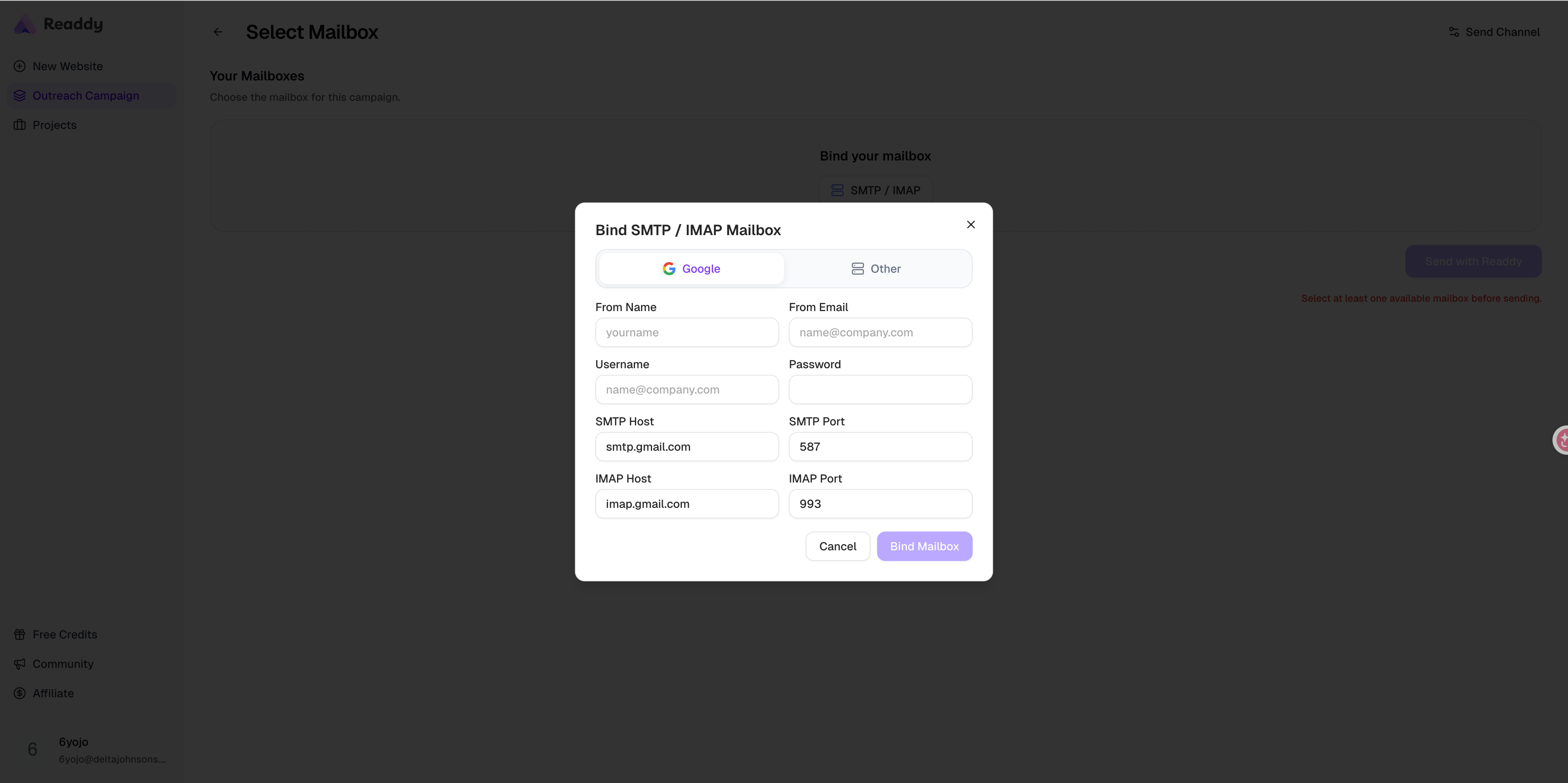 After finishing **Content** and **Schedule**, go to **Mailbox**.
Readdy opens the mailbox binding dialog.
Choose **Google** if you want to use Gmail SMTP. Choose **Other** for any
other SMTP / IMAP provider.
Fill in the sender name, sender email, username, password, and the SMTP / IMAP
server information.
Mailbox selection is optional before generation. You can start generating
websites first, then come back later to bind a mailbox and launch the email
campaign.
#### Bind a Google SMTP mailbox
If you choose **Google**, Readdy automatically fills these Gmail server values for you:
* SMTP Host: `smtp.gmail.com`
* SMTP Port: `587`
* IMAP Host: `imap.gmail.com`
* IMAP Port: `993`
You only need to prepare an **App Password** from your Google account and paste it into the **Password** field in Readdy.
Go to [Google Account](https://myaccount.google.com/).
Click [Security](https://myaccount.google.com/security) in your Google account settings.
After finishing **Content** and **Schedule**, go to **Mailbox**.
Readdy opens the mailbox binding dialog.
Choose **Google** if you want to use Gmail SMTP. Choose **Other** for any
other SMTP / IMAP provider.
Fill in the sender name, sender email, username, password, and the SMTP / IMAP
server information.
Mailbox selection is optional before generation. You can start generating
websites first, then come back later to bind a mailbox and launch the email
campaign.
#### Bind a Google SMTP mailbox
If you choose **Google**, Readdy automatically fills these Gmail server values for you:
* SMTP Host: `smtp.gmail.com`
* SMTP Port: `587`
* IMAP Host: `imap.gmail.com`
* IMAP Port: `993`
You only need to prepare an **App Password** from your Google account and paste it into the **Password** field in Readdy.
Go to [Google Account](https://myaccount.google.com/).
Click [Security](https://myaccount.google.com/security) in your Google account settings.
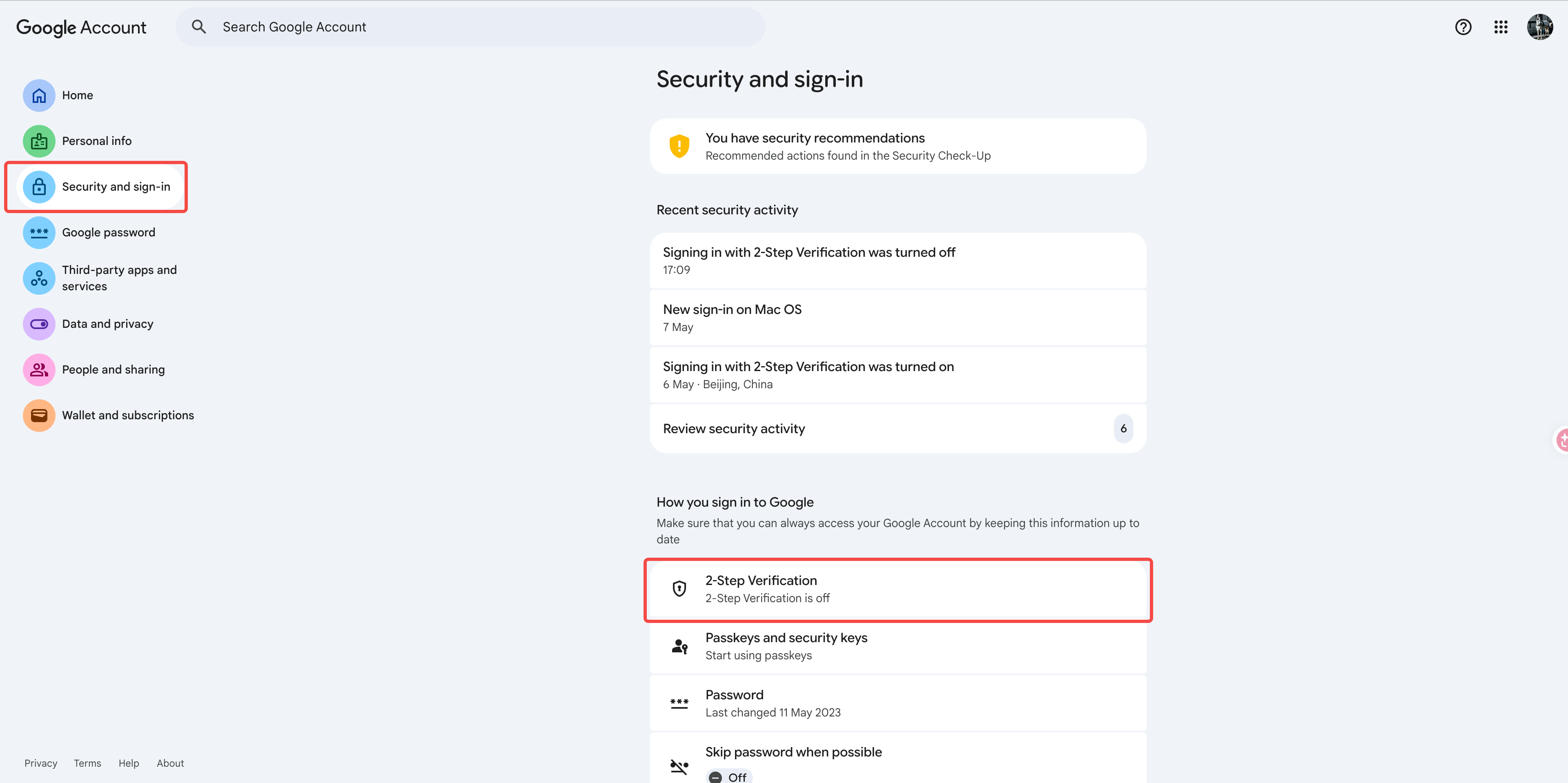 App Passwords are only available after 2-Step Verification is enabled.
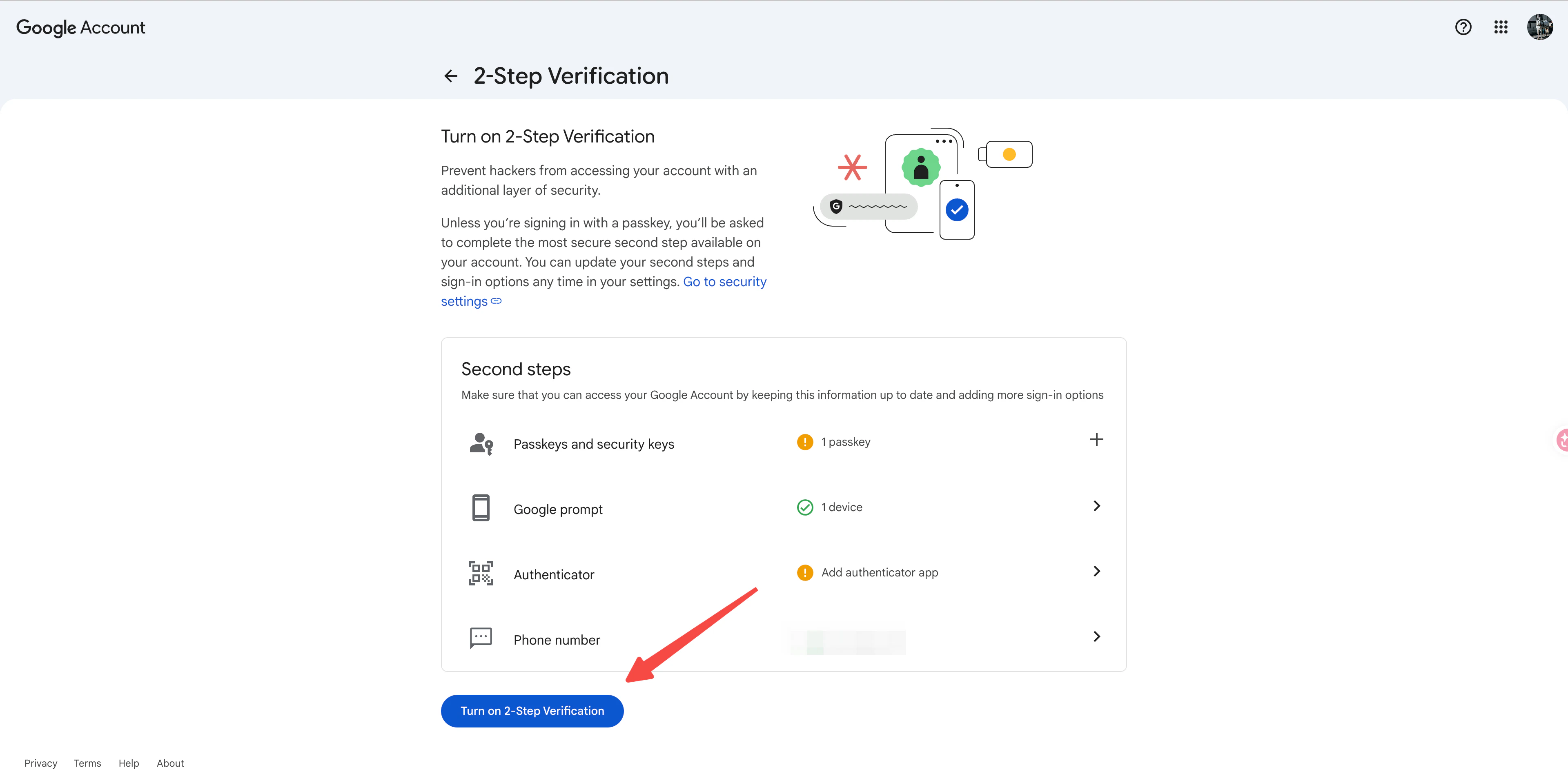 Open **App passwords** from the Security page. If you do not see the entry, go directly to [App passwords](https://myaccount.google.com/apppasswords).
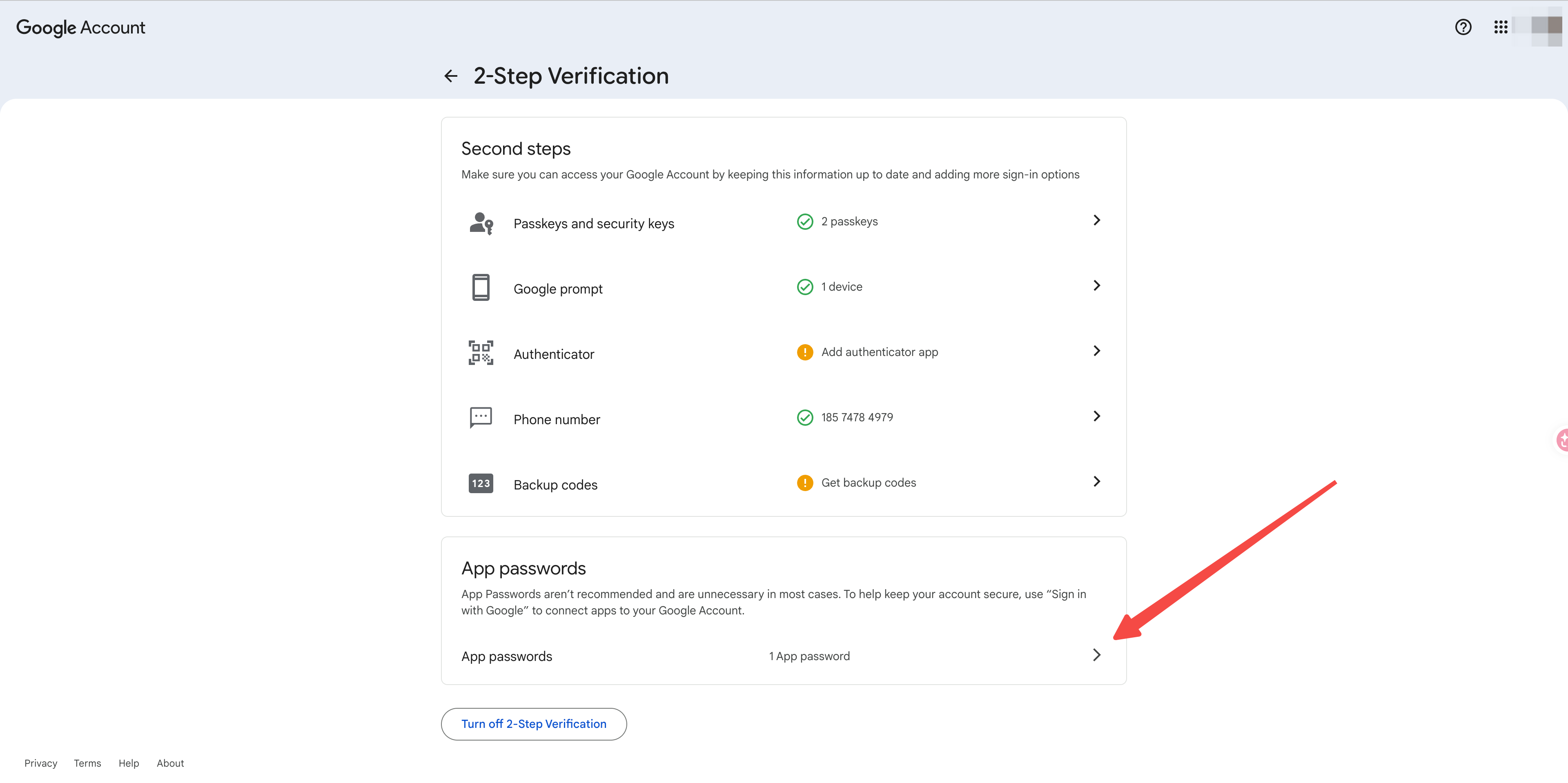 Copy the generated app password and paste it into the **Password** field in
Readdy's SMTP binding form.
#### Bind another SMTP / IMAP mailbox
If you choose **Other**, get the following information from your email provider and paste it into Readdy:
* **From Name**: the sender name recipients should see
* **From Email**: the mailbox address you want to send from
* **Username**: usually the same as your email address
* **Password**: your SMTP password or app password
* **SMTP Host / Port**: outgoing mail server details from your provider
* **IMAP Host / Port**: incoming mail server details from your provider
Common examples include company mailboxes from Google Workspace, Microsoft 365, Zoho, Fastmail, or your own hosting provider.
### Step 8: Start Website Generation
After your content and schedule are ready, click **Start Generate**.
Readdy saves your email content, schedule, and mailbox settings, then opens
the generation confirmation dialog.
Review the number of websites and the credit usage, then confirm.
Copy the generated app password and paste it into the **Password** field in
Readdy's SMTP binding form.
#### Bind another SMTP / IMAP mailbox
If you choose **Other**, get the following information from your email provider and paste it into Readdy:
* **From Name**: the sender name recipients should see
* **From Email**: the mailbox address you want to send from
* **Username**: usually the same as your email address
* **Password**: your SMTP password or app password
* **SMTP Host / Port**: outgoing mail server details from your provider
* **IMAP Host / Port**: incoming mail server details from your provider
Common examples include company mailboxes from Google Workspace, Microsoft 365, Zoho, Fastmail, or your own hosting provider.
### Step 8: Start Website Generation
After your content and schedule are ready, click **Start Generate**.
Readdy saves your email content, schedule, and mailbox settings, then opens
the generation confirmation dialog.
Review the number of websites and the credit usage, then confirm.
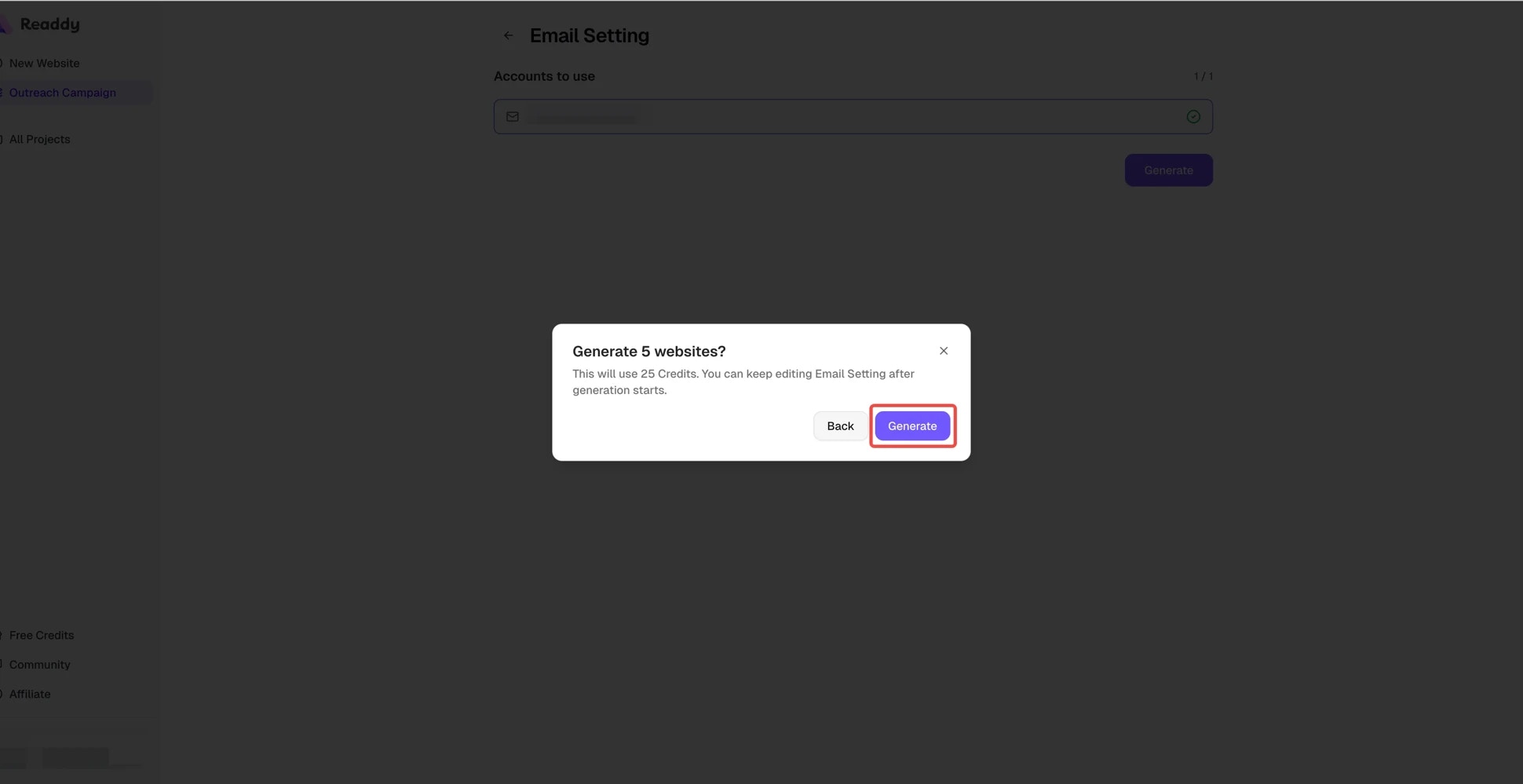 Starting generation does **not** send emails immediately. It only starts
generating websites and saves your email setup for later sending.
### Step 9: Start Sending with Readdy
When you are ready to launch the email campaign, use the email action on the Progress or Results page and open **Start Send**.
Click the email button in the top right of the campaign and open **Start
Send**.
Choose the mailbox you want Readdy to use for this campaign.
If website generation is already complete, Readdy starts sending right away.
If websites are still generating, Readdy saves the setup and automatically
sends after generation finishes.
### Step 10: Track Website Generation, Review Results, and Refresh Website URLs
After generation starts, Readdy processes each row one by one.
| Stage | Description |
| ------------ | --------------------------------------- |
| Waiting | In queue, not started yet |
| Creating | Creating the project |
| Generating | Generating website content |
| Getting Link | Creating the website link |
| Success | Website generation is complete |
| Failed | Something went wrong and can be retried |
Starting generation does **not** send emails immediately. It only starts
generating websites and saves your email setup for later sending.
### Step 9: Start Sending with Readdy
When you are ready to launch the email campaign, use the email action on the Progress or Results page and open **Start Send**.
Click the email button in the top right of the campaign and open **Start
Send**.
Choose the mailbox you want Readdy to use for this campaign.
If website generation is already complete, Readdy starts sending right away.
If websites are still generating, Readdy saves the setup and automatically
sends after generation finishes.
### Step 10: Track Website Generation, Review Results, and Refresh Website URLs
After generation starts, Readdy processes each row one by one.
| Stage | Description |
| ------------ | --------------------------------------- |
| Waiting | In queue, not started yet |
| Creating | Creating the project |
| Generating | Generating website content |
| Getting Link | Creating the website link |
| Success | Website generation is complete |
| Failed | Something went wrong and can be retried |
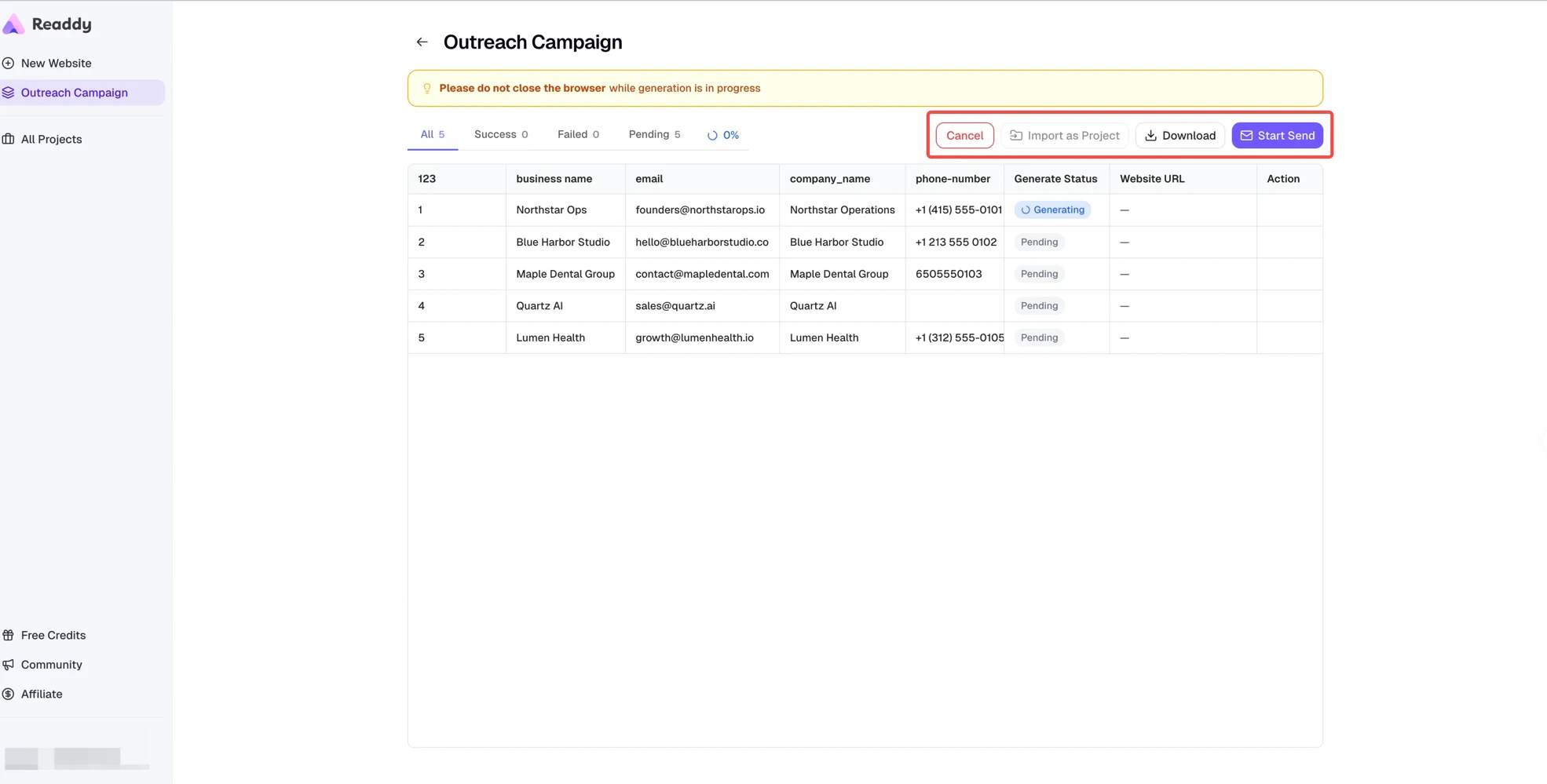 On the Results page, you can:
* Copy website links
* Import successful rows as projects
* Retry failed rows
* Download the results
* Open **Start Send** or **Email Analysis**
On the Results page, you can:
* Copy website links
* Import successful rows as projects
* Retry failed rows
* Download the results
* Open **Start Send** or **Email Analysis**
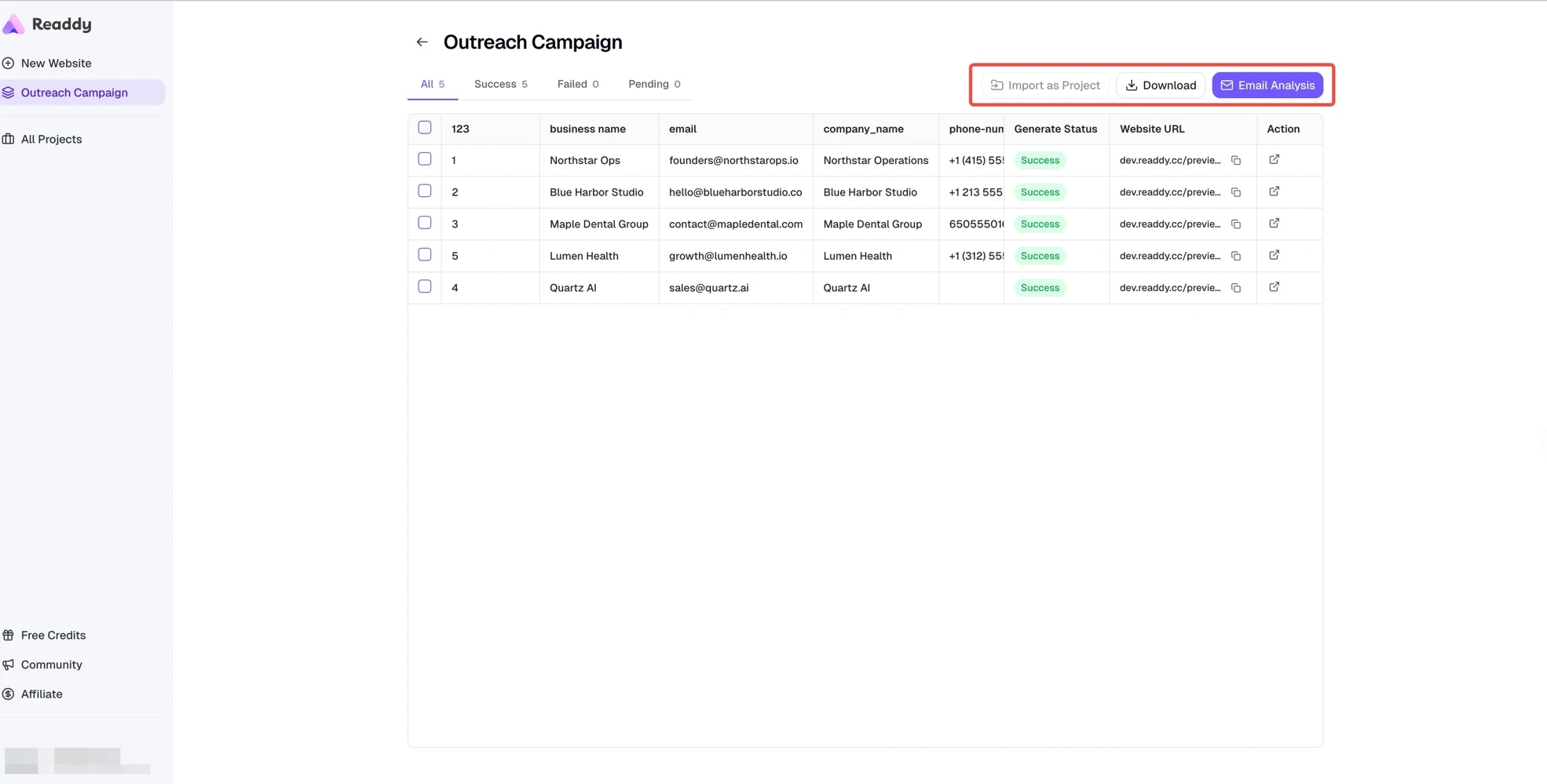 Keep the browser open while generation is running. If the page is closed or
refreshed, the task may pause. You can reopen it later and click **Continue**
to resume.
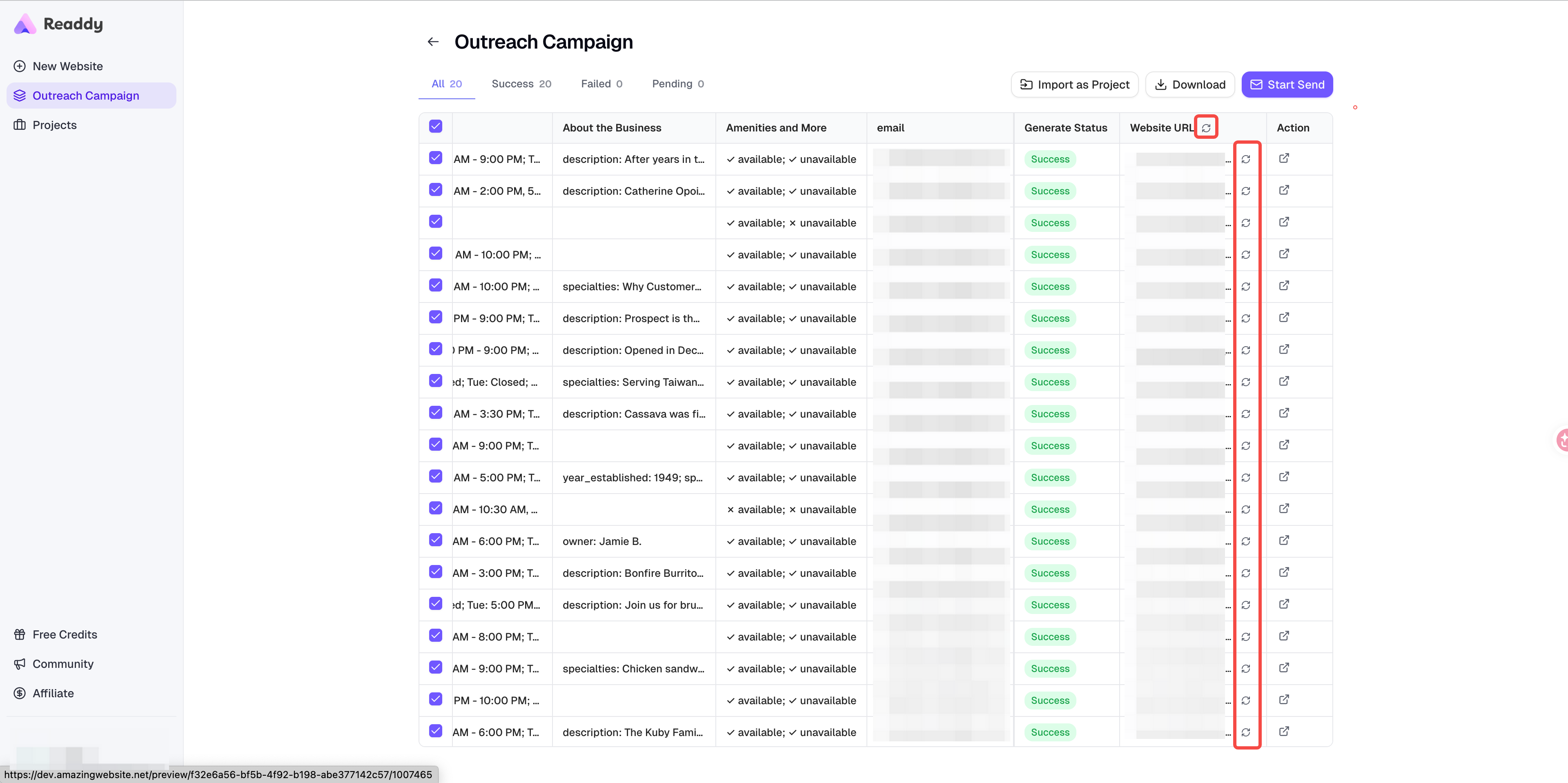
#### Not happy with a generated website?
If a generated website needs more work, select the successful row and click
**Import as Project**. Readdy will convert it into a regular project so you can
continue editing it in the normal project workspace.
After you finish editing that imported project, return to **Outreach Campaign**
and refresh the website link in the **Website URL** column to pull the newest
version.
* Use the refresh icon in the **Website URL** column header to refresh links in
bulk
* Use the refresh icon in a specific row to refresh only that row's latest URL
Keep the browser open while generation is running. If the page is closed or
refreshed, the task may pause. You can reopen it later and click **Continue**
to resume.
#### Not happy with a generated website?
If a generated website needs more work, select the successful row and click
**Import as Project**. Readdy will convert it into a regular project so you can
continue editing it in the normal project workspace.
After you finish editing that imported project, return to **Outreach Campaign**
and refresh the website link in the **Website URL** column to pull the newest
version.
* Use the refresh icon in the **Website URL** column header to refresh links in
bulk
* Use the refresh icon in a specific row to refresh only that row's latest URL
 ### Step 11: View Email Analytics
After sending starts, the email button changes to **Email Analysis**. There you can check campaign performance:
### Step 11: View Email Analytics
After sending starts, the email button changes to **Email Analysis**. There you can check campaign performance:
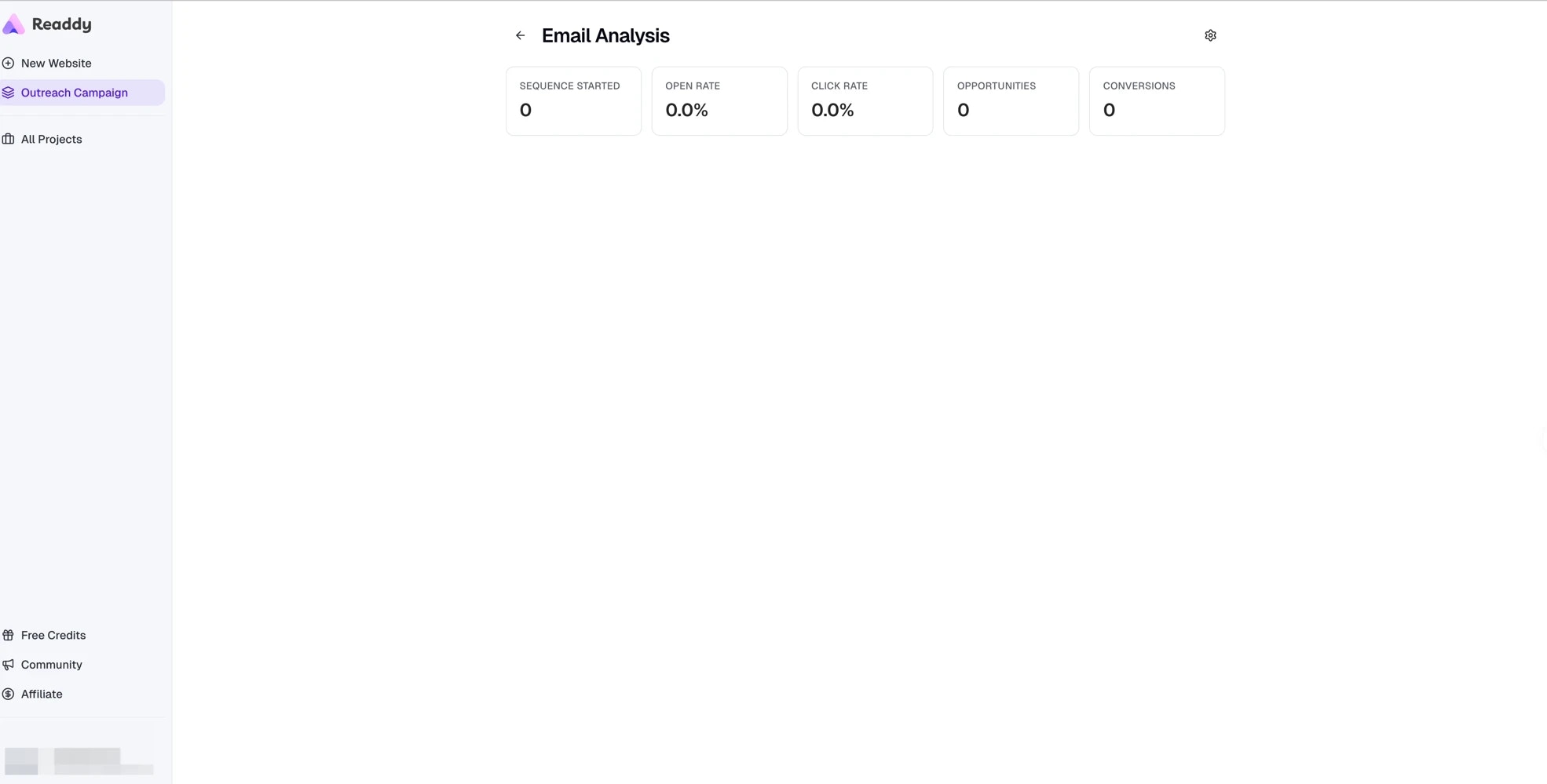 | Metric | Description |
| ----------------- | ---------------------------------------------- |
| Sequences Started | Number of emails that entered the sending flow |
| Open Rate | Percentage of recipients who opened the email |
| Click Rate | Percentage of recipients who clicked a link |
| Opportunities | Number of interested recipients |
| Conversions | Number of final deals or completed goals |
## Optional: Use Instantly Instead of Readdy
If you prefer to send through **Instantly**, you can still do that. Readdy keeps **Readdy** as the default send channel, but you can switch to **Instantly** before the first send.
In **Edit Email** or **Start Send**, click **Send Channel** in the top right.
In the **Send Channel** popup, choose **Instantly** and click **Connect**.
| Metric | Description |
| ----------------- | ---------------------------------------------- |
| Sequences Started | Number of emails that entered the sending flow |
| Open Rate | Percentage of recipients who opened the email |
| Click Rate | Percentage of recipients who clicked a link |
| Opportunities | Number of interested recipients |
| Conversions | Number of final deals or completed goals |
## Optional: Use Instantly Instead of Readdy
If you prefer to send through **Instantly**, you can still do that. Readdy keeps **Readdy** as the default send channel, but you can switch to **Instantly** before the first send.
In **Edit Email** or **Start Send**, click **Send Channel** in the top right.
In the **Send Channel** popup, choose **Instantly** and click **Connect**.
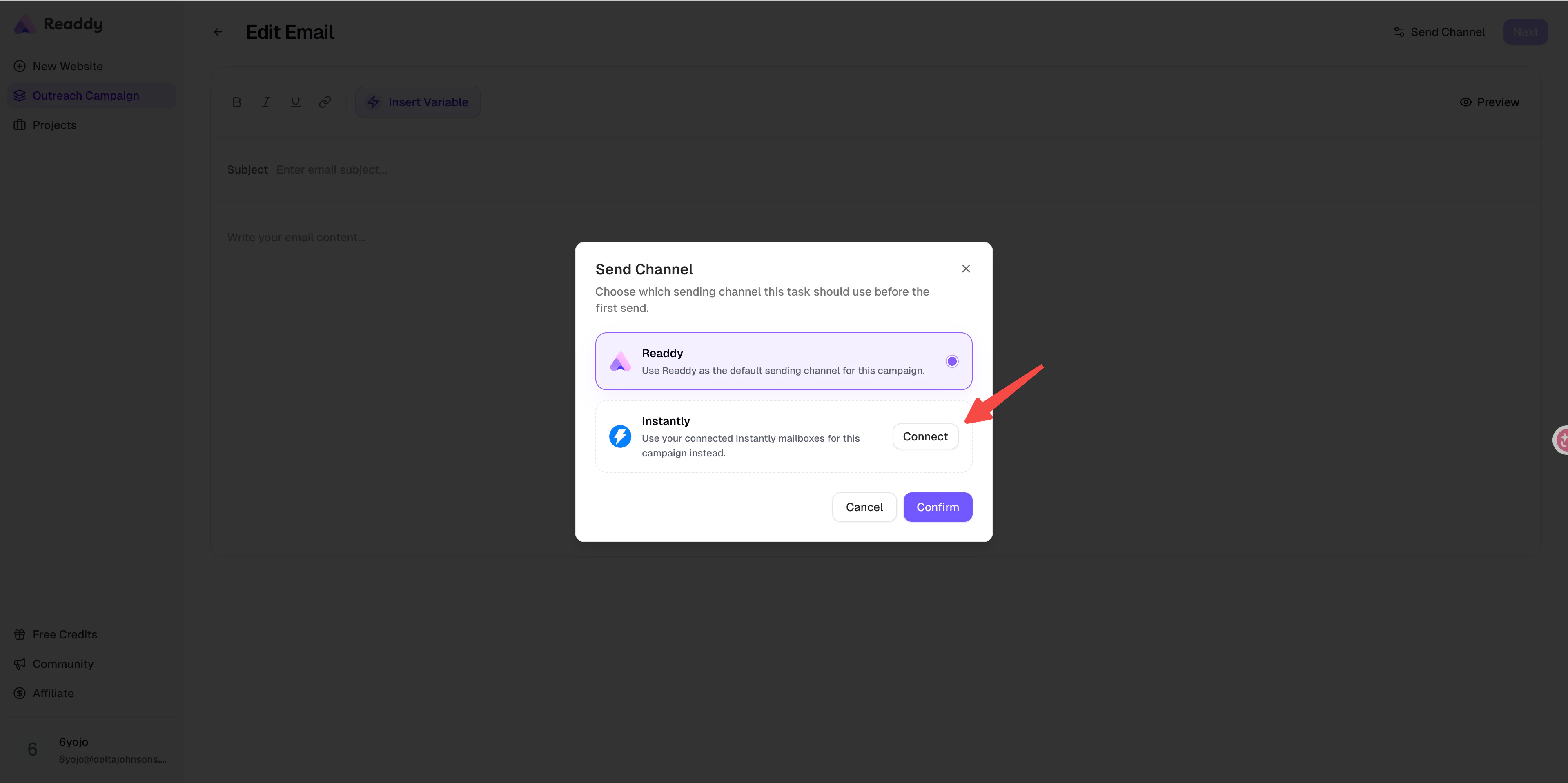 Paste your Instantly API key and connect the workspace.
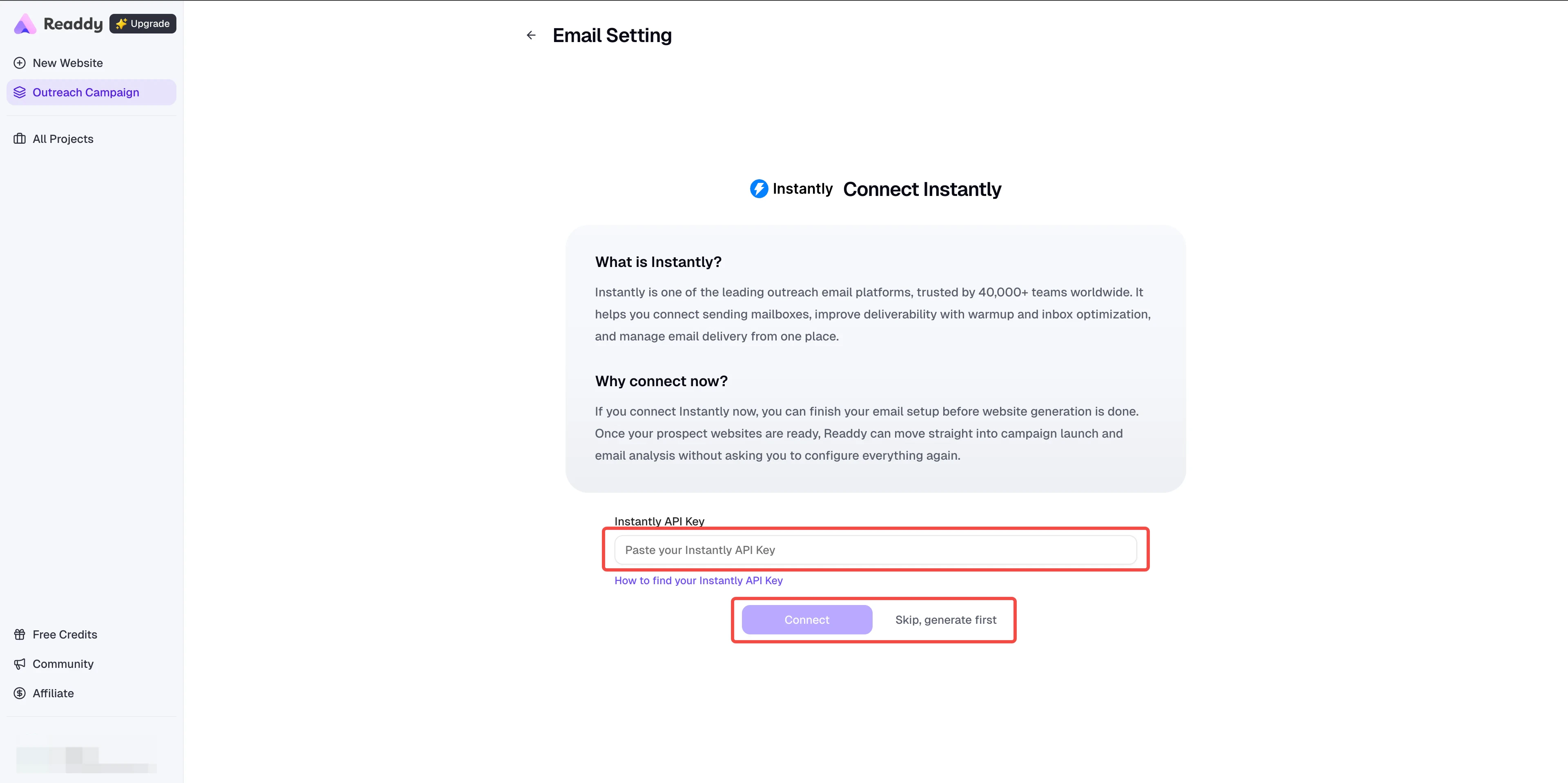 Choose the mailbox or mailboxes you want Instantly to use.
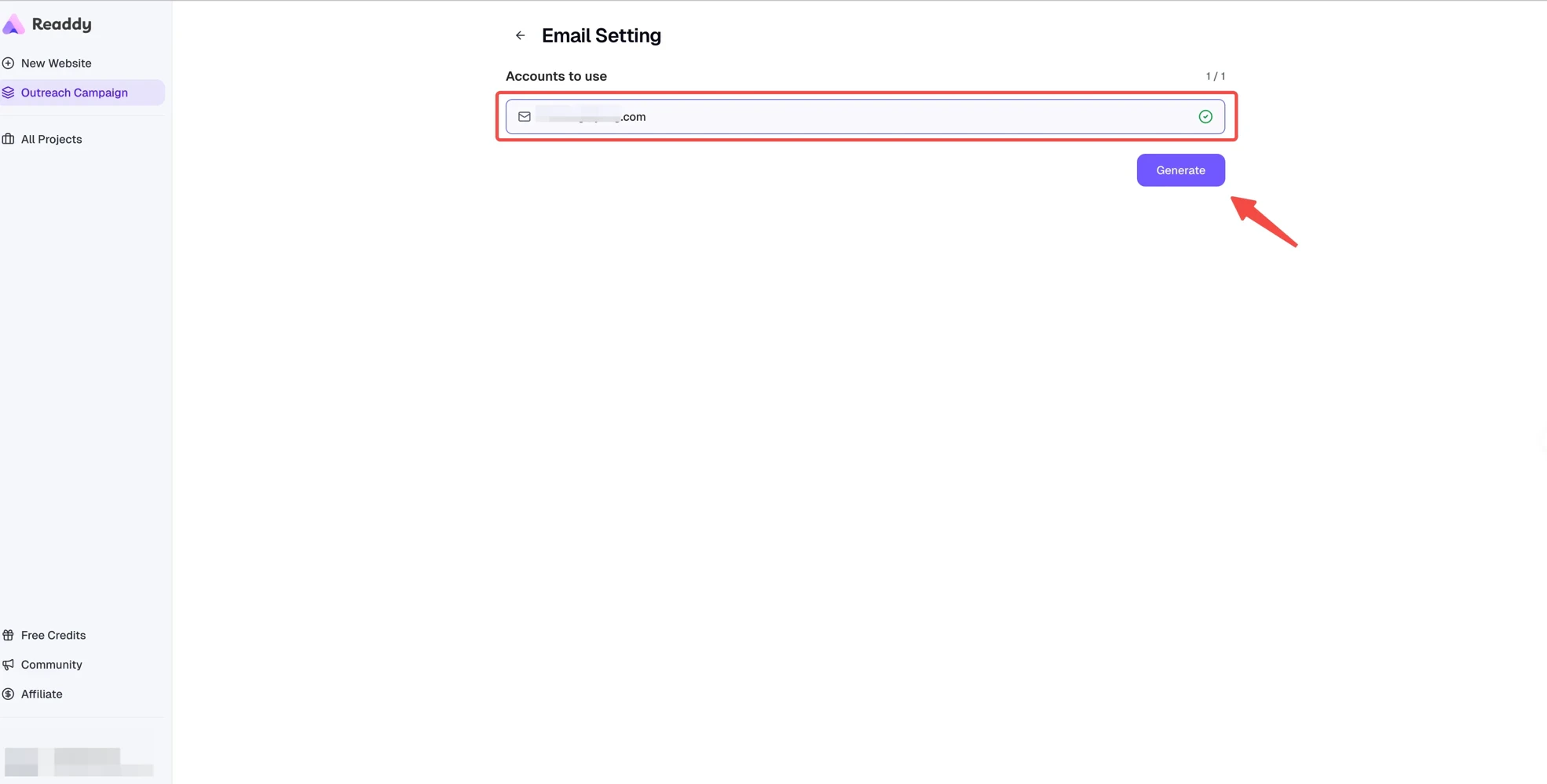 Confirm the channel switch, then choose **Send with Instantly** for this task.
Once a campaign has already started sending, the send channel is locked for
that task. Switch the channel before the first send if you want to use
Instantly.
## Limits Summary
### Outreach Campaign Limits
| Limit | Details |
| ------------------- | ------------------------------------------------------- |
| Plan availability | **Starter or above**, or **Agency Basic and above** |
| Spreadsheet format | `.csv` and `.xlsx` |
| File size | Maximum **5MB** |
| Single upload limit | Depends on your plan |
| Required column | Must include `email` |
| Email format | Each email must be valid |
| Credits cost | **5 Credits** per row, charged only for successful rows |
| Browser requirement | Keep the browser open during generation |
| Tab limit | Only one tab can run batch generation at a time |
Current paid-plan quotas:
| Paid plan | Generation quota | Single upload limit |
| -------------------------- | ---------------- | ------------------- |
| Starter / Starter2 | 500 | 100 |
| Pro family / Customization | 3000 | 300 |
| Agency Basic | 5000 | 1000 |
| Agency Scale | 20000 | 3000 |
| Agency Max | 50000 | 5000 |
### Sending Limits
| Limit | Details |
| ------------------- | ---------------------------------------------------- |
| Default channel | **Readdy** |
| Optional channel | **Instantly** before the first send |
| Mailbox requirement | Select at least one available mailbox before sending |
| Email content | Subject and body are required |
| Edit rule | Pause an active campaign before editing |
| Deletion | Deleting a campaign cannot be undone |
## FAQ
Check whether your `.csv` or `.xlsx` file includes an `email` column.
Extra spaces in the column name can cause validation issues. Letter case does
not matter, so `Email`, `EMAIL`, and `email` all work. Using Readdy's template
is the safest option.
Check the row numbers shown in the error message. Those emails may be missing
`@`, include extra spaces, or use incomplete domains.
Start with [Find Clients for the
Agency](https://docs.readdy.ai/tricks/find-clients). It walks you through how
to collect prospects, export a `.csv` file, and bring that file back into
Outreach Campaign.
Yes. Mailbox binding is optional before generation. You can finish **Content**
and **Schedule**, click **Start Generate**, and come back later to bind a
mailbox and launch sending.
Yes. Choose **Google** in the SMTP / IMAP binding dialog, enable Google 2-Step
Verification, create an App Password, and paste that password into Readdy.
Yes. Choose **Other** in the SMTP / IMAP dialog and fill in the SMTP / IMAP
host, port, username, and password provided by your email service.
Readdy saves your sending setup and automatically starts sending after website
generation finishes successfully.
Reopen the campaign and click **Continue**. Successful rows will be kept, and
the remaining rows can continue from where the task paused.
Only one browser tab can run batch generation at a time. Close the other tab,
refresh the current page, and try again. If needed, wait a moment for the lock
to release.
We recommend **20 to 30 emails per mailbox per day** to help protect
deliverability.
Open **Email Analysis** from the email button in the campaign. There you can
review open rate, click rate, opportunities, and conversions.
## Need Help?
If this guide doesn't resolve your issue:
* Submit a support ticket: [readdy.ai/feedback](https://readdy.ai/feedback)
* Use the live chat in the top-right corner of Readdy
Confirm the channel switch, then choose **Send with Instantly** for this task.
Once a campaign has already started sending, the send channel is locked for
that task. Switch the channel before the first send if you want to use
Instantly.
## Limits Summary
### Outreach Campaign Limits
| Limit | Details |
| ------------------- | ------------------------------------------------------- |
| Plan availability | **Starter or above**, or **Agency Basic and above** |
| Spreadsheet format | `.csv` and `.xlsx` |
| File size | Maximum **5MB** |
| Single upload limit | Depends on your plan |
| Required column | Must include `email` |
| Email format | Each email must be valid |
| Credits cost | **5 Credits** per row, charged only for successful rows |
| Browser requirement | Keep the browser open during generation |
| Tab limit | Only one tab can run batch generation at a time |
Current paid-plan quotas:
| Paid plan | Generation quota | Single upload limit |
| -------------------------- | ---------------- | ------------------- |
| Starter / Starter2 | 500 | 100 |
| Pro family / Customization | 3000 | 300 |
| Agency Basic | 5000 | 1000 |
| Agency Scale | 20000 | 3000 |
| Agency Max | 50000 | 5000 |
### Sending Limits
| Limit | Details |
| ------------------- | ---------------------------------------------------- |
| Default channel | **Readdy** |
| Optional channel | **Instantly** before the first send |
| Mailbox requirement | Select at least one available mailbox before sending |
| Email content | Subject and body are required |
| Edit rule | Pause an active campaign before editing |
| Deletion | Deleting a campaign cannot be undone |
## FAQ
Check whether your `.csv` or `.xlsx` file includes an `email` column.
Extra spaces in the column name can cause validation issues. Letter case does
not matter, so `Email`, `EMAIL`, and `email` all work. Using Readdy's template
is the safest option.
Check the row numbers shown in the error message. Those emails may be missing
`@`, include extra spaces, or use incomplete domains.
Start with [Find Clients for the
Agency](https://docs.readdy.ai/tricks/find-clients). It walks you through how
to collect prospects, export a `.csv` file, and bring that file back into
Outreach Campaign.
Yes. Mailbox binding is optional before generation. You can finish **Content**
and **Schedule**, click **Start Generate**, and come back later to bind a
mailbox and launch sending.
Yes. Choose **Google** in the SMTP / IMAP binding dialog, enable Google 2-Step
Verification, create an App Password, and paste that password into Readdy.
Yes. Choose **Other** in the SMTP / IMAP dialog and fill in the SMTP / IMAP
host, port, username, and password provided by your email service.
Readdy saves your sending setup and automatically starts sending after website
generation finishes successfully.
Reopen the campaign and click **Continue**. Successful rows will be kept, and
the remaining rows can continue from where the task paused.
Only one browser tab can run batch generation at a time. Close the other tab,
refresh the current page, and try again. If needed, wait a moment for the lock
to release.
We recommend **20 to 30 emails per mailbox per day** to help protect
deliverability.
Open **Email Analysis** from the email button in the campaign. There you can
review open rate, click rate, opportunities, and conversions.
## Need Help?
If this guide doesn't resolve your issue:
* Submit a support ticket: [readdy.ai/feedback](https://readdy.ai/feedback)
* Use the live chat in the top-right corner of Readdy