> ## Documentation Index
> Fetch the complete documentation index at: https://docs.readdy.ai/llms.txt
> Use this file to discover all available pages before exploring further.
# OG Preview Settings
> Set the preview image, title, and description shown when your site is shared on social platforms
With OG Preview Settings, you can:
* **Control link preview cards**: Decide which image, title, and description appear when your site is shared
* **Keep your brand consistent**: Make shared link previews match your website and brand
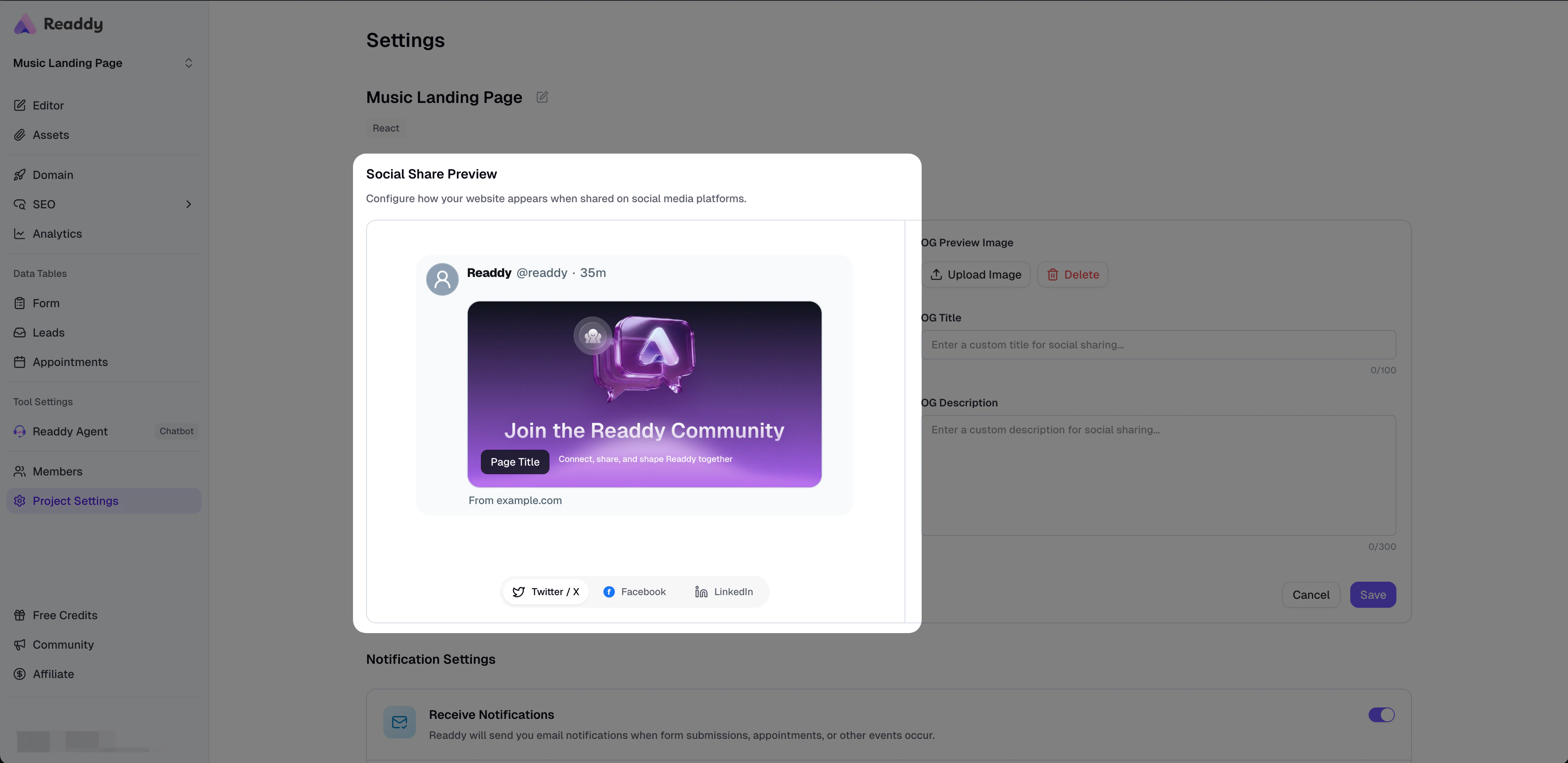
* **Preview the result in real time**: See how your card may look on Facebook, X, and LinkedIn
* **Automatically sync Twitter Card data**: Readdy updates the related X / Twitter share card settings for you
OG settings are currently configured at the **project level**. This means one website uses one set of OG preview settings, and page-specific OG settings are not supported yet.
Before using OG Preview Settings, your project must already have **at least one generated version**. OG tags are written into a website version, so this feature cannot be used if the project has never generated a version.
 ## What Is an OG Preview?
OG (Open Graph) is a standard used to control how a webpage appears when it is shared on social platforms. When you send a link to Facebook, X, LinkedIn, WeChat, Slack, and similar platforms, the platform reads the page metadata and generates a share card with an image, a title, and a description.
In this guide:
* **OG Preview Image** is the main image shown on the card
* **OG Title** is the card title
* **OG Description** is the card description
If these are not set, social platforms may show a blank card or randomly pick content from the page, which usually leads to poor results.
## How to Set It Up
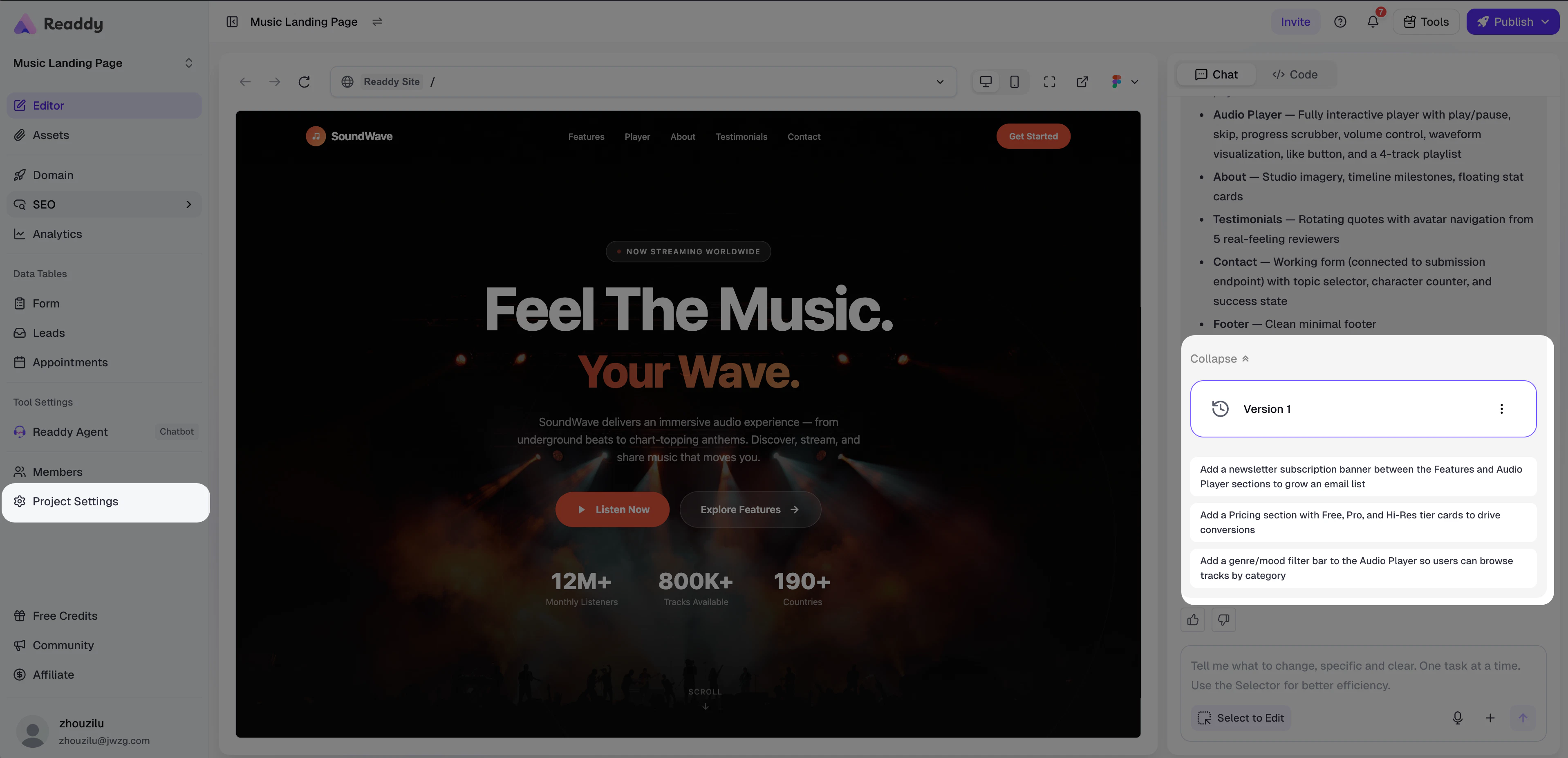
First, make sure your project has generated at least one version. Then open **Project Settings** and find the **OG Preview** section.
## What Is an OG Preview?
OG (Open Graph) is a standard used to control how a webpage appears when it is shared on social platforms. When you send a link to Facebook, X, LinkedIn, WeChat, Slack, and similar platforms, the platform reads the page metadata and generates a share card with an image, a title, and a description.
In this guide:
* **OG Preview Image** is the main image shown on the card
* **OG Title** is the card title
* **OG Description** is the card description
If these are not set, social platforms may show a blank card or randomly pick content from the page, which usually leads to poor results.
## How to Set It Up
First, make sure your project has generated at least one version. Then open **Project Settings** and find the **OG Preview** section.
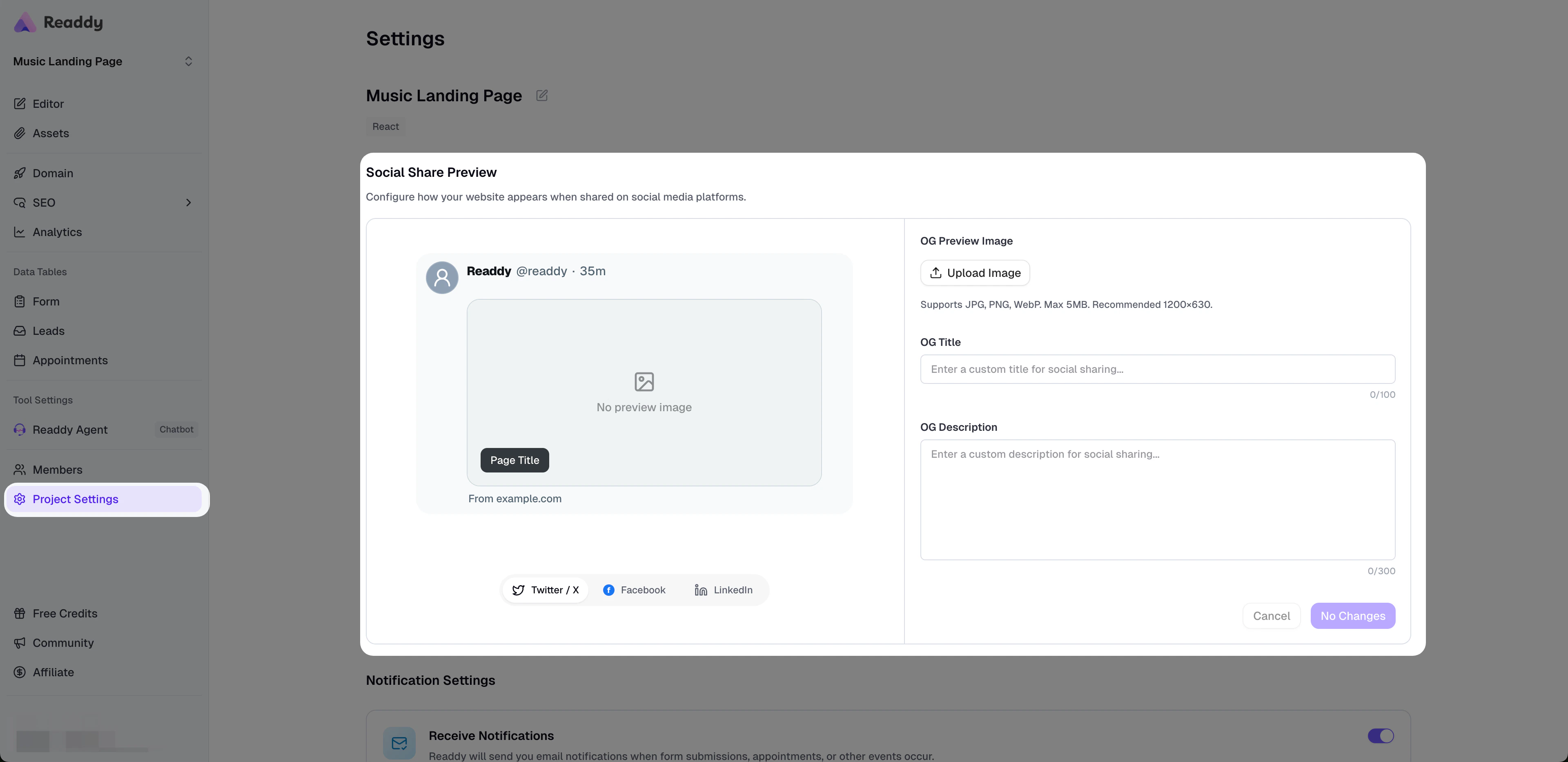 Click the upload area to select an image. Current requirements:
* **Formats**: `JPG`, `PNG`, `WebP`
* **Max size**: **5 MB**
* **Recommended size**: **1200 × 630**
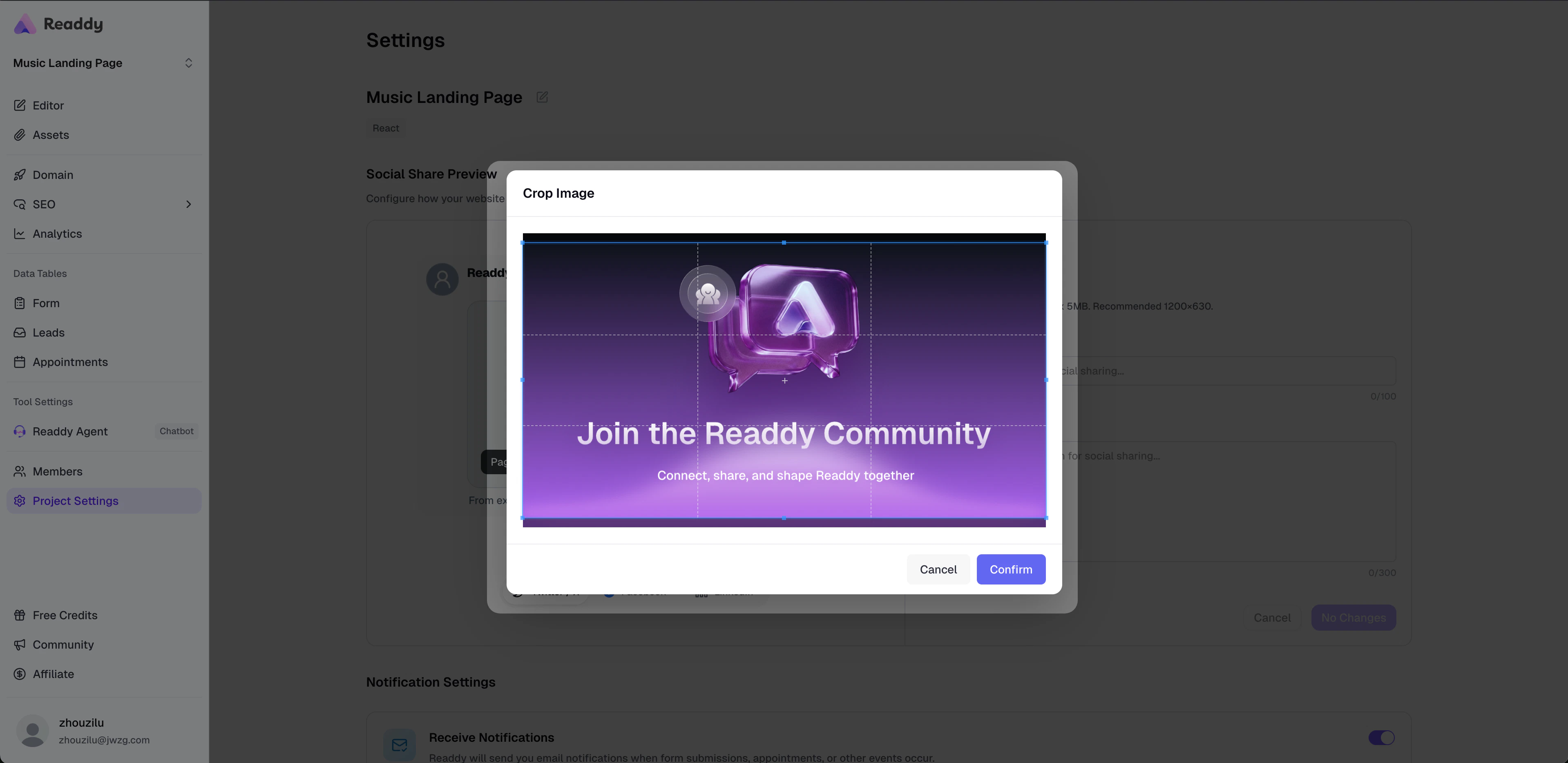
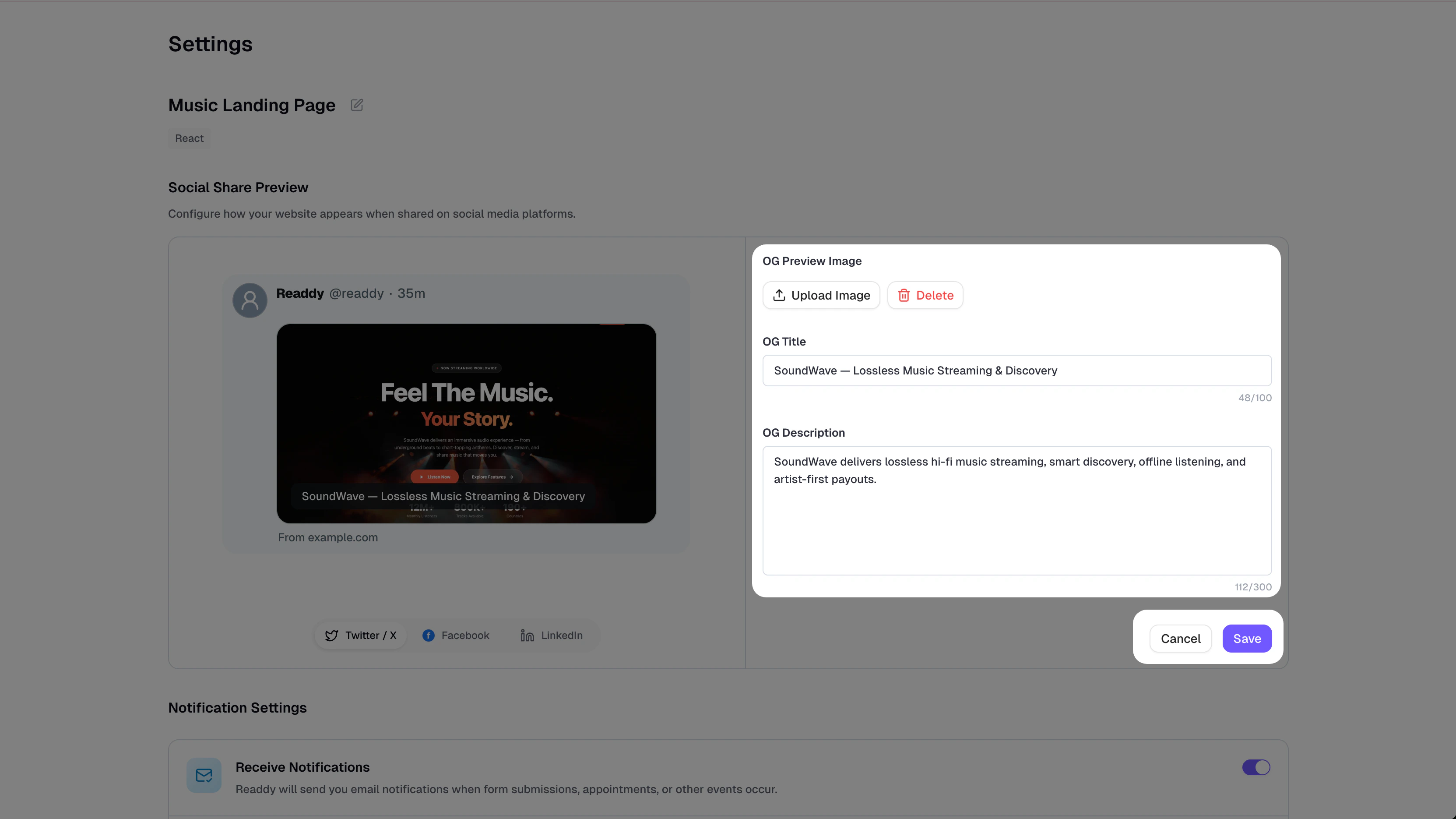
After you select an image, Readdy opens a cropper first. Once you confirm the crop, the image enters local preview mode so you can continue adjusting the title, description, and social card preview.
If you do not want to use the image anymore, you can remove it.
Fill in **OG Title** and **OG Description** for your share card.
* **OG Title**: recommended within **60 characters**
* **OG Description**: recommended within **155 characters**
If either field is left empty, Readdy automatically falls back to the existing SEO `title` and `description`.
The preview area updates in real time based on your current image, title, and description. You can switch between platform tabs to view how the card may appear on:
* **Facebook**
* **X / Twitter**
* **LinkedIn**
If no image has been uploaded yet, the preview shows an empty placeholder state.
Click the upload area to select an image. Current requirements:
* **Formats**: `JPG`, `PNG`, `WebP`
* **Max size**: **5 MB**
* **Recommended size**: **1200 × 630**
After you select an image, Readdy opens a cropper first. Once you confirm the crop, the image enters local preview mode so you can continue adjusting the title, description, and social card preview.
If you do not want to use the image anymore, you can remove it.
Fill in **OG Title** and **OG Description** for your share card.
* **OG Title**: recommended within **60 characters**
* **OG Description**: recommended within **155 characters**
If either field is left empty, Readdy automatically falls back to the existing SEO `title` and `description`.
The preview area updates in real time based on your current image, title, and description. You can switch between platform tabs to view how the card may appear on:
* **Facebook**
* **X / Twitter**
* **LinkedIn**
If no image has been uploaded yet, the preview shows an empty placeholder state.
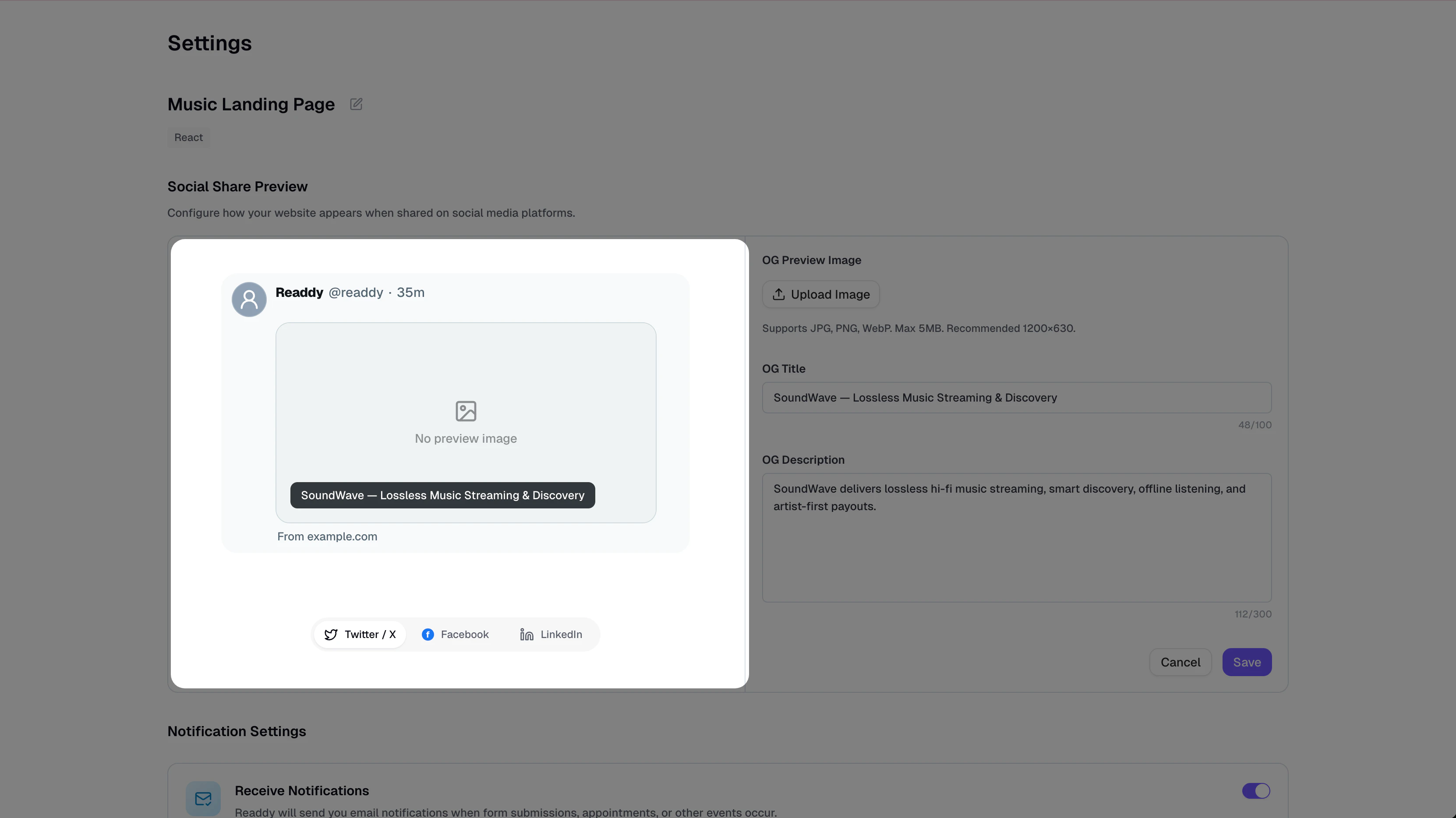 Click **Save** to store your OG settings.
Important behavior:
* Uploading an image or editing fields only changes the local state first
* Changes are saved only after you click **Save**
* If nothing has changed, the save button remains disabled
* Clicking **Cancel** restores the last saved state
Click **Save** to store your OG settings.
Important behavior:
* Uploading an image or editing fields only changes the local state first
* Changes are saved only after you click **Save**
* If nothing has changed, the save button remains disabled
* Clicking **Cancel** restores the last saved state
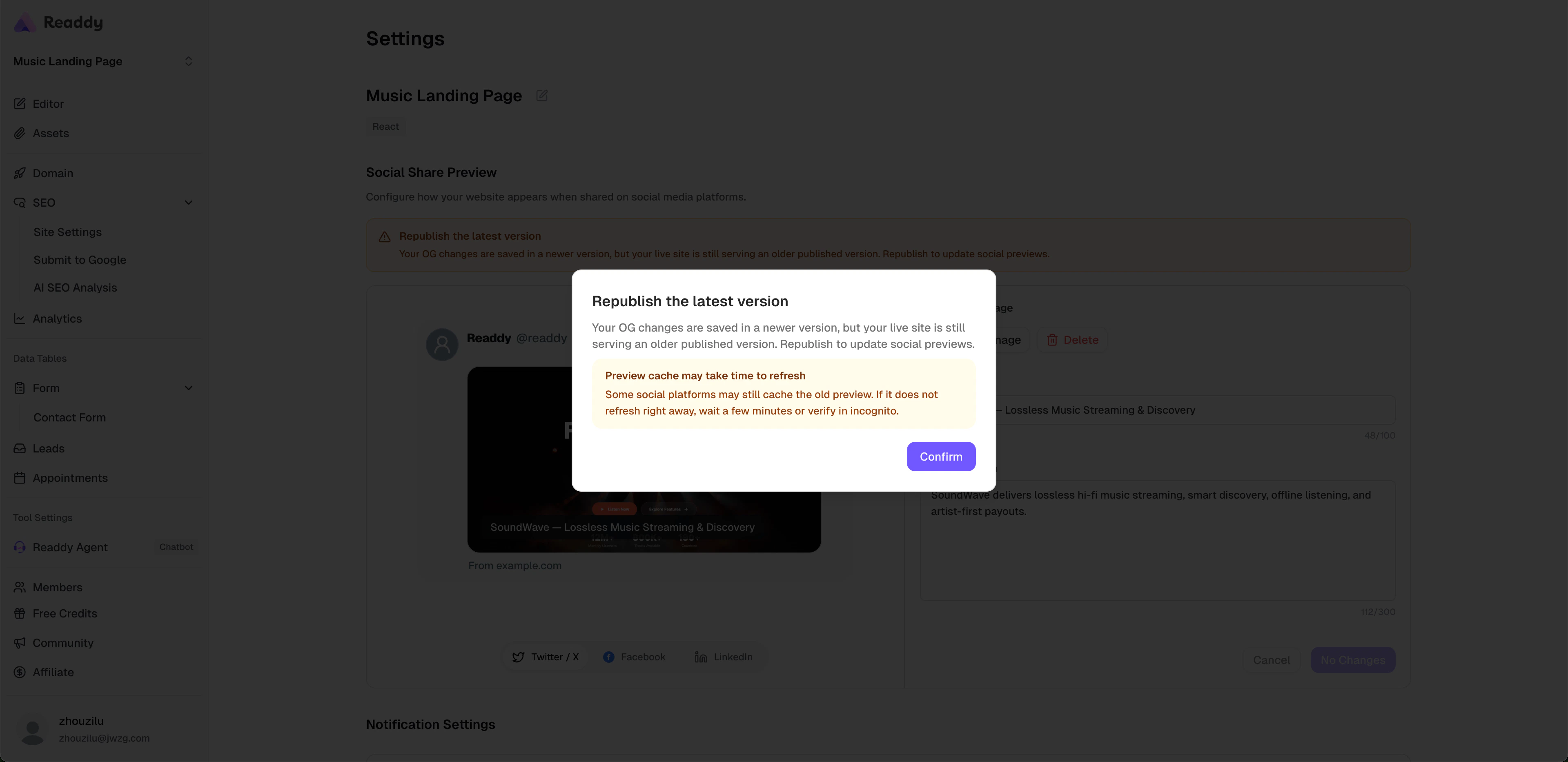
 If saving your settings writes the new OG tags into a website version, you still need to **republish the latest version** before the live share card updates.
Even if the save succeeds, social platforms will still see the old version until you republish.
If saving your settings writes the new OG tags into a website version, you still need to **republish the latest version** before the live share card updates.
Even if the save succeeds, social platforms will still see the old version until you republish.
 The preview area is a **simulation**. Final card appearance may vary slightly across platforms because of caching, cropping rules, or platform UI differences.
## Field Reference
| Setting | Description |
| ---------------------- | ------------------------------------------------------------------------------------ |
| Preview Image | The main image shown on the share card. A 1200 × 630 landscape image is recommended. |
| Title | The share card title. If left empty, Readdy falls back to the SEO title. |
| Description | The share card description. If left empty, Readdy falls back to the SEO description. |
| X / Twitter Share Card | Synced automatically after saving. No separate setup is required. |
If you remove the OG preview image, social platforms may stop showing an image or fall back to their own scraping logic.
## Best Practices
* Use a clear landscape image with a strong focal point
* Keep the title short so users can understand the page at a glance
* Use one concise sentence for the description instead of stuffing keywords
* After updating your settings, republish the latest version before validating the result on social platforms
Social platforms often cache old preview cards. Even after you save and republish, it may still take a few minutes for the new preview to appear.
## FAQs
There are usually two possible reasons:
1. You have not republished the latest version yet
2. The social platform is still caching the previous preview
First confirm that you have republished, then wait a few minutes and check again. Using an incognito window can also help verify the latest result.
No. If you leave them empty, Readdy automatically uses the existing SEO title and description.
Not yet. This release supports project-level settings only, so one website uses one shared OG configuration.
This usually means there are no unsaved changes. The save button becomes available only after the image, title, or description has changed.
The preview tries to display your currently available published domain. If no usable domain is available yet, Readdy uses a placeholder domain in the preview.
## Need Help?
If this guide does not solve your issue:
* **Submit feedback**: [readdy.ai/feedback](https://readdy.ai/feedback)
* **Live chat**: Use the support entry in the top-right corner of Readdy
We’ll keep improving this guide.
The preview area is a **simulation**. Final card appearance may vary slightly across platforms because of caching, cropping rules, or platform UI differences.
## Field Reference
| Setting | Description |
| ---------------------- | ------------------------------------------------------------------------------------ |
| Preview Image | The main image shown on the share card. A 1200 × 630 landscape image is recommended. |
| Title | The share card title. If left empty, Readdy falls back to the SEO title. |
| Description | The share card description. If left empty, Readdy falls back to the SEO description. |
| X / Twitter Share Card | Synced automatically after saving. No separate setup is required. |
If you remove the OG preview image, social platforms may stop showing an image or fall back to their own scraping logic.
## Best Practices
* Use a clear landscape image with a strong focal point
* Keep the title short so users can understand the page at a glance
* Use one concise sentence for the description instead of stuffing keywords
* After updating your settings, republish the latest version before validating the result on social platforms
Social platforms often cache old preview cards. Even after you save and republish, it may still take a few minutes for the new preview to appear.
## FAQs
There are usually two possible reasons:
1. You have not republished the latest version yet
2. The social platform is still caching the previous preview
First confirm that you have republished, then wait a few minutes and check again. Using an incognito window can also help verify the latest result.
No. If you leave them empty, Readdy automatically uses the existing SEO title and description.
Not yet. This release supports project-level settings only, so one website uses one shared OG configuration.
This usually means there are no unsaved changes. The save button becomes available only after the image, title, or description has changed.
The preview tries to display your currently available published domain. If no usable domain is available yet, Readdy uses a placeholder domain in the preview.
## Need Help?
If this guide does not solve your issue:
* **Submit feedback**: [readdy.ai/feedback](https://readdy.ai/feedback)
* **Live chat**: Use the support entry in the top-right corner of Readdy
We’ll keep improving this guide.