> ## Documentation Index
> Fetch the complete documentation index at: https://docs.readdy.ai/llms.txt
> Use this file to discover all available pages before exploring further.
# Multiple Pages
> Learn how to create and manage multiple pages in your React project
Readdy supports two different project types with different multi-page generation approaches:
* **React, Next.js Projects**: Managed as a complete project with shared components and state between pages
* **Other Projects** (HTML, Vue, etc.): Each page is managed as an independent project
We recommend using React Next.js project type as it provides better project cohesion and consistency between pages.
## Check Project Type
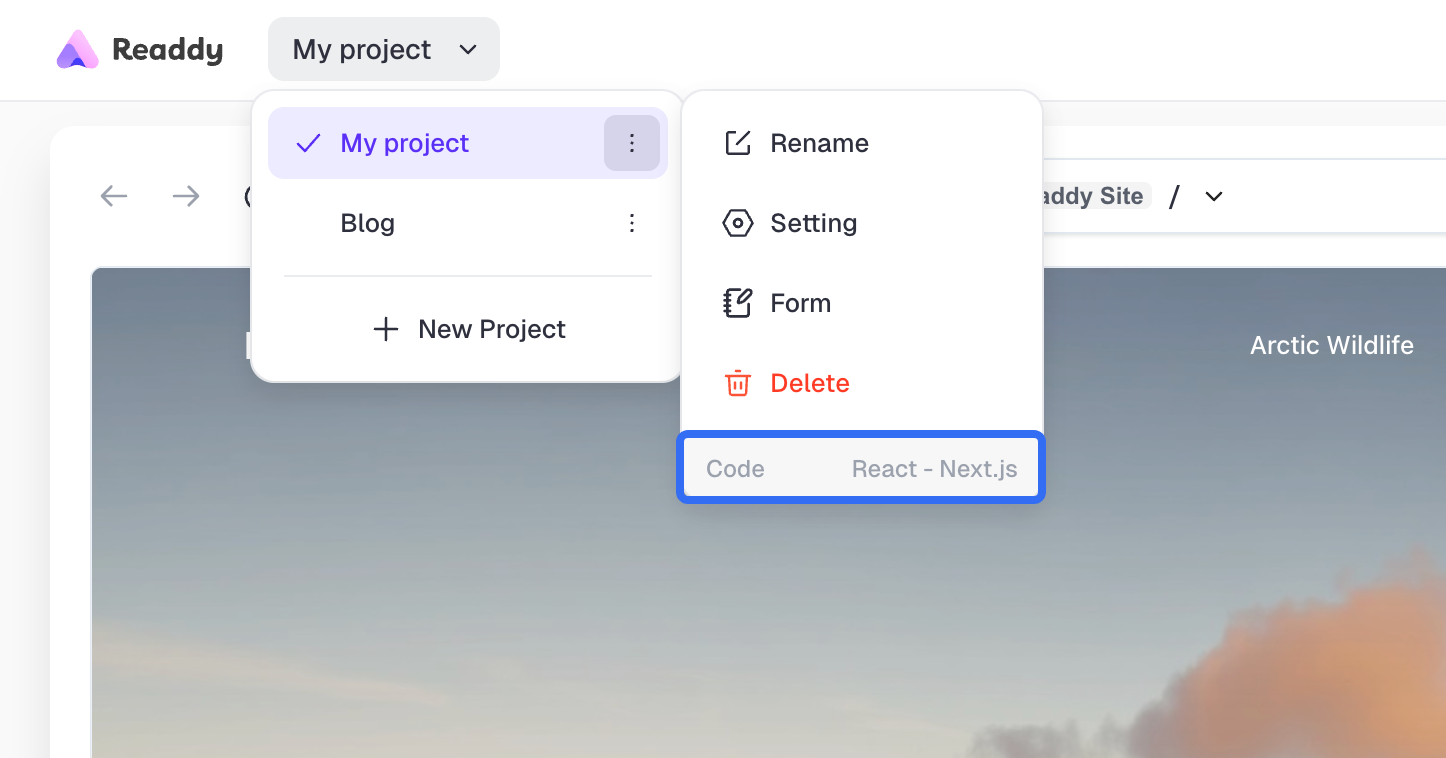
Click the project name in the top-left corner and check the project code type in the popup window. React Next.js projects will display as `React-Next.js`
 ***
## React Next.js Projects
### Creating New Pages
**AI Conversation Generation**
Directly chat with AI, describe the page functionality and content you need, and AI will automatically generate new pages.
**Example conversation:**
```
Please help me create a user profile page that includes:
- User avatar and basic information display
- Editable personal information form
- Save and cancel buttons
- Responsive layout
```
**Page Entry Click Generation**
When clicking links or buttons on existing pages, if the target page doesn't exist, the following situations will occur:
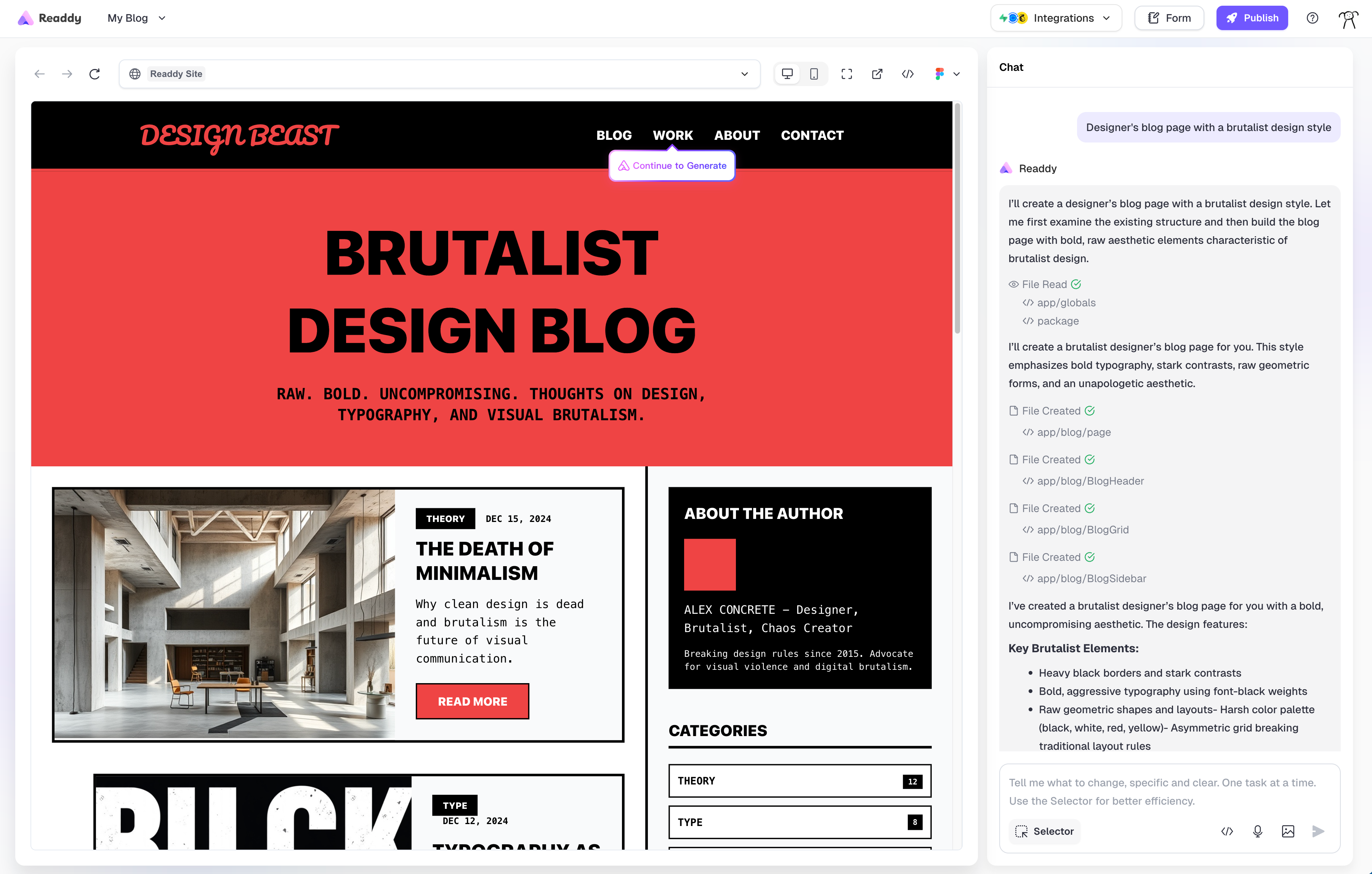
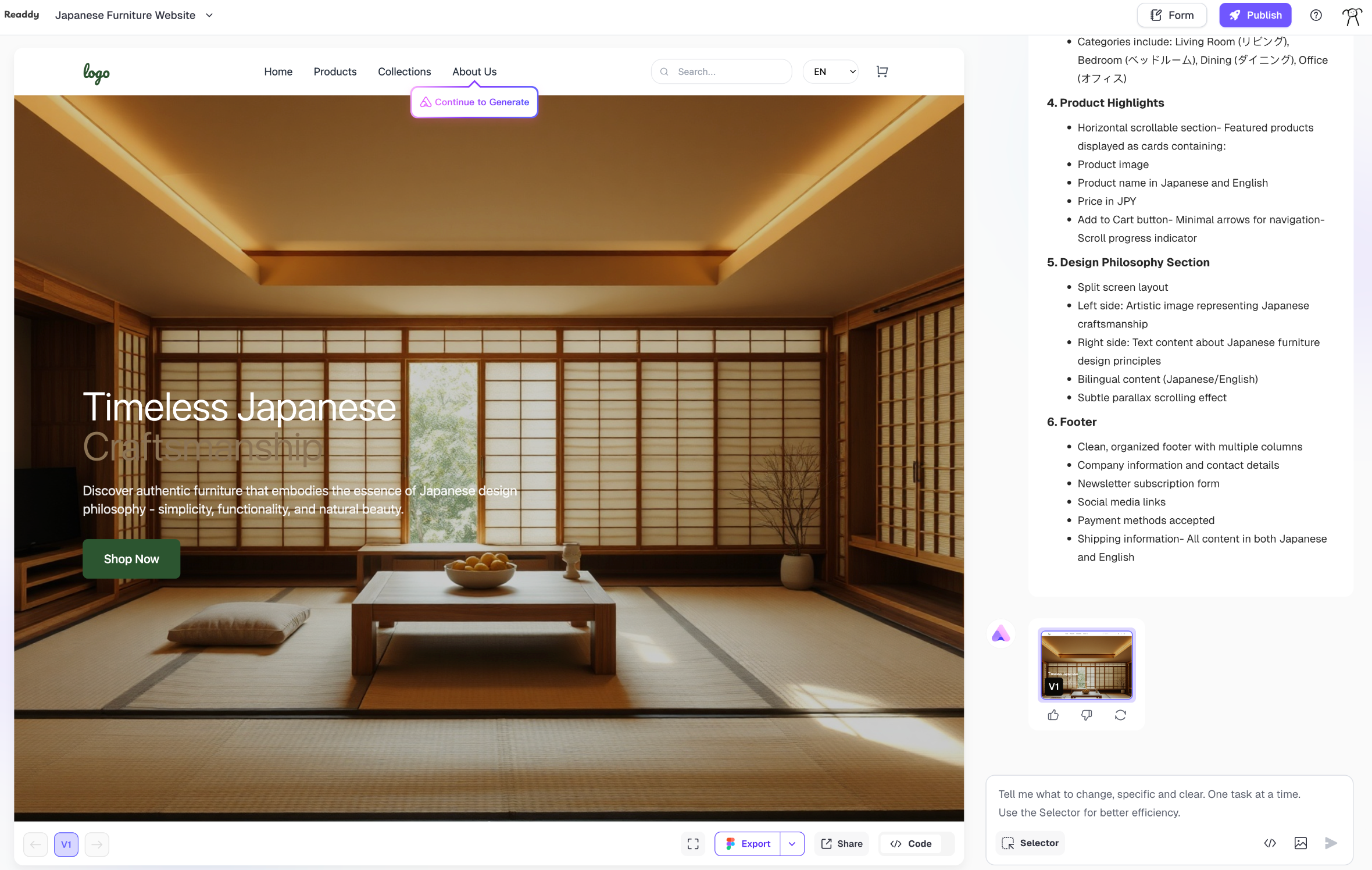
**Situation 1: "Continue Generation" prompt appears**
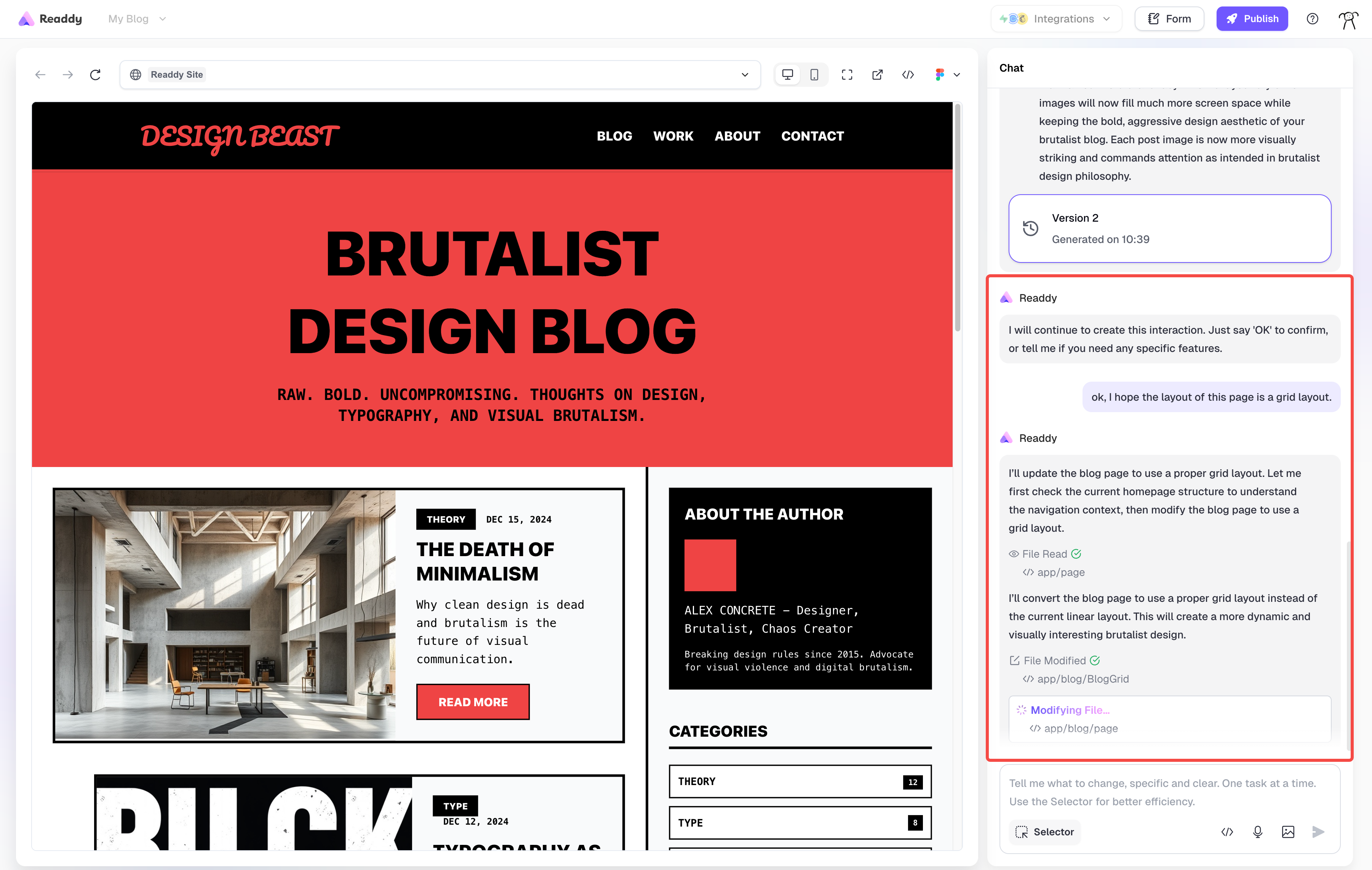
* Click the prompt button, enter `OK` or describe special requirements in the dialog box, and AI will continue generating the corresponding page
***
## React Next.js Projects
### Creating New Pages
**AI Conversation Generation**
Directly chat with AI, describe the page functionality and content you need, and AI will automatically generate new pages.
**Example conversation:**
```
Please help me create a user profile page that includes:
- User avatar and basic information display
- Editable personal information form
- Save and cancel buttons
- Responsive layout
```
**Page Entry Click Generation**
When clicking links or buttons on existing pages, if the target page doesn't exist, the following situations will occur:
**Situation 1: "Continue Generation" prompt appears**
* Click the prompt button, enter `OK` or describe special requirements in the dialog box, and AI will continue generating the corresponding page
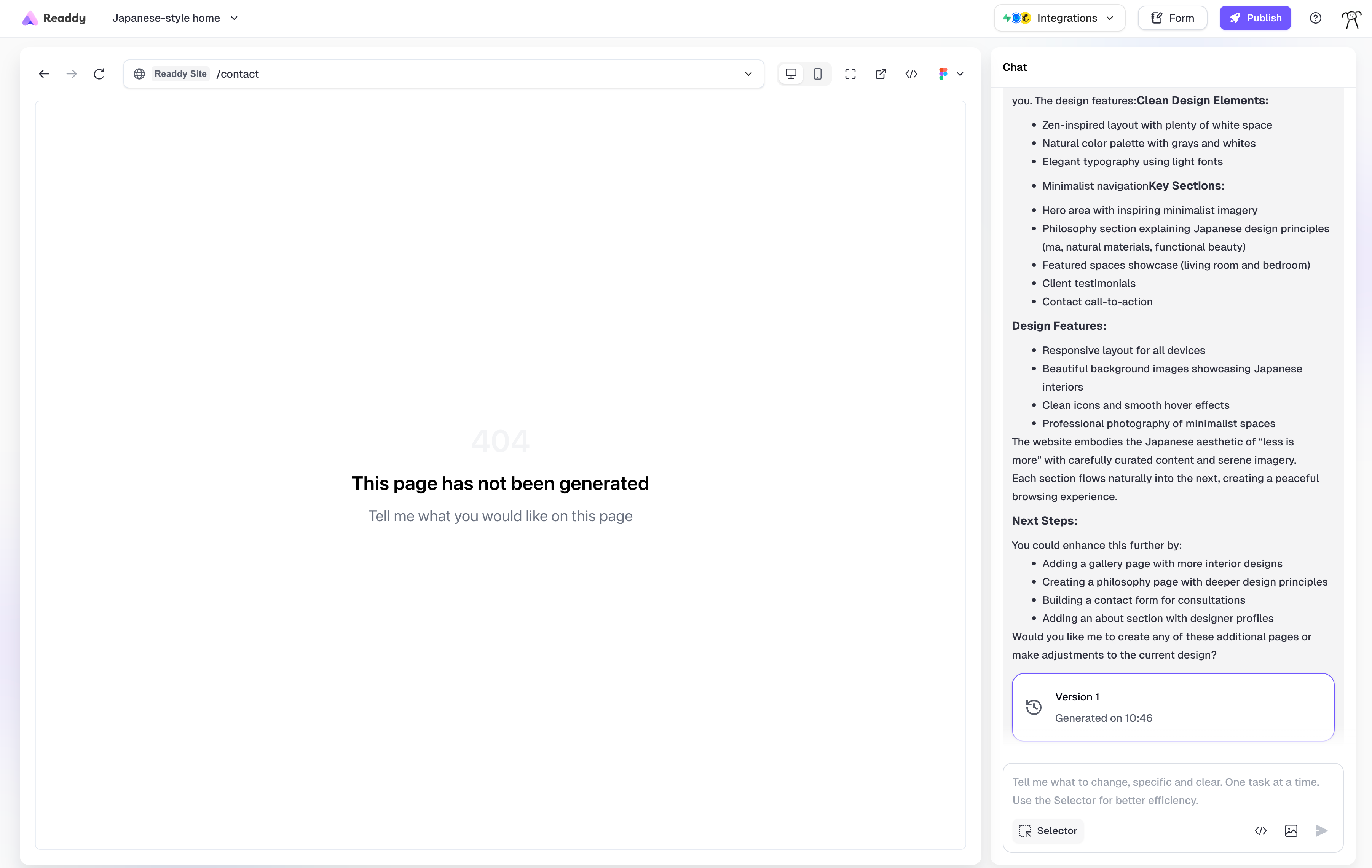
 **Situation 2: Redirect to 404 page**
* Indicates the page hasn't been generated yet, describe page requirements in the AI dialog box on the right side
**Situation 2: Redirect to 404 page**
* Indicates the page hasn't been generated yet, describe page requirements in the AI dialog box on the right side
 **Example description:**
```
This is a product detail page that should include:
- Product image carousel
- Product name, price, description
- Add to cart button
- Related product recommendations
- User review section
```
### Page Navigation
There's a page address bar above the preview area. Click it to display a list of all generated pages, and click any page path to navigate.
**Example description:**
```
This is a product detail page that should include:
- Product image carousel
- Product name, price, description
- Add to cart button
- Related product recommendations
- User review section
```
### Page Navigation
There's a page address bar above the preview area. Click it to display a list of all generated pages, and click any page path to navigate.
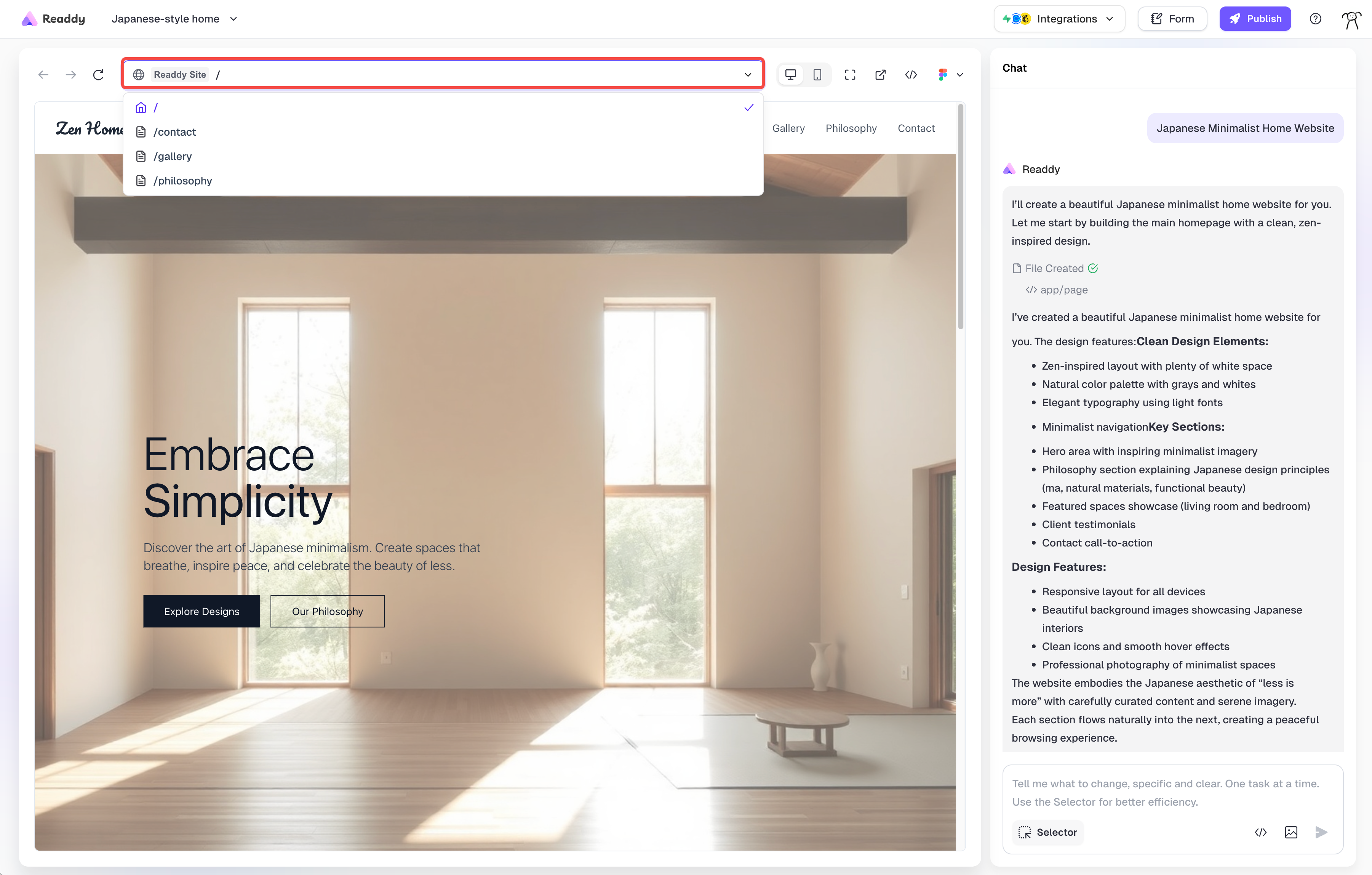 For pages containing dynamic parameters (like `product/[id]`), specific page instances (like `product/1`, `product/2`) won't be displayed in the list. You need to click the corresponding links on the page to access these pages.
### 404 Page Handling
A 404 page is an error page displayed when users access non-existent pages. When encountering a 404 page in Readdy, you can chat with AI to continue generating page content, or design a user-friendly custom 404 page.
For pages containing dynamic parameters (like `product/[id]`), specific page instances (like `product/1`, `product/2`) won't be displayed in the list. You need to click the corresponding links on the page to access these pages.
### 404 Page Handling
A 404 page is an error page displayed when users access non-existent pages. When encountering a 404 page in Readdy, you can chat with AI to continue generating page content, or design a user-friendly custom 404 page.
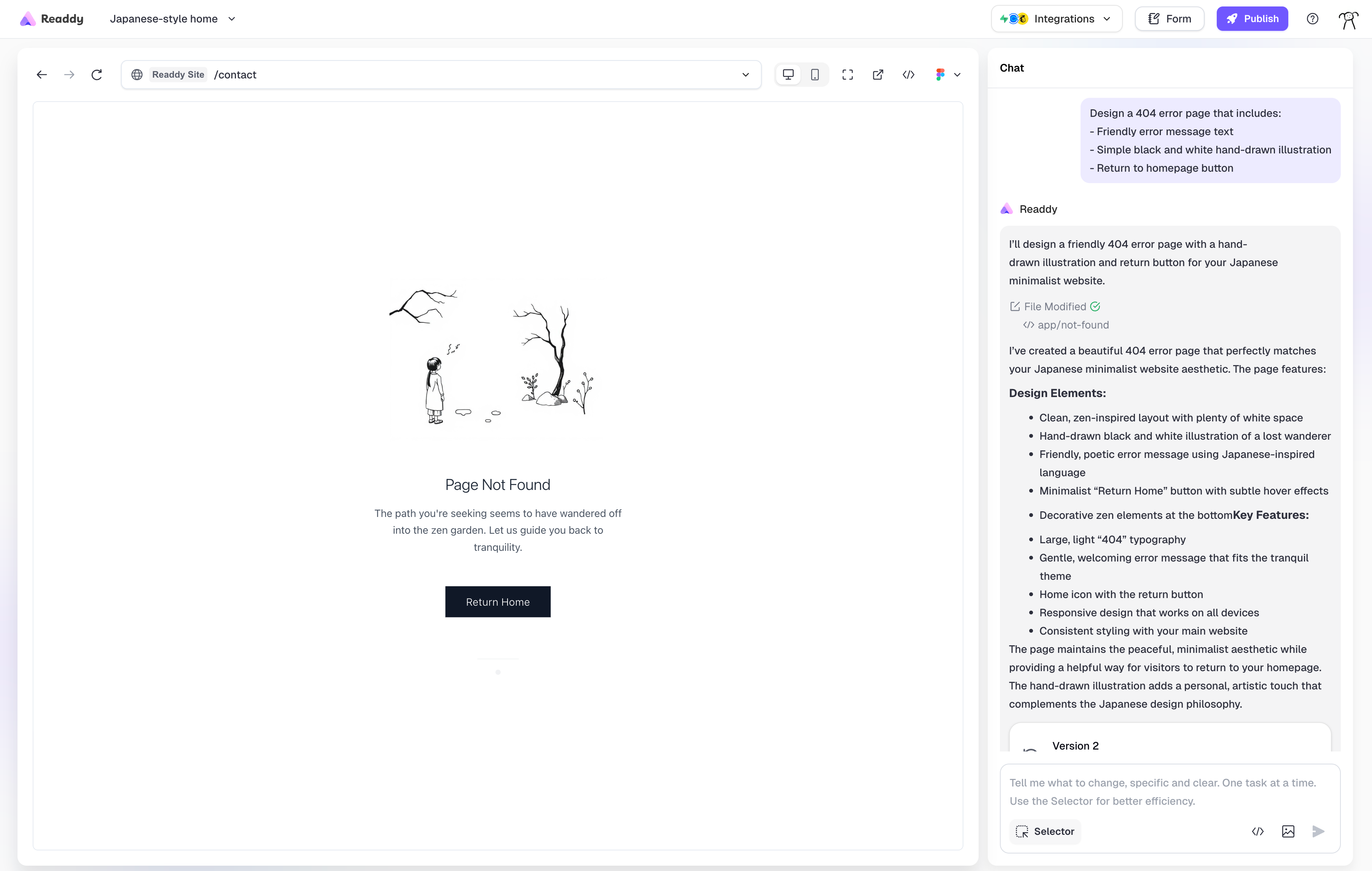 **Custom 404 page example:**
```
Design a 404 error page that includes:
- Friendly error message text
- Simple black and white hand-drawn illustration
- Return to homepage button
```
***
## Non-Next.js Projects
### Generating New Pages
**New Page Button**
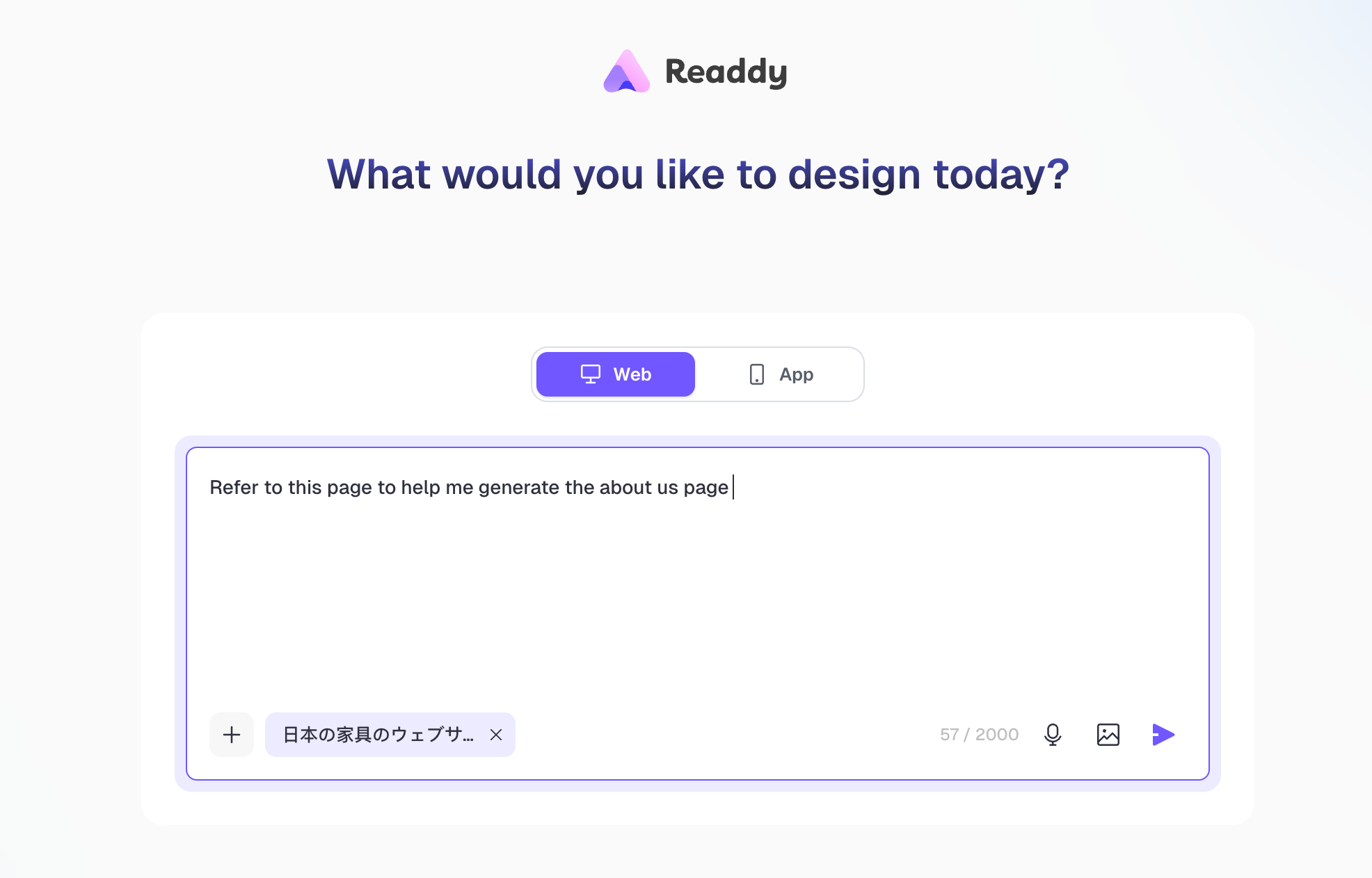
Click the **New Page** button in the top-left corner, and enter prompts and reference pages (optional) in the popup create page window.
**Custom 404 page example:**
```
Design a 404 error page that includes:
- Friendly error message text
- Simple black and white hand-drawn illustration
- Return to homepage button
```
***
## Non-Next.js Projects
### Generating New Pages
**New Page Button**
Click the **New Page** button in the top-left corner, and enter prompts and reference pages (optional) in the popup create page window.
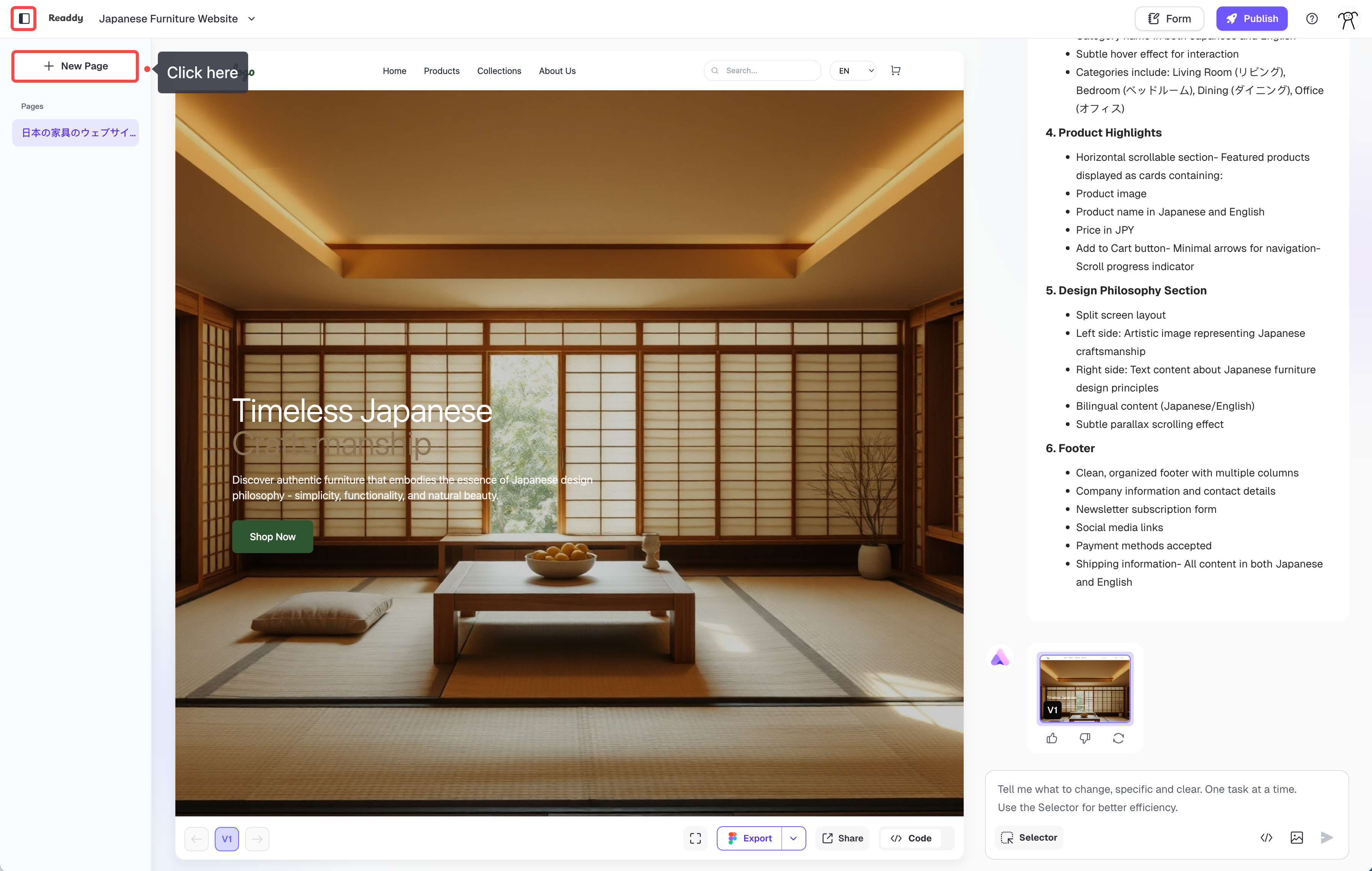 When creating new pages, you can select existing pages as references, which helps maintain design consistency between pages.
 **"Continue Generation" Button**
When clicking links but the target page doesn't exist, the system will display a "Continue Generation" prompt. Click it and chat with AI to describe page requirements to generate new pages.
**"Continue Generation" Button**
When clicking links but the target page doesn't exist, the system will display a "Continue Generation" prompt. Click it and chat with AI to describe page requirements to generate new pages.
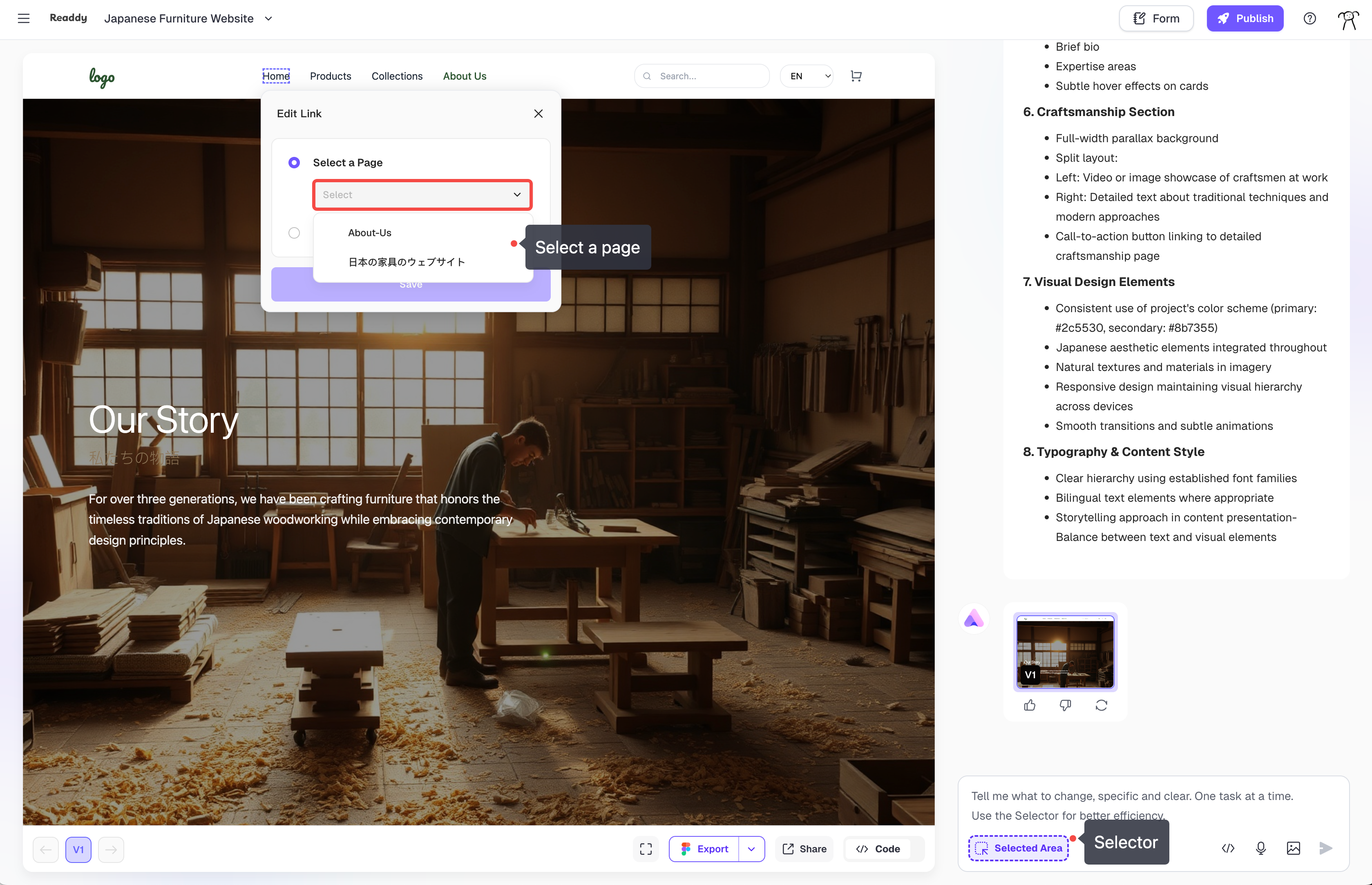
 ### Page Linking
Use the **Selector tool** to select elements where you want to add links, choose the **Link** option in the properties panel, and select an existing target page from the list.
### Page Linking
Use the **Selector tool** to select elements where you want to add links, choose the **Link** option in the properties panel, and select an existing target page from the list.
 ***
## Why Can't Multiple Pages Be Generated Directly?
Main reasons:
* **AI Technical Limitations**: The model's context window is limited and cannot generate overly long content at once.
* **Quality Control**: Batch-generated pages may not match actual requirements, with high modification costs
* **Controllability**: Single-page generation allows you to better control that each page's content matches your expectations, avoiding generating many pages that don't meet your expectations, which would be problematic
To ensure project quality and development efficiency, we strongly recommend using **one page or one feature at a time** generation approach.
***
## Why Can't Multiple Pages Be Generated Directly?
Main reasons:
* **AI Technical Limitations**: The model's context window is limited and cannot generate overly long content at once.
* **Quality Control**: Batch-generated pages may not match actual requirements, with high modification costs
* **Controllability**: Single-page generation allows you to better control that each page's content matches your expectations, avoiding generating many pages that don't meet your expectations, which would be problematic
To ensure project quality and development efficiency, we strongly recommend using **one page or one feature at a time** generation approach.