> ## Documentation Index
> Fetch the complete documentation index at: https://docs.readdy.ai/llms.txt
> Use this file to discover all available pages before exploring further.
# File Upload & Parsing
> Upload files, data, and reference images so Readdy can use them while generating or editing websites
File Upload & Parsing lets you send project files, documents, spreadsheets, and visual references alongside your prompt. Use it when Readdy needs source material, brand assets, product data, or layout inspiration to generate or edit a website more accurately.
With File Upload & Parsing, you can:
* **Upload project files**: Add documents, spreadsheets, images, archives, audio, or video files to the message you send to Readdy.
* **Parse supported documents and data**: Let Readdy read PDF, CSV, XLSX, and TXT files when your prompt asks it to use their content.
* **Use media in project edits**: Upload MP4 videos as assets and ask Readdy to replace suitable page elements with them.
* **Use visual references**: Add reference images for style, layout, composition, or visual direction without saving them to your project's Files storage.
* **Reuse existing assets**: In an existing project, browse files that were already uploaded instead of uploading them again.
## Before You Start
* File attachments are available from the **"+"** menu in supported project creation and editing flows.
* In an existing collaborative project, you need permission to upload assets before **"Upload Files"** and **"Browse Files"** appear.
* File attachments saved to your project's **Files** storage count toward your plan's storage limit.
* Reference images are separate from file attachments. They are used as visual guidance and are not saved to the Files library.
* Readdy waits for uploads and image processing to finish before it sends your request.
File parsing is not the same as file uploading. Many formats can be uploaded, but only **PDF**, **CSV**, **XLSX**, and **TXT** are parsed as text or data sources.
## File Attachments vs. Reference Images
Readdy has two ways to include visual and file-based context in a prompt.
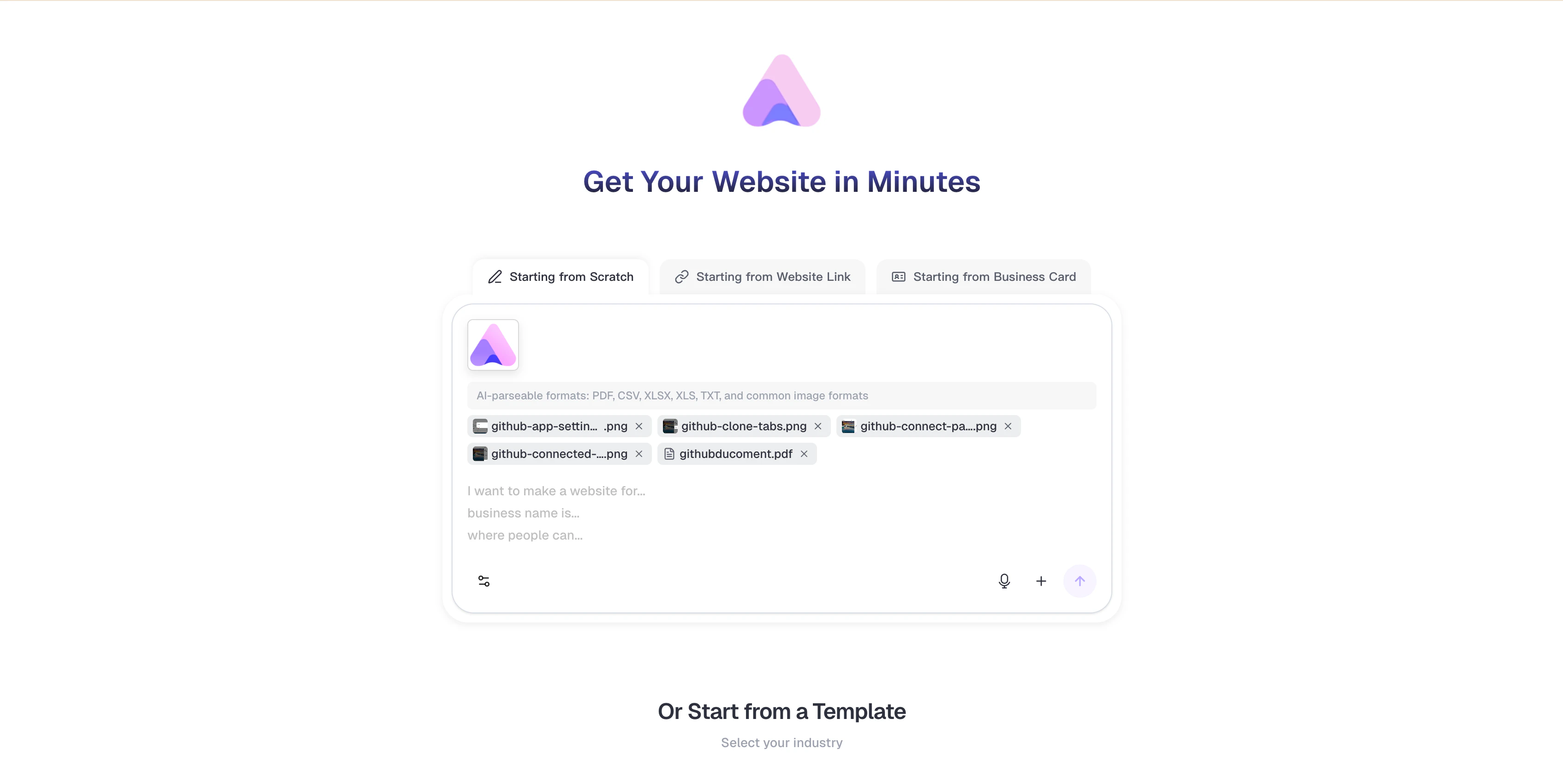 Saved to your project's **Files** storage and counted toward your storage quota.
* Use **"+"** -> **"Upload Files"**, drag and drop, or **"Browse Files"**
* Add up to **10 file attachments** per message
* Displayed as file chips in the input area
Used as visual guidance for Readdy and not saved to the Files library.
* Use **"+"** -> **"Reference Image"**, or paste with **"Ctrl/Cmd + V"**
* Add up to **5 reference images** at a time
* Displayed as image thumbnails in the input area
You can use both in one message. For example, attach a PDF with website requirements, upload a logo as a file attachment, and add a screenshot as a reference image for the layout.
Images dragged from your desktop are added as file attachments. To add a reference image, use **"Reference Image"** from the **"+"** menu or paste an image into the input area.
## How It Works
Click the **"+"** button in the input area.
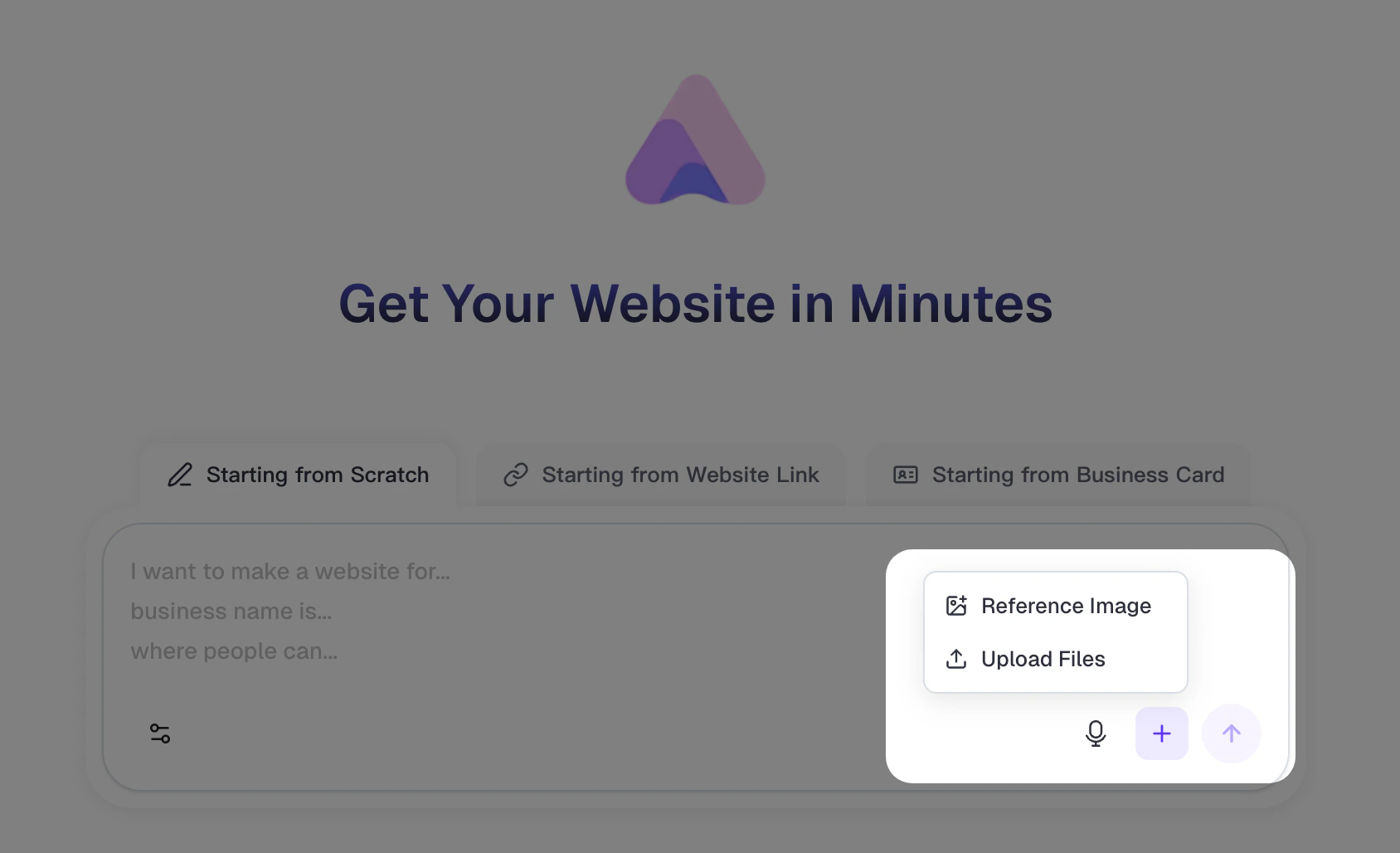
In a new project, the menu includes **"Reference Image"** and **"Upload Files"**.
Saved to your project's **Files** storage and counted toward your storage quota.
* Use **"+"** -> **"Upload Files"**, drag and drop, or **"Browse Files"**
* Add up to **10 file attachments** per message
* Displayed as file chips in the input area
Used as visual guidance for Readdy and not saved to the Files library.
* Use **"+"** -> **"Reference Image"**, or paste with **"Ctrl/Cmd + V"**
* Add up to **5 reference images** at a time
* Displayed as image thumbnails in the input area
You can use both in one message. For example, attach a PDF with website requirements, upload a logo as a file attachment, and add a screenshot as a reference image for the layout.
Images dragged from your desktop are added as file attachments. To add a reference image, use **"Reference Image"** from the **"+"** menu or paste an image into the input area.
## How It Works
Click the **"+"** button in the input area.
In a new project, the menu includes **"Reference Image"** and **"Upload Files"**.
 In an existing project, the menu can also include **"Browse Files"** and **"Embed Code"**.
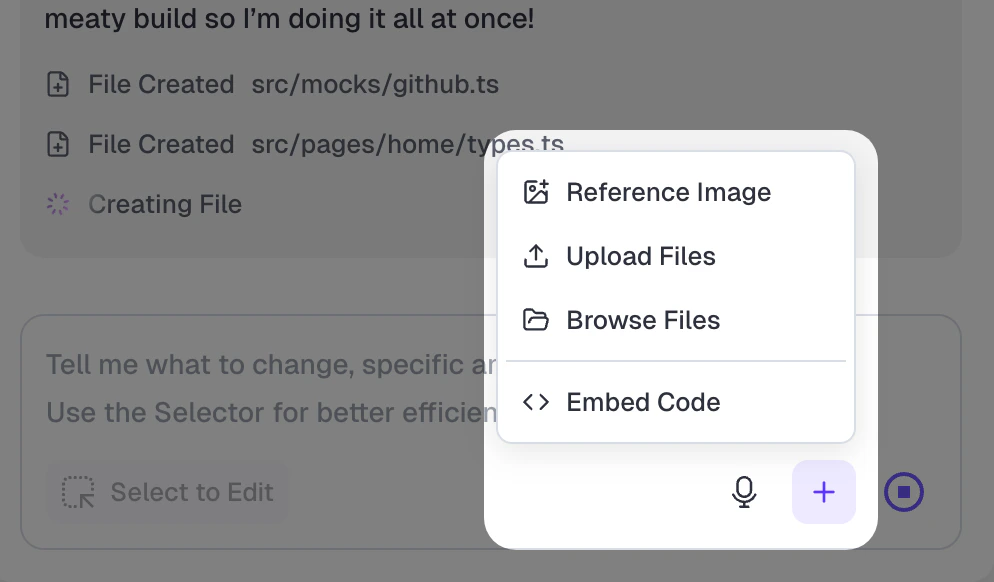 Select the input type that matches what you want Readdy to do.
* Use **"Upload Files"** for documents, spreadsheets, images, media, archives, and other project resources.
* Use **"Browse Files"** in an existing project to reuse files already stored in **Files**.
* Use **"Reference Image"** when you want Readdy to follow a visual style, layout, or screenshot.
* Drag files into the input area when you want to add them as file attachments.
Select the input type that matches what you want Readdy to do.
* Use **"Upload Files"** for documents, spreadsheets, images, media, archives, and other project resources.
* Use **"Browse Files"** in an existing project to reuse files already stored in **Files**.
* Use **"Reference Image"** when you want Readdy to follow a visual style, layout, or screenshot.
* Drag files into the input area when you want to add them as file attachments.
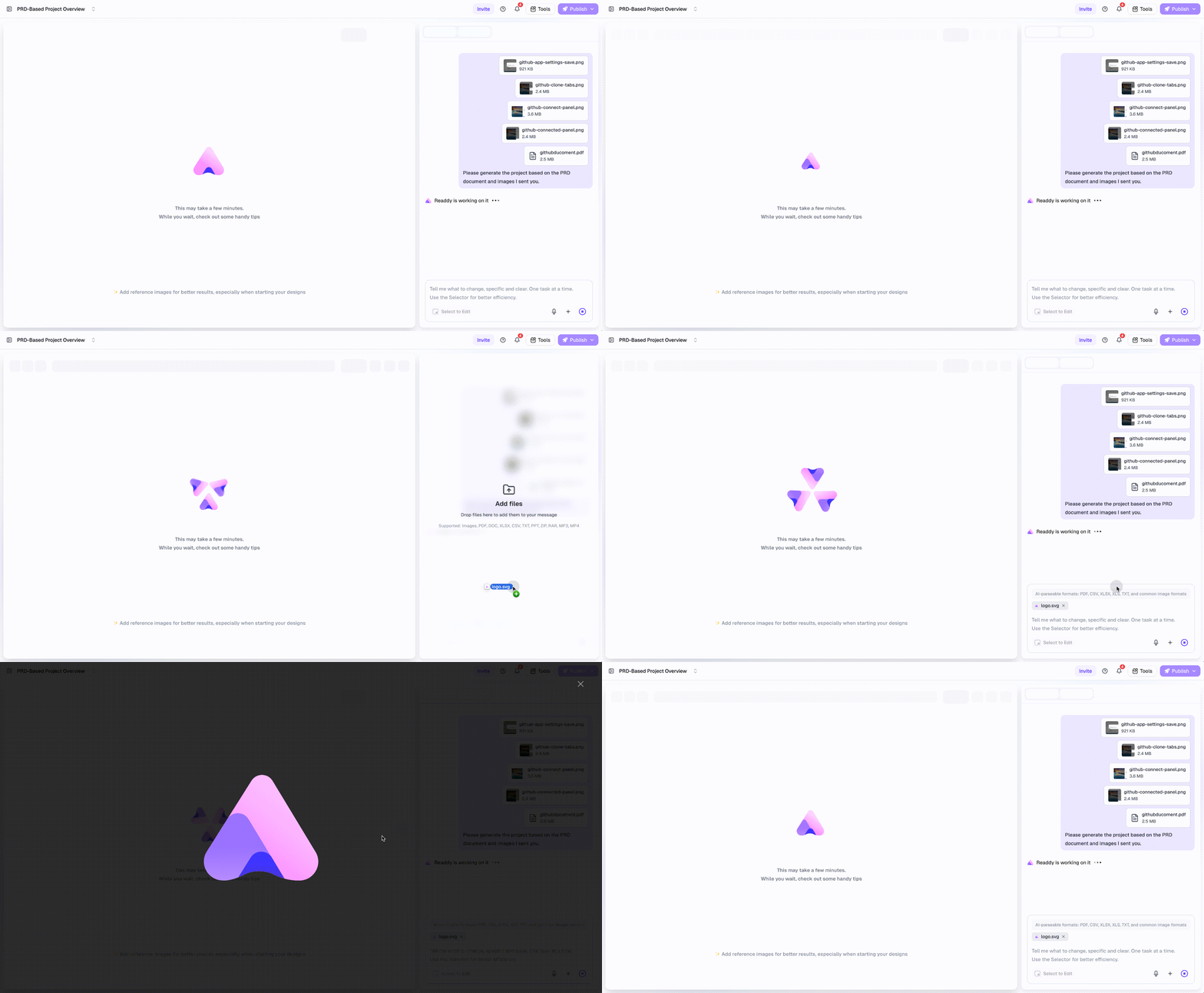 Keep the files in the input area until their upload or processing state finishes.
In a new project, selected file attachments are kept in your browser until you send the prompt, then uploaded during project creation. In an existing project, files upload to **Files** as soon as you select them.
Keep the files in the input area until their upload or processing state finishes.
In a new project, selected file attachments are kept in your browser until you send the prompt, then uploaded during project creation. In an existing project, files upload to **Files** as soon as you select them.
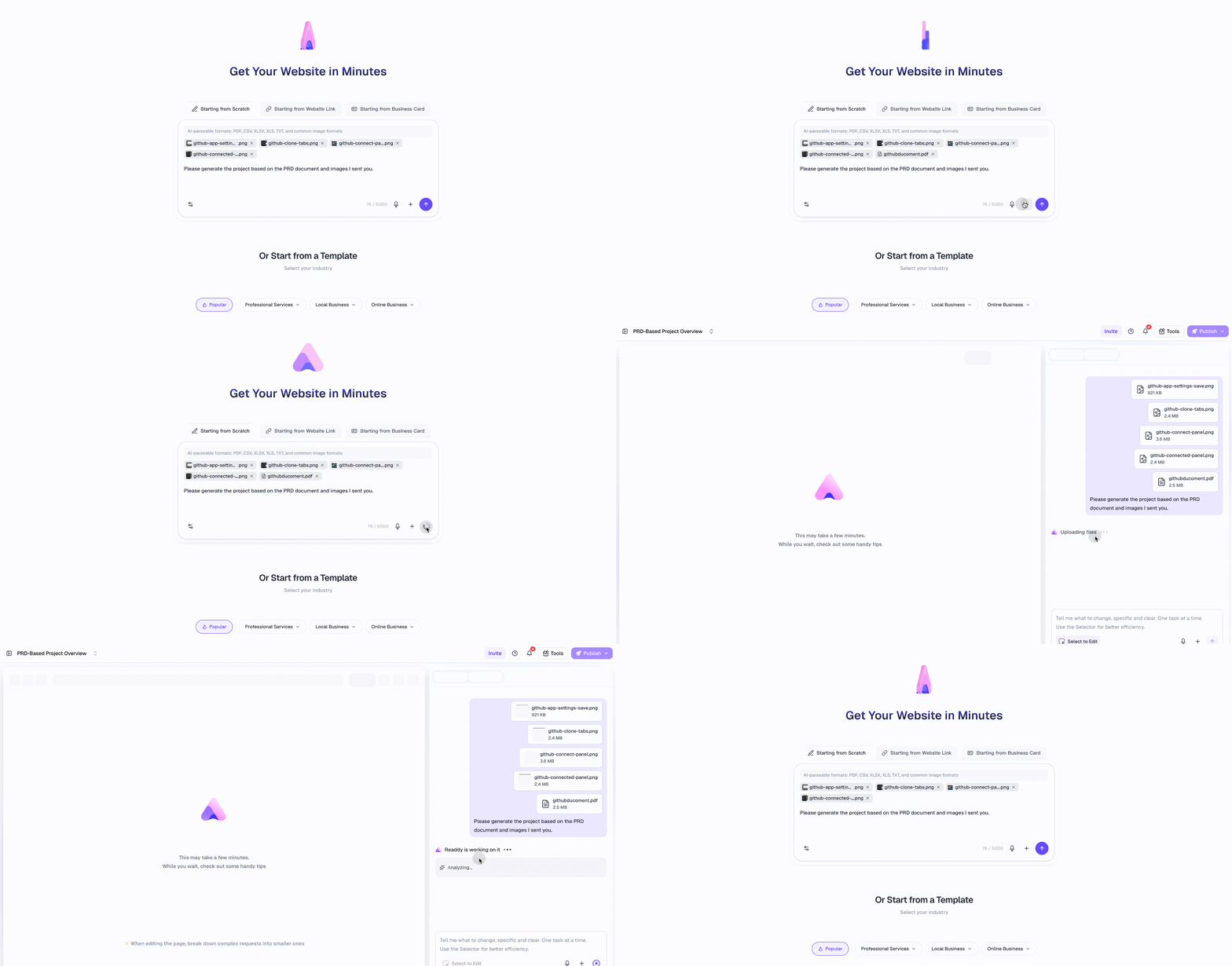 Tell Readdy exactly how to use each file.
For example:
* "Read the PDF and generate the landing page copy from it."
* "Use the CSV as the product list and create pricing cards."
* "Use logo.svg as the site logo."
* "Replace the hero image with intro-video.mp4."
* "Use the reference image for layout and visual style."
## What Uploaded Files Can Do
Uploaded files give Readdy resources to use while generating or editing a project.
| File type | What you can do |
| --------------------------------------------------- | ---------------------------------------------------------------------------------------------------------------------------------------------------- |
| **Images**: PNG, JPG, JPEG, GIF, WebP, SVG | Use logos, icons, screenshots, product photos, background images, and other visual assets in the generated site. |
| **Documents and spreadsheets**: PDF, TXT, CSV, XLSX | Ask Readdy to read requirements, page copy, product lists, tables, catalog data, or structured content. |
| **Other documents**: DOC, DOCX, XLS, PPT, PPTX | Upload them as project resources. Convert them to PDF, TXT, CSV, or XLSX if Readdy needs to parse the content. |
| **Media**: MP4, MP3 | Attach media files as project resources. Use MP4 videos to replace suitable page elements, such as hero images, image blocks, or video placeholders. |
| **Archives**: ZIP, RAR | Store or attach packaged assets. Readdy does not parse archive contents. |
Tell Readdy exactly how to use each file.
For example:
* "Read the PDF and generate the landing page copy from it."
* "Use the CSV as the product list and create pricing cards."
* "Use logo.svg as the site logo."
* "Replace the hero image with intro-video.mp4."
* "Use the reference image for layout and visual style."
## What Uploaded Files Can Do
Uploaded files give Readdy resources to use while generating or editing a project.
| File type | What you can do |
| --------------------------------------------------- | ---------------------------------------------------------------------------------------------------------------------------------------------------- |
| **Images**: PNG, JPG, JPEG, GIF, WebP, SVG | Use logos, icons, screenshots, product photos, background images, and other visual assets in the generated site. |
| **Documents and spreadsheets**: PDF, TXT, CSV, XLSX | Ask Readdy to read requirements, page copy, product lists, tables, catalog data, or structured content. |
| **Other documents**: DOC, DOCX, XLS, PPT, PPTX | Upload them as project resources. Convert them to PDF, TXT, CSV, or XLSX if Readdy needs to parse the content. |
| **Media**: MP4, MP3 | Attach media files as project resources. Use MP4 videos to replace suitable page elements, such as hero images, image blocks, or video placeholders. |
| **Archives**: ZIP, RAR | Store or attach packaged assets. Readdy does not parse archive contents. |
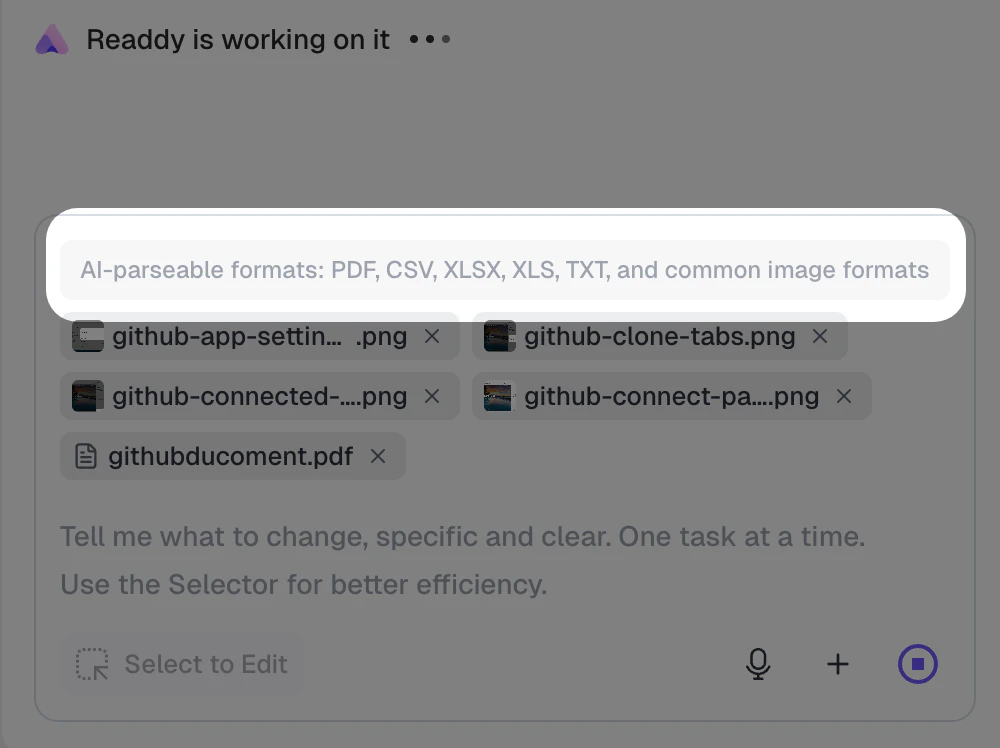 ## What Parseable Files Can Do
Parseable files are files Readdy can read as text or structured data when your prompt asks it to use the content.
| Parseable format | Good for | Example prompt |
| ---------------- | ---------------------------------------------------------------------------- | ---------------------------------------------------------------------- |
| **PDF** | Requirements, proposals, content briefs, product descriptions, event details | "Build the website based on the requirements in this PDF." |
| **TXT** | Raw copy, outlines, prompts, content drafts | "Use this TXT file as the page copy and improve the structure." |
| **CSV** | Product lists, pricing tables, locations, event schedules, datasets | "Create product cards from the rows in this CSV." |
| **XLSX** | Spreadsheets with structured rows and columns | "Use the spreadsheet to build a comparison table and summary section." |
If a file contains content Readdy should read, say that directly in your prompt. If a file is only an asset, describe where it should appear.
## Supported Files and Limits
| Input type | Supported formats | Limit |
| -------------------------------- | --------------------------------------------- | ------------------------------------------ |
| **File attachments per message** | Any supported upload format | Up to **10 files** |
| **General file size** | All supported upload formats | Up to **50 MB** per file |
| **Parseable PDF** | PDF | Up to **10 MB** |
| **Parseable data and text** | CSV, XLSX, TXT | Up to **5 MB** per file |
| **Image file attachments** | PNG, JPG, JPEG, GIF, WebP, SVG | Up to **5 MB** per image |
| **Reference images** | JPG, JPEG, PNG, WebP, SVG | Up to **5 images**, **5 MB** each |
| **Other uploadable files** | DOC, DOCX, XLS, PPT, PPTX, ZIP, RAR, MP4, MP3 | Uploadable, but not parsed as text or data |
| Plan | Files storage limit |
| ----------- | ------------------- |
| Free / Lite | 200 MB |
| Starter | 1 GB |
| Pro | 5 GB |
Parseable files have stricter size limits than general uploads. Oversized PDF, CSV, XLSX, or TXT files are blocked before they are added to your message.
## Best Practices
* **Separate content from assets**: Use PDF, TXT, CSV, or XLSX when Readdy should read content. Use image and media files when Readdy should place assets in the site.
* **Name files clearly**: Names like `logo.svg`, `product-list.csv`, and `homepage-copy.pdf` make your prompt easier to follow.
* **Be explicit in the prompt**: Write "use the CSV as the product list" or "use the image as the hero background" instead of "use these files."
* **Name the target when using video**: Write "replace the hero image with `intro-video.mp4`" or select the element you want to change before sending the video attachment.
* **Convert unsupported documents before parsing**: Export DOC, DOCX, PPT, PPTX, or XLS files to PDF, TXT, CSV, or XLSX when Readdy needs to read them.
* **Clean up unused Files**: File attachments remain in the project Files library. Delete unused assets if you are close to the storage limit.
## Troubleshooting
**Symptom:** Readdy shows an unsupported file type error.
**Cause:** The file extension or MIME type is not in the supported upload list.
**How to fix:**
1. Use one of the supported upload formats listed above.
2. Export documents or presentations to PDF if Readdy needs to read the content.
3. Export older spreadsheets to CSV or XLSX if Readdy needs to parse rows and columns.
**Symptom:** Readdy shows a file size or parsing size limit error.
**Cause:** General uploads can be up to 50 MB, but images and parseable files have smaller limits.
**How to fix:**
1. Keep image files under 5 MB.
2. Keep parseable PDFs under 10 MB.
3. Keep CSV, XLSX, and TXT files under 5 MB.
4. Split large documents or datasets into smaller files.
**Symptom:** The file appears in the input area, but the generated result does not use its text or data.
**Cause:** The file may be uploadable but not parseable, or your prompt may not have asked Readdy to read it.
**How to fix:**
1. Make sure the file is PDF, CSV, XLSX, or TXT.
2. Add a direct instruction like "read this PDF" or "use the rows in this spreadsheet."
3. Convert DOC, DOCX, XLS, PPT, or PPTX files to a parseable format before sending.
**Symptom:** The **"+"** menu does not show **"Upload Files"** or **"Browse Files"** in an existing project.
**Cause:** You may not have permission to upload assets in that project, or file uploads may be temporarily blocked while another file upload task is running.
**How to fix:**
1. Ask the project owner to give you asset upload permission.
2. Wait for the current upload task to finish, then open the **"+"** menu again.
**Symptom:** Readdy says there is not enough storage to upload the selected files.
**Cause:** File attachments count toward your project Files storage limit.
**How to fix:**
1. Open the project's Files library.
2. Delete unused files.
3. Upload fewer or smaller files.
4. Upgrade the plan if you need more storage.
**Symptom:** Readdy rejects the image or stops you from adding more reference images.
**Cause:** Reference images support JPG, JPEG, PNG, WebP, and SVG files up to 5 MB each, with a limit of 5 images.
**How to fix:**
1. Use a supported reference image format.
2. Compress the image below 5 MB.
3. Remove one of the existing reference images before adding another.
## Need Help?
If this guide doesn't resolve your issue, [submit a support ticket](https://readdy.ai/feedback). We're here to help!
## What Parseable Files Can Do
Parseable files are files Readdy can read as text or structured data when your prompt asks it to use the content.
| Parseable format | Good for | Example prompt |
| ---------------- | ---------------------------------------------------------------------------- | ---------------------------------------------------------------------- |
| **PDF** | Requirements, proposals, content briefs, product descriptions, event details | "Build the website based on the requirements in this PDF." |
| **TXT** | Raw copy, outlines, prompts, content drafts | "Use this TXT file as the page copy and improve the structure." |
| **CSV** | Product lists, pricing tables, locations, event schedules, datasets | "Create product cards from the rows in this CSV." |
| **XLSX** | Spreadsheets with structured rows and columns | "Use the spreadsheet to build a comparison table and summary section." |
If a file contains content Readdy should read, say that directly in your prompt. If a file is only an asset, describe where it should appear.
## Supported Files and Limits
| Input type | Supported formats | Limit |
| -------------------------------- | --------------------------------------------- | ------------------------------------------ |
| **File attachments per message** | Any supported upload format | Up to **10 files** |
| **General file size** | All supported upload formats | Up to **50 MB** per file |
| **Parseable PDF** | PDF | Up to **10 MB** |
| **Parseable data and text** | CSV, XLSX, TXT | Up to **5 MB** per file |
| **Image file attachments** | PNG, JPG, JPEG, GIF, WebP, SVG | Up to **5 MB** per image |
| **Reference images** | JPG, JPEG, PNG, WebP, SVG | Up to **5 images**, **5 MB** each |
| **Other uploadable files** | DOC, DOCX, XLS, PPT, PPTX, ZIP, RAR, MP4, MP3 | Uploadable, but not parsed as text or data |
| Plan | Files storage limit |
| ----------- | ------------------- |
| Free / Lite | 200 MB |
| Starter | 1 GB |
| Pro | 5 GB |
Parseable files have stricter size limits than general uploads. Oversized PDF, CSV, XLSX, or TXT files are blocked before they are added to your message.
## Best Practices
* **Separate content from assets**: Use PDF, TXT, CSV, or XLSX when Readdy should read content. Use image and media files when Readdy should place assets in the site.
* **Name files clearly**: Names like `logo.svg`, `product-list.csv`, and `homepage-copy.pdf` make your prompt easier to follow.
* **Be explicit in the prompt**: Write "use the CSV as the product list" or "use the image as the hero background" instead of "use these files."
* **Name the target when using video**: Write "replace the hero image with `intro-video.mp4`" or select the element you want to change before sending the video attachment.
* **Convert unsupported documents before parsing**: Export DOC, DOCX, PPT, PPTX, or XLS files to PDF, TXT, CSV, or XLSX when Readdy needs to read them.
* **Clean up unused Files**: File attachments remain in the project Files library. Delete unused assets if you are close to the storage limit.
## Troubleshooting
**Symptom:** Readdy shows an unsupported file type error.
**Cause:** The file extension or MIME type is not in the supported upload list.
**How to fix:**
1. Use one of the supported upload formats listed above.
2. Export documents or presentations to PDF if Readdy needs to read the content.
3. Export older spreadsheets to CSV or XLSX if Readdy needs to parse rows and columns.
**Symptom:** Readdy shows a file size or parsing size limit error.
**Cause:** General uploads can be up to 50 MB, but images and parseable files have smaller limits.
**How to fix:**
1. Keep image files under 5 MB.
2. Keep parseable PDFs under 10 MB.
3. Keep CSV, XLSX, and TXT files under 5 MB.
4. Split large documents or datasets into smaller files.
**Symptom:** The file appears in the input area, but the generated result does not use its text or data.
**Cause:** The file may be uploadable but not parseable, or your prompt may not have asked Readdy to read it.
**How to fix:**
1. Make sure the file is PDF, CSV, XLSX, or TXT.
2. Add a direct instruction like "read this PDF" or "use the rows in this spreadsheet."
3. Convert DOC, DOCX, XLS, PPT, or PPTX files to a parseable format before sending.
**Symptom:** The **"+"** menu does not show **"Upload Files"** or **"Browse Files"** in an existing project.
**Cause:** You may not have permission to upload assets in that project, or file uploads may be temporarily blocked while another file upload task is running.
**How to fix:**
1. Ask the project owner to give you asset upload permission.
2. Wait for the current upload task to finish, then open the **"+"** menu again.
**Symptom:** Readdy says there is not enough storage to upload the selected files.
**Cause:** File attachments count toward your project Files storage limit.
**How to fix:**
1. Open the project's Files library.
2. Delete unused files.
3. Upload fewer or smaller files.
4. Upgrade the plan if you need more storage.
**Symptom:** Readdy rejects the image or stops you from adding more reference images.
**Cause:** Reference images support JPG, JPEG, PNG, WebP, and SVG files up to 5 MB each, with a limit of 5 images.
**How to fix:**
1. Use a supported reference image format.
2. Compress the image below 5 MB.
3. Remove one of the existing reference images before adding another.
## Need Help?
If this guide doesn't resolve your issue, [submit a support ticket](https://readdy.ai/feedback). We're here to help!