> ## Documentation Index
> Fetch the complete documentation index at: https://docs.readdy.ai/llms.txt
> Use this file to discover all available pages before exploring further.
# Client Billing
> Create products, send payment requests, and let clients pay through your white-label Client Portal
Client Billing helps agencies collect payments from clients without leaving the Readdy white-label workflow. You connect Stripe, create the products or services you want to bill for, send payment requests, and let clients complete checkout from their branded Client Portal.
With Client Billing, you can:
* **Centralize client payments**: Manage payment requests, drafts, payment status, and client checkout from the White Label workspace.
* **Reuse products and services**: Create products once, add one-time or recurring prices, and reuse them across client payment requests.
* **Support client self-service**: Clients can open **Payments** in the Client Portal, complete Stripe Checkout, and access billing information and invoices.
* **Keep billing tied to client work**: Select an existing Client before sending a payment request, so each request is linked to the right client record.
Client Billing is available on **Agency Pro** plans and above. Readdy charges a **2% transaction fee** for each successful payment processed through Client Billing. Stripe may also charge its own processing fees.
## Before you start
Before you use Client Billing, make sure you have:
* A Readdy plan that includes Client Billing
* A Stripe account that can accept payments
* At least one Client created in your workspace
* Products or services you want to bill clients for
* Stripe Tax configured if you want to use automatic tax calculation
Client Billing currently uses Stripe as the payment gateway. If Stripe is not connected, you cannot create products or send payment requests.
## How It Works
Go to **White Label → Client Billing** in the workspace sidebar.
The Client Billing menu contains three areas: **Payments**, **Products & Services**, and **Payment Gateway**.
Open **Payment Gateway**, agree to the **Client Billing Payment Terms**, then click **"Connect Stripe"**.
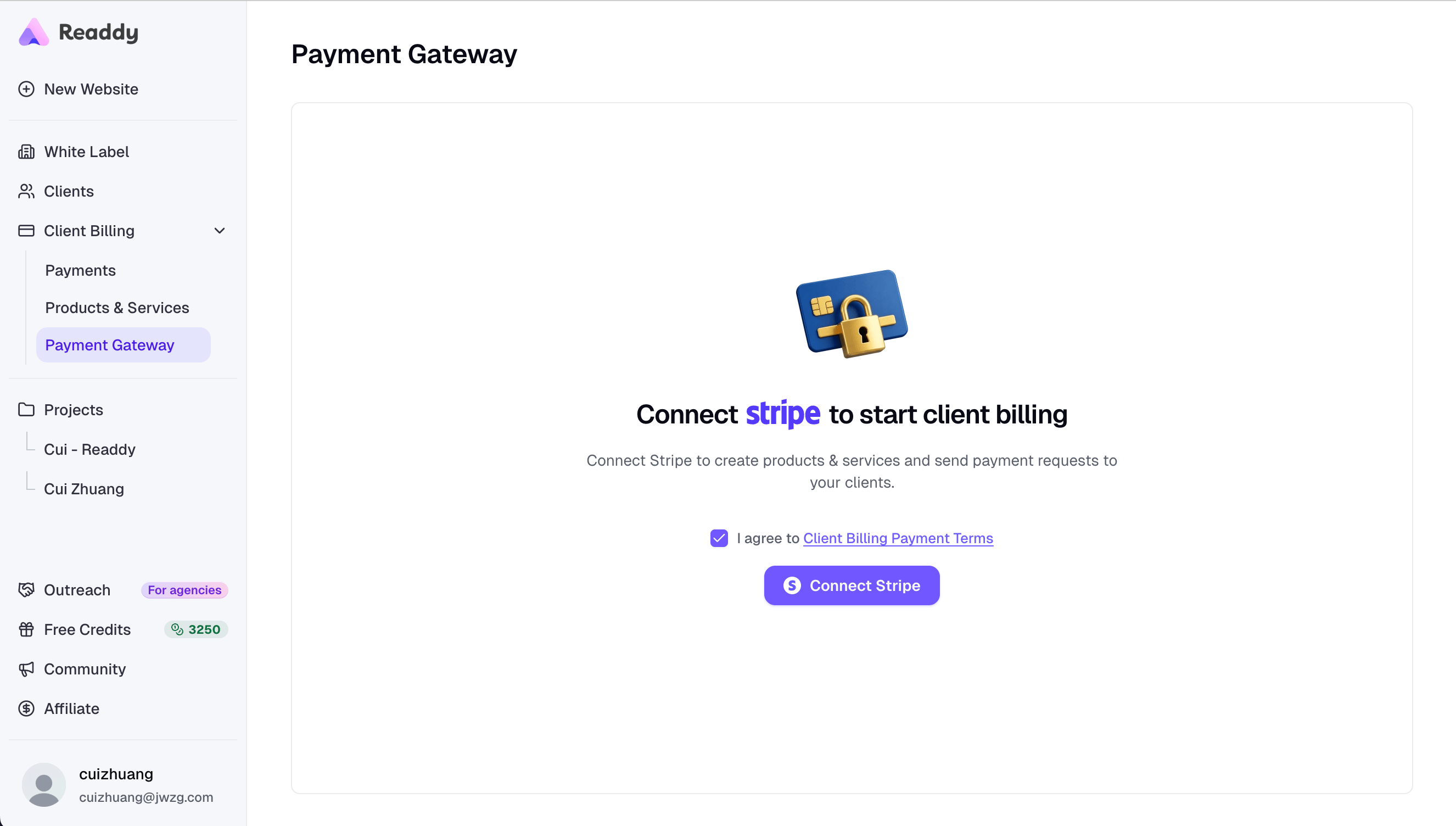 Readdy redirects you to Stripe to authorize the connection. If you have multiple Stripe accounts, choose the account you want to connect. After authorization, the page returns to Readdy automatically. Confirm that your Stripe account status is **Connected**.
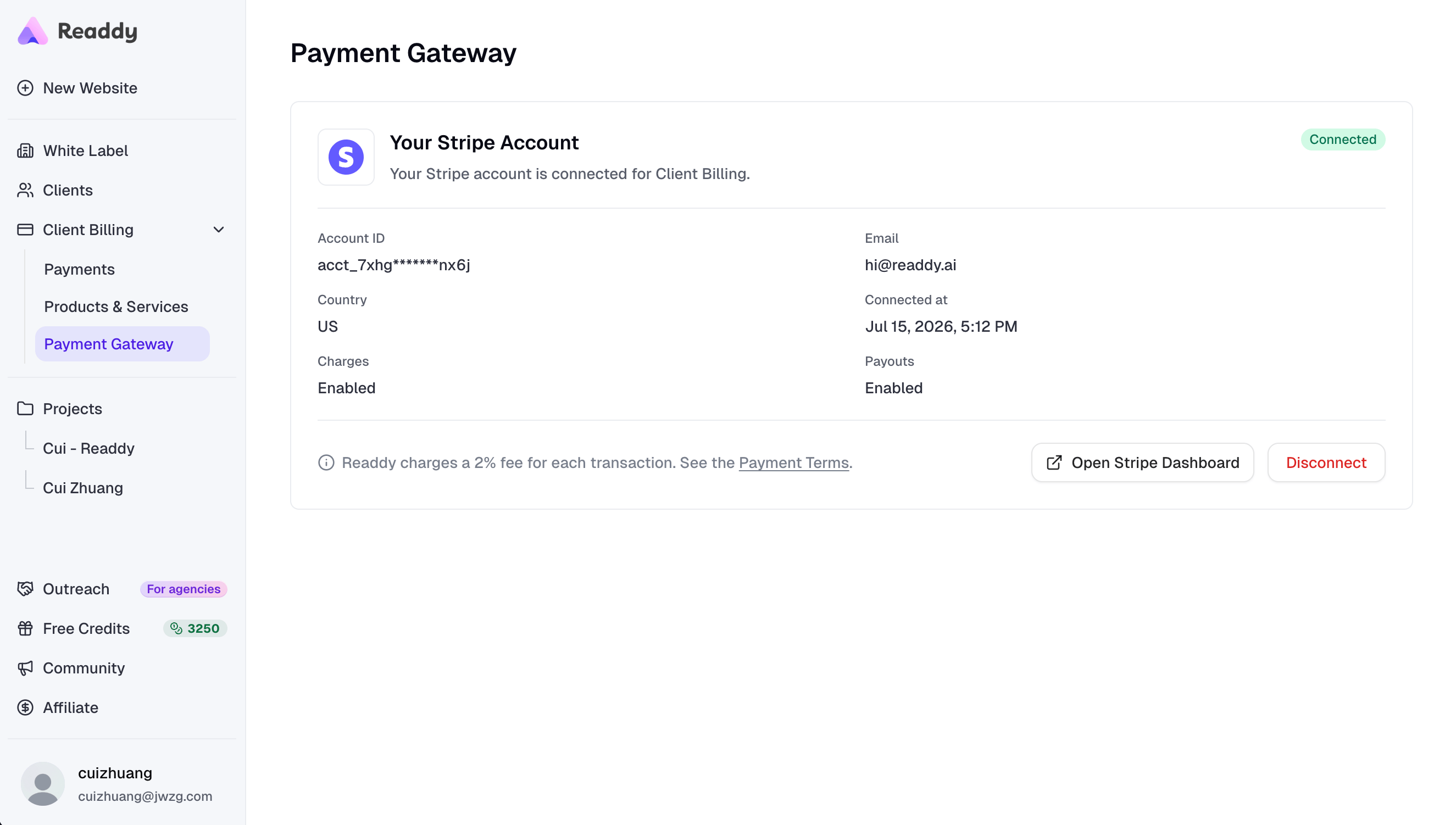 Open **Products & Services**. If your Stripe account already has products and prices, they appear in the list automatically.
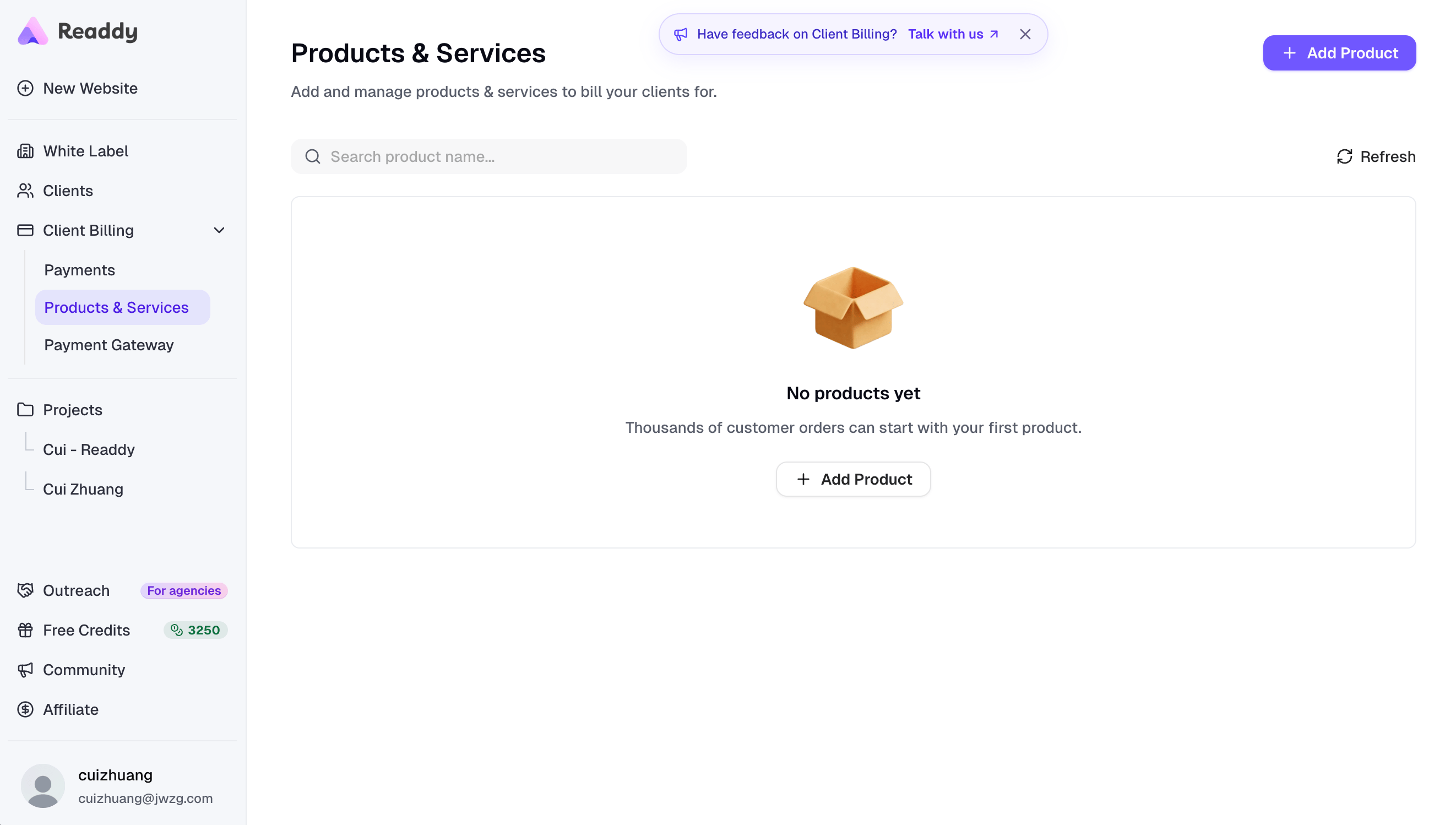 To create a new product, click **"Add Product"**.
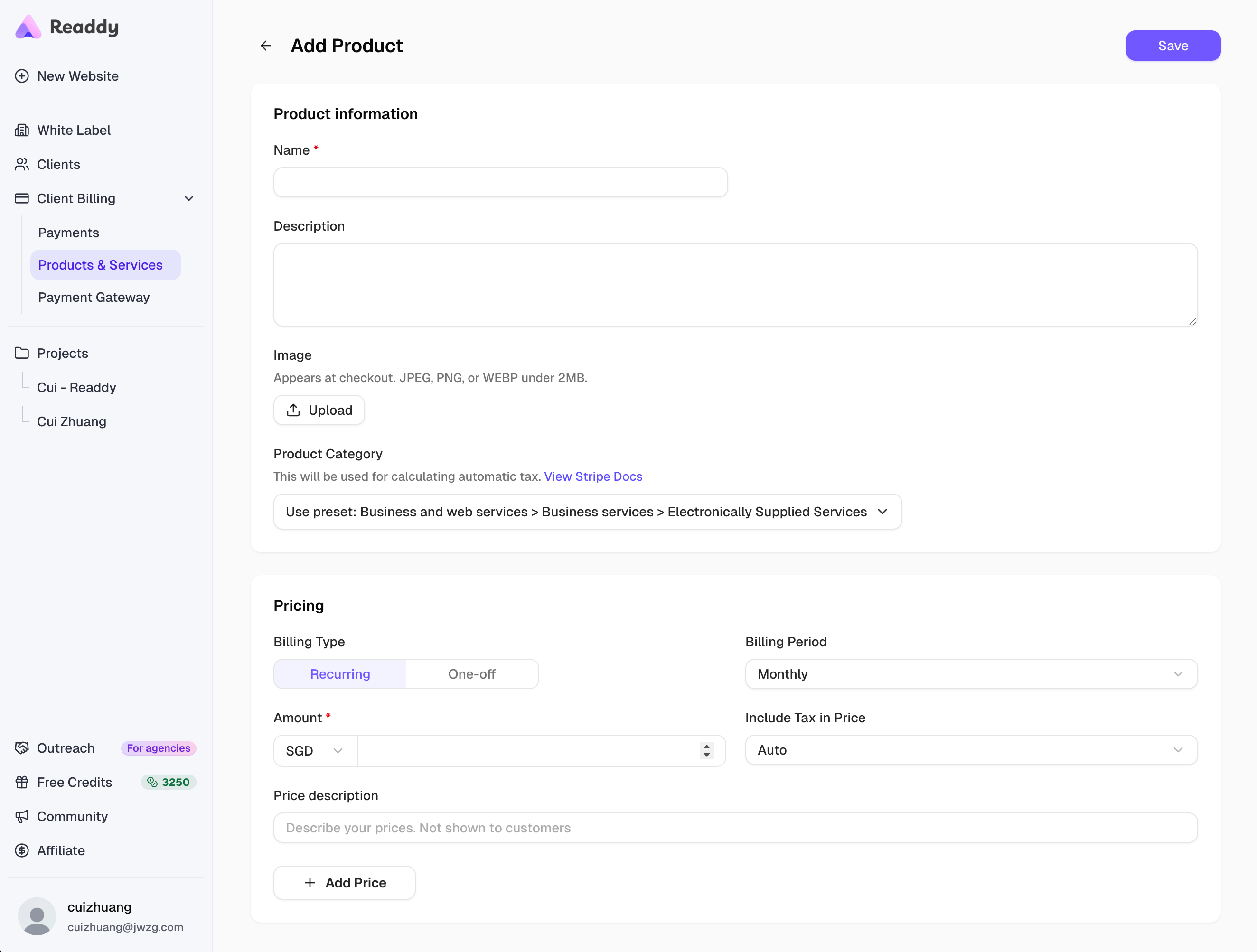
Add the product name, description, optional image, product category for tax, and at least one price. A price can be **One-off** or **Recurring**.
To create a new product, click **"Add Product"**.
Add the product name, description, optional image, product category for tax, and at least one price. A price can be **One-off** or **Recurring**.
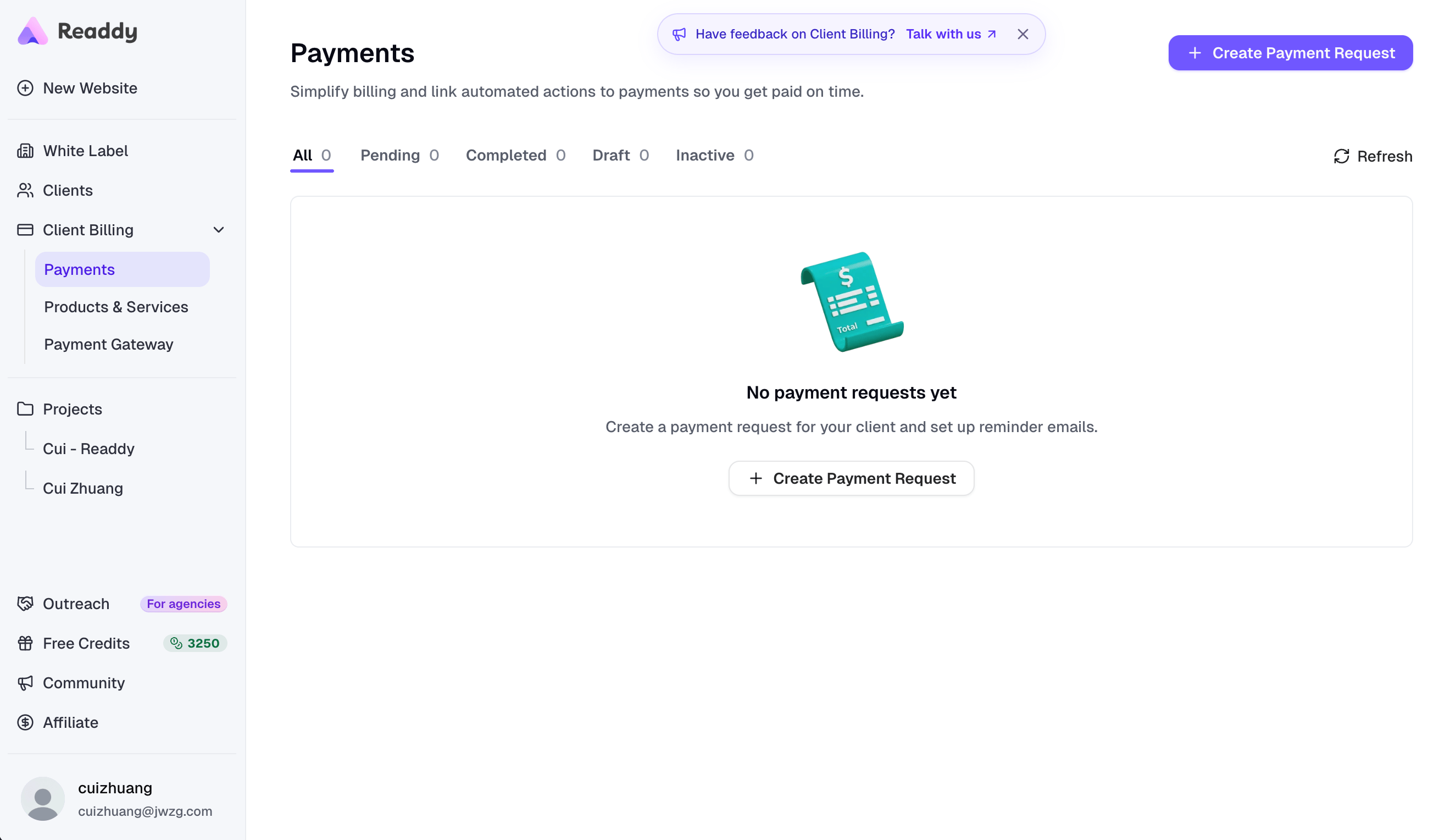
 Open **Payments**, then click **"Create Payment Request"**.
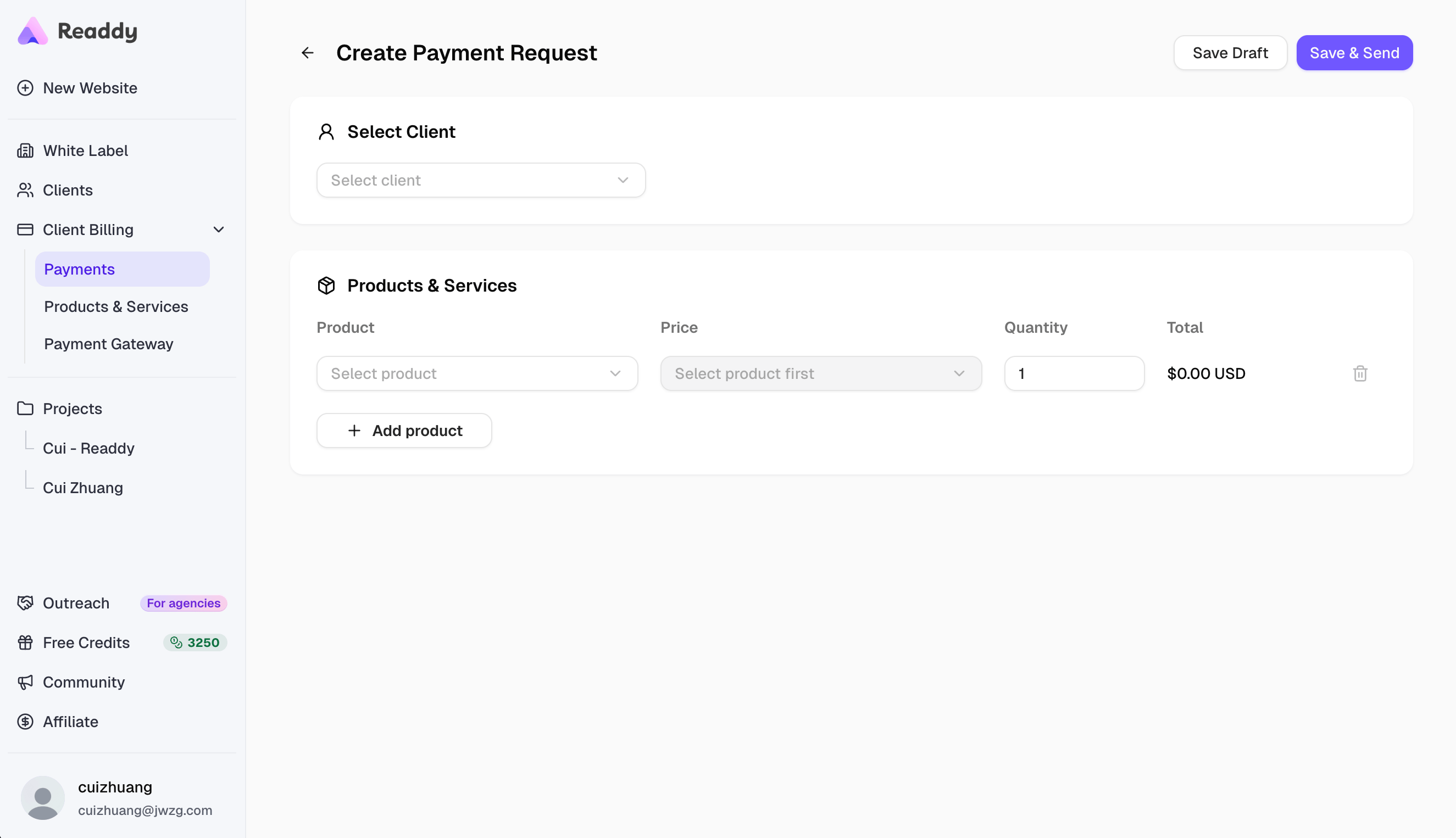
 Select the client and products or services that you want to bill for, then click **"Save & Send"**.
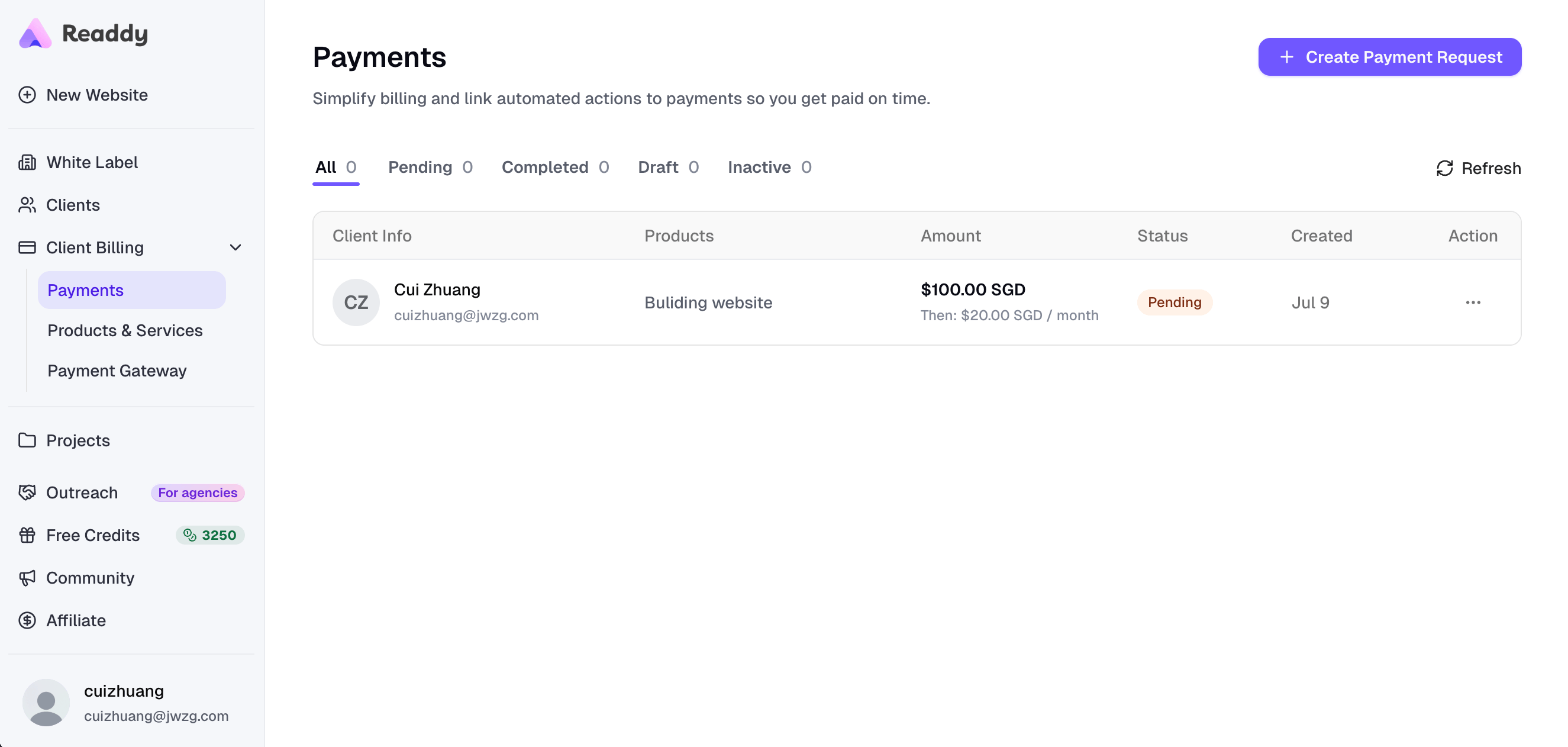
 After the payment request is sent successfully, the new request appears in the Payments list with a **Pending** status.
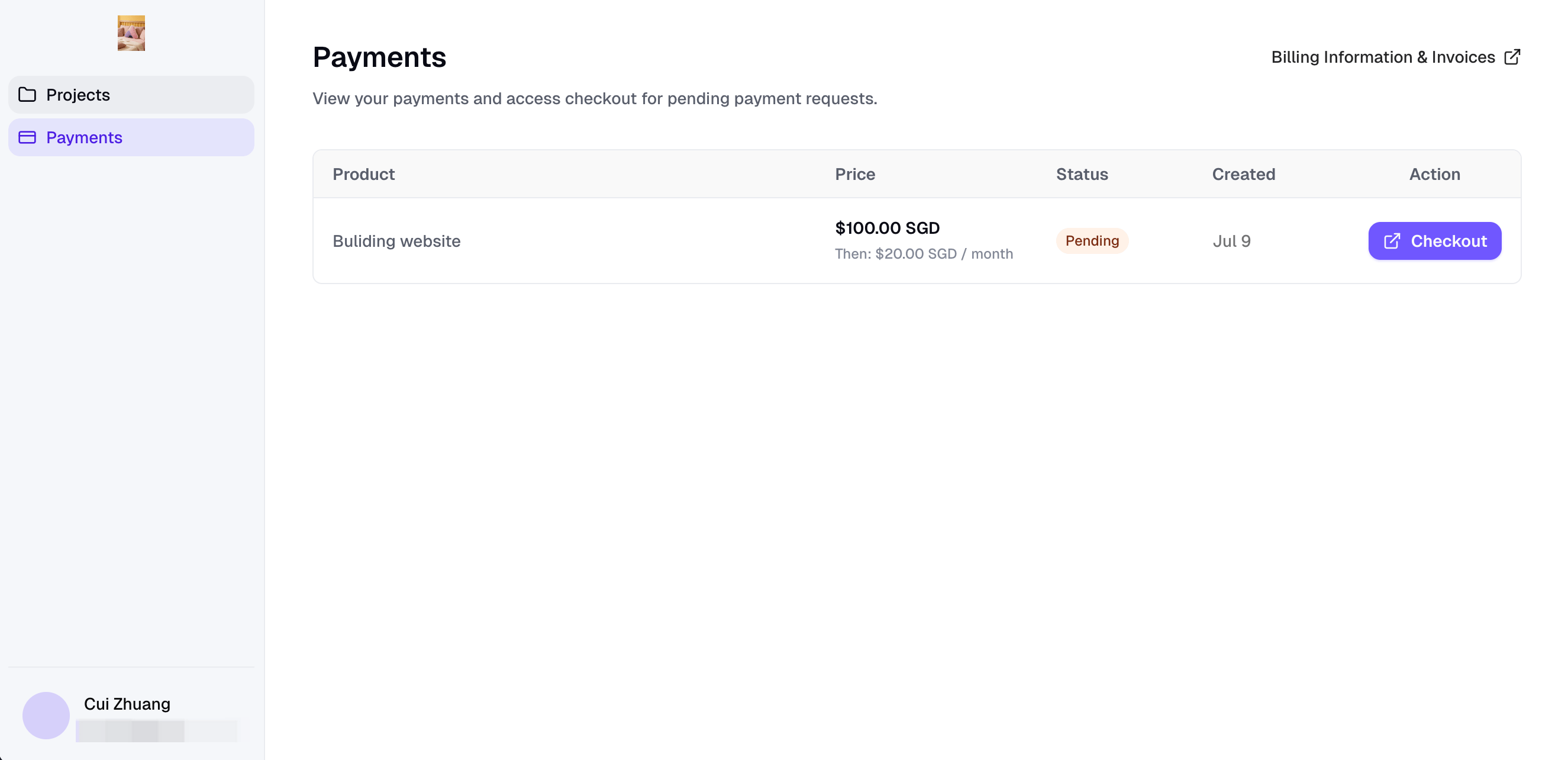
 Ask your client to sign in to the **Client Portal**, go to **Payments**, and click **"Checkout"** to complete payment through Stripe.
 ## Need Help?
If this guide doesn't resolve your issue, [submit a support ticket](https://readdy.ai/feedback). We're here to help!
## Need Help?
If this guide doesn't resolve your issue, [submit a support ticket](https://readdy.ai/feedback). We're here to help!