> ## Documentation Index
> Fetch the complete documentation index at: https://docs.readdy.ai/llms.txt
> Use this file to discover all available pages before exploring further.
# Readdy Backend
> Readdy's built-in Database, Functions, and Secrets to power your app without setting up a separate third-party backend service
Readdy Backend is Readdy's built-in backend foundation. It lets your project use a database and server-side functions directly inside Readdy, without first subscribing to and setting up a separate third-party backend service such as Supabase. It is designed to feel low-friction for non-technical users — in many cases, the connection and setup flow happens through Readdy with very little manual infrastructure work.
Readdy Backend includes three core modules:
* **Database**: manage and inspect your project's data
* **Functions**: run custom server-side logic for your project
* **Secrets**: store private values for server-side workflows without exposing them in your frontend code
With Readdy Backend, you can:
* **Skip separate backend setup**: add backend capability to your project inside Readdy instead of first configuring a separate database service
* **Start simple and go deeper**: begin from Readdy's UI and Chat, then move into direct data tools only when you need more control
* **Choose your level of control**: use visual tools for everyday work, and use SQL, Functions, or Secrets when your workflow becomes more advanced
* **Support real product scenarios**: manage leads, forms, products, orders, internal data, automations, and custom server-side workflows
**Prerequisites:** Readdy Backend and [Supabase](/integrations/supabase) **cannot** be connected to the same project at the same time. If your project already uses Supabase, disconnect it first before connecting Readdy Backend.
Disconnecting either Supabase or Readdy Backend from a project is a high-risk action. It may break existing features, cause function failures, or result in data loss on your website. If the project is already in use, make sure you understand the current setup and back up any important data before disconnecting.
## Application Layer & Use Cases
Readdy Backend gives your project the core backend tools behind the scenes. But for many users, that does not mean working in **Database**, **Functions**, or **Secrets** every day. Readdy also offers simpler, task-focused tools for common business needs, so you can manage your work through pages that match what you are trying to do.
* Use **Database**, **Functions**, and **Secrets** when you need direct backend access and control.
* Use a Readdy application when you want a simpler workflow built for a specific job.
E-commerce users should usually start with [Shop](/features/shop) to manage products and orders, instead of manually editing product and order tables in the database. The backend is still powering that experience underneath, but the [Shop](/features/shop) workflow is easier, safer, and more intuitive for non-technical users.
Use this rule of thumb:
* If a Readdy application already exists for your use case, start there.
* If you need direct data access, use **Database**.
* If you need custom server-side logic, use **Functions**.
* If you need to store private configuration for backend workflows, use **Secrets**.
Use application modules (Shop) first when available. They are usually easier and safer for non-technical users.
## Terminology
| Term | Meaning |
| ----------------- | -------------------------------------------------------------------------------------------------- |
| Database | The place where your project's structured data is stored. |
| Table | A collection of records, like a spreadsheet for one type of data. |
| Row | One record inside a table. |
| Column | One field inside a table, such as `name`, `email`, or `price`. |
| Schema | A grouping layer inside the database. In Readdy Backend, `public` is the main schema for app data. |
| Table Editor | A visual way to browse and edit data without writing SQL. |
| SQL Editor | A text editor for writing custom database queries. |
| Function | A piece of server-side code you can deploy and run for custom backend logic. |
| Endpoint URL | The URL you can call to trigger a deployed function. |
| Secret | A private project-level value, such as an API key or token, used by backend workflows. |
| Application layer | A higher-level Readdy module built on top of the backend foundation, such as Shop. |
## How to Connect
Click the **Connects** button in your project.
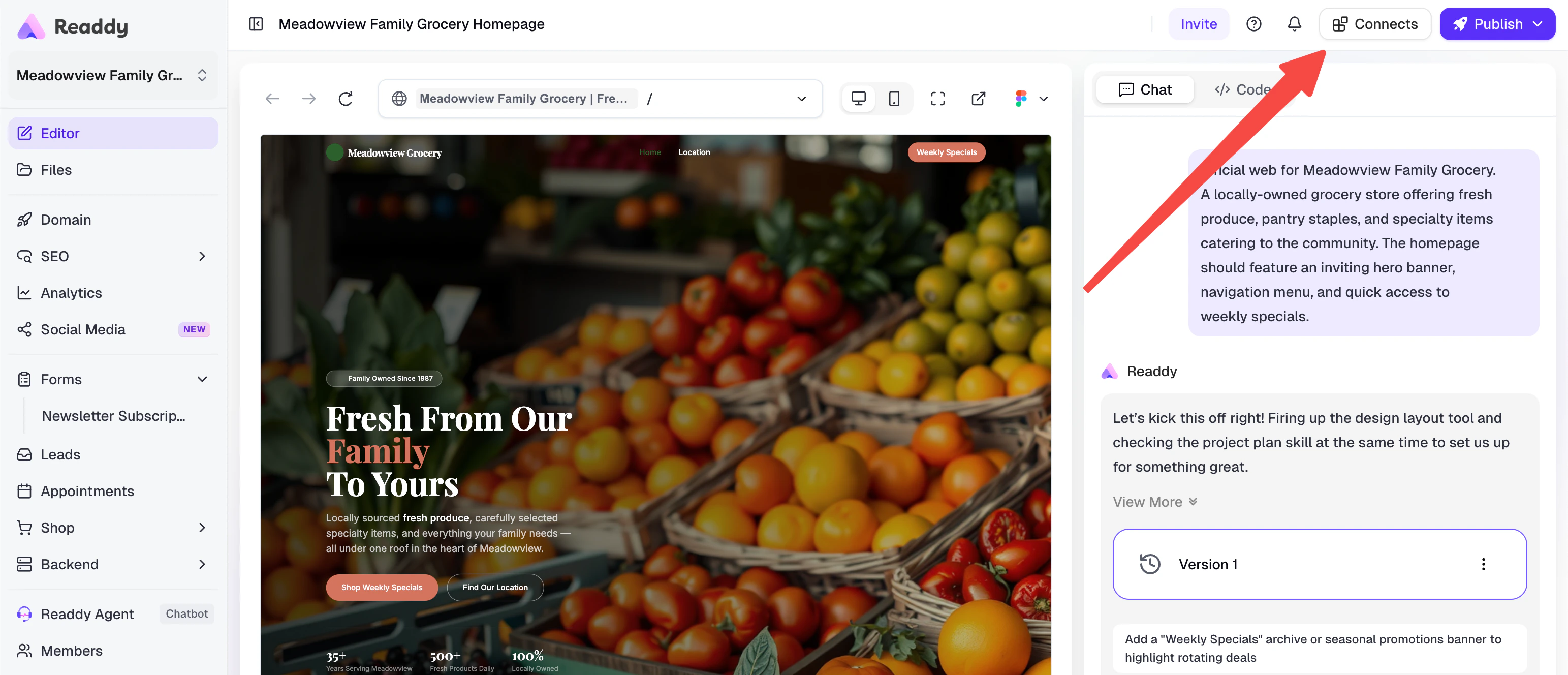 Locate **Readdy Backend** in the Connects panel.
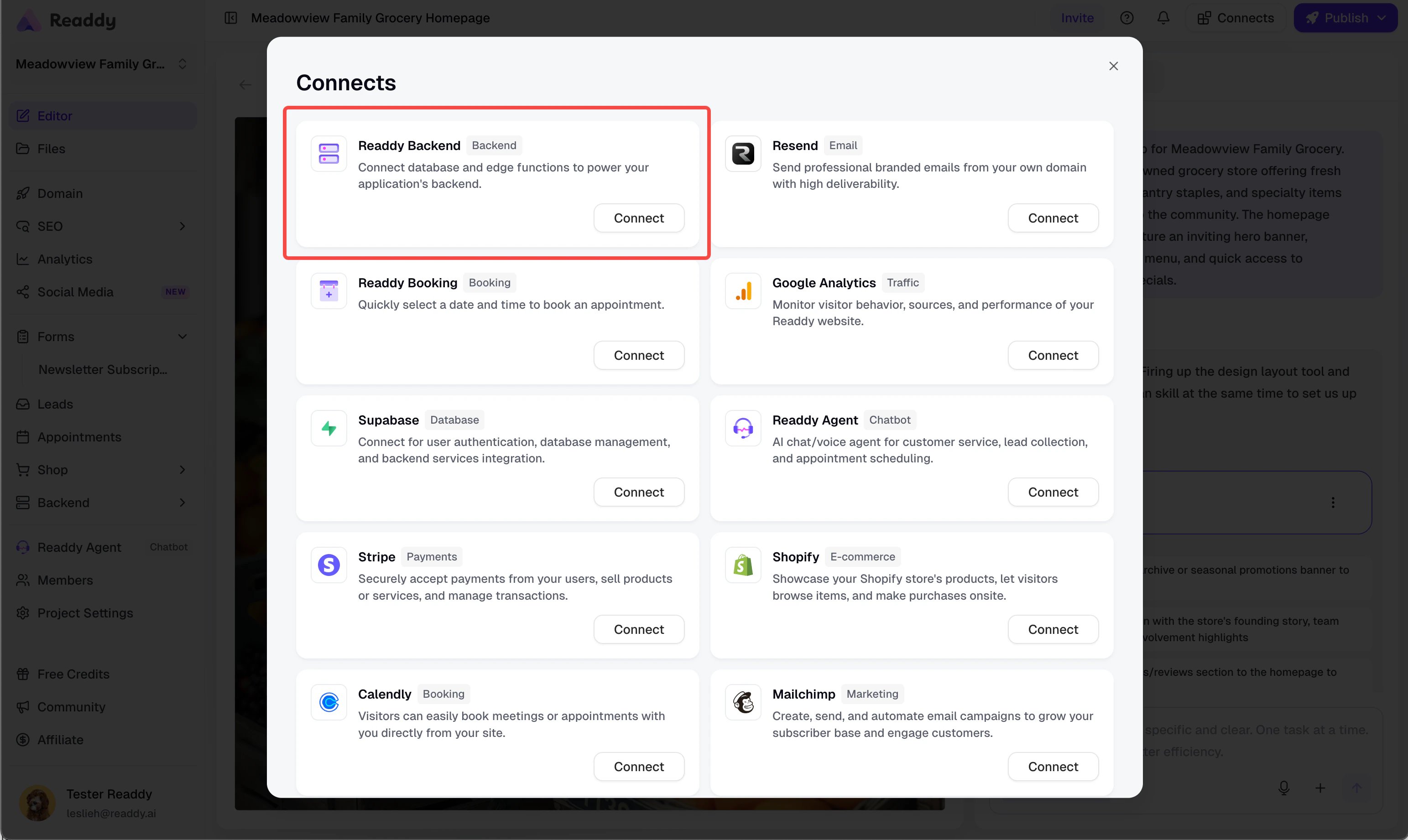 Click **Connect**. Readdy takes you back to the Editor and sends the setup request automatically.
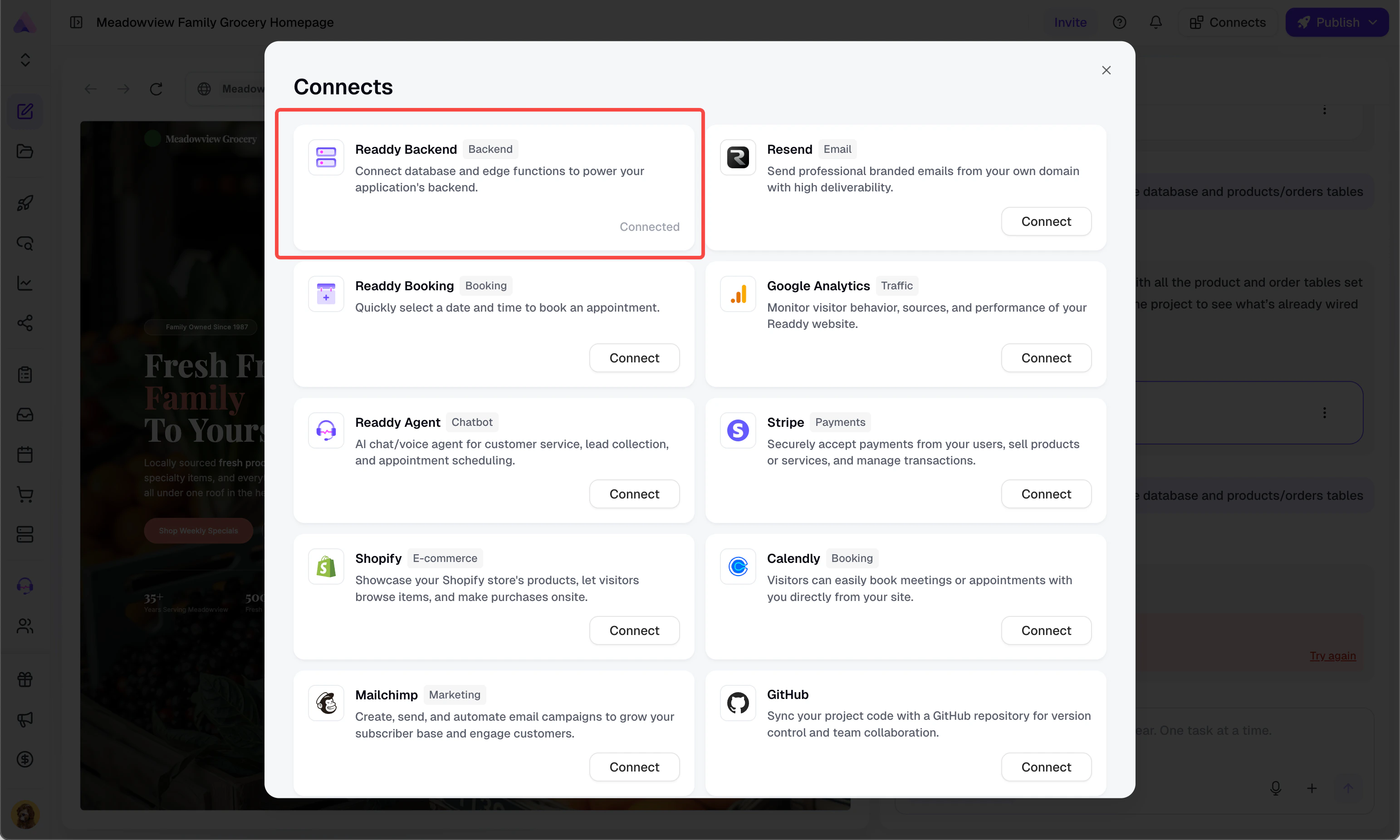
When the connection is ready, Readdy Backend shows as **Connected**.
Click **Connect**. Readdy takes you back to the Editor and sends the setup request automatically.
When the connection is ready, Readdy Backend shows as **Connected**.
 You can also connect Readdy Backend through Chat. Describe your needs — for example, tell Readdy that you need backend storage for sign-up data, products, orders, leads, bookings, or any other feature that requires stored data.
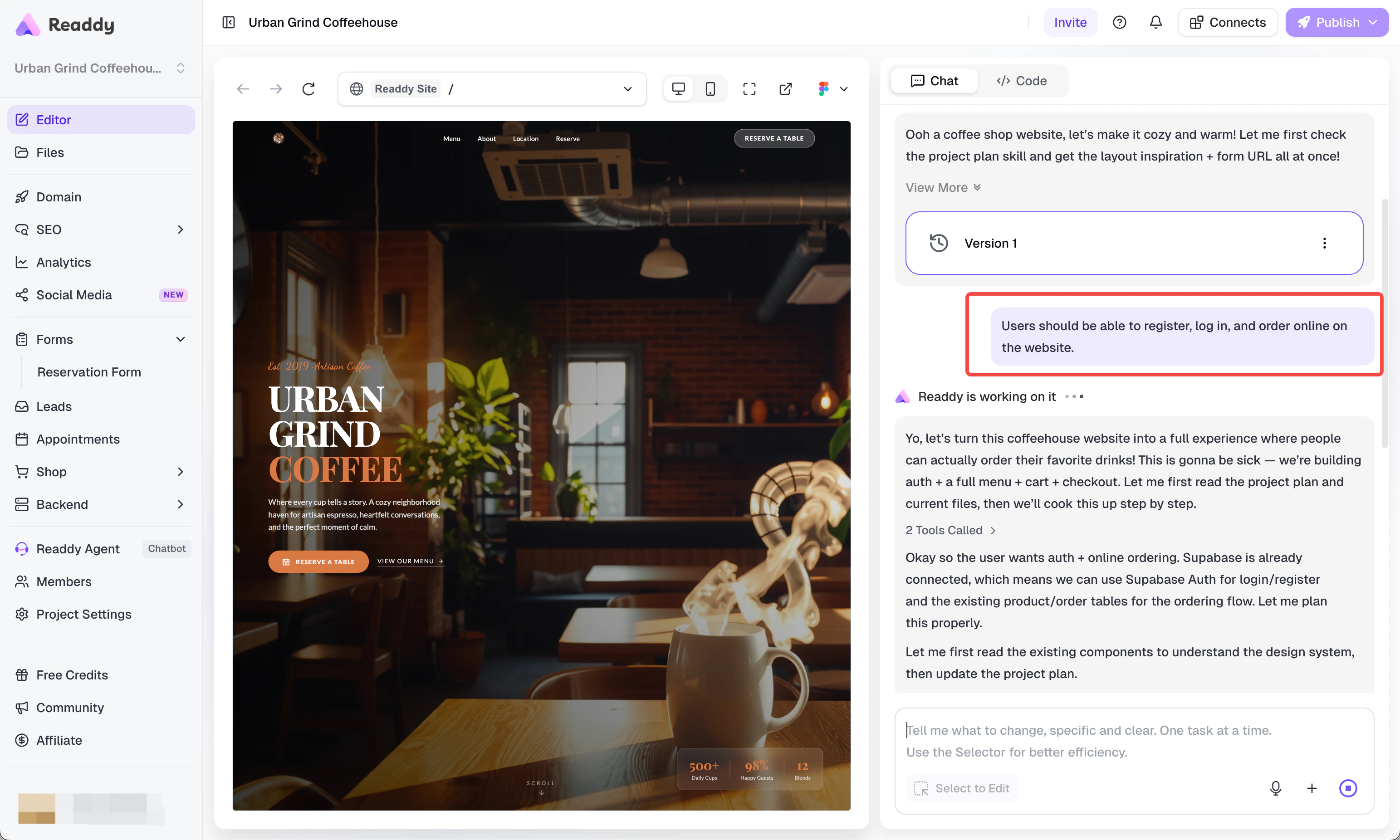 Start from Chat when you are creating a new backend structure from scratch. Describe the outcome you want before jumping into tables.
## Using Database
**Database** gives you two working modes: **Table Editor** and **SQL Editor**.
Start from Chat when you are creating a new backend structure from scratch. Describe the outcome you want before jumping into tables.
## Using Database
**Database** gives you two working modes: **Table Editor** and **SQL Editor**.
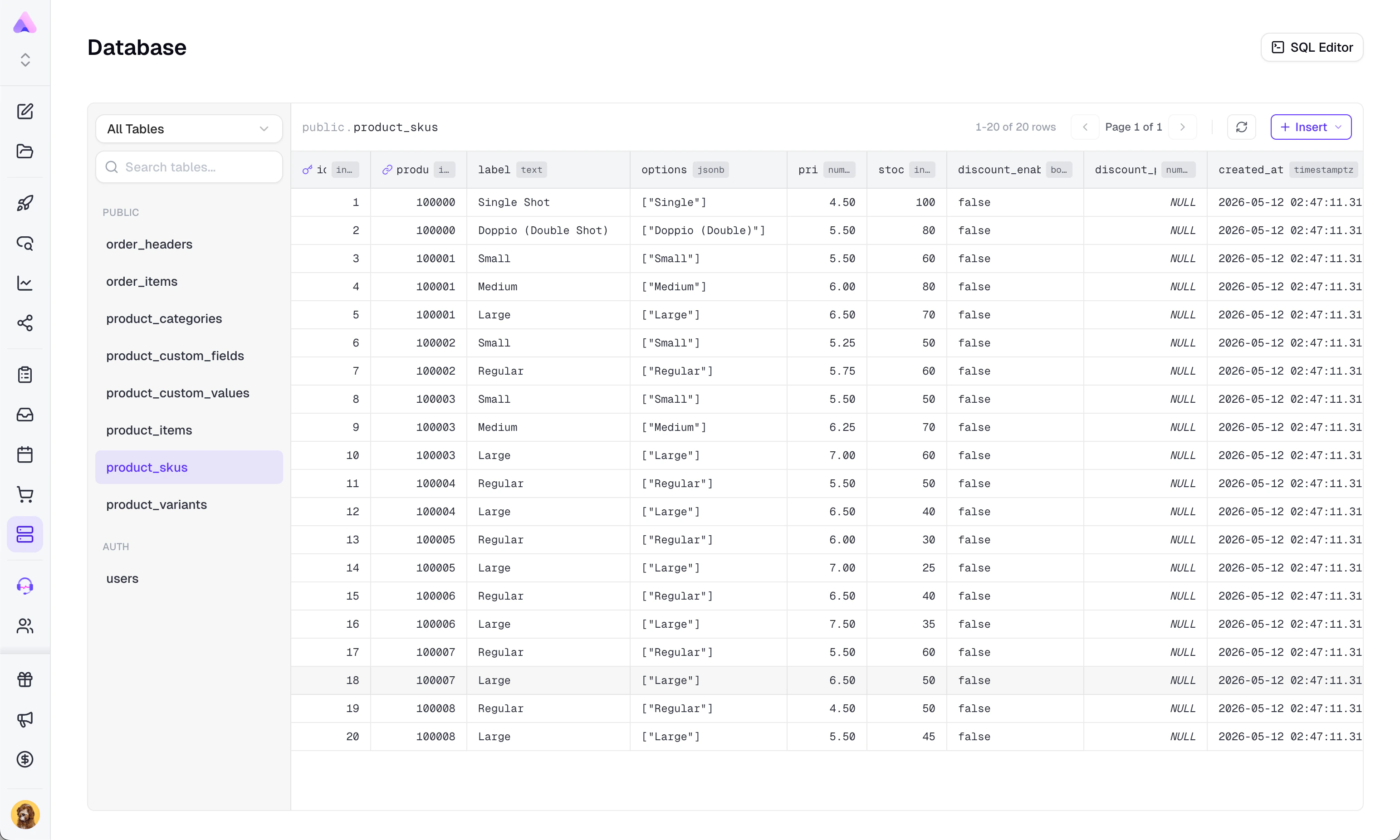
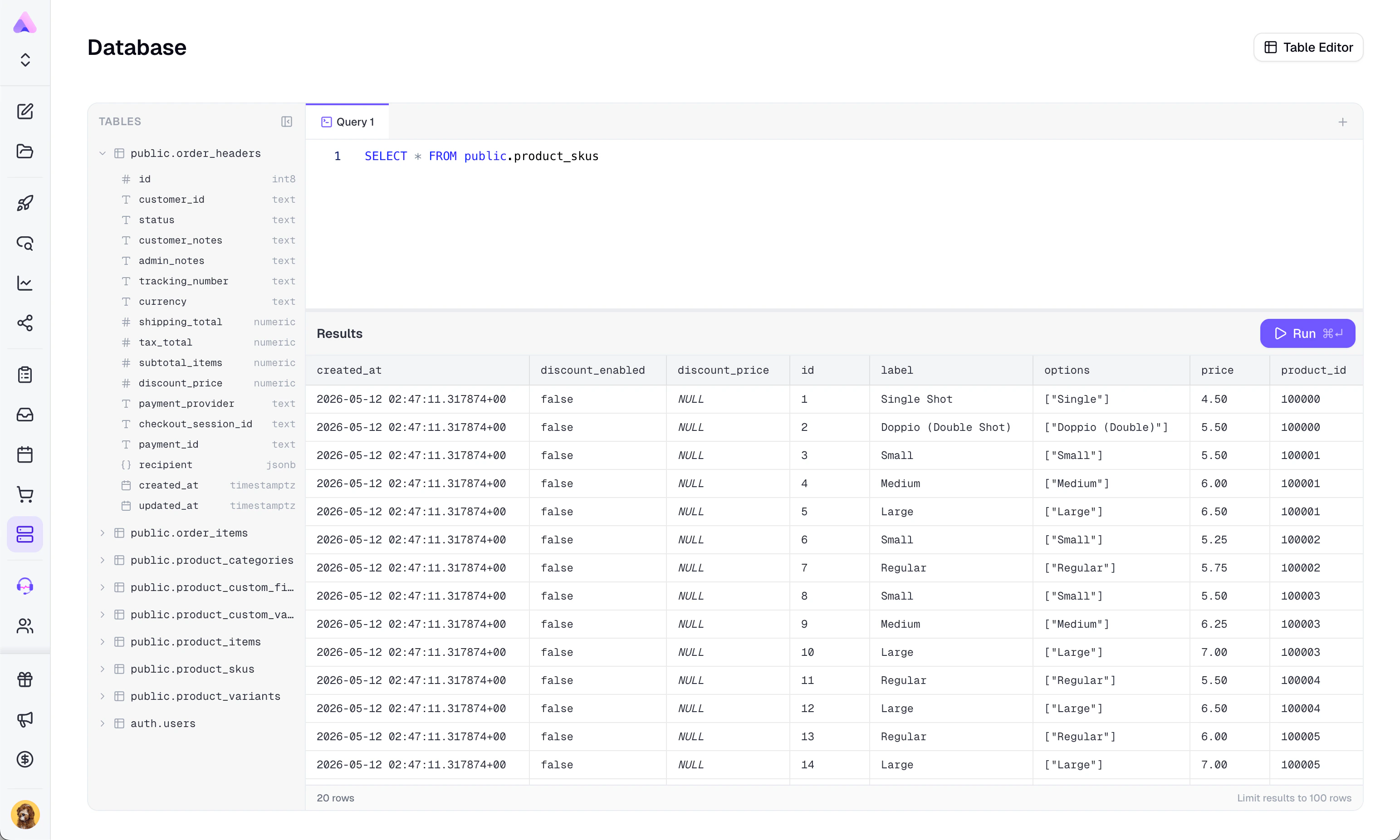 ### How to Use It
1. Open **Backend** in the sidebar, then open **Database**.
### How to Use It
1. Open **Backend** in the sidebar, then open **Database**.
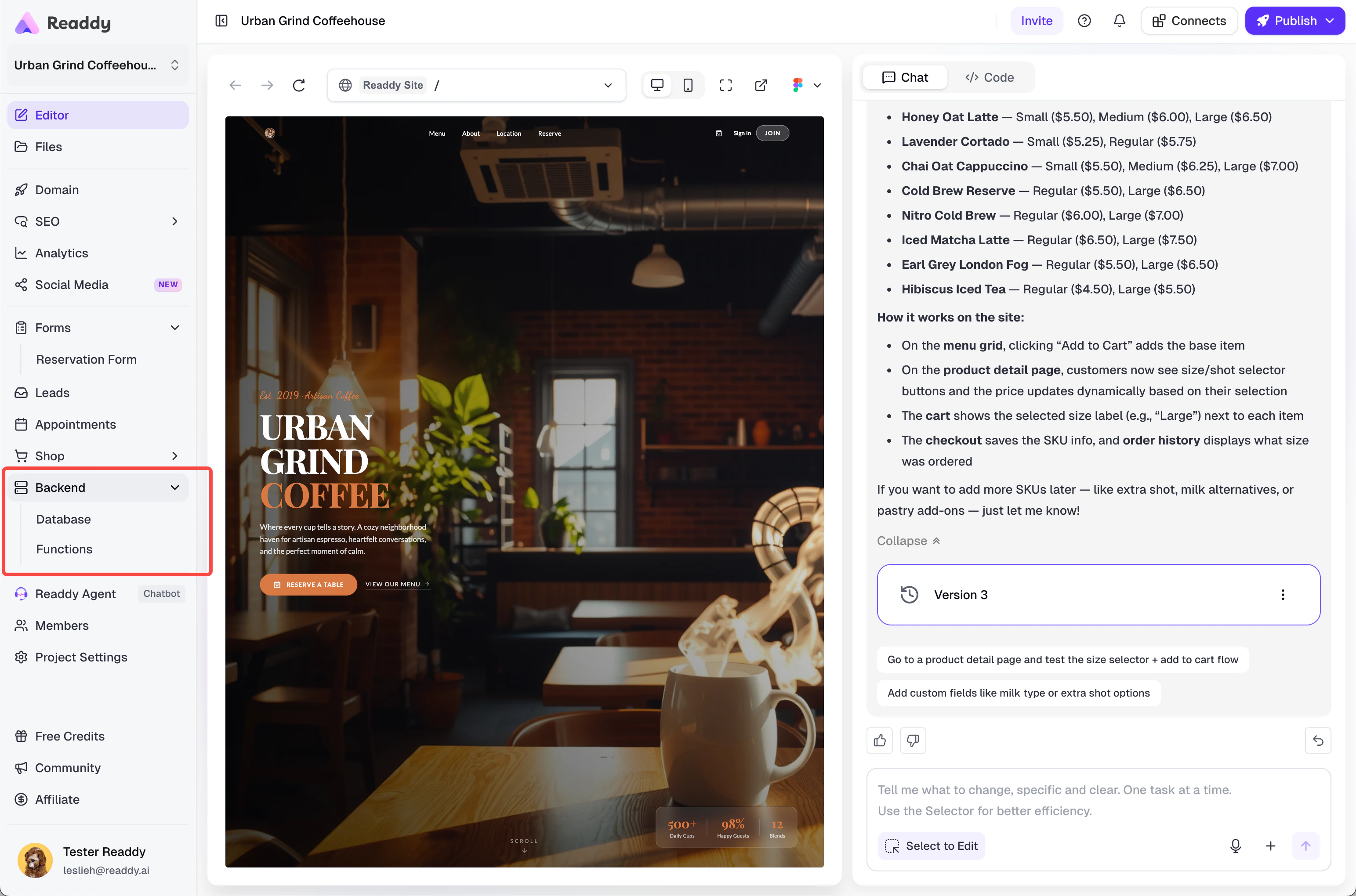 2. Select a table from the left panel.
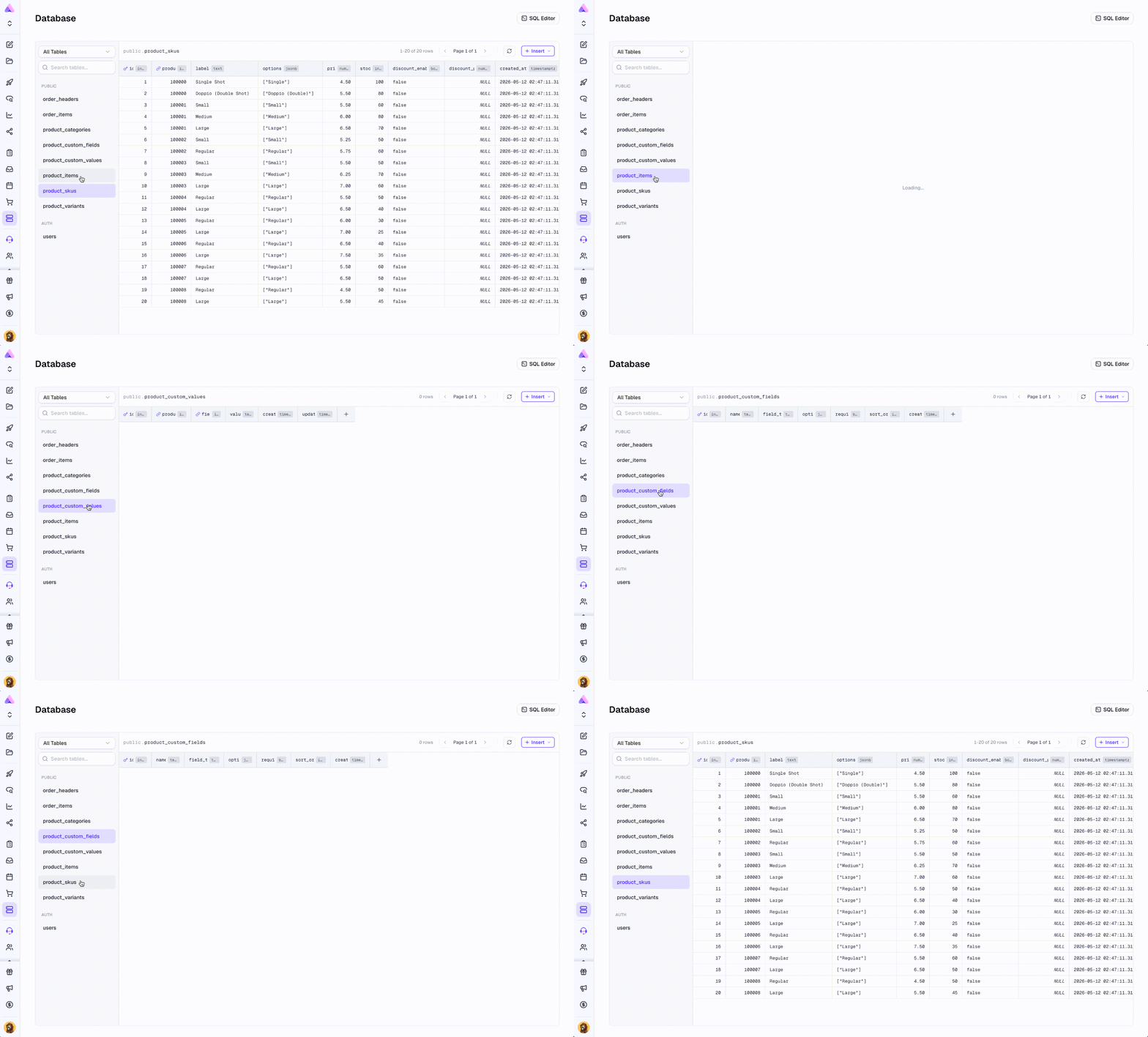 3. Use **Table Editor** for most everyday actions.
4. Switch to **SQL Editor** when you need a custom query.
3. Use **Table Editor** for most everyday actions.
4. Switch to **SQL Editor** when you need a custom query.
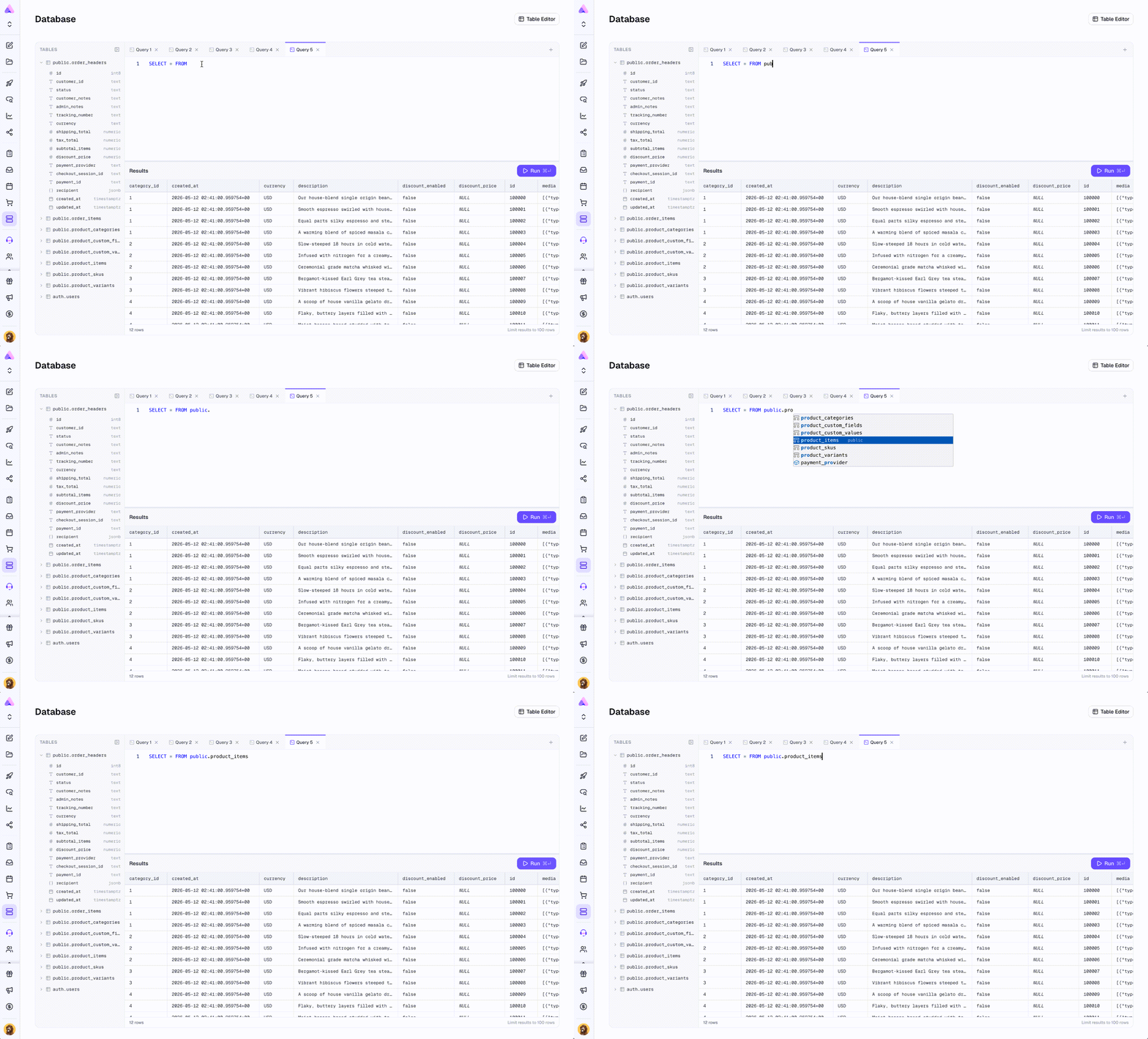 5. If there are no tables yet, go to Chat and ask Readdy to create the data structure you need.
### What You Can Do in Database
* Search tables and switch between visible schemas
* View table rows with pagination
* Edit cells directly in **Table Editor**
* Insert a row, edit a row, or delete a row
* Add, edit, or delete columns
* Use a picker for foreign-key fields
Review data carefully before deleting rows or columns, because this can affect page content or app behavior.
### Table Editor vs SQL Editor
* Choose **Table Editor** if you want a visual, low-risk workflow.
* Choose **SQL Editor** if you need a custom query and you already understand SQL.
## Using Functions
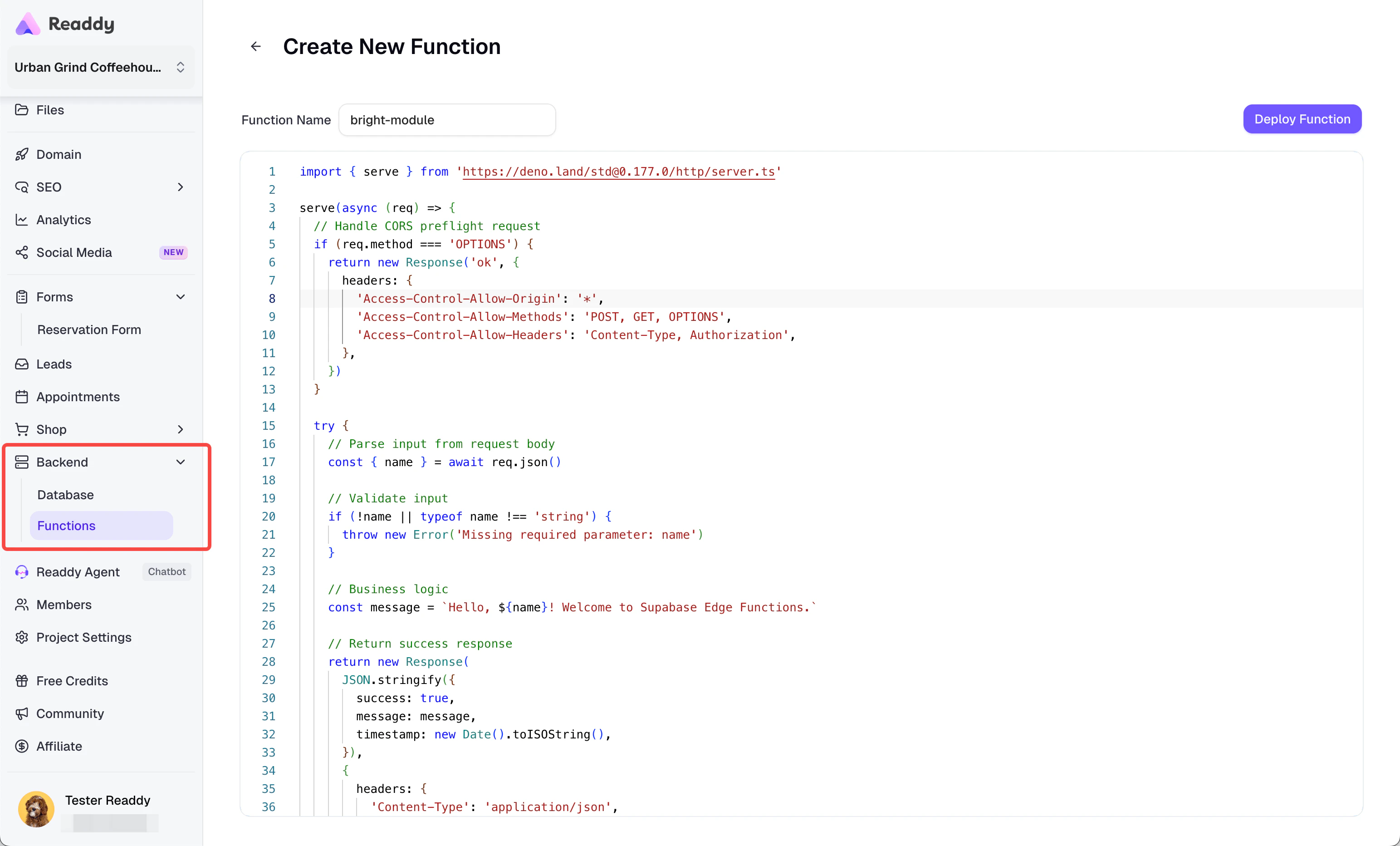
**Functions** lets you create and deploy custom backend endpoints for your project.
5. If there are no tables yet, go to Chat and ask Readdy to create the data structure you need.
### What You Can Do in Database
* Search tables and switch between visible schemas
* View table rows with pagination
* Edit cells directly in **Table Editor**
* Insert a row, edit a row, or delete a row
* Add, edit, or delete columns
* Use a picker for foreign-key fields
Review data carefully before deleting rows or columns, because this can affect page content or app behavior.
### Table Editor vs SQL Editor
* Choose **Table Editor** if you want a visual, low-risk workflow.
* Choose **SQL Editor** if you need a custom query and you already understand SQL.
## Using Functions
**Functions** lets you create and deploy custom backend endpoints for your project.
 ### Why Use Functions
* You need logic that should run on the server side instead of in the page.
* You want an endpoint your project or an external service can call.
* You need to handle custom workflows that go beyond simple data editing.
### Common Scenarios
* Handling webhook-style requests
* Connecting with third-party services
* Running custom processing logic
* Building automation behind forms, orders, or internal tools
* Creating backend endpoints for features that need more than UI-level logic
### What You Can Do in Functions
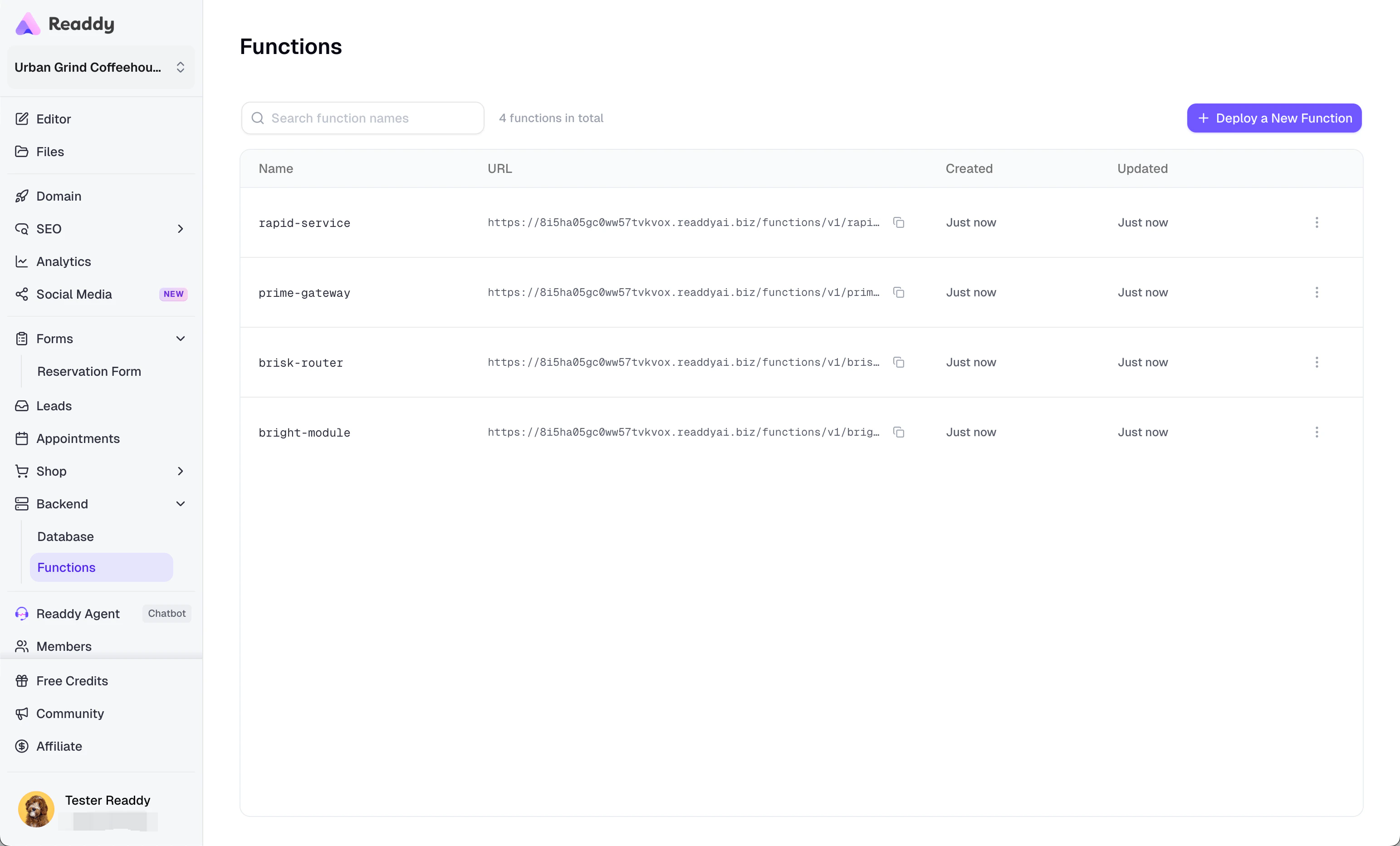
* View all deployed functions in one list
* Search functions by name
* Create a new function
* Edit and redeploy an existing function
* Copy a function URL
* Delete functions you no longer need
### How to Use It
1. Open **Backend** in the sidebar, then open **Functions**.
2. Click **"Deploy a New Function"**.
3. Enter a function name (function name is mandatory).
4. Write your code in the editor.
5. Click **"Deploy Function"**.
6. Copy the generated URL from the list when you need to call the function.
### Why Use Functions
* You need logic that should run on the server side instead of in the page.
* You want an endpoint your project or an external service can call.
* You need to handle custom workflows that go beyond simple data editing.
### Common Scenarios
* Handling webhook-style requests
* Connecting with third-party services
* Running custom processing logic
* Building automation behind forms, orders, or internal tools
* Creating backend endpoints for features that need more than UI-level logic
### What You Can Do in Functions
* View all deployed functions in one list
* Search functions by name
* Create a new function
* Edit and redeploy an existing function
* Copy a function URL
* Delete functions you no longer need
### How to Use It
1. Open **Backend** in the sidebar, then open **Functions**.
2. Click **"Deploy a New Function"**.
3. Enter a function name (function name is mandatory).
4. Write your code in the editor.
5. Click **"Deploy Function"**.
6. Copy the generated URL from the list when you need to call the function.
 ## Using Secrets
**Secrets** lets you store sensitive values for your project, such as API keys, access tokens, and other backend-only configuration.
These values are designed for server-side use. They help your functions and backend workflows access private credentials without hardcoding them directly into your project code or exposing them in the page.
### Why Use Secrets
* You need to keep an API key or token out of your frontend code
* You want your backend logic to read private configuration safely
* You need one place to manage project-level secrets used by functions or backend workflows
### What You Can Do in Secrets
* View all existing secret names in one list
* Add a new secret
* Replace the value of an existing secret
* Delete secrets you no longer need
### How to Use It
1. Open **Backend** **Secrets** in the sidebar.
2. Click **Add Secret**.
3. Enter the **Name** and **Value**.
4. Click **Save Secret**.
5. **If a secret with the same name already exists, confirm that you want to replace it.**
### Important Behavior to Understand
* Secret values are write-only. After saving, Readdy does not show the value again in the list.
* Secret names are unique within a project. Adding a name that already exists replaces the previous value after confirmation.
* Updates may take up to 60 seconds to take effect in backend usage.
## Usage Limits and Out-of-Scope Cases
* **Database** is not the best place for everyday business operations if a dedicated Readdy application already exists for your use case.
* In **SQL Editor**, only **one SQL statement** can run at a time.
* In **SQL Editor**, write operations are only allowed in the `public` schema. Other visible schemas are read-only.
* Primary-key cells cannot be edited directly in **Table Editor**.
* Some rows or columns may not be deletable if other data depends on them or if the table is protected.
* **Functions** supports deploying and managing functions, but it is not a full backend operations suite. Items such as local debugging, logs/monitoring, migration management, and backup/restore are not part of this module.
* **Secrets** stores private configuration values, but it is not a full secret lifecycle or audit-management system.
## Tips and Best Practices
Keep functions focused. One clear purpose per function is usually easier to manage than one large all-purpose function.
Use Database to verify what is really stored, especially when your UI is driven by dynamic data.
## FAQ
That usually means your project does not have any tables yet. Go to Chat and describe what data you want to store, such as users, products, orders, forms, or leads.
Use [Shop](/features/shop) for normal e-commerce operations like managing products and orders. Use **Database** when you need direct access to the underlying records or when you are working with data outside the Shop workflow.
Direct cell editing only works when the table has a primary key. Primary-key fields themselves are not editable in the inline editor.
Check these common causes:
* You tried to run more than one statement at once
* You tried a blocked system-level operation
* You tried to write outside the `public` schema
* Your SQL has a syntax or table-name issue
The record may still be referenced by other data, or the table/column may be protected. Remove or update the dependent data first, then try again.
After deployment, the URL appears in the **Functions** list. You can copy it directly from there.
Secret values are write-only for security reasons. Readdy shows the secret name and description, but not the saved value.
Secret updates may take up to 60 seconds to take effect. Wait a moment, then run your function or workflow again.
## Need Help?
If this guide doesn't resolve your issue, [submit a support ticket](https://readdy.ai/feedback). We're here to help!
## Using Secrets
**Secrets** lets you store sensitive values for your project, such as API keys, access tokens, and other backend-only configuration.
These values are designed for server-side use. They help your functions and backend workflows access private credentials without hardcoding them directly into your project code or exposing them in the page.
### Why Use Secrets
* You need to keep an API key or token out of your frontend code
* You want your backend logic to read private configuration safely
* You need one place to manage project-level secrets used by functions or backend workflows
### What You Can Do in Secrets
* View all existing secret names in one list
* Add a new secret
* Replace the value of an existing secret
* Delete secrets you no longer need
### How to Use It
1. Open **Backend** **Secrets** in the sidebar.
2. Click **Add Secret**.
3. Enter the **Name** and **Value**.
4. Click **Save Secret**.
5. **If a secret with the same name already exists, confirm that you want to replace it.**
### Important Behavior to Understand
* Secret values are write-only. After saving, Readdy does not show the value again in the list.
* Secret names are unique within a project. Adding a name that already exists replaces the previous value after confirmation.
* Updates may take up to 60 seconds to take effect in backend usage.
## Usage Limits and Out-of-Scope Cases
* **Database** is not the best place for everyday business operations if a dedicated Readdy application already exists for your use case.
* In **SQL Editor**, only **one SQL statement** can run at a time.
* In **SQL Editor**, write operations are only allowed in the `public` schema. Other visible schemas are read-only.
* Primary-key cells cannot be edited directly in **Table Editor**.
* Some rows or columns may not be deletable if other data depends on them or if the table is protected.
* **Functions** supports deploying and managing functions, but it is not a full backend operations suite. Items such as local debugging, logs/monitoring, migration management, and backup/restore are not part of this module.
* **Secrets** stores private configuration values, but it is not a full secret lifecycle or audit-management system.
## Tips and Best Practices
Keep functions focused. One clear purpose per function is usually easier to manage than one large all-purpose function.
Use Database to verify what is really stored, especially when your UI is driven by dynamic data.
## FAQ
That usually means your project does not have any tables yet. Go to Chat and describe what data you want to store, such as users, products, orders, forms, or leads.
Use [Shop](/features/shop) for normal e-commerce operations like managing products and orders. Use **Database** when you need direct access to the underlying records or when you are working with data outside the Shop workflow.
Direct cell editing only works when the table has a primary key. Primary-key fields themselves are not editable in the inline editor.
Check these common causes:
* You tried to run more than one statement at once
* You tried a blocked system-level operation
* You tried to write outside the `public` schema
* Your SQL has a syntax or table-name issue
The record may still be referenced by other data, or the table/column may be protected. Remove or update the dependent data first, then try again.
After deployment, the URL appears in the **Functions** list. You can copy it directly from there.
Secret values are write-only for security reasons. Readdy shows the secret name and description, but not the saved value.
Secret updates may take up to 60 seconds to take effect. Wait a moment, then run your function or workflow again.
## Need Help?
If this guide doesn't resolve your issue, [submit a support ticket](https://readdy.ai/feedback). We're here to help!