> ## Documentation Index
> Fetch the complete documentation index at: https://docs.readdy.ai/llms.txt
> Use this file to discover all available pages before exploring further.
# Readdy Booking
> Create booking calendars, set availability, and manage appointment information in Readdy
With Readdy Booking, you can easily add booking functionality to your website, allowing visitors to book services online directly.
## How to Use
Open the project where you want to add booking functionality.
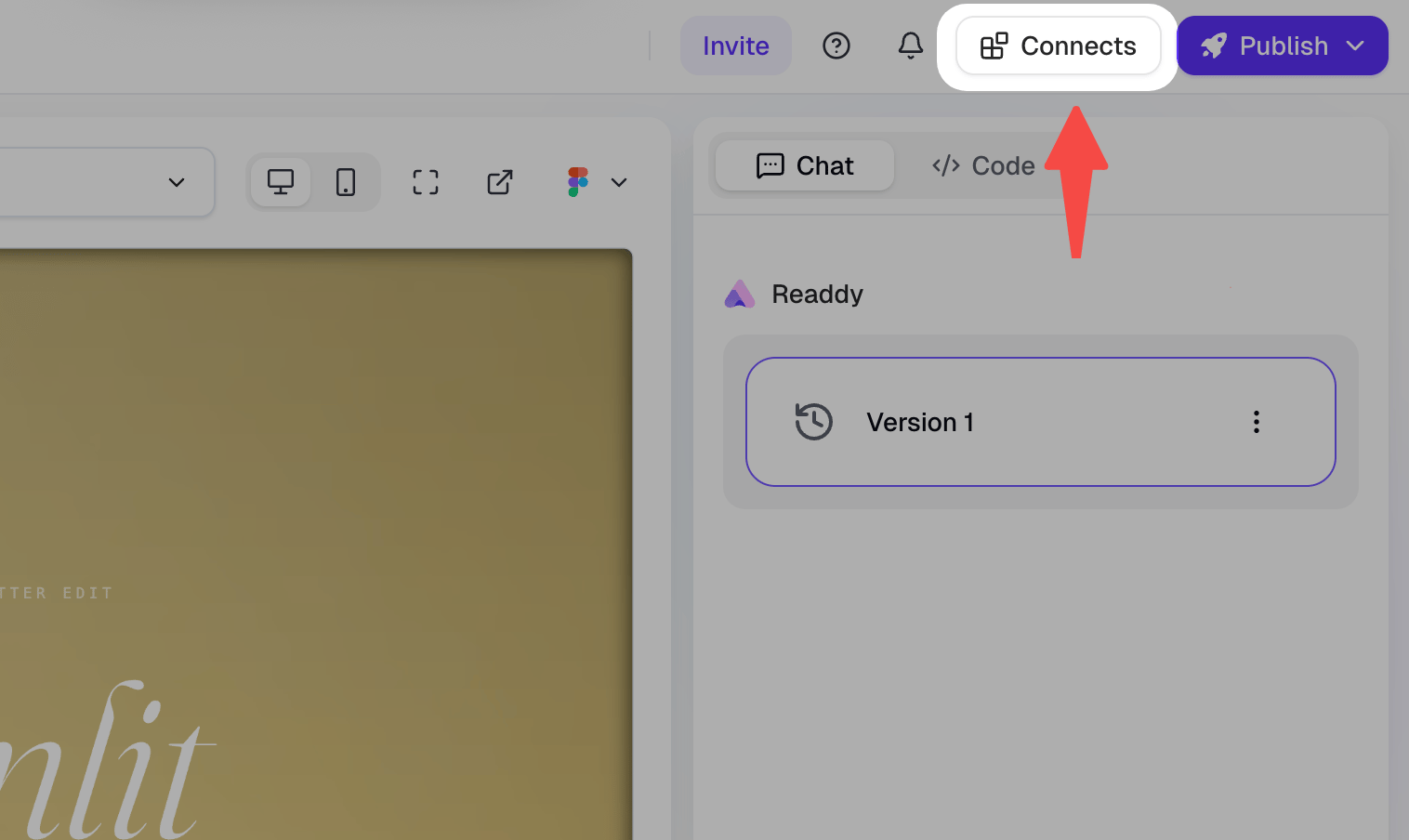
Click the **Connects** button in your project.
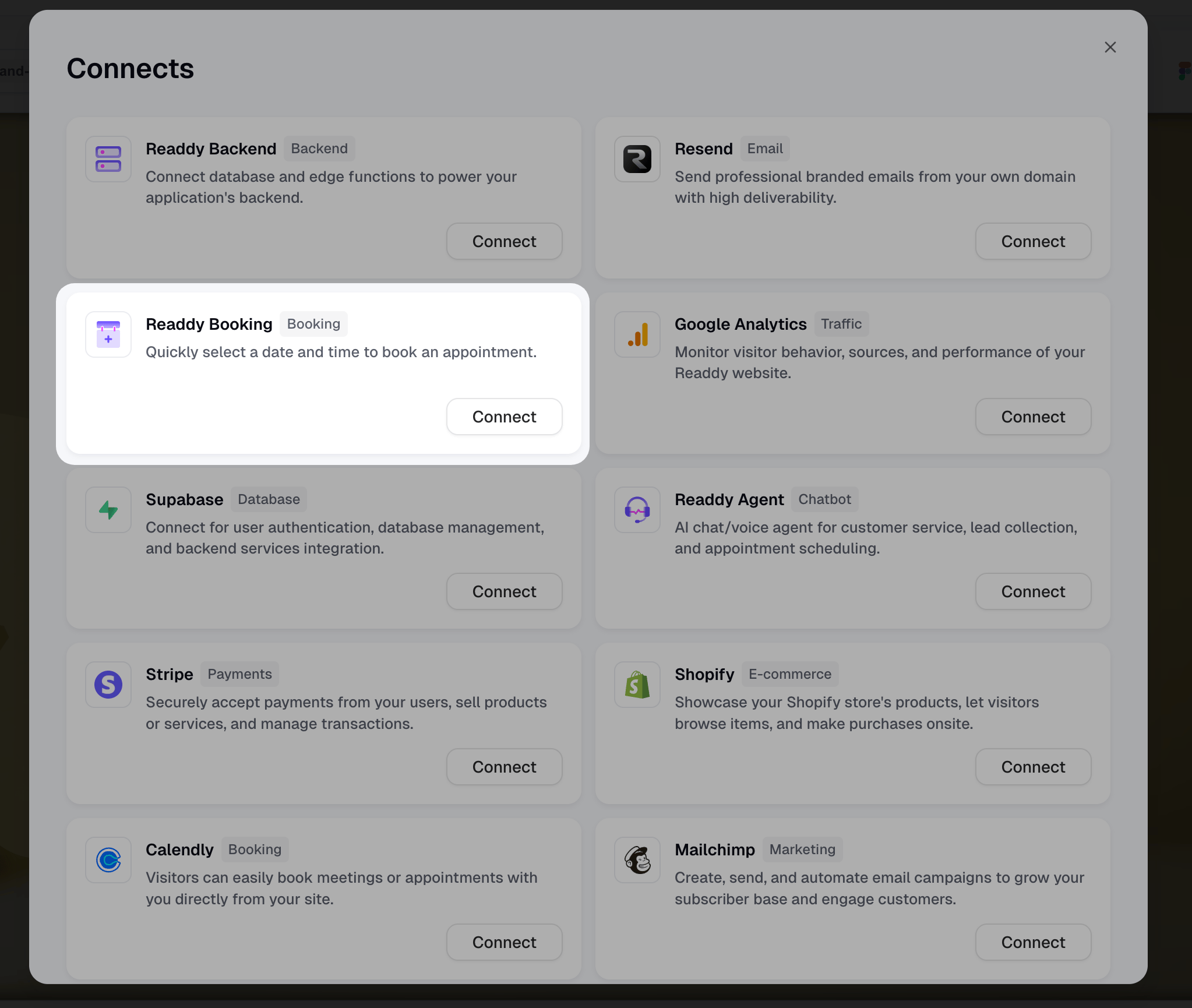
Find **Readdy Booking** in the Connects panel and click **Connect**.
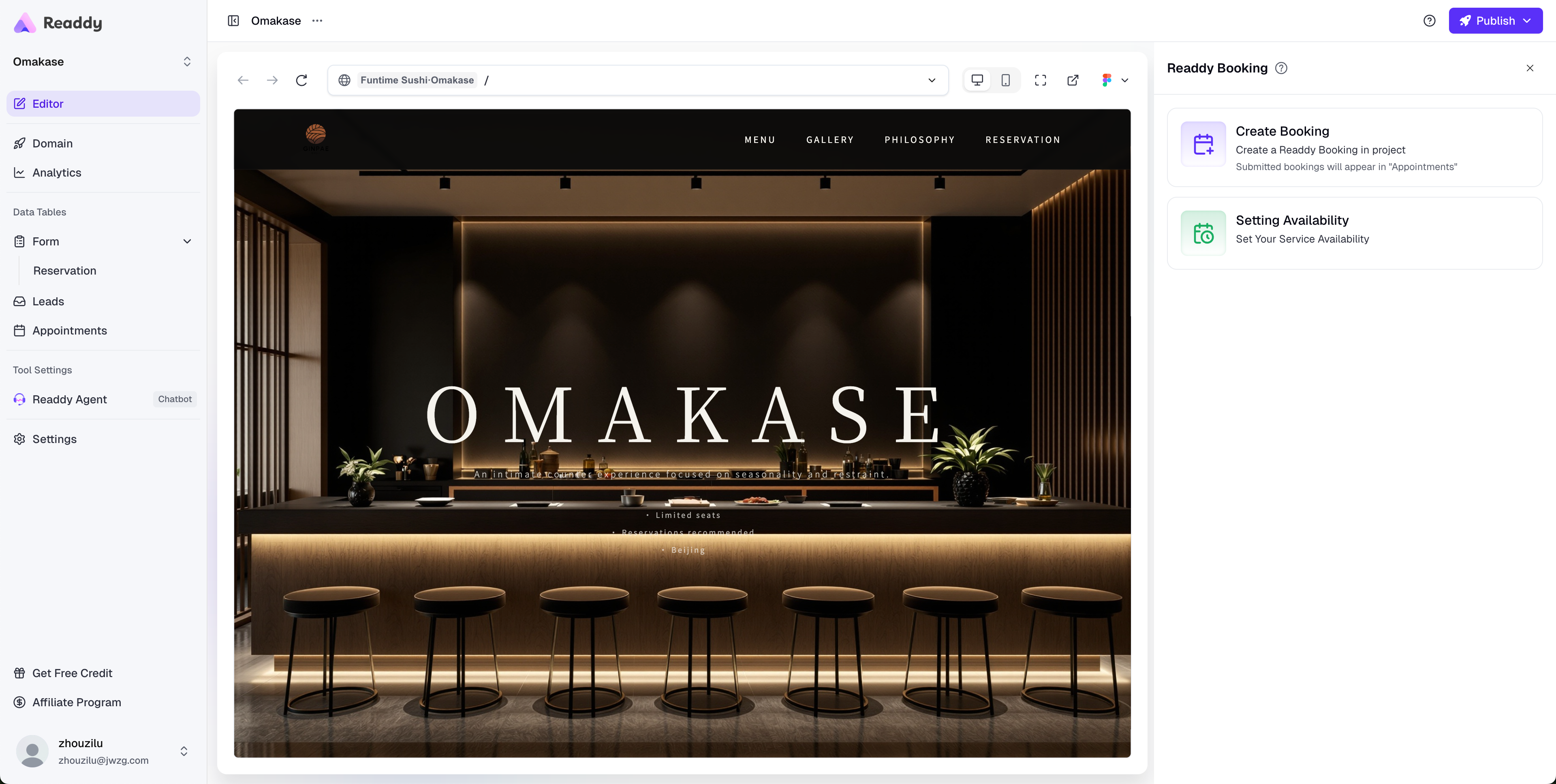
After opening the panel, you'll see two core features:
* **Create Booking**: AI automatically generates a booking component in your project
* **Setting Availability**: Configure your available booking times
**Recommendation**: Complete Setting Availability first, then create the component to ensure users see the correct available times.
### Create Booking Component
Click **Create Booking**, and AI will automatically generate a booking calendar component based on your current page content.
After the component is created:
* Users can book appointments on your website
* Booking data will automatically appear on the Appointments page
* You can customize the component's style, fields, and interactions in the editor
### Configure Availability
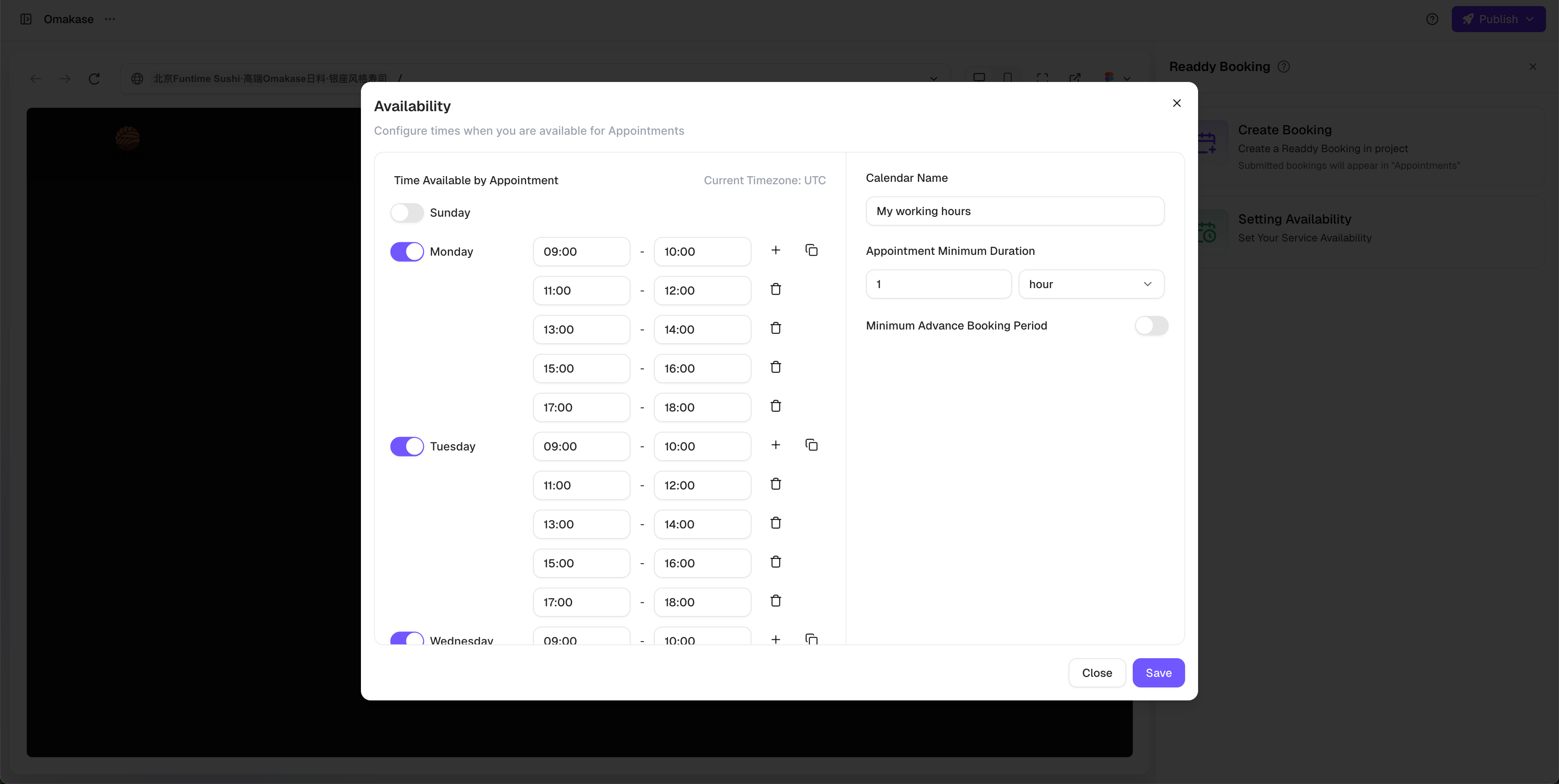
Click **Setting Availability** to set your available dates and time slots.
This setting is shared with Readdy Agent. Modifications in either location will sync in real-time without requiring duplicate configuration.
## View Appointment Information
Appointments submitted by users will automatically appear on the **Appointments** page, where you can view:
* Appointment time
* Information filled in by users
* Related notes and comments
## FAQ
No. After modifying Availability, it will automatically sync without requiring component recreation or publishing a new version.
Yes. Readdy Booking and Readdy Agent use the same Availability configuration, and modifications will sync in real-time.
Yes. After creating the component, you can add more information collection fields in the editor, such as notes, special requirements, etc.
Users can cancel or reschedule appointments by chatting with Readdy Agent. Make sure you have the Agent feature enabled on your website so users can interact with it to manage their bookings.
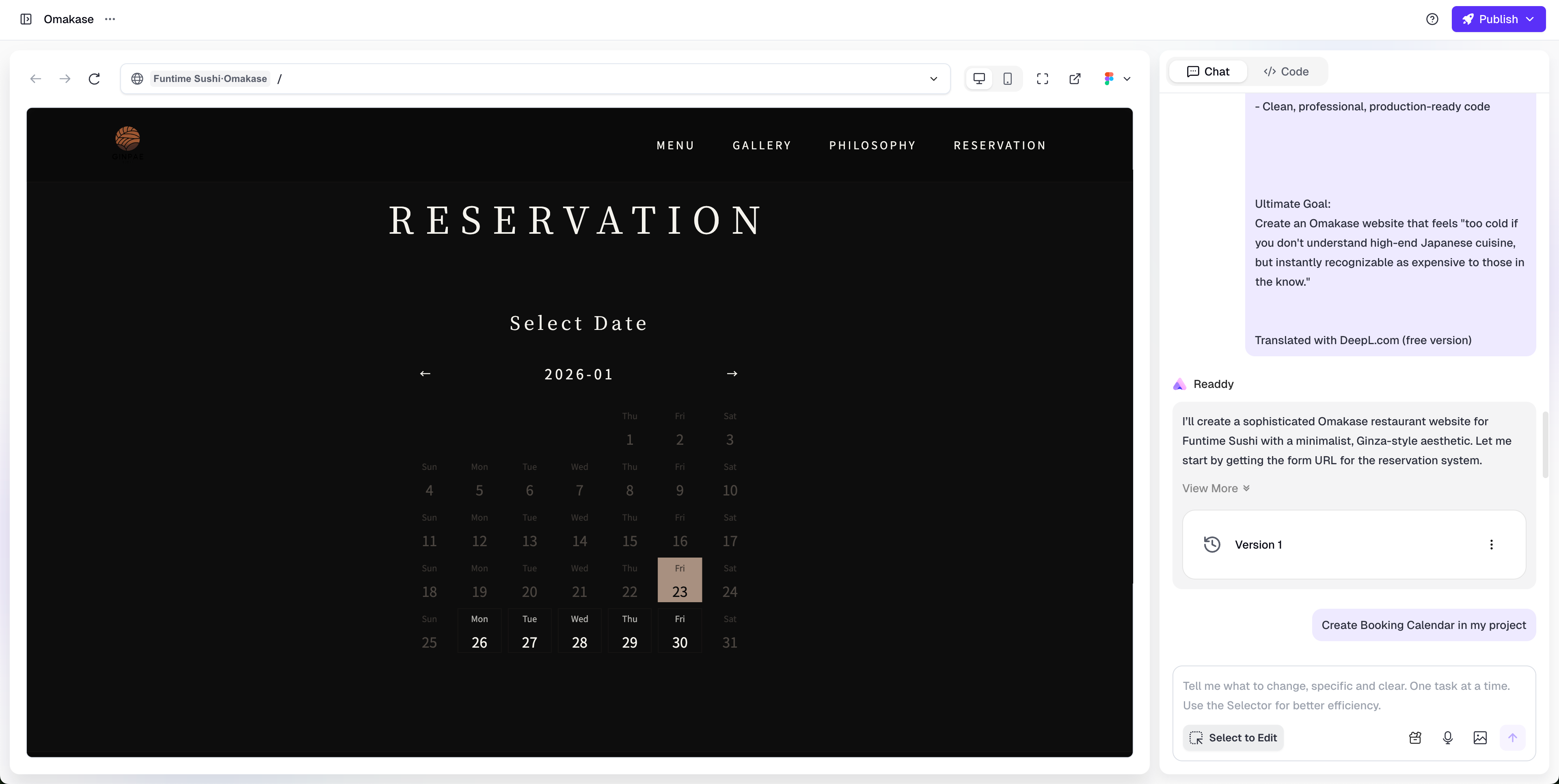 After the component is created:
* Users can book appointments on your website
* Booking data will automatically appear on the Appointments page
* You can customize the component's style, fields, and interactions in the editor
### Configure Availability
Click **Setting Availability** to set your available dates and time slots.
After the component is created:
* Users can book appointments on your website
* Booking data will automatically appear on the Appointments page
* You can customize the component's style, fields, and interactions in the editor
### Configure Availability
Click **Setting Availability** to set your available dates and time slots.