> ## Documentation Index
> Fetch the complete documentation index at: https://docs.readdy.ai/llms.txt
> Use this file to discover all available pages before exploring further.
# PayPal
> Accept PayPal payments on your Readdy website in minutes with AI-powered integration
## How to Integrate PayPal Payment in Your Readdy Website
PayPal is a leading global payment platform supporting 200+ countries and regions, allowing customers to pay securely using their PayPal account or credit card.
**Quick Overview**
With Readdy AI, you can integrate PayPal payments in just a few simple steps:
| Step | Action | Time |
| --------- | --------------------------- | ---------------- |
| 1 | Connect Supabase | 2 minutes |
| 2 | Configure PayPal with AI | 2 minutes |
| 3 | Add credentials to Supabase | 3 minutes |
| 4 | Add payment button | 5 minutes |
| 5 | Test payment | 5 minutes |
| **Total** | | **\~17 minutes** |
**Quick Start Tips**
For beginners:
1. Start with a simple product (one-time payment)
2. Test with a small real transaction (\$1-5)
3. Add subscriptions or multiple products after confirming it works
***
## Prerequisites
**Before You Begin**
Ensure you have:
* [ ] **PayPal Account** - [Create free account](https://www.paypal.com/business) (Business account recommended for live payments)
* [ ] **Readdy Website Project** - Already created in Readdy
* [ ] **React or Next.js Project** - Only these project types are currently supported
* [ ] **Checkout Page or Product Cards** - Your website has product displays or checkout page
> **Why Choose PayPal?**
>
> * **Global Reach**: Accept payments from customers in 200+ countries
> * **Flexible Payment Options**: Customers can pay with credit/debit cards without a PayPal account
> * **Wide Accessibility**: Easy to use in Asia, Latin America, and other regions
> * **Boost Conversion**: Offer multiple payment options to increase sales by 15-30%
***
## Get PayPal API Credentials
1. Visit [https://developer.paypal.com/dashboard/](https://developer.paypal.com/dashboard/)
2. Sign in with your PayPal account
**Account Requirements**
**You must sign in with a Business PayPal account** to accept real payments on your website. [Sign up for free](https://www.paypal.com/business).
Personal PayPal accounts can only access the Sandbox test environment and cannot process live payments.
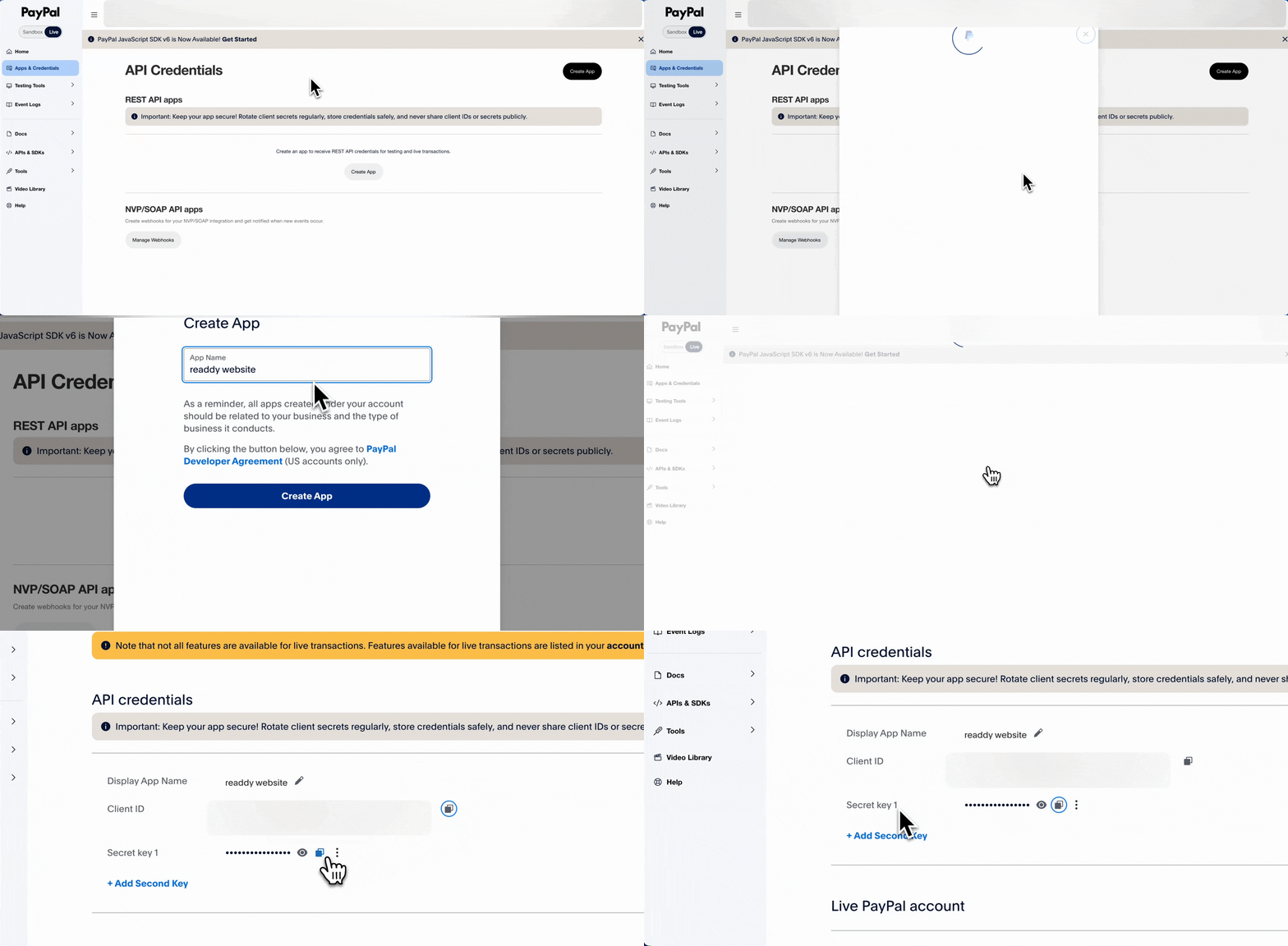
1. In the left menu, click **Apps & Credentials**
2. Click the **Create App** button
3. Enter an app name (e.g., "My Readdy Website")
4. Click **Create App**
You'll see your app details.
**Copy and save the following**:
* ✅ **Client ID**
* ✅ **Client Secret** - Click **Show** button to reveal
 ***
## Integration Steps
### 1. Connect Supabase
PayPal integration requires Supabase for secure credential storage and backend support.
Follow the [Supabase integration guide](/integrations/supabase) to connect your project.
***
### 2. Configure PayPal with AI
Tell AI to configure PayPal for you:
```
Help me set up PayPal payment on my website.
Client ID: YourClientID
Secret: YourSecret
```
AI will automatically:
* ✅ Configure PayPal integration
* ✅ Set up secure credential storage
* ✅ Handle all backend setup
***
## Integration Steps
### 1. Connect Supabase
PayPal integration requires Supabase for secure credential storage and backend support.
Follow the [Supabase integration guide](/integrations/supabase) to connect your project.
***
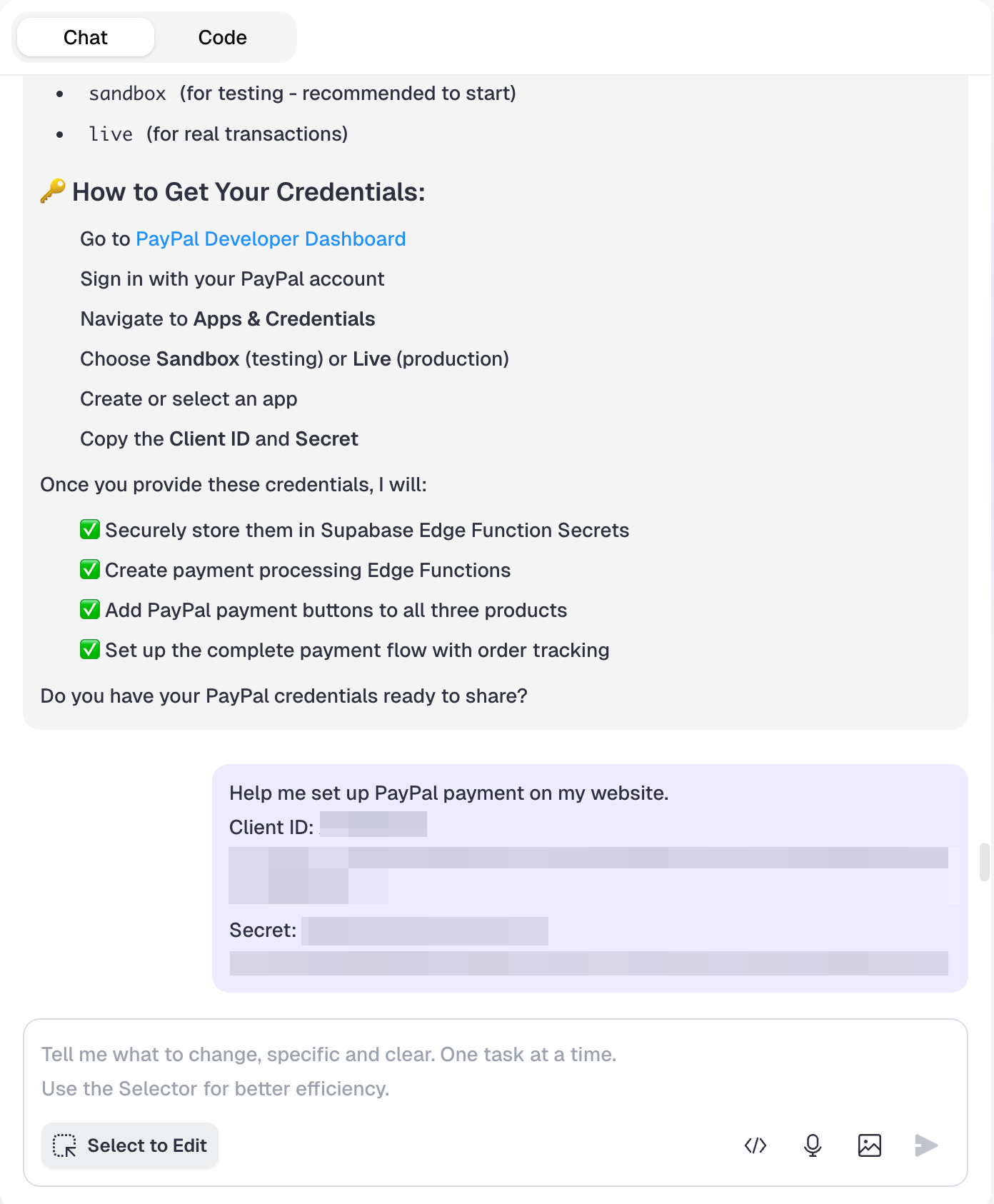
### 2. Configure PayPal with AI
Tell AI to configure PayPal for you:
```
Help me set up PayPal payment on my website.
Client ID: YourClientID
Secret: YourSecret
```
AI will automatically:
* ✅ Configure PayPal integration
* ✅ Set up secure credential storage
* ✅ Handle all backend setup
 ***
### 3. Add PayPal Credentials to Supabase
After AI configures the integration, you need to manually add your PayPal credentials to Supabase:
1. Log in to [Supabase Dashboard](https://supabase.com/dashboard)
2. Select your project
3. Go to **Edge Functions** → **Secrets**
4. Click **Add New Secret** and add the following three secrets:
* **Name**: `PAYPAL_CLIENT_ID`
**Value**: Your PayPal Client ID
* **Name**: `PAYPAL_SECRET`
**Value**: Your PayPal Client Secret
* **Name**: `PAYPAL_MODE`
**Value**: `sandbox` (for testing) or `live` (for production)
***
### 3. Add PayPal Credentials to Supabase
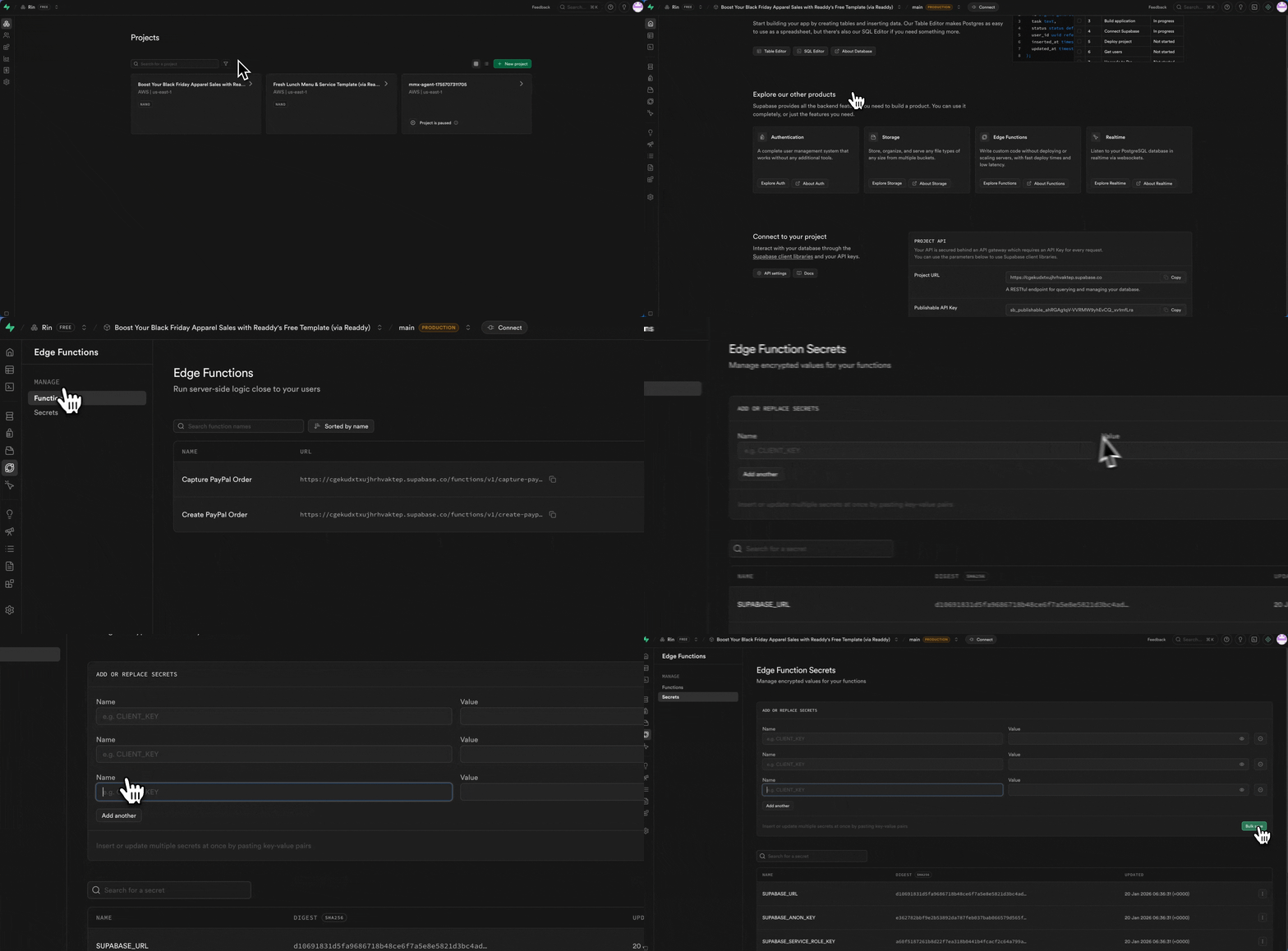
After AI configures the integration, you need to manually add your PayPal credentials to Supabase:
1. Log in to [Supabase Dashboard](https://supabase.com/dashboard)
2. Select your project
3. Go to **Edge Functions** → **Secrets**
4. Click **Add New Secret** and add the following three secrets:
* **Name**: `PAYPAL_CLIENT_ID`
**Value**: Your PayPal Client ID
* **Name**: `PAYPAL_SECRET`
**Value**: Your PayPal Client Secret
* **Name**: `PAYPAL_MODE`
**Value**: `sandbox` (for testing) or `live` (for production)
 **Important Notes - Mode Configuration**
Ensure your PayPal credentials and `PAYPAL_MODE` setting match:
* Sandbox credentials → `PAYPAL_MODE` = `sandbox`
* Live credentials → `PAYPAL_MODE` = `live`
Mismatched modes will cause authentication failures.
**To accept real payments, you MUST use Live Mode.**
***
### 4. Add PayPal Payment Button
Simply tell AI what you need:
**Example 1: Single Product**
```
Add a PayPal payment button for this product:
Product name: Premium Course
Price: $99 one-time payment
```
**Example 2: E-commerce Products**
```
Add PayPal buttons to these products:
- Cotton T-Shirt: $25
- Wireless Headphones: $89
- Smart Watch: $199
```
**Example 3: Subscription**
```
Add PayPal subscription payment:
Plan name: Pro Membership
Price: $19/month with 7-day free trial
```
AI will automatically:
* ✅ Add PayPal button to your products
* ✅ Handle payment processing
* ✅ Set up success/confirmation pages
**Important Notes - Mode Configuration**
Ensure your PayPal credentials and `PAYPAL_MODE` setting match:
* Sandbox credentials → `PAYPAL_MODE` = `sandbox`
* Live credentials → `PAYPAL_MODE` = `live`
Mismatched modes will cause authentication failures.
**To accept real payments, you MUST use Live Mode.**
***
### 4. Add PayPal Payment Button
Simply tell AI what you need:
**Example 1: Single Product**
```
Add a PayPal payment button for this product:
Product name: Premium Course
Price: $99 one-time payment
```
**Example 2: E-commerce Products**
```
Add PayPal buttons to these products:
- Cotton T-Shirt: $25
- Wireless Headphones: $89
- Smart Watch: $199
```
**Example 3: Subscription**
```
Add PayPal subscription payment:
Plan name: Pro Membership
Price: $19/month with 7-day free trial
```
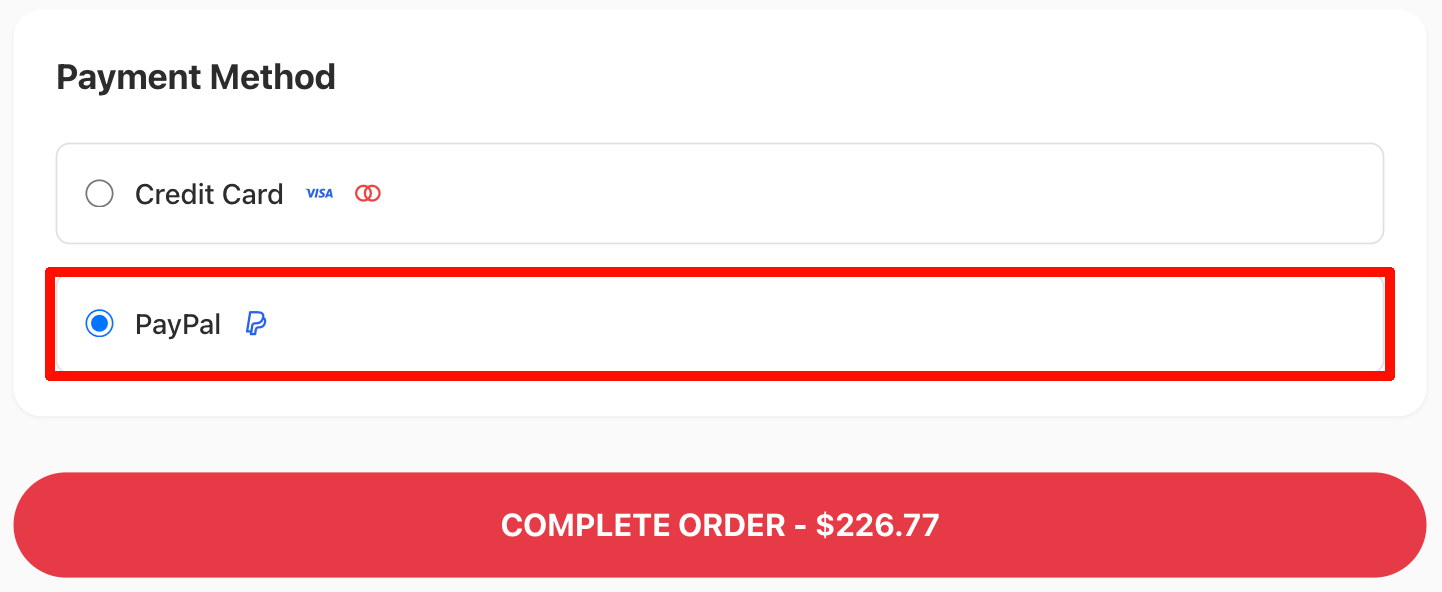
AI will automatically:
* ✅ Add PayPal button to your products
* ✅ Handle payment processing
* ✅ Set up success/confirmation pages
 **Success Indicators**
* [ ] PayPal button appears on your page
* [ ] Clicking opens PayPal payment page
✅ Ready to test!
***
### 5. Test Your Payment
**Ready to Test?**
You can test PayPal payment directly in the Readdy Preview Frame:
1. Click the PayPal button on your product/page
2. Complete the payment
3. Verify everything works correctly
**Quick Test Tips**
* Start with a low-priced product (\$1-5) for testing
* You can refund test transactions if needed
* PayPal's official recommendation: test with small real transactions
✅ That's it!
**Need Sandbox Testing?**
If you prefer to test with virtual money, refer to:
* [PayPal Official Testing Documentation](https://developer.paypal.com/docs/subscriptions/test-subscriptions/)
* [PayPal Developer Dashboard](https://developer.paypal.com/dashboard/)
***
## FAQ
Yes! We recommend using both to let customers choose their payment method.
This can increase conversion by 15-30%.
Follow these troubleshooting steps:
1. **Verify Your PayPal Credentials**
* Confirm your Client ID and Secret are correct
2. **Check Supabase Configuration**
* Review the three PayPal secrets in Supabase (Step 3 above)
* Check for extra spaces or typos in the values
* Ensure `PAYPAL_MODE` matches your credential type (sandbox/live)
3. **Ask Readdy AI for Help**
* Describe the issue in the chat
* AI can help diagnose and fix configuration problems
4. **Contact Support**
* [Submit a support ticket](https://readdy.ai/feedback) if the issue persists
No!
Customers can choose:
* Pay with PayPal account
* Pay with credit/debit card (no PayPal registration required)
This makes PayPal friendly to non-PayPal users.
You need a Business PayPal account to accept real payments on your website. [Sign up for free](https://www.paypal.com/business).
**Personal vs Business Accounts**:
* Personal accounts can only access the Sandbox (test environment)
* Business accounts can access both Sandbox and Live production environments
***
## Need Help?
### Contact Support
* 💬 **Ask AI**: Available in your project
* 📧 **Readdy Support**: [Submit a support ticket](https://readdy.ai/feedback)
### PayPal Resources
* 🔧 **PayPal Developer Support**: [Contact Support](https://developer.paypal.com/docs/support/)
***
**Good luck with your PayPal integration!** 🎉
**Success Indicators**
* [ ] PayPal button appears on your page
* [ ] Clicking opens PayPal payment page
✅ Ready to test!
***
### 5. Test Your Payment
**Ready to Test?**
You can test PayPal payment directly in the Readdy Preview Frame:
1. Click the PayPal button on your product/page
2. Complete the payment
3. Verify everything works correctly
**Quick Test Tips**
* Start with a low-priced product (\$1-5) for testing
* You can refund test transactions if needed
* PayPal's official recommendation: test with small real transactions
✅ That's it!
**Need Sandbox Testing?**
If you prefer to test with virtual money, refer to:
* [PayPal Official Testing Documentation](https://developer.paypal.com/docs/subscriptions/test-subscriptions/)
* [PayPal Developer Dashboard](https://developer.paypal.com/dashboard/)
***
## FAQ
Yes! We recommend using both to let customers choose their payment method.
This can increase conversion by 15-30%.
Follow these troubleshooting steps:
1. **Verify Your PayPal Credentials**
* Confirm your Client ID and Secret are correct
2. **Check Supabase Configuration**
* Review the three PayPal secrets in Supabase (Step 3 above)
* Check for extra spaces or typos in the values
* Ensure `PAYPAL_MODE` matches your credential type (sandbox/live)
3. **Ask Readdy AI for Help**
* Describe the issue in the chat
* AI can help diagnose and fix configuration problems
4. **Contact Support**
* [Submit a support ticket](https://readdy.ai/feedback) if the issue persists
No!
Customers can choose:
* Pay with PayPal account
* Pay with credit/debit card (no PayPal registration required)
This makes PayPal friendly to non-PayPal users.
You need a Business PayPal account to accept real payments on your website. [Sign up for free](https://www.paypal.com/business).
**Personal vs Business Accounts**:
* Personal accounts can only access the Sandbox (test environment)
* Business accounts can access both Sandbox and Live production environments
***
## Need Help?
### Contact Support
* 💬 **Ask AI**: Available in your project
* 📧 **Readdy Support**: [Submit a support ticket](https://readdy.ai/feedback)
### PayPal Resources
* 🔧 **PayPal Developer Support**: [Contact Support](https://developer.paypal.com/docs/support/)
***
**Good luck with your PayPal integration!** 🎉