> ## Documentation Index
> Fetch the complete documentation index at: https://docs.readdy.ai/llms.txt
> Use this file to discover all available pages before exploring further.
# AI Social Posts
> Plan, schedule, and track a week of social media posts from your website
AI Social Posts helps you keep your business visible on social media without writing every post manually. Readdy reads your website, suggests weekly topics, drafts posts for Facebook, Instagram, X, and LinkedIn, and lines them up at recommended times.
With AI Social Posts, you can:
* **Plan a full week with AI**: Generate 5 topic ideas and turn them into a week of ready-to-review posts
* **Use AI-recommended publish times**: Line up posts at suggested times throughout the week
* **Publish to 4 platforms in one click**: Automatically publish platform-ready captions and images to Facebook, Instagram, X, and LinkedIn
* **Track post performance after publishing**: Review delivery, impressions, likes, comments, and website visitors in Sent
## How It Works
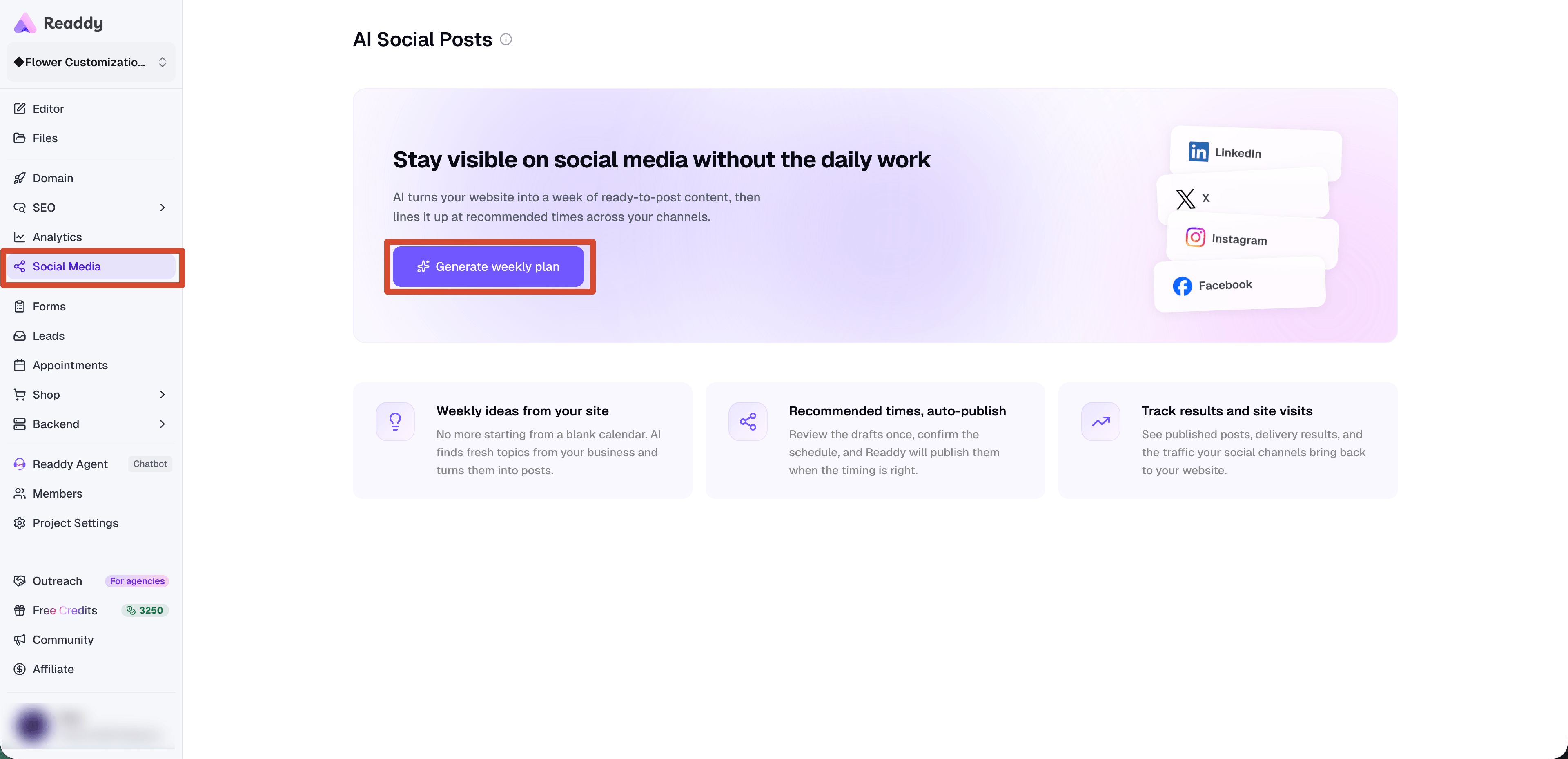
From the left sidebar, click **AI Social Posts**.
If you see the setup screen, click **"Generate weekly plan"**. If you already have posts, you will land in **Upcoming**, where you can review this week's drafts and scheduled posts.
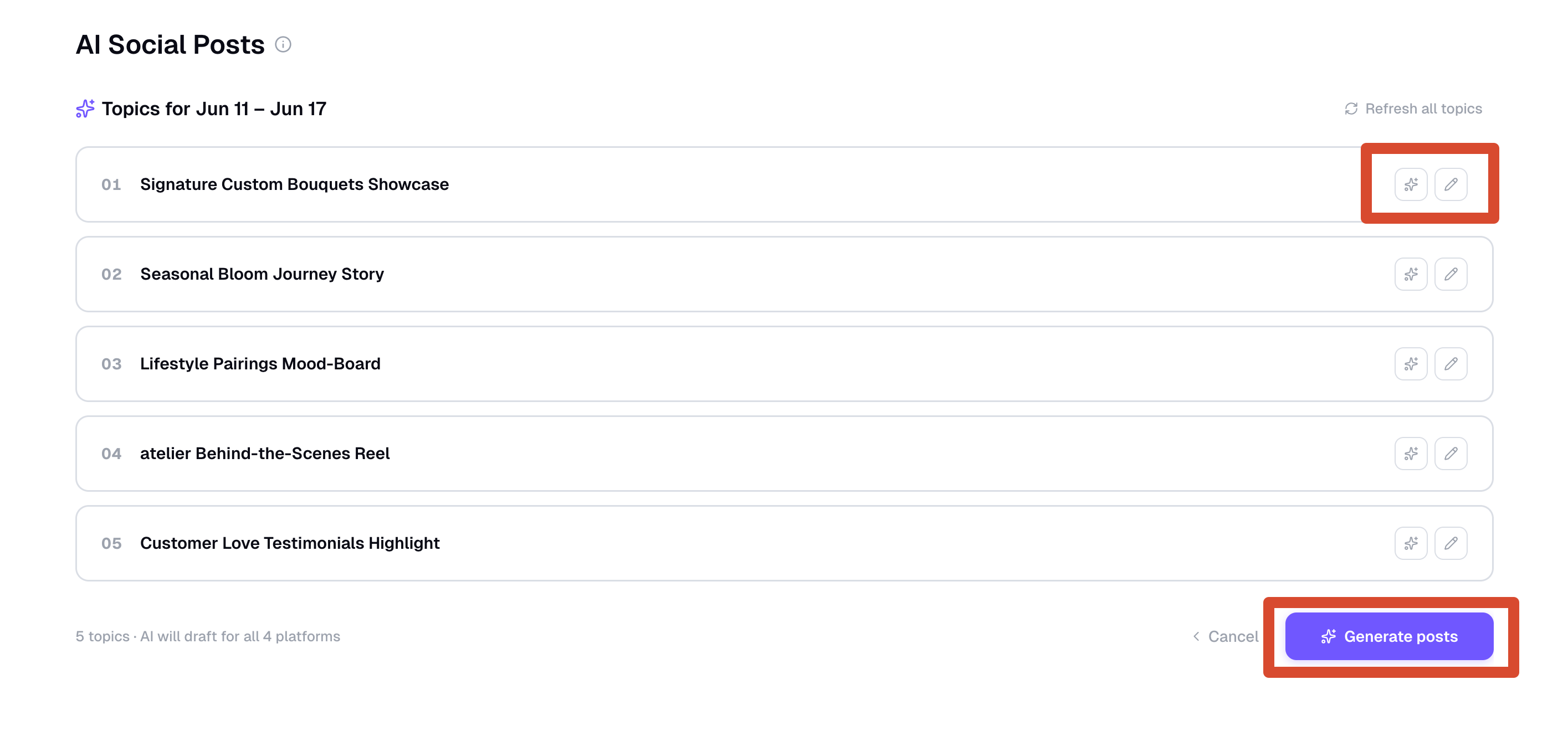
 Readdy's AI Planner suggests 5 topics for the selected week.
You can:
* Click **"Refresh all topics"** to replace the full set
* Regenerate a single topic
* Optionally edit a topic before generating posts
* Click **"Generate posts"** when the topics look right
Readdy's AI Planner suggests 5 topics for the selected week.
You can:
* Click **"Refresh all topics"** to replace the full set
* Regenerate a single topic
* Optionally edit a topic before generating posts
* Click **"Generate posts"** when the topics look right
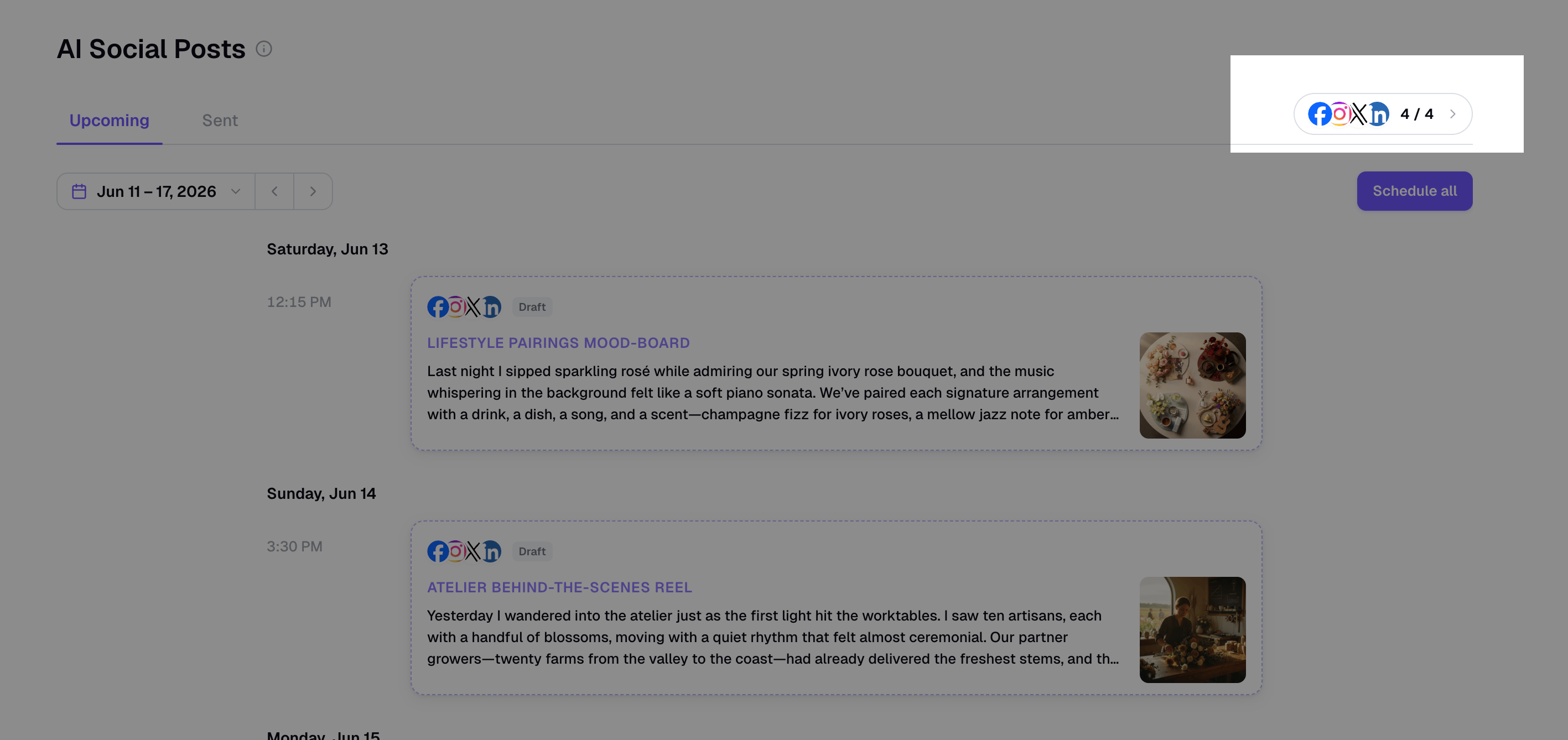
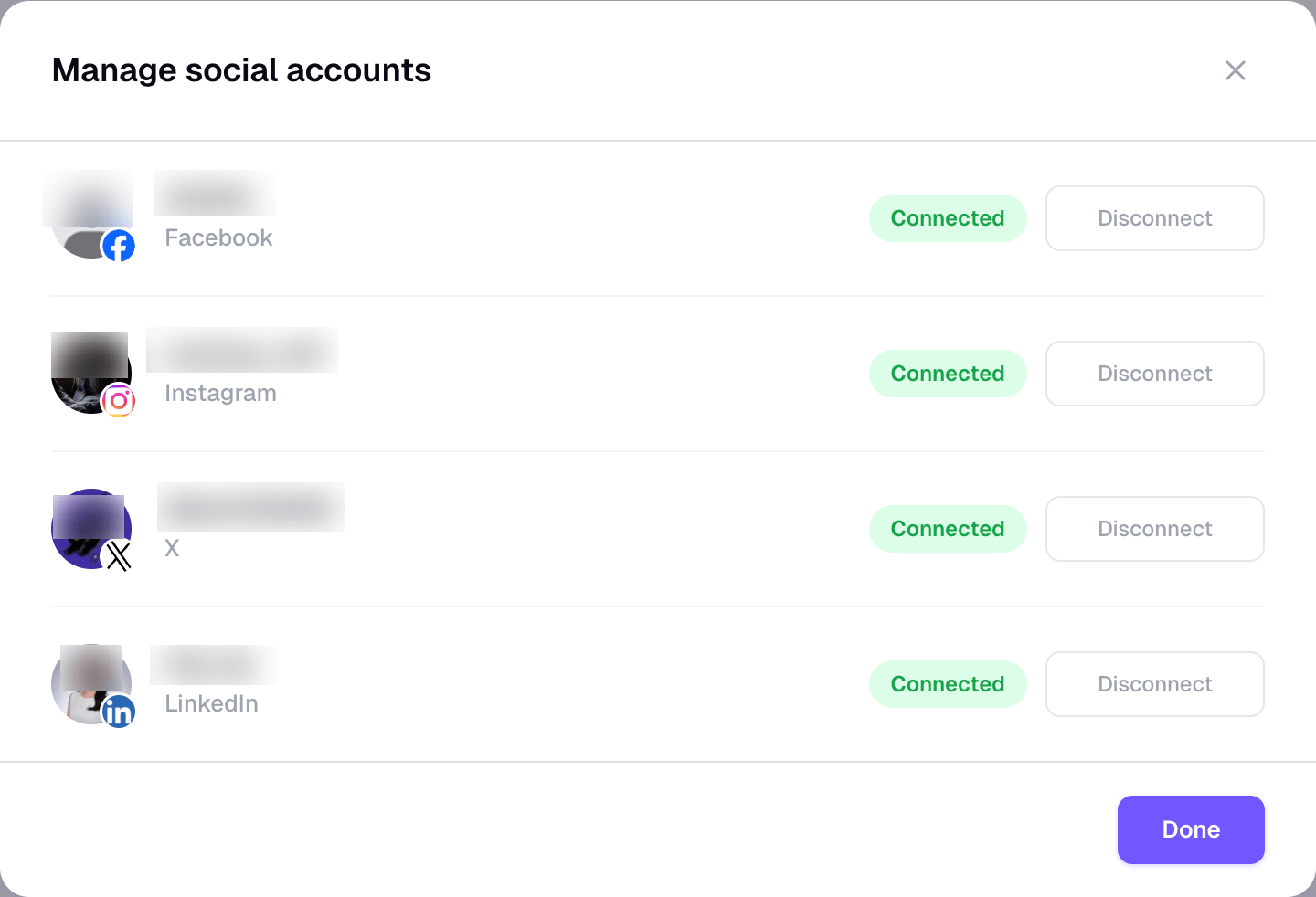
 Open **Manage Accounts** from the social accounts area to connect or disconnect platforms.
If the project has no connected social platforms yet, connect at least one platform before viewing the generated weekly posts.
Open **Manage Accounts** from the social accounts area to connect or disconnect platforms.
If the project has no connected social platforms yet, connect at least one platform before viewing the generated weekly posts.
 * **Supported platforms**: Facebook, Instagram, X, and LinkedIn
* **Who can manage accounts**: Project **Owners** and **Editors** can connect, disconnect, publish, schedule, and retry. **Viewers** can only view available post content.
* **Expired connections**: If a token expires, the account shows as needing reconnect. Reconnect it before publishing or retrying that platform.
* **Disconnecting**: Removing an account revokes Readdy's posting access for that platform. You can reconnect later.
Readdy creates captions, images, and recommended publish times for the week.
Each topic becomes one post card in **Upcoming**. A card can include versions for Facebook, Instagram, X, and LinkedIn, depending on which accounts are connected and which platform content is available.
* **Supported platforms**: Facebook, Instagram, X, and LinkedIn
* **Who can manage accounts**: Project **Owners** and **Editors** can connect, disconnect, publish, schedule, and retry. **Viewers** can only view available post content.
* **Expired connections**: If a token expires, the account shows as needing reconnect. Reconnect it before publishing or retrying that platform.
* **Disconnecting**: Removing an account revokes Readdy's posting access for that platform. You can reconnect later.
Readdy creates captions, images, and recommended publish times for the week.
Each topic becomes one post card in **Upcoming**. A card can include versions for Facebook, Instagram, X, and LinkedIn, depending on which accounts are connected and which platform content is available.
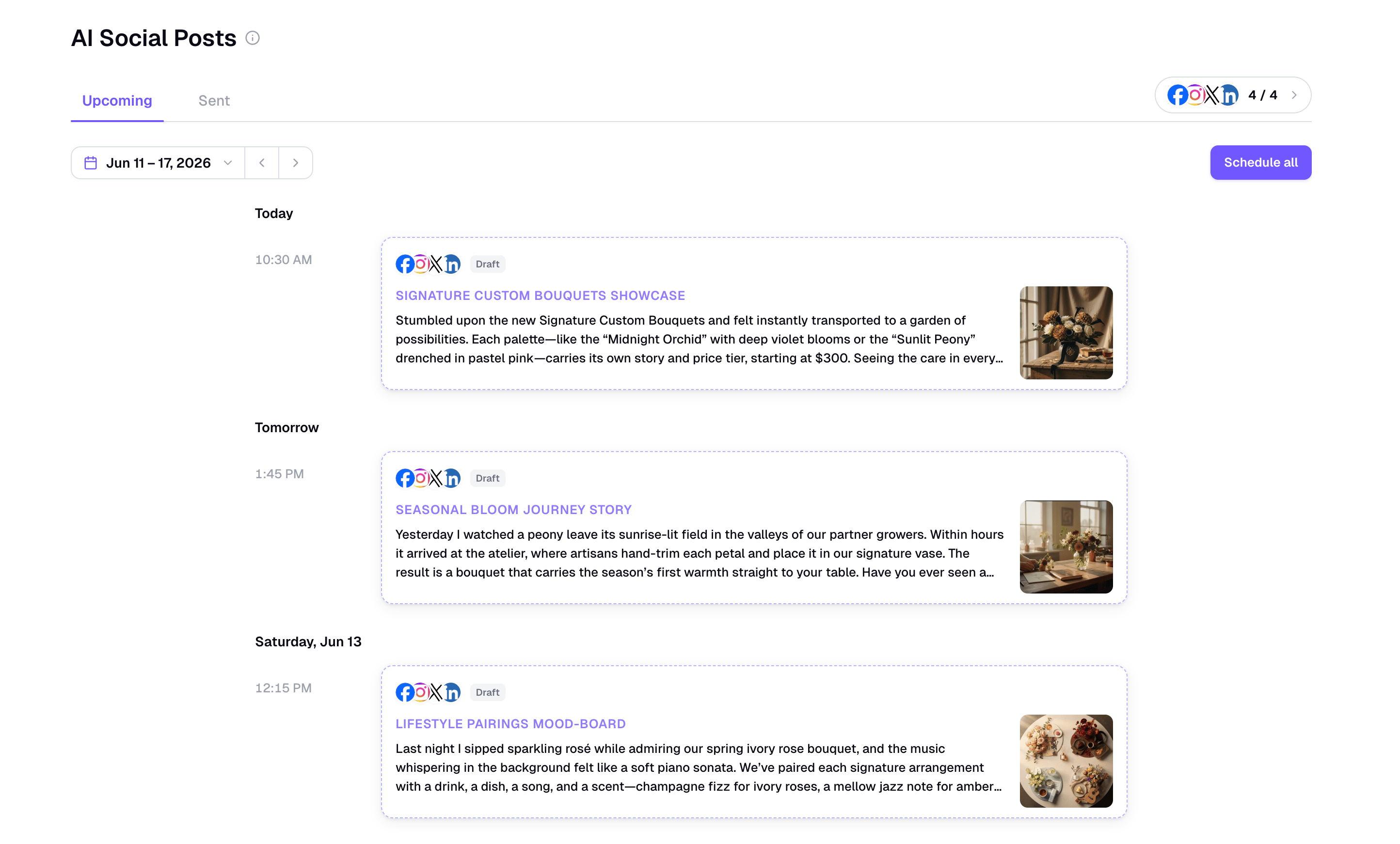 **Upcoming** is your planning workspace for future posts.
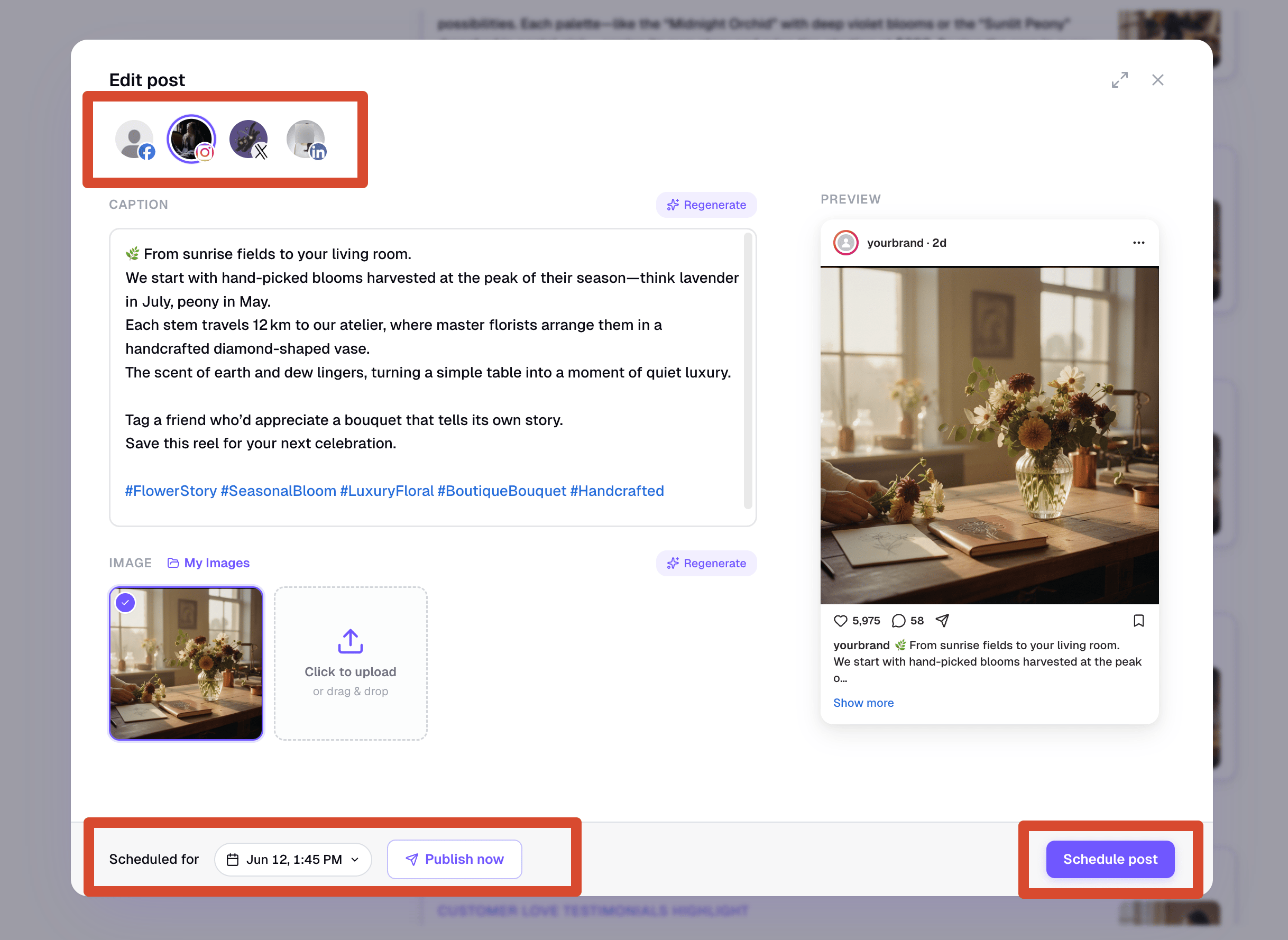
Open any draft to edit:
* Caption text
* Image
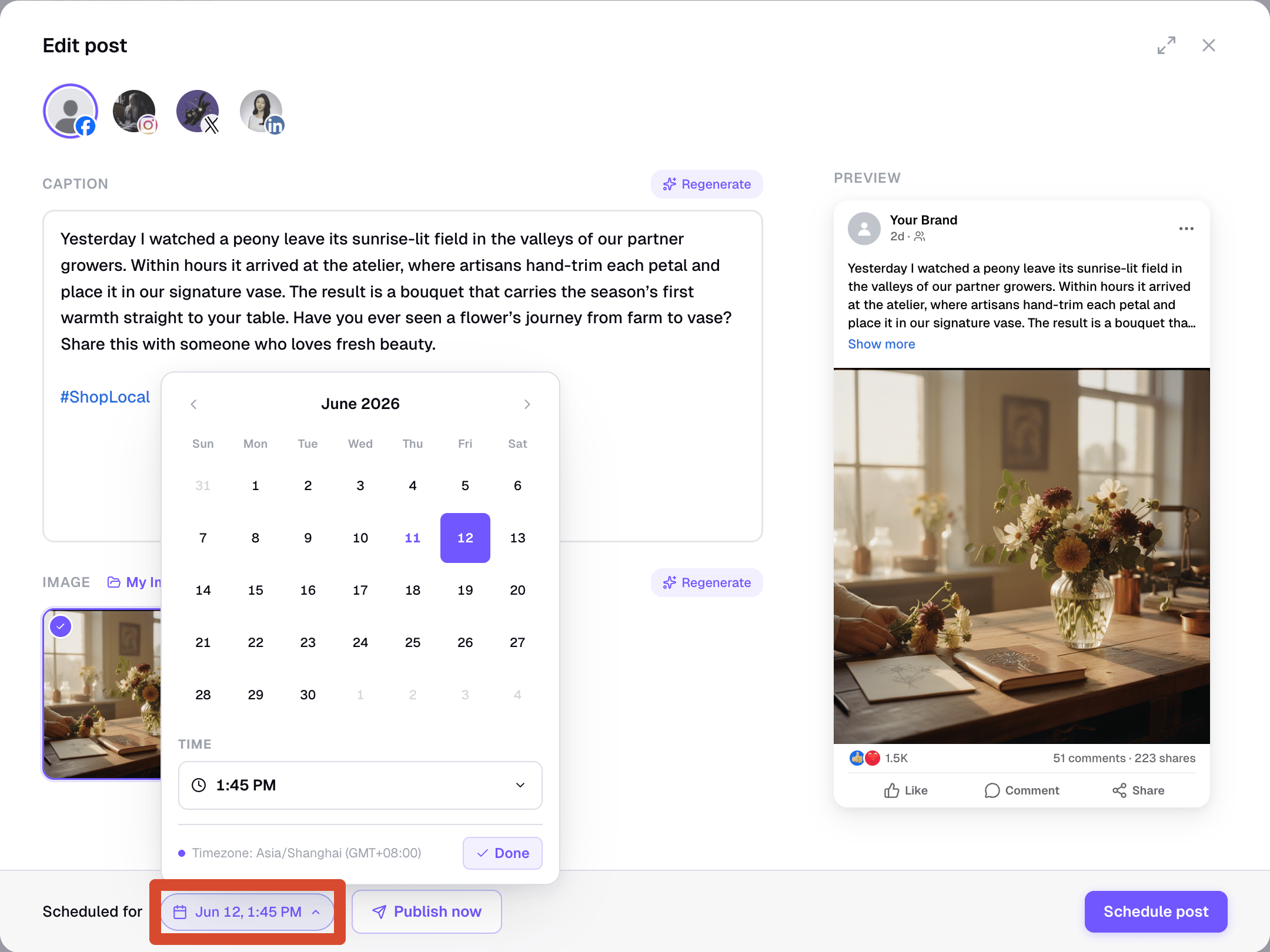
* Publish date and time
* Platform-specific content
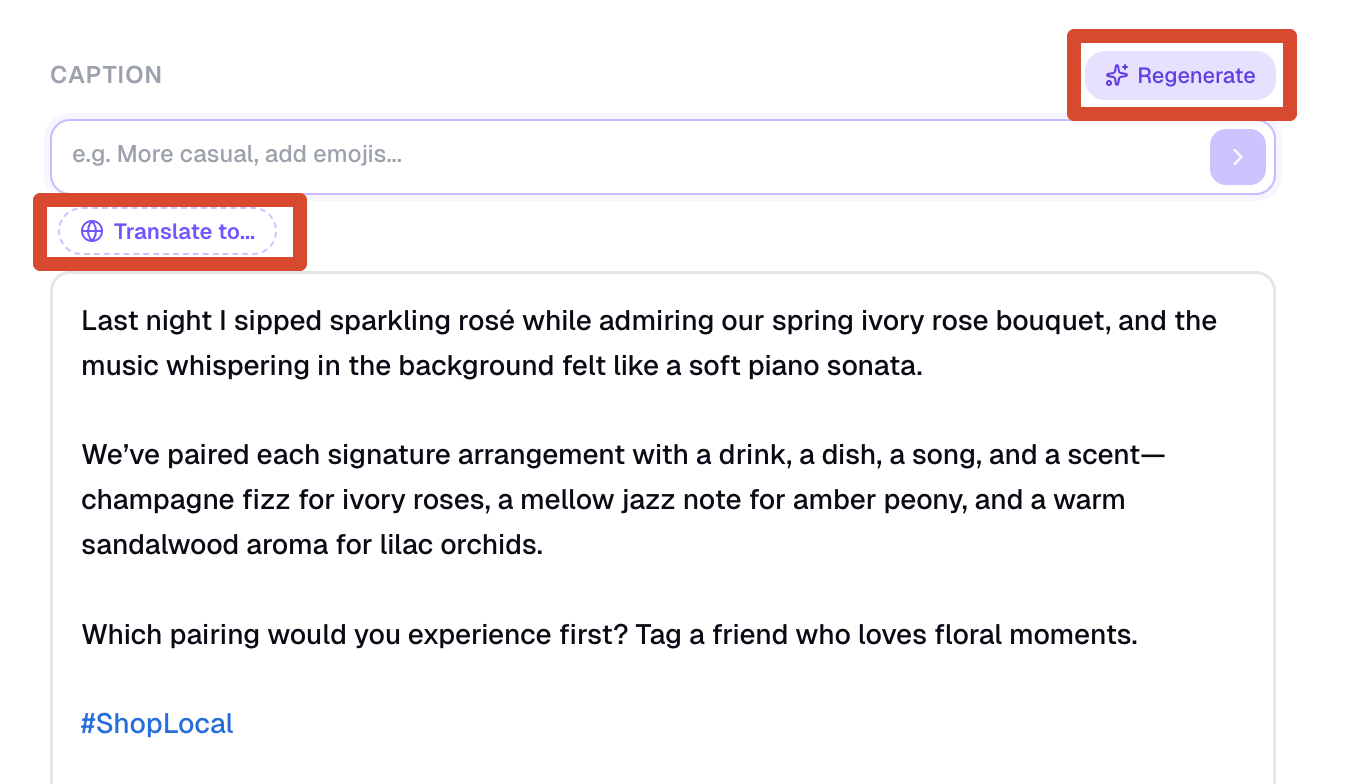
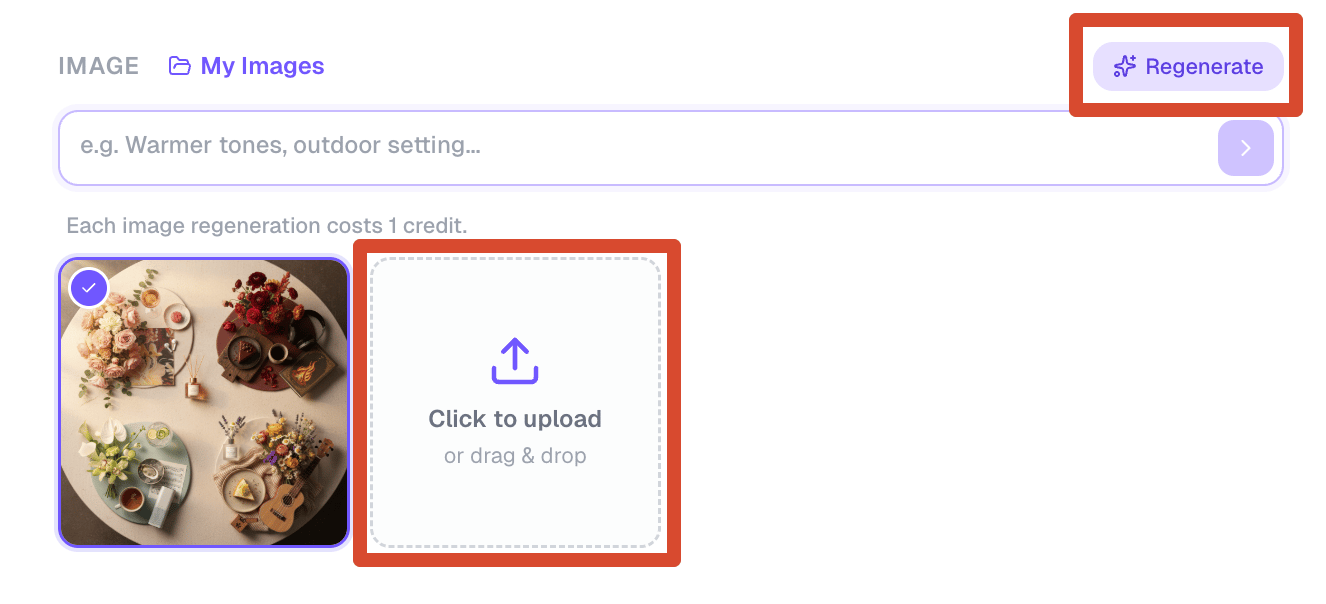
To refine generated content, enter a short instruction and click **"Regenerate"**. For captions, you can ask Readdy to change the tone, add details, or translate the copy. For images, you can regenerate with a new visual direction or upload your own image.
When a draft is ready, click **"Schedule post"** in the edit window. To confirm all remaining drafts for the week, use **"Schedule all"**.
If you want to send a post immediately, use **"Publish now"**.
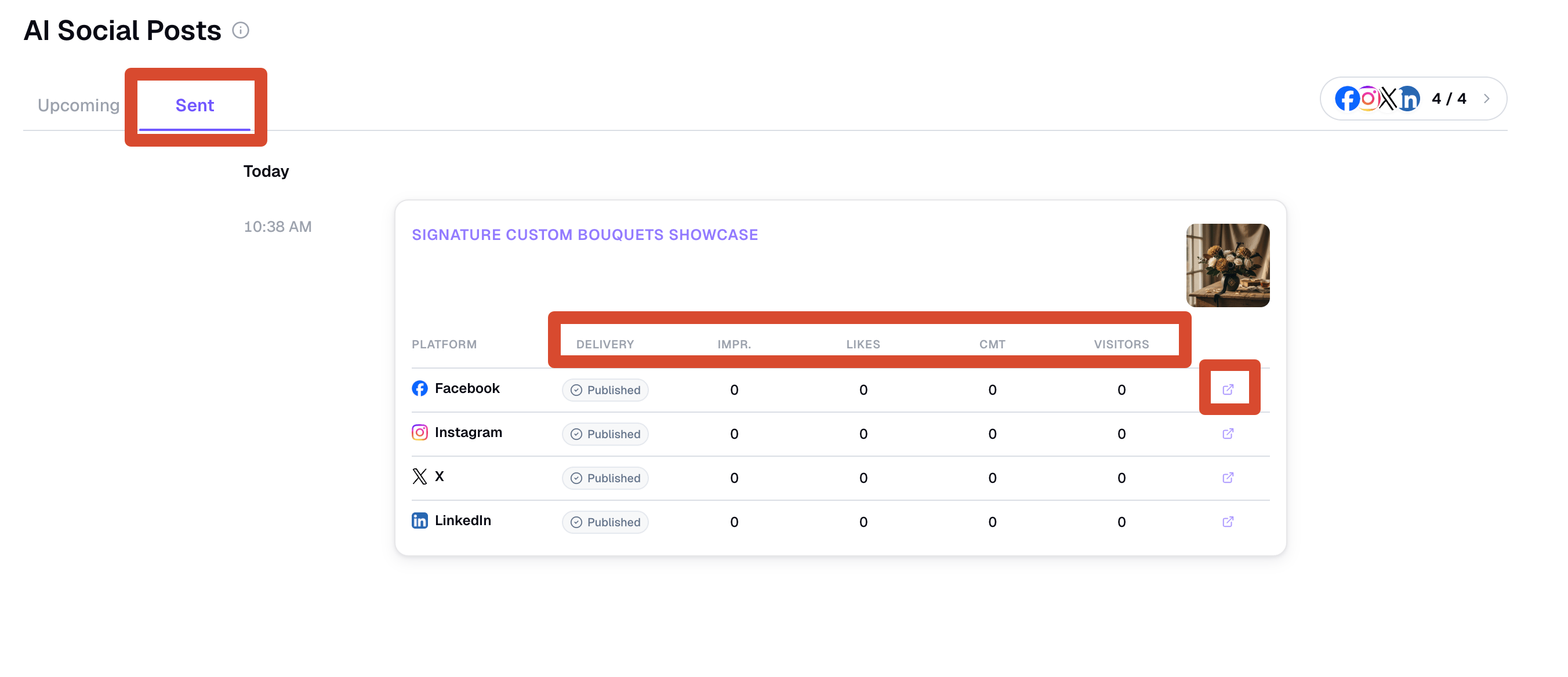
**Sent** shows posts that have been published, are being delivered, or have already reached their scheduled publish time.
For each platform, you can see delivery status such as **Pending**, **Published**, or **Failed**. If a platform fails, use **"Edit & Retry"** or **"Reconnect & Retry"** to fix the issue and publish again.
**Upcoming** is your planning workspace for future posts.
Open any draft to edit:
* Caption text
* Image
* Publish date and time
* Platform-specific content
To refine generated content, enter a short instruction and click **"Regenerate"**. For captions, you can ask Readdy to change the tone, add details, or translate the copy. For images, you can regenerate with a new visual direction or upload your own image.
When a draft is ready, click **"Schedule post"** in the edit window. To confirm all remaining drafts for the week, use **"Schedule all"**.
If you want to send a post immediately, use **"Publish now"**.
**Sent** shows posts that have been published, are being delivered, or have already reached their scheduled publish time.
For each platform, you can see delivery status such as **Pending**, **Published**, or **Failed**. If a platform fails, use **"Edit & Retry"** or **"Reconnect & Retry"** to fix the issue and publish again.
 ## Platform Specifications
Captions are tailored for each platform and follow platform limits.
| Platform | Character Limit |
| --------- | ----------------- |
| Facebook | 63,206 characters |
| Instagram | 2,200 characters |
| X | 280 characters |
| LinkedIn | 3,000 characters |
Images should use a platform-supported ratio. If an uploaded image ratio is unsupported, Readdy will ask you to choose another image.
## Delivery Statuses
Readdy tracks delivery per platform.
| Status | Meaning |
| ------------- | --------------------------------------------------------------------------------------------- |
| **Pending** | Readdy has started or queued the delivery, but the final platform result is not available yet |
| **Published** | The platform accepted and published the post |
| **Failed** | The platform rejected the post or the account needs attention |
Post captions and images must follow each platform's content and community guidelines. Posts that violate platform rules may fail to publish.
A post can be partially successful. For example, Facebook and LinkedIn can publish while Instagram fails. In that case, Sent keeps the successful platforms and lets you retry only the failed one.
## Sent Metrics
Sent cards show delivery and performance metrics for each platform row.
| Metric | Meaning |
| ------------ | ------------------------------------------------------------------------- |
| **Delivery** | Whether that platform is still pending, published successfully, or failed |
| **Impr.** | Impressions reported for the post on that social platform |
| **Likes** | Likes or reactions reported by the platform |
| **CMT** | Comments reported by the platform |
| **Visitors** | Website visitors Readdy can attribute to that post and platform |
**Visitors** measures traffic back to your published website from the social post. It is different from platform impressions, likes, comments, or total website traffic. Visitor tracking requires **Web analytics** to be enabled in **Project Settings**; if it is turned off, Readdy cannot collect this data.
Metrics may take time to update after a post is published. A value can stay at **0** if the platform has not returned engagement data yet, no one has clicked through to your site, or the post was published without a trackable link.
## FAQ
No. Drafts do not go live until you confirm them. Use **"Schedule post"**, **"Schedule all"**, or **"Publish now"** when you are ready.
Yes. Use **"Publish now"** from a post card or the edit window to send the post immediately.
Yes. In the edit window, you can upload an image or choose an image from your project files, as long as the image ratio is supported.
Sent shows delivery results per platform. Successful platforms stay published, and failed platforms can be retried after you fix the issue.
Pending means Readdy is waiting for the final platform result. Refresh Sent later, or wait for the delivery status to update.
When you connect an account, Readdy receives a standard OAuth token that lets it post on your behalf to the platform you connected. Readdy only uses it for posts you choose to publish or schedule. You can disconnect at any time from **Manage Accounts**.
If you are collaborating on a project as a **Viewer**, you can view generated posts but cannot publish, schedule, retry, regenerate, or manage accounts. Ask the project owner to change your role to **Editor** or **Owner**.
## Need Help?
If this guide doesn't resolve your issue, [submit a support ticket](https://readdy.ai/feedback). We're here to help!
## Platform Specifications
Captions are tailored for each platform and follow platform limits.
| Platform | Character Limit |
| --------- | ----------------- |
| Facebook | 63,206 characters |
| Instagram | 2,200 characters |
| X | 280 characters |
| LinkedIn | 3,000 characters |
Images should use a platform-supported ratio. If an uploaded image ratio is unsupported, Readdy will ask you to choose another image.
## Delivery Statuses
Readdy tracks delivery per platform.
| Status | Meaning |
| ------------- | --------------------------------------------------------------------------------------------- |
| **Pending** | Readdy has started or queued the delivery, but the final platform result is not available yet |
| **Published** | The platform accepted and published the post |
| **Failed** | The platform rejected the post or the account needs attention |
Post captions and images must follow each platform's content and community guidelines. Posts that violate platform rules may fail to publish.
A post can be partially successful. For example, Facebook and LinkedIn can publish while Instagram fails. In that case, Sent keeps the successful platforms and lets you retry only the failed one.
## Sent Metrics
Sent cards show delivery and performance metrics for each platform row.
| Metric | Meaning |
| ------------ | ------------------------------------------------------------------------- |
| **Delivery** | Whether that platform is still pending, published successfully, or failed |
| **Impr.** | Impressions reported for the post on that social platform |
| **Likes** | Likes or reactions reported by the platform |
| **CMT** | Comments reported by the platform |
| **Visitors** | Website visitors Readdy can attribute to that post and platform |
**Visitors** measures traffic back to your published website from the social post. It is different from platform impressions, likes, comments, or total website traffic. Visitor tracking requires **Web analytics** to be enabled in **Project Settings**; if it is turned off, Readdy cannot collect this data.
Metrics may take time to update after a post is published. A value can stay at **0** if the platform has not returned engagement data yet, no one has clicked through to your site, or the post was published without a trackable link.
## FAQ
No. Drafts do not go live until you confirm them. Use **"Schedule post"**, **"Schedule all"**, or **"Publish now"** when you are ready.
Yes. Use **"Publish now"** from a post card or the edit window to send the post immediately.
Yes. In the edit window, you can upload an image or choose an image from your project files, as long as the image ratio is supported.
Sent shows delivery results per platform. Successful platforms stay published, and failed platforms can be retried after you fix the issue.
Pending means Readdy is waiting for the final platform result. Refresh Sent later, or wait for the delivery status to update.
When you connect an account, Readdy receives a standard OAuth token that lets it post on your behalf to the platform you connected. Readdy only uses it for posts you choose to publish or schedule. You can disconnect at any time from **Manage Accounts**.
If you are collaborating on a project as a **Viewer**, you can view generated posts but cannot publish, schedule, retry, regenerate, or manage accounts. Ask the project owner to change your role to **Editor** or **Owner**.
## Need Help?
If this guide doesn't resolve your issue, [submit a support ticket](https://readdy.ai/feedback). We're here to help!